To remove the AI features on Windows 11, uninstall the Copilot app, remove the Recall optional feature, turn off Click to Do, and switch off the AI tools inside Notepad, Paint and Microsoft 365 apps.
This guide covers each feature with the Settings route for home users, the Group Policy and registry values Microsoft documents for Pro and business PCs, and how to undo every change.
Remove all AI features on Windows 11
Windows 11 has no single switch that turns off every AI feature. Each one lives in its own app or setting, so removal is a short sequence of separate changes.
Recall and Click to Do exist only on Copilot+ PCs. If your PC is not a Copilot+ PC, skip those two steps.
- Open Settings > Apps > Installed apps, find Copilot, select the three dots next to it and choose Uninstall.
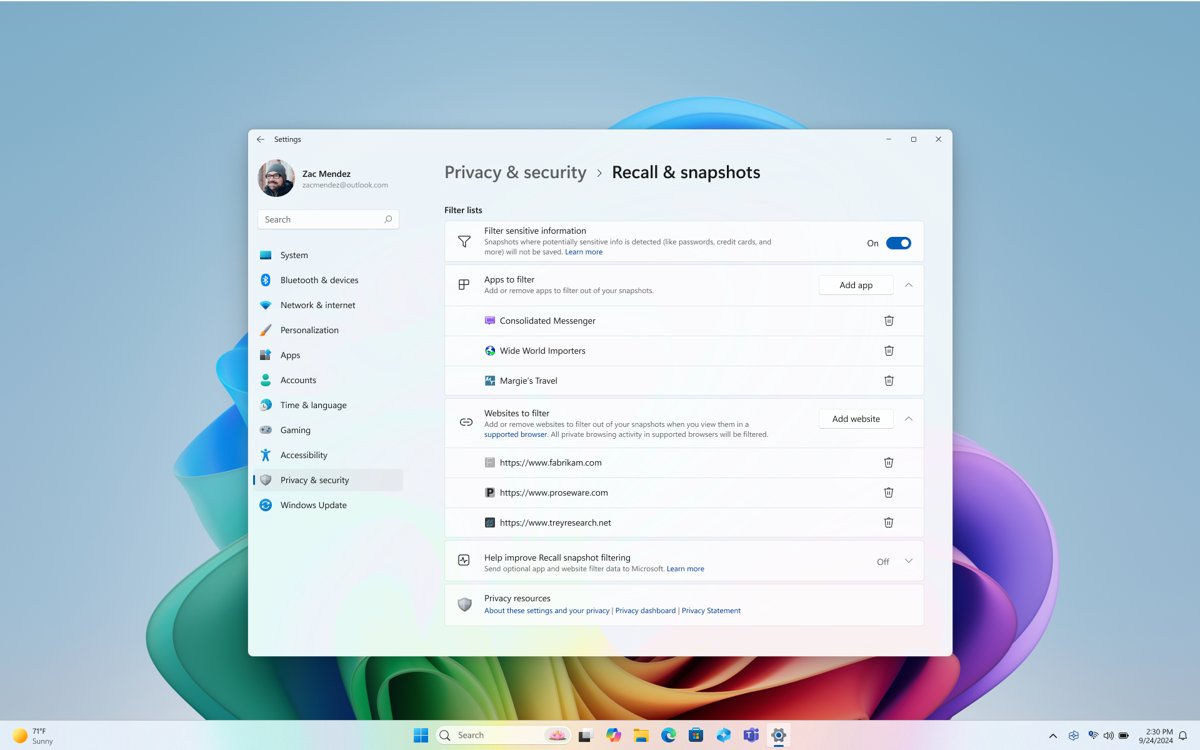
- On a Copilot+ PC, open Settings > Privacy & security > Recall & snapshots and switch Save snapshots to Off, then delete your saved snapshots on the same page.
- Search the Start menu for Turn Windows features on or off, clear the Recall check box, select OK and restart the PC.
- Open Settings > Privacy & security > Click to Do and turn Click to Do to Off.
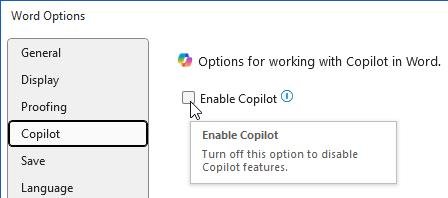
- In Word, Excel, PowerPoint and OneNote, open File > Options > Copilot, clear Enable Copilot and select OK.
- Open Notepad settings and turn off the AI features, which include Rewrite and Summarize.
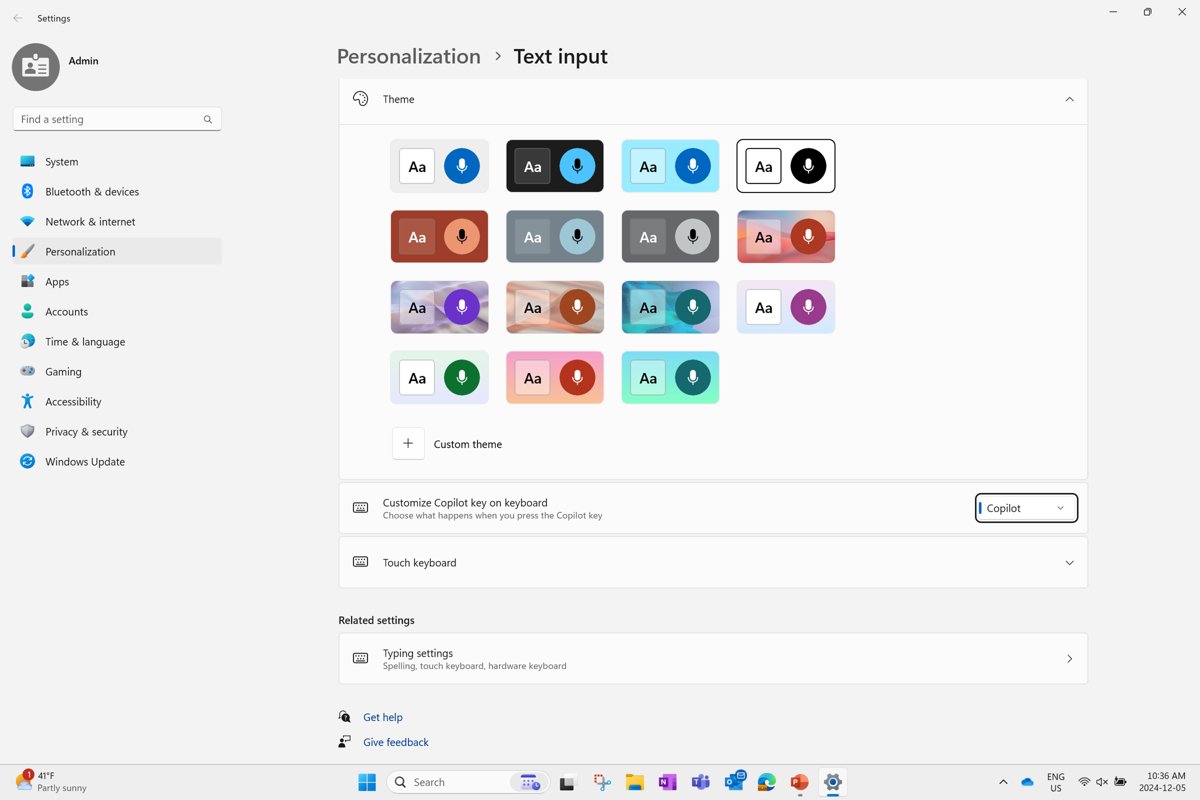
- Open Settings > Personalization > Text input and set Customize Copilot key on keyboard to Search so the key no longer opens Copilot.
Paint's Cocreator, Image Creator and generative fill have no user toggle; they are turned off by policy, covered in the Paint section below.
Windows 11 AI features list and where to turn each one off
Use this table as the full inventory. The last column shows whether a documented policy can lock the change so it survives updates.
| AI feature | Where it appears | How to turn it off | Policy to lock it |
|---|---|---|---|
| Microsoft Copilot app | Taskbar, Start menu, Copilot key | Uninstall from Settings > Apps > Installed apps | AppLocker rule for package MICROSOFT.COPILOT |
| Recall | Copilot+ PCs only | Remove in Turn Windows features on or off | Allow Recall to be enabled = Disabled |
| Recall snapshots | Copilot+ PCs only | Settings > Privacy & security > Recall & snapshots > Save snapshots off | Turn off saving snapshots for use with Recall = Enabled |
| Click to Do | Windows key + Q, Windows key + click, Snipping Tool | Settings > Privacy & security > Click to Do off | Disable Click to Do = Enabled |
| Notepad Rewrite, Summarize and Write | Notepad Copilot menu | Notepad settings | DisableAIFeatures = 1 (Notepad ADMX) |
| Paint Cocreator, Image Creator, generative fill | Paint toolbar | No user toggle | Disable Cocreator, Disable Image Creator, Disable generative fill |
| Copilot in Word, Excel, PowerPoint, OneNote | Microsoft 365 apps | File > Options > Copilot > clear Enable Copilot | None for personal accounts |
| Copilot in new Outlook | Outlook for Windows | Settings > Copilot > Turn on Copilot off | None for personal accounts |
| Copilot key | Keyboard key or Win + C | Settings > Personalization > Text input | Set Copilot Hardware Key |
| Copilot button in Edge | Edge toolbar | Edge settings | Edge browser policies |
How to uninstall Copilot on Windows 11
The Copilot app is an ordinary Microsoft Store app, so it uninstalls like any other app and Windows keeps working without it.
- Press Windows + I to open Settings.
- Select Apps, then Installed apps.
- Type
Copilotin the search box at the top of the list. - Select the three dots next to Copilot.
- Select Uninstall, then select Uninstall again to confirm.
The same page removes any other app you no longer want. If an uninstall leaves folders behind, you can completely remove a program together with its leftovers.
Uninstall Copilot app with PowerShell
This is the removal script Microsoft publishes for administrators. It removes the Copilot app for the signed-in user.
$packageFullName = Get-AppxPackage -Name "Microsoft.Copilot" | Select-Object -ExpandProperty PackageFullName
Remove-AppxPackage -Package $packageFullName
The first line finds the full package name of the installed Copilot app. The second line removes that package.
You should see: PowerShell returns to the prompt with no red error text, and Copilot no longer appears in Settings > Apps > Installed apps.
How to remove Recall from Windows 11
Turning off Save snapshots stops Recall from capturing your screen. Removing the optional feature goes further and takes the Recall component off the PC.
Recall needs a Copilot+ PC with a 40 TOPS NPU, 16 GB of RAM and 256 GB of storage. On any other PC it is not installed, so there is nothing to remove.
- Open Settings > Privacy & security > Recall & snapshots.
- Switch Save snapshots to Off and confirm with Windows Hello.
- Delete your existing snapshots from the same page.
- Open Start, type
Turn Windows features on or offand open the result. - Clear the Recall check box and select OK.
- Restart the PC when Windows asks.
The same Copilot+ hardware rule decides which PCs get Recall in Windows 11 26H2, the latest feature update.
Disable-WindowsOptionalFeature Recall command
Run this in an elevated PowerShell window. It removes the Recall component in one step, which suits scripted setups.
Disable-WindowsOptionalFeature -Online -FeatureName "Recall" -Remove-Online targets the running copy of Windows, -FeatureName "Recall" names the optional component, and -Remove deletes its files instead of only switching it off.
You should see: PowerShell reports that a restart is needed. After the restart, Recall is gone from Turn Windows features on or off.
How to turn off Click-to-Do in Windows 11
Click to Do analyzes what is on the screen when you press Windows + Q or Windows + click. It runs on Copilot+ PCs only.
- Open Settings and select Privacy & security.
- Select Click to Do.
- Switch the Click to Do toggle to Off.
- To remove only some suggested actions instead, open Settings > Apps > Actions and turn off the ones you do not want.
The Click to Do setting does not affect Click to Do inside Recall. Removing Recall removes that copy as well.
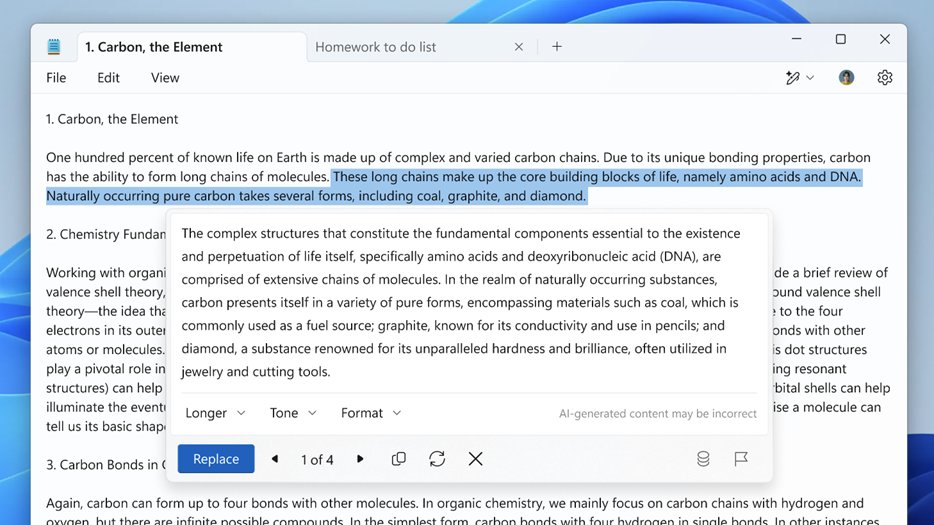
How to turn off AI in Notepad on Windows 11
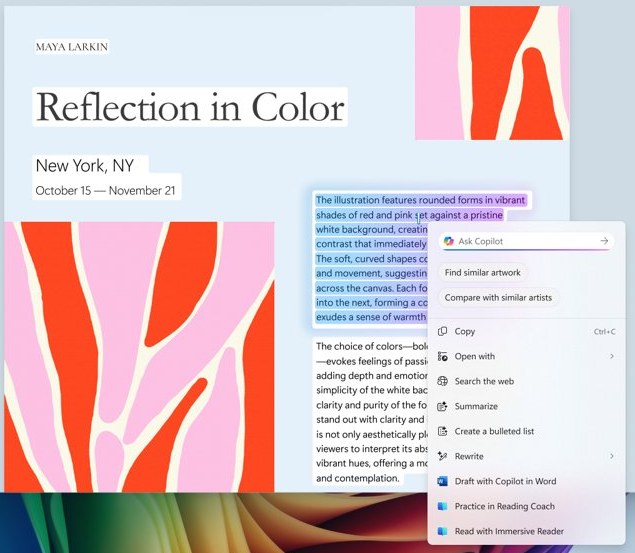
Notepad's Rewrite, Summarize and Write features use Copilot. A user can switch them off in Notepad settings, and an administrator can block them for every account with one registry value.
- Open Notepad and open its settings page.
- Turn off the AI features, which include Rewrite and Summarize.
- To block them for all users, open Terminal as administrator.
- Run
reg add "HKLM\SOFTWARE\Policies\WindowsNotepad" /v DisableAIFeatures /t REG_DWORD /d 1 /f. - Close and reopen Notepad. Users can no longer reach the AI features.
The policy needs Windows 11 version 22H2 or later and Notepad 11.2503.16.0 or later. The other new Notepad features, such as tabs and spell check, keep working.
How to disable Cocreator and Image Creator in Paint
Paint has no on/off switch for its AI tools. Microsoft provides three device policies instead, one each for Cocreator, Image Creator and generative fill.
- Press Windows + R, type
gpedit.mscand press Enter (Windows 11 Pro, Enterprise or Education). - Go to Computer Configuration > Administrative Templates > Windows Components > Paint.
- Double-click Disable Cocreator, select Enabled and select OK.
- Repeat for Disable Image Creator and Disable generative fill.
- Close Paint and open it again. Cocreator, Image Creator and generative fill are no longer available.
The same three settings are stored as DWORD values set to 1 under HKLM\Software\Microsoft\Windows\CurrentVersion\Policies\Paint, named DisableCocreator, DisableImageCreator and DisableGenerativeFill.
Turn off Copilot in Word, Excel and PowerPoint
This setting exists for personal Microsoft accounts, such as Microsoft 365 Personal and Family. Work or school accounts do not have it; their administrator controls Copilot.
- Open Word, Excel, PowerPoint or OneNote.
- Select File > Options > Copilot.
- Clear the Enable Copilot check box.
- Select OK, then close and restart the app.
- Repeat in each app, because the setting applies per app and per device.
- In new Outlook, open Settings > Copilot and turn off Turn on Copilot.
The check box needs Word 2412, Excel 2501, PowerPoint 2501 or OneNote 2502 or later. If it is missing, update the app, or clear Turn on experiences that analyze your content under File > Account > Account Privacy > Manage Settings.
Change the Copilot key to open Search in Windows 11
With Copilot uninstalled, the Copilot key and Win + C still exist. Point them at Search or another app so the key stays useful.
- Open Settings > Personalization > Text input.
- Find Customize Copilot key on keyboard.
- Select Search from the dropdown, or select Custom and pick an app.
- Press the Copilot key to check that the new target opens.
The Custom picker lists only signed MSIX-packaged apps that register for the key. For any other target, remap the Copilot key with PowerToys Keyboard Manager.
Disable Copilot and Recall with Group Policy in Windows 11
Settings changes are per user and can be undone by an update or a reinstall. These documented policies lock the change for the whole PC. Open them in gpedit.msc under Administrative Templates > Windows Components.
| Goal | Policy and path | Set to | Editions |
|---|---|---|---|
| Remove Recall and delete its snapshots | Computer Configuration > Windows AI > Allow Recall to be enabled | Disabled | Pro, Enterprise, Education |
| Stop Recall saving snapshots | Windows AI > Turn off saving snapshots for use with Recall | Enabled | Pro, Enterprise, Education |
| Block Click to Do | Windows AI > Disable Click to Do | Enabled | Pro, Enterprise, Education |
| Block Notepad AI | Computer Configuration > Notepad > DisableAIFeaturesInNotepad (Notepad ADMX) | Enabled | Windows 11 22H2 or later |
| Block Paint AI | Computer Configuration > Paint > Disable Cocreator, Disable Image Creator, Disable generative fill | Enabled | Pro, Enterprise, Education |
| Uninstall the Copilot app on managed PCs | RemoveMicrosoftCopilotApp (Windows AI) | Enabled | Enterprise, Education |
| Block Copilot from installing or launching | AppLocker packaged app rule: publisher CN=MICROSOFT CORPORATION, package name MICROSOFT.COPILOT, version * and above | Deny | Editions that support AppLocker |
| Hide the legacy Copilot pane | User Configuration > Windows Copilot > Turn off Windows Copilot | Enabled (deprecated) | Pro, Enterprise, Education |
Microsoft marks Turn off Windows Copilot as legacy and subject to deprecation, and recommends the AppLocker rule instead. The Windows AI policies write to HKLM\SOFTWARE\Policies\Microsoft\Windows\WindowsAI, for example AllowRecallEnablement = 0 and DisableClickToDo = 1.
How to tell if Copilot and Recall are removed
Run both checks in PowerShell. The first needs no admin rights; the second needs an elevated window.
- Run
Get-AppxPackage -Name "Microsoft.Copilot". No output means the Copilot app is not installed for your account. - Run
Get-WindowsOptionalFeature -Online -FeatureName "Recall"as administrator and read the State line. It should no longer say Enabled. - Open Turn Windows features on or off and check that Recall is cleared.
- Press Windows + Q. Nothing should open once Click to Do is off.
- Open Notepad and Paint and check that their AI tools are no longer available.
How to reinstall Copilot and Recall on Windows 11
- Remove or set to Not Configured any policy or AppLocker rule you added, then restart.
- Open the Microsoft Store, search for Microsoft Copilot (Store ID 9NHT9RB2F4HD) and select Install.
- Run
Enable-WindowsOptionalFeature -Online -FeatureName "Recall"in an elevated PowerShell window, or tick Recall in Turn Windows features on or off. - Restart, then open Settings > Privacy & security > Recall & snapshots and turn Save snapshots back on if you want it.
- Turn Click to Do, Notepad AI and Enable Copilot in Office back on in the same places you turned them off.
Copilot came back after a Windows update
These are the cases Microsoft documents where a removal does not stick or a setting is missing.
Copilot reappears after a Windows update
Microsoft states the Copilot app is enabled automatically after updates unless a policy prevents its installation.
- Uninstall Copilot again from Settings > Apps > Installed apps.
- On Pro, Enterprise or Education, add the AppLocker packaged app rule for MICROSOFT.COPILOT so it cannot install or launch.
Recall is missing from Turn Windows features on or off
Recall installs only on Copilot+ PCs, and it is removed by default on business-managed PCs.
- Check whether your PC is a Copilot+ PC with a 40 TOPS NPU.
- If it is not, Recall was never installed and no action is needed.
RemoveMicrosoftCopilotApp policy did not uninstall Copilot
The policy acts only when Microsoft 365 Copilot and Microsoft Copilot are both installed, the user did not install Copilot, and it has not been launched in 28 days.
- Uninstall the app with the PowerShell command above instead.
- Add the AppLocker rule so it does not return.
No Copilot option under File > Options in Word or Excel
The setting needs a personal Microsoft account and a recent app build.
- Update Office to Word 2412 or Excel and PowerPoint 2501 or later.
- If you sign in with a work or school account, ask the administrator, because that account type has no user toggle.
gpedit.msc does not open on Windows 11 Home
The Windows AI and Paint policies are documented for Pro, Enterprise and Education editions.
- Use the Settings toggles and app uninstall steps, which work on Home.
- For Notepad, use the documented
DisableAIFeaturesregistry value instead of the ADMX policy.
Is it safe to remove AI features from Windows 11?
Yes, when you use the Settings toggles, app uninstall, the Recall optional feature and the policies Microsoft documents; avoid scripts that delete Windows packages Microsoft does not list as removable. Every change above has a documented way back, and Windows Update keeps working. Scripts that strip system packages or edit the component store can block future updates, and Microsoft does not support them.
Copilot in Microsoft Edge is separate from Windows. Hide the Copilot button in Edge from the browser's own settings.
Remove AI from Windows 11 FAQ
Can you completely uninstall Copilot from Windows 11?
Yes. Copilot is a Microsoft Store app, so you can uninstall it from Settings > Apps > Installed apps or with Remove-AppxPackage in PowerShell. To stop it returning after updates on Pro, Enterprise or Education, add an AppLocker rule for the MICROSOFT.COPILOT package.
Does removing Copilot break Windows 11?
No. Removing the Copilot app does not affect Windows Update, Search or other apps. The Copilot key stays on the keyboard, so remap it to Search under Settings > Personalization > Text input.
How do I permanently disable Recall in Windows 11?
Remove the Recall optional feature in Turn Windows features on or off, or run Disable-WindowsOptionalFeature -Online -FeatureName "Recall" -Remove. On Pro or business PCs, set Allow Recall to be enabled to Disabled, which also deletes saved snapshots.
Is Recall on every Windows 11 PC?
No. Recall runs only on Copilot+ PCs with a 40 TOPS NPU, 16 GB of RAM and 256 GB of storage. On other PCs it is not installed, and on business-managed PCs it is removed by default.
How do I turn off Copilot in Notepad?
Turn off the AI features in Notepad settings. To block them for every user, set the DWORD value DisableAIFeatures to 1 under HKLM\SOFTWARE\Policies\WindowsNotepad, which needs Notepad 11.2503.16.0 or later.
Can I remove the AI features from Paint?
Yes, with policy. Enable Disable Cocreator, Disable Image Creator and Disable generative fill under Computer Configuration > Administrative Templates > Windows Components > Paint, then reopen Paint.
Will Windows Update reinstall Copilot?
It can. Microsoft says the Copilot app is enabled automatically after updates unless a policy prevents installation. An AppLocker rule for the MICROSOFT.COPILOT package blocks both installation and launch.
How do I turn off Copilot in Microsoft 365 apps?
In Word, Excel, PowerPoint or OneNote, open File > Options > Copilot, clear Enable Copilot and restart the app. The option exists for personal Microsoft accounts only; work or school accounts are controlled by the administrator.