DevCon (devcon.exe) manages Windows drivers from an elevated Command Prompt: install the Windows Driver Kit, open its Tools folder, and run commands such as devcon find *, devcon disable or devcon update against a device's hardware ID.
This guide covers where devcon.exe lives, the commands that list, enable, disable, update, remove and rescan devices, driver package management, the PnPUtil equivalents Microsoft now recommends, and fixes for devcon failed errors.
DevCon command line tool for Windows computers
DevCon (Device Console) is a Microsoft command-line tool for driver developers and system administrators. It works only on the local computer, and any command that changes a device needs a member of the Administrators group.
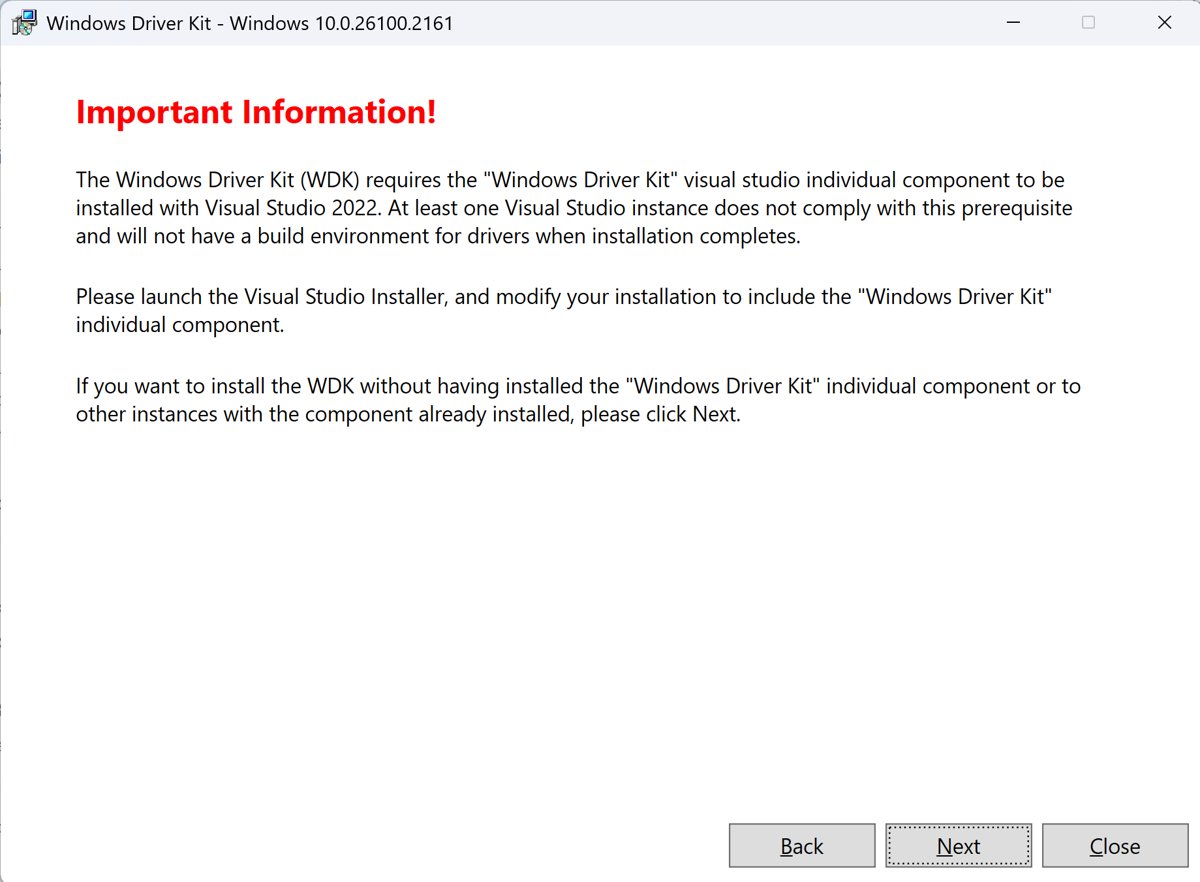
- Install the Windows Driver Kit (WDK) from Microsoft's Download the Windows Driver Kit (WDK) page on Microsoft Learn.
- Open Command Prompt as administrator.
- Change to the DevCon folder, typically
cd "C:\Program Files (x86)\Windows Kits\10\Tools\10.0.26100.0\x64"on a 64-bit PC. - Run
devcon find *to list every device that is currently attached. - Run
devcon helpfor the command list, ordevcon help statusfor one command's syntax.
Microsoft now recommends PnPUtil for new work, because it ships with every Windows release and uses more reliable and secure APIs. DevCon still works for scripts and testing, and every DevCon command has a PnPUtil equivalent listed further down.
Where to get devcon.exe
DevCon is not part of Windows itself. Microsoft includes devcon.exe with the WDK, Visual Studio and the Windows SDK for desktop apps, and the WDK places it in a folder per CPU architecture.
| PC type | devcon.exe location in WDK 10 | Example on a recent WDK |
|---|---|---|
| 64-bit Intel or AMD (x64) | %WdkDir%\10\Tools\X.Y\x64\devcon.exe |
C:\Program Files (x86)\Windows Kits\10\Tools\10.0.26100.0\x64\devcon.exe |
| 32-bit (x86) | %WdkDir%\10\Tools\X.Y\x86\devcon.exe |
Same folder with x86 in place of x64 |
| Arm-based PC (ARM64) | %WdkDir%\10\Tools\X.Y\arm64\devcon.exe |
Same folder with arm64 in place of x64 |
%WdkDir% is the folder where you installed the WDK, and X.Y is the kit version. Microsoft also publishes the DevCon source code in its Windows driver samples repository on GitHub, for developers who want to study the setup and Configuration Manager functions it calls.
How to install DevCon on Windows 11
- Open the Download the Windows Driver Kit (WDK) page on learn.microsoft.com.
- Select Download the latest WDK and run the installer from Microsoft.
- Finish the installation, then open File Explorer at
C:\Program Files (x86)\Windows Kits\10\Tools. - Open the version folder, then the folder that matches your PC: x64, x86 or arm64.
- Confirm
devcon.exeis in that folder. - Open Command Prompt as administrator and
cdinto that folder before you run DevCon.
Any DevCon command that changes a device fails unless you run Command Prompt as administrator first. Microsoft's Enterprise WDK (EWDK) is a self-contained ISO that also includes the WDK, if you would rather not install Visual Studio, the SDK and the WDK separately.
Useful commands to manage Windows drivers using DevCon
DevCon uses the syntax devcon [/r] command [arguments]. Parameters must appear in that order; out-of-order parameters are ignored without a syntax error.
| Command | What it does | Example |
|---|---|---|
| hwids | Lists hardware IDs and compatible IDs | devcon hwids * |
| find / findall | Finds attached devices / also finds devices not currently attached | devcon findall =net |
| classes / listclass | Lists setup classes / lists the devices in a class | devcon listclass net |
| status | Shows whether each device's driver is running | devcon status * > status.txt |
| driverfiles / drivernodes | Lists a device's driver files / driver packages | devcon driverfiles *mou* |
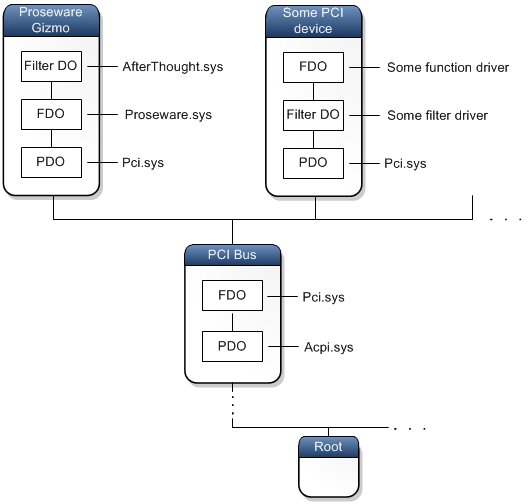
| stack / resources | Shows the expected driver stack / hardware resources | devcon stack =Volume |
| enable / disable | Turns devices on or off | devcon /r disable USB* |
| update / updateni | Updates a driver from an INF, interactively or without prompts | devcon update c:\windows\inf\test.inf *PNP0501 |
| install | Creates a device node and installs its driver | devcon /r install c:\windows\inf\keyboard.inf *PNP030b |
| remove / rescan | Removes a device / scans for Plug and Play hardware | devcon rescan |
| restart / reboot | Restarts a device / forces a reboot | devcon restart =net @'ROOT\*MSLOOP\0000 |
| dp_add / dp_enum / dp_delete | Adds, lists and deletes third-party driver packages in the driver store | devcon dp_enum |
| sethwid / classfilter | Edits hardware IDs of root-enumerated devices / class filter drivers | devcon classfilter DiskDrive upper |
An ID with an asterisk is treated as a wildcard. Prefix it with a single quote, as in '*PNP0000, to match the asterisk literally. Prefix a device instance ID with @, and a setup class with =.
devcon hwids command to list hardware IDs
Most DevCon operations need a hardware ID, so start by saving a reference list of every ID on the PC.
devcon hwids * > hwids.txtWrites the hardware IDs and compatible IDs of every device to hwids.txt. Narrow it with a pattern such as devcon hwids *floppy*, or with a class such as devcon hwids =ports.
You should see: Each device's instance ID appears with its name, hardware IDs and compatible IDs, followed by a line such as "27 matching device(s) found."
Several patterns in one command are combined with OR, so devcon hwids *pnp* *mou* returns devices matching either. A class plus patterns is combined with AND for the class, as in devcon hwids =media *pnp* *microsoft*.
Enable or disable a device with DevCon
- Preview what a pattern will hit with
devcon status USB*ordevcon hwids USB*before you change anything. - Disable the matching devices with
devcon /r disable USB*; the/rswitch reboots only if the change needs it. - To target exact devices, use their instance IDs in quotes, for example
devcon /r disable "@USB\ROOT_HUB\4&2A40B465&0". - Enable a device again with
devcon /r enable '*PNP0000, or a whole class withdevcon /r enable =Printer. - Read the result line, such as "3 device(s) disabled." or "Enabled on reboot".
Disabling every USB device also cuts off a USB keyboard and mouse, so test patterns on a machine you can still reach.
Update or install a driver with DevCon
- Find the device's hardware ID with
devcon hwidsand note the INF file of the new driver. - Run
devcon update <full path to .inf> <hardware ID>, for exampledevcon update c:\windows\inf\test.inf *PNP0501. - Answer the Hardware Installation prompt if the driver is unsigned, then wait for "Drivers updated successfully."
- For scripts, use
devcon updateniinstead; it skips every prompt and takes the default answer. - To add a device that is not present, run
devcon /r install <full path to .inf> <hardware ID>, which creates the device node and installs its driver.
updateni takes the default Stop Installation answer on an unsigned-driver warning, so an unsigned driver fails with "devcon failed." rather than installing. For everyday driver updates through Windows, update drivers in Device Manager instead.
Remove a device and rescan with DevCon
- Preview the match with
devcon status =net *ndiswanordevcon hwids =net *ndiswan*. - Remove the device with
devcon /r remove =net *ndiswan*, which deletes it from the device tree along with its device stack. - Run
devcon rescanto scan for Plug and Play hardware so Windows picks up devices that are still present. - Restart a single device without removing it with
devcon restart <ID>. - Force a reboot from a script with
devcon reboot; it waits if open files or programs block the restart.
Add and delete driver packages with devcon dp_add
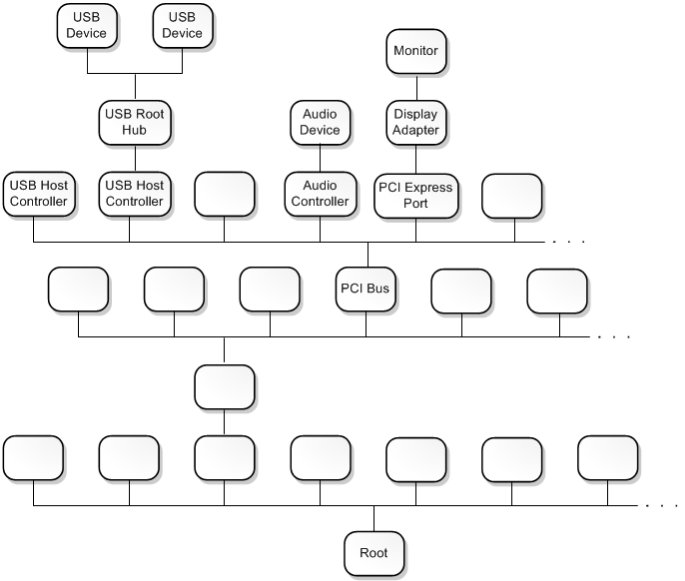
These commands manage third-party (OEM) driver packages in the driver store. Windows renames each added INF to an oem#.inf file, and only that name works for deletion.
- Add a package with
devcon dp_add <full path to .inf>; DevCon reports a name such as "Driver Package 'oem2.inf' added." - List the third-party packages with
devcon dp_enum, which shows each oem#.inf with its provider and class. - Delete a package with
devcon dp_delete oem2.inf; DevCon also removes its .pnf and .cat files. - Read "Driver Package 'oem2.inf' deleted." as confirmation.
To check the result without a command line, view installed drivers in Windows 11 with their details.
How to download and install battery driver in Windows 11/10
There is no separate battery driver file to download for Microsoft's battery device: you uninstall the device and let Windows scan for it again, which reinstalls the driver. Battery devices and UPS devices share the Battery setup class.
- Plug in the laptop's charger.
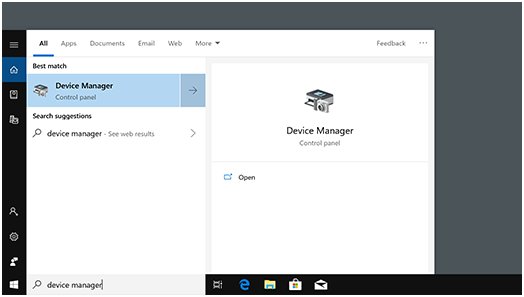
- Select Search on the taskbar, enter device manager, and open Device Manager.
- Expand Batteries, right-click the battery entry (on a Surface, Microsoft Surface ACPI-Compliant Control Method Battery) and select Uninstall device.
- Select the computer at the top of the list, then Action > Scan for hardware changes.
- Restart the PC from Start > Power > Restart.
- With DevCon instead, run
devcon find =battery, remove the battery's instance ID withdevcon remove "@<instance ID>", then rundevcon rescan.
If the battery still drains or will not charge after a reinstall, work through the other laptop battery fixes, and get any power-management driver from your PC maker's support site.
Advantages of using DevCon over Device Manager
| Task | DevCon | Device Manager |
|---|---|---|
| Act on many devices at once | Wildcards and setup classes, such as devcon /r disable USB* |
One device at a time |
| Automate in scripts | Return codes 0 success, 1 requires reboot, 2 failure, 3 syntax error | No script interface |
| Export device data | Redirect output to a file, such as devcon status * > status.txt |
Read each properties dialog by hand |
| Show driver internals | Driver stack, driver nodes, resources and class filters | Partial, spread across property tabs |
| Edit class filter drivers or hardware IDs | classfilter and sethwid |
Not available |
Device Manager stays the better tool for one-off fixes on a single PC, such as when you manually install a device driver. DevCon pays off for driver testing, lab machines and repeatable scripts.
DevCon vs PnPUtil: equivalent commands
Microsoft describes DevCon as a code sample, never a tool to rely on, and maps each command to PnPUtil. PnPUtil is in %windir%\system32 on every Windows version since Vista, though some commands need Windows 10 version 2004 or later.
| DevCon command | PnPUtil equivalent |
|---|---|
| hwids | pnputil /enum-devices /deviceids |
| find | pnputil /enum-devices /connected |
| findall / status | pnputil /enum-devices |
| listclass | pnputil /enum-devices /class <name or GUID> |
| classes | pnputil /enum-classes |
| enable / disable | pnputil /enable-device / pnputil /disable-device |
| update / updateni | pnputil /add-driver <INF name> /install |
| remove | pnputil /remove-device |
| rescan | pnputil /scan-devices |
| restart | pnputil /restart-device |
| reboot | shutdown /r /t 0 |
| dp_add / dp_delete / dp_enum | pnputil /add-driver / pnputil /delete-driver / pnputil /enum-drivers |
| driverfiles | pnputil /enum-drivers /files |
PnPUtil does not support wildcard matching. Instead, many of its commands act on every device that exactly matches a hardware or compatible ID.
devcon status command to check a device driver is running
devcon status '*PNP0000Shows the instance ID, name and running state of the device whose hardware ID is exactly *PNP0000. Replace the ID with the one you changed, or use @ and an instance ID.
You should see: The device name followed by "Driver is running." After a disable, the status reports the device as disabled instead.
devcon failed on Windows 11
"devcon failed." is DevCon's generic error, and return code 2 means failure. The cause depends on the command you ran.
devcon failed when you enable, disable, remove or update a device
The Command Prompt is not elevated; changing a device requires the Administrators group.
- Close the window and open Command Prompt as administrator.
cdinto the DevCon folder and run the command again.
devcon updateni failed but devcon update works
The driver is unsigned, and updateni answers the warning with the default Stop Installation.
- Run
devcon updateinstead and choose Continue Anyway if you trust the test driver. - Use a signed driver for unattended installs.
devcon classfilter failed
The filter driver name is misspelled or the driver is not registered as a service.
- Check the spelling of the driver name in the command.
- Confirm the driver has a subkey under
HKEY_LOCAL_MACHINE\System\CurrentControlSet\Services.
devcon dp_delete failed
You used the original INF name instead of the oem#.inf name Windows assigned.
- Run
devcon dp_enumand note the oem#.inf name. - Run
devcon dp_delete oem#.infwith that name.
DevCon runs but changes the wrong devices or ignores an argument
An unquoted asterisk acted as a wildcard, or the parameters were out of order and DevCon dropped them.
- Put a single quote before IDs that contain an asterisk, such as
'*PNP0000. - Quote instance IDs that contain
&. - Keep the order
devcon [/r] command [arguments]and check it withdevcon help <command>.
DevCon command line tool FAQ
How do I install devcon.exe?
Install the Windows Driver Kit from Microsoft's Download the WDK page. DevCon then sits in C:\Program Files (x86)\Windows Kits\10\Tools\<version>\x64 on 64-bit PCs. There is no separate installer; you run devcon.exe from that folder in an elevated Command Prompt.
Where do I get devcon.exe?
Microsoft ships devcon.exe with the Windows Driver Kit, Visual Studio and the Windows SDK for desktop apps. Get it from those kits on Microsoft's own download pages rather than a standalone download site, so the file is genuine.
Does DevCon work on Windows 11?
Yes. Current WDK releases include DevCon builds for x64, x86 and ARM64. Microsoft recommends PnPUtil for new projects, because it is built into Windows and uses more reliable and secure APIs.
Which devcon.exe do I use on 64-bit Windows 10?
Use the copy in the WDK's x64 folder on an Intel or AMD 64-bit PC, and the arm64 copy on an Arm-based PC. The x86 copy is for 32-bit Windows.
Is DevCon part of the Windows Driver Kit?
Yes. Microsoft lists DevCon among the WDK's driver testing tools, and the WDK installs it under %WdkDir%\10\Tools\X.Y\ in one folder per architecture.
Can DevCon manage drivers on a remote computer?
No. Microsoft documents DevCon as working on local computers only, and the reboot and restart operations are valid only on the local computer.
What do DevCon return codes mean?
DevCon returns 0 for success, 1 when a reboot is required, 2 for failure and 3 for a syntax error. Scripts can read the code to decide whether to reboot or stop.
What is the difference between devcon find and devcon findall?
devcon find lists only devices that are currently attached. devcon findall also lists devices that are installed on demand or not attached, such as a software-enumerated RAS async adapter.