You cannot make Chrome run as a single process, because it deliberately puts each site, extension and app in its own process, but you can cut the number sharply.
This guide shows how to end processes from Chrome's own Task Manager, close every Chrome process in Windows, stop Chrome running after you close it, and keep idle tabs from holding memory.
Stop multiple Chrome processes from running in Windows 11/10
These four changes remove the processes that most often pile up in Windows Task Manager. Do them once and the count stays lower.
- In Chrome, press Shift + Esc to open Chrome's Task Manager.
- Select the Memory column header to sort by memory, select any tab, extension or Background page you do not need, and select End process.
- Select More (three dots) > Extensions > Manage extensions and remove or turn off extensions you do not use.
- Select More > Settings > Performance and turn on Memory Saver so idle tabs go inactive.
- In Settings, search for
backgroundand turn off Continue running background apps when Google Chrome is closed. - Close unused tabs with Ctrl + W, then quit Chrome from More > Exit when you are done.
Ending a tab's process discards anything unsaved in that tab, so save forms and documents first.
Why does Chrome run multiple processes?
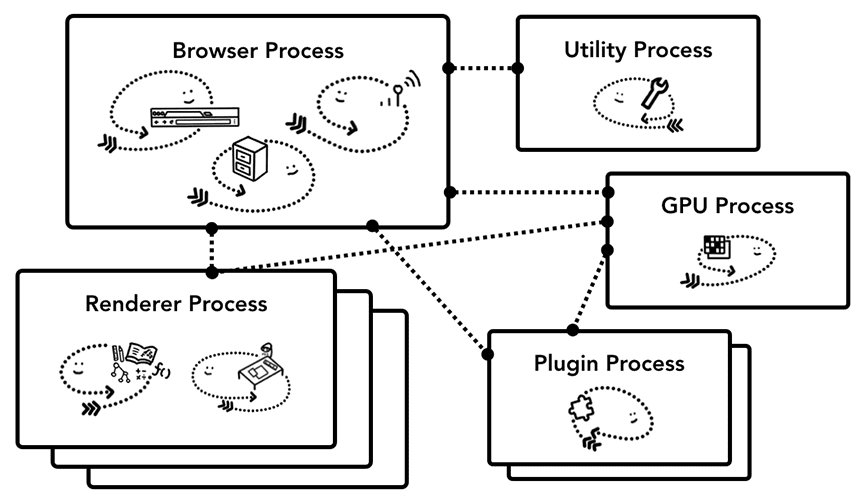
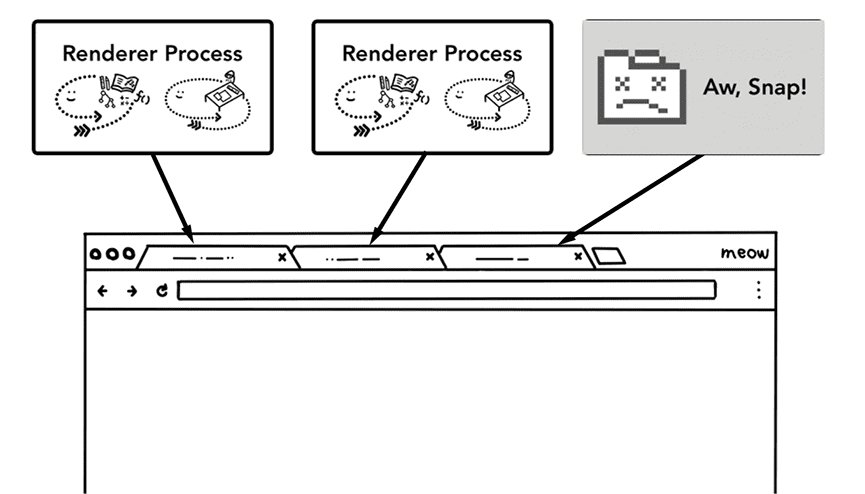
Chrome's Site Isolation puts pages from different websites into different processes. If one site is malicious or crashes, it cannot easily reach data from your other sites, which also blocks attacks such as Spectre. It has been on for every site in desktop Chrome since version 67.
| What you see in Task Manager | Why it has its own process | How to reduce it |
|---|---|---|
| One process per open site | Site Isolation keeps each website separate | Close tabs you are not using or let Memory Saver deactivate them |
| Extensions | Each extension runs apart from your tabs | Remove or turn off unused extensions |
| Background page entries | Extensions and apps that keep working while their tab is closed | End them in Chrome Task Manager or remove the extension |
| Chrome processes after every window is closed | Background mode keeps apps running and shows an icon in the system tray | Turn off Continue running background apps when Google Chrome is closed |
Site Isolation costs about 10 to 13% more memory on desktop with many tabs open. Tabs from the same site can share one process, so ten tabs do not always mean ten processes.
How to end Chrome processes in Chrome Task Manager
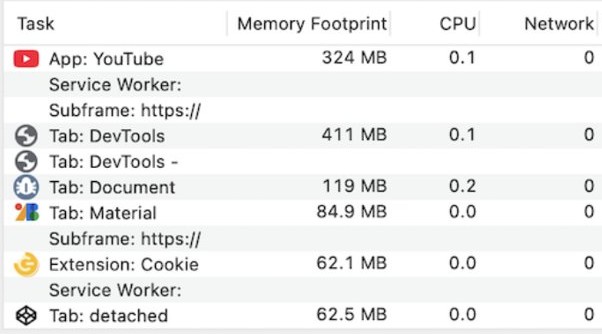
Chrome's own Task Manager names each process, so you can see which tab or extension a chrome.exe entry belongs to. The Chrome Task Manager columns also show CPU and network use.
- Open Chrome and press Shift + Esc, or select More > More tools > Task manager.
- Select Memory to sort the list from the heaviest process down.
- Look for entries labeled Background page and tabs you no longer need.
- Select the task you want to stop.
- Select End process.
Any unsaved work in an ended task is lost, so save it first.
How to close all Chrome processes in Windows Task Manager
Use this when Chrome freezes, will not open because it is already running, or leaves processes behind after you close it. Any of the shortcuts that open Task Manager works for the first step.
- Press Ctrl + Alt + Delete and select Task Manager.
- On the Processes tab, find Google Chrome or chrome.exe.
- Select it and select End task.
- Repeat for any remaining chrome.exe entry.
- Open Chrome again and press Ctrl + Shift + T to reopen your last tabs if needed.
Windows 11 Task Manager can also show Chrome with a leaf icon when Efficiency mode is on. You can turn off Efficiency mode for Chrome if it slows Chrome down.
How to stop Chrome from running in the background when closed
With background mode on, Chrome starts a process when you sign in to Windows and keeps it running after the last window closes. It is off by default unless you or an administrator turned it on.
- Open Chrome and select More > Settings.
- Type
backgroundin the Search settings box at the top. - Turn off Continue running background apps when Google Chrome is closed.
- To quit a running background process now, select the Chrome icon in the Windows system tray and choose to exit.
- Close Chrome and check Windows Task Manager; no chrome.exe entries should remain.
If the switch cannot be changed, your organization sets it by policy and only an administrator can turn it off.
How to remove Chrome extensions to reduce processes
Google recommends turning off extensions you do not use to speed up Chrome. Turning one off keeps it installed; removing it deletes it.
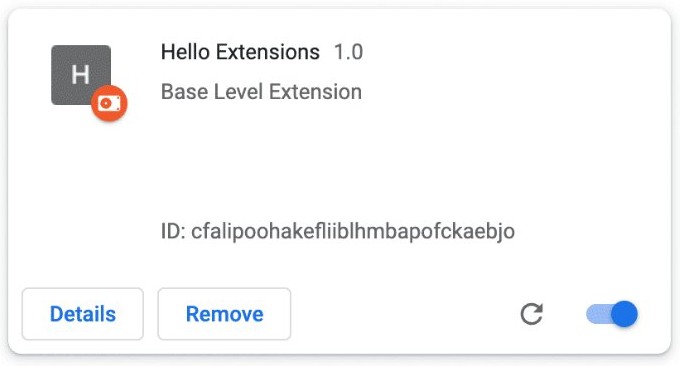
- Open Chrome and select More > Extensions > Manage extensions.
- Turn off the switch on any extension you use rarely.
- Select Remove on extensions you do not need, then select Remove again to confirm.
- Or right-click an extension's icon next to the address bar and select Remove from Chrome.
- Open Chrome Task Manager with Shift + Esc to confirm the extension's entry is gone.
How to use Chrome Memory Saver to deactivate idle tabs
Memory Saver frees memory from tabs you have not used for a while, which helps when you keep dozens of tabs open instead of closing them.
- Open Chrome and select More > Settings > Performance.
- Turn on Memory Saver.
- Choose Moderate, Balanced (recommended) or Maximum. Maximum deactivates tabs soonest.
- Next to Always keep these sites active, select Add to protect sites such as a web mail or music tab.
- Pick an open site or type its address, then select Add.
On the same page, Preload pages loads pages Chrome expects you to visit. Turning it off saves some background work at the cost of slower page opening.
Can you change Chrome.exe target to run one process?
Some guides add a command-line switch to the Chrome shortcut's Target field so sites share processes. Chrome has no supported setting for this, and merging sites into fewer processes works against Site Isolation.
Leave the Chrome shortcut target alone and reduce processes with extensions, Memory Saver and background mode instead. The Chromium project describes turning off Site Isolation as a diagnostic step only and marks it not recommended, because separate processes are what stop one site from reading another site's data.
How to check how many processes Chrome is using
- Press Shift + Esc in Chrome to list every tab, extension and background process by name.
- Select Memory to see which entries use the most.
- To see a tab's memory without opening Task Manager, go to More > Settings > Appearance and turn on Show tab memory usage under Tab hover preview card.
- Hover over any tab; the preview card now shows its memory use.
- Close Chrome and open Windows Task Manager. With background apps turned off, no Chrome process should remain.

Clear cookies and site data when you quit Chrome missing
The old Clear cookies and site data when you quit Chrome switch now sits under a new name in Chrome's on-device site data setting.
- Open Chrome and select More > Settings.
- Select Privacy and security > Site settings.
- Select Additional content settings > On-device site data.
- Select Delete data sites have saved to your device when you close all windows.
- Close every Chrome window to apply it.
Background mode keeps the browsing session alive after the windows close, so turn off Continue running background apps when Google Chrome is closed as well. Per-site exceptions live in Chrome site settings.
Chrome processes not closing in Task Manager
chrome.exe stays in Task Manager after you close Chrome
Background mode keeps Chrome running for apps and extensions.
- Look for the Chrome icon in the system tray and exit Chrome from it.
- Turn off Continue running background apps when Google Chrome is closed in Chrome settings.
- End any remaining chrome.exe entries with End task in Windows Task Manager.
Google Chrome has too many processes and runs slow
Many open tabs, heavy extensions or unwanted software injecting into Chrome.
- Sort Chrome Task Manager by Memory and end the heaviest tasks you do not need.
- Turn off extensions one at a time and check whether speed returns.
- Update Chrome from More > Help > About Google Chrome and relaunch.
- Reset Chrome from More > Settings > Reset settings > Restore settings to their original defaults > Reset settings. Bookmarks and passwords are kept.
Chrome will not open, but chrome.exe is running
A hung Chrome process is still open in the background.
- Open Windows Task Manager with Ctrl + Alt + Delete.
- Select Google Chrome or chrome.exe and select End task.
- Open Chrome again. If it still fails, restart the PC.
Processes come back right after you end them
An extension or app restarts its background page, or unwanted software relaunches Chrome.
- Remove the extension that owns the returning Background page entry.
- Open Settings > Apps > Installed apps in Windows and uninstall programs you do not recognise.
- Check the PC for malware with your security app.
Chrome multiple processes FAQ
How do I stop Chrome opening multiple processes?
You cannot stop it entirely, because Chrome runs each site and extension in its own process for security. You can reduce the number by removing unused extensions, turning on Memory Saver and turning off Continue running background apps when Google Chrome is closed.
How do I close all Chrome processes?
Press Ctrl + Alt + Delete, open Task Manager, select Google Chrome on the Processes tab and select End task. Turn off background apps in Chrome settings so the processes do not return after you close Chrome.
How do I force stop Chrome?
End Google Chrome or chrome.exe with End task in Windows Task Manager. To force-close a single frozen tab or extension instead, press Shift + Esc in Chrome, select it and select End process. Unsaved work in an ended tab is lost.
Is it normal for Google Chrome to have so many processes?
Yes. Chrome gives each site, extension and app a separate process so a crash or a malicious page in one cannot affect the others. A long list of chrome.exe entries is expected with several tabs and extensions open.
Is it safe to end Chrome processes in Task Manager?
Yes. Ending a process only closes that tab, extension or Chrome itself; it does not damage Chrome or your profile. Anything unsaved in the ended tab is lost, so save your work first.
Why do Chrome processes keep running after I close Chrome?
Background mode is on. It keeps a Chrome process running after the last window closes so apps and extensions can keep working, and shows a Chrome icon in the system tray. Turn off Continue running background apps when Google Chrome is closed to stop it.
Does Memory Saver close my tabs?
No. Memory Saver makes tabs you have not used for a while inactive to free memory, but they stay in the tab strip. Add sites you need running to Always keep these sites active under Settings > Performance.
Why is Chrome running so slow?
Too many open tabs, heavy extensions, an outdated version or unwanted software are the usual causes. Close tabs, turn off extensions, update Chrome and reset its settings if needed. Chrome Task Manager shows which tab or extension uses the most memory.