Press Windows key + Ctrl + O to turn on the On-Screen Keyboard in Windows 11 and Windows 10, or turn on the On-Screen Keyboard switch in Settings > Accessibility > Keyboard.
This guide covers the shortcut, the Settings and Run routes, the sign-in screen, the separate touch keyboard, and what to check when the keyboard will not appear.
Use the Keyboard Shortcut to Open On-Screen Keyboard
Microsoft lists Windows key + Ctrl + O as the shortcut that turns on the On-Screen Keyboard in both Windows 11 and Windows 10. The same keys switch it off again.
- Click inside the app or text box where you want to type.
- Hold the Windows key and the Ctrl key together.
- Press O while holding both keys, then release all three.
- Select keys on the keyboard window with your mouse, touchpad, pen or finger.
- Press Windows key + Ctrl + O again when you want to close it.
The shortcut needs some working physical keys. If your keyboard is completely dead, use the mouse-only Settings route in the next section instead.
Which method should you use?
| Your situation | Use this | Why |
|---|---|---|
| Some keys still work | Windows key + Ctrl + O | One shortcut opens and closes it on Windows 11 and 10 |
| No working keyboard at all, but a mouse works | Start > Settings > Accessibility > Keyboard | Every step can be done with clicks |
| Windows 10 | Start > Settings > Ease of Access > Keyboard | Windows 10 uses the Ease of Access name for the same page |
| You are stuck at the sign-in screen | Accessibility button in the lower-right corner | Works before you enter a PIN or password |
| Touchscreen tablet or 2-in-1 | Touch keyboard icon in the system tray | Larger keys built for fingers, opens when you tap a text box |
| You open it often from the Run box | ms-settings:easeofaccess-keyboard | Jumps straight to the page with the On-Screen Keyboard switch |
Enable On-Screen Keyboard from Windows Settings
This route needs only a mouse, touchpad or touchscreen. The keyboard stays on screen until you close it.
- Select Start, then select Settings. Windows key + U opens the Accessibility section directly if a few keys work.
- On Windows 11, select Accessibility in the left pane.
- Select Keyboard.
- Turn on the On-Screen Keyboard switch.
- On Windows 10, select Ease of Access > Keyboard instead, and turn on the toggle under Use the On-Screen Keyboard.
The same Keyboard page also holds Sticky keys, Filter keys and Toggle keys, so check you flip the right switch.
Open On-Screen Keyboard from the Start Menu or Run Command
From the Start menu, the reliable path is Start > Settings > Accessibility > Keyboard, as described above. The Run box can skip the menus by opening that Keyboard page directly with a Settings address from Microsoft's URI reference.
ms-settings:easeofaccess-keyboardPress Windows key + R to open Run, type or paste the address, and press Enter. It opens Accessibility > Keyboard on Windows 11 and Ease of Access > Keyboard on Windows 10. Turn on the On-Screen Keyboard switch on that page.
You should see: Settings opens on the Keyboard page, and the On-Screen Keyboard window appears as soon as you turn the switch on.
The Run box itself needs a working keyboard to type into. Without one, use the Settings route with the mouse.
Turn On the Touch Keyboard from the Taskbar
The touch keyboard is a separate on-screen keyboard for touchscreens. It opens when you tap a text field, or from its icon in the system tray area of the taskbar once that icon is shown.
Windows 11 controls the icon from Taskbar settings with three choices: Never, Always and When no keyboard attached.
- On Windows 11, right-click the taskbar and select Taskbar settings. On a touchscreen, press and hold the taskbar instead.
- Under System tray icons, open the drop-down menu next to Touch keyboard.
- Select Always to keep the icon visible, or When no keyboard attached to show it only when no wired or Bluetooth keyboard is connected.
- Select the Touch keyboard icon in the system tray to open the keyboard.
- On Windows 10, right-click the taskbar and make sure Show touch keyboard button is selected, then select the icon.
- To make it appear on its own on Windows 10, go to Start > Settings > Devices > Typing and turn on Show the touch keyboard when not in tablet mode and there's no keyboard attached.
Older Firefox builds on Windows 10 needed extra work for this keyboard to appear, covered in the Firefox on-screen keyboard fix.
Use On-Screen Keyboard at the Sign-In Screen
You can type a PIN or password before Windows loads your account. This works for local accounts and Microsoft accounts alike, because the keyboard only replaces key presses.
- On the sign-in screen, select the Accessibility button in the lower-right corner. On Windows 10 the button is called Ease of Access.
- Select On-Screen Keyboard in the menu that opens.
- Click the password or PIN box.
- Select each character on the on-screen keys, then select Enter.
- After you sign in, check the layout. If you switched to Nav at sign-in, the keyboard keeps that layout until you select General.
Kiosk and managed PCs can hide this button. Microsoft's kiosk guidance explains that administrators can remove the Accessibility option from the lock screen.
How to check the On-Screen Keyboard is on
- Look for a floating keyboard window with all the standard keys, including the Options, Nav and Fn keys.
- Open Notepad and select a few letters on the on-screen keys. Each letter should appear at the cursor.
- Select Shift on the on-screen keyboard and then a letter to confirm capital letters work.
- Press Windows key + U, select Keyboard, and confirm the On-Screen Keyboard switch shows On.
If the window shows only Tab, Enter, Space and arrow keys, it is in the Nav layout. Select General to get the full keyboard.
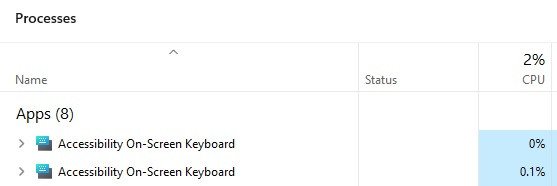
Touch Keyboard vs. On-Screen Keyboard
Windows has two virtual keyboards, and they are switched on in different places. Pick the one that matches how you point at the screen.
| On-Screen Keyboard (OSK) | Touch keyboard | |
|---|---|---|
| Built for | Accessibility: mouse, pointing device, joystick or switch input | Fingers or a pen on a touchscreen |
| Needs a touchscreen | No | Designed for one |
| How to open | Windows key + Ctrl + O, or Accessibility > Keyboard | Tap a text box, or the Touch keyboard icon in the system tray |
| Key layout | Full keyboard (General) or navigation-only (Nav) | Five layouts, chosen from the settings icon in its upper-left corner |
| Extra input modes | Click, Hover over keys, Scan through keys | Tap only |
| Available at sign-in | Yes, from the Accessibility button | Tied to touch and tablet use |
How to change the On-Screen Keyboard layout and typing options
All the settings live on the keyboard itself, under its Options key. Hover and scan modes suit people who cannot click easily.
| Option | What it does |
|---|---|
| Nav / General key | Switches between the navigation-only layout and the full keyboard |
| Use click sound | Plays a sound on each key press |
| Show keys to make it easier to move around the screen | Adds keys for repositioning the keyboard window |
| Turn on numeric keypad | Expands the keyboard with a number pad |
| Click on keys | Enters a character when you click or tap its key |
| Hover over keys | Enters a character after you point at it for the time set by the Hover duration slider |
| Scan through keys | Highlights areas in turn; you select with a key, a mouse click, a switch or a game controller, at the Scanning speed you set |
| Use Text Prediction | Suggests words as you type, in English, French, Italian, German and Spanish |
| Insert space after predicted words | Adds a space after each suggested word you pick |
Function keys may be hidden by default. Select Fn on the on-screen keyboard to show them.
How to turn off the On-Screen Keyboard
- Press Windows key + Ctrl + O to switch it off.
- Or close the keyboard window with its X button.
- To stop it opening with Settings, press Windows key + U, select Keyboard, and turn off the On-Screen Keyboard switch.
- To remove the touch keyboard icon on Windows 11, open Taskbar settings and set Touch keyboard to Never.
Fix On-Screen Keyboard Not Opening or Working
Windows key + Ctrl + O does nothing
A physical key in the combination is not registering, or the keyboard is disconnected.
- Select Start > Settings with the mouse.
- Select Accessibility > Keyboard (Windows 10: Ease of Access > Keyboard).
- Turn on the On-Screen Keyboard switch.
- Check the window appears, then type in Notepad to confirm.
The keyboard disappeared after you minimized it or switched to tablet mode
The window is minimized rather than closed.
- In tablet mode, select the Task view button and pick the On-Screen Keyboard.
- In hover mode, point to the keyboard in the taskbar to restore it.
- In scan mode, press your scan key to bring it back.
- If none of these work, press Windows key + Ctrl + O twice to close and reopen it.
The On-Screen Keyboard shows only a few keys
It opened in the Nav layout, which it keeps from the last session, including a session at the sign-in screen.
- Select the General key on the on-screen keyboard.
- Select Fn if you need the function keys.
- Close and reopen it to confirm it now starts in the full layout.
The touch keyboard icon is missing from the taskbar
The Touch keyboard setting is set to Never, or to When no keyboard attached while a keyboard is connected.
- Right-click the taskbar and select Taskbar settings.
- Under System tray icons, set Touch keyboard to Always.
- On Windows 10, right-click the taskbar and select Show touch keyboard button.
- Select the icon in the system tray to open the keyboard.
No Accessibility button at the sign-in screen
Kiosk or managed PCs can have the Accessibility option removed from the lock screen by the administrator.
- Sign in with an account that can reach the desktop, or plug in a USB keyboard.
- Ask the PC's administrator whether the lock screen accessibility option was removed.
- Once signed in, use Windows key + Ctrl + O or the Settings switch as usual.
Frequently Asked Questions
How do I enable the on-screen keyboard in Windows 11?
Press Windows key + Ctrl + O, or go to Start > Settings > Accessibility > Keyboard and turn on the On-Screen Keyboard switch. The keyboard appears immediately and stays on screen until you close it.
How do I enable the on-screen keyboard in Windows 10?
Go to Start > Settings > Ease of Access > Keyboard and turn on the toggle under Use the On-Screen Keyboard. The Windows key + Ctrl + O shortcut also works on Windows 10.
What is the on-screen keyboard shortcut?
The shortcut is Windows key + Ctrl + O. Microsoft lists it for both Windows 11 and Windows 10, and pressing it again turns the On-Screen Keyboard off. Windows key + U opens the Accessibility settings that hold the same switch.
How do I enable the touch screen keyboard in Windows 11?
Right-click the taskbar, select Taskbar settings, and set Touch keyboard under System tray icons to Always. Then select the Touch keyboard icon in the system tray, or tap a text box, to open it.
How do I enable the screen keyboard on a laptop?
Laptops use the same Windows settings as desktops. Press Windows key + Ctrl + O, or turn on the On-Screen Keyboard switch in Settings > Accessibility > Keyboard. The touchpad works for selecting keys, so no touchscreen is needed.
How do I enable the display keyboard if my keyboard is not working?
Use the mouse: select Start > Settings > Accessibility > Keyboard and turn on On-Screen Keyboard. On Windows 10 the path is Ease of Access > Keyboard. Every step works with clicks alone.
How do I enable the keyboard on my PC?
If you mean a keyboard on the screen, turn on On-Screen Keyboard in Settings > Accessibility > Keyboard. If your physical laptop keys work but are dark, see how to turn on the keyboard light.
Can I use the On-Screen Keyboard before signing in to Windows?
Yes. Select the Accessibility button in the lower-right corner of the sign-in screen, then select On-Screen Keyboard. On Windows 10 the button is called Ease of Access. You can then type your PIN or password.
Do I need a touchscreen to use the On-Screen Keyboard?
No. The On-Screen Keyboard works with a mouse, touchpad, joystick or switch device. You can click keys, hover over them for a set time, or let the keyboard scan through keys and select with a single switch.
What is the difference between the On-Screen Keyboard and the touch keyboard?
The On-Screen Keyboard is an accessibility tool for any pointing device and opens with Windows key + Ctrl + O. The touch keyboard is built for fingers and opens when you tap a text box or its taskbar icon on a touchscreen PC.
Can I enable the on-screen keyboard in kiosk mode?
Microsoft states that assigned access, the Windows kiosk feature, does not change accessibility settings. Administrators can still block Windows key + U with Keyboard Filter or remove the lock screen Accessibility option, so ask them if the keyboard will not open.
Bottom Line
Use Windows key + Ctrl + O when any keys work, and the On-Screen Keyboard switch in Accessibility settings when only the mouse works. The shortcut opens and closes the keyboard in one step on both Windows 11 and 10, while the Settings switch needs no typing at all. On a touchscreen, set the taskbar Touch keyboard icon to Always instead.


![How to Enable & Use Thunderbolt on Windows 11 [Easy Guide]](https://techdows.com/wp-content/uploads/2026/10/How-to-Enable-Use-Thunderbolt-on-Windows-11-Easy-Guide-600x338.jpg)


How to find ease of access Windows 11 - Techdows
[…] The full walkthrough for typing with the mouse is in how to enable the On-Screen Keyboard in Windows. […]
How to fix a Lenovo keyboard not working - Techdows
[…] need a way to type passwords and search boxes while you fix the keyboard. Windows has a built-in On-Screen Keyboard that works with the touchpad or a […]
How to do a squiggly line on the keyboard - Techdows
[…] Open the On-Screen Keyboard on Windows or Keyboard Viewer on Mac, hold Shift, and look for ~ […]