Low disk space means the drive that holds your files, usually the Windows drive C:, is close to full and Windows no longer has room for updates, temporary files and new data.
This guide explains what the warning means on a PC, laptop, Mac and iPhone, how to check how much space you have, and five ways to free disk space on Windows 11 and Windows 10.
What does low disk space mean?
Windows marks a drive as low on space when the capacity bar on the Storage page turns red.
Microsoft does not publish one fixed number for this. The threshold varies with the size of the disk.
A low disk space warning means the drive is nearly full, and you should free several gigabytes before installing updates or large apps. Windows feature updates typically need 6 GB to 11 GB or more of free space, and quality updates need 2 GB to 3 GB or more. A drive below that cannot install them.
The fastest fix on Windows 11 is Start > Settings > System > Storage > Cleanup recommendations, which is the first of the five ways below.
Understanding disk space on a PC or laptop
Every drive has a fixed capacity. Windows, your apps and your files share it, and the free part is what is left for everything new.
| Term | What it means | Where you see it |
|---|---|---|
| Capacity | The total size of the drive, such as 256 GB or 1 TB | File Explorer > This PC > Devices and drives |
| Used space | Space taken by Windows, apps, user files and system files | Settings > System > Storage |
| Free space | Space still available for updates, temporary files and new data | The bar under each drive in This PC |
| System drive | The drive Windows is installed on, usually C: | The drive with the Windows logo in This PC |
| Low disk state | Windows shows the capacity bar in red when free space is low | Settings > System > Storage |
| Minimum for Windows 11 | Windows 11 needs a 64 GB or larger storage device | Microsoft's Windows 11 specifications |
Common causes of low disk space on Windows
Most full drives come from a few predictable sources. Match the cause to the fix in the right-hand column.
| Cause | Why it fills the drive | Fix |
|---|---|---|
| Temporary files | Apps and Windows Update leave setup and temp files behind | Way 3: Disk Cleanup or Storage Sense |
| Downloads folder and Recycle Bin | Deleted and downloaded files stay on disk until removed | Way 1: Cleanup recommendations |
| Large media files | Videos, photos and music grow quickly | Way 4: move them to external storage |
| Unused apps and games | Installed programs keep their full size even when unused | Way 2: uninstall them |
| Previous Windows installation | Windows.old stays after an upgrade for rollback | Way 3: Clean up system files |
| Restore points | System Protection reserves part of the drive for shadow copies | Way 5: lower the System Protection limit |
| Microsoft Store app files in Temp | The Temp folder can fill with .appx files and trigger a Low Disk Space error | See the troubleshooting section |
| Malware | Malicious software can consume disk space | Run a scan with Windows Security |
Symptoms and risks of ignoring low disk space
A nearly full system drive does more than show a warning. These are the signs to look for and what each one costs you.
| Symptom | What happens if you ignore it |
|---|---|
| Red capacity bar on the drive in This PC | The drive keeps filling until saves and installs fail |
| Windows Update says additional space is required | Security and feature updates stay uninstalled |
| A Low Disk Space notification | Windows may turn on Storage Sense to delete temporary files for you |
| Apps fail to install or update | Microsoft Store and desktop installers stop part way |
| Files will not save or copy | Work in progress can be lost when an app cannot write its file |
| "Storage Almost Full" on iPhone | The phone removes items it can download again, such as unused apps |
How to check disk space on Windows, Mac and iPhone
Check the number before you clean, so you know how much you gain. You can also view storage on Windows 11 category by category to see what takes the most room.
| Device | Where to check | What you see |
|---|---|---|
| Windows 11 or Windows 10 | File Explorer > This PC > Devices and drives | A bar and "GB free of GB" for each drive |
| Windows 11 or Windows 10, by category | Start > Settings > System > Storage | Space used by apps, temporary files, documents and more |
| Command line on Windows | Command Prompt: fsutil volume diskfree c: |
Total and free bytes on drive C: |
| PowerShell on Windows | Get-Volume -DriveLetter C |
SizeRemaining and Size columns |
| macOS Ventura 13 or later | Apple menu > System Settings > General > Storage | Used space by category, with recommendations |
| Earlier macOS | Apple menu > About This Mac > Storage | Used and available space |
| iPhone | Settings > General > iPhone Storage | Used space, recommendations and a list of apps by size |
Strategies to free disk space: which way to use
These five ways free space on Windows 11 and Windows 10. Start with the first one that matches your situation.
| Your situation | Use this way | Why |
|---|---|---|
| You want the quickest win on Windows 11 | 1. Remove unnecessary files and folders | Cleanup recommendations lists the biggest candidates in one place |
| You have apps or games you no longer use | 2. Uninstall unneeded applications | Apps are often the largest single items on a drive |
| You recently upgraded Windows or never cleaned up | 3. Clear temporary files, cache and log files | Disk Cleanup removes temp files and old Windows installation files |
| Your photos and videos take most of the space | 4. Use external storage or the cloud | Moving files keeps them without using the system drive |
| Restore points use a large share of the drive | 5. Manage System Restore points | A lower limit frees space and keeps recent restore points |
1. Remove unnecessary files and folders with Cleanup recommendations
Windows 11 groups the files it thinks you can remove on one page. On Windows 10, use Disk Cleanup in way 3 instead.
- Select Start > Settings > System > Storage.
- Select Cleanup recommendations.
- Open each category: Temporary files, Large or unused files, Files synced to the cloud and Unused apps.
- Tick only the items you no longer need.
- Select Clean up to delete the selected items.
- Open File Explorer and check your Downloads, Videos, Pictures and Music folders for large files, sorted by size.
- Delete what you do not need, then empty the Recycle Bin so the space is actually freed.
Deleted files keep using space until the Recycle Bin is emptied.
2. Uninstall unneeded applications in Windows 11 and Windows 10
The same steps work in Windows 11 and Windows 10. Some apps cannot be removed from Settings, so Control Panel is the fallback.
- Select Start > Settings > Apps > Installed apps.
- Find the app you no longer use.
- Select More next to it, then select Uninstall.
- Confirm and follow any prompts from the app's uninstaller.
- If the app has no Uninstall option there, open Control Panel and select Programs > Programs and Features.
- Right-click the program, select Uninstall or Uninstall/Change, and follow the on-screen directions.
You can also right-click an app in Start > All apps and select Uninstall.
3. Clear temporary files, cache and log files with Disk Cleanup
Disk Cleanup removes temporary files, the Recycle Bin contents and leftover setup files. Clean up system files also reaches Windows Update leftovers and the previous Windows installation.
- Select the search box on the taskbar, type disk cleanup, and open Disk Cleanup.
- Choose drive C: and select OK.
- Select Clean up system files, then choose drive C: again.
- Tick the file types to remove, such as Temporary files and Recycle Bin.
- Leave the previous Windows installation unticked if you might roll back a recent upgrade.
- Select OK and confirm to delete the files.
Deleting the previous Windows version within 10 days of an upgrade removes the option to go back to it.
On Windows 11 the same categories also appear under Cleanup recommendations > Temporary files.
4. Move files to external storage or OneDrive to free disk space
Moving keeps your files while taking them off the system drive. OneDrive Files On-Demand leaves small placeholders on the PC instead of full copies.
- Connect a USB drive or insert an SD card.
- Open File Explorer and go to Videos, Pictures, Music or Downloads.
- Sort by Size to bring the largest files to the top.
- Select the files, right-click and choose Cut.
- Open the external drive, right-click an empty area and choose Paste.
- For files in OneDrive, right-click a file or folder and choose Free up space so it becomes online-only.
- Select Start > Settings > System > Storage > Advanced storage settings > Where new content is saved to send new files to another drive.
On Windows 10, use Move to on the Home tab of File Explorer instead of Cut and Paste.
To free up disk space on a Mac, move the Photos or iMovie library to an external drive and then empty the Trash.
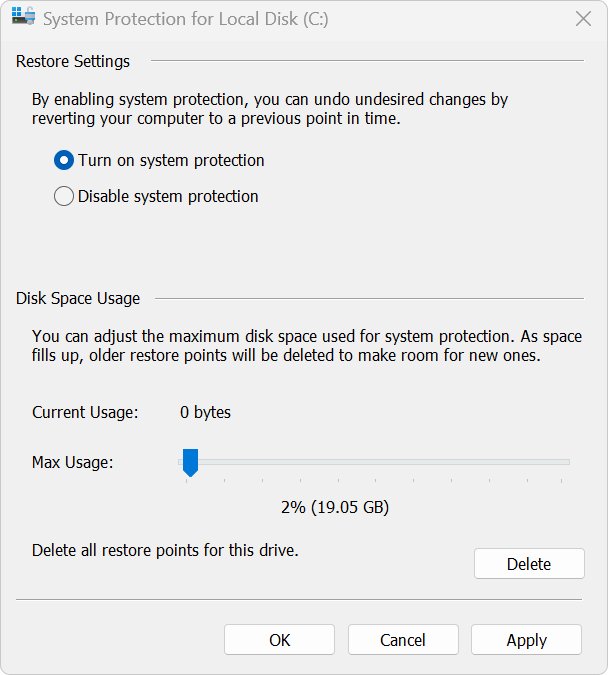
5. Manage System Restore points and backups to free disk space
System Protection reserves part of the drive for restore points. Lowering its limit frees that space and keeps the newest restore points.
In the graphical tool, press Windows key + R, type systempropertiesprotection.exe, select Configure on the System Protection tab, move the disk space slider left and select Apply. The command below does the same from an administrator Command Prompt.
vssadmin resize shadowstorage /For=C: /On=C: /MaxSize=5%Sets the maximum space that shadow copies (restore points) on drive C: may use to 5 percent of the drive. /For is the protected volume, /On is where the copies are stored, and /MaxSize accepts a percentage or a size such as 10GB.
You should see: The command finishes without an error. Microsoft warns that resizing the storage can make existing shadow copies disappear, so older restore points beyond the new limit may be gone.
Create a fresh restore point after resizing so you still have one to fall back on.
Check free disk space after cleanup
- Open File Explorer and select This PC.
- Look at drive C: under Devices and drives and note the "GB free" figure.
- Confirm the bar is no longer red.
- Open Settings > System > Storage and check that Temporary files and Installed apps now show smaller totals.
- Open Settings > Windows Update and select Check for updates to confirm updates now download.
Best practices for maintaining optimal disk space with Storage Sense
Storage Sense is off by default. Turn it on so Windows clears temporary files and old Recycle Bin items before the drive fills again. It works only on the system drive.
- Select Start > Settings > System > Storage.
- Set Storage Sense to On, then select Storage Sense to open its settings.
- Under Run Storage Sense, choose how often it runs, such as every week.
- Set Delete files in my recycle bin if they have been there for over to a period such as 30 days.
- Set the rule for the Downloads folder only if you never keep files there long term.
- If you use OneDrive, choose when unopened cloud files become online-only.
- Check the drive in This PC once a month and uninstall apps you stopped using.
Files marked Always keep on this device in OneDrive are never made online-only by Storage Sense.
On Windows 10 you can also tick Compress this drive to save disk space in the drive's Properties. It deletes nothing and can be reversed.
When to consider upgrading storage on a PC or laptop
Cleaning has a limit. If the drive is full of files you need, more storage is the real fix.
| Situation | What it tells you | Next step |
|---|---|---|
| The drive is red again within weeks of a full cleanup | Your normal use needs more space than the drive has | Add a larger internal drive or a permanent external drive |
| The system drive is smaller than 128 GB | Windows 11 needs 64 GB just to install, so updates leave little room | Plan a larger system drive at your next upgrade |
| Updates keep asking for external storage | Feature updates need 6 GB to 11 GB or more free | Use a USB drive with at least 10 GB free for now, then upgrade |
| Most space is personal media you must keep | Deleting is not an option | Move the library to an external drive or cloud storage |
| The PC has a free drive bay or M.2 slot | Adding storage is cheap and quick | Install a second drive and set it in Where new content is saved |
Fix a low disk space warning that keeps coming back
Laptop keeps saying low disk space after you delete files
The Temp folder fills with Microsoft Store app (.appx) files, or deleted files are still in the Recycle Bin.
- Empty the Recycle Bin.
- Run the Windows Store Apps troubleshooter from the troubleshooters in Settings.
- Type
wsreset.exein the taskbar search box and run it to clear the Microsoft Store cache. - Run the Windows Update troubleshooter as well.
- Restart the PC and check the free space again.
Windows low disk space error during an update
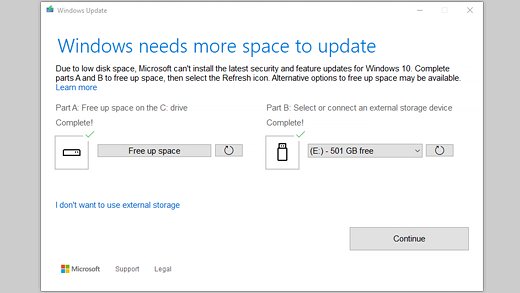
The update needs more free space than the drive has.
- Open Settings > Windows Update and select Fix issues if it appears.
- Note how much space Windows says it needs.
- Connect a USB drive with at least 10 GB free and choose it from the drop-down.
- Select Next and follow the prompts to finish the update.
Computer says low disk space but you cannot find what uses it
System files, restore points or malware are using the space.
- Open Settings > System > Storage and select Show more categories.
- Check System & reserved and Installed apps for large totals.
- Lower the System Protection limit as shown in way 5.
- Open Windows Security and run a virus scan, because malware can consume disk space.
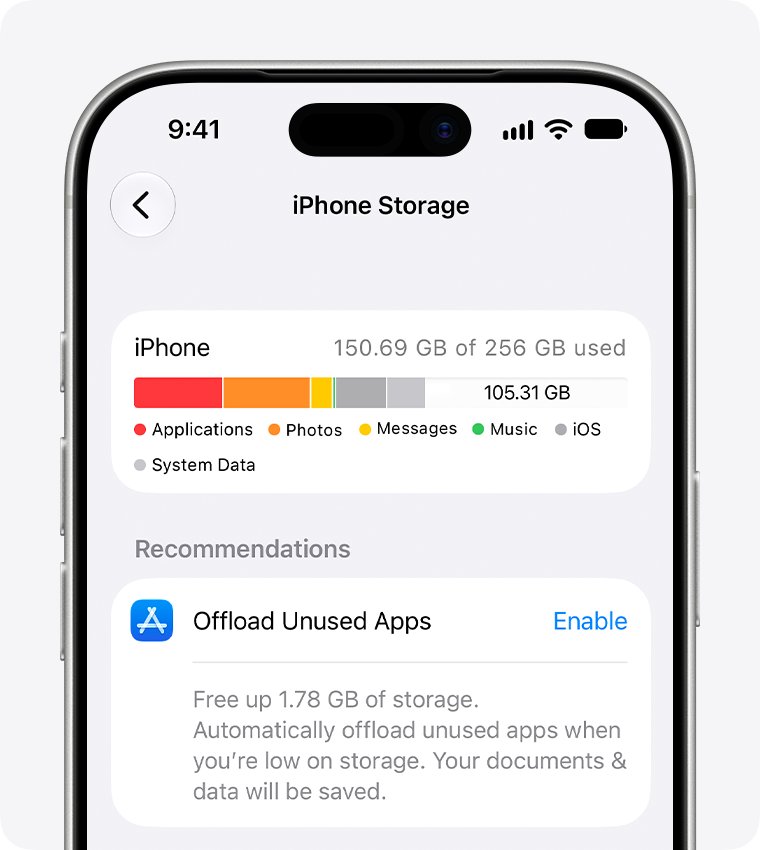
Low disk space on iPhone: Storage Almost Full
Photos, videos and apps have used the phone's storage.
- Open Settings > General > iPhone Storage.
- Tap Show All under recommendations and tap Enable on Offload Unused Apps.
- Tap a large app and choose Offload to keep its documents and data, or Delete to remove everything.
- Delete videos you no longer need, then check the storage bar again.
Low disk space FAQ
What does low disk space mean on a PC?
It means the drive Windows is installed on, usually C:, is almost full. Windows shows the drive's capacity bar in red, and updates, app installs and file saves can fail until you free space.
What does low disk space mean on a laptop?
It means the same as on a desktop PC: the laptop's internal drive is nearly full. Laptops often have smaller drives, so updates and temporary files fill them sooner. Clean up with Cleanup recommendations or Disk Cleanup.
What does low disk space mean on iPhone?
It means the iPhone's storage is nearly full and you may see a Storage Almost Full alert. Open Settings > General > iPhone Storage to see which apps use space, offload unused apps or delete large videos.
What does the low disk space message mean?
The message warns that free space on a drive has dropped below the level Windows needs to work normally. Windows may also turn on Storage Sense to remove temporary files and then notify you.
What is considered low disk space?
Windows treats a drive as low when its capacity bar turns red, and Microsoft says the threshold varies by disk size. As a practical guide, feature updates need 6 GB to 11 GB or more of free space.
Why is my disk space so low?
The usual causes are temporary files, a full Downloads folder and Recycle Bin, large media files, unused apps, the previous Windows installation after an upgrade, and restore points. Settings > System > Storage shows which category uses the most.
Why do I have low disk space after deleting files?
Deleted files stay in the Recycle Bin and keep using space until you empty it. The Temp folder can also fill with Microsoft Store app files, which the Windows Store Apps troubleshooter and wsreset.exe help clear.
Is it safe to delete temporary files in Windows?
Yes. Temporary files are created by apps and Windows for short-term use and can be removed with Disk Cleanup or Storage Sense. Microsoft notes that temporary files not modified within the last week can be deleted safely.
Does low disk space slow down a computer?
A nearly full system drive leaves little room for updates and temporary files, so installs fail and apps can stall while saving. Freeing several gigabytes on drive C: restores normal operation for updates and installs.
Bottom line: how to fix low disk space on Windows
Run Cleanup recommendations or Disk Cleanup first, uninstall apps you no longer use, then turn on Storage Sense so the warning does not return. Those three steps clear the most common causes without touching your personal files. If the drive fills again within weeks, move media to external storage or add a larger drive.