Windows temporary files are short-lived files that apps and Windows write while they work, stored mainly in your user Temp folder at %USERPROFILE%\AppData\Local\Temp, and you can delete them safely from Settings > System > Storage.
This guide explains what these files are, why they pile up, where Windows keeps them, how to move the Temp folder, how to clear it, and what to do when some files refuse to delete.
Windows temporary files: the fastest way to clear them
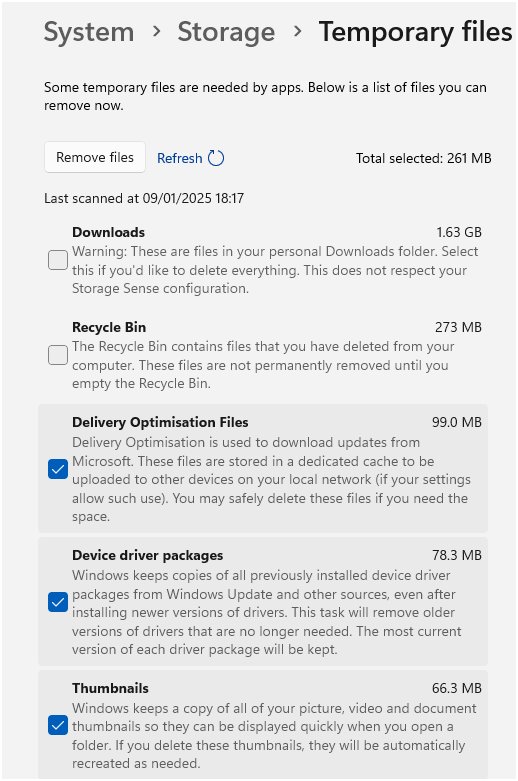
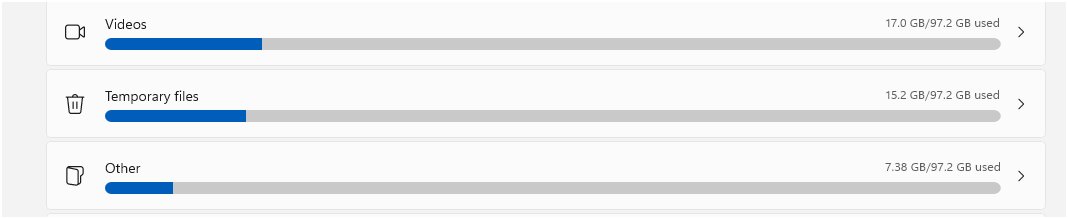
Settings is the quickest safe route on Windows 11, because Windows only offers files it considers removable and shows the space you get back before anything is deleted.
- Select Start, then open Settings.
- Select System, then select Storage.
- Select Cleanup recommendations.
- Open the Temporary files category and tick the items you want to remove.
- Select Clean up to delete the selected files.
If you upgraded Windows in the last 10 days, the list also offers your previous version of Windows. Removing it deletes the Windows.old folder, and you can no longer go back to the earlier version.
Which way to delete Windows temporary files suits you?
| Your situation | Use this | Why |
|---|---|---|
| You want a one-off cleanup with no guesswork | Settings > System > Storage > Cleanup recommendations | Windows picks safe items and shows the size first |
| You never want to think about it again | Storage Sense | Cleans temporary files on a schedule or when space runs low |
| You want to see each file before it goes | File Explorer with %temp% | You choose exactly what is deleted |
| You need categories Settings does not show | Disk Cleanup (cleanmgr) | Lists Temporary Setup Files, Old Chkdsk Files and more |
| Your C: drive is small and Temp keeps growing | Move the Temp folder | New temp files land on a roomier drive |
Empty temporary files folder in Windows 11
The %temp% shortcut opens the Temp folder for your own account, which sits inside your hidden AppData folder. Close the apps you are not using first, because files an open app is still using cannot be deleted.
- Press Win + R to open the Run dialog box.
- Type
%temp%and select OK. - Press Ctrl + A to select everything in the folder.
- Press Delete, or press Shift + Delete to skip the Recycle Bin.
- Skip any file Windows says is open in another program.
- Empty the Recycle Bin if you used Delete, so the space is actually freed.
The same steps work when you clear temp files on Windows 10, where Disk Cleanup is the other common route.
Turn on Storage Sense to delete temporary files automatically
Storage Sense is off by default. Once on, its default settings run when the drive is low on space and remove unnecessary temporary files from the system drive, usually C:.
- Go to Start > Settings > System > Storage.
- Set Storage Sense to On.
- Select Storage Sense to open its options.
- Under Run Storage Sense, choose how often it should run.
- Under Delete files in my recycle bin if they have been there for over:, pick a time limit.
- Leave Delete files in my Downloads folder if they haven't been opened for more than: at its default if you keep files there.
Storage Sense only runs while you are signed in and online for more than 10 minutes. It never touches the Downloads folder or cloud files unless you tell it to.
Use Disk Cleanup to remove temporary files
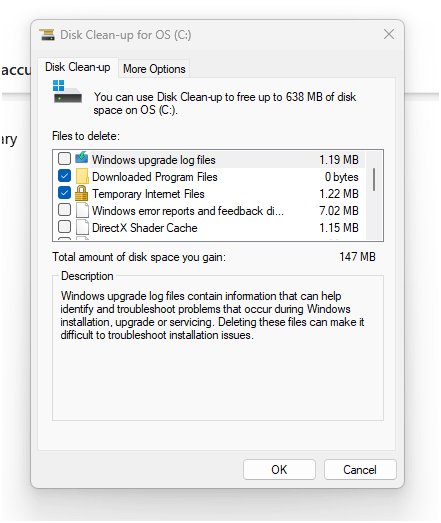
Disk Cleanup (cleanmgr) still ships with Windows and lists a few categories that the Storage settings page groups differently. Its Temporary Files category targets files that have not been modified in over a week.
- Select Start, type
cleanmgrand press Enter. - Pick the drive that holds Windows, usually C:, and select OK.
- Tick Temporary Files, Temporary Setup Files and any other category you want to clear.
- Select Clean up system files to include files that need administrator rights.
- Select OK, then confirm with Delete Files.
How to check Windows temporary files were deleted
- Open File Explorer from the taskbar.
- Select This PC in the left pane.
- Compare the free space shown under Devices and drives with what you had before.
- Press Win + R, type
%temp%and select OK to confirm the folder now holds only files in use.
A handful of files reappearing within minutes is normal. Running apps create new temp files as soon as they need them.
What are temporary files in Windows 11
Temporary files are scratch copies, caches and leftovers that let a program work on data without touching the original until it is finished. Windows sorts them into several kinds.
| Type of temporary file | Where it comes from | Safe to delete? |
|---|---|---|
| Temp folder files (%temp%) | Apps you run under your account | Yes, except files an open app is using |
| Temporary Setup Files | Installers that are no longer running | Yes |
| Temporary Internet Files | Web pages cached for quick viewing | Yes; personalised web settings stay intact |
| Old Chkdsk Files | File fragments Chkdsk saved in the drive's root folder | Yes |
| Previous Windows installation(s) | The Windows.old folder after an upgrade | Only if you will not roll back |
| Recycle Bin contents | Files you deleted earlier | Yes, once you are sure you do not need them |
Why are temporary files created
A program asks Windows for the Temp folder path, creates a uniquely named file there, does its work in that file and then renames or deletes it. Before a program quits, it usually deletes this information; a crash, a forced shutdown or an interrupted install leaves it behind.
| What you see | What it means |
|---|---|
| Files ending in .TMP | The standard Windows temp name: up to three prefix letters, a hexadecimal number, then .TMP |
| Folders with random names | Unpacked installers or updates that did not clean up after themselves |
| Files that will not delete | An app that is still running holds them open |
| Temp folder that grows week after week | Apps that crashed or were closed before they could tidy up |
Temporary files location in Windows
Apps find the Temp folder through environment variables. Windows checks TMP first, then TEMP, then USERPROFILE, and finally falls back to the Windows directory. File Explorer can open the Windows 11 Temp folder from the address bar or the Run box.
| Folder | Typical path | Who writes to it |
|---|---|---|
| User Temp folder (TEMP and TMP) | %USERPROFILE%\AppData\Local\Temp | Apps you run under your account |
| System Temp folder | C:\Windows\SystemTemp | Processes running as SYSTEM; other accounts cannot open it |
| Temporary Internet Files | C:\Users\<username>\AppData\Local\Microsoft\Windows\Temporary Internet Files | The legacy web cache |
Typing %temp% in the Run box or the File Explorer address bar jumps straight to the user Temp folder, whatever drive it is on.
Change the location of the Temp folder in Windows
Moving TEMP and TMP to another drive keeps new temporary files off a small C: drive. User variables affect only your account; system variables apply to everyone on the PC. The same dialog lets you edit environment variables of any kind on Windows 10 or 11.
- Create the new folder first, for example
D:\Temp. - Open Control Panel, select System, then select Advanced system settings.
- Select Environment Variables.
- Under the user variables for your account, select TEMP, select Edit, enter the new folder path and select OK.
- Select TMP and repeat the edit with the same path.
- Select OK to close both dialogs.
- Sign out and back in so newly started apps read the new location.
Apps that were already running keep using the old folder until they restart, because a process inherits its environment when it starts.
Why can't I delete temporary files in Windows 11 and 10?
Some temporary files won't delete and Windows says they are open
A running app or background process still has the file open.
- Skip the locked files and let the rest delete.
- Close the apps you are not using and try again.
- Restart the PC, then clear the Temp folder before opening any apps.
"You'll need to provide administrator permission to delete this folder"
The folder belongs to another account or to Windows, so a standard account cannot remove it.
- Approve the prompt with an administrator account if the folder is in your own Temp folder.
- Leave C:\Windows\SystemTemp alone; it is restricted to SYSTEM processes on purpose.
- Use Clean up system files in Disk Cleanup, which removes system temp data with the right permissions.
Low Disk Space error right after a cleanup
The Temp folder can refill quickly with Microsoft Store app (.appx) files.
- Go to Start > Settings > System > Troubleshoot > Other troubleshooters and select Run next to Windows Store Apps.
- Press Win + R, type
wsreset.exeand select OK to clear the Microsoft Store cache. - Return to Other troubleshooters and select Run next to Windows Update.
- Restart the PC and check free space again.
Temporary files are huge and keep coming back
Apps recreate temp data as they run, and nothing removes it on a schedule.
- Turn on Storage Sense so Windows clears temporary files for you.
- Move TEMP and TMP to a larger drive if C: is small.
- Run a scan with Windows Security if the growth is sudden and unexplained.
Windows temporary files FAQ
What are Windows temporary files?
Windows temporary files are scratch files that apps and Windows create while working, such as installer leftovers, caches and .TMP files. Most live in %USERPROFILE%\AppData\Local\Temp. Programs are meant to delete them when they finish, but crashes and interrupted installs leave many behind.
Can I delete temporary files in Windows 10 and 11?
Yes. Temporary files are safe to delete, and Windows skips any file an app still has open. Disk Cleanup's own description says files not modified for over a week are safe to remove. Use Settings > System > Storage or the %temp% folder.
Where does Windows put temporary files?
Windows puts temporary files in the folder named by the TMP or TEMP environment variable, typically %USERPROFILE%\AppData\Local\Temp. Processes running as SYSTEM use C:\Windows\SystemTemp instead. Type %temp% in the Run box to open your own Temp folder directly.
How do I access temporary files on Windows?
Press Win + R, type %temp% and select OK. File Explorer opens the Temp folder for your account, wherever TEMP points. Typing %temp% in the File Explorer address bar does the same thing.
Are temporary files important?
Temporary files matter only while the app that created them is running. Once that app closes, the files have no further use. Deleting them never removes your documents, photos or installed programs, though an app may rebuild a cache the next time it starts.
Do I need temporary files?
Apps need the Temp folder while they work, so Windows always keeps one. You do not need old files sitting in it. Clearing it regularly, or letting Storage Sense do it, frees space without breaking anything.
Why are temporary files created?
Temporary files are created so a program can process data in a separate file before saving the result. Installers unpack into them, editors keep working copies in them and browsers cache pages in them. A program usually deletes its temp data before it quits.
Why won't temporary files delete in Windows 10?
Temporary files won't delete when a running app still has them open or when the folder belongs to another account. Skip the locked files, close open apps or restart the PC, then clear the Temp folder again before launching anything.
How do I delete temporary files on Windows 11 without deleting anything important?
Use Start > Settings > System > Storage > Cleanup recommendations. Windows lists only removable items under Temporary files and shows the space each will free. Untick Previous Windows installation(s) if you might roll back a recent upgrade.
Bottom line: should you clear Windows temporary files?
Turn on Storage Sense and clear the %temp% folder by hand only when space is tight or an app misbehaves. Temporary files are disposable once their app closes, and Storage Sense removes them on a schedule without risking files you still need.

![Adjusting volume balance settings in Windows 11 and 10 [Easy steps]](https://techdows.com/wp-content/uploads/2026/10/Adjusting-Volume-Balance-Settings-in-Windows-11-and-10-500x338.jpg)