uplay_r1_loader64.dll is a library file that ships with Ubisoft games, and you fix its errors by verifying the game's files in the launcher you bought it from.
This guide explains what the file does, why it goes missing, how to repair it in Ubisoft Connect, Steam or Epic Games, and why a DLL download site is the wrong fix.
How to fix errors related to uplay_r1_loader64.dll
Restore the file through the launcher that installed the game. That copy matches your game's version, and a loose download does not.
- Note the name of the game that shows the error.
- Restart the PC and try the game once more.
- Open Ubisoft Connect, select the Library tab, and choose the game.
- Select the cog icon next to the Play button, and choose Verify files.
- If you own the game on Steam or Epic Games, run the verify option in that launcher instead.
- Start the game again.
- If the error returns, uninstall the game and install it again from the same launcher.
What is uplay_r1_loader64.dll?
Ubisoft does not publish documentation for this file, so the facts below come from its name and from how Windows loads DLL files.
| Question | Answer |
|---|---|
| File type | A dynamic-link library (DLL), which a program loads while it starts or runs |
What uplay means |
Uplay was Ubisoft's PC client and services brand, merged into Ubisoft Connect in October 2020 |
What 64 means |
It points to a 64-bit build of the file |
| Who needs it | Ubisoft games on PC, including copies sold on Steam and Epic Games |
| Why the game stops | A program that needs a library cannot start when Windows fails to find or load it |
| How to replace it | Through the launcher's verify option or a reinstall, never as a loose download |
A related file, uplay_r1_loader.dll, has no 64 in its name. Restore it the same way, through the launcher.
Common reasons for uplay_r1_loader64.dll errors
| Possible cause | Clue | Fix |
|---|---|---|
| Incomplete or damaged game files | One Ubisoft game fails, often after an interrupted update | Verify the game's files |
| File deleted or moved | You cleaned up, moved or copied the game folder recently | Check the Recycle Bin, or reinstall |
| File quarantined by security software | Protection history lists a threat at about the same time | Reinstall from the official launcher, then run a full scan |
| Modified or unofficial copy of the game | The file came from somewhere other than Ubisoft, Steam or Epic | Remove it and install the game from an official store |
| Windows or graphics drivers out of date | The game crashes as well as reporting the file | Update Windows and the graphics driver |
| Wider system file damage | Several unrelated programs also fail | Run DISM and SFC scans |
How to detect and diagnose uplay_r1_loader64.dll errors
Read the exact wording of the error window first, because each message points to a different starting fix.
| What the error says | What it means | Start with |
|---|---|---|
| "The program can't start because uplay_r1_loader64.dll is missing from your computer" | Windows searched its usual folders and found no copy | Verify files in the launcher |
| "uplay_r1_loader64.dll was not found" | The same missing-file condition with different wording | Verify files in the launcher |
| "Bad Image" or "not designed to run on Windows or it contains an error" | A copy exists, but Windows cannot load it | Verify files, then reinstall if it repeats |
| "The procedure entry point could not be located" naming the file | The file and the game's executable come from different versions | Verify files so both match |
| A security alert names the file | Windows Security or another tool flagged it | Open Protection history, then reinstall from the official launcher |
Error code 0xc000007b at launch |
Windows could not load a file the game needs | Verify files, then work through the 0xc000007b fixes |
If the message mentions a different file, the fix belongs to that file. A Visual C++ library error, for example, needs you to repair a missing vcruntime140.dll rather than touch the Ubisoft file.
How to verify game files in Ubisoft Connect for uplay_r1_loader64.dll
Ubisoft lists file verification as the fix when a game crashes or will not start, because it restores missing or corrupted files.
- Open Ubisoft Connect on your PC.
- Select the Library tab.
- Choose the game that reports the error.
- Select the cog icon next to the Play button.
- Choose Verify files, and wait for the check to finish.
- Start the game again.
If Ubisoft Connect cannot change files on the PC, close it and launch it with Run as administrator, which Ubisoft recommends when the app lacks permission to write files.
uplay_r1_loader64.dll missing on Steam
Ubisoft games bought on Steam are verified in Steam itself. Avoid running the check during a virus scan or disk defragmentation, and verify one game at a time.
- Restart the PC and open Steam.
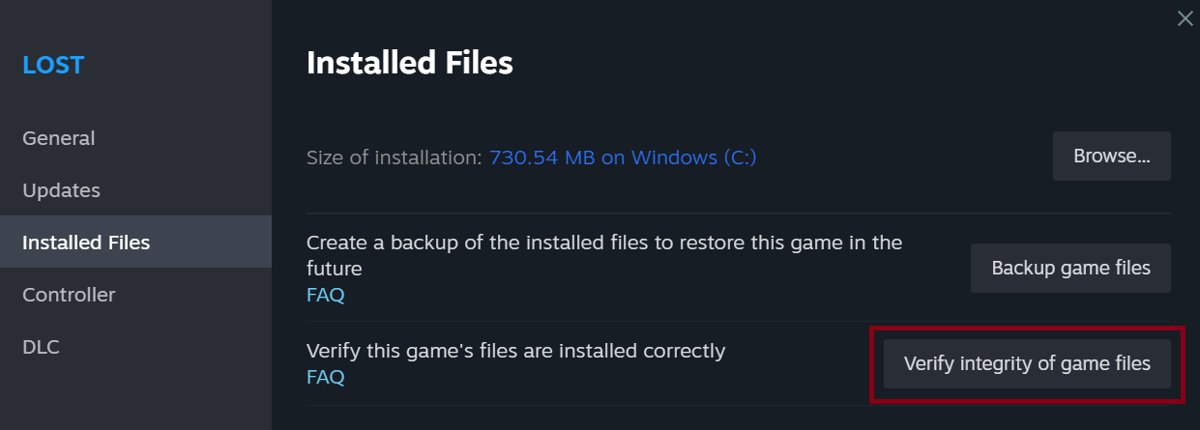
- Right-click the game in your Library, or select the gear icon on the game's Library page.
- Select Properties.
- Select the Installed Files tab.
- Select Verify integrity of game files, and wait for it to finish.
- Start the game again.
A notice that one or more files failed to verify is normal for most Steam games. Those are local configuration files, and you can ignore the message.
For a copy bought on Epic Games, use the verify option in Epic Games Launcher, which Ubisoft names as the right place to check those files.
Reinstall the game to restore uplay_r1_loader64.dll
A fresh install writes every game file again. Back up any local save folder you rely on before you uninstall.
- Select Start > Settings > Apps > Installed apps.
- Find the game, select the More icon, and select Uninstall.
- Use Programs and Features in Control Panel if Settings cannot remove it.
- Restart the PC.
- Install the game again from Ubisoft Connect, Steam or Epic Games, wherever you own it.
- Start the game once the download finishes.
Restore uplay_r1_loader64.dll from the Recycle Bin
- Open Recycle Bin from the desktop.
- Type
uplay_r1_loader64.dllin the search box. - Right-click the file and select Restore.
- Run Verify files in the launcher afterwards, so the restored copy matches the game version.
If the file came from a DLL site, a mod pack or a stranger's download, delete it and use the verify or reinstall route instead.
Update Windows and graphics drivers for uplay_r1_loader64.dll crashes
Ubisoft's PC troubleshooting order puts Windows updates and graphics drivers next to file verification. A driver cannot replace the DLL, but it rules out a crash cause that looks similar.
- Select Start > Settings > Windows Update, then select Check for updates and install what is listed.
- Select Start, type
run, and open the Run app. - Enter
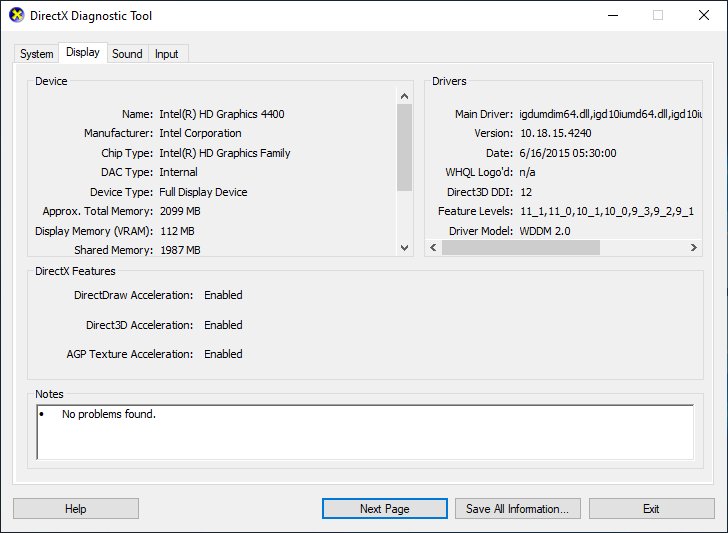
DxDiagand press Enter. - Select the Display tab to see your graphics card and driver version.
- Download the newest driver for that card from AMD, Intel or NVIDIA's own site.
- Restart the PC and start the game again.
uplay_r1_loader64.dll not found: run DISM and SFC
System File Checker repairs Windows system files, so it will not rebuild a game folder. Run it when several programs fail, because that points to damage beyond one game.
- Select Search, type
command prompt, right-click Command Prompt, and select Run as administrator. - Type
DISM.exe /Online /Cleanup-image /Restorehealthand press Enter. - Wait for "The operation completed successfully", which can take a few minutes.
- Type
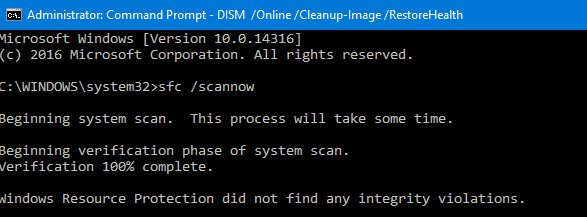
sfc /scannowand press Enter. - Wait for "Verification 100% complete", and then read the result.
- Type
exitand press Enter.
"Windows Resource Protection did not find any integrity violations" means Windows is fine, so return to the game's own files. When other programs also show runtime errors, keep working on Windows first.
uplay_r1_loader64.dll download: should you use a DLL site?
Do not download uplay_r1_loader64.dll from a DLL download site or a forum attachment. Microsoft advises downloading apps only from trusted sources, and a loose DLL gives you no way to confirm who built it or which game version it matches. A copy from an unofficial source may be modified, and security software can remove it. The launcher's verify option restores the genuine file at no cost.
uplay_r1_loader64.dll still missing after verifying
Windows Security removed the file
Microsoft Defender can quarantine a file it flags, and the event stays in Protection history for two weeks.
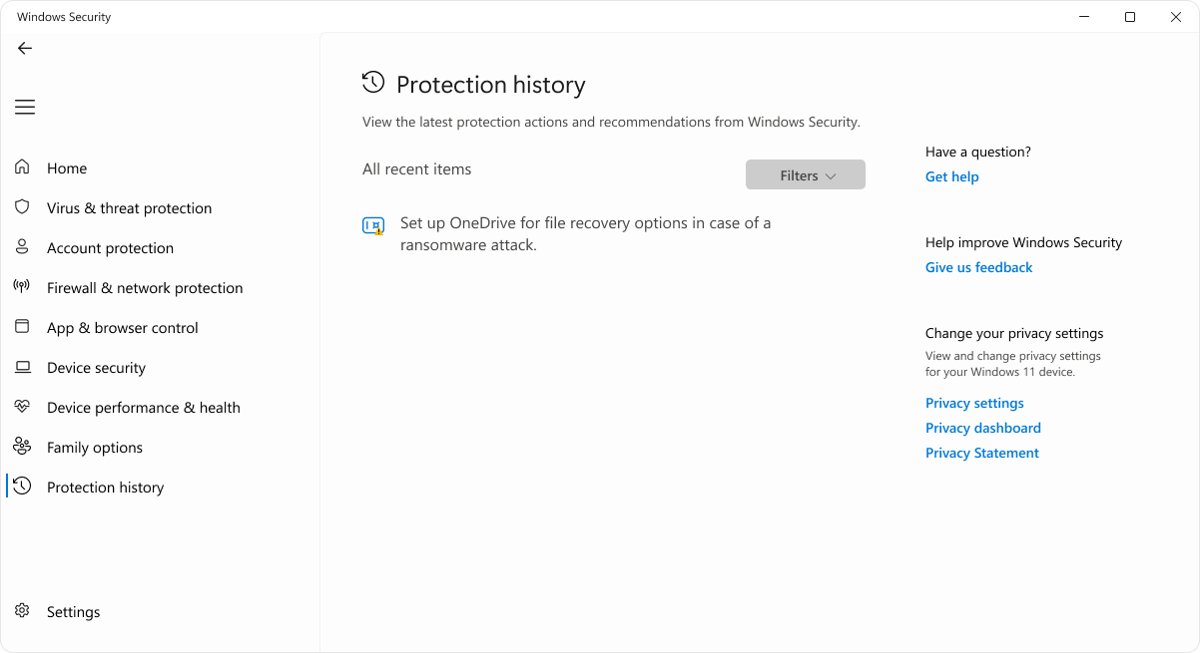
- Open Windows Security and select Protection history.
- Look for a Threat quarantined card that names the file.
- Run a full scan with Microsoft Defender Antivirus.
- Reinstall the game from Ubisoft Connect, Steam or Epic Games, and contact Ubisoft if the official file is flagged again.
Verify files finishes but the game still will not start
The launcher could not write files, or a background program interferes with the game.
- Close Ubisoft Connect, right-click its shortcut, and select Run as administrator.
- Run Verify files again.
- Close background applications before you start the game.
- Right-click the game's shortcut and select Run as administrator to test once more.
The error appears with a 0xc000007b code
Windows could not load a file the game needs, often because a file is damaged or mismatched.
- Verify the game's files first.
- If the code remains, work through the fixes for the 0xc000007b error.
Another game DLL is reported missing instead
Each missing library needs the fix for that file.
- Read the exact file name in the new message.
- For an AMD graphics library, restore a missing amd_ags_x64.dll the same way, through the game's launcher.
Where is uplay_r1_loader64.dll located?
Windows checks the folder the game loads from before the system folders, so the game's own install folder is the place to look. Ubisoft Connect installs games under C:\Program Files (x86)\Ubisoft\Ubisoft Game Launcher\games by default.
- Open File Explorer and go to the folder where the game is installed.
- Type
uplay_r1_loader64.dllin the File Explorer search box. - Note the folder that holds the result, if one appears.
- Close File Explorer and start the game. A clean launch matters more than the file's exact location.
Do not copy the file into System32 or the Windows folder to clear the error. The game expects its own copy, in its own folder.
Preventive measures to avoid future uplay_r1_loader64.dll errors
| Habit | Why it helps |
|---|---|
| Install games only from Ubisoft Connect, Steam or Epic Games | Official files are not flagged as threats or swapped for modified copies |
| Let updates finish before you close the launcher | An interrupted update leaves files half written |
| Reinstall a game in its new place instead of dragging the folder | A manual move can leave files behind |
| Keep Windows and the graphics driver up to date | Ubisoft lists both as basic steps for crashes and start failures |
| Keep security software up to date | Ubisoft notes that current security software may resolve conflicts with games |
| Run Verify files after a crash during an update | It restores missing or corrupted files before they cause a start failure |
When to seek professional help
Contact Ubisoft Support once verify, reinstall and Windows repairs have all failed. Ubisoft asks for your DxDiag and MSInfo reports on PC performance cases, so collect them first.
| Situation | Who to contact | What to include |
|---|---|---|
| The official file fails after a clean reinstall | Ubisoft Support, through CONTACT US on its help site | Game name, store, exact error text, DxDiag and MSInfo reports |
| Security software flags the official file | Ubisoft Support | The Protection history entry and the file path |
| Many programs fail and SFC cannot repair Windows | Microsoft Support | The DISM and SFC results |
| A copy came from an unofficial source | No support channel covers it | Buy or install the game from an official store |
uplay_r1_loader64.dll FAQ
How do I fix uplay_r1_loader64.dll missing?
Verify the game's files in the launcher you own it on. In Ubisoft Connect, open Library, choose the game, select the cog icon next to Play and choose Verify files. If the error returns, uninstall the game and reinstall it from the same launcher.
Is uplay_r1_loader64.dll a virus?
The genuine file is part of Ubisoft games, not malware. A copy from an unofficial source may be modified, and security software can flag it. If Windows Security reports the file, reinstall the game from an official store and run a full Microsoft Defender scan.
Can I download uplay_r1_loader64.dll on its own?
Do not. A DLL site gives you no way to confirm who built the file or which game version it matches. Microsoft advises downloading apps only from trusted sources. Verifying the game's files restores the genuine copy for free.
Where should uplay_r1_loader64.dll be?
In the game's own install folder, which Windows checks before its system folders. Ubisoft Connect installs games under C:\Program Files (x86)\Ubisoft\Ubisoft Game Launcher\games by default. Never copy the file into System32 to clear the error.
Does uplay_r1_loader64.dll affect Steam versions of Ubisoft games?
Yes. Ubisoft games bought on Steam can report the same file, and Ubisoft says to verify them in Steam. Run Verify integrity of game files from the game's Properties in Steam, under the Installed Files tab, to restore it.
Is uplay_r1_loader.dll fixed the same way?
Yes. uplay_r1_loader.dll, without 64 in the name, is another Ubisoft game file. Restore it by verifying the game's files in Ubisoft Connect, Steam or Epic Games, or by reinstalling the game. Never download it from a DLL site.
Will sfc /scannow restore uplay_r1_loader64.dll?
No. System File Checker repairs Windows system files, and this file belongs to the game. Run SFC only when several programs fail. For a single Ubisoft game, verify its files in Ubisoft Connect, Steam or Epic Games instead.