Verify the game's files in its launcher, and reinstall the game if that does not bring amd_ags_x64.dll back.
These steps cover Steam, other programs, a quarantined file, driver updates, system file checks and why a DLL download site is the wrong fix.
Fix amd_ags_x64.dll missing error in Windows 11/10
Restore the file through the program that reports the error, because that copy matches the program's version.
- Note the name of the game or program that shows the error.
- Restart the PC and try the program again.
- Open the launcher that installed it, and run its verify or repair option. The Steam steps are below.
- Open the program again.
- If the error returns, uninstall the program and reinstall it from the same store or installer.
The program can’t start because amd_ags_x64.dll is missing from your computer
This message means Windows searched the usual locations for the file and did not find it. A similar message, "amd_ags_x64.dll was not found", needs the same fixes. Match your situation to a row.
| Your situation | What to do | Why |
|---|---|---|
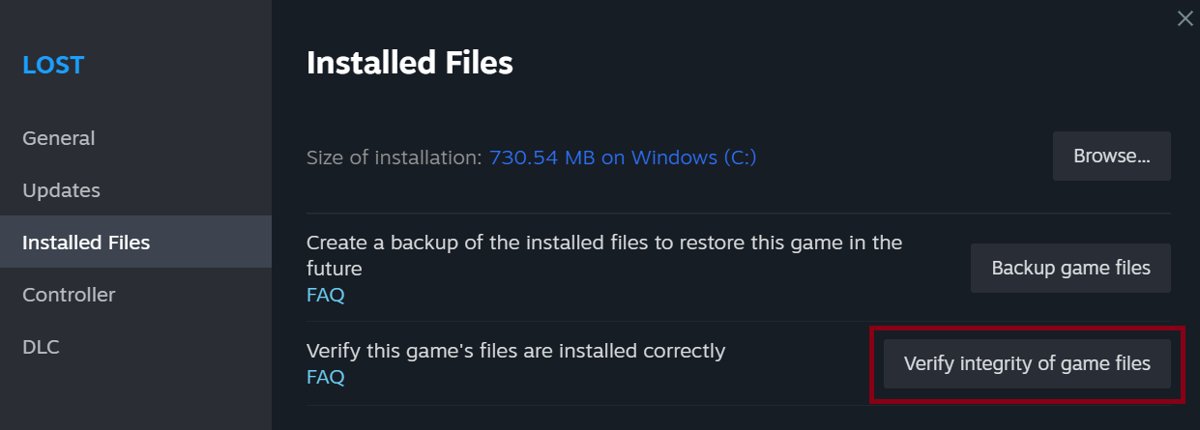
| The game came from Steam | Run Verify integrity of game files | Steam checks the installed files and restores what is missing |
| The game came from another launcher | Use that launcher's verify or repair option, or reinstall | Each launcher manages its own game files |
| It is a desktop program | Repair it from Installed apps, or reinstall it | The installer puts the program's files back |
| You deleted files recently | Check the Recycle Bin | The file may still be there |
| Windows Security flagged a file | Check Protection history before restoring anything | A security tool may have removed it |
| Several programs report missing files | Run DISM and sfc /scannow |
Damage may be wider than one program |
What is amd_ags_x64 DLL?
| Question | Answer |
|---|---|
| File type | A dynamic-link library, which a program loads while it starts or runs |
| What the name tells you | amd points to AMD, and x64 points to a 64-bit build |
| Why the program stops | A program that needs the library cannot start without it |
| How to replace it | Through the program that needs it, not as a loose download |
Where is amd_ags_x64.dll located?
There is no single fixed location. Windows looks through a set order of places when a program asks for a DLL, and the program's own folder is one of the first.
| Search order | Location | What to check |
|---|---|---|
| 1 | The folder from which the application loaded | The folder that holds the game's .exe file |
| 2 | The system folder | C:\Windows\System32 on a standard install |
| 3 | The Windows folder | C:\Windows on a standard install |
| 4 | The current folder | The folder the program was started from |
| 5 | Folders listed in the PATH environment variable |
Any folder added by installed software |
Microsoft's full order also includes redirection and known DLL checks that run first. Those are not places you need to check by hand.
What causes amd_ags_x64.dll missing error?
| Possible cause | Clue | Fix |
|---|---|---|
| Incomplete or damaged game files | One game shows the error, and textures may be missing too | Verify the game's files |
| File deleted or moved | You cleaned up or moved the game folder recently | Check the Recycle Bin, or reinstall |
| File quarantined | Protection history lists a threat at about the same time | Reinstall from the original store, and scan the PC |
| Program installed badly | The error appeared on first launch | Repair or reinstall the program |
| Wider system file damage | Other programs also fail | Run DISM and SFC |
How to fix amd_ags_x64.dll missing on Steam
Steam's verify tool checks that a game's files are installed correctly. Avoid running it during a virus scan or disk defragmentation, and verify only one game at a time.
- Restart your computer and open Steam.
- Right-click the game in your Library, or select the gear icon on the game's Library page.
- Select Properties.
- Select the Installed Files tab.
- Select Verify integrity of game files, and wait for it to finish.
- Start the game again.
A notice that one or more files failed to verify is normal for most Steam games. Those are local configuration files, and you can ignore the message.
How to reinstall a game to restore amd_ags_x64.dll
A fresh install writes every program file again. Back up save files first if the game keeps them in its own folder.
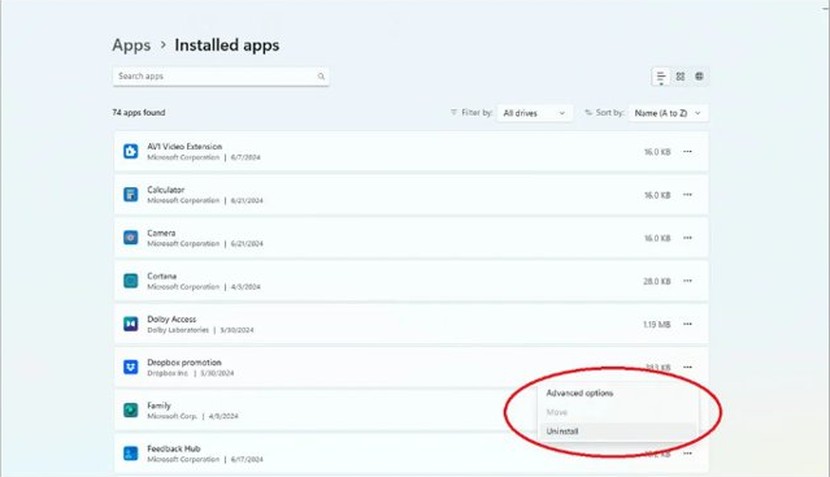
- Select Start > Settings > Apps > Installed apps.
- Find the program, select the More icon, and select Uninstall.
- Use Programs and Features in Control Panel if Settings cannot remove it.
- Restart the PC.
- Install the program again from its original store or official installer.
- Open it and confirm the error has gone.
How to repair a program that needs amd_ags_x64.dll
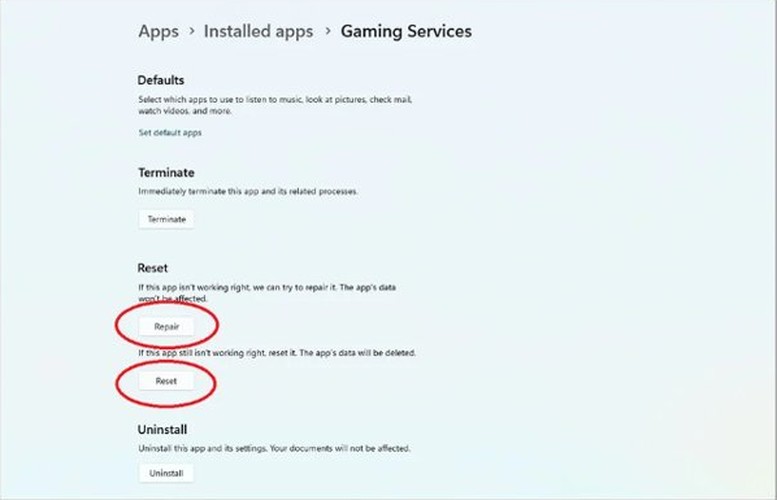
Not every program offers a repair option. Windows shows Repair only when the app supports it.
- In Windows 11, select Start > Settings > Apps > Installed apps. In Windows 10, select Apps & features.
- Select the More icon next to the app in Windows 11, or the app's name in Windows 10.
- Select Advanced options if it is listed.
- Select Repair if it is available.
- For a desktop program, open Control Panel > Programs > Programs and Features.
- Right-click the program and select Repair, or Change if Repair is not listed.
Restore amd_ags_x64.dll from the Recycle Bin
- Open Recycle Bin from the desktop.
- Type
amd_ags_x64.dllin the search box. - Right-click the file and select Restore.
- Open the program again.
If the file came from a DLL site or a stranger's download, delete it and use the verify or reinstall route instead.
Update graphics driver for amd_ags_x64.dll missing error
Try this after a verify or reinstall, because a driver update cannot replace a file that belongs to a game's own folder. It still rules out an out-of-date graphics driver when a game keeps failing.
- Right-click Start and select Device Manager.
- Expand Display adapters.
- Right-click your graphics device and select Update driver.
- Select Search automatically for updated driver software.
- If Windows finds nothing, select Search for updated drivers on Windows update.
- Install any listed driver, restart the PC, and open the program again.
Windows 11 also lists drivers under Settings > Windows Update > Advanced options > Optional updates. For the newest AMD driver, use the support section of AMD's own site.
amd_ags_x64.dll was not found: run DISM and SFC
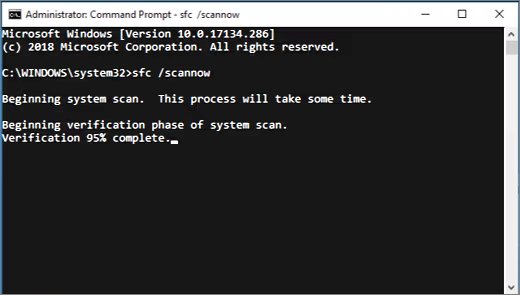
System File Checker repairs Windows system files, so it will not rebuild a game's folder. Run it when several programs fail, because that points to wider damage.
- Install the latest Windows updates and restart the PC.
- Select Search, type
command prompt, right-click Command Prompt, and select Run as administrator. - Type
DISM.exe /Online /Cleanup-image /Restorehealthand press Enter. - Wait for "The operation completed successfully", which can take a few minutes.
- Type
sfc /scannowand press Enter. - Wait for "Verification 100% complete", and then read the result.
- Type
exitand press Enter.
"Windows Resource Protection did not find any integrity violations" means your system files are fine, so go back to the program itself.
amd_ags_x64 dll download: should you use a DLL site?
Do not download amd_ags_x64.dll from a DLL download site. Microsoft advises downloading apps only from trusted sources, and a loose DLL gives you no way to confirm who built it or which game version it matches. The verify and reinstall routes restore the copy that belongs to your program, at no cost.
This applies to "amd_ags_x64 dll download Windows 11" and "Windows 10" pages alike. Windows version does not change the risk, and the fix is the same on both.
amd_ags_x64.dll still missing after reinstalling
Windows Security removed the file
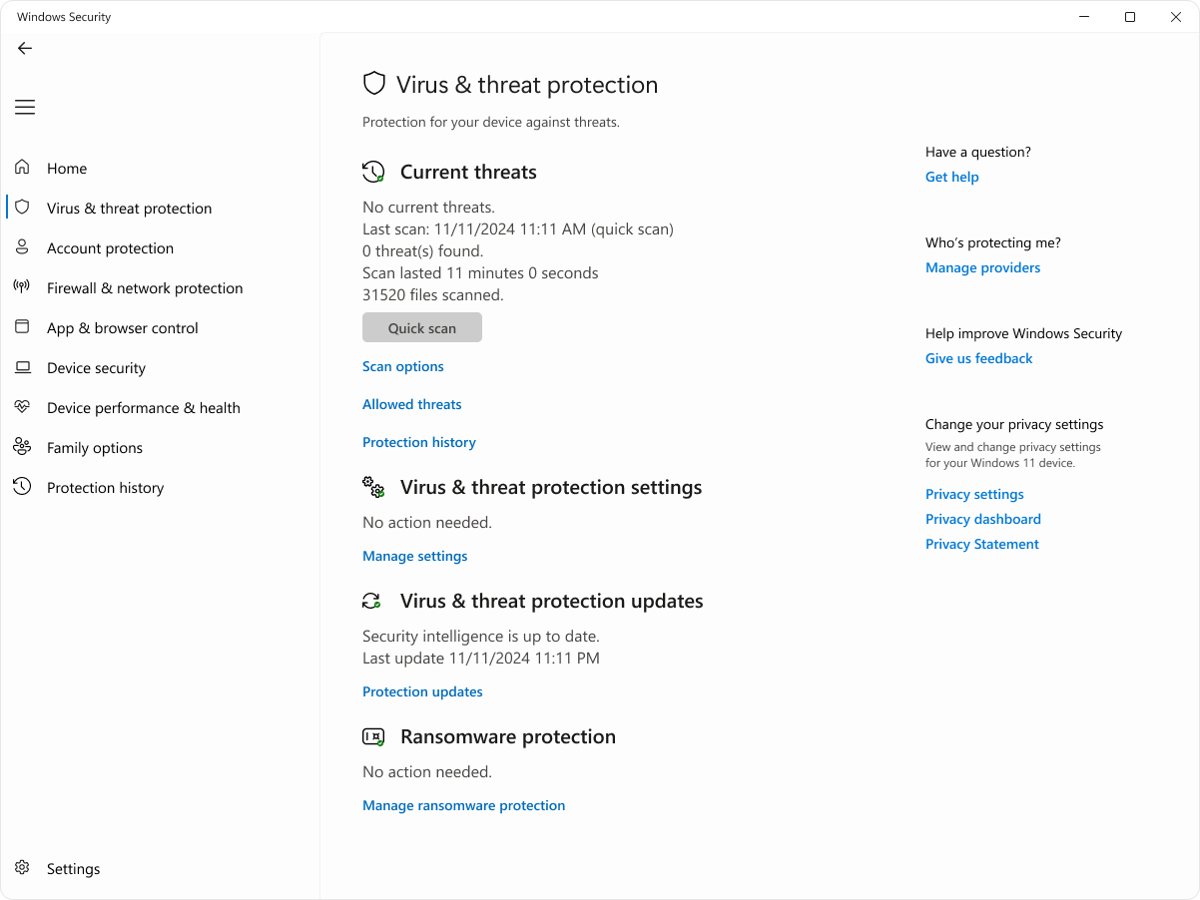
Microsoft Defender can quarantine a file it flags, and the event stays in Protection history for two weeks.
- Open Windows Security and select Protection history.
- Look for a Threat quarantined card that names the file.
- Run a full scan with Microsoft Defender Antivirus.
- Reinstall the program from its original store, and contact the publisher if its own file is flagged again.
The error names a different DLL
A different missing file usually needs a different fix.
- Read the exact file name in the new message.
- Work through the fixes for missing DLL and runtime errors, or repair a missing vcruntime140.dll if that file is named.
A different error code appears instead of a missing file
A different error code calls for its own troubleshooting.
- Note the exact code on the error window.
- You can fix the 0xc000007b error separately if that is the code shown.
How to find amd_ags_x64.dll in the game folder
Use this after a verify or reinstall to see whether the file is back, then launch the game. A clean launch matters more than the file's location.
- Open the folder where the game is installed.
- Type
amd_ags_x64.dllin the File Explorer search box. - Note the folder that holds the result, if one appears.
- Close File Explorer and start the game.
amd_ags_x64.dll FAQ
How do I fix amd_ags_x64.dll missing?
Verify the game's files in its launcher, such as Steam's Verify integrity of game files, and then try again. If the error remains, uninstall and reinstall the program from its original store. A new install writes the program's files again.
Is it safe to download amd_ags_x64.dll?
Not from a DLL download site. Microsoft advises downloading apps only from trusted sources, and a loose DLL gives you no way to confirm its origin or version. Restore the file by verifying or reinstalling the program that needs it.
Where should amd_ags_x64.dll be located?
Windows searches several places, including the folder the application loaded from, the system folder and the Windows folder. Check the game's install folder first, because that is where the application loads from. Do not copy a loose file into System32 to clear the error.
Why does amd_ags_x64.dll was not found appear?
Windows searched its usual locations and could not find the file the program asked for. The file may be deleted, moved, quarantined or missing from an incomplete install. Verifying or reinstalling the program is the most direct fix.
Is the fix different on Windows 11 and Windows 10?
No. Verifying and reinstalling work the same on both, and only the Settings path differs. Windows 11 uses Apps > Installed apps, and Windows 10 uses Apps > Apps & features to reach the uninstall and repair options.
Will sfc /scannow restore amd_ags_x64.dll?
Do not rely on it for this error. System File Checker checks and repairs Windows system files, so run it when several programs report problems. For a single game, verify its files or reinstall it instead.