To fix the vcruntime140.dll missing error on Windows 11 or Windows 10, install the latest Microsoft Visual C++ Redistributable from Microsoft, in both x64 and x86 versions, and reopen the app.
This guide covers that fix, the separate vcruntime140_1.dll error, repairing the runtime, reinstalling the app, Windows Update, SFC and DISM, and why DLL download sites make things worse.
Install or Repair Microsoft Visual C++ Redistributable
vcruntime140.dll is the Visual C++ runtime library that apps built with Visual Studio 2015 or later load at startup. Microsoft ships it only inside the Visual C++ v14 Redistributable, and one current package serves apps built with Visual Studio 2017 through 2026.
Install both packages on 64-bit Windows. The x86 package supplies the 32-bit copy of vcruntime140.dll that 32-bit apps need, even on a 64-bit PC.
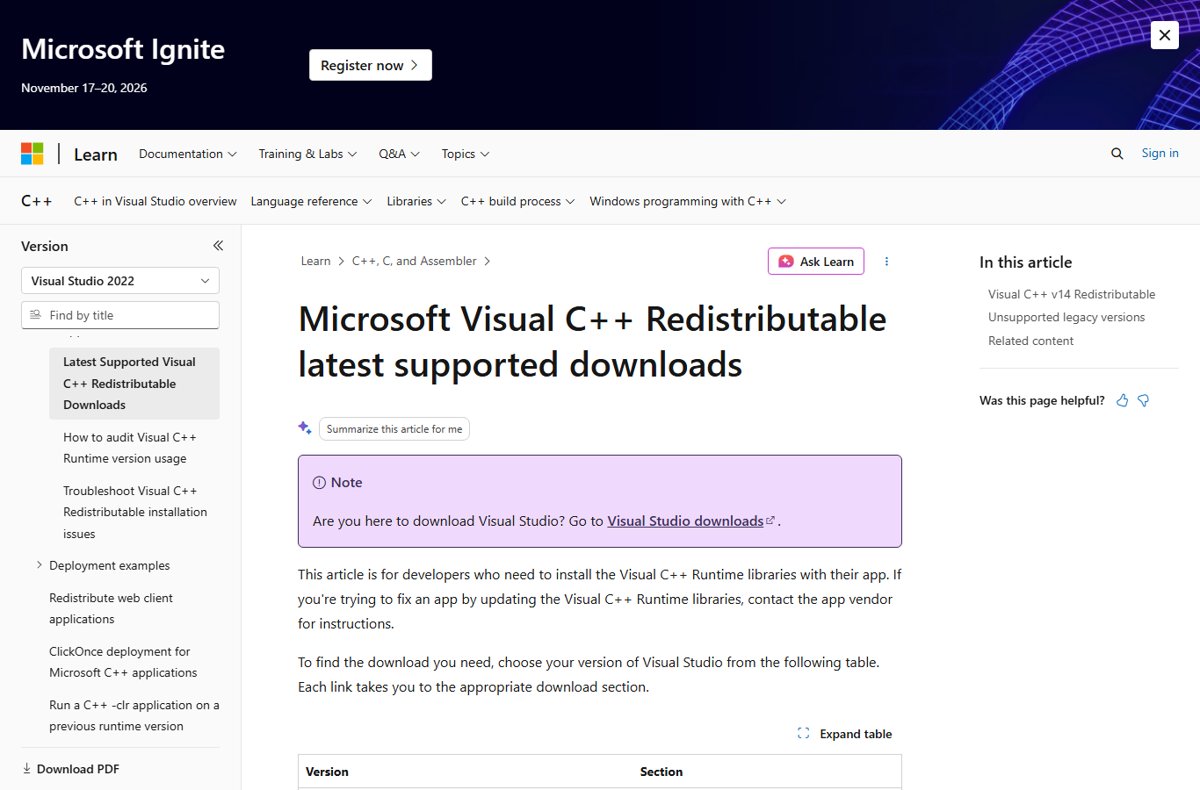
- Open Microsoft's Latest supported Visual C++ Redistributable downloads page on learn.microsoft.com.
- Under Latest supported redistributable version, download the X64 package (
vc_redist.x64.exe) and the X86 package (vc_redist.x86.exe). - Run
vc_redist.x64.exe, accept the license terms and select Install. Approve the User Account Control prompt. - Run
vc_redist.x86.exethe same way. - If either setup reports that it failed, a newer build is already installed. Repair it instead: open Control Panel > Programs > Programs and Features, right-click the Visual C++ 2015-or-later entry and select Repair or Change.
- Restart the PC and open the app that showed the error.
On a Windows on Arm PC, install the X64 package, which contains both ARM64 and x64 binaries. The same package also fixes MSVCP140.dll; the full repair, clean-reinstall and architecture walkthrough lives in the MSVCP140.dll guide.
Which fix matches your error message?
Read the exact file name in the dialog before you start. The name tells you which package and which architecture the app is asking for.
| The error names | Start with | Why |
|---|---|---|
| vcruntime140.dll | Install the x64 and x86 Redistributable | The runtime is missing for the app's architecture |
| vcruntime140_1.dll | Install or update the x64 Redistributable | The file exists only for 64-bit apps and arrived with Visual Studio 2019's runtime |
| vcruntime140.dll and MSVCP140.dll together | The same x64 and x86 packages | Both files ship in the one v14 Redistributable |
| vcruntime140.dll in one app only, other apps fine | Reinstall the app | The app's own copy or its prerequisite step is broken |
| A path inside the app's folder | Reinstall or verify the app | The app loads a private copy from its own folder first |
| vcruntime140.dll plus other Windows errors | Windows Update, then DISM and SFC | Windows system files may be damaged too |
What Causes the vcruntime140.dll Missing Error
Windows shows this error when an app cannot load vcruntime140.dll at launch. The file provides the standard C and C++ startup and termination services, so the app stops before its first window appears.
| Cause | How to recognise it | Fix |
|---|---|---|
| Runtime never installed | New PC, fresh Windows install, or a portable app copied from elsewhere | Install the Redistributable |
| Only one architecture installed | x64 is present but a 32-bit app fails, or the reverse | Install both x64 and x86 |
| Runtime older than the app | The app was built with newer build tools than the installed package | Install the latest package |
| Damaged runtime install | The entry is listed in Programs and Features but the error remains | Repair the Redistributable |
| App's own files damaged | Only one program or game fails | Reinstall the app |
| Damaged Windows files | Built-in Windows features misbehave as well | Windows Update, DISM and SFC |
| A DLL pasted in by hand | Someone copied vcruntime140.dll from a download site into the app folder | Remove it and reinstall the app |
vcruntime140.dll vs vcruntime140_1.dll: which package supplies each
Microsoft added vcruntime140_1.dll with Visual Studio 2019 to hold a new, smaller C++ exception handler for x64 code. The Redistributable installs it automatically, but only a package from that generation onward includes it.
| File | What it does | Which apps need it | Package that supplies it |
|---|---|---|---|
| vcruntime140.dll | Runtime library for native code: C and C++ startup and termination | 32-bit and 64-bit apps built with Visual Studio 2015 or later | v14 Redistributable, x86 for 32-bit apps and x64 for 64-bit apps |
| vcruntime140_1.dll | Exposes the newer C++ exception handler (__CxxFrameHandler4) | 64-bit apps built with Visual Studio 2019 version 16.3 or later | Latest v14 Redistributable, x64 package |
| MSVCP140.dll | C++ Standard Library for native code | Apps that use the C++ Standard Library | Same v14 Redistributable |
An old Visual C++ 2015 package predates vcruntime140_1.dll. If a 64-bit app still asks for it after you installed only that old package, install the latest x64 package over it.
Restart Windows and Reopen the Affected Program
A restart finishes any pending runtime or Windows update install and clears a stuck copy of the app from memory. Do it once before deeper fixes, and again after installing the Redistributable.
- Save your work and close open apps.
- Select Start > Power > Restart.
- Sign in and open the app from its usual shortcut.
- If the error returns, open the app a second way: from its launcher, or by running its .exe from the install folder.
- Note whether the error appears every way or only one way, then use the troubleshooting section below.
Reinstall the App Showing the Error
Many installers run the Visual C++ Redistributable as a prerequisite, and some place a private copy of vcruntime140.dll next to the app. Reinstalling reruns both steps. Microsoft's own download page tells end users fixing a specific app to follow the app vendor's instructions, so check the vendor's support page too.
- Open Control Panel > Programs > Programs and Features, right-click the app and select Repair or Change if offered.
- If no repair option exists, open Start > Settings > Apps > Installed apps, select More (three dots) next to the app and choose Uninstall.
- Download the app again from its developer's official site and install it, allowing any Visual C++ prerequisite prompt to run.
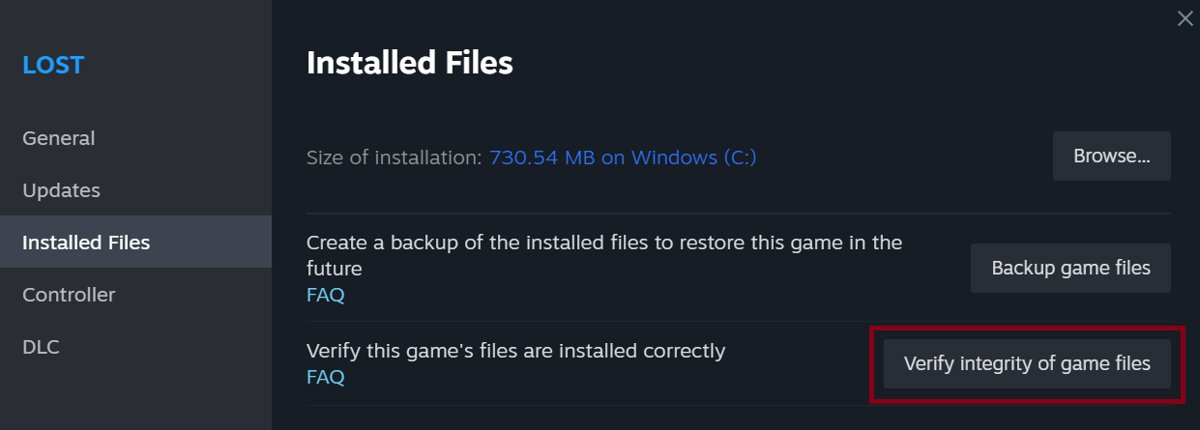
- For a Steam game, right-click it in your Library, select Properties, open Installed Files and click Verify integrity of game files.
- For a Microsoft Store app, open Installed apps, select More > Advanced options and select Repair, then Reset if Repair does not help.
- Open the app again.
Run Windows Update and Install Pending Fixes
A Visual C++ runtime installed centrally by the Redistributable can be serviced through Windows Update. Pending updates also refresh the component store that DISM uses in the next section.
- Select Start > Settings > Windows Update.
- Select Check for Windows updates.
- Select Download & install for anything listed.
- Restart when prompted.
- Open the app that showed the vcruntime140.dll error.
Windows 10 reached end of support on October 14, 2025, so a Windows 10 PC not enrolled in extended updates gets no new fixes. The latest Redistributable still supports Windows 10, so the install fix works there.
Use SFC and DISM to Repair System Files
DISM and SFC repair Windows itself. They do not install a missing Visual C++ runtime, so use them when the error persists after the Redistributable fix or other Windows features also fail. Run DISM first, because it supplies the clean files SFC uses.
DISM.exe /Online /Cleanup-image /Restorehealth
sfc /scannow
Type cmd in the taskbar search box, right-click Command Prompt and select Run as administrator. Run the DISM line and wait several minutes; it uses Windows Update as its repair source. Then run sfc /scannow and keep the window open until verification reaches 100%.
You should see: SFC reports Windows Resource Protection did not find any integrity violations (no damage) or found corrupt files and successfully repaired them (fixed). If it says could not perform the requested operation, run the scan again in Safe Mode. Restart and reopen the app.
How to check the fix worked
- Open Control Panel > Programs > Programs and Features.
- Confirm a Microsoft Visual C++ 2015-or-later Redistributable entry is listed for (x64) and, on 64-bit Windows, for (x86).
- Open the app that showed the error; it should reach its own start screen with no vcruntime140.dll or vcruntime140_1.dll dialog.
- If a dialog returns, note the exact file name and any folder path it shows, then match it in the troubleshooting section below.
Fix vcruntime140.dll errors that keep coming back
vcruntime140.dll is still missing after installing the Redistributable
Only one architecture was installed, the install needs a restart, or the app loads a stale copy from its own folder.
- Install both
vc_redist.x64.exeandvc_redist.x86.exefrom Microsoft's Learn page. - Restart the PC.
- Right-click the app's shortcut, select Open file location and look for a vcruntime140.dll beside the .exe.
- If you or a DLL site put that file there, move it out; if it shipped with the app, reinstall the app instead of editing its folder.
vcruntime140_1.dll was not found, but vcruntime140.dll is fine
The installed x64 runtime is older than Visual Studio 2019, or only the x86 package is present.
- Download the latest X64 package from Microsoft's Learn page.
- Run it; if setup says a newer version exists, repair the 2015-or-later (x64) entry in Programs and Features instead.
- Restart and open the 64-bit app again.
Only one app shows the vcruntime140.dll missing error
The runtime in Windows is fine; the app's own files or bundled prerequisite are damaged.
- Repair or reinstall the app as described above.
- Verify the game's files in its launcher if it is a game.
- Check the vendor's support page for a required runtime version.
The error appears only from one shortcut or launch method
That shortcut points at an old or moved copy of the program, or the launcher starts a different build.
- Right-click the shortcut and select Open file location to see which .exe it starts.
- Delete the stale shortcut and create a new one from the current install folder, or launch from the app's own launcher.
- Reinstall the app if the current install folder also fails.
Avoid Downloading DLL Files from Untrusted Websites
Search results for this error are crowded with sites offering a single vcruntime140.dll file. Microsoft does not distribute the file that way, and a lone copy carries no guarantee of version, architecture or origin.
A pasted DLL also sits outside Windows Update. Windows searches the app's own folder before the system folder, so a bad copy there overrides the correct runtime and can bring the error back later.
Get vcruntime140.dll and vcruntime140_1.dll only by installing the Visual C++ Redistributable from Microsoft's Learn download page, or by reinstalling the app that needs them. A downloaded DLL can be the wrong version or architecture, will never receive Microsoft's servicing updates, and from an unofficial site can carry malware.
Older runtime errors follow the same rule: see the fixes for MSVCP100.dll is missing and the Camtasia mfc100u.dll error, which need the 2010 package instead.
Bottom Line
Install the latest x64 and x86 Visual C++ Redistributable from Microsoft, restart, and only move on to reinstalling the app, Windows Update and DISM with SFC if the error survives. vcruntime140.dll and vcruntime140_1.dll ship only in that package, so installing or repairing it fixes the error in most cases, and every other route either restores the same files or repairs Windows around them.
Frequently Asked Questions
How do I fix the vcruntime140.dll is missing error?
Install the latest Microsoft Visual C++ Redistributable from Microsoft's Learn downloads page, in both the x64 and x86 versions, then restart the PC. If setup says a newer version exists, repair the installed entry from Programs and Features. Reinstall the app if the error remains.
Which Microsoft Visual C++ Redistributable do I need for vcruntime140.dll?
You need the latest supported Visual C++ v14 Redistributable, which covers apps built with Visual Studio 2015 through 2026. Install vc_redist.x64.exe and vc_redist.x86.exe on 64-bit Windows, because 32-bit apps load the x86 copy of the file.
How do I fix vcruntime140_1.dll was not found?
Install the latest x64 Visual C++ Redistributable. vcruntime140_1.dll was added with Visual Studio 2019 for 64-bit apps, so an older 2015 package does not contain it, and the x86 package alone will not supply it. Restart after installing.
Is it safe to download vcruntime140.dll from a DLL download website?
No. Microsoft distributes vcruntime140.dll only inside the Visual C++ Redistributable. A single file from a DLL site can be the wrong version or architecture, will not get Microsoft's servicing updates and can carry malware.
Why does only one app show the vcruntime140.dll missing error?
When other apps built with Visual C++ open normally, the runtime in Windows is usually fine. The failing app's own files, a private DLL copy in its folder, or its skipped prerequisite step is the likely cause. Repair or reinstall that app first.
Will running SFC and DISM fix the vcruntime140.dll error?
Usually not on their own. DISM and SFC repair protected Windows system files, while vcruntime140.dll comes from the Visual C++ Redistributable. Run them when the error survives the Redistributable fix or other Windows features also fail.
Do I need to reinstall Windows to fix vcruntime140.dll missing?
No. Installing or repairing the Visual C++ Redistributable, reinstalling the app, and running DISM and SFC resolve this error without touching Windows. Microsoft's SFC guide mentions reinstalling Windows only as a last resort, after corrupt system files cannot be repaired.
Do I need both the x64 and x86 Visual C++ Redistributable?
Yes, on 64-bit Windows. The x64 package serves 64-bit apps and supplies vcruntime140_1.dll, and the x86 package installs the 32-bit vcruntime140.dll that 32-bit apps load. On 32-bit Windows, install only the x86 package.

How to Fix Windows Script Host Error on Windows 11 - Techdows
[…] To check whether a background program triggers the script, perform a clean boot: run msconfig, select Hide all Microsoft services and Disable all on the Services tab, then disable startup apps in Task Manager and restart. If the error stops, turn items back on half at a time to find the culprit. The same DISM and SFC pair also repairs other missing-file errors, such as the vcruntime140.dll missing error. […]