Most runtime errors on Windows 11 go away once you update or repair the app that crashed, reinstall the Microsoft Visual C++ Redistributable, and repair Windows system files with DISM and SFC.
This guide shows how to find the program behind the error, works through 13 fixes from quickest to most drastic, and explains how to stop the error coming back.
How to fix runtime errors on Windows 11
Work through these steps in order and test the app after each one. Most runtime errors stop before you reach the last step.
- Write down the program name and any code shown in the runtime error box, such as Microsoft Visual C++ Runtime Library or an exception code.
- Restart the PC from Start > Power > Restart, then open the app again.
- Select Start > Settings > Windows Update > Check for Windows updates and install anything offered.
- Go to Settings > Apps > Installed apps, select More (…) next to the app, choose Advanced options and select Repair.
- Repair or reinstall the Microsoft Visual C++ Redistributable packages, as shown in the Visual C++ section below.
- Open Command Prompt as administrator and run
DISM.exe /Online /Cleanup-image /Restorehealth, thensfc /scannow. - If the error persists, perform a clean boot to rule out a conflicting background program.
What are runtime errors?
A runtime error happens while a program is already running, not while it installs or starts. The program hits something it cannot handle, such as a missing library, corrupt data or blocked memory, and Windows stops it.
The message usually names the program, and the Windows Application log records which file inside it failed.
| What you see | What it usually means | Where to start |
|---|---|---|
| "Microsoft Visual C++ Runtime Library" dialog with "Runtime Error!" | The app's C++ runtime hit a fatal fault or a runtime file is missing or damaged | Update the app, then repair the Visual C++ Redistributable |
| "The code execution cannot proceed because VCRUNTIME140.dll was not found" | The Visual C++ v14 runtime is missing | Install the latest Visual C++ Redistributable |
| App closes with no message | A crash logged as Event ID 1000 in the Application log | Read the faulting module in Event Viewer |
| Exception code 0xc0000005 | STATUS_ACCESS_VIOLATION: the app touched memory it was not allowed to | Update or reinstall the app, then run SFC |
| Exception code 0xc0000374 | STATUS_HEAP_CORRUPTION: the app damaged its own memory | Update or reinstall the app; report it to the developer |
| Exception code 0xc0000022 | STATUS_ACCESS_DENIED: the app was refused access to a file or resource | Reinstall the app and scan for malware |
| Script or browser "runtime error" dialog | Bad code in a web page or script, not a Windows fault | Update the browser or the program that runs the script |
Common causes of runtime errors in Windows 11
| Cause | Typical sign | Fix in this guide |
|---|---|---|
| Outdated or damaged app files | Only one program fails | Update or reinstall problematic applications |
| Missing or damaged Visual C++ Redistributable | Visual C++ Runtime Library message, missing DLL | Reinstall Microsoft Visual C++ Redistributables |
| Corrupt Windows system files | Several apps or Windows tools fail | Run System File Checker (SFC) and DISM |
| Outdated or faulty drivers | Errors in games, video or graphics apps | Update device drivers |
| Program written for an older Windows version | Older software fails after an upgrade | Adjust compatibility mode |
| Conflict with a startup app or service | Error disappears in a clean boot | Perform a clean boot |
| A recent Windows update or driver | Error started the day an update installed | Uninstall recent updates, or perform System Restore |
| Malware | New errors in many programs, unknown processes | Check for malware and viruses |
| Low memory or disk space | Errors when many programs are open | Free up system resources |
Find the app causing a runtime error in Event Viewer
Windows logs each application crash as Event ID 1000 with the source Application Error. The entry names the faulting application, the faulting module and the exception code, which tells you what to fix. The Windows Event Viewer also shows the time of each crash.
- Press Windows + R, type
eventvwr.mscand press Enter. - Expand Windows Logs and select Application.
- Look for Error entries with the source Application Error and Event ID 1000 at the time the error appeared.
- Select the entry and read Faulting application name, Faulting module name and Exception code.
- Fix the faulting application first. A module such as ntdll.dll or kernelbase.dll is often a victim of another fault, not the cause.
When the crash report process itself fails, the message names WerFault.exe instead; fix the WerFault.exe error separately.
Restart your computer
A restart clears memory and finishes pending updates, which ends many one-off runtime errors.
- Save your work and close open apps.
- Select Start > Power > Restart.
- Open only the app that showed the runtime error and repeat what you were doing.
Update Windows 11
- Select Start > Settings > Windows Update.
- Select Check for Windows updates.
- If updates are available, select Download & install.
- Restart the PC when prompted, then test the app.
Update or reinstall problematic applications
If the app came from Microsoft Store, update it there. For other programs, get the newest version from the publisher's own website. If an update does not help, repair, reset or reinstall the app.
- Select Start > Settings > Apps > Installed apps.
- Select More (…) next to the app and choose Advanced options. Some apps do not have this option.
- Select Repair. If it is not available or does not help, select Reset.
- For desktop programs, open Control Panel > Programs > Programs and Features, right-click the program and select Repair or Change.
- If repair fails, return to Installed apps, select More (…) > Uninstall, restart, and install the latest version from the publisher.
Reset removes the app's data, so sign-in details and settings inside the app may need to be entered again.
Reinstall the Microsoft Visual C++ Redistributables
Many Windows programs depend on the Microsoft Visual C++ Redistributable. Visual Studio 2017, 2019, 2022 and 2026 share one v14 package, so the latest v14 install covers every program built with them, including the VCRUNTIME140.dll missing error.
The package architecture must match the app, not just Windows. On 64-bit Windows 11, install both the x64 and the x86 package because 32-bit programs use the x86 one.
- Open Control Panel > Programs > Programs and Features.
- Right-click each Microsoft Visual C++ 2015-2022 Redistributable (or newer) entry and select Change, then Repair if the installer offers it.
- If repair is not offered or fails, open the Latest supported Visual C++ Redistributable downloads page on Microsoft Learn.
- Download the x64 package and the x86 package from the permalinks on that page. The x64 package also carries ARM64 files for ARM-based PCs.
- Run each installer, accept the license terms and select Install.
- Restart the PC and open the app again.
Packages for Visual C++ 2013 and earlier install side by side with v14. Leave them installed, because older programs still need them.
Check for malware and viruses
Malware can damage program files or inject code into other processes, which shows up as runtime errors in apps that worked before.
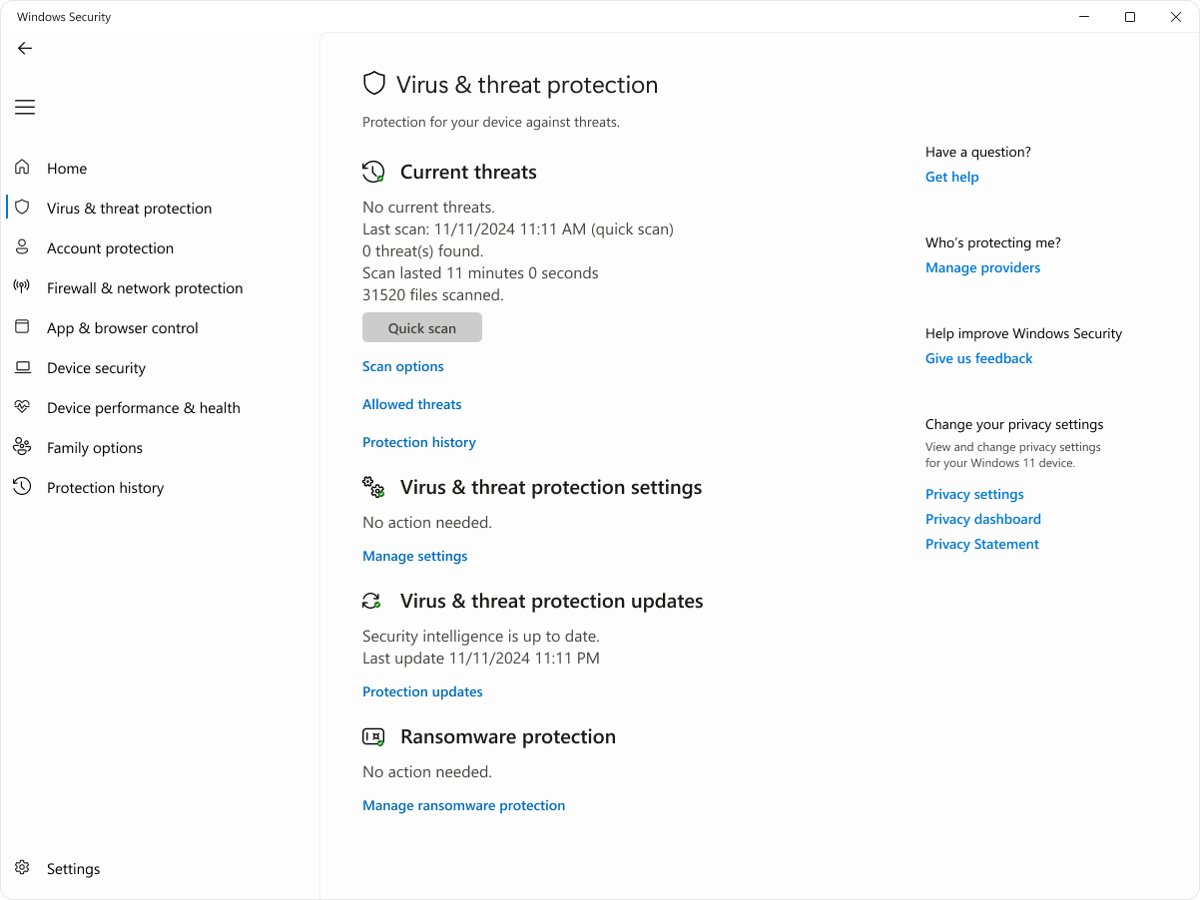
- Open the Windows Security app and select Virus & threat protection.
- Select Scan options.
- Choose Full scan to check every file and program, then start the scan.
- If you suspect persistent malware, choose Microsoft Defender Antivirus (offline scan) instead. Save your work first, because the PC restarts and scans before Windows loads.
- After an offline scan, open Windows Security and select Protection history to read the results.
Run System File Checker (SFC) and DISM
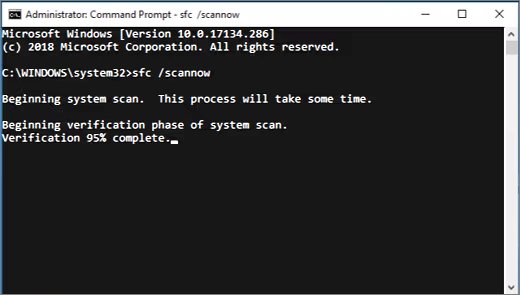
DISM repairs the Windows image that SFC copies from, so run it before the System File Checker scan.
- Type
cmdin the taskbar search box, right-click Command Prompt and select Run as administrator. - Run
DISM.exe /Online /Cleanup-image /Restorehealthand wait. It can take several minutes and uses Windows Update as its file source. - Run
sfc /scannowand keep the window open until verification reaches 100%. - Read the result. Windows Resource Protection found corrupt files and successfully repaired them means the repair worked.
- Restart the PC and test the app.
Update device drivers
Windows Update installs most drivers automatically. For graphics, audio and chipset drivers, Device Manager can update a single device driver or roll it back.
- Right-click Start and select Device Manager.
- Expand the category for the device, such as Display adapters.
- Right-click the device and select Update driver.
- Select Search automatically for updated driver software.
- If the error began after a driver update, right-click the device, select Properties > Driver > Roll Back Driver, choose a reason and select Yes.
- Restart the PC if prompted.
If Windows finds nothing newer, download the driver only from the device manufacturer's official site.
Adjust compatibility mode
Programs made for older Windows versions can fail after an upgrade because of changes to security features or system requirements. Check the publisher's website for a Windows 11 version first, then let Windows apply compatibility settings.
- Select Start > Settings > System > Troubleshoot > Other troubleshooters.
- Find Program Compatibility Troubleshooter and select Run.
- Pick the program that shows the runtime error from the list.
- Follow the on-screen instructions to try the recommended settings, then test the program.
Free up system resources
- Press Ctrl + Shift + Esc to open Task Manager.
- On the Processes tab, sort by Memory and close programs you do not need with End task.
- Select Start > Settings > System > Storage > Cleanup recommendations.
- Review the suggested files and remove the ones you do not need.
- Open the app again with fewer programs running.
Perform a clean boot
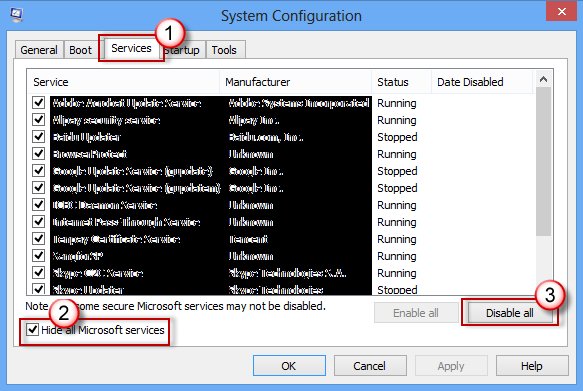
A clean boot starts Windows with only essential drivers and startup programs. If the runtime error disappears, a background app or service is the cause.
- Sign in as an administrator, select Search, type
msconfigand select System Configuration. - On the Services tab, select Hide all Microsoft services, then Disable all, then Apply.
- On the Startup tab, select Open Task Manager.
- On the Startup apps tab, select each enabled item and select Disable. Note what you disabled.
- Close Task Manager, select OK in System Configuration and restart.
- Run the app. If it works, re-enable half of the services and startup items at a time until the error returns, which identifies the culprit.
- When finished, open System Configuration, select Normal Startup on the General tab and restart.
If the error still appears in a clean boot, no background program is involved and the app itself or Windows files need repair.
Uninstall recent updates
Use this only when the runtime error started right after a specific update. Some updates cannot be uninstalled, and removing a security update leaves the PC less protected.
- Select Start > Settings > Windows Update.
- Under More options, select Update history.
- Under Related settings, select Uninstall updates.
- Select the update installed just before the error began and select Uninstall.
- Restart the PC and test the app.
Perform System Restore
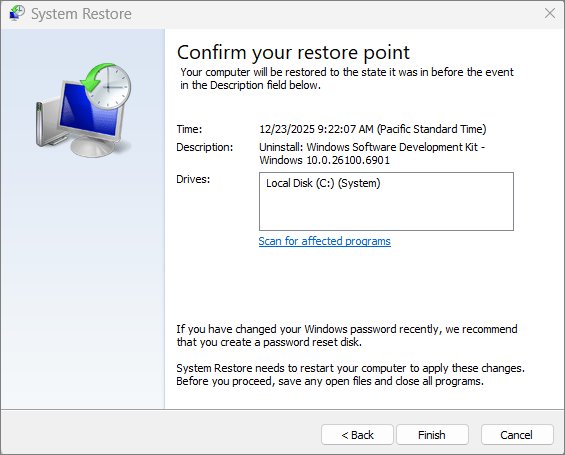
System Restore returns system files, registry settings and installed programs to a restore point without touching personal files.
- Press Windows + R, type
rstrui.exeand press Enter. - In Restore system files and settings, select Next.
- Choose a restore point from before the error started. Select Show more restore points if it is not listed.
- Select Scan for affected programs to see which apps will be removed or restored.
- Select Next, then Finish. Windows restarts and applies the restore point.
Reset or reinstall Windows 11
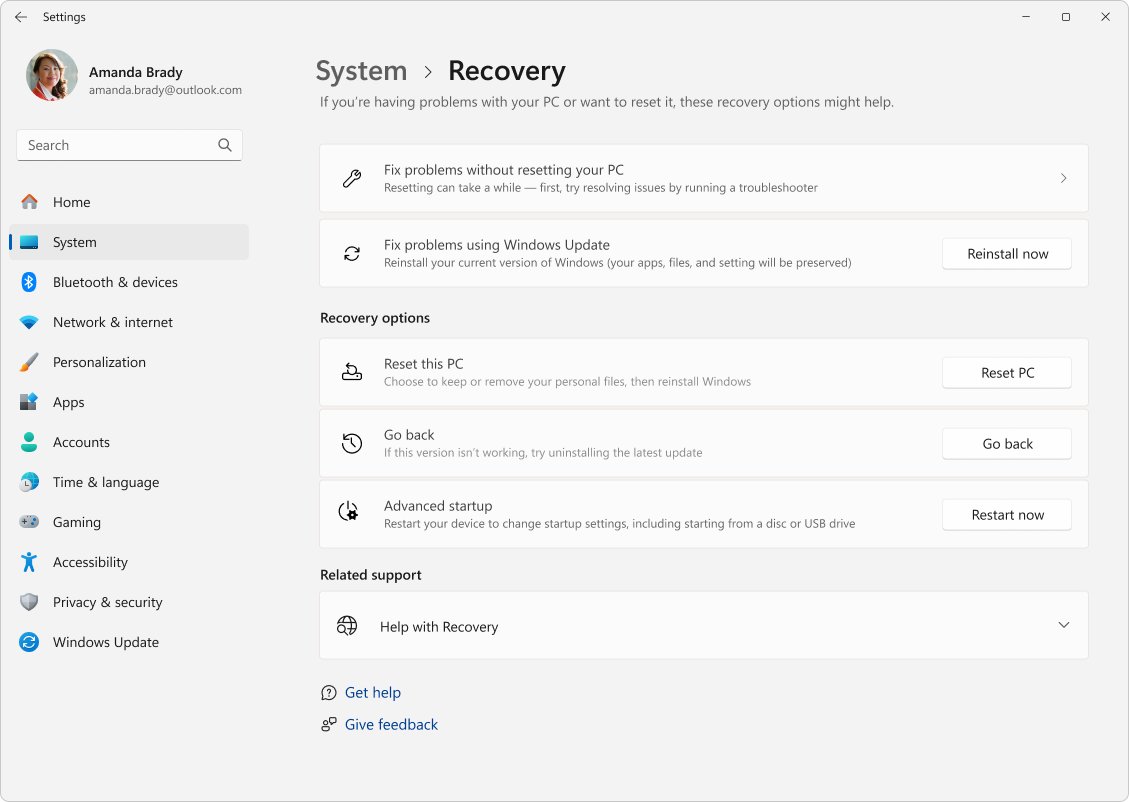
Reset is the last resort, for runtime errors that hit many programs and survive every fix above. Back up your files and have your BitLocker recovery key ready if the drive is encrypted.
- Open Settings and select System > Recovery.
- Under Recovery options, select Reset PC.
- Choose Keep my files to reinstall Windows while keeping documents and photos. Apps and settings are removed.
- Choose Cloud download to get a fresh copy of Windows, or Local reinstall on a slow connection.
- Follow the on-screen instructions and do not restart the PC yourself, even if the screen stays black for a while.
How to confirm a runtime error is fixed
- Repeat the exact action that triggered the runtime error, such as opening the same file or game level.
- Open Event Viewer > Windows Logs > Application and confirm no new Application Error Event ID 1000 entry names that app.
- Run
sfc /scannowagain. Windows Resource Protection did not find any integrity violations confirms the system files are healthy. - If you used a clean boot, return to Normal Startup and confirm the error stays away with your usual startup apps.
Runtime error still appears on Windows 11
"Microsoft Visual C++ Runtime Library" error keeps returning
The app is outdated, or its matching x86 or x64 runtime is missing.
- Install both the x64 and x86 latest Visual C++ v14 Redistributable packages.
- Update the app to its newest version from the publisher.
- If the error persists, uninstall and reinstall the app.
SFC says "Windows Resource Protection could not perform the requested operation"
SFC could not run in the normal Windows session.
- Start Windows in safe mode.
- Open Command Prompt as administrator and run
sfc /scannowagain. - Restart normally and test the app.
SFC found corrupt files but was unable to fix some of them
The local repair source is damaged.
- Run
DISM.exe /Online /Cleanup-image /Restorehealthfirst. - Run
sfc /scannowagain. - If files still fail, use Reset PC with Keep my files.
Runtime error started after a Windows update
The update changed a file or driver the app depends on.
- Check the app publisher's site for an update that supports the new Windows build.
- Uninstall the update from Update history > Uninstall updates.
- If the update cannot be removed, apply a restore point from before it installed.
Runtime error still happens in a clean boot
The fault is inside the app itself, not a background program.
- Repair or reinstall the app.
- Note the faulting module and exception code from Event Viewer.
- Send those details to the program's developer for support.
Preventing runtime errors in the future
| Habit | Why it prevents runtime errors |
|---|---|
| Install Windows updates when offered | Fixes system files and drivers that apps rely on |
| Update apps from Microsoft Store or the publisher | Developers fix crashes and add support for new Windows builds |
| Keep the latest Visual C++ v14 Redistributable installed | Programs built with Visual Studio 2017 to 2026 share it |
| Get drivers from Windows Update or the device maker | Avoids broken or mismatched drivers from download sites |
| Keep System Protection on | Windows creates restore points before updates and installs, so you can roll back |
| Keep Windows Security real-time protection on | Stops malware that damages program files |
| Keep free disk space | Apps and updates need room for temporary files |
Runtime errors on Windows 11: frequently asked questions (FAQs)
What is the most common cause of runtime errors?
The most common cause is a problem in the app itself: outdated code, damaged program files or a missing Microsoft Visual C++ Redistributable. Updating or repairing the app and installing the latest Visual C++ v14 Redistributable fixes most cases.
Can runtime errors damage my PC?
No. A runtime error stops the program that failed, and Windows keeps running. Unsaved work in that program can be lost, so save often. Repeated errors across many programs can point to corrupt system files or malware, which need fixing.
Do I need third-party tools to fix runtime errors?
No. Windows 11 includes every tool you need: Windows Update, app Repair and Reset, Windows Security, DISM, SFC, Device Manager, System Restore and Reset PC. Avoid registry cleaners and driver updater programs.
What does the Microsoft Visual C++ Runtime Library error mean?
It means a program built with Microsoft Visual C++ hit a fatal fault while running. Update the program, then repair or reinstall both the x64 and x86 Visual C++ Redistributable packages from Microsoft Learn.
Which Visual C++ Redistributable do I need for Windows 11?
Install the latest supported Visual C++ v14 Redistributable, which covers programs built with Visual Studio 2017, 2019, 2022 and 2026. On 64-bit Windows 11, install both x64 and x86, because 32-bit programs need the x86 package.
Can malware cause runtime errors?
Yes. Malware can damage program files or interfere with running processes. Run a full scan in Windows Security, and use Microsoft Defender Antivirus (offline scan) if you suspect malware that hides while Windows is running.
Will SFC or DISM delete my files?
No. DISM and SFC only check and replace protected Windows system files. Your documents, photos and installed apps are not touched, although the scans can take several minutes and you should keep the window open.
Should you reset Windows 11 to fix runtime errors?
Reset Windows 11 only when runtime errors hit several programs and survive updates, DISM and SFC, a clean boot and System Restore; for a single app, repair or reinstall that app instead. A runtime error in one program almost always comes from that program or its Visual C++ runtime, while Reset PC removes every installed app and setting to fix problems inside Windows itself.