To break a UNiDAYS verification loop on the UK Apple Store, sign in with your Apple Account before you verify, start from the UK Apple Education Store, and make sure your browser accepts cookies so UNiDAYS can hand your status back to Apple.
This guide covers why the loop happens, the browser fixes for iPhone and Mac, who is eligible in the UK, and how to verify in an Apple Store or by phone instead.
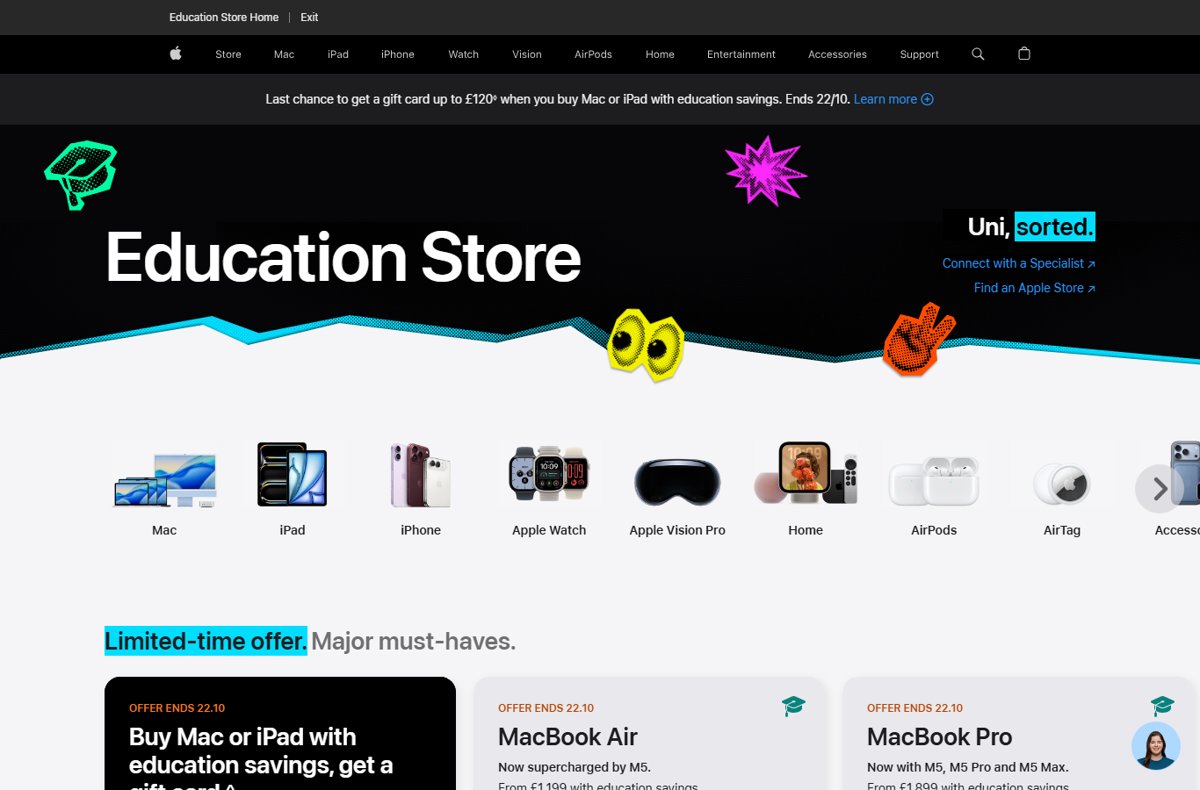
Fastest fix for the UNiDAYS verification loop on Apple UK
Apple sends you to UNiDAYS to confirm your student or staff status, then UNiDAYS shares that status with Apple. The loop starts when the result cannot be tied back to your Apple session.
- Close every Apple Store tab in your browser.
- Open the UK Apple Education Store at apple.com/uk-edu/store in a normal, not private, window.
- Sign in with your Apple Account before you add anything to your bag.
- Choose a Mac, iPad or Apple Watch and continue to verification.
- Sign in to UNiDAYS when you are redirected and complete the verification.
- Wait to be returned to the Apple Education Store, then check out.
Apple says that if you sign in with your Apple Account first, you stay verified for a whole year. That also means you will not face the loop again on your next education purchase.
Apple verification required loop: match the cause to the fix
| What happens | Likely cause | Fix |
|---|---|---|
| Verify succeeds, Apple asks again at checkout | You were not signed in to your Apple Account | Sign in on the Education Store, then verify once more |
| UNiDAYS sends you back to the normal UK store | You started on apple.com/uk, not the Education Store | Start from apple.com/uk-edu/store |
| Sign-in pages reload or forget you | Cookies are blocked or stale | Allow cookies and clear Apple and UNiDAYS website data |
| Loop only on one browser or device | Saved data on that browser | Try another browser or the Apple Store app |
| Verified on another country's store | Education pricing is country-specific | Verify on the UK Education Store |
| Nothing works online | Account or UNiDAYS-side problem | Verify in an Apple Store or call Apple |
Who can verify with UNiDAYS for the Apple UK student discount
| Who | UK eligibility |
|---|---|
| University students | Students attending or accepted into a UK tertiary education institution |
| Parents | Parents buying for a child attending or accepted into a UK tertiary institution |
| Education staff | Any employee of a public or private UK education institution |
| Age | You must be at least 18 to place an order on the Apple Store |
| Eligible products | Mac, iPad and Apple Watch; Apple Watch Hermès is excluded |
| Where to order | Only orders on the UK Apple Education site get UK education pricing |
Purchases are not for institutional purchase or resale, and Apple sets yearly quantity limits per eligible buyer.
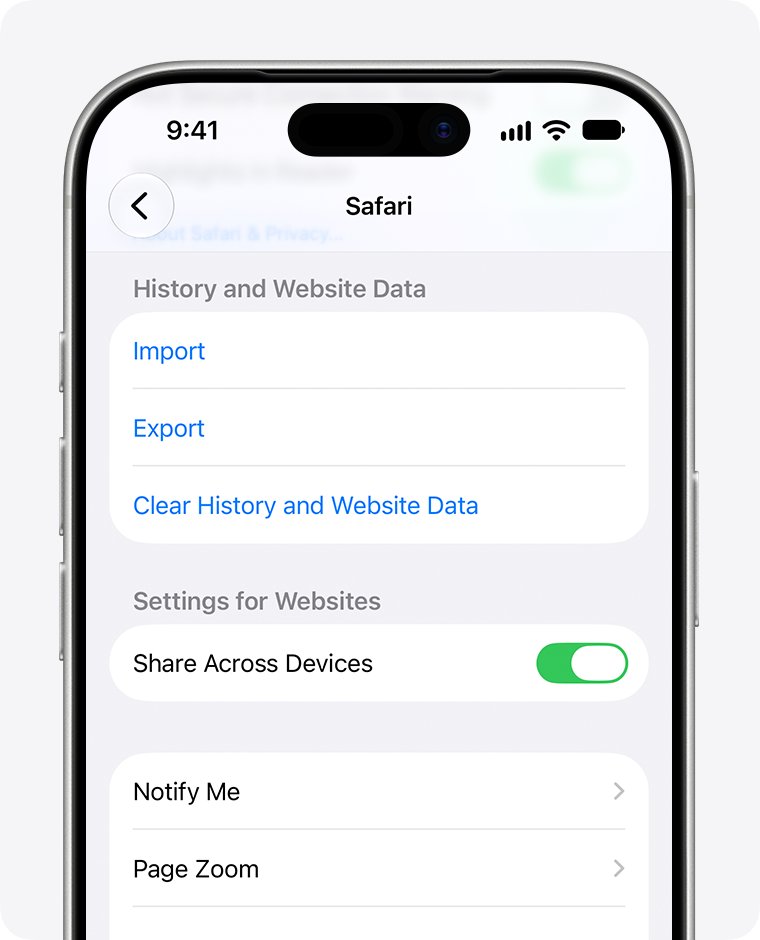
Clear Safari cookies on iPhone to stop the UNiDAYS loop
Old Apple or UNiDAYS sign-in data can send you back to the start. Removing website data signs you out of sites, so have your passwords ready.
- Open Settings, tap Apps, then tap Safari.
- Tap Advanced, then tap Website Data.
- Tap Remove All Website Data, then tap Remove Now.
- Go back to Settings > Apps > Safari > Advanced and make sure Block All Cookies is off.
- Open Safari, go to the UK Education Store and sign in with your Apple Account.
- Start verification again.
Apple warns that with cookies blocked you will likely not be able to sign in to a site, even with the correct password. That alone can cause an endless sign-in loop.
Clear Safari website data on Mac for UNiDAYS verification
- Open Safari on your Mac.
- Choose Safari > Settings, then click Privacy.
- Click Manage Website Data.
- Select the apple.com entries in the list, then click Remove.
- Select the UNiDAYS entries, then click Remove.
- Quit Safari, open it again and sign in on the UK Education Store before you verify; if the password is rejected, reset your Apple Account password first.
In Chrome, Firefox or Edge, clear the browser cookies for apple.com and the UNiDAYS site from that browser's privacy settings, then try again.
Verify for Apple education pricing in an Apple Store or by phone
Apple lets you get verified with UNiDAYS online or in-store. If the online loop will not clear, an Apple Store visit avoids the browser entirely.
- Make sure you can sign in to your UNiDAYS account on your phone.
- Visit a UK Apple Store and tell a staff member you want education pricing.
- Complete the UNiDAYS verification the staff member guides you through.
- Buy in store, or sign in to the Education Store online afterwards to see if your status has carried over.
- To order by phone instead, call the Apple Store on 0800 048 0408.
Yearly quantity limits are the same whether you buy online or in an Apple Store, so an in-store purchase counts towards the same allowance.
How to check UNiDAYS verification worked on the Apple Education Store
- Stay signed in to your Apple Account on the UK Education Store.
- Add an eligible Mac or iPad to your bag.
- Go to the bag and confirm the education price shows instead of the standard price.
- Continue to checkout and confirm you are not sent back to UNiDAYS.
Apple account verification loop with UNiDAYS: fixes by symptom
Apple verification required loop after UNiDAYS says you are verified
The UNiDAYS result was not linked to a signed-in Apple Account.
- Go back to the UK Education Store and sign in with your Apple Account.
- Remove the item from your bag and add it again.
- Verify with UNiDAYS once more while signed in.
- Check out in the same browser tab you verified in.
UNiDAYS ID card verification keeps returning to the sign-in page
Cookies are blocked or old sign-in data is stored for Apple or UNiDAYS.
- Turn off Block All Cookies in Settings > Apps > Safari > Advanced on iPhone.
- Remove Apple and UNiDAYS website data in Safari or your browser.
- Use a normal browser window, not a private one.
- Start again from the UK Education Store.
Verified, but education prices do not show
You are on the standard UK store or another country's Education Store.
- Check the address bar shows apple.com/uk-edu.
- Open the UK Education Store directly and sign in.
- Choose a Mac, iPad or Apple Watch; other products may not have education pricing.
Order refused or quantity message at checkout
You have reached a yearly Apple education quantity limit.
- Count your education purchases from the past year, both online and in store.
- Compare them with the UK limits: one desktop, Mac mini, MacBook and display, two iPads, one Apple Watch and two accessories.
- Buy any further item at the standard price.
Loop continues on every browser and device
A problem with the UNiDAYS account or its link to Apple.
- Confirm you can sign in to UNiDAYS directly and that your account shows as verified.
- Contact UNiDAYS support if your UNiDAYS status itself is pending or rejected.
- Verify in a UK Apple Store, or call 0800 048 0408 to order by phone.
UNiDAYS Apple discount UK FAQ
What is UNiDAYS on Apple?
UNiDAYS is the third-party service Apple uses to check that you are a student or education staff member before you buy at education prices. Apple redirects you to UNiDAYS, and UNiDAYS shares your verification status with Apple. Your UNiDAYS data is covered by its own privacy policy.
Does the UNiDAYS Apple discount work in the UK?
Yes. UK students, parents buying for a student, and education staff can verify with UNiDAYS on the UK Apple Education Store. Only orders placed on the UK Education site get UK education pricing on Mac, iPad and Apple Watch.
How long does Apple UNiDAYS verification last?
If you sign in with your Apple Account before you verify, Apple keeps you verified for an entire year. Without signing in, Apple has nothing to attach the status to, which is why many people are asked to verify again.
Can I verify with UNiDAYS in an Apple Store?
Yes. Apple says you can get verified for education savings with UNiDAYS online or in-store. Bring a phone that is signed in to your UNiDAYS account so staff can complete the check with you.
Can I use UK UNiDAYS on another country's Apple Store?
No. Apple only gives education pricing on orders placed on your own country or region's Apple Education site. A UK student should order from the UK Education Store, not the US or another store.
Can parents use UNiDAYS to buy from Apple UK?
Apple's UK terms let parents buy on behalf of a child who attends or has been accepted into a UK tertiary institution. Verification is still required at checkout, so the purchase usually runs through the student's UNiDAYS account.
How many items can I buy with Apple UK education pricing?
Per year, Apple UK allows one desktop, one Mac mini, one MacBook, one display, two iPads, one Apple Watch and two accessories at education pricing. The limits are the same online and in Apple Stores.
Why does Apple keep asking me to verify at checkout?
Apple asks again when it cannot match your UNiDAYS result to your session. Sign in with your Apple Account on the UK Education Store first, allow cookies in your browser, then verify. Apple then keeps the status for a year.
Bottom line: stopping the Apple UNiDAYS loop for good
Sign in to your Apple Account on the UK Education Store first, verify once with cookies allowed, and switch to an Apple Store visit if the loop survives a clean browser. Apple ties your UNiDAYS status to your Apple Account for a year, so a signed-in verification ends the repeat prompts. If even that fails, the problem sits with the account or UNiDAYS, which in-store verification bypasses.

![Adjusting volume balance settings in Windows 11 and 10 [Easy steps]](https://techdows.com/wp-content/uploads/2026/10/Adjusting-Volume-Balance-Settings-in-Windows-11-and-10-500x338.jpg)