An iPad that keeps saying activation required either cannot reach Apple's activation server or is protected by Activation Lock, so connect it to reliable Wi-Fi, restart it, and enter the Apple Account and password used to set it up; if that fails, activate it through a computer or restore it in recovery mode.
This guide covers each activation screen and error, how to remove Activation Lock with your own account or the previous owner's help, what to do when you forgot your password, and how to request Apple's help with proof of purchase.
How to fix iPad activation required screen
Each time an iPad is activated or recovered, it contacts Apple to check whether Activation Lock is on. These steps cover both the connection and the lock.
- Open apple.com/support/systemstatus on another device and check that iOS Device Activation is green; if it is not, try again later.
- Restart the iPad.
- On the setup screens, join a reliable Wi-Fi network instead of cellular data.
- If the iPad asks for an Apple Account and password, enter the account used to set it up, or the iPad's passcode if that option appears.
- If an alert says the activation server is unavailable or cannot be reached, wait a few minutes and repeat steps 2 and 3.
- If it still will not activate, connect the iPad to a Mac or PC with its USB cable and let the computer activate it.
A password prompt during activation means Activation Lock is on through Find My. Apple cannot skip that step for you; only the linked Apple Account, the account owner, or an Activation Lock support request with proof of purchase removes it.
Why won't my iPad activate?
| What the iPad shows | What it means | What to do |
|---|---|---|
| iPad Locked to Owner or a request for an Apple Account and password | Activation Lock is on and the iPad is linked to an Apple Account | Sign in with that account, or ask the owner to remove the iPad from their account |
| The activation server is temporarily unavailable or cannot be reached | The iPad cannot reach Apple, or Apple's activation service is down | Check System Status, switch to Wi-Fi, wait a few minutes, then try again |
| The SIM card or eSIM is unsupported or invalid (Wi-Fi + Cellular models) | The carrier's SIM or eSIM is not accepted | Contact your carrier |
| The activation information was invalid, or could not be obtained from the device | Activation through the computer failed | Restore the iPad in recovery mode |
| A Remote Management screen names a company or school | The iPad is enrolled in an organization's device management | Contact that organization's IT department |
| Nothing happens when you tap to activate | The iPad has no working internet connection during setup | Restart it and join Wi-Fi, or activate it with a computer |
How to remove Activation Lock on iPad with your Apple Account
Activation Lock turns on automatically when Find My is turned on. Apple stores the Apple Account on its activation servers, and the password is needed before anyone can turn off Find My, erase the iPad, or reactivate it.
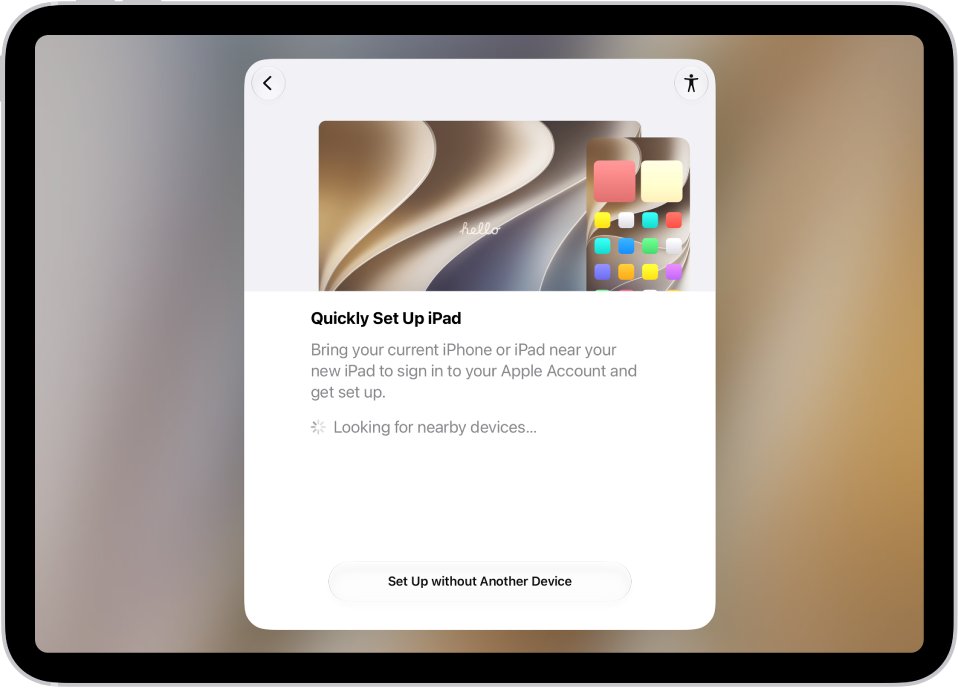
- Turn on the iPad and follow the setup screens until the Activation Lock screen appears.
- Enter the Apple Account (usually an email address) and password used to set up the iPad.
- If the screen offers it, enter the iPad's passcode instead.
- If you do not remember the account, try an email address or phone number you regularly use with Apple services.
- Finish setup once the Hello screen or the next setup step appears.
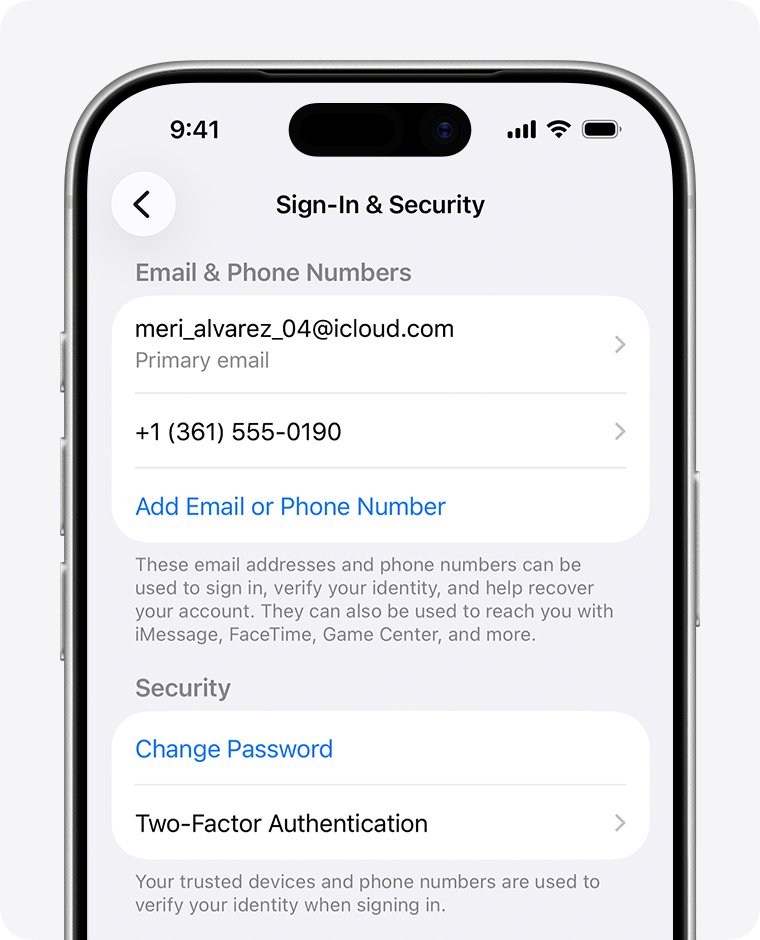
On an iPhone or another iPad you are already signed in to, open Settings, tap your name, then Sign-In & Security to see the email addresses and phone numbers that sign in to your Apple Account.
Can't get past Activation Lock on iPad from a previous owner
If the iPad asks for someone else's Apple Account, it is still linked to that person. The previous owner can remove it from their account in a browser without having the iPad in hand.
- Ask the previous owner to go to icloud.com/find in a browser.
- They sign in to the Apple Account the iPad is linked to.
- They select the iPad in the device list.
- They click Remove This Device.
- Restart the iPad and go through setup again; it now reaches the Hello screen or continues past activation.
If the previous owner is with you, they can simply enter their password on the iPad. If the iPad belonged to a business or school, its IT department or manager has to release it.
iPad activation server cannot be reached
This alert means the iPad could not complete its check with Apple. It is a connection problem, not a lock, so a working network usually clears it.
- Open Apple's System Status page and check the box next to iOS Device Activation.
- Restart the iPad.
- If you set up over cellular data, go back and join a reliable Wi-Fi network.
- Wait a few minutes, then tap to try activation again.
- If the alert keeps coming back, activate the iPad with a computer.
Apple's status page shows outages for activation as well as other services, so a box that is not green means waiting is the fix.
How to activate iPad with a computer
A Mac or a PC can activate the iPad over its own internet connection when activation on the iPad itself keeps failing.
- Update the Mac to the latest macOS, or install the latest version of iTunes on a Windows PC.
- Check that the computer is connected to the internet.
- Connect the iPad to the computer with its USB cable.
- Locate the iPad in the Finder sidebar on a Mac, or in iTunes on a PC.
- Wait while the computer detects and activates the iPad.
- When an alert offers Set up as New or Restore from Backup, the iPad is activated; choose one to continue.
An error saying the SIM card or eSIM is not compatible or invalid needs your carrier. If the computer asks for an Apple Account, Activation Lock is on and the same account rules apply.
How to fix activation failed on iPad with recovery mode
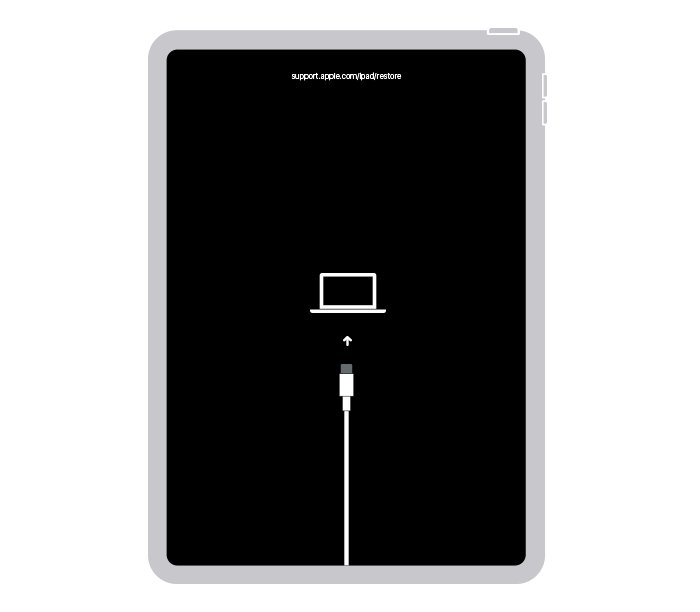
When the computer reports that the activation information was invalid or could not be obtained, Apple's fix is a restore in recovery mode. Restore reinstalls iPadOS and erases all data on the iPad; it does not remove Activation Lock.
- Connect the iPad to an up-to-date Mac, or to a PC with the latest Apple Devices app or iTunes, and open the Finder or the Apple Devices app.
- On an iPad without a Home button, press and quickly release the volume button closest to the top button, then the volume button farthest from it, then press and hold the top button until the recovery mode screen appears.
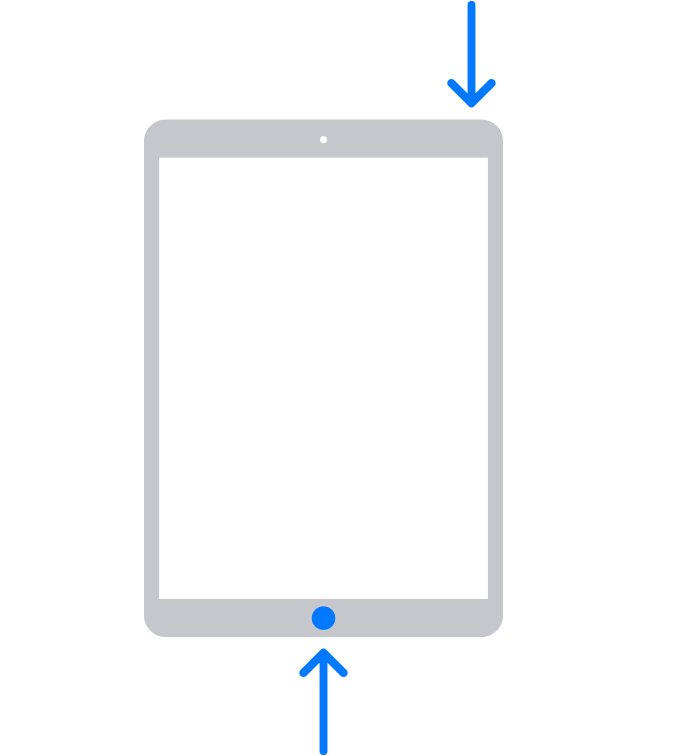
- On an iPad with a Home button, press and hold the Home and top buttons together; when the iPad turns off, release the top button and keep holding Home until the recovery mode screen appears.
- Locate the iPad on the computer and choose Restore when asked to Restore or Update.
- If the download takes more than 15 minutes and the iPad leaves recovery mode, let the download finish and enter recovery mode again.
- Set up the iPad after the restore and sign in with its Apple Account when asked.
If the iPad leaves the recovery screen too soon, put the iPad in recovery mode again before you choose Restore. If broken buttons stop you entering recovery mode, the iPad needs service.
How to reset Apple Account password for iPad Activation Lock
If you own the iPad but forgot the password, reset the Apple Account password and then use the new password on the Activation Lock screen. A trusted device and trusted phone number make the reset fastest.
- On the Activation Lock screen, look for Forgot password? and follow the onscreen instructions.
- Or, on an iPhone or Mac already signed in to the same Apple Account, change the password there.
- Without a trusted device, go to iforgot.apple.com and verify your identity with recovery factors such as your trusted phone number or Apple Account email address.
- On a borrowed iPhone or iPad, open the Support app, go to Support Tools, select Reset Password, then select Help Someone Else.
- Enter the new password on the iPad's Activation Lock screen.
If no recovery factor works, request Apple Account recovery at iforgot.apple.com; it can take several days or more.
How to start an Activation Lock support request
Apple can help remove Activation Lock from a personally owned iPad when you have proof of purchase. The receipt has to come from Apple or an Apple Authorized Reseller.
- Find the original sales receipt; it should show the device, purchase date, invoice or receipt number, price, the reseller's contact details and, if the reseller lists it, the serial number.
- Go to al-support.apple.com in a browser.
- Choose For a personally owned device, or For a device owned by a business, school, or institution.
- Follow the request steps and provide your proof of purchase when asked.
- After Apple confirms the lock is removed, restart the iPad and go through setup again.
If you bought the iPad second-hand, ask the previous owner to remove it from their account first, because that route needs no support request.
How to tell if iPad is activated
- Turn on the iPad; a device that is erased and free of Activation Lock shows the Hello screen.
- Go through setup; you are not asked for another person's Apple Account and password.
- On a computer, an alert offering Set up as New or Restore from Backup means the iPad is activated.
- After setup, open Settings and tap your name; your own Apple Account appears at the top.
An iPad that shows iPad Locked to Owner when you turn it on or wake it is still protected by Activation Lock on iPadOS 15 and later.
Check for Activation Lock before buying a used iPad
Do not take ownership of a used iPad that is protected by Activation Lock or has not been erased. Run this check with the seller present.
- Turn on and wake the iPad; an iPad Locked to Owner screen means it is still locked.
- If the passcode Lock Screen or Home Screen appears, ask the seller to erase it before you pay.
- Begin setup; if it asks for the previous owner's Apple Account, hand it back and ask them to enter their password.
- Accept the iPad only when it reaches the Hello screen.
If you are selling or giving away your own iPad, sign out and factory reset the iPad so the next owner does not see this screen.
iPad will not activate
Unable to activate iPad (Wi-Fi + Cellular) with a SIM error
The SIM card or eSIM is unsupported, or the carrier has not set up service.
- Check for a No SIM or Invalid SIM alert.
- Restart the iPad and use Wi-Fi to activate.
- Contact your carrier if the computer says the SIM or eSIM is not compatible.
Your iPad could not be activated because the activation information was invalid
The iPad's activation data could not be read during computer activation.
- Put the iPad in recovery mode.
- Choose Restore on the computer.
- Set up the iPad again and enter its Apple Account when asked.
Activation required on a new iPad with Remote Management
The iPad is enrolled in a business or school's device management.
- Read the organization name on the Remote Management screen.
- Contact that organization's IT department to release the iPad.
- If it was sold to you as new, remove the Remote Management lock through the seller or organization.
Old iPad says activation required after a reset
Erasing an iPad does not turn off Activation Lock while Find My is on.
- Enter the Apple Account that was signed in before the reset.
- If you forgot it, try the email addresses and phone numbers you use with Apple services.
- Reset the password at iforgot.apple.com, then enter it on the iPad.
iPad activation required FAQ
How do I fix my iPad activation error?
Check Apple's System Status page for iOS Device Activation, restart the iPad, and activate it over reliable Wi-Fi. If it still fails, connect it to a Mac or PC to activate. If the computer says the activation information was invalid, restore the iPad in recovery mode.
How do I fix unable to activate iPad?
Restart the iPad, switch from cellular data to Wi-Fi, and wait a few minutes if the server cannot be reached. A SIM or eSIM error on a Wi-Fi + Cellular iPad needs your carrier. A request for an Apple Account means Activation Lock is on.
How do I fix activation failed in iPad?
Activate the iPad through a computer with the latest macOS or iTunes. If the computer reports invalid activation information or cannot get it from the device, put the iPad in recovery mode and choose Restore. Restoring erases the iPad and reinstalls iPadOS.
Why won't my iPad activate?
Either the iPad cannot reach Apple's activation server, its SIM is not accepted, or Activation Lock is waiting for the Apple Account linked to it. Check Apple's System Status page, use Wi-Fi, and enter the account and password used to set the iPad up.
Why does my iPhone say activation required?
The same causes apply to iPhone: no connection to Apple's activation server, an unsupported SIM or eSIM, or Activation Lock from Find My. Restart it, use Wi-Fi, enter the Apple Account linked to it, or activate it with a computer.
Can't get past Activation Lock on iPad?
You need the Apple Account and password the iPad is linked to. Reset a forgotten password at iforgot.apple.com, ask a previous owner to remove the iPad at icloud.com/find, or start an Activation Lock support request with proof of purchase from Apple or an Authorized Reseller.
Does restoring an iPad remove Activation Lock?
No. Activation Lock is stored on Apple's activation servers and is checked every time the iPad is activated or recovered. Even after an erase or restore, the iPad asks for the linked Apple Account until the owner removes it.