Apple still creates an invoice for every online Apple Store order, but it appears once the item ships or is picked up, and you view or print it from View Invoice on your Order Status page rather than waiting for an emailed receipt.
This guide covers how to get that invoice, why order emails go missing (wrong address, junk folder, Mail categories, guest orders), how to change the email on an order, where App Store receipts live, and how to tell a real Apple receipt from a fake one.
How to view or print an Apple Store invoice online
The invoice is the receipt for an online order. Apple creates it after an item is shipped or picked up, so an order still in Processing has no invoice yet.
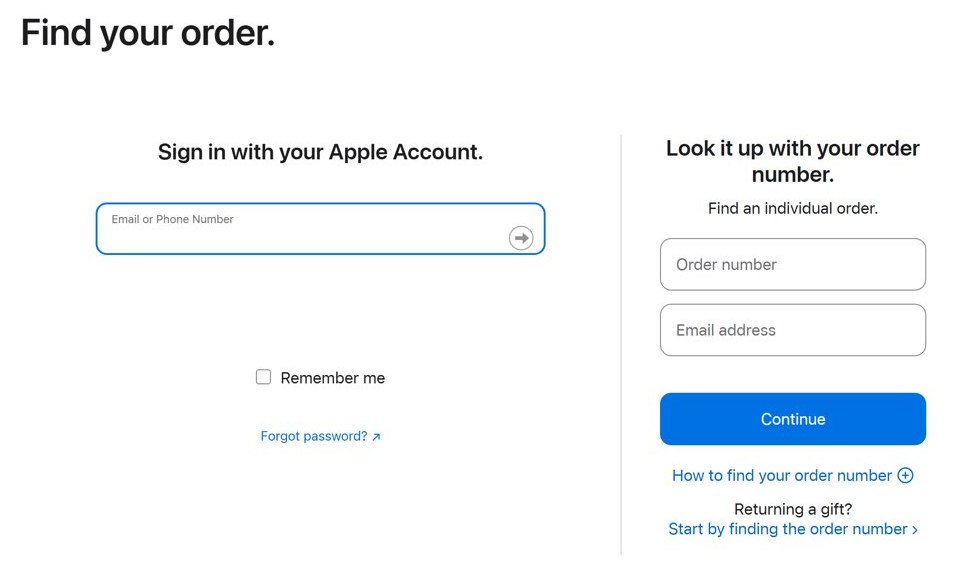
- Open secure.store.apple.com/shop/order/list, the Order Status link at the bottom of every apple.com page.
- Sign in with the Apple Account and password you used to place the order.
- Select the item to open its order details.
- Select View Invoice at the top of the order details page.
- Print the invoice from your browser, or save it as a PDF with your browser's print dialog.
Without an Apple Account, you can still open the order by signing in with your order number plus the postcode or email address used at checkout. If the invoice will not open, call an Apple Specialist at 1-800-MY-APPLE.
Keep the invoice. Apple asks for the original sales receipt if your device records ever need updating, and a return or refund of an Apple Store order needs the receipt within 14 days of delivery.
Why didn't I get an email receipt from Apple Store?
| What you see | Likely cause | What to do |
|---|---|---|
| You got an order acknowledgment email but no receipt | The acknowledgment only confirms Apple received the order; the invoice is created after shipping or pickup | Wait until the status reads Shipped, Delivered or Picked up, then select View Invoice |
| No Apple order emails arrived at all | The email address on the order is wrong | Check Contact Information in the order details and select Edit |
| Other mail arrives, Apple order mail does not | The messages landed in the junk or spam folder | Open the junk folder and move the Apple message to the inbox |
| The inbox on iPhone, iPad or iCloud.com shows tabs at the top | Mail filed the receipt under Transactions | Open the Transactions category, or swipe to All Mail |
| You use Gmail with category tabs | Gmail sorted the order email into Updates or Promotions | Search Gmail with category:updates apple and drag the message to Primary |
| You checked out as a guest or with Apple Pay | The order is not linked to your Apple Account, so it is missing from Order Listing | Add the order to your Apple Account from the order acknowledgment email |
| The purchase was an app, subscription, music or iCloud+ | Media purchases use a separate purchase history, not the Apple Store order system | Open reportaproblem.apple.com to see the purchase |
The online and in-store buying process differs, so an online order's paperwork always lives in Order Status, even when you collect the item at an Apple Store.
How to find Apple order emails in Transactions on iPhone Mail
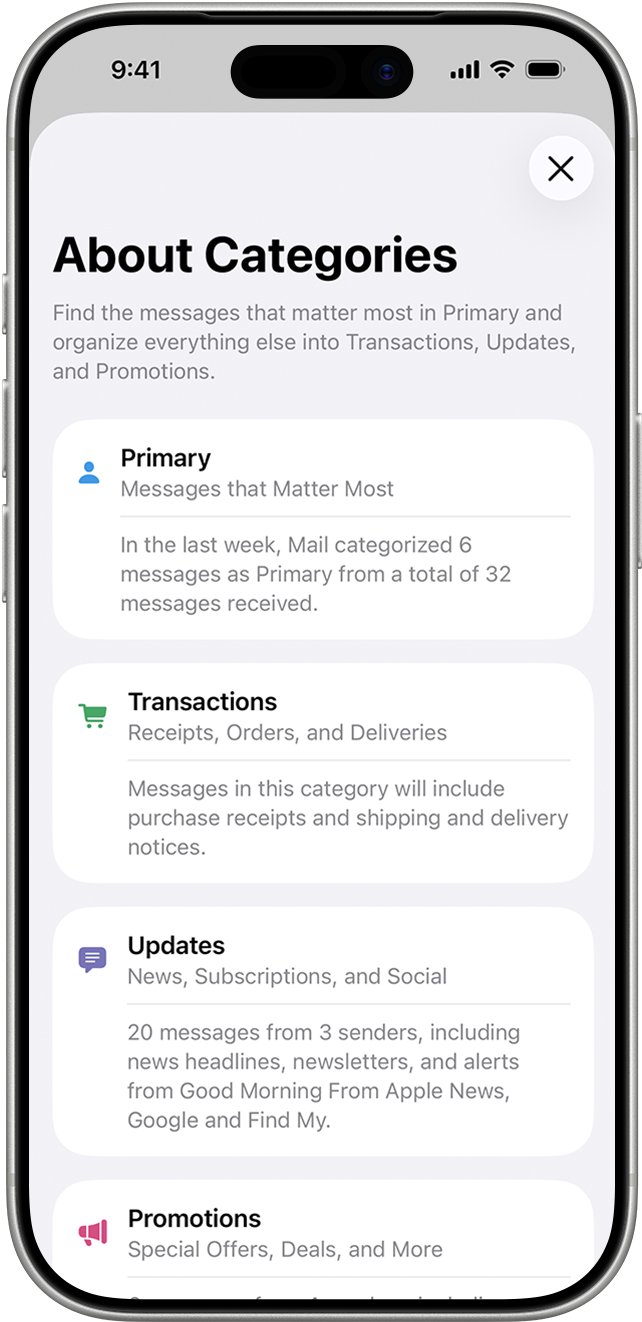
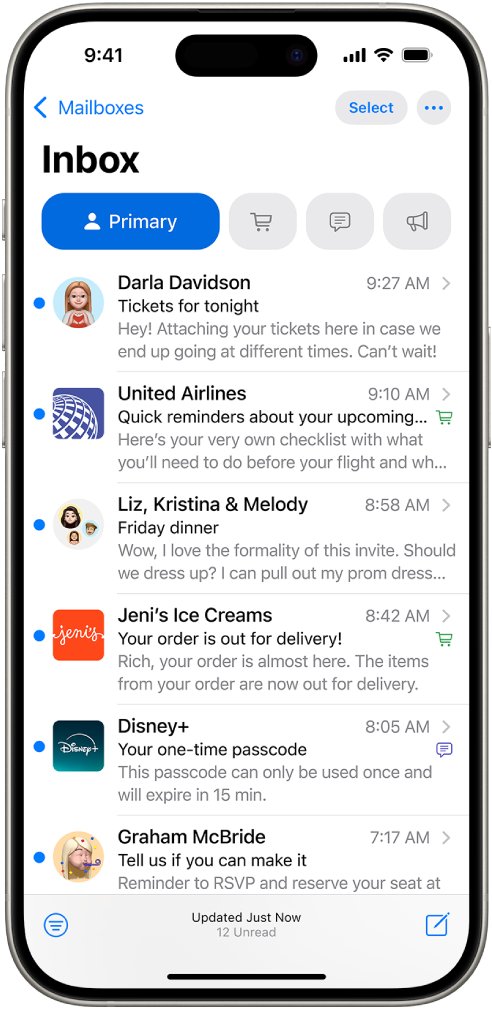
Mail on iPhone and iPad sorts incoming email into Primary, Transactions, Updates and Promotions. Apple describes Transactions as the place for confirmations, receipts and shipping notices, so an Apple Store order email often sits there instead of in Primary. Categories are not available in every country or region.
- Open the Mail app on your iPhone or iPad.
- Tap the Transactions category at the top of the inbox.
- Tap a message from Apple to open the digest of every Transactions message from that sender.
- To see all mail in one list, swipe left on the categories at the top of the inbox to open All Mail.
- To move Apple order mail back to Primary, open the Apple message, tap the options button at the top of the sender's message list, choose Categorize Sender, select Primary, then tap Continue.
- To switch the category view off or back on, tap the options button in the inbox, then tap Show Categories.
A category change applies to all current and future messages from that sender. Time-sensitive Transactions messages also appear in Primary, so a shipping alert may show in both places.
How to find Apple receipts in iCloud Mail on iCloud.com
iCloud.com uses the same four categories. Turning categorization off there stops future messages being sorted, and hiding categories keeps the sorting but shows one list.
- Go to icloud.com/mail and sign in to your Apple Account.
- Select Transactions in the Mailboxes list and look for the Apple order message.
- To see every message from Apple in that category, select the More button at the top of the sender's email list, then choose All Messages.
- To show one combined inbox, select the More button at the top of the Mailboxes list, then select Hide Categories.
- To stop sorting completely, choose Settings, select Categories in the sidebar, then select Turn Off Categorization.
To undo every manual change, open Settings > Categories and select Reset Manual Categorization.
Apple order confirmation email in Gmail Updates or Promotions tab
With the Default inbox type, Gmail files automated confirmations, notifications and statements under Updates, and deals under Promotions. New-mail notifications only fire for Primary, so an Apple receipt in another tab arrives silently.
- Open Gmail on your computer.
- Type category:updates apple in the search bar and press Enter; repeat with category:promotions apple.
- Drag the Apple message to the Primary tab so Gmail learns where Apple mail belongs.
- Open All mail in the left menu if you archived the message, because archived email does not appear in categories.
- Check the Spam label as well before you change the email address on the order.
A Gmail filter for Apple's sender address can send future order mail straight to a category or mark it important.
How to change the email address on an Apple Store order
Apple notes that a missing order acknowledgment, pickup or shipment notification email usually means an incorrect address on the order or a message stuck in junk mail. You can fix the address on the order itself.
- Sign in to your Order Listing page at secure.store.apple.com/shop/order/list.
- Select the item to open its order details.
- Find the Contact Information section and select Edit.
- Enter the correct email address and save the change.
- To set the default address for future orders, open Your Account on apple.com and select Shipping and Billing in the Settings section.
Changes on the Your Account page apply only to future orders. Text alerts are separate: you can request them at checkout and change the mobile number in the order's shipment notification preferences.
How to add a guest Apple Store order to your Apple Account
Guest Checkout lets you buy without an Apple Account, but full order details, changes, cancellations and returns need the order added to an account. Orders placed with Apple Pay also have to be added this way before they appear in Order Listing.
- Open the order acknowledgment email Apple sent after checkout.
- Select the order number at the top to open the order details.
- Select Add to Apple Account above the order details.
- Enter your Apple Account and password.
- Verify the phone number you used to place the order.
- Sign in to apple.com and open Order Status; the order now appears in your Order Listing with its View Invoice button.
If you forgot which Apple Account you use, try your current email address first, then use Apple's account recovery tool at iforgot.apple.com, which can also reset your Apple Account password.
Apple Store order emails explained
| Message | When Apple sends it | What it proves |
|---|---|---|
| Order acknowledgment (confirmation) email | Right after an online or phone order is received | Apple received the order; it does not mean the order is accepted |
| Shipment Notification Email | When the carrier picks up the item, with carrier, delivery estimate and tracking number if available | The item has left Apple's warehouse |
| Pickup Notification email | When the item is available at the Apple Store you chose | Bring a government-issued photo ID and the order number |
| Text messages | Only if requested at checkout; 1 to 4 texts per shipment | Order number plus a tracking or pickup link |
| Invoice | Created once the item ships or is picked up; viewed in Order Status, not sent as a separate email | Your receipt for returns, records and warranty |
The absence of a separate receipt email is expected for online orders. The invoice behind View Invoice is the document to keep.
How to check Apple order status online
Each item in an order shows a progress bar and status message. The status tells you whether an invoice exists yet.
- Sign in to Order Status with your Apple Account, or with your order number and postcode or email address.
- Select an item to open its order details.
- Read the status next to the item: Order Placed, Processing or Preparing to Ship means no invoice yet.
- When the status reads Shipped, Delivered or Picked up, the View Invoice button is available at the top of the page.
- For a shipped item, select Track Shipment to open the carrier's tracking page; tracking appears within 24 hours of shipping.
Pickup orders move through Shipping to Store, Check in Today and Ready for Pickup before Picked up. Multi-item orders can show separate tracking for each item.
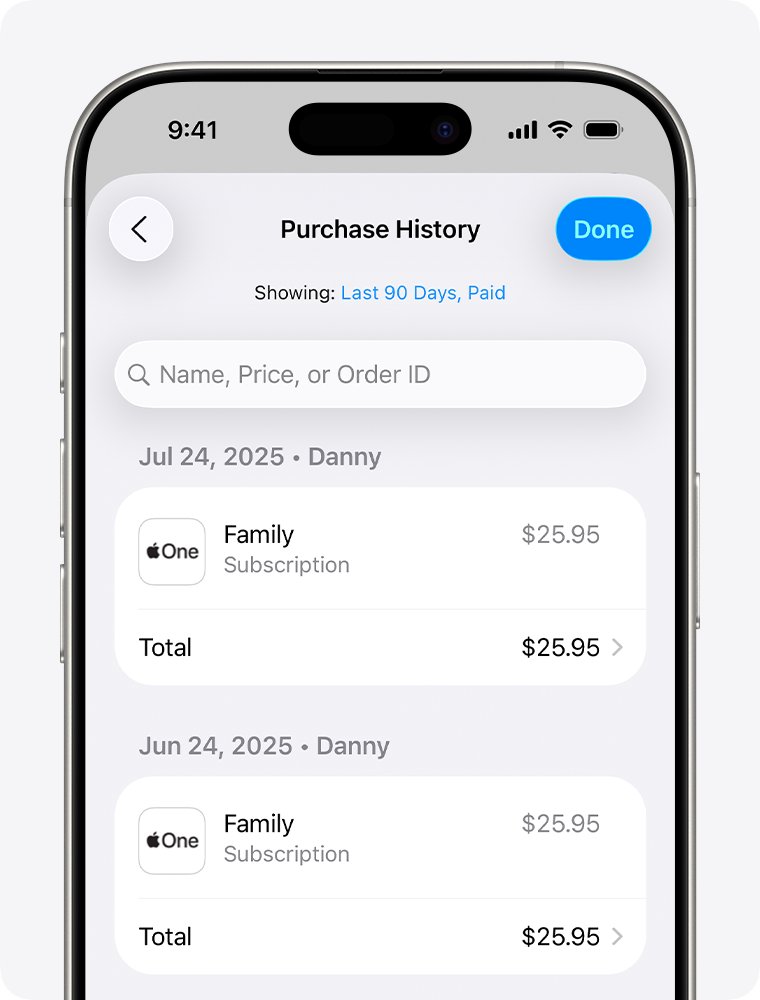
How to see App Store purchase history and receipts
Apps, subscriptions, music, movies and iCloud+ are not Apple Store orders and never appear in Order Status, because the App Store and the Apple Store app are separate. Their purchases are listed in a separate purchase history.
- Go to reportaproblem.apple.com and sign in to your Apple Account.
- Search for an amount if you know what you paid but not what it was for.
- On iPhone or iPad, open the App Store and tap your photo or initials.
- Tap Apps & Purchase History, then tap Purchase History.
- Tap Last 90 days at the top to filter for older purchases.
If an item is missing, sign in to any other Apple Account you own, because the purchase may belong to it. Apple can also group several purchases and subscriptions into one bill.
How to tell if an Apple receipt email is real
Fake Apple receipts are a common phishing trick, often for a purchase you know you did not make. A genuine App Store or iTunes Store receipt includes your current billing address, which scammers are unlikely to have.
- Do not click links or open attachments in the email.
- Compare the billing address in the email with the one on your Apple Account.
- Check the order or purchase yourself: open Order Status for Apple Store orders or reportaproblem.apple.com for media purchases.
- Treat any email that asks for your Social Security number, mother's maiden name, full card number or card security code as fake.
- Forward a suspicious message to [email protected]; on a Mac, choose Forward As Attachment from the Message menu.
- If you entered a password on a fake site, change your Apple Account password at account.apple.com right away.
Update payment details only in Settings on your device, the App Store on a Mac, or account.apple.com, never through a link in an email. A billing scam text claiming to be the Apple Store follows the same pattern.
Not receiving emails from Apple on iPhone or iPad
iPhone stopped receiving email
The Mail account has a wrong password, an outage at the provider, or Fetch is set to Manually.
- Check that the iPhone is online, then check your email provider's status page for an outage.
- Sign in to your provider's website to confirm the email address and password.
- Open Settings > Apps > Mail > Mail Accounts > Fetch New Data and choose Automatically or a fetch schedule.
- Open Settings > Notifications > Mail and turn on alerts, sounds and badges.
iPad stopped receiving email
With Automatically selected, the iPad fetches in the background only while charging and on Wi-Fi.
- Connect the iPad to a charger and Wi-Fi, then open Mail and wait for new messages.
- Change Fetch New Data to a schedule if you need mail while the iPad runs on battery.
- Ask your provider whether two-step verification needs a special app password for Mail.
iPhone stopped sending emails
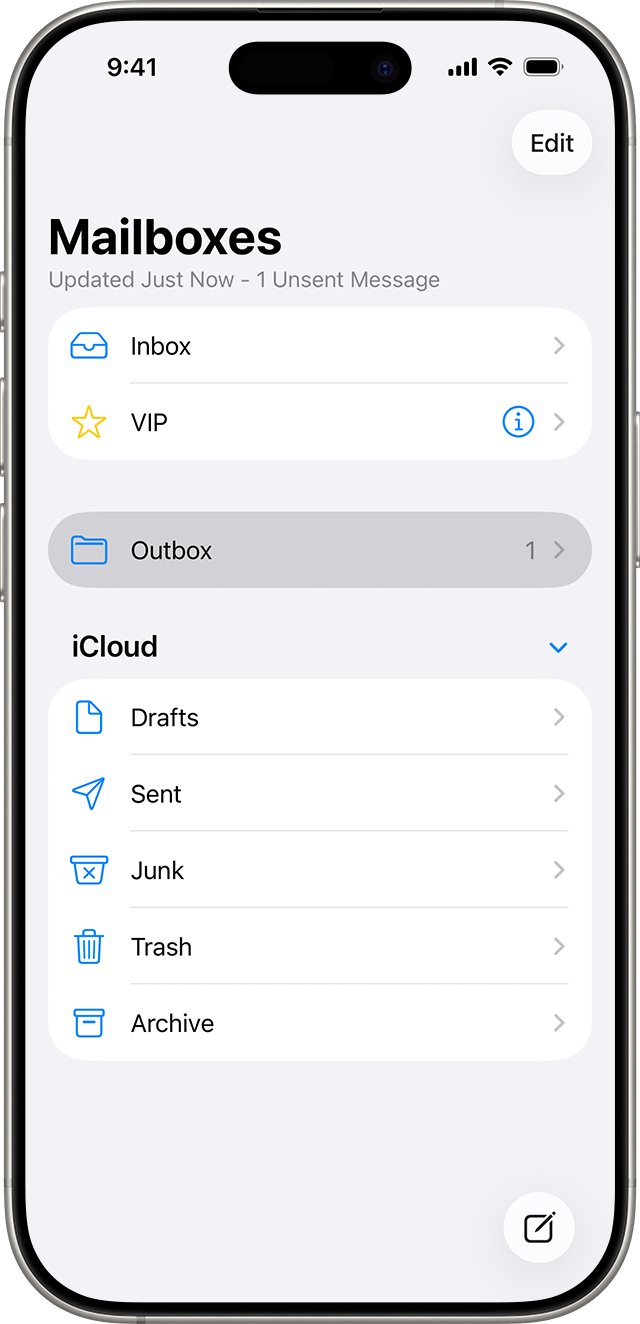
Messages that fail to send wait in the Outbox.
- In Mail, go to the list of mailboxes and tap Outbox. If there is no Outbox, your email was sent.
- Tap the stuck email, check the recipient's address, then tap Send.
- If it still fails, confirm your password on the provider's website.
Apple mail app not receiving emails from any sender
The account settings on the device are damaged.
- Sign in to your provider's website and make sure your email is stored there.
- Open Settings > Apps > Mail > Mail Accounts, tap the account, then tap Delete Account.
- Add the account again and wait for the inbox to download.
An iCloud or iTunes backup saves Mail settings but not the messages, so emails that were only on the device can disappear when you delete the account.
Apple Store email receipt FAQ
Does Apple still email receipts for online orders?
Apple emails an order acknowledgment and shipment or pickup notifications, but the receipt itself is an invoice in Order Status. It is created once the item ships or is picked up; open the order and select View Invoice to view or print it.
Why am I not receiving emails from Apple?
The email address on the order may be wrong, or the messages are in the junk folder or a Mail category such as Transactions. Check the Contact Information on the order, search junk and other categories, then make sure your Mail app is fetching new mail.
Why has my iPhone stopped receiving email?
The usual causes are a changed password, a provider outage, or Fetch New Data set to Manually. Confirm your password on the provider's website, set Fetch New Data to Automatically in Mail Accounts, and delete and re-add the account if mail still does not arrive.
Why did my iPad stop receiving email?
With Fetch set to Automatically, an iPad fetches new mail in the background only while it is charging and on Wi-Fi. Pull down in the inbox to check by hand, or choose a fetch schedule in Settings, then Apps, Mail, Mail Accounts, Fetch New Data.
Why has my iPhone stopped sending emails?
Emails that fail to send wait in the Outbox. Open the mailbox list in Mail, tap Outbox, check the recipient address, and tap Send. If sending still fails, check your password and ask your provider whether two-step verification needs an app password.
How do I unsubscribe from Apple emails?
Announcements about Apple products and services, and Apple News newsletters, follow the communication preferences in your Apple Account. On a Mac, open System Settings, click your name, click Personal Information, then turn off the announcement options. Order and shipping emails are not marketing and still arrive.
What if I forgot the email for my Apple Account?
Try your current email address first, because an Apple Account is usually an email address. If that fails, use Apple's account recovery tool at iforgot.apple.com, or call Apple Store Customer Service at 1-800-MY-APPLE if you still cannot sign in to view your orders.
Can I get an Apple Store receipt without an Apple Account?
Yes for viewing: sign in to Order Status with your order number and the postcode or email address from checkout. To see full order details or make changes, add the guest order to an Apple Account from the order acknowledgment email.