When DiskPart does not list your SSD in Windows 11, run rescan first, and if the drive still does not appear, the cause is almost always a missing storage driver, a loose connection, or a firmware setting rather than DiskPart itself.
This guide covers the in-Windows fixes, the Windows Setup case where list disk shows nothing on Intel 11th to 14th Gen PCs, and the hardware checks to run when the SSD is missing everywhere.
How to fix DiskPart not showing an SSD in Windows 11
Run these from an administrator account. They change nothing on the disk, so they are safe on a drive that holds data.
- Right-click Start and select Terminal (Admin), then select Yes at the User Account Control prompt.
- Type
diskpartand press Enter. - Type
rescanand press Enter to make DiskPart look for newly added disks. - Type
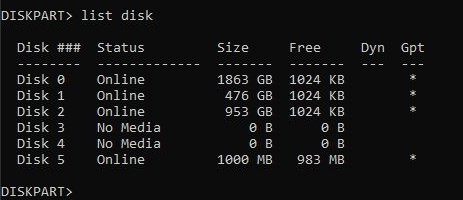
list diskand press Enter. - If the SSD is listed as Offline, type
select disk N(N is its number), thenonline disk. - If the SSD is still missing, type
exit, then work through the numbered steps below, starting with the connection and the driver.
If you are inside Windows Setup and list disk shows no drives at all on an Intel 11th Gen or newer PC, skip to the Windows Setup section: the installer is missing the Intel VMD storage driver.
The issue: When DiskPart misses your SSD
DiskPart can only list a disk that Windows already sees through a working storage driver. Where the SSD is missing tells you which layer has failed.
| Where the SSD is missing | Most likely layer | Go to |
|---|---|---|
| DiskPart and Disk Management, but it shows in BIOS/UEFI | Storage driver or controller mode | Steps 4 and 5 |
| Only in Windows Setup, on Intel 11th to 14th Gen | Intel VMD driver not on retail install media | Windows Setup section |
| Listed in DiskPart as Offline or Not Initialized | Disk state, not detection | Offline and initialize sections |
| Listed but read-only | Read-only attribute or a drive critical warning | Troubleshooting section |
| Missing in BIOS/UEFI as well | Power, cable, slot or a failed drive | Steps 1, 2, 3 and 6 |
Key observations: why DiskPart can't see the SSD
| Observation | What it tells you |
|---|---|
| DiskPart and Disk Management always show the same disks | If one misses the SSD, the other will too; switching tools does not help |
| A new SSD has no disk signature | It appears as Not Initialized or Unknown in Disk Management and has no drive letter in File Explorer |
| A disk can be present but Offline | DiskPart lists it; online disk brings it back |
| Intel VMD hides NVMe drives from retail Windows Setup | The installer reports no drives until you load the Intel RST VMD driver |
| Changing the storage controller mode in BIOS affects the boot drive | Microsoft lists it as a cause of Stop error 0x7B INACCESSIBLE_BOOT_DEVICE |
| Windows reads health data only from NVMe SSDs | SATA SSDs and hard drives show no health warnings in Settings |
DiskPart SSD troubleshooting steps: A step-by-step guide
Work through the six steps in order. Stop at the first one that brings the drive back, then back up anything important on it.
| Your situation | Start with | Why |
|---|---|---|
| External or USB SSD | 1. Unplug and replug the device | Ports and hubs often under-power drives |
| Internal SATA SSD that vanished suddenly | 2. Try a new SATA cable | Cables fail often |
| Drive appears, then drops out, or shows errors | 3. Check the disk health | Intermittent detection is a common sign of a failing disk |
| Yellow warning on the drive in Device Manager | 4. Uninstall and reinstall the driver | Forces Windows to rebuild the device |
| New build or fresh install, drive visible in BIOS only | 5. Set SATA mode to AHCI | AHCI uses the standard driver built into Windows |
| Drive missing after a BIOS update or settings change | 6. Reset your BIOS | Restores the controller settings the board shipped with |
1. Unplug and replug the device
- For an external SSD, unplug it, wait a few seconds and plug it back in.
- Plug it into a USB port directly on the PC, not a hub, and try a different port if it still does not appear.
- Open Disk Management and select Action > Rescan Disks.
- For an internal SSD, shut down the PC, unplug the power cable and reseat the drive: the SATA data and power cables, or the M.2 module in its slot and its screw.
- Check your motherboard or laptop manual to confirm the M.2 slot supports the drive type (NVMe, SATA or both).
- Turn the PC back on and run
rescanandlist diskin DiskPart again.
2. Try a new SATA cable
- Shut down the PC and unplug it from the wall.
- Replace the SATA data cable with a known-good one.
- Connect it to a different SATA port on the motherboard.
- Use a different power connector from the power supply.
- Start the PC, open the BIOS/UEFI setup and check that the SSD is listed.
- Boot Windows and run
list diskin DiskPart.
For an external SSD, try a different USB cable instead. If the drive still fails on another PC, the fault is the drive, not your computer.
3. Check the disk health
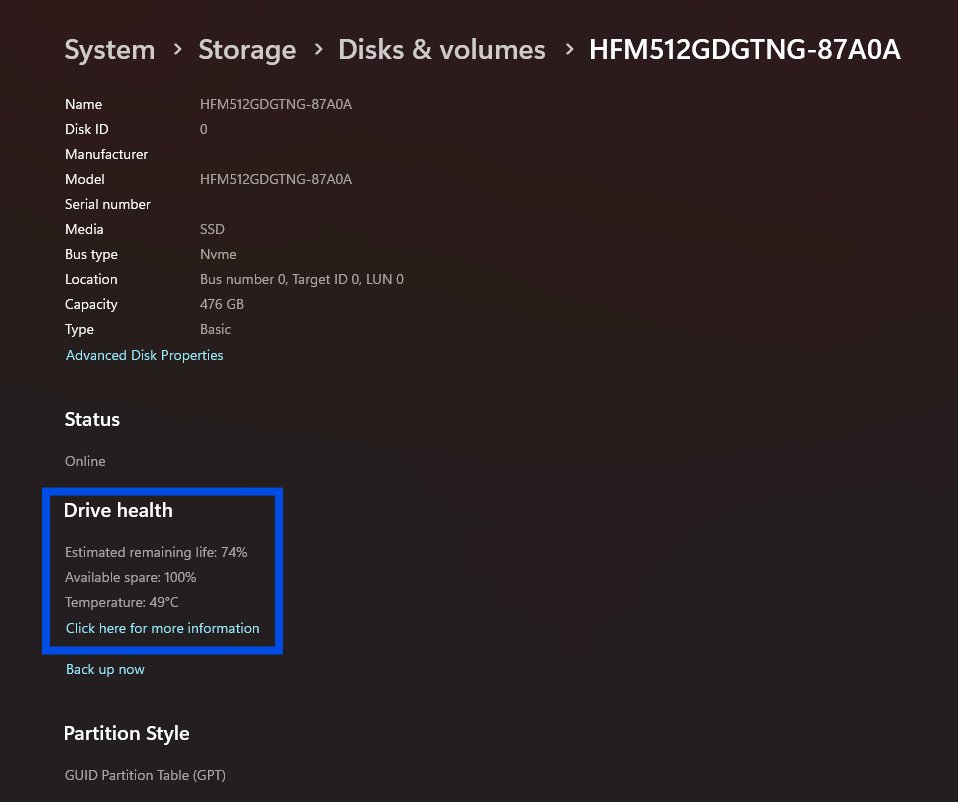
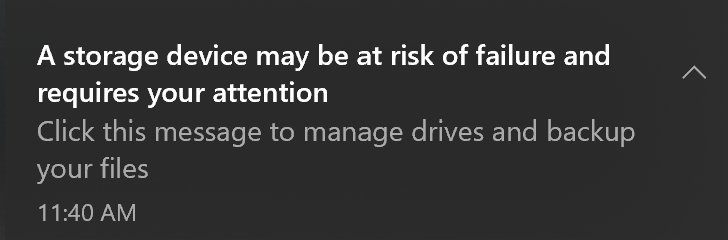
Windows 11 shows health details for NVMe SSDs only. For a SATA SSD, use the drive maker's own tool or the PowerShell status below.
- Open Settings > System > Storage > Advanced storage settings > Disks & volumes.
- Select Properties for the SSD.
- Read Estimated remaining life, Available spare and Temperature.
- Look for a critical warning: Spare capacity is low, Reliability is degraded or Drive is set to read-only.
- In Terminal (Admin), run
Get-PhysicalDiskand check that HealthStatus reads Healthy and OperationalStatus reads OK. - If any warning appears, back up the drive now before you try anything else.
4. Uninstall and reinstall the driver
- Right-click Start and select Device Manager.
- Expand Disk drives and Storage controllers, and look for a device with a yellow exclamation mark.
- Select the device and read its status to see the error code.
- Right-click it and select Uninstall device, then confirm.
- Select Action > Scan for hardware changes so Windows reinstalls it.
- Restart the PC and run
list diskin DiskPart.
If the controller is an Intel RST or VMD device, install the storage driver from your PC or motherboard maker's support page rather than a third-party driver updater.
5. Set SATA mode to AHCI
Change this only on a new build, before Windows is installed, or when the SSD is a second drive and Windows is not installed in RAID/Intel RST mode. Microsoft lists a change to the storage controller mode as a cause of Stop error 0x7B (INACCESSIBLE_BOOT_DEVICE) on the boot drive.
- Restart the PC and press the firmware key as it starts (F2 on Dell PCs; check your manual for other brands).
- Find the storage setting. The name varies by maker: SATA Operation, SATA Mode or a storage controller option.
- Select AHCI.
- Save and exit.
- Let the PC start, then run
rescanandlist diskin DiskPart, or restart Windows Setup.
If Windows was installed in RAID or Intel RST mode and will not start after the change, set the option back to its previous value. On Intel VMD systems, loading the Intel RST VMD driver is the safer fix.
6. Reset your BIOS
- Turn on the PC and press the firmware key repeatedly as it starts (F2 on Dell PCs).
- Find the restore option. Dell labels it Load Defaults or Restore Settings; some models use F9 or Alt + F.
- Select it, then choose Save and Exit.
- Let the PC restart with default settings.
- Open the firmware setup again and check whether the SSD is now listed.
- If you use BitLocker, have the recovery key ready, because firmware changes can trigger a recovery prompt.
DiskPart list disk not showing SSD during Windows 11 installation
PCs with Intel 11th, 12th, 13th and 14th Gen processors use Intel Volume Management Device (VMD). Retail Windows install media does not include the driver, so Setup and DiskPart report no drives. Dell's recovery images include it; other brands publish the driver on their support pages.
- On a working PC, download the Intel Rapid Storage Technology (IRST) driver for your exact model from the maker's support site.
- Run the downloaded file, select Extract, and save the files to the USB drive that holds the Windows installer.
- Plug the USB drive into the target PC and start Windows Setup again.
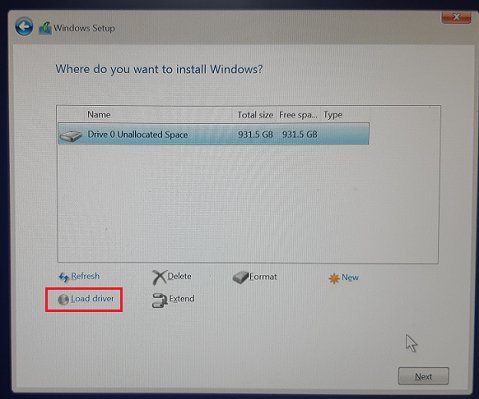
- On the screen that shows no drives, select Load driver, then OK on the prompts.
- Select Browse, open the extracted folder, and choose the VMD folder (or f6vmdflpy-x64 inside it).
- Select Intel RST VMD Controller and then Next.
- When the SSD appears in the list, continue the installation.
How to bring an offline SSD online with DiskPart
diskpart
rescan
list disk
select disk 1
online disk
attributes disk clear readonly
Replace 1 with the SSD's number from list disk. online disk brings an offline disk and its volumes online; it fails on a read-only disk, which is what attributes disk clear readonly removes. Run attributes disk on its own first to see the current flags.
You should see: DiskPart reports that it brought the disk online, and list disk shows the SSD as Online.
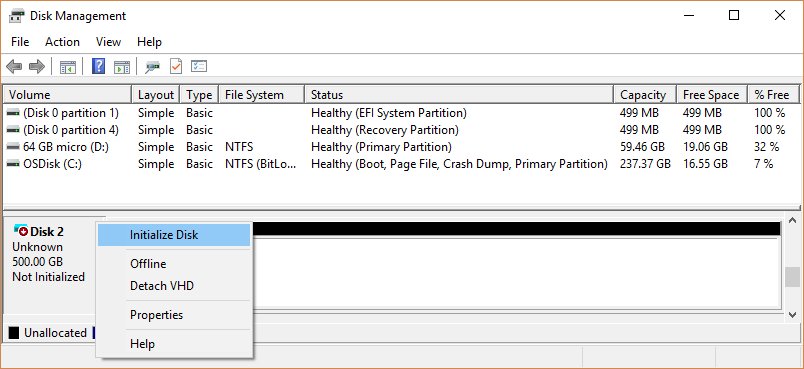
SSD not showing in File Explorer: initialize the disk in Disk Management
A brand-new SSD that DiskPart lists but File Explorer does not has never been initialized. Initializing erases the disk, so do this only on a new or empty drive.
- Right-click Start and select Disk Management.
- If the SSD shows Offline, right-click it and select Online.
- Right-click the disk and select Initialize Disk.
- Confirm the right disk is ticked, keep GPT, and select OK.
- Right-click the Unallocated space and select New Simple Volume, then Next.
- Accept the size, pick a drive letter, choose NTFS, and select Finish.
You can also open Disk Management by pressing Windows + R and typing diskmgmt.msc. If a partition shows RAW or Unallocated and holds files you need, do not format it or create a volume; recover the data first.
How to tell if Windows 11 detects the SSD
- In DiskPart, run
list diskand match the SSD by its size. - Check that the Status column reads Online for that disk.
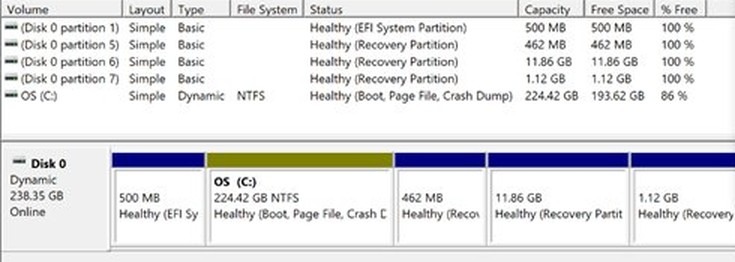
- In Disk Management, check the disk reads Online and its partition reads Healthy.
- In File Explorer, open This PC and check the new drive letter.
- In Settings > System > Storage > Advanced storage settings > Disks & volumes, check the SSD is listed with its volumes.
DiskPart SSD errors and fixes
DiskPart says the disk is write protected or online disk fails
The disk carries the read-only attribute, or the SSD put itself in read-only mode after a fault.
- In DiskPart, run
select disk Nand thenattributes disk. - If Read-only is Yes, run
attributes disk clear readonly. - If it will not clear, check Disks & volumes > Properties for Drive is set to read-only and copy your data off.
SSD shows as Not Initialized, Unknown or Unreadable
No valid disk signature, a corrupted boot sector, or hardware or I/O errors.
- Select Action > Rescan Disks in Disk Management, or restart the PC.
- If the drive is new and empty, initialize it.
- If it holds data, do not initialize it; try another cable, port or PC first.
SSD shows as Offline or Missing
The disk is disconnected, powered down or intermittently unavailable.
- Check that the drive is powered, connected and seated.
- Right-click it in Disk Management and select Online (or Reactivate Disk for a dynamic disk).
- If it will not stay online, check Event Viewer for disk errors and move the drive to another PC to test it.
Windows will not start after changing SATA mode
The storage controller mode no longer matches the one Windows was installed with (Stop error 0x7B).
- Restart into the BIOS/UEFI setup.
- Set the storage controller option back to its previous value (RAID, Intel RST or AHCI).
- Save and exit, and leave the setting alone until you have a driver plan.
SSD is missing on this PC and on another PC
The drive itself has most likely failed.
- Stop writing to the drive.
- Contact the SSD maker about warranty and diagnostics.
- Use a data recovery service if the files are vital.
Extra considerations and broader implications
| Consideration | Why it matters |
|---|---|
| Back up before you initialize, format or clean | Each of these erases the disk, and DiskPart does not ask twice |
| Ignore EFI System and Recovery partitions | Windows needs them to start and recover; leave them alone |
| GPT is the default partition style | Use MBR only for older hardware that does not support UEFI |
| Some USB drives cannot be initialized | They are only formatted and given a drive letter |
| Intermittent detection is an early warning | A drive that drops out now and then is often failing; replace it while it still reads |
| Avoid third-party driver updaters | Get Intel RST and chipset drivers from the PC or motherboard maker |
clean and convert gpt are among the DiskPart commands in Windows 11 that wipe a disk, so run them only after a backup.
DiskPart not recognizing SSD FAQ
Why does DiskPart not show my new SSD?
DiskPart only lists disks Windows can already see. A new SSD may be loose, need the Intel VMD driver in Windows Setup, or be hidden by a controller setting. Run rescan first, then check Device Manager and the BIOS/UEFI setup for the drive.
Why can't Windows 11 setup find my NVMe SSD?
On Intel 11th to 14th Gen PCs with Intel VMD, retail Windows media lacks the storage driver. Download the Intel Rapid Storage Technology driver for your model, extract it to the install USB, and select Load driver on the screen that shows no drives.
What does the DiskPart rescan command do?
Rescan tells DiskPart to look for disks added to the computer since it started. It changes nothing on any disk. Run list disk afterwards to see whether the SSD now appears, along with its size and status.
Will initializing an SSD delete my data?
Yes. Initializing writes a new disk signature and partition table, which erases everything on the drive. Initialize only a new or empty SSD. If the drive holds files, try another cable, port or PC first, and recover the data before you initialize.
Is it safe to switch from RAID to AHCI in BIOS?
It is safe on a new build or when Windows is not installed in RAID mode. On a PC whose Windows was installed in RAID or Intel RST mode, changing the controller mode can stop Windows starting with Stop error 0x7B until you switch it back.
How do I check SSD health in Windows 11?
Open Settings, then System, Storage, Advanced storage settings, Disks & volumes, and select Properties for the drive. Windows shows estimated remaining life, available spare and temperature, but only for NVMe SSDs. For SATA SSDs, use Get-PhysicalDisk or the maker's tool.
Why does my SSD show in BIOS but not in DiskPart?
The firmware sees the drive, but Windows lacks a working driver for its controller. Check Device Manager under Storage controllers for a warning, install the Intel RST or chipset driver from the PC maker, or set the SATA mode to AHCI on a new build.
How do I remove write protection from an SSD with DiskPart?
Open DiskPart, run select disk followed by the SSD's number, then attributes disk clear readonly. If the attribute will not clear, the SSD may have switched itself to read-only after a fault, so check its health and copy your data off.