To fix a corrupted or damaged Registry in Windows 11, restore a System Restore point from before the problem started, which is the method Microsoft recommends for a corrupt registry hive.
If there is no restore point, this guide covers DISM and SFC, Startup Repair, importing a .reg backup, reinstalling Windows 11 through Windows Update, and resetting the PC as the last resort.
Fix corrupt or damaged Registry in Windows 11/10
System Restore puts system files, registry settings and installed programs back to the state they were in when the restore point was made. Your personal files are not affected.
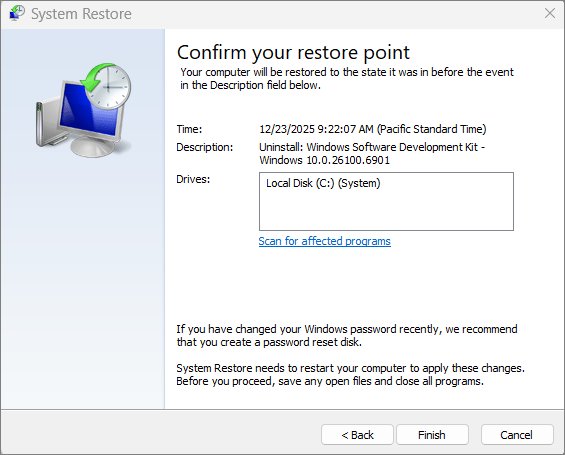
- Press Windows + R, type rstrui.exe and press Enter. You can also open Control Panel > Recovery > Open System Restore.
- In the Restore system files and settings box, select Next.
- Select a restore point dated before the registry problem began. Select Show more restore points if the one you want is not listed.
- Optionally, select Scan for affected programs to see which apps will be removed or restored.
- Select Next, then select Finish.
- Wait while Windows applies the restore point and restarts automatically.
Apps and drivers installed after the restore point are removed. Reinstall any you still need.
Best way to repair a corrupted registry in Windows 11
Find your situation in the left column. Start with the first row that matches, and move down the table only if that fix fails.
| Your situation | Use this | Why |
|---|---|---|
| Windows starts and you have a restore point | System Restore | Rolls back registry settings without touching personal files |
| Windows starts but features fail or freeze | DISM, then SFC | Repairs the system files that registry entries point to |
| Windows does not start | Startup Repair or System Restore from Windows RE | Startup Repair checks for registry errors and corrupted boot data |
| You exported a key before editing it | Import the .reg backup | Restores only the key you changed |
| Windows starts but nothing else has worked | Fix problems using Windows Update | Reinstalls the current Windows version and keeps apps, files and settings |
| Every other fix has failed | Reset this PC | Reinstalls Windows, with the option to keep personal files |
How to back up the registry in Windows 11 before repairing it
An export lets you undo a single change if a repair makes things worse. It takes less than a minute for one key.
- Select Start, type regedit.exe, and press Enter. Approve the User Account Control prompt.
- In Registry Editor, select the key or subkey you want to back up.
- Select File > Export.
- In the Export Registry File dialog box, choose a folder and type a name in the File name field.
- Select Save.
If Registry Editor will not start, use the other ways to open Registry Editor in Windows 11 before you skip this step.
How to repair corrupted system files in Windows 11 with DISM and SFC
Run DISM first, because it supplies the files that SFC uses for repairs. Open Command Prompt as administrator: type cmd in Search, right-click Command Prompt and select Run as administrator.
DISM.exe /Online /Cleanup-image /Restorehealth
sfc /scannow
DISM repairs the Windows component store using Windows Update as its source, which can take several minutes. sfc /scannow then scans all protected system files and replaces corrupted ones with a cached copy. Do not close the window until verification reaches 100%.
You should see: Windows Resource Protection did not find any integrity violations, or Windows Resource Protection found corrupt files and successfully repaired them.
Each System File Checker result message points to a different next step. When Windows Update itself is broken, DISM RestoreHealth with a repair source can use installation media instead.

How to run Startup Repair to fix registry errors in Windows 11
Startup Repair runs from the Windows Recovery Environment and checks for registry errors, missing or damaged system files, corrupted boot configuration data and incompatible drivers. Use it when Windows will not start.
- If Windows starts, open Settings > System > Recovery, and next to Advanced startup select Restart now.
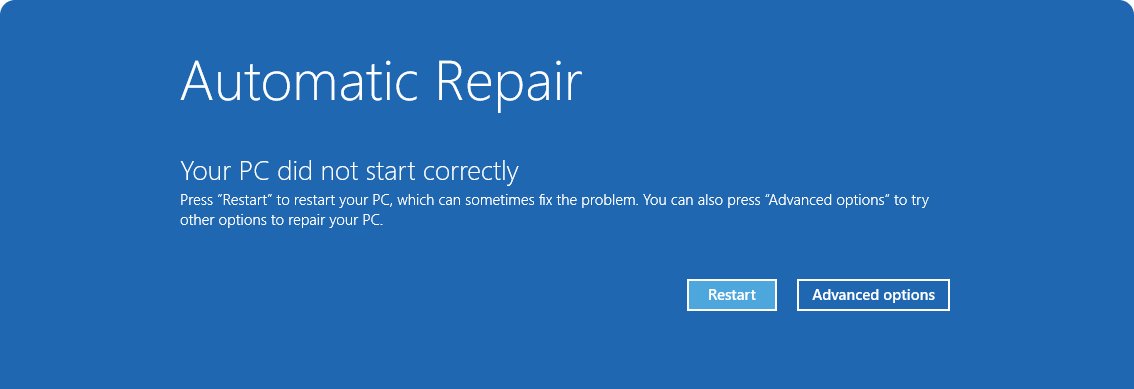
- If Windows does not start, turn the PC on, hold the power button to shut it down as soon as the Windows logo appears, and repeat once. On the third start, Windows opens Automatic Repair.
- Select Advanced options.
- Select Troubleshoot > Advanced options > Startup Repair > Restart.
- Enter your BitLocker recovery key if Windows asks for it.
- Wait while Startup Repair scans and repairs the PC. If it cannot fix the problem, it shows a report of what it found.
How to restore the registry from Windows Recovery Environment
When Windows cannot reach the desktop, apply a restore point from Windows RE instead. It rolls back the same registry settings as System Restore inside Windows.
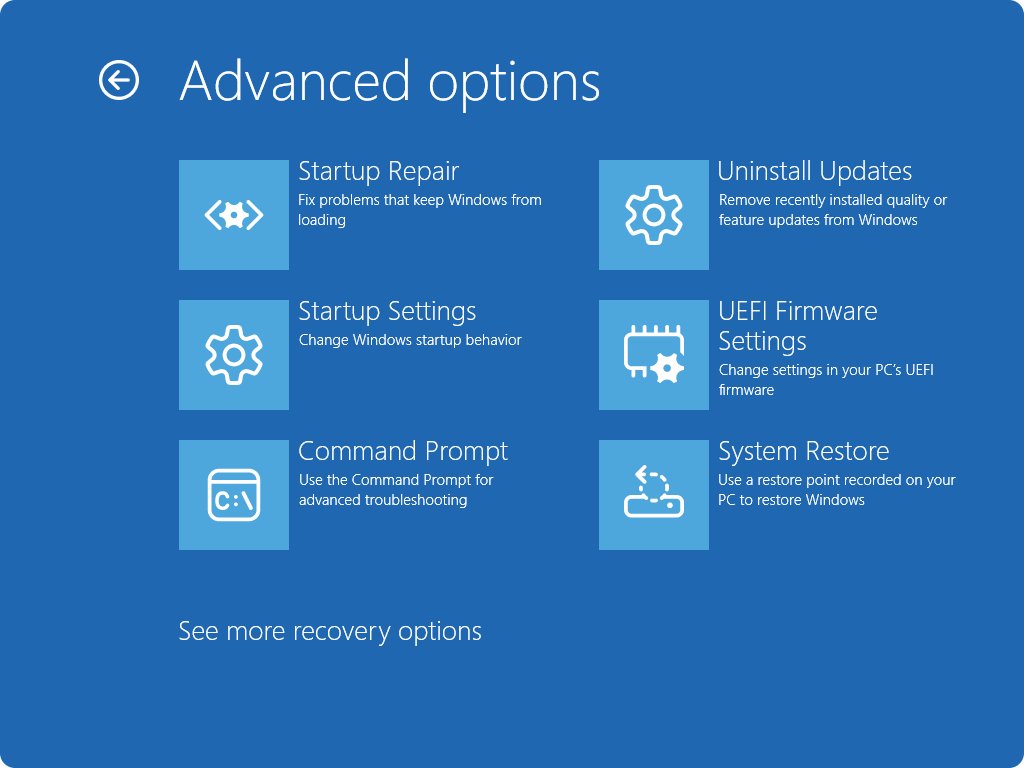
- Open Windows RE with Advanced startup or the Automatic Repair screen, as in the Startup Repair steps.
- Select Troubleshoot > Advanced options > System Restore.
- Enter your BitLocker recovery key if prompted.
- Select a restore point from before the problem. Select Show more restore points if needed.
- Select Next, then Finish.
- When the restore point is applied, select Restart.
How to restore a registry backup (.reg file) in Windows 11
Use this when a single key broke after an edit and you exported that key first. It restores only what is in the file.
- Select Start, type regedit.exe, and press Enter.
- Select File > Import.
- In the Import Registry File dialog box, go to the folder that holds your backup.
- Select the .reg file and select Open.
- Restart the PC so Windows and apps read the restored values.
You can also double-click the .reg file and confirm the prompt. The values in Registry Editor show how a Windows Registry key and value work if you want to check what the file changes.
How to fix corrupted Windows 11 with Fix problems using Windows Update
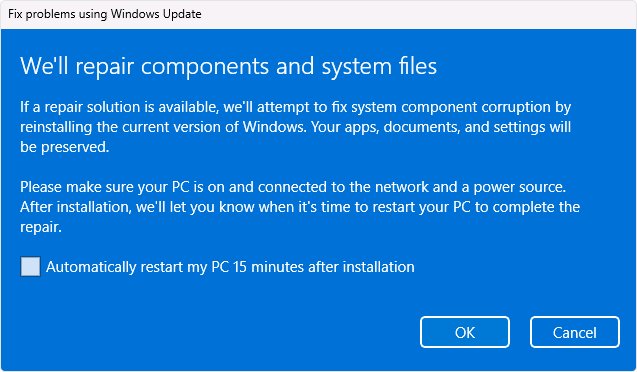
This option reinstalls the same version of Windows 11 already on the PC, repairs system files and components, and keeps your apps, files and settings. Keep the PC on power and connected to the internet throughout.
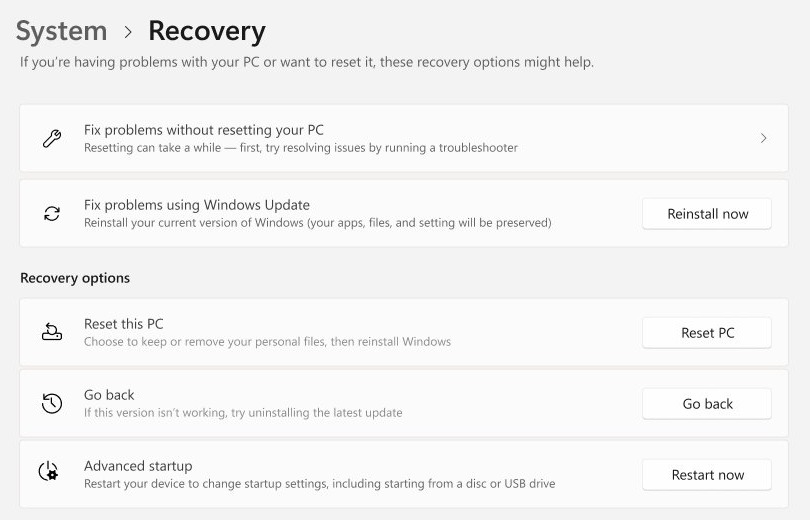
- Select Start > Settings > System > Recovery.
- Under Fix problems using Windows Update, select Reinstall now.
- Choose whether the PC may restart automatically 15 minutes after the installation finishes.
- Select OK to start. Windows Update downloads and installs a repair version of the last update that installed successfully.
- Restart the PC when the reinstall finishes, if it did not restart on its own.
The option is missing on PCs managed by work or school, and on Windows 11 builds older than the 2022 update with the February 2024 optional update.
How to reset Windows 11 when the registry cannot be repaired
Resetting reinstalls Windows and rebuilds the registry from scratch. Back up your files first and have your BitLocker recovery key ready.
- Select Start > Settings > System > Recovery.
- Under Recovery options, select Reset PC.
- Select Keep my files to reinstall Windows and keep personal files, or Remove everything for a full clean install.
- Select Cloud download to get a fresh copy of Windows, or Local reinstall to use the files on the PC.
- Follow the on-screen instructions. Do not restart the PC yourself if the screen stays black for a long time.
If Windows will not start, open Windows RE and select Troubleshoot > Reset this PC instead. Both reset options remove your installed apps.
Why the Windows 11 RegBack folder is empty
Older guides tell you to copy hives from the RegBack folder over the damaged ones. That no longer works by default.
| Fact | Detail |
|---|---|
| What changed | Starting with Windows 10 version 1803, Windows no longer backs up the system registry to the RegBack folder automatically |
| What you see | C:\Windows\System32\config\RegBack still lists each hive, but every file is 0 KB |
| Why | The change is by design, to reduce the disk space Windows uses |
| What Microsoft recommends instead | Use a System Restore point to recover a corrupt registry hive |
| How to turn the old backup back on | Set the REG_DWORD EnablePeriodicBackup to 1 under HKLM\System\CurrentControlSet\Control\Session Manager\Configuration Manager, then restart |
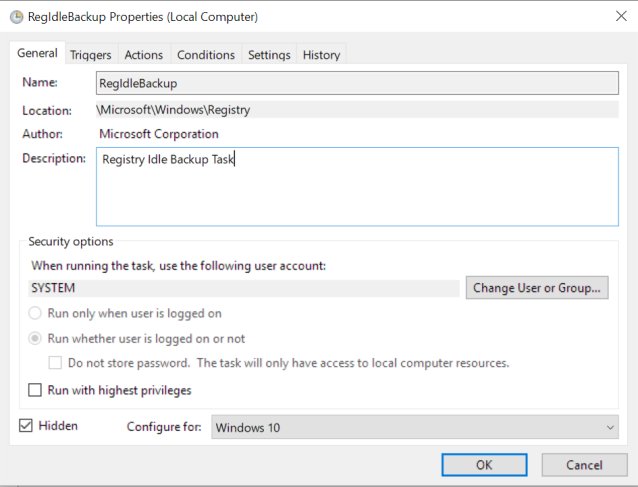
| What happens next | Windows backs up the registry to RegBack at restart and creates a RegIdleBackup task under Microsoft\Windows\Registry in Task Scheduler |
Turn on the periodic backup now if you want RegBack copies available the next time something breaks. It does not help with corruption that already happened.
Free registry cleaner, junk file cleaner and optimizers for Windows 11
A registry cleaner deletes entries it guesses are unused. It cannot rebuild a damaged hive, and Microsoft warns that incorrect registry changes can cause serious problems that might require reinstalling Windows.
| Built-in tool | What it cleans | Where to find it |
|---|---|---|
| Storage Sense | Temporary files and Recycle Bin items, automatically | Settings > System > Storage |
| Cleanup recommendations | Temporary files, large or unused files, files synced to the cloud, unused apps | Settings > System > Storage > Cleanup recommendations |
| DISM and SFC | Corrupted Windows system files and components | Command Prompt as administrator |
| System Restore | Registry settings, system files and programs changed since a restore point | rstrui.exe |
For junk files, the built-in tools above are enough. For a damaged registry, use the repair methods in this guide rather than a cleaner.
How to tell if the Windows 11 registry is still corrupted
- Restart the PC and check that Windows reaches the desktop without Automatic Repair starting.
- Open the apps or features that failed before and confirm they now work.
- Open Command Prompt as administrator and run sfc /scannow again.
- Look for Windows Resource Protection did not find any integrity violations, which means no protected system files are damaged.
- If SFC still reports problems, run findstr /c:"[SR]" %windir%\Logs\CBS\CBS.log >"%userprofile%\Desktop\sfcdetails.txt" and open sfcdetails.txt on the desktop to see which files failed.
Unable to boot due to system hive missing or corrupted
Windows will not start because the system hive is missing or corrupted
Windows cannot load the system registry hive into memory during startup.
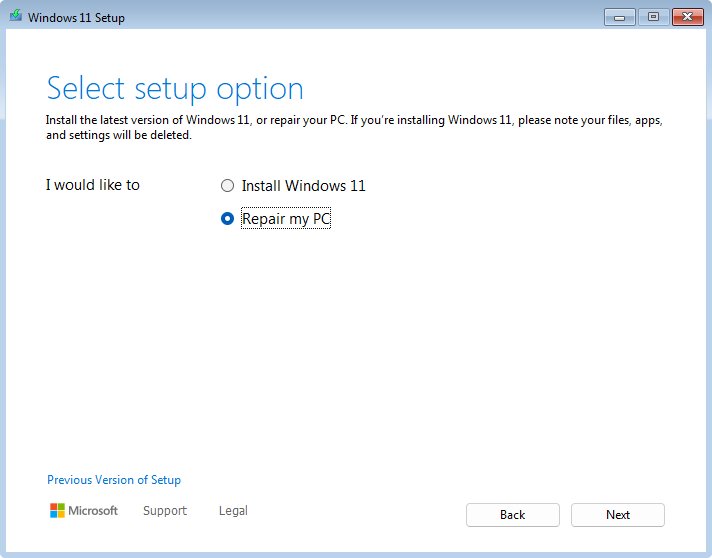
- Open Windows RE from Automatic Repair or from Windows installation media with Repair my PC.
- Run Startup Repair from Troubleshoot > Advanced options.
- If that fails, apply a restore point from Troubleshoot > Advanced options > System Restore.
- If there is no restore point, select Troubleshoot > Reset this PC.
Windows Resource Protection could not perform the requested operation
SFC cannot run in a normal Windows session.
- Start Windows in safe mode from Startup Settings in Windows RE.
- Run sfc /scannow again from an administrator Command Prompt.
- Make sure the PendingDeletes and PendingRenames folders exist under %WinDir%\WinSxS\Temp.
Windows Resource Protection found corrupt files but was unable to fix some of them
The cached copies SFC needs are damaged too.
- Run DISM.exe /Online /Cleanup-image /Restorehealth first, then run sfc /scannow again.
- Create sfcdetails.txt from CBS.log to find the files that were not repaired.
- Use Fix problems using Windows Update if the files still fail.
System Restore shows no restore points
System Protection was off, or the restore points were deleted.
- Select Show more restore points in System Restore.
- If the list is still empty, use DISM and SFC, then Fix problems using Windows Update.
- After the PC is fixed, turn on System Protection so future restore points exist.
Fix problems using Windows Update is not displayed
The PC is managed by work or school, or the Windows 11 build is too old.
- Install the latest updates from Settings > Windows Update and check again.
- Ask your IT department if the PC is managed.
- Use Reset this PC with Keep my files if the option still does not appear.
Recovery tools ask for a BitLocker recovery key
The drive is encrypted, and Windows RE needs the key to unlock it.
- On another device, open Microsoft's Find your BitLocker recovery key help page and follow it to locate the key for this PC.
- Type the key into the recovery screen.
- Continue with Startup Repair, System Restore or Reset this PC.
Corrupted registry in Windows 11 FAQ
How do I clean a broken registry in Windows?
Restore a System Restore point from before the problem, which rolls back registry settings without touching personal files. A registry cleaner cannot rebuild a damaged hive. If no restore point exists, run DISM and SFC, then reinstall Windows with Fix problems using Windows Update.
How do I repair corrupted Windows files?
Open Command Prompt as administrator and run DISM.exe /Online /Cleanup-image /Restorehealth, then sfc /scannow. DISM repairs the component store and SFC replaces corrupted protected system files with cached copies. Do not close the window until the scan reaches 100%.
How do I fix corrupted Windows 11 without losing files?
Use Settings > System > Recovery > Fix problems using Windows Update and select Reinstall now. It reinstalls the current version of Windows 11 and keeps your apps, files and settings. Reset this PC with Keep my files also keeps files but removes apps.
How do I fix a corrupted PC that will not start?
Let Windows fail to start twice so Automatic Repair opens, then select Advanced options > Troubleshoot > Advanced options > Startup Repair. If that fails, apply a restore point with System Restore from the same menu, or select Reset this PC.
How do I find and repair corrupted files?
Run sfc /scannow in an administrator Command Prompt to find and repair corrupted Windows system files. To see which files it found, run findstr /c:"[SR]" on CBS.log to create sfcdetails.txt on your desktop. Personal documents need their own app or a backup copy instead.
Can you fix a corrupt file?
Windows system files usually can be fixed, because SFC and DISM replace them with good copies. A damaged personal document cannot be rebuilt by these tools. Restore it from a backup or an earlier saved copy instead.
How do I fix system corruption caused by a bad driver?
Apply a restore point from before the driver was installed, or run Startup Repair, which checks for incompatible drivers. If the PC starts, roll back the driver in Device Manager from the device's Properties > Driver tab.
Does Windows 11 back up the registry automatically?
Not to the RegBack folder. Since Windows 10 version 1803, the RegBack files are 0 KB by design. Registry settings are captured in System Restore points instead, and you can turn RegBack copies back on with the EnablePeriodicBackup value.
Will System Restore delete my files?
No. System Restore reverts system files, registry settings and installed programs to the restore point, and leaves personal files alone. Apps and drivers installed after that restore point are removed and need reinstalling.