To clear search history in Windows 11, open Settings > Privacy & security > Search permissions and select Clear device search history, then go to Activity history and select Clear history to remove recent activities.
This guide also covers Bing search history saved to your Microsoft account, Microsoft Edge history, recent items in Start and Jump Lists, the Windows 10 paths, SafeSearch, and what to do when history will not clear.
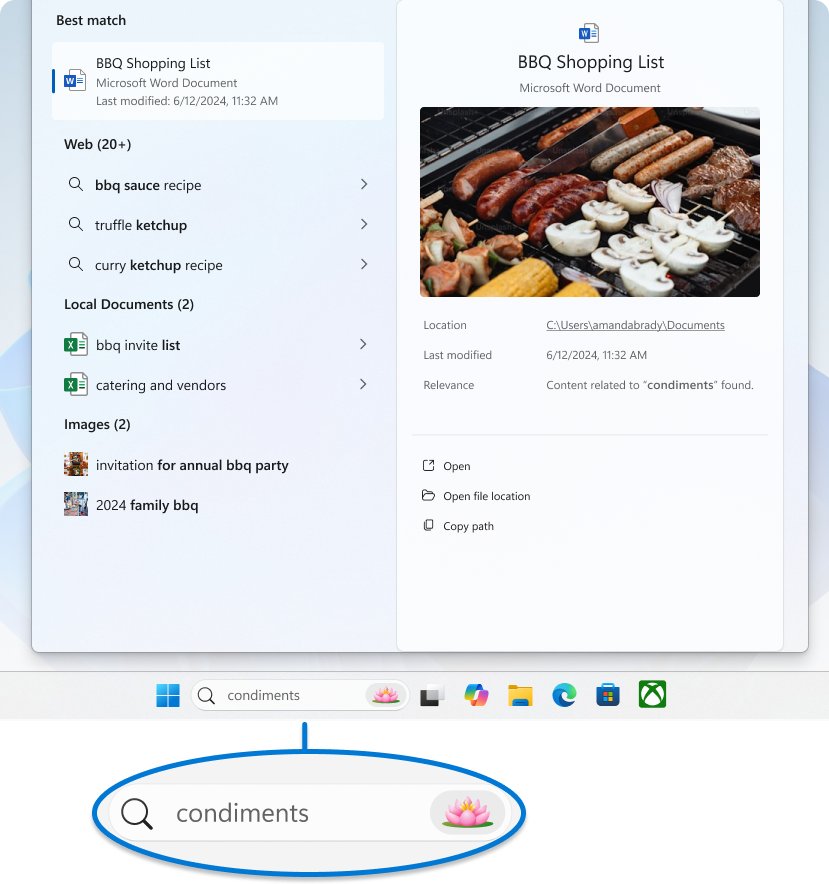
Clear Windows 11 search history & remove recent activities
Windows 11 keeps two separate local records: the searches you type into the taskbar search box, and an activity history of the apps, files and websites you use. Clear both to wipe the device.
- Select Start, then select Settings.
- Select Privacy & security, then select Search permissions (newer builds label this page Search).
- Under History, select Clear device search history.
- Go back to Privacy & security and select Activity history.
- Next to Clear activity history for this account, select Clear history.
- Turn Store my activity history on this device to Off if you do not want Windows to start a new record.
These two buttons only clear data stored on the PC. Web searches saved to your Microsoft account are removed separately on the privacy dashboard, as shown below.
What Windows 11 search history and activity history store
Each kind of history lives in a different place, so each has its own clear button. Match the history you want gone to the right row.
| History type | What it records | Where it is stored | How to clear it |
|---|---|---|---|
| Device search history | Searches typed in Windows Search, used to rank results | On the PC | Search permissions > Clear device search history |
| Activity history | Apps and services you use, files you open, sites you browse in Edge Legacy | On the PC, per account | Activity history > Clear history |
| Bing web search history | Web searches made while signed in with a Microsoft account | Microsoft account (cloud) | Microsoft privacy dashboard |
| Microsoft Edge browsing history | URLs and visit times | On the PC, or across devices with sync on | Edge Clear browsing data |
| Recent items in Start and Jump Lists | Files and items you opened recently | On the PC | Personalization > Start toggle |
Activity history was once sent to Microsoft as well, but the January 23, 2024 update KB5034204 removed that option on Windows 11 23H2 and 22H2. Older cloud copies are deleted within 30 days of the last sync.
Clear Bing search history from your Microsoft account
When you search the web from the taskbar while signed in with a Microsoft account, Bing can save those searches to the account. The Clear device search history button does not touch them.
- Open a browser and go to the Microsoft privacy dashboard at account.microsoft.com/privacy.
- Sign in with the same Microsoft account you use on Windows 11.
- Open the search history section of the dashboard.
- Choose to clear all search history, or remove individual searches.
- Confirm the deletion when the dashboard asks.
Deleting search history removes it from your Microsoft account, though Microsoft says some copies stay in its backup systems for a limited time. For a deeper Bing cleanup, you can also delete Bing search history completely from the Bing site.
How to stop Windows 11 saving search and activity history
Clearing history only wipes what is there now. Turn these settings off to stop the record from building again.
- Open Settings > Privacy & security > Activity history.
- Switch Store my activity history on this device to Off.
- Go back to Privacy & security and open Search permissions.
- Under Cloud content search, turn Microsoft account off if you do not want Windows Search to use your Microsoft account web history.
- Under the same section, turn Work or School account off if a work account is connected and you do not want its results.
With several accounts on one PC, the Activity history page can hide a specific account's activities, but hiding an account does not delete its data from the device.
How to clear search history in Microsoft Edge
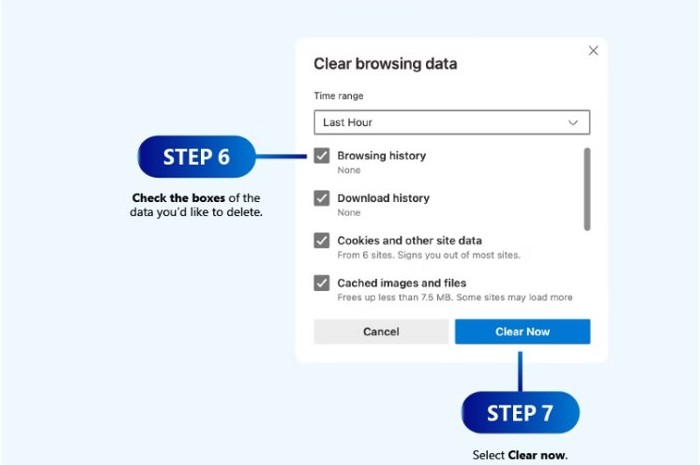
Microsoft Edge keeps its own browsing history, separate from Windows Search. Turn sync off first if you only want to clear the current PC.
- Open Microsoft Edge and select Settings and more (the three dots).
- Select Settings > Privacy, search, and services.
- Select Clear browsing data, then select Choose what to clear next to Clear browsing data now.
- Under Time range, pick how far back to clear from the drop-down menu.
- Tick Browsing history, and Cookies and other site data if you want those gone too.
- Select Clear now.
With sync on, the clear runs across every synced device. To limit it to this PC, go to Settings > Profiles > Sync and select Turn off sync first.
Hide recently opened items in Windows 11 Start and Jump Lists
Start and taskbar Jump Lists show files you opened recently. Turning the setting off removes those entries from view.
- Open Settings > Personalization > Start.
- Turn off Show recently opened items in Jump Lists on Start or the taskbar.
File Explorer keeps its own Recent list in Home and Quick access. You can clear recent files in File Explorer from its folder options.

Clear Windows 10 search history & remove recent activities
Windows 10 uses the same two clear buttons, but the search settings sit under their own Search category instead of Privacy & security.
- Select Start > Settings > Search > Permissions & History.
- Under History, select Clear device search history.
- Go back to the main Settings page and open Privacy > Activity history.
- Select Clear history under the clear activity history option.
- Switch Store my activity history on this device to Off to stop new records.
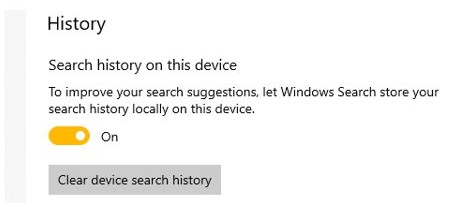
Where to find search history settings in Windows 11 and Windows 10
| Setting | Windows 11 | Windows 10 |
|---|---|---|
| Clear device search history | Settings > Privacy & security > Search permissions | Settings > Search > Permissions & History |
| Activity history | Settings > Privacy & security > Activity history | Settings > Privacy > Activity history |
| SafeSearch | Settings > Privacy & security > Search permissions | Settings > Search > Permissions & History |
| Searching Windows (indexing) | Settings > Privacy & security > Searching Windows | Settings > Search > Searching Windows |
How to disable or enable SafeSearch setting or filter in Windows 11
SafeSearch sits on the same settings page as the search history button. It controls whether adult content appears in web previews in Windows Search.
- Open Settings > Privacy & security > Search permissions.
- Under SafeSearch, select Strict, Moderate or Off.
- Close Settings; the change applies to the next search.
Strict is shared with Bing in your browser and overrides the Bing.com setting on that device. Moderate or Off lets Bing use the SafeSearch setting on its own Settings page. Each of the SafeSearch levels in Windows 11 filters web previews differently, so pick the one that suits who uses the PC.
Why can't I clear my search history in Windows 11?
Old web searches still appear after **Clear device search history**
Those searches are saved to your Microsoft account, not the PC.
- Sign in to the Microsoft privacy dashboard with the account you use on Windows.
- Clear the search history there.
- Turn Microsoft account off under Cloud content search to stop Windows Search using that history.
Search history will not clear in Edge
Sync brings the history back from another device or the cloud.
- Clear browsing data with sync turned on so it clears on every synced device.
- Clear any cloud copy on the Microsoft privacy dashboard.
Bing searches are missing from the privacy dashboard
Searches made while signed out of Bing are never saved to the account.
- Check that you are signed in to Bing with your Microsoft account.
- Clear signed-out searches in your browser instead, because the dashboard cannot see them.
Recent activities come back after clearing
Store my activity history on this device is still on.
- Open Settings > Privacy & security > Activity history.
- Switch the toggle to Off, then select Clear history again.
Windows Start search not displaying results; shows blank
A blank search panel after clearing history is usually unrelated to the clear itself. Work through these causes in order; if results are still missing, rebuild the Windows 11 search index next.
Search shows no files right after setup or after changing locations
The index is still being built; the first run can take a couple of hours.
- Open Settings > Privacy & security > Searching Windows.
- Check the indexing status on that page.
- Keep a laptop plugged in until indexing finishes.
The search panel opens blank or never shows results
Corrupted Windows system files can stop Windows features working.
- Select Search, type cmd, right-click Command Prompt and select Run as administrator.
- Run
DISM.exe /Online /Cleanup-image /Restorehealthand wait for it to finish. - Run
sfc /scannowand keep the window open until verification reaches 100%. - Restart the PC and try a search again.
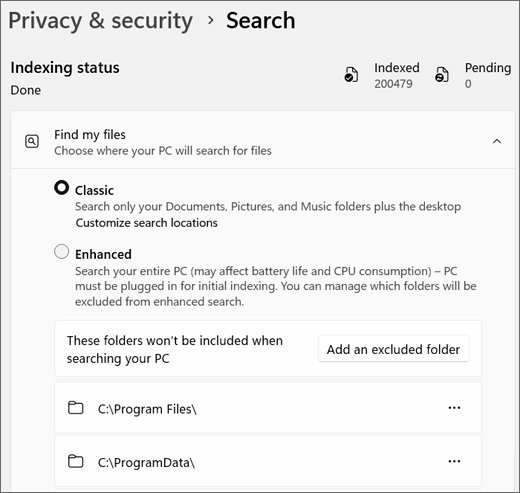
Windows 11 search history FAQ
How do I clear all search history in Windows 11?
Select Clear device search history under Settings > Privacy & security > Search permissions, then clear Bing search history on the Microsoft privacy dashboard. The first removes local searches; the second removes web searches saved to your Microsoft account.
Does clearing activity history delete my recent searches?
No. Activity history and device search history are separate. Clear history under Activity history removes app, file and site activity, while Clear device search history under Search permissions removes the searches typed in Windows Search.
Why can't I clear my search history on Bing?
Bing only shows searches on the privacy dashboard when you searched while signed in with your Microsoft account. Searches made while signed out are not saved to the account, so the dashboard cannot clear them; clear them in your browser instead.
Why won't my search history clear?
Usually because it is stored somewhere else. Windows Search, Bing, Edge and Activity history each keep their own record. Clear the one that still shows the entries, and turn off sync or the saving toggle so it does not return.
How do I clear search history in Microsoft Edge?
Open Settings and more > Settings > Privacy, search, and services, select Clear browsing data, then Choose what to clear. Pick a time range, tick Browsing history and select Clear now.
How do I clear search history and cookies at the same time?
In Microsoft Edge, open Clear browsing data, tick both Browsing history and Cookies and other site data, choose a time range and select Clear now. Windows Search itself does not store cookies.
Is Windows 11 activity history sent to Microsoft?
Not on current builds. The January 23, 2024 update KB5034204 removed the option to send activity history to Microsoft on Windows 11 23H2 and 22H2. Activity history is now stored on the device.
How long does Microsoft keep Bing search history?
Microsoft stops using cookies and identifiers tied to an account for search personalization after 18 months. You can delete your search data at any time on the privacy dashboard, though some copies stay in backups for a limited time.