When Windows 11 or 10 does not detect your headphones, open Settings > System > Sound, pick the headphones under Output, and then check that the device is enabled in Device Manager.
This guide covers wired and Bluetooth headphones, driver and audio service fixes, hardware tests, and the matching checks on macOS, Android and iPhone.
![Troubleshooting Headphone Detection on Windows 11, 10 [Step-By-Step]](https://techdows.com/wp-content/uploads/2026/10/Troubleshooting-Headphone-Detection-on-Windows-11-10-Step-By-Step.jpg)
Troubleshooting headphone detection: fix the "headphones not detected" issue
Most detection failures come down to the wrong output device being selected or the audio device being disabled. These steps settle both in about two minutes.
- Plug the headphones in firmly, or turn on and connect your Bluetooth headphones.
- Select Start > Settings > System > Sound.
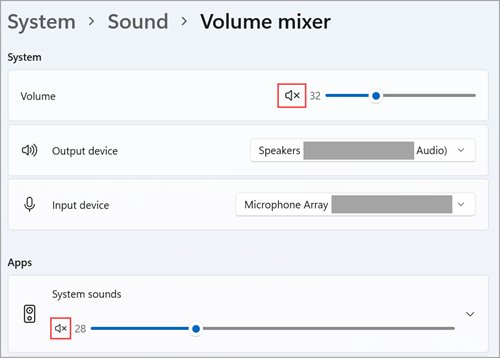
- Under Output, select your headphones and make sure the volume slider is not muted or at zero.
- If the headphones are missing from the list, select Start, type Device Manager and open it.
- Expand Sound, video and game controllers, right-click your audio device and select Enable device if that option appears.
- If no audio device is listed, select View > Show hidden devices, then Action > Scan for hardware changes.
- Play a sound to confirm the headphones now work.
If the headphones still do not appear, work through the wired or Bluetooth section below that matches your connection.
Which headphone detection fix should you try first?
| What you see | Try this first | Why |
|---|---|---|
| Headphones listed but no sound | Select them under Output and set them as default | Windows is sending sound to another device |
| Headphones missing from Output | Device Manager: enable or rescan the audio device | The device or driver is disabled or not loaded |
| "No audio output device is installed" | Update or reinstall the audio driver | The driver is missing, outdated or corrupted |
| Bluetooth headphones will not pair | Pairing mode, battery, then remove and re-add | The headset is not discoverable or the pairing is stale |
| Bluetooth connected but silent | Pick the device under Output, then adjust the format | The output or audio format is wrong |
| Sound stopped after a Windows update | Roll back the audio driver | The new driver is incompatible |
| Nothing works on any device | Test the headphones on another device | The cable, jack or headset is likely faulty |
Quick checks before changing settings
Run these things before starting on drivers or services. Each one takes seconds and rules out a physical cause.
| Check | What to do | What it rules out |
|---|---|---|
| Cable and plug | Push the plug fully into the jack and look for a loose or kinked cord | A partly inserted 3.5mm plug or broken cable |
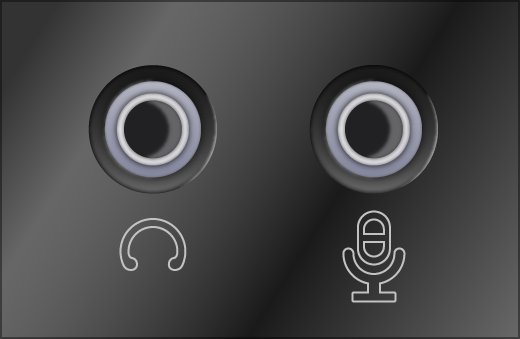
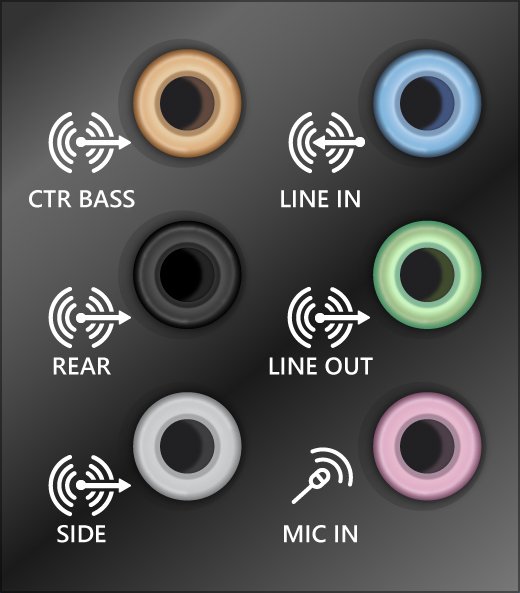
| Correct jack | Use the jack labelled headphone, or the green output jack; the pink jack is for a microphone | Plugging into the mic input |
| USB port | Move USB headphones to a different USB port | A dead or underpowered port |
| Power and charge | Charge wireless headphones and turn them off and on | A headset too low on battery to pair |
| Volume and mute | Check the headset's own volume, the app's volume and the Windows volume | Sound muted at one of several levels |
| Restart | Select Start > Power > Restart | A temporary detection glitch |
Why do Windows generally fail to detect headphones?
Why Windows fails to detect headphones comes down to a short list of causes. Match your symptom to the likely cause before changing anything.
| Cause | Typical symptom |
|---|---|
| Wrong output device selected | Headphones listed, but sound plays from speakers or a monitor |
| Audio device disabled in Windows | Headphones missing from Output in Sound settings |
| Missing, outdated or corrupted driver | "No audio output device is installed" or greyed-out sound settings |
| Incompatible driver after a Windows update | Sound worked before the update and stopped right after |
| Audio services not running | No devices listed at all until a restart |
| Bluetooth not paired or out of range | Wireless headphones never appear in the device list |
| Loose plug, wrong jack or damaged cable | Sound cuts out, or only one side plays |
Fixing wired headphone detection problems
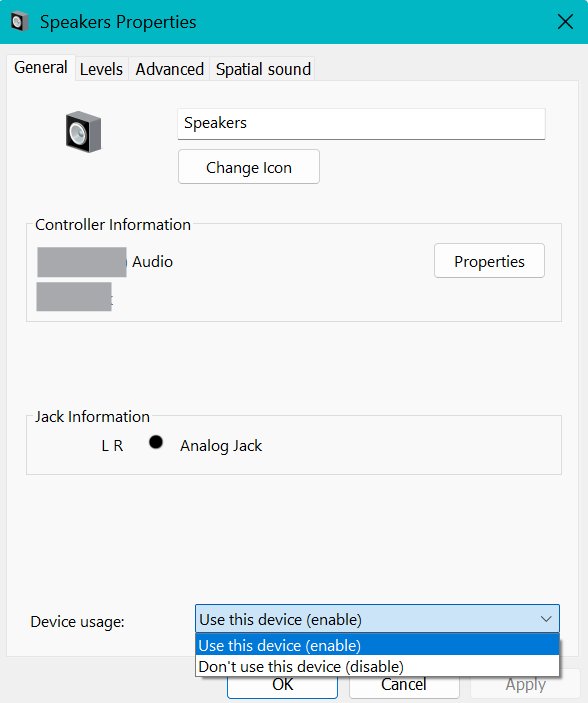
Wired headphones use either the 3.5mm jack or USB. When they connect but do not show up or play, set them as the default playback device and confirm Windows has not disabled them.
- Select Start > Settings > System > Sound.
- Under Advanced, select More sound settings, then open the Playback tab.
- Select your headphones and choose Properties.
- Next to Device usage, choose Use this device (enable), then select OK.
- Right-click the headphones and select Set as default.
- Plug the headphones in again and play a test sound.
If you use an external monitor without speakers, make sure the monitor is not selected as the default output. Windows sends no audible sound there, which looks like a headphone fault.
Troubleshooting Bluetooth headphone pairing and detection
Bluetooth headphones only appear in Windows when they are in pairing mode, in range and charged. A stale pairing record or a faulty Bluetooth driver is the next most common cause.
- Select Start > Settings > Bluetooth & devices and turn on the Bluetooth toggle.
- Put the headphones in pairing mode and move them close to the PC.
- If the headphones are already listed, select More options (…) > Remove device.
- Select Add device, choose Bluetooth, and select the headphones from the list.
- If pairing still fails, turn Bluetooth off, wait 10 seconds and turn it on again.
- Leave rechargeable headphones on their charger while you pair them.
- Once connected, select the headphones under Output in Settings > System > Sound.
Headphones that connect but sound poor or silent may lack the A2DP profile used for high-quality audio streaming. Check the headset's documentation or the manufacturer's site to confirm A2DP support.
Run the Windows audio and Bluetooth troubleshooters
Windows 11 runs both troubleshooters from the Get Help app, which checks the configuration and applies fixes automatically.
- Open the Get Help app.
- In the search bar, enter audio troubleshooter, or Bluetooth troubleshooter for wireless headphones.
- Select Yes if asked to consent to diagnostics.
- Wait for the scan to finish and follow the prompts until the issue is resolved.
- On Windows 10, select Start > Settings > System > Troubleshoot > Other troubleshooters and select Run next to Audio if Get Help is not available.
The same Get Help route lets you run any built-in troubleshooter for other hardware.
Updating audio drivers, firmware, and system settings
A missing, outdated or corrupted audio driver is the usual reason Windows reports no output device at all. Update first, then reinstall the audio driver if the update changes nothing.
- Select Start > Settings > Windows Update, select Check for updates and install any audio driver updates offered.
- Select Start, type Device Manager and open it.
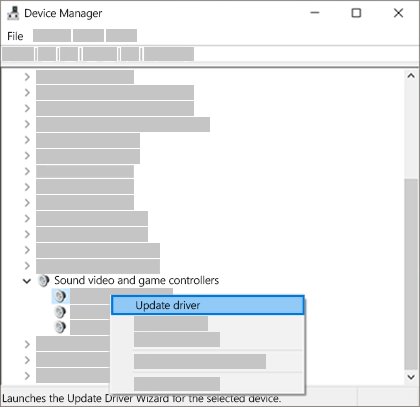
- Expand Sound, video and game controllers, right-click your audio device and select Update driver > Search automatically for drivers.
- If nothing changes, right-click the device again and select Uninstall device, tick Attempt to remove the driver for this device, then select Uninstall.
- Select Start > Power > Restart so Windows reinstalls the driver automatically.
- If problems remain, download the latest audio driver for your model from the PC or sound card manufacturer's support site and install it.
- For Bluetooth headphones, expand Bluetooth in Device Manager, right-click the adapter and select Update driver too.
Headphone firmware comes from the headphone maker, usually through its own companion app. Install firmware updates only from that manufacturer's official app or site.
Use the generic Windows audio driver
When the manufacturer's driver keeps failing, Windows can switch to its built-in High Definition Audio Device driver. Systems with an IDT High Definition Audio CODEC often recover this way.
- Open Device Manager and expand Sound, video and game controllers.
- Right-click your sound card or audio device and select Update driver.
- Select Browse my computer for drivers > Let me pick from a list of available drivers on my computer.
- Select High Definition Audio Device, then select Next.
- Follow the prompts and restart the PC.
Restart Windows Audio services
If the audio services did not start correctly, Windows cannot list any output device. Restarting them from the Windows Services console takes less than a minute.
- Select Start, type services.msc and press Enter.
- Right-click Windows Audio and select Restart.
- Right-click Windows Audio Endpoint Builder and select Restart.
- Check that Remote Procedure Call (RPC) shows as running.
- Plug the headphones in again and test the sound.
Disable audio enhancements and change the default sound format
Audio enhancements and an unsupported audio format can make headphones crackle, distort or go silent even when Windows detects them.
- Select Start > Settings > System > Sound.
- Under Output, select your headphones.
- Under Advanced settings, set Audio enhancements to Off and test the sound.
- If the sound is still wrong, open Control Panel > Hardware and Sound > Sound.
- On the Playback tab, right-click the headphones and select Properties.
- On the Advanced tab, choose a different setting under Default Format, select OK and test again.
- For Bluetooth headphones, select Settings > Bluetooth & devices > Devices, choose the headset, select Advanced sound properties and set the format to 2 channels, 16 bit, 48000Hz (DVD Quality).
Roll back the audio driver or use System Restore
If the headphones stopped working right after a Windows update or driver change, return to the previous driver. System Restore is the fallback when no older driver is stored.
- Open Device Manager and expand Sound, video and game controllers.
- Right-click your audio device and select Properties.
- On the Driver tab, select Roll Back Driver and confirm with Yes.
- Restart the PC and test the headphones.
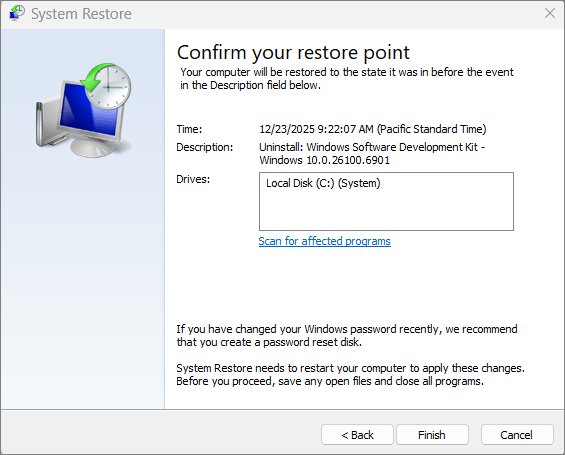
- If Roll Back Driver is greyed out, press Win + R, type rstrui.exe and press Enter.
- Select Next, pick a restore point dated before the problem began, then select Next and Finish.
System Restore reverts system files, drivers and installed programs, but it does not touch your personal files. Windows restarts automatically once the restore point is applied.
Testing for hardware damage and knowing when to replace
When no software fix works, isolate whether the fault is in the headphones or the PC. Swap one part at a time.
| Test | Result | What it means |
|---|---|---|
| Plug the headphones into a phone or another PC | No sound there either | The headphones or cable are faulty; repair or replace them |
| Plug the headphones into a phone or another PC | Works fine | The fault is in the PC's jack, port, driver or settings |
| Plug a different pair into your PC | Second pair works | Your original headphones are the problem |
| Plug a different pair into your PC | Second pair also silent | Check the jack, USB port and audio driver on the PC |
| Wiggle the plug gently while audio plays | Sound cuts in and out | A worn jack or broken wire near the plug |
| Try a front and a rear jack on a desktop | Only one works | The other jack or its internal cable is not connected |
Headphones that fail on every device need repair or replacement, and a PC jack that fails with every pair needs the PC maker's support. A USB headset or USB-C adapter is a quick workaround for a broken 3.5mm jack.
Device-specific fixes for Windows, macOS, Android, and iPhone
The same headphones may work on one device and not another. This table shows where each platform keeps its output and pairing controls.
| Device | Where to select headphones | Pairing or reconnect fix |
|---|---|---|
| Windows 11 and 10 | Settings > System > Sound > Output | Settings > Bluetooth & devices, remove the device, then Add device |
| macOS | Apple menu > System Settings > Sound > Output; choose Headphones for a device in the sound port | Choose the headphones in the Output list once they are connected |
| Android | Swipe down, touch and hold Bluetooth, then pick the saved device | Tap Pair new device, or open the device's settings and tap Forget, then pair again |
| iPhone | Settings > Bluetooth, tap the headphones' name | Tap the info button next to the accessory, then Forget This Device and pair again within about 10 meters |
How to check Windows detects your headphones
- Select the Speakers icon on the taskbar, then the arrow next to the volume slider.
- Confirm your headphones are listed and selected in Select a sound output.
- Open Settings > System > Sound and check that the headphones appear under Output with an unmuted volume.
- In Device Manager, check that Sound, video and game controllers shows your audio device with no warning icon.
- Play a video or song and listen in both ears.
Fix headphones not detected in Windows 11 and 10
"No audio output device is installed"
The audio driver is missing, disabled or failed to load.
- Open Device Manager, expand Sound, video and game controllers and select Enable device if it is offered.
- Select View > Show hidden devices, then Action > Scan for hardware changes.
- Install the latest audio driver from the PC manufacturer's support site and restart.
Headphones do not appear under Output in Sound settings
The playback device is disabled or the wrong default is set.
- Open Settings > System > Sound, then More sound settings > Playback.
- Open the headphones' Properties and set Device usage to Use this device (enable).
- Right-click the headphones and select Set as default.
Bluetooth headphones connected but no sound
Windows is sending sound to another output, or the format is unsupported.
- Select the headphones from the Sound icon on the taskbar.
- Set the format to 2 channels, 16 bit, 48000Hz (DVD Quality) in Advanced sound properties.
- Remove the headset in Bluetooth & devices and pair it again.
Headphones stopped working after a Windows update
The updated audio driver is incompatible or partly installed.
- Install any remaining updates from Settings > Windows Update and restart.
- Use Roll Back Driver on the audio device's Driver tab.
- Restart Windows Audio and Windows Audio Endpoint Builder in services.msc.
Headphones crackle or sound distorted
Audio enhancements or the default format do not suit the headset.
- Set Audio enhancements to Off for the headphones in Settings > System > Sound.
- Pick a different Default Format on the Advanced tab of the device's properties.
- Update or reinstall the audio driver.
If Windows Update itself fails while you install audio fixes, run the Windows Update troubleshooter first.
Headphone detection on Windows FAQ
Why do my headphones work on my phone but not my PC?
If the headphones work on a phone, the fault is on the PC side. Check that they are selected under Output in Settings > System > Sound, enable the audio device in Device Manager, and update or reinstall the audio driver.
How do I set my headphones as the default playback device?
Open Settings > System > Sound and select your headphones under Output, which also makes them the default. In the classic dialog, open More sound settings > Playback, right-click the headphones and select Set as default.
Why do my speakers stop working when I plug in headphones?
Many PCs switch output to the headphones when they are plugged in, so the speakers go silent by design. Unplug the headphones, or select the speakers under Output in Settings > System > Sound, to send sound back to them.
How do I restart the Windows Audio service?
Press Start, type services.msc and press Enter. Right-click Windows Audio and select Restart, then do the same for Windows Audio Endpoint Builder. Test your headphones once both services are running again.
Do audio enhancements stop headphones from working?
Audio enhancements can cause silence, distortion or crackling on some headphones. Turn them off by selecting the headphones under Output in Settings > System > Sound and setting Audio enhancements to Off under Advanced settings.
What should I do if headphones stopped working after a Windows update?
Install any pending updates and restart first. If the problem continues, open the audio device's Properties in Device Manager and select Roll Back Driver on the Driver tab, or restore the PC to a restore point from before the update.
How do I fix Bluetooth headphones that will not pair with Windows?
Put the headphones in pairing mode, charge them and move them close to the PC. Then remove the old entry in Settings > Bluetooth & devices, select Add device, and pick the headphones again.
When should I replace my headphones?
Replace or repair the headphones when they stay silent on every device you test, or when sound cuts out as you move the cable near the plug. If a different pair also fails on your PC, the PC's jack or driver is the problem instead.
Bottom line: fixing headphones not detected on Windows
Start with the Output selection in Sound settings and the device's status in Device Manager, then move to drivers and audio services. Most undetected headphones are a wrong default or a disabled device, and both take seconds to fix; driver work and hardware tests only matter once those are ruled out.