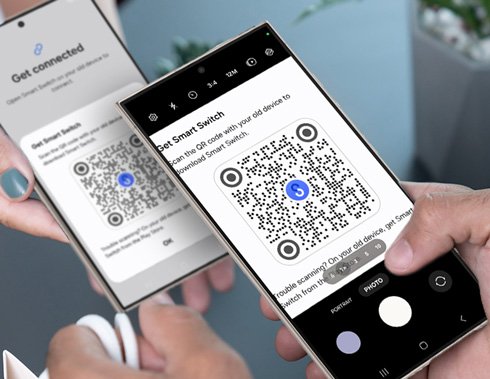
To scan a QR code on Android, open the Camera app, point it at the code in the default photo mode, and tap the link that appears on the screen.
This guide covers the Camera app, the Quick Settings scanner, Google Lens, codes saved in a screenshot, scanning from a laptop, and fixes for a phone that will not read a code.
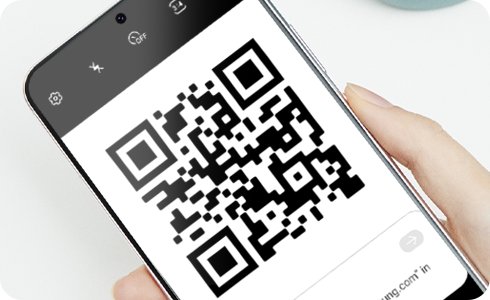
Step by step tutorial: How to scan a QR code on Android
Most Android phones read QR codes straight from the built-in camera. No separate scanner app is needed.
- Open your phone's Camera app.
- Stay in the default photo mode.
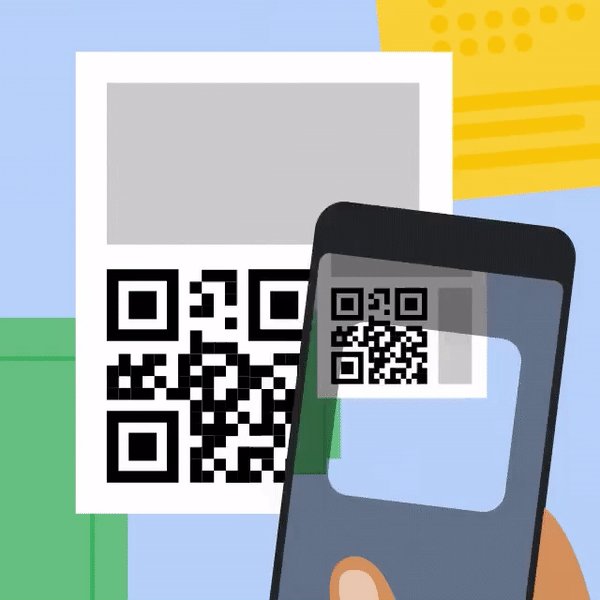
- Point the camera at the QR code so the whole code fits on the screen.
- Hold the phone steady for a moment while the camera reads the code.
- Tap the link or banner that appears on the screen to open it.
You do not need to press the shutter button. The camera reads the code from the live view, so no photo is saved.
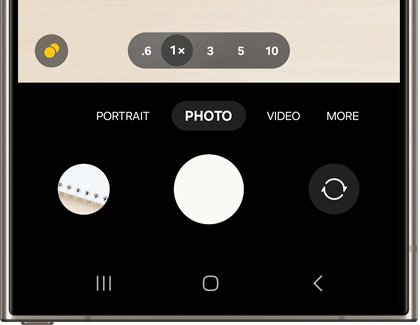
QR code scanner on Android: Camera, Quick Settings or Google Lens
| Your situation | Use this | Why |
|---|---|---|
| The code is printed on a poster, menu or package | Camera app | Fastest route; the link appears in the live view |
| You want a scanner without opening the camera first | Scan QR code in Quick Settings | One swipe from any screen, including inside another app |
| The camera shows no link | Google Lens in the Google or Chrome app | Lens reads codes the camera's own scanner misses |
| The code is in a screenshot or photo on your phone | Google Lens with an uploaded image | Lens can read an image you already saved |
| The code is on your laptop or PC screen | Your phone's Camera app pointed at the screen | The phone reads the monitor like any printed code |
| Your phone has Camera from Google installed | The QR mode in Camera from Google | A dedicated mode that only looks for codes |
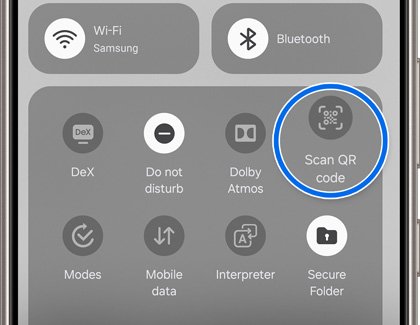
How to scan a QR code from Android Quick Settings
Android includes a Scan QR code tile in Quick Settings. It opens a scanner straight away, without switching camera modes.
- Swipe down from the top of the screen to open Quick Settings.
- Tap Scan QR code.
- If the tile is not visible, swipe down again to show every tile, or edit your Quick Settings tiles and add it.
- Point the scanner at the QR code.
- Tap the link that appears to open it.
How to scan a QR code with Google Lens on Android
Google's Pixel help recommends Google Lens image search as another way to read a QR code. Lens is built into the Google app and Chrome on Android.
- Open the Google app or Chrome.
- Tap the Google Lens icon in the search bar.
- Choose to take a photo and point the camera at the QR code.
- Tap the result that shows the code's link or text.
- Check the address, then tap it to open the page.
How to scan a QR code from a screenshot on Android
A QR code sent in an email, chat or web page cannot be pointed at with the same phone's camera. Save it as a screenshot or image, then let Google Lens read the saved image.
- Take a screenshot of the QR code, or save the image to your phone.
- Open the Google app or Chrome and tap the Google Lens icon.
- Under Screenshots, select the image with the QR code.
- Drag the corners of the selection box around the code.
- Tap the link Lens finds to open it.
Need the screenshot first? You can take a screenshot on Android by pressing the power and volume-down buttons together.
How to scan a QR code with Camera from Google
- Open Camera from Google.
- Tap QR to switch to the QR mode.
- Point the camera at the QR code.
- Tap the link that appears.
- To stay in the normal photo mode instead, point the default mode at the code; it reads codes there too.
How to turn on QR code scanning in the Pixel camera
On a Pixel phone, the camera only shows QR links when its scan suggestions setting is on. Check it if the camera sees a code but shows nothing.
- Open the Camera app on your Pixel.
- Tap Settings.
- Tap More settings.
- Tap Camera scan suggestions.
- Make sure Camera scan suggestions is turned on, then go back and point the camera at the code.
How to scan a QR code on a laptop or PC
The Windows Camera app reads QR codes with a laptop's webcam. This is useful when the code is printed and your phone is not to hand.
- Open the Camera app in Windows.
- Select the Barcode button on the right-hand side of the app.
- Hold the QR code in front of the webcam so it is in focus.
- Wait for the app to scan it automatically.
- Select the link that appears at the bottom of the Camera app to open the website.
If the QR code is already on the laptop screen, point your Android phone's camera at the monitor instead. If the Camera app shows a black screen, fix the laptop webcam and scan again.
What is a QR code
| Question | Answer |
|---|---|
| What it is | A square barcode that stores a short piece of data, such as a web address. |
| What happens when you scan it | The phone decodes the data and offers an action, usually a link to tap. |
| Common uses | Restaurant menus, event tickets, Wi-Fi sign-in, app downloads, account sign-in and payment pages. |
| Wi-Fi codes | Scanning a network's code on Android joins that network without typing the password. |
| Sign-in codes | Google, Microsoft and WhatsApp use QR codes to confirm a sign-in from your phone. |
| Sharing | Chrome can create a QR code for any page so another device's camera opens it. |
A Wi-Fi code works the same way: connect to Wi-Fi with a QR code by scanning it and accepting the prompt. Authenticator apps use the same scan to set up Microsoft Authenticator for an account.
Why won't my phone scan a QR code
The camera sees the code but nothing pops up
QR scanning is switched off in the camera's settings, or the camera is in a mode that does not scan.
- Switch the camera back to the default photo mode.
- On a Pixel, open Settings > More settings > Camera scan suggestions and turn it on.
- On other phones, open the camera's settings and look for a QR or scan option to turn on.
- Try the Scan QR code tile in Quick Settings instead.
The code looks blurry and the camera keeps refocusing
The phone is moving or too close for the camera to focus.
- Hold the phone steady with both hands.
- Move back until the entire code fits on the screen with a little space around it.
The QR code won't scan in a dark room or under glare
Poor light or reflections hide the code's squares from the camera.
- Move to a well-lit area.
- Tilt the phone slightly so glare from a glossy surface or screen moves off the code.
- Scan again.
Why won't my Samsung scan QR codes
A smudged lens, a scanning option turned off in the camera, or a damaged code stops Galaxy phones reading it.
- Wipe the camera lens with a soft cloth.
- Open the camera's settings and turn on its QR scanning option if it is off.
- Open Quick Settings and tap Scan QR code.
- If the camera still fails, use Google Lens from the Google app or Chrome.
The QR code is on your own phone screen
A phone camera cannot point at its own display.
- Take a screenshot of the code.
- Open Google Lens and select the screenshot under Screenshots.
- Tap the link Lens finds.
Tips: How to scan a QR code on Android
| Tip | Why it matters |
|---|---|
| Read the link before you tap it | The camera shows the address first, so you can spot a misspelled or unexpected domain. |
| Be wary of codes stuck over other codes | A sticker on a parking meter or poster can send you to a fake payment page. |
| Never type passwords or card numbers after scanning an unknown code | QR phishing pages copy real sign-in screens. |
| Keep the whole code on screen | A code cut off at the edge of the frame will not read. |
| Clean the lens first | A smudged lens is one of the most common reasons a scan fails. |
| Use Quick Settings for repeated scans | The tile opens a scanner from any screen without switching camera modes. |
Android QR code scanner FAQ
How do I scan a QR code on my Android phone?
Open the Camera app, keep it in the default photo mode and point it at the QR code. When a link or banner appears, tap it to open the page. You can also tap Scan QR code in Quick Settings.
Can I scan a QR code without an app?
Yes. The built-in Camera app reads QR codes on most Android phones, and Quick Settings has a Scan QR code tile. You do not need to install a separate scanner app from Google Play.
How do I scan a QR code from a screenshot?
Open the Google app or Chrome, tap the Google Lens icon, and pick the screenshot under Screenshots. Drag the selection box around the code, then tap the link Lens finds to open it.
How do I scan a QR code that is on my phone?
Take a screenshot of the code, then open it in Google Lens from the Google app or Chrome. Lens reads codes from saved images, so you do not need a second phone to scan a code on your own screen.
How do I scan a QR code on a laptop?
Open the Windows Camera app, select the Barcode button on the right and hold the code in front of the webcam. The link appears at the bottom of the app. For a code shown on the laptop screen, scan it with your phone instead.
Why won't my phone scan QR codes?
The usual causes are a smudged lens, poor light, a shaky hand or QR scanning turned off in the camera settings. On a Pixel, turn on Camera scan suggestions. On any phone, try the Scan QR code tile or Google Lens.
Is it safe to scan QR codes?
Scanning itself is safe, because the camera only shows the link. The risk is the page behind it. Read the address before tapping, avoid codes stuck over other codes, and never enter passwords or payment details on a page you did not expect.
Why is Gmail asking me to scan a QR code?
Google sometimes shows a QR code at sign-in to confirm it is really you. Open the built-in camera on your Android phone, point it at the code on the other screen and tap the banner that appears to continue signing in.
How do I use a scanned QR code?
After scanning, tap the link or banner the camera shows. A web code opens in your browser, a Wi-Fi code offers to join the network, and a sign-in code continues the sign-in on the other device.
What is the QR code scanner called on Android?
There is no single app name. The scanner is built into the Camera app, the Scan QR code tile in Quick Settings and Google Lens. Phones with Camera from Google also have a dedicated QR mode.