To add an AOL account to Apple Mail, choose Mail > Add Account, enter your full AOL address, and select Aol. if Mail asks for a provider.
This guide covers that route on Mac, iPhone and iPad, plus the fixes for a wrong provider, an account already exists message, a rejected password and a failed connection.
How to add an AOL email account to Apple Mail on Mac
Create the account on AOL's website first, because Mail only adds an account that already exists. Have your AOL password ready, not your Mac login password.
- Open Mail on your Mac.
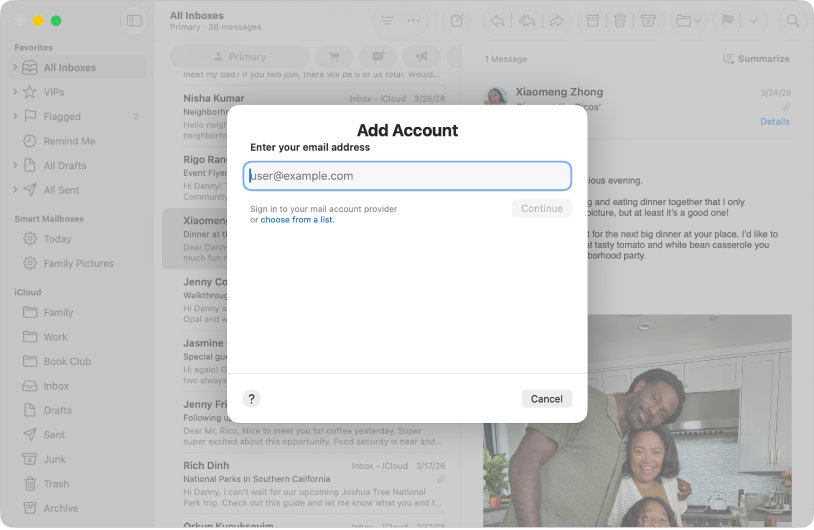
- Choose Mail > Add Account.
- Enter your AOL email address, or click choose from a list and select Aol.
- Click Continue.
- Follow the instructions to enter your account information.
- If a dialog asks which apps should use the account, select Mail.
If Mail does not ask you to choose a provider, it identified AOL from the address you entered, which is normal.
Why can't I add my AOL account to Apple Mail?
The message or behavior you see points to the cause. Match it to a row, then use the fix in that row before you try anything else.
| What happens | Likely cause | Fix |
|---|---|---|
| Mail asks you to pick a provider and you are not sure which | AOL's name is not obvious from every address | Select Aol. for @aol.com, @aim.com and @verizon.net addresses |
| You chose the wrong provider, and setup fails | The account was set up with the wrong provider | Remove the account, then add it again with Aol. |
| Mail says the account already exists | A failed or older copy of the account is still on the device | Remove the existing account first, then add it again |
| Mail rejects your password | An old password, the wrong password, or a provider security change | Test the password in AOL webmail, then reset it with AOL if it fails |
| Mail says it cannot reach the server | A VPN or other network software, or an AOL outage | Disconnect the VPN and check with AOL for an outage |
| The account is on the Mac, but Mail shows no AOL inbox | The Mail feature is off for that account | Turn on Mail for the account in Internet Accounts |
Add an AOL account from Internet Accounts on Mac
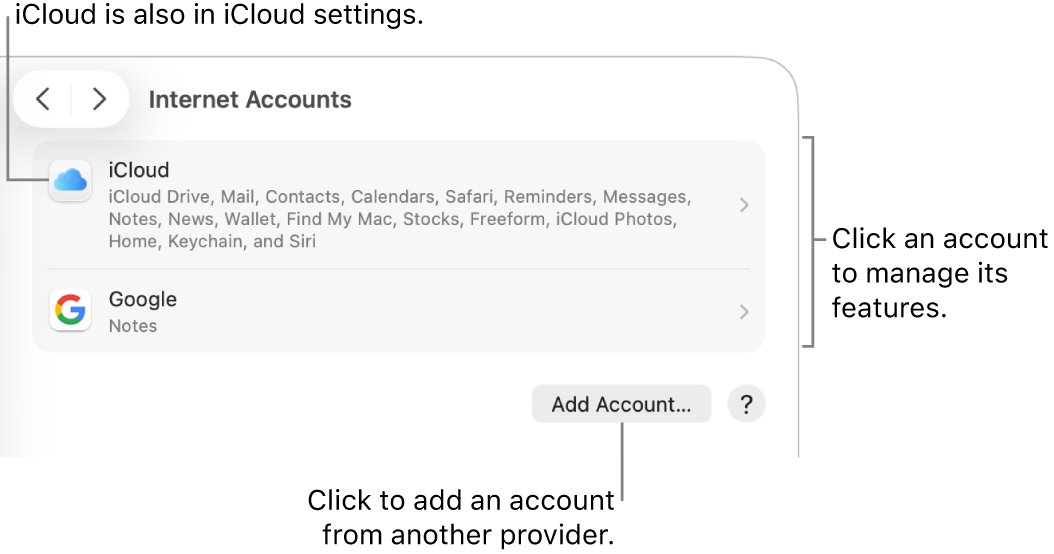
Internet Accounts is the same setup from System Settings. On older Macs, the app is called System Preferences.
- Open System Settings and click Internet Accounts in the sidebar. You may need to scroll down.
- Click Add Account.
- Enter your AOL email address, or click choose from a list and select Aol.
- Enter your account name, password and any other requested information.
- When the dialog asks which apps should use the account, select Mail.
How to add an AOL email account to Mail on iPhone or iPad
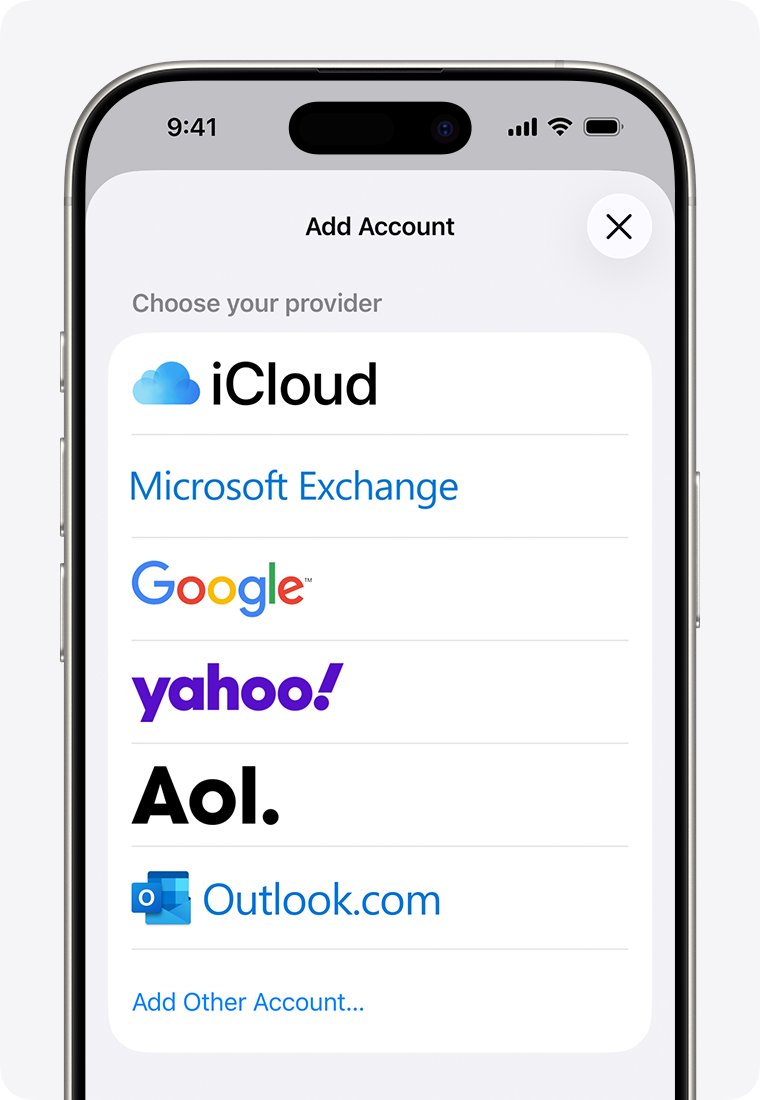
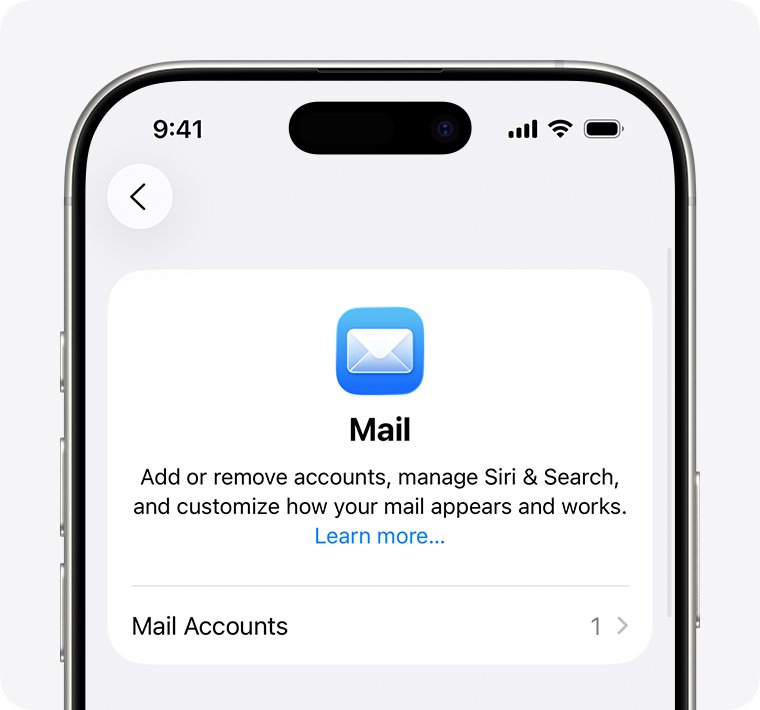
Mail on iPhone and iPad can usually set up a common provider's account with just the address and password. These steps use the Settings app, not the Mail app.
- Go to Settings, then tap Apps.
- Tap Mail, then tap Mail Accounts.
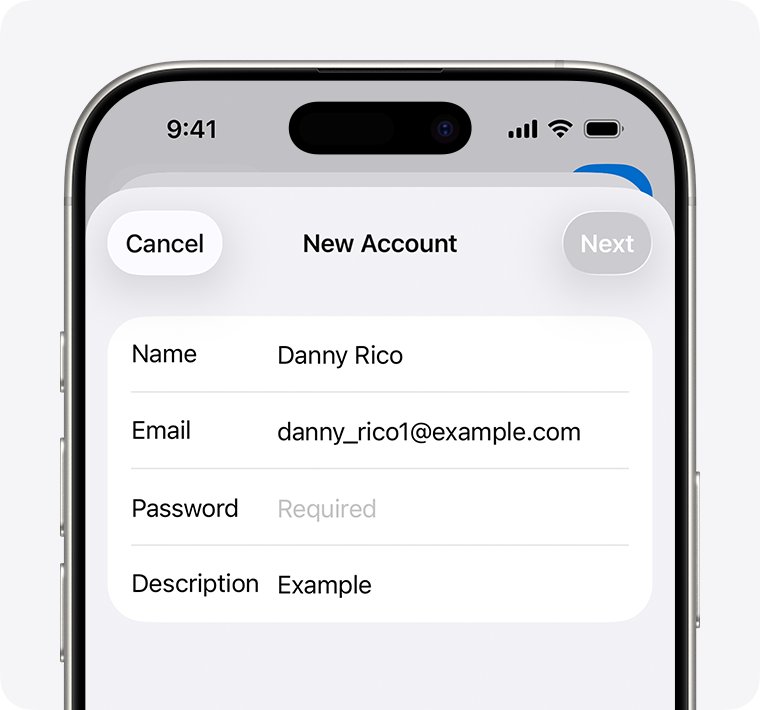
- Tap Add Account and enter your AOL email address.
- Choose Aol. from the provider list if Mail asks.
- Follow the prompts and enter your email address and password.
- Tap Next if you see it, and wait for Mail to verify the account.
- Tap Save if you see it.
AOL account already exists error in Apple Mail
Apple says you might see this message if you try to add an account again without removing the first copy. Removing a Mac account deletes its messages from the Mac only, and copies stay on AOL's server.
- Move any messages that are only on the Mac to a mailbox in the On My Mac section of the Mail sidebar.
- Choose Apple menu > System Settings, then click Internet Accounts.
- Click the AOL account, click Delete Account and click OK.
- Add the account again from Mail > Add Account, choosing Aol. as the provider.
On an iPhone or iPad, go to Settings > Apps > Mail > Mail Accounts, tap the AOL account and tap Sign Out or Delete Account. This removes it from the device but does not close the AOL account.
When an AOL account worked before and only broke after an upgrade, the same removal is one of several fixes for AOL mail after a macOS update.
Can't sign into AOL account in Apple Mail: test the password
Mail asks again when it reaches AOL but AOL refuses the password. You can sign in to AOL Mail on the web to find out whether the password or the Mail setup is at fault.
- Sign in to AOL webmail in a browser with the same address and password.
- If webmail rejects the password, reset it with AOL or contact AOL, because Mail cannot fix this.
- Look for a notice in webmail asking you to accept new terms, because a provider can suspend email until you agree.
- Return to Mail and enter the AOL password, not your Mac login password or another account's password.
- Check that uppercase and lowercase characters are correct.
- If webmail works and Mail still refuses it, remove the account and add it again with Aol. as the provider.
Apple lists a changed authentication method among the reasons a provider rejects a saved password. Removing and re-adding the account is its fix, and AOL's own support can confirm whether your account needs anything extra for Mail.
Set up AOL in Apple Mail manually with Add Other Account
Use this only when the provider route keeps failing. Apple says manual setup needs mail server addresses and other details from your email provider, so get AOL's published IMAP and SMTP settings first.
- On a Mac, open System Settings > Internet Accounts and click Add Account, then click Add Other Account. On an iPhone or iPad, go to Settings > Apps > Mail > Mail Accounts > Add Account, enter your address, tap Next, then tap Add Other Account.
- Choose the mail account type: click the account type on a Mac, or tap Mail Account on an iPhone or iPad.
- Enter your name, email address, password and any description requested, then continue.
- If Mail finds the settings, finish the setup.
- If Mail cannot find them, choose IMAP or POP and enter the Incoming Mail Server and Outgoing Mail Server details from AOL.
- Save the account. If the settings are wrong, Mail asks you to edit them.
If you still cannot save the account, Apple's advice is to contact your email provider.
AOL account on Mac but not showing in Apple Mail
An account you already use with other apps, such as Contacts, does not appear in Mail until the Mail feature is on for it.
- In Mail, choose Mail > Accounts to open Internet Accounts settings.
- Click the AOL account and make sure Mail is selected.
- If the account is still missing, choose Mail > Settings and click Accounts.
- Select the AOL account and select the Enable this account checkbox.
How to tell if AOL is connected in Apple Mail
A finished setup shows up in the Mail sidebar and passes a simple send and receive test.
- Look for the AOL inbox in the Mail sidebar.
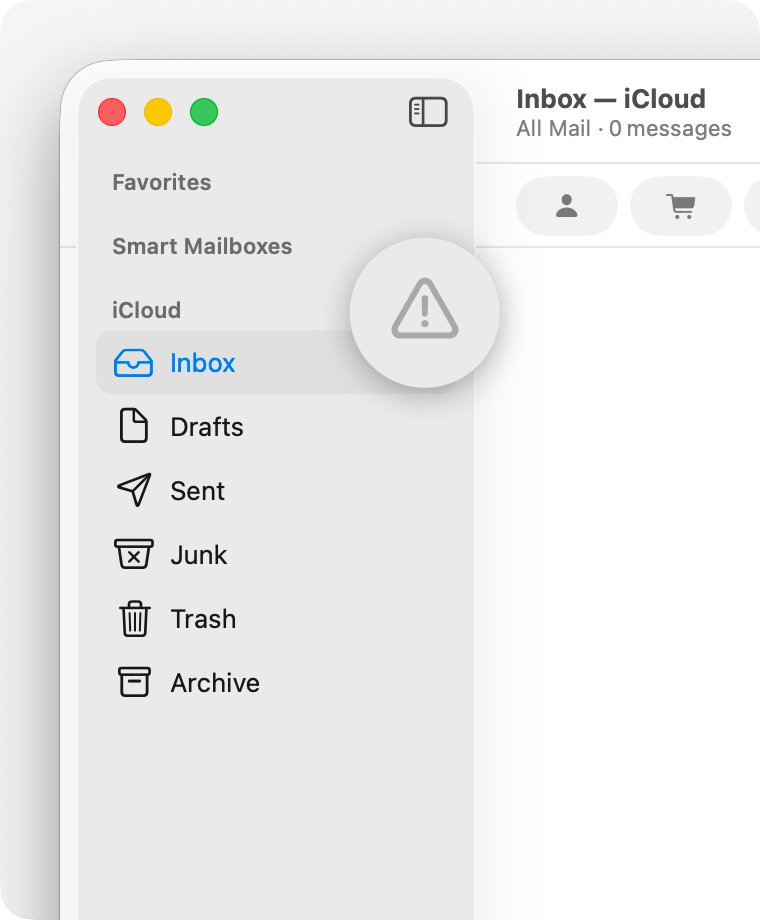
- Click the Get Mail button and check that no warning symbol or lightning bolt appears beside the inbox.
- Send a message from the AOL account to another address you own.
- Reply to it and check that the reply reaches the AOL inbox.
- On a Mac, choose Window > Connection Doctor and read the Details column for any errors.
Why can't I connect to AOL from Apple Mail?
Why can't I connect to AOL when the Mac is online?
A VPN or other software that changes network connections can block Mail while websites still load.
- Disconnect the VPN or quit the network software.
- Try adding the account again.
- Reconnect the VPN after the account works, and test Mail again.
Why can't I access AOL in webmail or Mail?
The provider may have deactivated or suspended the account, require a password reset, or have an outage.
- Sign in to AOL on the web and read any notice shown there.
- Reset the password if AOL asks you to.
- If the AOL page will not load at all, try the AOL Mail fixes for Safari or another browser.
- Contact AOL if you cannot sign in, because the account itself has to be fixed first.
Why is my AOL account not working on one device only?
Apple lists a password changed on another device as a common reason Mail is refused.
- Remove the AOL account from that device.
- Add it again with the current password, choosing Aol. as the provider.
- Test by sending and receiving a message on that device.
Add AOL account to Apple Mail FAQ
How do I add an AOL email account to Apple Mail?
On a Mac, open Mail, choose Mail > Add Account, enter your AOL address and click Continue. On an iPhone or iPad, go to Settings > Apps > Mail > Mail Accounts > Add Account. Select Aol. if you are asked to choose a provider.
Which provider do I choose for an AOL address in Mail?
Choose Aol. for @aol.com and @aim.com addresses. Apple also lists Aol. as the correct provider for @verizon.net addresses. If Mail does not ask you to choose, it has already identified the provider from the address you entered.
Why can't I sign into my AOL account in Mail?
AOL is usually rejecting the password Mail sent, because it is old or mistyped, or because the provider now requires a reset. Sign in to AOL webmail with the same password. If that fails, reset it with AOL before you try Mail again.
Why does Mail say my AOL account already exists?
A copy of the account is still on the device, usually from an earlier setup with the wrong provider. Apple says to remove the account first, then add it again with the correct provider. Messages on AOL's server stay there and download again.
Why can't I connect to AOL from my Mac?
If the Mac is online but Mail cannot reach the server, a VPN or network-monitoring software may be interfering, or AOL may have an outage. Disconnect the VPN, try again, and check with AOL if Mail still cannot connect.
Why is my AOL account not working in Mail after I added it?
The Mail feature may be off for that account. Choose Mail > Accounts, click the AOL account and make sure Mail is selected. Then choose Mail > Settings > Accounts and select the Enable this account checkbox if it is clear.
Will removing my AOL account from Apple Mail delete my email?
It removes the account's messages from the device, not from AOL. Copies stay on AOL's server and are available in webmail. Before removing the account on a Mac, move any messages stored only on the Mac to an On My Mac mailbox.
Do I need AOL's server settings to add the account?
Usually not, because Mail sets up common providers from the address and password. You need the incoming and outgoing mail server details only for manual setup with Add Other Account, and Apple says to get those from your email provider.