To enable Thunderbolt on Windows 11, confirm your PC has a Thunderbolt port, make sure it is turned on in the BIOS or UEFI, install your PC maker's Thunderbolt software, and approve the device when you plug it in.
This guide covers each of those steps, the right cables and ports, Thunderbolt security and DMA protection, dock firmware, and fixes for devices Windows 11 does not detect.
How to enable Thunderbolt on Windows 11
On most new Thunderbolt 4 and Thunderbolt 5 laptops the port already works out of the box. These steps get a port that does nothing working.
- Look for the Thunderbolt lightning-bolt icon next to a USB-C port, or check your PC's specification page for a Thunderbolt port.
- Install all pending updates from Settings > Windows Update, including optional driver and firmware updates.
- Restart into your BIOS or UEFI setup and make sure Thunderbolt or USB4 support is enabled in the section your PC maker uses for it.
- Boot Windows and install Thunderbolt Control Center, or the Thunderbolt software for Windows 11 from your PC maker's support page.
- Plug in the Thunderbolt device with a certified Thunderbolt cable and approve it if Windows or Thunderbolt Control Center asks.
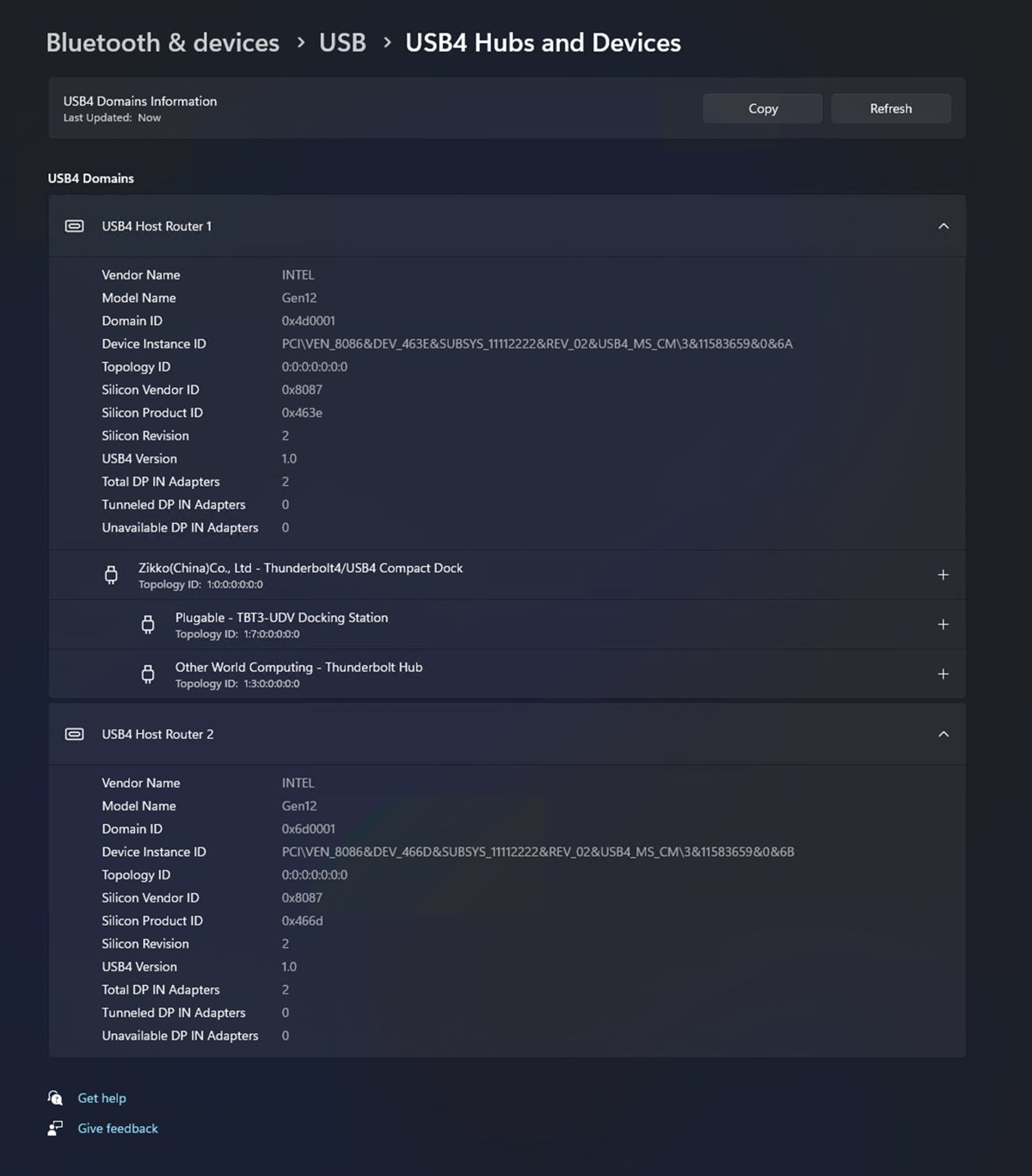
- Open Settings > Bluetooth & devices > USB > USB4 Hubs and Devices to confirm the device is listed.
Preparations before enabling Thunderbolt on Windows 11
| What you need | Why it matters |
|---|---|
| A PC with a Thunderbolt port | A plain USB-C port cannot be turned into Thunderbolt by software or settings |
| Windows 11 fully updated | USB4 settings arrived in build 22621.1778, and Thunderbolt 5 needs version 23H2 or later |
| Access to BIOS or UEFI setup | Thunderbolt and Intel VT-d are switched on in firmware on many PCs |
| A certified Thunderbolt cable | Ordinary USB-C cables can limit speed or block display output |
| An administrator account | Driver installs and device approval may need admin rights |
| Your PC model number | Thunderbolt drivers and firmware are model-specific |
Confirm your PC actually has Thunderbolt
Intel lists three ways to check whether a system has Thunderbolt ports.
- Check the side of your laptop or the back of your desktop for the Thunderbolt icon next to a USB-C port.
- Open your PC maker's specification page for your exact model and look for Thunderbolt in the ports or I/O list.
- Run Intel Driver & Support Assistant from intel.com to identify the hardware in your system.
- Open Settings > Bluetooth & devices > USB and look for USB4 Hubs and Devices; the page appears only on USB4-capable systems.
If none of these show Thunderbolt or USB4, the port is a standard USB-C port and no setting will enable Thunderbolt on it.
Update Windows before troubleshooting Thunderbolt
- Open Settings and select Windows Update.
- Select Check for updates and install everything offered.
- Select Advanced options > Optional updates and install any driver or firmware updates listed for your PC.
- Restart the PC, even if Windows does not ask you to.
Enable Thunderbolt in BIOS or UEFI
Menu names differ by maker, so look for an entry named Thunderbolt, USB4 or Thunderbolt Configuration, often under an advanced, devices or I/O ports section.
- Restart the PC and press your maker's setup key during startup, or select Settings > System > Recovery > Restart now next to Advanced startup, then Troubleshoot > Advanced options > UEFI Firmware Settings.
- Find the Thunderbolt or USB4 support entry and set it to enabled.
- Turn on Intel Virtualization Technology and Intel Virtualization Technology for I/O (VT-d) on Intel systems, which Kernel DMA Protection relies on.
- Leave the Thunderbolt security level on your maker's default unless your device documentation says otherwise.
- Save the changes and boot back into Windows.
Thunderbolt driver for Windows 11 (HP, Lenovo, Dell, Intel, etc)
Thunderbolt drivers are tuned for each PC model, so your PC maker's support page is the right source, not a generic driver site.
| Your PC | Where to get Thunderbolt software | Notes |
|---|---|---|
| HP | HP Support page for your model | Enter the serial or product number to get the matching package |
| Lenovo | Lenovo Support page for your model | Lenovo also delivers driver updates through its own update app |
| Dell | Dell Support page for your Service Tag | Install the Thunderbolt firmware and driver listed for your model |
| Microsoft Surface | Windows Update | Surface drivers and firmware arrive through Windows Update |
| Any Intel Thunderbolt PC | Thunderbolt Control Center in the Microsoft Store | Free app for approving and managing Thunderbolt devices |
| Custom-built desktop | Motherboard maker's support page | Many boards need a Thunderbolt add-in card and its header cable |
Install the correct Thunderbolt or USB4 software
- Open the Microsoft Store from the Start menu.
- Search for Thunderbolt Control Center and select the free app.
- Select Get or Install and wait for it to finish.
- Open Thunderbolt Control Center from the Start menu with your Thunderbolt device connected.
- If the Store app does not open or reports no Thunderbolt controller, install the Thunderbolt package from your PC maker's support page instead.
On USB4 systems, Windows 11 itself lists attached hubs and devices under USB4 Hubs and Devices, so a separate app is not always needed.
Connect and approve your Thunderbolt device
- Sign in to Windows and unlock the screen before you plug in the device.
- Connect the Thunderbolt cable to the port with the Thunderbolt icon.
- Approve the device if Thunderbolt Control Center shows a prompt, and choose to always connect it if you trust it.
- Wait for Windows to finish installing drivers for the device.
- Open the device's drive, display or network adapter to confirm it is working.
With Kernel DMA Protection on, a device whose driver does not support DMA remapping stays blocked until an authorized user signs in or unlocks the screen.
Choose the right cable and port
| Your situation | Use this | Why |
|---|---|---|
| Dock, external GPU or fast SSD | A certified Thunderbolt 4 or Thunderbolt 5 cable | Certification guarantees the full bandwidth |
| Several USB-C ports on the laptop | The port marked with the Thunderbolt icon | Other USB-C ports may be USB only |
| Two 4K monitors | Thunderbolt 4 port and dock | Thunderbolt 4 supports dual 4K displays |
| Two 8K monitors | Thunderbolt 5 port and dock | Thunderbolt 5 supports dual 8K displays |
| Charging a laptop through the dock | A dock that supplies enough wattage for your laptop | Thunderbolt 4 laptop charging targets up to 100W |
| Chaining several accessories | Daisy-chain from one Thunderbolt port | Up to five Thunderbolt accessories can share one chain |
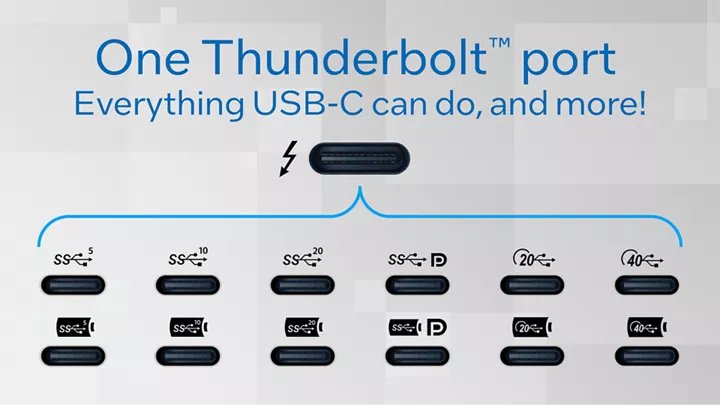
Thunderbolt 3 vs Thunderbolt 4 vs Thunderbolt 5 vs USB4 on Windows 11
| Feature | Thunderbolt 5 | Thunderbolt 4 | USB4 |
|---|---|---|---|
| Minimum PC bandwidth | 80 Gbps, up to 120 Gbps with Bandwidth Boost | 40 Gbps | 20 Gbps |
| Minimum PCIe data | 64 Gbps | 32 Gbps | Not mandated |
| Port power for accessories | 15W | 15W | 7.5W |
| Displays | Dual 8K | Dual 4K | Depends on the PC |
| Laptop charging | Up to 140W, 240W on some devices | Up to 100W | Depends on the PC |
| Intel VT-d DMA protection | Required | Required | Not mandated |
| Windows support | Windows 11 version 23H2 and later | Windows 11 | Windows 11 |
Thunderbolt 3 accessories work on Thunderbolt 4 and Thunderbolt 5 ports, since Intel designs Thunderbolt for compatibility with prior generations as well as USB 3 and USB4.
Thunderbolt device in USB4 hubs and devices settings
- Open Settings > Bluetooth & devices > USB > USB4 Hubs and Devices.
- Confirm your dock or device appears in the list with its capabilities.
- Open Thunderbolt Control Center and check that the device is listed as connected.
- Copy a large file to the Thunderbolt drive, or check that every monitor on the dock lights up.
What is Thunderbolt technology and what does it do?
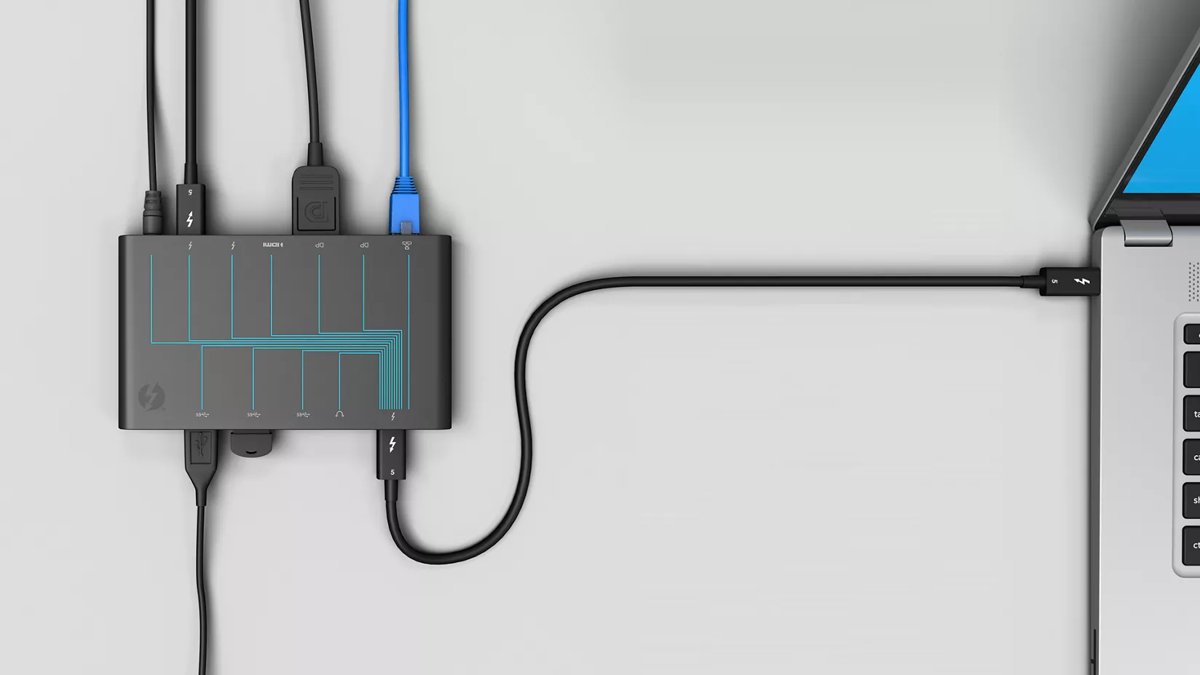
Thunderbolt uses the same oval USB-C connector, but Thunderbolt certification mandates higher minimum performance for cables, PCs and accessories.
| Aspect | What it means |
|---|---|
| Connector | USB-C shape, marked with the Thunderbolt icon |
| Certification | Mandatory for Thunderbolt PCs, cables and accessories |
| Compatibility | Works with USB 3 and USB4 products and earlier Thunderbolt devices |
| Platforms | Mac, Windows, Chrome and Linux |
| PC-to-PC | Thunderbolt Share links two Thunderbolt 4 or 5 PCs running Windows 11 |
What does Thunderbolt technology do?
| Job | How Thunderbolt handles it |
|---|---|
| Docking | Power, monitors, Ethernet and USB devices over one cable |
| External displays | Dual 4K on Thunderbolt 4, dual 8K on Thunderbolt 5 |
| Fast storage | PCIe data to external SSDs |
| External graphics | PCIe link to an eGPU enclosure |
| Charging | Laptop charging through the same cable |
| Daisy chains | Up to five accessories from one port |
Benefits and precautions of using Thunderbolt technology
| Benefit | Precaution |
|---|---|
| One cable for power, data and displays | A non-certified cable can cut speed or drop displays |
| High bandwidth for SSDs and eGPUs | Approve only devices you trust, because PCIe devices can access memory |
| Works with USB-C accessories | A USB-only port or cable gives USB speeds, not Thunderbolt |
| Dock charges the laptop | Check the dock's wattage covers your laptop |
| Kernel DMA Protection on supported PCs | Leave it on; it blocks drive-by DMA attacks |
Check Thunderbolt security and DMA protection
- Open Windows Security from the Start menu.
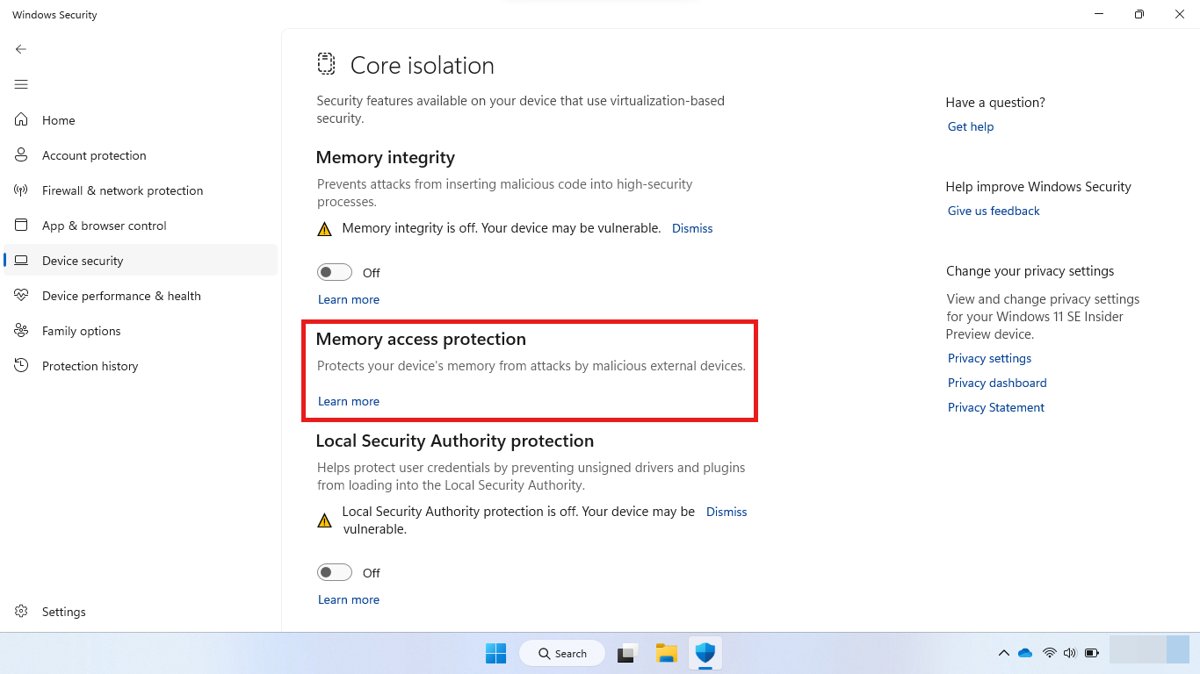
- Select Device security > Core isolation details > Memory access protection to see whether it is on.
- Alternatively, press Win + R, type
msinfo32and press Enter. - In System Summary, find Kernel DMA Protection and check that it reads ON.
- If it reads OFF and Hyper-V – Virtualization Enabled in Firmware reads No, restart into UEFI and turn on Intel Virtualization Technology and VT-d.
- If it stays OFF after that, the PC does not support Kernel DMA Protection.
Kernel DMA Protection is supported on Windows Pro, Enterprise, Pro Education/SE and Education, and turns on automatically on supported systems.
Update Thunderbolt dock firmware
- Connect the dock to your PC and to its power supply.
- Open Settings > Windows Update and install any firmware listed for the dock, including under Optional updates.
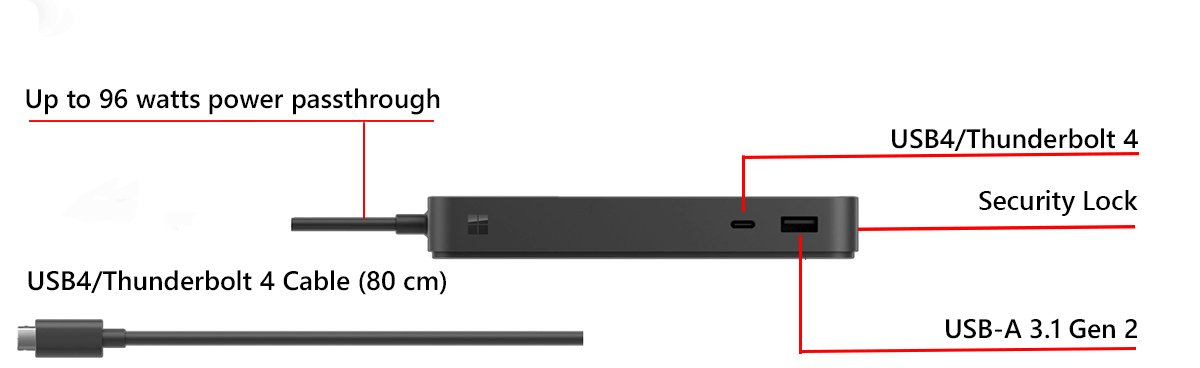
- For a Surface Thunderbolt 4 Dock, let Windows Update or the Surface app install the firmware.
- For other docks, install the firmware tool from the dock maker's support page for your model.
- Keep the dock connected and powered until the update finishes, then reconnect your devices.
Fix common Thunderbolt problems on Windows 11
Thunderbolt's common issues and troubleshooting steps fall into a few symptoms.
Thunderbolt device not detected
Thunderbolt is off in firmware, the cable is USB only, or the driver is missing.
- Use the port with the Thunderbolt icon and a certified Thunderbolt cable.
- Confirm Thunderbolt support is enabled in BIOS or UEFI.
- Install Windows updates and your PC maker's Thunderbolt driver, then reconnect the device.
Thunderbolt Control Center missing
The app is not installed or the PC maker supplies its own Thunderbolt software.
- Install Thunderbolt Control Center from the Microsoft Store.
- If it reports no controller, install the Thunderbolt package from your PC maker's support page.
- On USB4 systems, use USB4 Hubs and Devices in Settings instead.
External monitor not working through the dock
The cable, port or display mode cannot carry the video signal.
- Connect the dock to the Thunderbolt port, not another USB-C port.
- Use the cable that shipped with the dock or a certified Thunderbolt cable.
- Update the graphics driver and the dock firmware, then reconnect the monitor.
Device works only after signing in, or needs approval after every restart
Kernel DMA Protection blocks devices whose drivers do not support DMA remapping until a user signs in.
- Sign in and unlock the PC before connecting the device.
- Update the device driver from its maker, since DMA remapping support comes from the driver.
- Approve the device as always allowed in Thunderbolt Control Center if your software offers it.
Docking station not charging the laptop
The dock supplies less power than the laptop needs, or the dock power supply is disconnected.
- Plug the dock's own power supply in.
- Compare the dock's passthrough wattage with your laptop charger's wattage.
- Update the dock firmware and BIOS from your PC maker.
Intermittent disconnections
A long or damaged cable, or outdated dock firmware.
- Swap in a short certified Thunderbolt cable.
- Update the dock firmware and the Thunderbolt driver.
- Connect the dock directly to the PC instead of through another hub.
Use Event Viewer and Device Manager for deeper troubleshooting
Device shows a warning in Device Manager
The driver for the Thunderbolt controller or device failed to load.
- Right-click Start and select Device Manager.
- Expand System devices and Universal Serial Bus controllers and look for a yellow warning icon.
- Right-click the device, select Update driver, or install the driver from your PC maker.
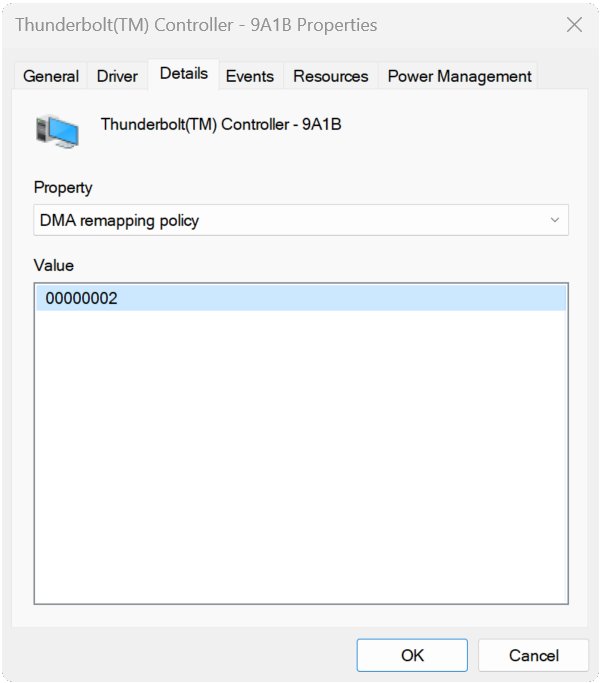
Device blocked even when signed in
The driver may not support DMA remapping.
- Open the device in Device Manager and select the Details tab.
- Choose DMA Remapping Policy in Property.
- A value of 2 means the driver supports DMA remapping; 0, 1 or no property means it does not, so contact the device maker for an updated driver.
Unexplained disconnects
Driver or hardware errors are being logged.
- Right-click Start and select Event Viewer.
- Open Windows Logs > System.
- Look for errors logged at the time the device dropped and note the source in Windows Event Viewer to search your PC maker's support site.
Thunderbolt on Windows 11 FAQs
Does Windows 11 support Thunderbolt?
Yes. Windows 11 supports Thunderbolt 3 and Thunderbolt 4, and Thunderbolt 5 on version 23H2 and later. USB4-capable PCs also list attached hubs and devices under Settings > Bluetooth & devices > USB.
How do I know if my USB-C port is Thunderbolt?
Look for the Thunderbolt icon next to the port or check your PC's specification page. If Settings has no USB4 Hubs and Devices page and the specs list no Thunderbolt port, the port is standard USB-C.
Can I add Thunderbolt to a PC that does not have it?
Not through software. A laptop without a Thunderbolt controller cannot gain one. Some desktop motherboards accept a Thunderbolt add-in card; find your motherboard model and check the board maker's support page for compatibility.
Where do I get Thunderbolt Control Center?
Thunderbolt Control Center is a free app in the Microsoft Store. Some PCs use their maker's own Thunderbolt software instead, available from the maker's support page for your model.
Do Thunderbolt 3 devices work on Thunderbolt 4 ports?
Yes. Intel designs Thunderbolt to be compatible with earlier Thunderbolt devices and with USB 3 and USB4 products, so a Thunderbolt 3 device works on a Thunderbolt 4 or 5 port.
Is Thunderbolt the same as USB4?
No. Thunderbolt 4 and 5 comply with the USB4 specification but add mandatory certification and higher minimums, such as 40 Gbps for Thunderbolt 4 against 20 Gbps for USB4, and required VT-d DMA protection.
Should I turn off Kernel DMA Protection to use my device?
No. Kernel DMA Protection blocks drive-by DMA attacks. Sign in before connecting the device, and ask the device maker for a driver that supports DMA remapping.
Ending up: is Thunderbolt worth enabling on Windows 11?
Enable Thunderbolt in firmware, keep Windows and dock firmware updated, and use certified cables on the marked port. Those three things solve almost every Thunderbolt failure, and Kernel DMA Protection keeps the port safe without extra setup.