Sign in to Yahoo, run any search, click the apps menu icon on the results page, then select Settings and Search History to see your saved Yahoo searches.
This guide covers the Yahoo account history page, the copies your browser and phone keep, how to delete each one, and how to stop new searches from being recorded.
The fastest way to find your Yahoo Search history
Yahoo only shows search history to signed-in users. These steps work in any desktop browser.
- Go to Yahoo and sign in to your Yahoo account.
- Type any word into the Yahoo Search box and click Search.
- On the results page, click the apps menu icon.
- Click Settings.
- Click Search History to open the list of your past Yahoo searches.
The same page holds the tools to delete single searches, clear all of them, or turn history off.
Where Yahoo Search History May Be Stored
A Yahoo search can leave a record in up to four places. Each one is viewed and cleared separately, so check the one that matches what you need.
| Location | What it holds | Needs a Yahoo sign-in? | Where to open it |
|---|---|---|---|
| Yahoo account search history | Searches made on Yahoo Search while signed in | Yes | Yahoo Search results page > apps menu > Settings > Search History |
| Your browser history | Every Yahoo results page you opened, signed in or not | No | The browser's own History page (Chrome, Edge, Safari, Firefox) |
| Apps powered by Yahoo Search | Searches typed inside that app | Depends on the app | The app's own settings |
| Synced browser data | Browser history copied to your other devices | No (uses the browser account) | Any device signed in to the same Chrome, Edge or iCloud account |
Search suggestions, cookies and cached pages are separate browser data. Clearing them does not remove the entries on the Yahoo account history page.
How to Find Search Activity in Your Yahoo Account
Your account-level activity lives in two places: the Search History page for searches, and the Yahoo Privacy Dashboard for wider data controls.
- Open the Search History page using the steps in the first section above.
- Use the page's tools to delete single searches, clear all of them, or turn history off.
- For account-wide data, open the Yahoo Privacy Dashboard and select Yahoo.
- Sign in when prompted to download, delete or manage the personal information Yahoo holds.
- Review privacy choices there; signed in, they apply across devices, signed out they apply only to that browser.
Search settings such as SafeSearch sit next door under Settings > Preferences, not on the history page.
How to Check Yahoo Search History in Your Browser
Your browser records every Yahoo results page, including searches made while signed out. Search the history list for yahoo to filter it down.
| Browser | How to find Yahoo searches | Notes |
|---|---|---|
| Google Chrome (computer) | Select More (three dots) > History > History, then type yahoo in the search bar. Or type @history in the address bar and press Tab or Space. |
Sort by date or by group. |
| Google Chrome (Android) | Tap More > History. If the address bar is at the bottom, swipe up first. | Tap an entry to reopen that results page. |
| Microsoft Edge | Open Edge's history list and search for yahoo. | Clearing lives under Settings > Privacy, search, and services > Clear browsing data. |
| Safari (iPhone and iPad) | Open the Start Page and tap the History button (clock icon). | Safari history syncs through iCloud across your Apple devices. |
| Safari (Mac) | Open the History menu in the menu bar. | Safari also keeps a separate list of recent searches. |
| Firefox | Open Firefox's history library and search for yahoo. Mozilla's history support page has the current menu path. | Firefox also stores search bar entries; the Firefox Search History Cleaner post covers those. |
How to View Yahoo Searches on Mobile Devices
On a phone or tablet the Yahoo history page is reached from Settings in Yahoo Search, not from an apps menu.
- Sign in to your Yahoo account in your mobile browser.
- Go to Yahoo Search at search.yahoo.com.
- Tap Settings. On a tablet, Settings sits at the bottom of the page.
- Tap Search History to see your saved searches.
- If you searched inside an app that uses Yahoo Search, open that app's settings and look for its own search history.
- For signed-out searches, open your browser's history instead: in Chrome tap More > History; in Safari tap the History (clock) button.
On Android, if Settings shows a sign-in prompt, scroll down and tap Sign in first.
Signed in or signed out: which history can you see?
| Your situation | Where to look | Why |
|---|---|---|
| You were signed in to Yahoo | Yahoo Settings > Search History | The account list opens from any device where you sign in |
| You were signed out of Yahoo | The browser's history on that device | Yahoo's history page only shows searches tied to an account |
| You searched on a different device | Yahoo Search History, or that device's browser | Only the account list follows you; signed-out records stay on the device |
| You used a private or Incognito window | Nowhere in the browser | Private windows discard history when closed |
| You searched inside an app | The app's own settings | Yahoo says some apps keep their own search list |
How to Delete Yahoo Search History
Delete from the Yahoo account and from the browser. Each removes only its own copy.
| What to remove | Where | Steps |
|---|---|---|
| One Yahoo search, or all of them | Yahoo Search History page | Open Settings > Search History, then delete single entries or clear all of them. |
| Yahoo pages in Chrome (computer) | Chrome | Select More > Delete browsing data, pick All time, tick Browsing history, then select Delete data. To remove single pages, tick them on the History page and select Delete > Remove. |
| Yahoo pages in Chrome (Android) | Chrome | Open History and tap Remove next to an entry, or use Delete browsing data > Delete data. |
| Yahoo pages in Edge | Edge | Select Settings and more > Settings > Privacy, search, and services > Clear browsing data > Choose what to clear, choose a time range, tick Browsing history, then select Clear now. |
| Yahoo pages in Safari (Mac) | Safari | Choose History > Clear History, then pick the time range. |
| Yahoo pages in Safari (iPhone) | Settings app | Go to Settings > Apps > Safari > Clear History and Website Data, pick a timeframe, then tap Clear History. For single sites, tap the History button, More, Select Websites, then the Trash icon. |
| Account data beyond searches | Yahoo Privacy Dashboard | Open the dashboard, select Yahoo, sign in and use the delete or manage options. |
With browser sync on, a Chrome, Edge or Safari deletion also removes the history from your other signed-in devices. In Edge, turn sync off first if you want to clear only this device.
How to Stop Yahoo Searches from Being Saved
Turning off Yahoo's history stops the account list. Your browser still keeps its own record unless you change that too.
- Open Yahoo Settings > Search History while signed in and use the option to turn off search history.
- For a one-off search in Chrome, press Ctrl + Shift + N (⌘ + Shift + N on a Mac) to open an Incognito window.
- In Edge, use an InPrivate window; Edge deletes its history, cookies and site data when you close all InPrivate windows.
- To clear Edge automatically, go to Settings > Privacy, search, and services > Clear browsing data and select Choose what to clear every time you close the browser.
- Search while signed out of Yahoo if you do not want searches tied to your account.
- Review Yahoo Search preferences under Settings > Preferences on each device you use.
Private windows hide searches from the browser only. Yahoo still sees searches made while you are signed in to it inside that window.
How to check it worked
- Reload Yahoo Settings > Search History; cleared entries should no longer appear.
- If you turned history off, run a test search, then reopen the history page and confirm the test search is not listed.
- Open your browser history and search for yahoo; deleted results pages should be gone.
- On a second synced device, check its browser history to confirm the deletion reached it.
Why your searches go to Yahoo, and other history problems
Google searches go to Yahoo in Chrome
Chrome's default search engine has been changed to Yahoo, by you, an extension or a bundled program.
- Select More > Settings in Chrome.
- Select Search engine.
- Next to the search engine, select Change.
- Pick the search engine you want from the list.
The browser keeps switching back to Yahoo search
Google lists a search engine that changes without permission as a sign of unwanted software.
- In Chrome, select More > Settings > Reset settings > Restore settings to their original defaults, then confirm Reset settings.
- On Windows, open Settings > Apps > Installed apps and uninstall any program you do not recognise.
- On a Mac, open Finder > Applications, move unwanted apps to the Trash and empty it.
- Re-enable only trusted extensions under More > Extensions > Manage extensions.
The Yahoo Search History page is empty
The searches were made while signed out, in a private window, or history was turned off.
- Confirm you are signed in to the same Yahoo account used for the searches.
- Check the browser history on the device where you searched.
- If history was turned off, turn it back on from the Search History page so new searches are saved.
Frequently Asked Questions
Can I see my Yahoo search history if I was not signed in?
Not on Yahoo. Yahoo's Search History page only shows searches made while signed in to a Yahoo account. Signed-out searches appear only in the browser history of the device you used, unless you searched in a private window.
Where is Yahoo search history stored on my phone?
In two places. Signed-in searches are on Yahoo Search under Settings > Search History. The results pages you opened are also in your mobile browser's history, such as Chrome's More > History or Safari's History button.
Does deleting browser history also delete Yahoo account search activity?
No. Clearing browser history removes only the browser's local copy. The Yahoo account list stays until you delete it from Settings > Search History, where you can remove single searches or clear all.
How do I stop Yahoo searches from showing up in my browser history?
Use a private window. Chrome Incognito opens with Ctrl + Shift + N, and Edge deletes InPrivate history when you close all InPrivate windows. Yahoo still records the search on your account if you are signed in to Yahoo in that window.
Can I recover deleted Yahoo search history?
Yahoo Help describes delete, clear all and turn-off tools for search history but no restore option. Treat a deletion as permanent. A copy may still exist in your browser history if you have not cleared that as well.
Why does my search go to Yahoo?
Your browser's default search engine is set to Yahoo. Change it in Chrome under More > Settings > Search engine > Change. If it keeps switching back, Google treats that as a sign of unwanted software; reset Chrome's settings and remove unfamiliar programs.
Why is Yahoo search on my Google Chrome?
An extension, bundled program or earlier choice set Yahoo as Chrome's search engine. Pick a different engine under More > Settings > Search engine, then use Reset settings if the change does not stick.
How do I search my Yahoo Mail?
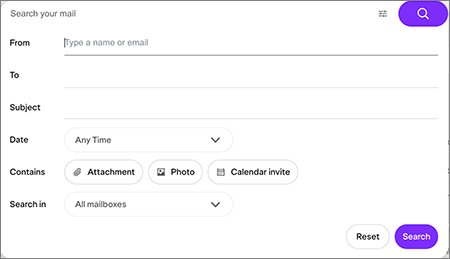
Use the search in Yahoo Mail. Its advanced search filters let you narrow results by sender, recipient, subject, date range, attachments, photos, calendar invites and mailbox. Yahoo Mail searches are separate from your Yahoo Search history.
How do I find my Yahoo account?
Use Yahoo's Sign-in Helper at login.yahoo.com/forgot. It helps when you cannot remember the account or cannot sign in. You need that account signed in to see its Yahoo Search history.
What can I do with Yahoo Search?
Search the web and filter results by All, News, Images, Videos, Local, Shopping or a timeframe. Signed in, you also get SafeSearch and preferences that follow you across devices, plus a searchable history. Yahoo has reworked its results layout over the years, including its 2013 redesign.
Bottom Line
Check Yahoo Settings > Search History first, then your browser history for anything searched while signed out. Yahoo keeps only signed-in searches, and the browser keeps its own separate copy. Deleting or turning off one leaves the other untouched, so manage both.







How to View Yahoo Mail Inbox: A Step-by-Step Guide - Techdows
[…] Your Yahoo Search history is separate from Mail. To find that, see how to find the Yahoo Search history. […]