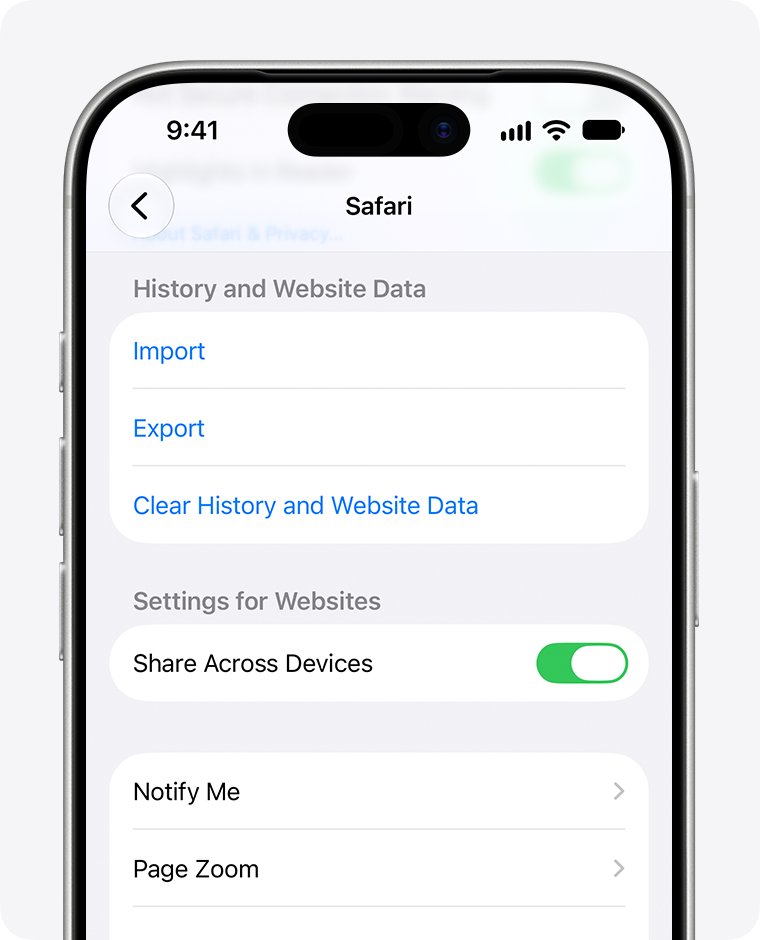
To delete search history on iPhone, open Settings > Apps > Safari, tap Clear History and Website Data, pick a timeframe and tap Clear History.
That clears Safari only, so this guide also covers the Google app, Chrome, Edge, YouTube, both Maps apps, Spotlight, Siri, the keyboard and the settings that stop history coming back.
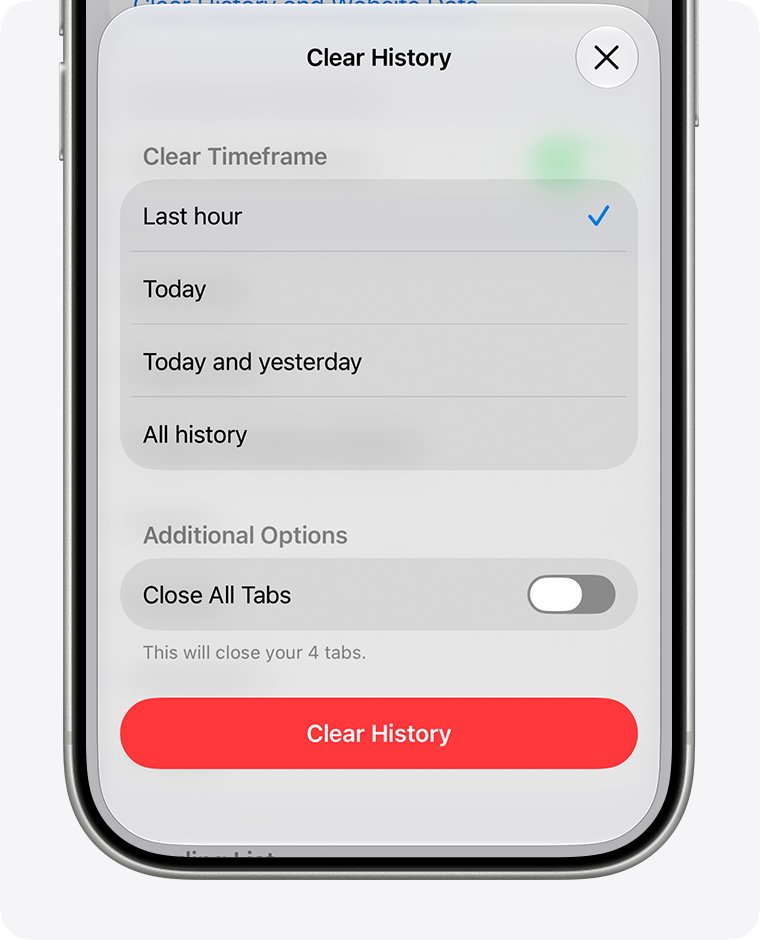
The fastest way to delete search history on iPhone
Safari is where most iPhone searches end up, and one setting clears its history, cache and cookies together.
- Open the Settings app.
- Tap Apps, then tap Safari.
- Scroll down and tap Clear History and Website Data.
- Choose the timeframe you want to clear, such as all history.
- Tap Clear History to confirm.
This does not touch your saved AutoFill information. If the button is gray, jump to the troubleshooting section below.
Where to clear each kind of search history
Every app keeps its own record, and clearing one never clears another. Match what you want gone to the row below.
| What you want gone | Where to clear it | Also stored online? |
|---|---|---|
| Websites and searches typed into Safari | Settings > Apps > Safari > Clear History and Website Data | Synced to other Apple devices through iCloud if Safari is on in iCloud |
| Searches in the Google app | Google app search bar > View all > Clear all | Yes, in your Google Account (My Activity) |
| Chrome history | Chrome > More > Delete Browsing Data | Yes, if Chrome sync is on |
| Edge history | Edge > … > Settings > Privacy & security > Clear browsing data | Yes, if Edge sync is on |
| Apple Maps recents | Maps card > Recents > Clear | Significant locations sync across your Apple Account |
| Google Maps searches | Profile picture > Your data in Maps > Search Services History | Yes, in your Google Account |
| YouTube searches | Profile photo > Settings > Manage all history | Yes, in your Google Account |
| Words the keyboard learned | Settings > General > Transfer or Reset iPhone > Reset > Reset Keyboard Dictionary | No |
What “Search History” Means on an iPhone
An iPhone has no single search history. The term covers several separate lists, each with its own delete control.
| History type | What it records | Where it lives |
|---|---|---|
| Safari history | Pages you visited, including search results pages | On the iPhone, plus iCloud when Safari sync is on |
| Safari recent searches | Terms shown under an empty Safari search field | Safari settings, hidden with Show Recent Searches |
| Google Account activity | Searches made while signed in to Google, YouTube and Google Maps | Your Google Account, viewable at myactivity.google.com |
| App-level history | Search boxes inside individual apps | Inside each app or its online account |
| System suggestions | Spotlight and Siri suggestions based on how you use apps | Settings > Search and Settings > Siri |
| Keyboard dictionary | Words you added by rejecting autocorrect suggestions | On the iPhone only |
How to Delete Safari Search History on iPhone
Safari gives you four levels of clean-up. Pick the row that matches how much you want to remove.
| You want to | Do this | What stays |
|---|---|---|
| Clear all history for a period | Settings > Apps > Safari > Clear History and Website Data > pick a timeframe > Clear History | AutoFill information |
| Remove one or a few sites from history | In Safari, open the Start Page, tap the History button, tap the More button, tap Select Websites, select the sites, then tap the Trash button | All other history |
| Hide recent searches under the search field | Settings > Apps > Safari, then below Search turn off Show Recent Searches | Your browsing history |
| Clear cookies and cache but keep history | Settings > Apps > Safari > Advanced > Website Data > Remove All Website Data > Remove Now | Your history list |
| Stop search terms being suggested as you type | Settings > Apps > Safari, turn off Search Engine Suggestions | Everything; this changes suggestions only |
Removing website data signs you out of sites that saved your login, because it clears data sites use for faster sign-in.
How to Delete Google Search History on iPhone
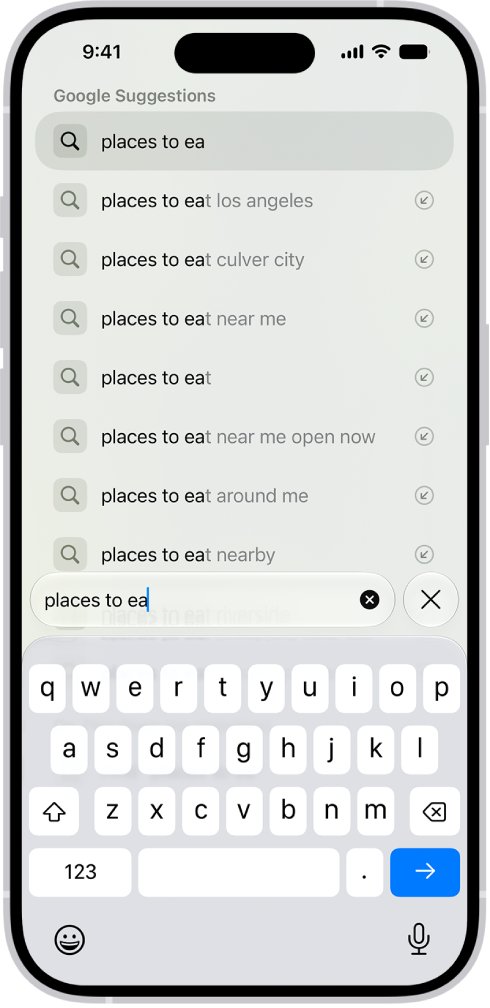
The Google app keeps a list on the phone, and your Google Account keeps a second copy. Google notes that activity you delete in the app is not always deleted from My Activity, so clear both.
- Open the Google app and tap the search bar, then tap View all.
- To remove one search, swipe left on it and tap Delete.
- To remove everything on the phone, tap Clear all, then Clear on-device history.
- In any browser, go to myactivity.google.com while signed in to the same Google Account.
- Tap Delete, choose All time (or a date range), then tap Next and Delete.
- To stop old searches piling up, open Manage your Google Account > Data & privacy > History settings, tap the activity setting, then Auto-delete and pick 3, 18 or 36 months.
For searches you do not want saved in the first place, tap More at the bottom right of the Google app and tap Turn on incognito. The same account-level history drives Google results on a computer; Search History: How to View or Delete It covers the desktop browsers.
How to Delete Chrome Search History on iPhone
Chrome for iOS clears its history, cookies and cache from one dialog. If you are signed in with sync on, the deletion applies to your other signed-in devices too.
- Open Chrome and tap More.
- Tap Delete Browsing Data.
- Set the time range; it starts at the last 15 minutes, so change it if you want more gone.
- Tap Browsing Data and tick the types you want removed.
- Tap Confirm, then tap Delete Browsing Data.
To remove single pages, tap More > History > Edit, tick the entries, tap Delete, then Done. Searches saved to your Google Account stay in My Activity until you delete them there.
How to Delete Firefox, Edge, and Other Browser History on iPhone
Third-party browsers keep their own history, so clearing Safari leaves theirs untouched. Open each browser you use and clear it from inside the app.
| Browser | Where to clear history | Note |
|---|---|---|
| Microsoft Edge | Tap … > Settings > Privacy & security > Clear browsing data, tick the data types, then tap Clear | Turn on Clear browsing data upon exit to wipe it automatically |
| Firefox | Use the history or data settings inside the Firefox app | Firefox history is separate from Safari and Chrome |
| Any other browser | Look for a history or clear-data option in the app's own settings | Signed-in sync accounts keep an online copy that needs clearing too |
Edge searches that went to Bing can also be stored in your Microsoft account; clearing those is covered in the Bing question in the FAQ below.
How to Delete Apple Maps Search History
Apple Maps shows recent searches and directions in the Recents part of its card. You can remove one item or clear the list.
- Open the Maps app.
- Scroll down in the card to Recents.
- To delete one item, tap the More button next to it, then tap Clear.
- To delete every recent item, tap Recents, then tap Clear.
- To reset the places Maps learned about you, go to Settings > Privacy & Security > Location Services > System Services > Significant Locations & Routes and tap Clear History.
Clearing Significant Locations & Routes removes them everywhere you are signed in to the same Apple Account, and resets predictive traffic routing.
How to Delete Google Maps Search History on iPhone
Google Maps stores searches in your Google Account, so the delete controls sit under your profile. Google is rolling out new labels, so wording can differ slightly by app version.
- Open Google Maps and tap your profile picture or initial.
- Tap Your data in Maps, then Search Services History.
- To remove one entry, tap Remove next to it.
- To remove a period, tap Delete on the right and choose Delete today, Delete custom range or Delete all time.
- To clear one place, open it, scroll to Your visits and Maps history and tap Delete next to Recent Maps history.
How to Delete YouTube Search History on iPhone
YouTube has no single clear-all button for searches in the app. You remove entries one by one or delete a batch through Manage all history.
- Open YouTube and tap your profile photo.
- Tap Settings, then Manage all history.
- Tap the X next to any search you want gone.
- To remove many at once, tap DELETE and choose a time frame.
- To stop saving searches, open the Controls tab and untick Include your searches on YouTube.
Deleting history for a time frame removes both watch and search history from that period. Deleted searches stop influencing your recommendations.
How to Clear Spotlight and Siri Search Suggestions
Apple documents no button that wipes Spotlight's recent searches. What you control is which apps and suggestions appear, which removes the entries you do not want seen.
| You want to | Setting |
|---|---|
| Keep an app and its content out of Spotlight | Settings > Search > tap the app > turn off Show App in Search |
| Stop suggested apps showing before you type | Settings > Siri > Suggestions > turn off Suggest Apps Before Searching |
| Stop Siri learning from one app | Settings > Siri > App Access > tap the app > turn off Learn from this App |
| Stop location shaping Spotlight suggestions | Settings > Privacy & Security > Location Services > System Services > turn off Suggestions & Search |
| Delete Siri app conversations (Siri AI beta, iOS 27) | In the Siri app, touch and hold a conversation, tap Delete, then Delete again |
| Auto-delete old Siri conversations | Settings > Siri > Keep Conversations > choose 30 days or 1 year |
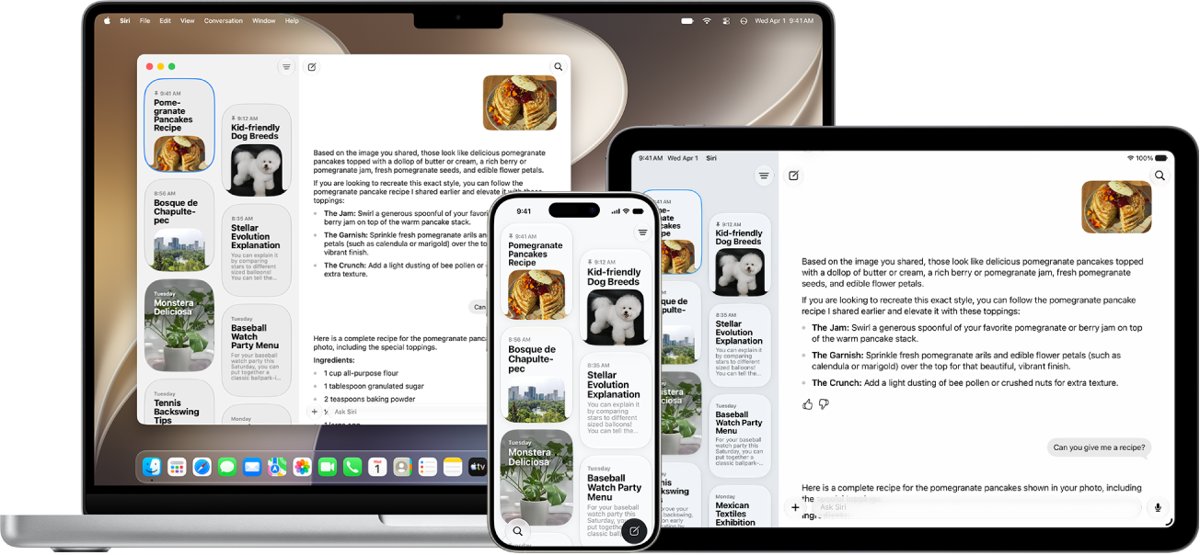
The Siri app and its conversation history need Siri AI, which is in beta on iOS 27 for Apple Intelligence iPhones from iPhone 15 Pro onward. Siri conversation history syncs across devices on the same Apple Account.
How to Delete App Store Search History
Apple's iPhone User Guide lists no option to clear App Store search history. These are the related controls Apple does document.
| Goal | What works |
|---|---|
| Clear the App Store search list | No documented control in the App Store or in Settings |
| Stop an installed app appearing in iPhone search | Settings > Search > tap the app > turn off Show App in Search |
| Stop an installed app being suggested | Settings > Siri > App Access > tap the app > turn off Suggest App |
How to Delete Search History in Popular iPhone Apps
Social and shopping apps keep searches in the app and usually in your account on their servers. iPhone settings cannot clear those lists, so each app has to be cleared from inside.
| App | Where the search list is cleared | Online copy |
|---|---|---|
| Search bar > View all > Clear all | My Activity | |
| YouTube | Profile photo > Settings > Manage all history | Google Account |
| Google Maps | Profile picture > Your data in Maps > Search Services History | Google Account |
| Chrome | More > Delete Browsing Data | Chrome sync |
| Siri app (iOS 27 beta) | Touch and hold a conversation > Delete | Syncs across your Apple Account |
| Instagram, TikTok and other social apps | The app's own search screen or its settings | Stored with your account in that service |
Deleting a social app from the iPhone does not delete the searches saved to your account in that service.
How to Delete iPhone Keyboard Suggestions and Learned Words
The keyboard learns words when you reject its corrections, and those words can reveal past searches. Resetting the keyboard dictionary erases only the words you added.
- Open Settings and tap General.
- Tap Transfer or Reset iPhone, then tap Reset.
- Tap Reset Keyboard Dictionary and confirm.
- To stop suggestions showing above the keyboard, touch and hold the emoji or globe key while typing, tap Keyboard Settings, then turn off Predictive Text.
Do not tap Erase All Content and Settings on the Reset screen; that removes everything on the iPhone. Rejecting the same suggestion a few times also makes the iPhone stop offering it.
How to Use Private Browsing to Avoid Saving Future Safari Searches
Private Browsing tabs do not appear in History on the iPhone or in the tab list on your other Apple devices.
- Open Safari and tap the Tabs button.
- Swipe right on the tab bar at the bottom until Private Browsing opens.
- Tap Unlock if Private Browsing is locked, then browse and search as usual.
- To leave, tap the Tabs button and swipe left to a Tab Group.
- To lock private tabs, go to Settings > Apps > Safari and turn on Require Face ID to Unlock Private Browsing (or the Touch ID or passcode version).
Private tabs stay open when you leave Private Browsing, so close them if someone else uses the phone.
How to Stop Safari History from Syncing Across Apple Devices
With Safari turned on in iCloud, history is shared with every iPhone, iPad and Mac on the same Apple Account, and a change on one appears on all of them.
- Open Settings and tap your name at the top.
- Tap iCloud, then tap See All (or Show All).
- Turn off Safari.
- Repeat on any other device whose history you want kept separate.
With Safari off in iCloud, that device no longer receives your bookmarks, Reading List, Tab Groups or open tabs from other devices either.
How to check the history is really gone
- In Safari, open the Start Page and tap the History button; the list should be empty for the period you cleared.
- Tap the Safari search field; with Show Recent Searches off, no past terms appear.
- In the Google app, tap the search bar and tap View all; the list should be empty.
- Visit myactivity.google.com and confirm no searches remain for the dates you deleted.
- In YouTube, open Manage all history and check that the deleted searches are gone.
- Check a second Apple device that syncs Safari; its history should match the iPhone.
What Happens When You Delete Search History?
| Deleted from | Result | What is not affected |
|---|---|---|
| Safari (Clear History and Website Data) | History, cookies and cache go for the chosen timeframe, and synced devices follow | AutoFill information |
| Google My Activity | Searches leave your account view and stop personalizing results; Google then starts deleting them from its storage | Data Google keeps for business or legal requirements |
| Google app on-device list | Recent searches disappear from the app | My Activity copy |
| YouTube history | Deleted searches stop shaping recommendations | Watch history outside the chosen time frame |
| Keyboard dictionary | Words you added are erased | Built-in dictionary and other settings |
| Significant Locations & Routes | Learned locations clear on every device on your Apple Account | Recents in the Maps card |
People delete search history to keep shared devices private and to reset recommendations; the steps are the same whatever the reason.
Troubleshooting: Why Search History Still Appears
The Clear History and Website Data button is gray
There is no data to clear, or Screen Time web content restrictions block it.
- Open Settings > Screen Time and check the web content restrictions.
- Remove the website limit if you set it, or ask the person who manages Screen Time on the phone.
- Return to Settings > Apps > Safari and tap Clear History and Website Data again.
History comes back after you clear it
Another device syncing Safari through iCloud, or Chrome or Edge sync, still holds the data.
- Clear history on each device that shares the same Apple Account or browser account.
- If you want the iPhone kept separate, turn off Safari in Settings > your name > iCloud > See All.
Google still suggests your old searches
You cleared the Google app or Chrome, but the copy in your Google Account remains.
- Go to myactivity.google.com and tap Delete > All time.
- Turn on Auto-delete under History settings to stop the list rebuilding.
Past terms still show when you tap the Safari search field
Recent searches are shown separately from the history list.
- Go to Settings > Apps > Safari.
- Below Search, turn off Show Recent Searches.
Old words still pop up while typing
The keyboard dictionary kept words you taught it.
- Go to Settings > General > Transfer or Reset iPhone > Reset.
- Tap Reset Keyboard Dictionary.
Frequently Asked Questions
How do I delete search history on iPhone?
Go to Settings > Apps > Safari, tap Clear History and Website Data, choose a timeframe and tap Clear History. Then clear any other app you search in, such as the Google app, Chrome or YouTube, because each keeps its own separate history.
How do I delete search history on iPad?
Clear Safari on the iPad from its Safari settings the same way as on iPhone. If Safari is turned on in iCloud on both devices, history syncs between them, so clearing it on one device removes it from the other.
How do I delete search history on Google from my iPhone?
In the Google app, tap the search bar, tap View all, then Clear all and Clear on-device history. Then visit myactivity.google.com, tap Delete and choose All time to remove the copy stored in your Google Account.
How do I delete search history on YouTube on iPhone?
Tap your profile photo, then Settings and Manage all history. Tap the X beside a search, or tap DELETE to remove a time frame. Untick Include your searches on YouTube in the Controls tab to stop saving new ones.
How do I delete search history on Edge on iPhone?
In Microsoft Edge, tap the … menu, then Settings, Privacy & security and Clear browsing data. Tick the data types and tap Clear. Turn on Clear browsing data upon exit if you want Edge to wipe it every time you close it.
Can I delete my search history on Bing from an iPhone?
Yes. Clearing Safari or Edge removes local history, but Bing can also keep searches in your Microsoft account. 2 Ways to Completely Delete Bing Search History covers both parts, and How To See Bing Search History shows how to check what is saved.
Why won't my search history delete on iPhone?
A gray Clear History button means there is nothing to clear or Screen Time web content restrictions are on. History that returns usually comes from another synced device or from your Google Account, which must be cleared separately.
Why can't I delete my search history in Safari?
Check Settings > Screen Time for a web content restriction, since that grays out the Clear History button. If the button works but terms still show in the search field, turn off Show Recent Searches in Safari settings.
Why do people delete their search history?
Most people delete search history to keep a shared iPhone private, to stop old searches appearing as suggestions, or to reset recommendations in apps like YouTube. Deleting YouTube searches, for example, stops them influencing what the app recommends.
Should you delete your search history?
Delete it if other people use your iPhone or you want fresher suggestions. Clearing Safari also removes cookies, which signs you out of websites. To avoid that, remove single sites from History or use Private Browsing for searches you do not want saved.
Quick Checklist for Deleting Search History on iPhone
Start with Safari and your Google Account, since those hold the most searches for most people. Work down the list for the apps you actually use.
| Step | Where | Done when |
|---|---|---|
| 1. Safari | Settings > Apps > Safari > Clear History and Website Data | History list is empty |
| 2. Safari recent searches | Settings > Apps > Safari > Show Recent Searches off | Search field shows no past terms |
| 3. Google app and account | View all > Clear all, then myactivity.google.com > Delete | My Activity is empty |
| 4. Chrome or Edge | Delete Browsing Data / Clear browsing data | History screen is empty |
| 5. YouTube | Settings > Manage all history | No searches listed |
| 6. Apple Maps and Google Maps | Recents > Clear; Search Services History > Delete | No recents shown |
| 7. Keyboard | Reset > Reset Keyboard Dictionary | Learned words stop appearing |
| 8. Future searches | Private Browsing, Google incognito, Auto-delete | New searches are not saved |