Windows won't let you change the default printer while Let Windows manage my default printer is turned on, so switch that setting off in Printers & scanners and then select Set as default on the printer you want.
The steps below cover Windows 11 and Windows 10, the PowerShell and command-line routes, the Group Policy setting that locks the choice on work PCs, and fixes for a default that keeps switching back.
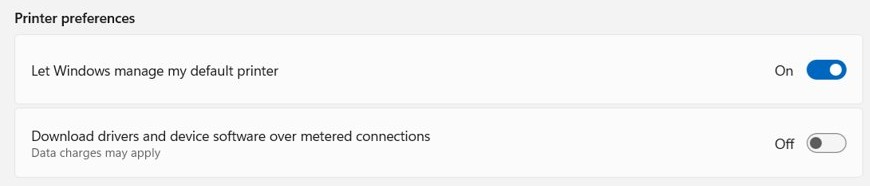
Can't change default printer in Windows 11? Turn off Let Windows manage my default printer
The Set as default button only appears when Windows is not managing the default for you. With management on, Windows makes the last printer you used the default, so any choice you make gets overwritten on the next print job.
- Select Start > Settings > Bluetooth & devices > Printers & scanners.
- Scroll to Printer preferences and set Let Windows manage my default printer to Off.
- Select the printer you want from the list of installed printers.
- Select Set as default next to the printer's name.
- Check that Printer status now reads Default.
If the toggle is greyed out or the button still does not appear, jump to the troubleshooting section below.
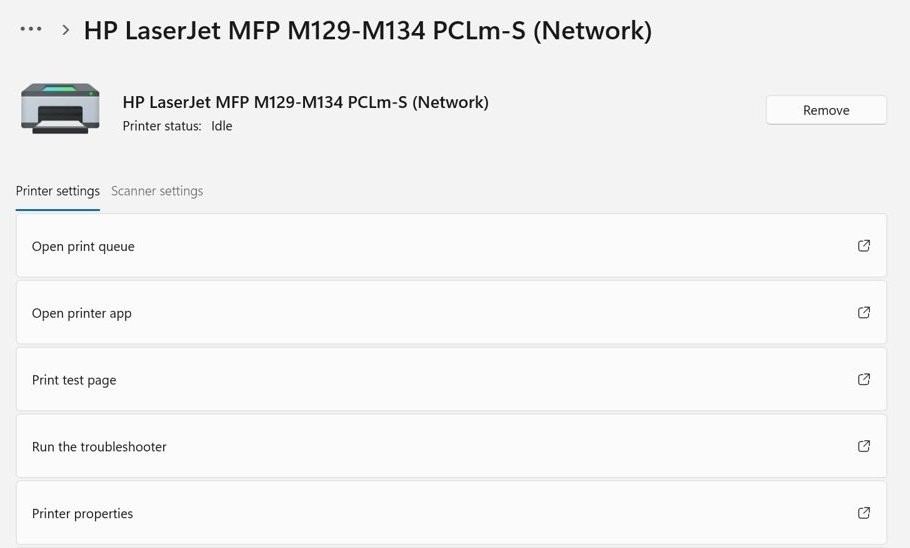
How to set a default printer in Windows 11
Windows 11 offers two behaviours: a fixed default that you choose, or a rolling default that follows the last printer used. Pick the fixed default if you print to one main printer and only occasionally to another.
| You want | Set Let Windows manage my default printer to | Then |
|---|---|---|
| One printer as the default every time | Off | Select the printer and choose Set as default |
| The last printer you used to become the default | On | Nothing else; Windows switches the default after each print |
| A laptop that moves between home and office printers | On if you print at each location, Off if one printer should always win | With On, the default can change when your location changes |
The Settings path is Start > Settings > Bluetooth & devices > Printers & scanners in every current Windows 11 release.
How to set a default printer in Windows 10
Windows 10 hides the same option behind a Manage button, which is why many people never find Set as default at all.
- Select Start > Settings > Devices > Printers & scanners.
- Clear the Let Windows manage my default printer check box.
- Under Printers & scanners, select the printer, then select Manage.
- In the Manage your device window, under Printer status, select Set as default.
If you also want different paper size, colour or duplex defaults, change the printer's default settings in its printing preferences; that is a separate setting from which printer is the default.
Why does my default printer keep changing in Windows?
A default that refuses to stay put almost always comes from one of four sources. Match what you see to a row and apply the fix in that row.
| What you see | Cause | Fix |
|---|---|---|
| Default switches to whichever printer you last used | Let Windows manage my default printer is on | Turn it off and select Set as default |
| Default changes after you take a laptop to another office | Windows management is on and remembers the last printer used at each location | Turn management off to keep one fixed default |
| Toggle is greyed out with a note that your organization manages some settings | The Turn off Windows default printer management policy is set by an administrator | Ask IT, or change the policy if you own the PC |
| Default changes only inside a Remote Desktop or Cloud PC session | Printer redirection makes the local PC's default printer the default in the remote session | Change the default on the local PC before you connect |
Set default printer with PowerShell or Command Prompt
A command is useful when Settings will not open, or when you want to script the change for several user profiles. Each command sets the default only for the account that runs it.
- Open Windows PowerShell from the Start menu. Administrator rights are not needed to change your own default printer.
- List the printers and see which one is the default:
Get-CimInstance -ClassName Win32_Printer | Select-Object Name, Default - Copy the exact printer name from the Name column.
- Set the new default, replacing the name with yours:
Get-CimInstance -ClassName Win32_Printer -Filter "Name='HP LaserJet Pro'" | Invoke-CimMethod -MethodName SetDefaultPrinter - Check that ReturnValue is 0, which means the change succeeded.
- In Command Prompt, the same change is
rundll32 printui.dll,PrintUIEntry /y /n "HP LaserJet Pro", where /y sets the default and /n names the printer.
The older cscript %WINDIR%\System32\Printing_Admin_Scripts\en-US\prnmngr.vbs -t -p "HP LaserJet Pro" script also sets the default, and -g displays it. It needs VBScript, which Microsoft has deprecated and plans to remove from Windows.
Turn off Windows default printer management in Group Policy
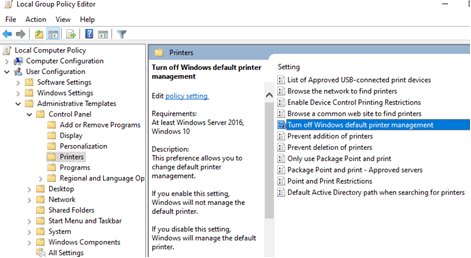
Windows 10 and Windows 11 Pro, Enterprise and Education include a user policy named Turn off Windows default printer management. When it is enabled, Windows won't manage the default printer; when it is disabled, Windows always manages the default printer, whatever you choose in Settings.
On a work or school PC this policy is usually pushed by IT through Group Policy or Intune, so contact them before you change anything.
- Press Windows + R, type
gpedit.mscand press Enter. - Go to User Configuration > Administrative Templates > Control Panel > Printers.
- Double-click Turn off Windows default printer management.
- Select Enabled to stop Windows managing the default, or Not Configured to give the choice back to Settings, then select OK.
- Open Printers & scanners and set your default printer.
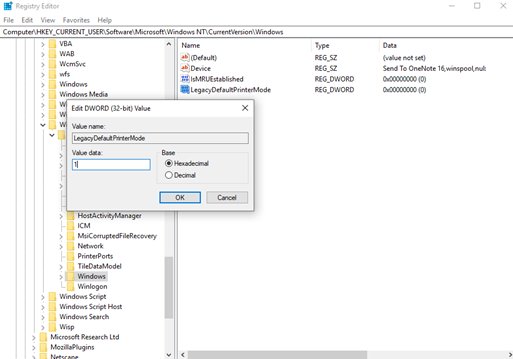
The policy stores its value as LegacyDefaultPrinterMode under HKEY_CURRENT_USER\Software\Microsoft\Windows NT\CurrentVersion\Windows. Windows Home has no Group Policy Editor, but the Settings toggle controls the same behaviour there.
How to see which printer is the default in Windows 11
- Open Settings > Bluetooth & devices > Printers & scanners and select the printer; Printer status reads Default on the default printer.
- In PowerShell, run
Get-CimInstance -ClassName Win32_Printer | Where-Object Default | Select-Object Nameto print only the default printer's name. - Open any app, press Ctrl + P, and confirm the print dialog preselects the printer you chose.
- Restart the PC and open Printers & scanners again; a default that survives a restart is set correctly.
Printer does not appear in the Printers & scanners list
Only an installed printer can become the default, so a printer that does not appear in Printers & scanners has to be added, or connected as a network printer if it is shared, before Set as default is possible.
Printer missing from Printers & scanners in Windows 11
The printer was never installed on this PC, or it was removed.
- Turn the printer on and connect it by USB or to the same Wi-Fi network as the PC.
- Open Settings > Bluetooth & devices > Printers & scanners and select Add device.
- Wait for the search, then select Add device next to your printer.
- If it does not appear, select Add manually and follow the wizard.
- Select the new printer and choose Set as default.
Printer missing from Printers & scanners in Windows 10
Same cause; Windows 10 labels the button differently.
- Open Settings > Devices > Printers & scanners.
- Select Add a printer or scanner and wait for the search.
- Choose your printer and select Add device.
- Select the printer, choose Manage, then Set as default.
Default printer not changing in Windows 11 and 10
Set as default button is missing
Windows hides Set as default while Let Windows manage my default printer is on.
- Open Settings > Bluetooth & devices > Printers & scanners.
- Turn Let Windows manage my default printer off.
- Select the printer again; Set as default now appears next to its name.
Let Windows manage my default printer is greyed out
An administrator has set the Turn off Windows default printer management policy, or a work account manages the PC.
- On a work or school PC, ask IT to change the policy.
- On your own Pro PC, set the policy to Not Configured in
gpedit.mscas shown above.
Default printer resets after a restart or will not save
A stalled Print Spooler service or a damaged printer entry can stop the change from sticking.
- Type services in the taskbar search box and open Services.
- Double-click Print Spooler, select Stop, then OK.
- Open
%WINDIR%\system32\spool\PRINTERSand delete the files inside it. - Back in Services, open Print Spooler, select Start, set Startup type to Automatic, and select OK.
- If the default still resets, select the printer in Printers & scanners, choose Remove, add it again, and set it as default.
Default printer changes in a Remote Desktop session
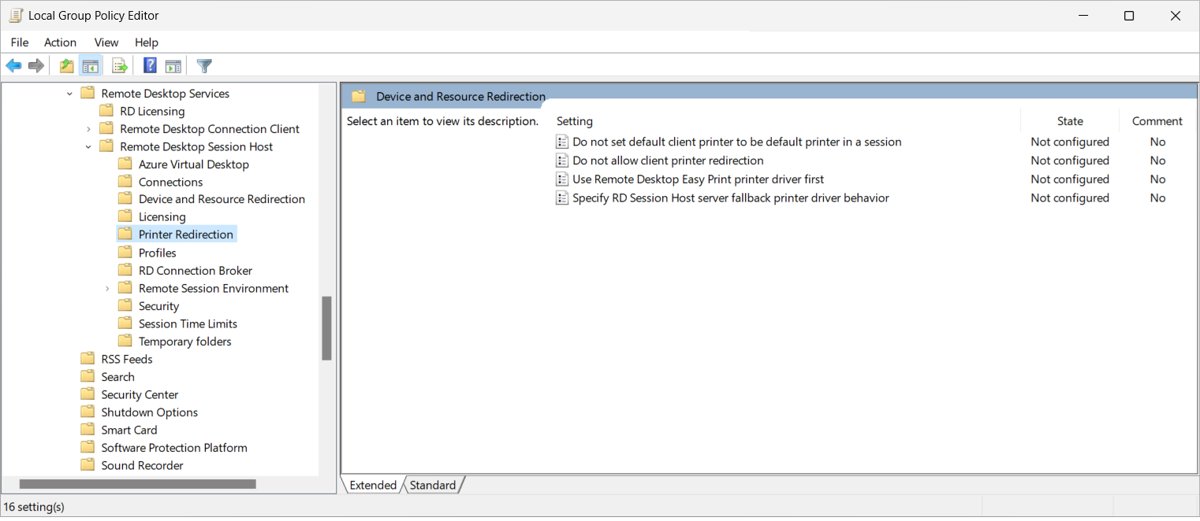
With printer redirection on, the local PC's default printer is automatically set as the default in the remote session, and redirected printers carry a (redirected n) suffix.
- Disconnect from the remote session.
- Set the printer you want as default on your local PC.
- Reconnect; the remote session now picks up the new default.
- If the remote session should keep its own default, ask the administrator about the Do not allow client printer redirection policy.
Printer shows offline after you set it as default
Being the default does not fix a dropped connection, a stuck queue or a driver problem that keeps the printer offline in Windows.
- Run the automated printer troubleshooter in the Get Help app.
- Check the cable or Wi-Fi connection and power-cycle the printer.
- If jobs still sit in the queue, work through the fixes for printers that are installed but won't print.
Windows default printer FAQ
Why can't I set a default printer in Windows 11?
The Let Windows manage my default printer setting is on. Windows hides the Set as default button while it manages the default for you. Turn the setting off in Settings > Bluetooth & devices > Printers & scanners, select the printer and choose Set as default.
Why does Windows keep changing my default printer?
Windows is set to manage the default printer, so it makes the last printer you used the default. On a laptop the default can also change when your location changes. Turn Let Windows manage my default printer off to keep one printer as the default.
How do I stop Windows from changing my default printer?
Switch off Let Windows manage my default printer under Printer preferences in Printers & scanners, then set your printer as default. On Pro editions you can also enable the Turn off Windows default printer management policy under User Configuration > Administrative Templates > Control Panel > Printers.
Why is Let Windows manage my default printer greyed out?
A policy controls it. When an administrator sets Turn off Windows default printer management to disabled, Windows always manages the default and the toggle is locked. On a work PC ask IT; on your own Pro PC set the policy to Not Configured.
How do I change the default printer from the command line?
In PowerShell, run Get-CimInstance -ClassName Win32_Printer -Filter "Name='Printer name'" | Invoke-CimMethod -MethodName SetDefaultPrinter. In Command Prompt, rundll32 printui.dll,PrintUIEntry /y /n "Printer name" does the same. Both change the default only for the signed-in user.
Does the default printer setting apply to every user on the PC?
No. The default printer is stored per user, so each account on the PC picks its own. The Group Policy setting that turns off default printer management is also a user setting, not a computer-wide one.
Why is my default printer different in Remote Desktop?
Printer redirection copies your local printers into the remote session and sets the local PC's default printer as the remote default. Change the default on your own PC before you connect, and the remote session follows it.
Is the default printer the same as default printer settings?
No. The default printer is the one apps select first when you print. Default printer settings are that printer's own preferences, such as paper size, colour and two-sided printing, which control the appearance of each printout and live in its Printing preferences.