To fix iPhone USB tethering on a Windows PC with an ARM processor, update to Windows 11 version 24H2 or later and install the Apple Devices app from Microsoft Store, because iTunes has no Arm64 version.
This guide explains why tethering fails on Snapdragon and other Arm laptops, how to set it up correctly, and what to use instead when USB still will not connect.
How to fix iPhone USB tethering on a Windows ARM PC
Apple states that a Windows PC needs the latest Apple Devices app or iTunes for Windows before it can use an iPhone hotspot over USB. On an Arm PC, only Apple Devices offers an Arm64 build.
- On the PC, select Start > Settings > System > About and check the version under Windows specifications.
- If the version is older than 24H2, select Settings > Windows Update > Check for updates and install the latest feature update.
- Open Microsoft Store, search for Apple Devices, then select Get (or Update).
- On the iPhone, open Settings > Personal Hotspot and turn on Allow Others to Join.
- Connect the iPhone to the PC with a USB cable that supports data and charging.
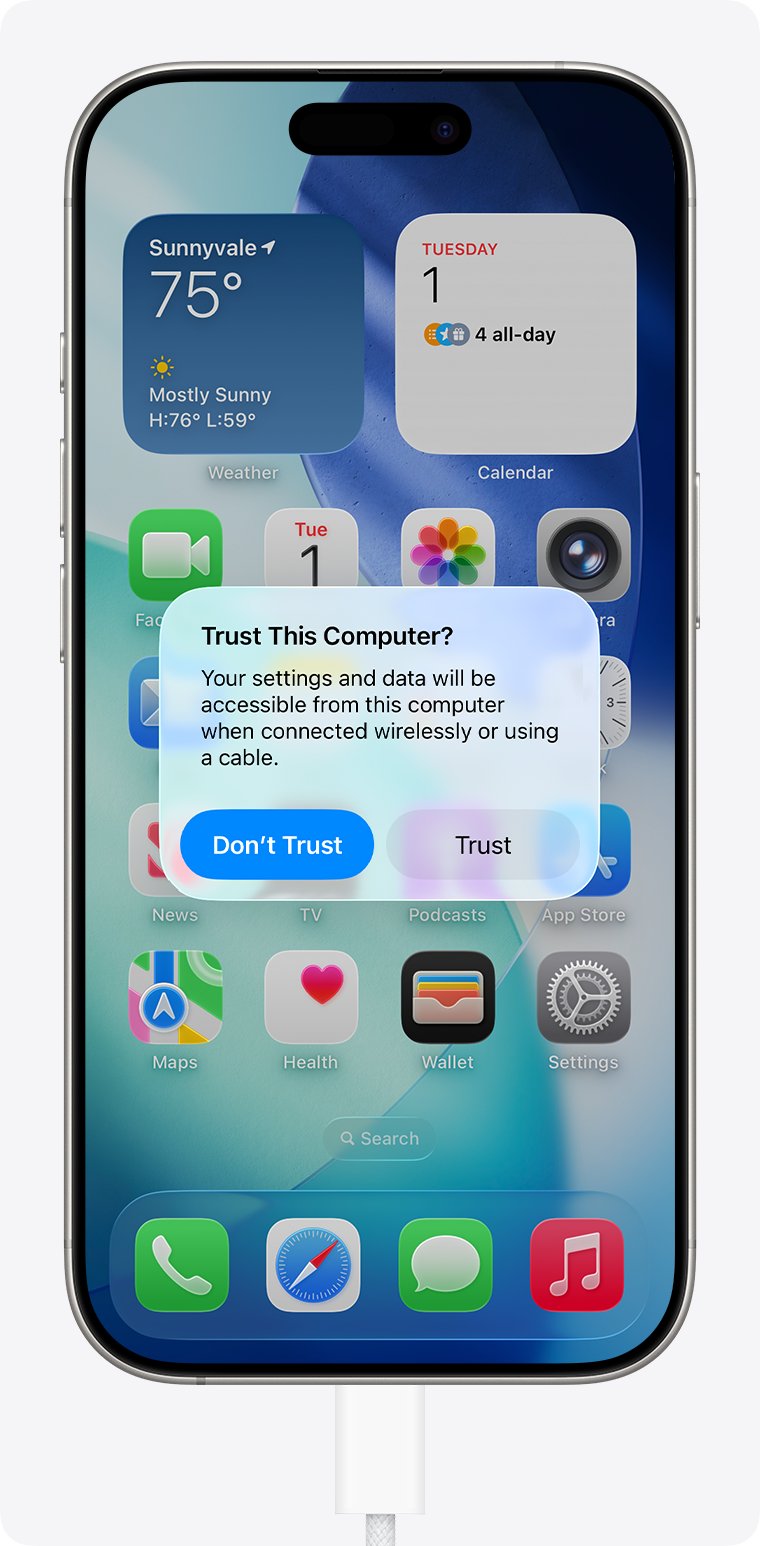
- Unlock the iPhone and tap Trust when it asks whether to trust this computer.
- Open Settings > Network & internet on the PC and check that the status at the top shows you are connected.
If the PC charges the iPhone but never gets internet, work through the version and app checks below before you change any iPhone settings.
Why iPhone USB tethering does not work on ARM-based PCs
Microsoft says apps can run on an Arm PC through emulation, but drivers cannot. A driver works only if it is built for Arm, and hardware that depends on a missing driver does not work fully.
USB tethering depends on Apple's driver, not just on an app window. That is why an x64 install of iTunes can open on an Arm laptop and still give no internet over the cable.
| Part of the setup | On an Intel or AMD (x64) PC | On a Windows ARM PC |
|---|---|---|
| iTunes for Windows | Supported (x86 and x64 listed in Microsoft Store) | No Arm64 build, so its device driver cannot load |
| Apple Devices app | Supported on Windows 10 version 19045 or later | Arm64 package listed; it requires Windows 11 version 24H2 (build 26100) or later |
| Apple's USB driver | Installed with iTunes or Apple Devices | Must come from the Arm64 Apple Devices package |
| Wi-Fi Personal Hotspot | Works without any Apple software | Works without any Apple software |
| Bluetooth Personal Hotspot | Pair the iPhone in Bluetooth settings | Pair the iPhone in Bluetooth settings |
Arm PCs include Copilot+ laptops with Snapdragon X series chips, Surface Pro and Surface Laptop Snapdragon editions, Surface Pro 9 with 5G and Surface Pro X.
Apple Devices app requirements on Windows on ARM
| Requirement | Detail |
|---|---|
| Windows version | Windows 11 version 24H2 (build 26100) or later for the Arm64 package; 25H2, 26H1 and 26H2 also qualify |
| Where to get the app | Microsoft Store, published by Apple Inc. |
| iPhone | A cellular plan from a carrier that supports Personal Hotspot, with Cellular Data turned on |
| Cable | A USB or USB-C cable that carries data, not a charge-only cable |
| Software | The latest iOS on the iPhone and the latest updates on the PC |
Windows 10 on Arm cannot get the Arm64 package, and Microsoft ended Windows 10 support on October 14, 2025. On those PCs, use the Wi-Fi hotspot instead.
How to check if your PC has an ARM processor
- Right-click Start and select Settings.
- Select System, then select About.
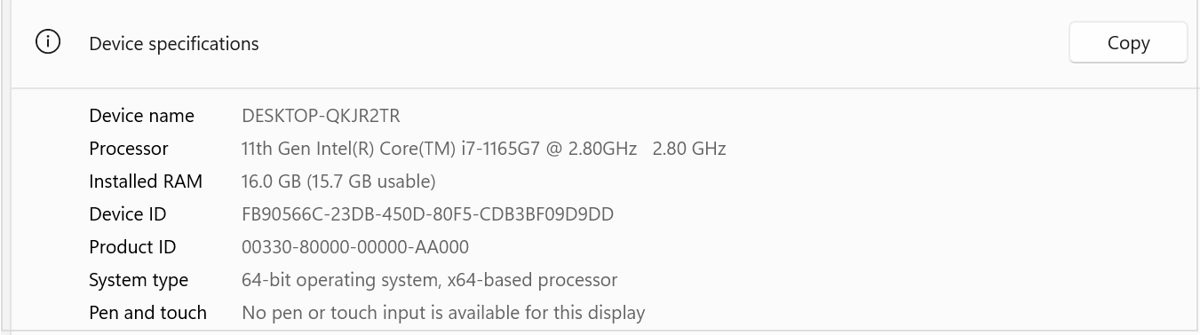
- Under Device specifications, read the Processor line; a Snapdragon or other Arm chip name means an Arm PC.
- Read System type on the same panel to see the architecture Windows lists.
- Under Windows specifications, note the Version number for the next step.
Update Windows 11 on ARM to version 24H2 or later
The Arm64 Apple Devices package will not install on an older build. Microsoft lists version 24H2 as OS build 26100, so any build at or above that number works.
- Select Start > Settings > Windows Update.
- Select Check for updates.
- Install any feature update offered, such as Windows 11 version 25H2.
- Restart the PC when Windows asks.
- Return to Settings > System > About and confirm the new version number.
Install the Apple Devices app for iPhone USB tethering
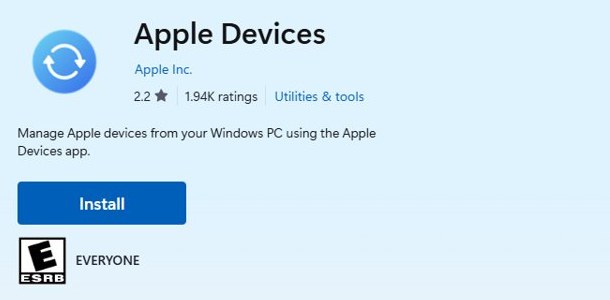
Install the Apple Devices app for Windows from Microsoft Store rather than relying on iTunes. The Store lists iTunes for x86 and x64 only, while Apple Devices lists both x64 and Arm64.
- Open Microsoft Store on the PC.
- Search for Apple Devices.
- Select the app published by Apple Inc., then select Get.
- If the app is already installed, select Update when the Store offers it.
- Open Apple Devices once so it finishes setting up.
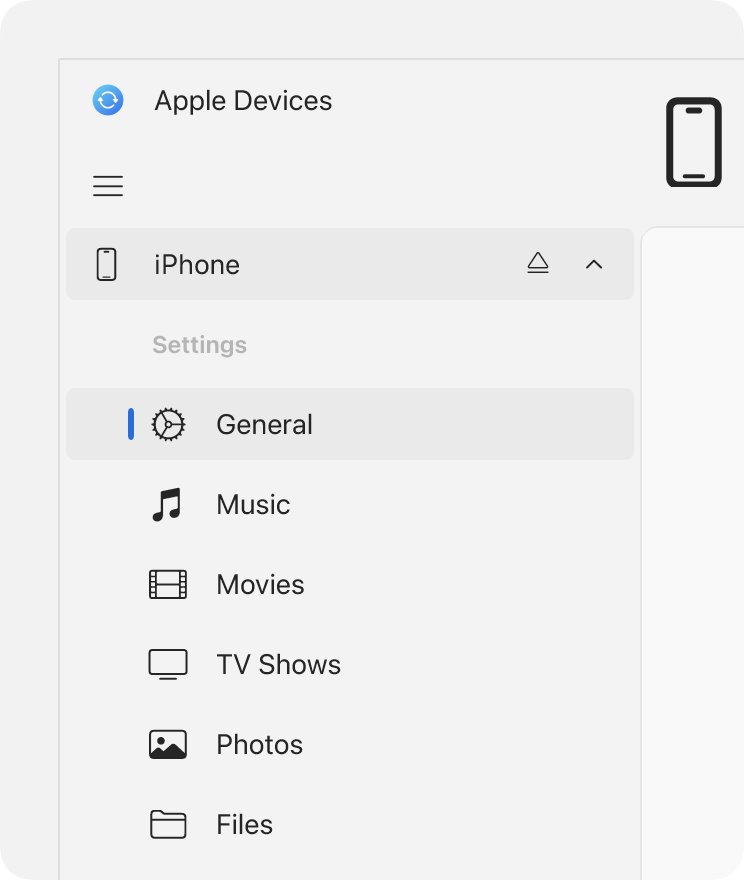
- Connect the iPhone and check that it appears in the Apple Devices sidebar.
If the iPhone appears in the sidebar, the driver side is working, and any remaining fault sits with Personal Hotspot or the carrier.
How to turn on USB tethering on iPhone
iPhone has no separate USB tethering switch. USB tethering is part of Personal Hotspot, and the same toggle covers Wi-Fi, Bluetooth and USB.
- Open Settings on the iPhone.
- Tap Personal Hotspot, or tap Cellular and then Personal Hotspot.
- Turn on Allow Others to Join.
- Connect the iPhone to the PC with the USB cable.
- If the computer asks to allow the accessory to connect, click Allow.
- Tap Trust on the iPhone when the trust prompt appears.
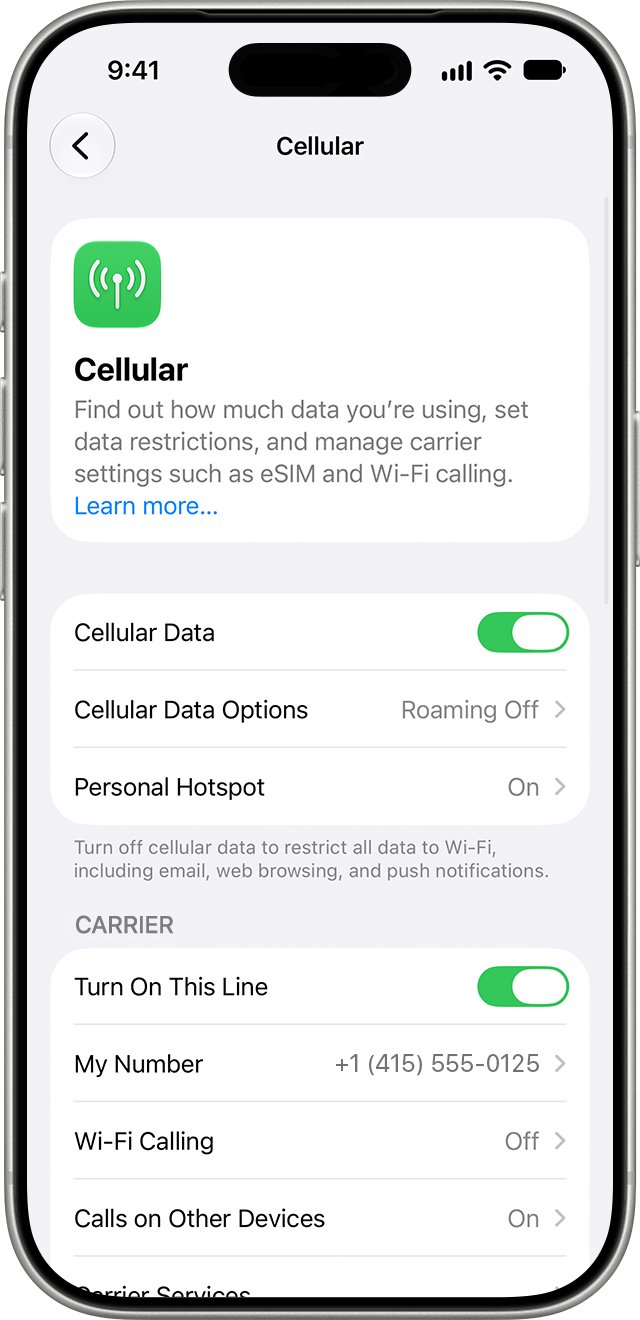
If Personal Hotspot is dimmed, open Settings > Cellular and turn on Cellular Data. Your carrier must also support Personal Hotspot, and extra fees may apply.
How to tell if iPhone USB tethering is connected on Windows
- Check that the iPhone shows it is charging; Apple says this means the cable is connected correctly.
- Open Apple Devices and confirm the iPhone is listed in the sidebar.
- Select Start > Settings > Network & internet and read the connection status at the top.
- Turn off Wi-Fi on the PC from quick settings so the PC cannot fall back to another network.
- Open a website in your browser; if it loads with Wi-Fi off, the iPhone is supplying the internet over USB.
Turn Wi-Fi back on afterwards if you need it. Windows prefers a working wired link, but testing with Wi-Fi off removes any doubt.
Use iPhone Wi-Fi tethering on a Windows ARM laptop
Wi-Fi Personal Hotspot needs no Apple software or driver, so it works on every Arm PC, including Windows 10 on Arm and older Windows 11 builds.
- On the iPhone, open Settings > Personal Hotspot and turn on Allow Others to Join.
- Note the Wi-Fi Password shown on that screen, and stay on it until the PC connects.
- On the PC, select the Network icon on the taskbar to open quick settings.
- On the Wi-Fi quick setting, select Manage Wi-Fi connections.
- Choose the network named after your iPhone, then select Connect.
- Type the hotspot password and select Next.
On iPhone 12 or later, turning on Maximize Compatibility under Personal Hotspot can help a PC that cannot see or join the hotspot. Apple notes it may reduce internet performance.
iPhone USB tethering vs Wi-Fi hotspot on a Windows ARM PC
| Your situation | Connect this way | Why |
|---|---|---|
| Windows 11 version 24H2 or later | USB with the Apple Devices app | The Arm64 package installs and the iPhone charges while it shares data |
| Windows 11 version 23H2 or earlier on Arm | Wi-Fi hotspot until you update | The Arm64 Apple Devices package needs build 26100 or later |
| Windows 10 on Arm | Wi-Fi hotspot | The Arm64 Apple Devices package will not install |
| Only iTunes is available | Wi-Fi hotspot, then install Apple Devices | iTunes has no Arm64 build |
| No Wi-Fi adapter or Wi-Fi blocked | Bluetooth hotspot | Pair the iPhone from Bluetooth settings on the PC |
iPhone USB tethering not working on Windows
Apple Devices will not install on the ARM PC
The PC runs a Windows build older than 24H2, so the Store offers no Arm64 package.
- Check the version in Settings > System > About.
- Install the latest feature update from Settings > Windows Update.
- Search Microsoft Store for Apple Devices again after the restart.
iPhone charges but the PC gets no internet
Apple's driver is missing, iTunes is the only Apple app, or Personal Hotspot is off.
- Open Apple Devices and check that the iPhone appears in the sidebar.
- Confirm Allow Others to Join is on in Settings > Personal Hotspot.
- Unplug the cable, restart both the iPhone and the PC, then connect again.
Trust This Computer prompt does not appear
The iPhone is locked, or Don't Trust was tapped earlier.
- Unlock the iPhone and stay on the Home Screen while you connect.
- Go to Settings > General > Transfer or Reset iPhone > Reset > Reset Location & Privacy.
- Reconnect the cable and tap Trust when the alert appears.
PC does not recognize the iPhone at all
A charge-only cable, a dirty port or a faulty USB port.
- Use a cable that supports both data and charging.
- Check the iPhone charging port for debris.
- Try another USB port on the PC, then update iOS and Windows.
iPhone USB or Wi-Fi tethering constantly cuts out
Saved network or carrier settings on the iPhone are out of date or corrupted.
- Install the latest iOS from Settings > General > Software Update.
- Go to Settings > General > Transfer or Reset iPhone > Reset > Reset Network Settings.
- Turn Personal Hotspot back on and reconnect; note that this reset also erases saved Wi-Fi passwords and VPN settings.
iPhone USB tethering option is greyed out
Cellular Data is off or the carrier plan does not include Personal Hotspot.
- Open Settings > Cellular and turn on Cellular Data.
- Return to Settings > Personal Hotspot.
- Contact your carrier if the option stays unavailable.
If the iPhone also fails on other computers, fix the Trust This Computer prompt first, then run through the general iPhone troubleshooting steps.
How to stop iPhone USB tethering on a PC
Personal Hotspot stays active while the iPhone is connected over USB. Apple warns that the PC may reconnect every time you plug the iPhone in to charge, which can use cellular data.
- Unplug the USB cable from the iPhone or the PC to end the session.
- On the iPhone, open Settings > Personal Hotspot.
- Turn off Allow Others to Join so the PC cannot reconnect while charging.
- To cap data use instead, select Settings > Network & internet > Wi-Fi on the PC, select the hotspot network and choose Set a data limit.
Some iPhone features that need Wi-Fi, such as iCloud backup, may not run while the iPhone is sharing its connection.
iPhone USB tethering FAQ
Does iPhone support USB tethering?
Yes. iPhone shares its cellular data over USB through Personal Hotspot. Turn on Allow Others to Join, connect the cable and tap Trust. A Windows PC also needs the Apple Devices app or iTunes for Windows installed.
How do I enable USB tethering on iPhone?
Open Settings, tap Personal Hotspot and turn on Allow Others to Join. There is no separate USB switch. Connect the iPhone to the computer with a data cable, then tap Trust on the iPhone when asked.
Can you USB tether an iPhone to a Windows ARM laptop?
Yes, if the laptop runs Windows 11 version 24H2 or later and has the Apple Devices app from Microsoft Store. iTunes has no Arm64 build, so it cannot provide the driver an Arm PC needs.
How do I tether an iPhone to a laptop without USB?
Use the Wi-Fi Personal Hotspot. Turn on Allow Others to Join on the iPhone, then pick the iPhone's network from Manage Wi-Fi connections in Windows quick settings and enter the password shown on the iPhone.
Does USB tethering work on iPhone 15 and later with USB-C?
Yes. USB-C models use the same Personal Hotspot setting as older iPhones. Use a USB-C cable that carries data, not a charge-only cable, and tap Trust when the iPhone asks about the computer.
How do I connect iPhone USB tethering to a PC?
Install Apple Devices from Microsoft Store, turn on Allow Others to Join under Personal Hotspot, and plug the iPhone into the PC with a data cable. Tap Trust on the iPhone, and Windows uses the connection automatically.
How do I use tethering on iPhone?
Turn on Allow Others to Join in Settings, Personal Hotspot, then connect another device by Wi-Fi, USB or Bluetooth. Wi-Fi needs the hotspot password, USB needs a data cable and Trust, and Bluetooth needs pairing.