When Word, Excel or Outlook says vcruntime140_1.dll was not found, install the latest Microsoft Visual C++ v14 Redistributable from Microsoft, restart, and run an Office Online Repair if the error stays.
This guide explains what the file is, why Office loses it, the symptoms, five repair routes in order of effort, and how to keep the error from coming back.
How to fix the "Vcruntime140_1.dll was not found" error
The file belongs to the Visual C++ runtime, so the fastest fix is to put a current copy of that runtime back. Microsoft keeps permanent download links for the latest supported version on its Learn site.
- Close every Office app, including Outlook and Teams if they are open.
- Download the x64 package from
https://aka.ms/vc14/vc_redist.x64.exeand the x86 package fromhttps://aka.ms/vc14/vc_redist.x86.exe. - Run the x64 installer and follow the prompts to install or repair it.
- Run the x86 installer the same way, because 32-bit Office needs the 32-bit libraries even on 64-bit Windows.
- Restart the PC when setup finishes.
- Open Word or Excel again. If the same dialog appears, go to the Office repair section below.
On an ARM64 PC the x64 package is enough, since Microsoft states it carries both the ARM64 and the x64 binaries. A separate ARM64 package also exists at https://aka.ms/vc14/vc_redist.arm64.exe.
What is Vcruntime140_1.dll?
Vcruntime140_1.dll is one of the vcruntime libraries that Microsoft describes as the runtime library for native code. Any program built with Microsoft's C++ tools that uses the normal C and C++ startup and shutdown services loads it, and Office is one of those programs.
| Question | Answer |
|---|---|
| Which package installs it? | The Microsoft Visual C++ v14 Redistributable, shared by Visual Studio 2017, 2019, 2022 and 2026 |
| Is it part of Office itself? | No. Office depends on it, but the runtime is a separate Microsoft package |
| 32-bit or 64-bit? | Both exist. The package architecture must match the app, so 32-bit Office needs the x86 package |
| Which Windows versions does the latest package support? | Windows 10 and Windows 11, plus Windows Server 2016, 2019, 2022 and 2025 |
| How does it get updated? | A centrally installed redistributable can be updated by Microsoft through Windows Update |
| Is the old 2015 package still supported? | No. Support for Visual C++ 2015 Redistributable ended on October 15, 2025; the v14 package replaces it |
Why does the Vcruntime140_1.dll error occur?
Windows shows the error when an Office program asks for vcruntime140_1.dll and cannot load a working copy. The cause is almost always one of the cases below.
| Cause | What happened | Fix that matches it |
|---|---|---|
| Runtime removed | A Visual C++ Redistributable entry was uninstalled, often while cleaning up Installed apps | Reinstall the v14 Redistributable |
| Runtime too old | The installed package is older than the build tools Office was compiled with | Install the latest v14 package; Microsoft requires the same version or later |
| Wrong architecture | Only the x64 runtime is present but Office is 32-bit, or the reverse | Install both x64 and x86 packages |
| Damaged Office install | An interrupted Office install or update left files missing | Run Online Repair |
| Corrupt system files | Windows component store or protected files are damaged | Run DISM, then SFC |
| Malware | Malicious software deleted or replaced runtime files | Run a Microsoft Defender scan |
Symptoms associated with the Vcruntime140_1.dll error
| What you see | What it usually means |
|---|---|
| A system error dialog naming VCRUNTIME140_1.dll as not found when Word, Excel, PowerPoint or Outlook starts | The Visual C++ runtime is missing or the wrong architecture |
| The Office app closes as soon as you select OK on the dialog | The program cannot run without the runtime; nothing is saved |
| The error appears right after an Office install or update | Setup did not finish cleanly; Online Repair usually fixes it |
| Other programs report the same file or vcruntime140.dll missing | The runtime is gone system-wide, not just for Office |
| The error returns after every restart even with the runtime installed | System file damage or malware is more likely |
If the dialog names vcruntime140.dll without the _1, the fix is the same runtime, and you can fix the vcruntime140.dll missing error with the same Visual C++ packages.
How to check if Office is 32-bit or 64-bit
Knowing the Office bitness tells you which Visual C++ package Office actually loads. Installing both is safe, but this check settles it.
- Open Word or Excel if it starts at all. If no Office app opens, install both packages and skip this check.
- Select Account. If a document is already open, select File, then Account or Help.
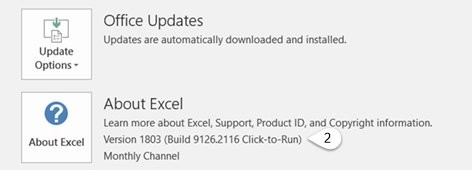
- Look under Product Information for the product name and version.
- Select About Word or About Excel.
- Read the first line of the dialog: it ends with 32-bit or 64-bit.
Repair Microsoft Visual C++ Redistributable in Windows 11 and 10
If the redistributable is installed but damaged, repair it in place before downloading anything.
- Type control panel in the taskbar search box and open Control Panel.
- Select Programs, then Programs and Features.
- Find the Microsoft Visual C++ Redistributable entries for the newest version, marked (x64) and (x86).
- Right-click the x64 entry and select Repair. If Repair is not listed, select Change and follow the prompts.
- Repeat for the x86 entry.
- Restart the PC and open the Office app again.
If no current Visual C++ entry appears at all, install the Visual C++ Redistributable packages from the first section for both architectures.
Repair Microsoft Office with Online Repair
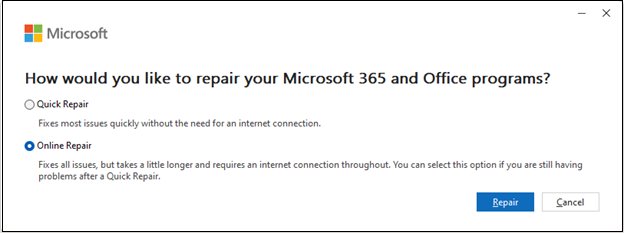
Online Repair is the thorough option, and Microsoft recommends it so everything gets fixed. Repairing the product fixes every app in the suite, not only the one showing the error.
- Close all Office apps.
- On Windows 11, right-click Start and select Installed apps. On Windows 10, right-click Start and select Apps and Features.
- Find your Microsoft 365 or Office product. On Windows 11 select the … button next to it, then Modify; on Windows 10 select it, then Modify.
- For a Click-to-run install, select Online Repair, then Repair. Quick Repair is faster but only detects and replaces corrupted files.
- For an MSI-based install, select Repair in Change your installation, then Continue.
- Follow the prompts and restart the PC when asked.
Run SFC and DISM to fix missing DLL files in Windows
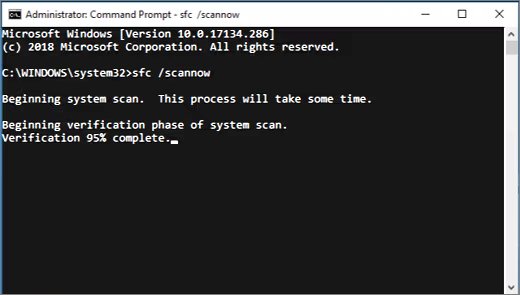
When the runtime installs cleanly but Office still fails, damaged Windows files can be the cause. Microsoft says to run DISM first, because it supplies the files SFC uses for repairs.
- Type cmd in the search box, right-click Command Prompt and select Run as administrator.
- Select Yes or enter the administrator password if prompted.
- Type
DISM.exe /Online /Cleanup-image /Restorehealthand press Enter. It can take several minutes. - When DISM finishes, type
sfc /scannowand press Enter. - Keep the window open until verification reaches 100%.
- Restart the PC and open the Office app again.
"Windows Resource Protection found corrupt files and successfully repaired them" means the scan fixed something. If it says some files could not be fixed, see the troubleshooting section below.
Update Windows and Microsoft Office to fix DLL errors
Both Windows and Office updates can replace missing components, and a centrally installed Visual C++ runtime can itself be serviced through Windows Update.
- Select Start, then Settings, then Windows Update.
- Select Check for Windows updates, then Download & install for anything offered.
- Restart if Windows asks you to.
- Open any Office app that starts, such as Word, and create a new document.
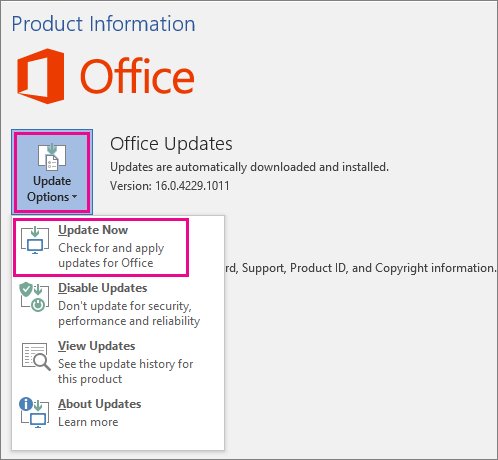
- Go to File > Account, then Update Options > Update Now. Select Enable Updates first if Update Now is missing.
- Close the confirmation window when Office reports it is up to date.
If no Office app opens at all, repair Office first; you can check for Microsoft Office updates once Word starts again.
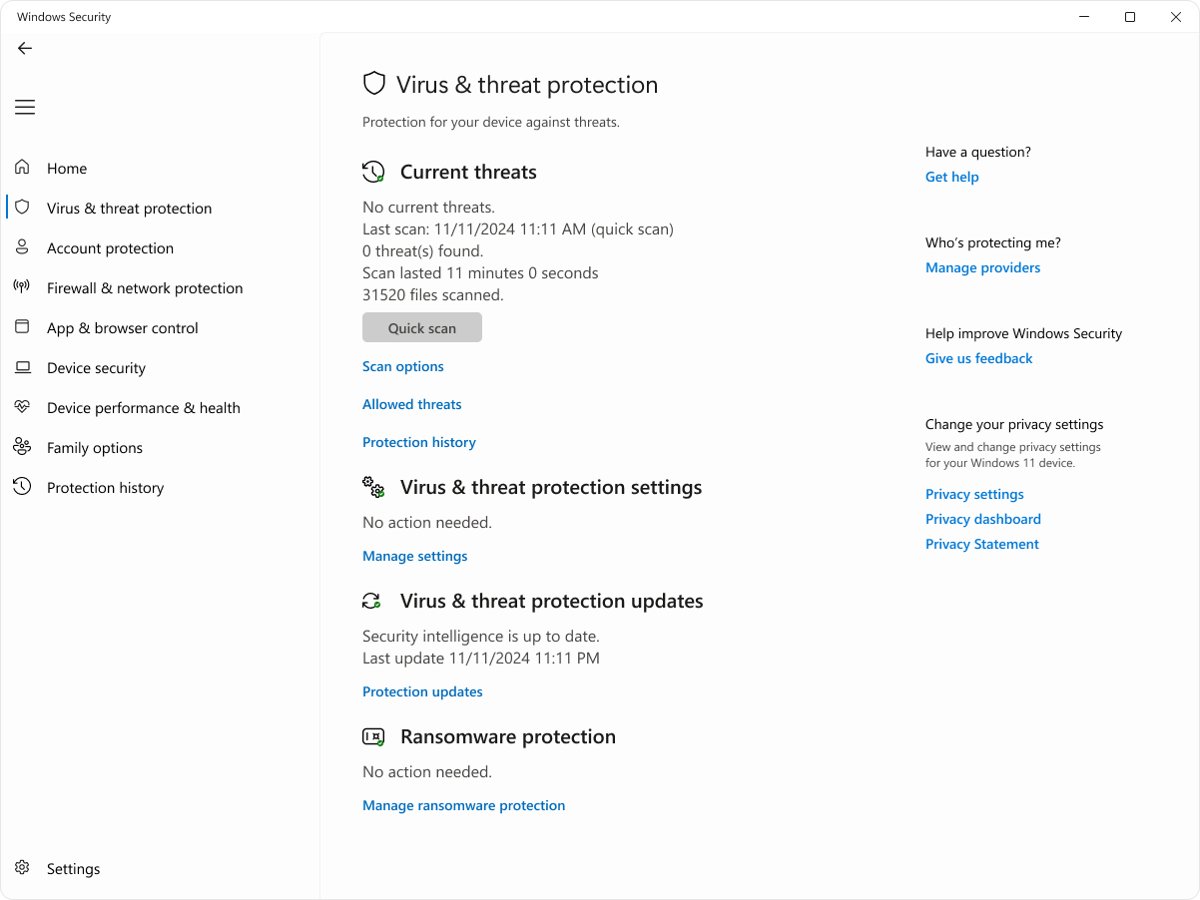
Scan for malware with Microsoft Defender
Malware can delete or replace runtime files, and an infected PC often shows the same DLL error again after a fix.
- Open the Microsoft Defender dashboard and select Device details.
- Select Manage in Windows Security.
- Select Quick scan, or select Scan options for a deeper scan type.
- For the most complete check, run Microsoft Defender Offline.
- Remove anything Defender finds, then reinstall the Visual C++ Redistributable.
Should you download Vcruntime140_1.dll from a DLL website?
No. Install the Microsoft Visual C++ Redistributable from Microsoft's own links instead of copying a single vcruntime140_1.dll into a folder. A loose DLL from a third-party site can be outdated, the wrong architecture or tampered with, and Windows Update cannot service it. Microsoft recommends central deployment through the Redistributable package because it keeps the libraries updated.
How to tell which Visual C++ Redistributable is installed
- Select Start > Settings > Apps > Installed apps.
- Type Visual C++ in the search box above the list.
- Look for the newest Microsoft Visual C++ Redistributable entries marked (x64) and (x86).
- Open Word, Excel and Outlook one at a time; each should start without the vcruntime140_1.dll dialog.
Preventative measures for Visual C++ runtime errors
- Leave the Microsoft Visual C++ Redistributable entries installed, even the ones that look like duplicates; each version and architecture serves different programs.
- Keep automatic Windows updates on so the runtime and system files stay current.
- Keep Office updates enabled under File > Account > Update Options.
- Let Office installs and updates finish before you shut down or restart.
- Get runtimes only from Microsoft's own download links, never from DLL download sites.
- Run a Microsoft Defender scan whenever several programs start failing at once.
Other runtime messages such as missing DirectX or .NET files need different packages, so match each missing DLL or runtime error to its own installer.
Vcruntime140_1.dll still missing after installing Visual C++
The error returns after installing both packages
Office files themselves are damaged, so the runtime is present but Office still fails to load.
- Run Online Repair for Office, not Quick Repair.
- Restart the PC after the repair finishes.
- Open Word first, then the other apps.
SFC says it found corrupt files but could not fix some of them
The Windows component store needs repair or the damaged file needs manual replacement.
- Run
DISM.exe /Online /Cleanup-image /Restorehealthagain from an elevated Command Prompt. - Run
sfc /scannowagain. - To see which files failed, run
findstr /c:"[SR]" %windir%\Logs\CBS\CBS.log >"%userprofile%\Desktop\sfcdetails.txt"and open sfcdetails.txt on the desktop. - If the errors remain, use the recovery options in Windows to reinstall Windows.
Update Options is missing in File > Account
Office is a volume license install, or the company manages updates through Group Policy.
- Run Windows Update, which can also deliver Office updates through Microsoft Update.
- On a work PC, contact your help desk for the Office repair or update.
Other DLLs such as MSVCP140.dll are missing too
The Visual C++ runtime is missing as a whole, not just one file.
- Install both v14 packages from the first section.
- Restart and test again, and if MSVCP140.dll still appears, replace the missing MSVCP140.dll through the same runtime reinstall.
Nothing above clears the error
The install needs help from Microsoft, the vendor of both Office and the runtime.
- Note the exact text of the dialog and the Office version from About.
- Contact Microsoft support through support.microsoft.com and describe the steps already tried.
Vcruntime140_1.dll Microsoft Office FAQ
What is vcruntime140_1.dll used for in Office?
It is part of the Microsoft Visual C++ runtime, the library that native C++ programs use for startup and shutdown. Office apps are built with Microsoft's C++ tools, so Word, Excel and Outlook cannot start without it.
Why does Office say vcruntime140_1.dll was not found?
The Visual C++ Redistributable is missing, too old or the wrong architecture, or the Office install is damaged. Installing the latest v14 x64 and x86 packages and running Online Repair fixes most cases.
Which Visual C++ version do I need for vcruntime140_1.dll?
Install the latest supported Visual C++ v14 Redistributable. Microsoft uses one v14 package for apps built with Visual Studio 2017, 2019, 2022 and 2026, and the installed version must be the same or newer than the one the app was built with.
Do I need the x86 or x64 Visual C++ package?
Install the one that matches Office: x86 for 32-bit Office and x64 for 64-bit Office. On 64-bit Windows it is safe to install both, which covers every program on the PC.
Is it safe to download vcruntime140_1.dll from a DLL site?
No. A single DLL from a third-party site may be outdated, the wrong architecture or modified. Install the Redistributable from Microsoft's aka.ms links instead, so Windows Update can keep it serviced.
Will repairing Office fix the vcruntime140_1.dll error?
Often, yes. Online Repair fixes the entire Office suite, including files a failed install or update left damaged. Run it after reinstalling the Visual C++ Redistributable if the error still appears.
Can SFC /scannow fix a missing vcruntime140_1.dll?
SFC repairs protected Windows system files, so it helps when the error comes from wider system corruption. Run DISM first, then sfc /scannow from an elevated Command Prompt, and reinstall the runtime afterwards.
Can uninstalling Visual C++ cause Office errors?
Yes. Removing a Visual C++ Redistributable entry takes the runtime libraries away from every program that uses them, including Office. Reinstall the latest v14 package to restore them.