To set the mouse for a left-handed user, open Settings, go to the Mouse page and change Primary mouse button to Right in Windows 11, or change Select your primary button to Right in Windows 10.
This guide covers the Settings and Control Panel routes, the Command Prompt shortcut, pointer settings worth changing for the left hand, laptops, and fixes for a swap that will not stick.
How to set up a left-handed mouse in Windows 11
The change takes effect the moment you pick the new value, so there is nothing to save and no restart.
Once the buttons are swapped, the right button selects and drags, and the left button opens context menus.
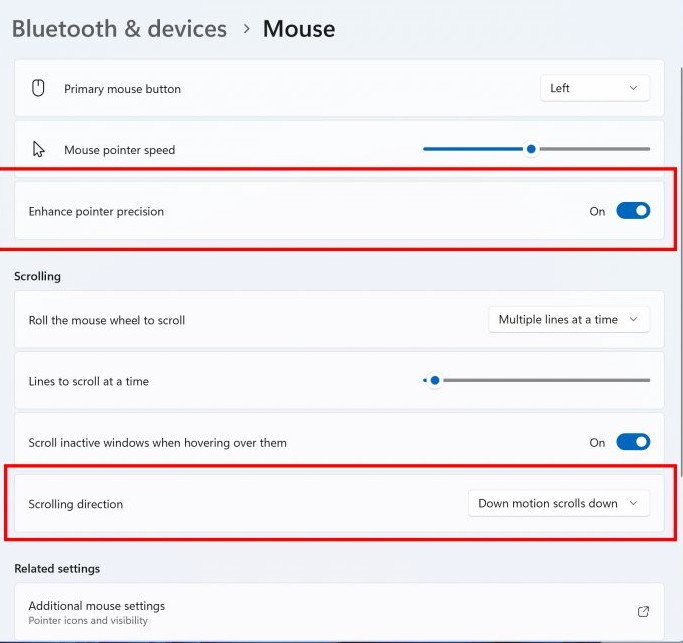
- Select Start, then select Settings.
- Select Bluetooth & devices in the left pane.
- Select Mouse.
- Open the Primary mouse button drop-down menu.
- Select Right. From this point, use the right button for normal clicks.
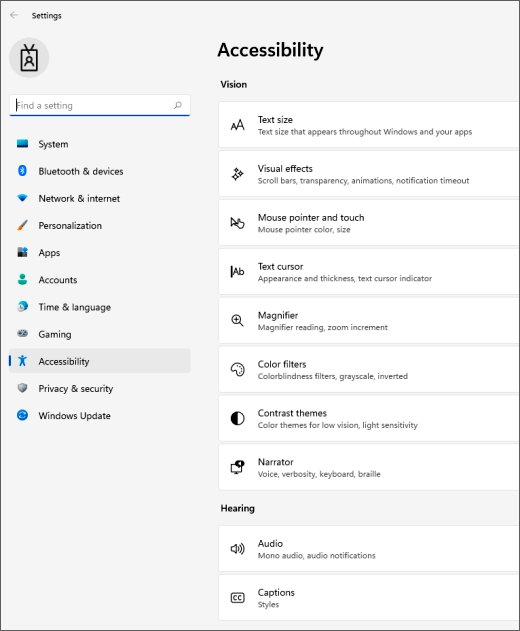
The same Primary mouse button menu also appears in Settings > Accessibility > Mouse pointer and touch, which you can open with Windows key + U.
How to change mouse to left-handed in Windows 10
Windows 10 keeps the option on the Devices settings page, and the label reads differently from Windows 11.
- Select Start, then select Settings.
- Select Devices.
- Select Mouse in the left pane.
- Open the drop-down menu under Select your primary button.
- Select Right. The swap applies straight away.
In Windows 10, Settings > Ease of Access > Mouse pointer has a Change other mouse options link that leads to the same page.
How to switch mouse buttons using Control Panel
The classic Mouse Properties dialog still exists in both versions and holds the button swap on its Buttons tab.
It is also where double-click speed and ClickLock live, so it is worth opening once anyway.
- Open the Mouse page in Settings as shown above.
- Select Additional mouse settings in Windows 11, or Additional mouse options in Windows 10.
- Select the Buttons tab in the Mouse Properties window.
- Select the check box that switches the primary and secondary buttons.
- Select OK to close the window.
To reach the same window without Settings, press Windows key + R, type control mouse and press Enter.
How to swap mouse buttons using Command Prompt
Microsoft documents no single command that flips the buttons on its own.
What Command Prompt can do is open the exact dialog or Settings page where the swap lives, which is handy on a PC where the Start menu is awkward to reach with a swapped mouse.
control.exe mouseLaunches the Mouse Properties window directly. control.exe /name Microsoft.Mouse opens the same item by its canonical name, and start ms-settings:mousetouchpad opens the Mouse page in Settings instead.
You should see: The Mouse Properties window opens. Select the Buttons tab, tick the button-swap check box and select OK.
How to change left-handed mouse settings using Registry Editor
Microsoft's developer documentation describes the swap through the SwapMouseButton function and the SPI_SETMOUSEBUTTONSWAP system setting, not through a registry value you edit by hand.
It also notes that Control Panel is normally what calls SwapMouseButton, and that the swap affects every app because the mouse is a shared resource.
Swap the buttons with Settings or Mouse Properties rather than Registry Editor. Microsoft publishes no registry value for the button swap, so a hand-made edit has no official reference to check against. The Settings and Control Panel routes write the change to your user profile for you and apply it immediately.
If a script or admin tool must set the swap, the documented route is the SystemParametersInfo call with SPI_SETMOUSEBUTTONSWAP, which can save the change to the user profile.
How to customize mouse pointer settings for left-handed use
A left-handed setup often needs more than the button swap, especially if the mouse sits on the far side of a keyboard with a number pad.
Each setting below is on a page Microsoft lists for Windows 11 and Windows 10.
| Setting | Windows 11 | Windows 10 | Why it helps a left-handed user |
|---|---|---|---|
| Pointer speed | Mouse page > Mouse pointer speed slider | Mouse page > Cursor speed slider | Less travel when the mouse sits further from the screen centre |
| Double-click speed | Additional mouse settings > Buttons > Speed: slider | Additional mouse options > Buttons > Speed: slider | A non-dominant finger on a new button often clicks slower at first |
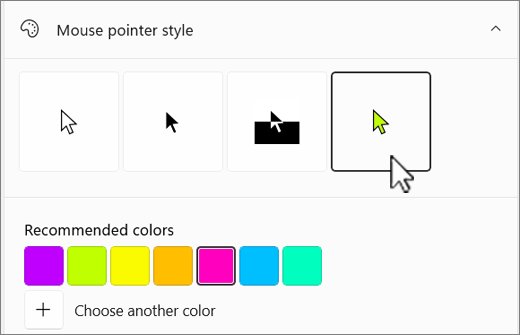
| Pointer size and colour | Accessibility > Mouse pointer and touch > Mouse pointer style and Size | Ease of Access > Mouse pointer > Change pointer size and Change pointer color | A larger pointer is easier to track while you relearn the hand |
| Wheel scrolling | Mouse page > Lines to scroll at a time and Scrolling direction | Mouse page > Choose how many lines to scroll each time | Matches scroll distance to the new hand |
| Pointer trails and Ctrl locator | Pointer Options tab > Display pointer trails and Show location of pointer when I press the CTRL key | Same options on the Pointer Options tab | Finds a lost pointer on a wide or second screen |
| Pointer shapes | Pointers tab > Scheme, or Customize > Browse for one pointer | Same Pointers tab | Lets you load a cursor file drawn for the left hand |
| ClickLock | Buttons tab > Turn on ClickLock | Buttons tab > Turn on ClickLock | Drag items without holding the button down |
For a bigger or brighter pointer, you can change cursor size and color beyond the default styles, and you can change mouse speed in finer steps.
How to configure a left-handed mouse on a laptop
On a laptop, the Primary mouse button setting is for a mouse, and the touchpad has its own page.
Microsoft lists two touchpad gestures for a right-click that work from either hand: a two-finger tap, or a press in the lower-right corner.
- Connect the USB or Bluetooth mouse and move it to the left side of the laptop.
- Set Primary mouse button (Windows 11) or Select your primary button (Windows 10) to Right on the Mouse page.
- Open Settings > Bluetooth & devices > Touchpad in Windows 11, or Settings > Devices > Touchpad in Windows 10.
- Tap the touchpad with two fingers to right-click if the lower-right corner is awkward to reach with your left hand.
- Test both devices on the desktop before you close Settings.
The Touchpad page appears only on PCs that have touchpad hardware.
Can you use a left-handed gaming mouse in Windows?
Yes. Windows treats a left-handed or ambidextrous mouse like any other USB or Bluetooth mouse, so no special driver is required for basic clicks.
Whether you also swap the buttons depends on which button sits under your index finger.
| Mouse you have | Swap in Windows? | Notes |
|---|---|---|
| Right-handed mouse used in the left hand | Yes, set the primary button to Right | Your index finger lands on the right button |
| Ambidextrous (symmetrical) mouse | Yes, if you want the index finger to click | Side buttons are usually remapped in the maker's app |
| Left-handed shaped mouse, such as the Logitech Lift for left hands | Check before swapping | Try a normal click first; swap only if the index-finger button opens a context menu |
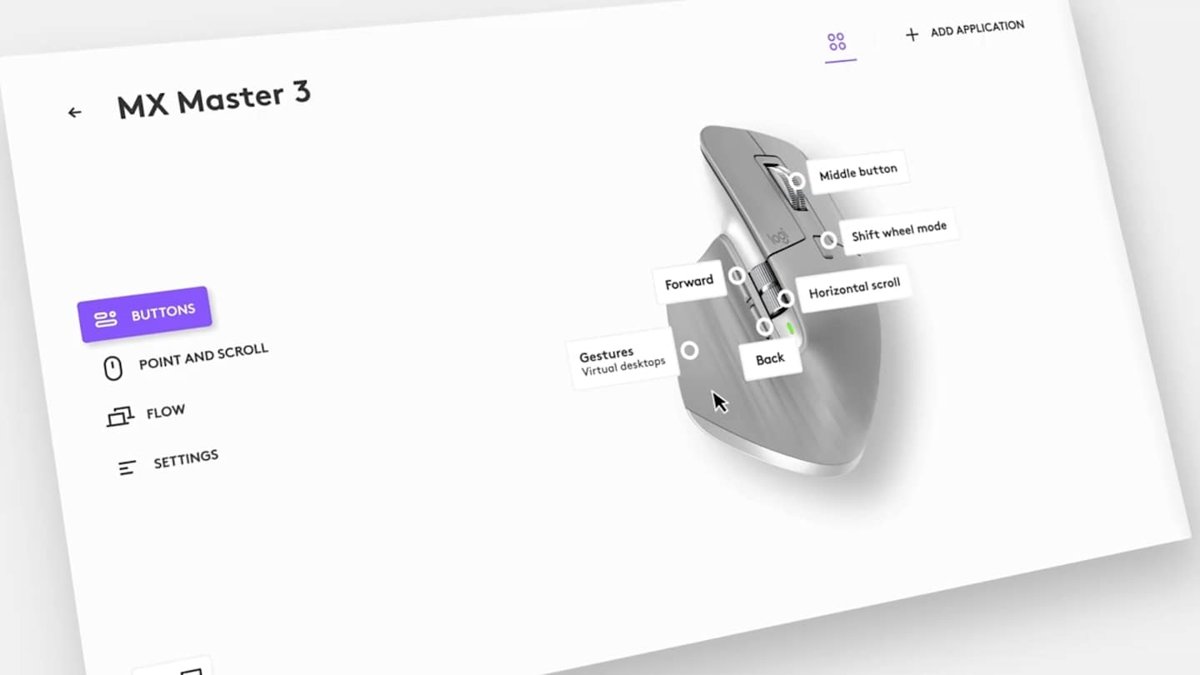
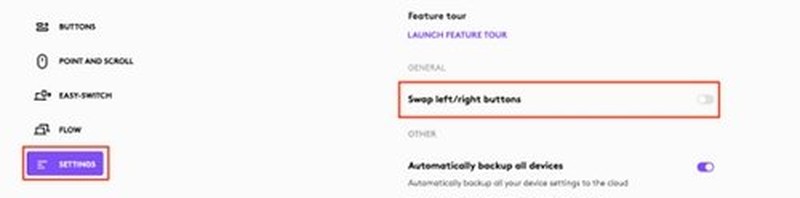
| Mouse with a maker's app (for example Logi Options+) | Use one place, not both | Logi Options+ has its own left/right swap under its mouse Settings |
Logitech sells a left-handed version of the Lift vertical mouse in graphite, in North America and Europe only.
How to test left-handed mouse buttons in Windows
A quick desktop test shows which button Windows now treats as primary.
- Press the physical left button on an empty area of the desktop. A context menu should open.
- Press Esc to close the menu.
- Press the physical right button on a desktop icon. The icon should be selected.
- Double-click a folder with the right button. It should open.
- Open the Mouse page in Settings and check that the primary button shows Right.
How to switch mouse back to right-handed in Windows
Remember that while the buttons are swapped, you use the right button to select items in the menus below.
- Open Settings and go to the Mouse page.
- Open the Primary mouse button menu in Windows 11, or the menu under Select your primary button in Windows 10.
- Select Left.
- If you used Mouse Properties, clear the button-swap check box on the Buttons tab and select OK.
Left-handed mouse not working? Try these fixes
Most left-handed mouse problems come from two tools fighting over the same setting, or from a driver problem.
Clicks still behave as right-handed
The primary button was set in a different place, or set back to Left.
- Open the Mouse page in Settings and check the primary button value.
- Set it to Right and run the desktop test above.
- Open Mouse Properties and make sure the swap check box on the Buttons tab matches.
Buttons are swapped twice or behave oddly with a Logitech mouse
The maker's app has its own swap, so turning it on there and in Windows cancels out.
- Open Logi Options+ and select your mouse.
- Select SETTINGS and look under GENERAL for the left/right swap.
- Turn the swap on in one place only, either Logi Options+ or Windows.
- Run the desktop test again.
Mouse settings keep resetting after a restart
A mouse utility applies its own button layout when it starts.
- Check the mouse maker's app for a button or handedness setting and match it to Windows.
- Set the primary button in Windows again.
- Restart the PC and run the desktop test.
Mouse does not respond, or buttons fail after the swap
A missing or damaged driver for the mouse.
- Right-click Start and select Device Manager.
- Expand Mice and other pointing devices.
- Right-click the mouse and select Update driver, then Search automatically for updated driver software.
- If that does not help, right-click the mouse, select Uninstall device and confirm with Uninstall.
- Restart the PC so Windows reinstalls the driver.
Side buttons and other extras have their own mouse button customization options in Windows 11.
Left-handed mouse FAQ
How do I change my mouse to left-handed in Windows 11?
Open Settings, select Bluetooth & devices, then Mouse, and set Primary mouse button to Right. The change applies at once, with no restart. The right button then selects and drags, and the left button opens context menus.
How do I swap left and right mouse buttons in Windows 10?
Open Settings, select Devices, then Mouse, and choose Right under Select your primary button. You can also open Additional mouse options and tick the button-swap check box on the Buttons tab of Mouse Properties.
Can I change mouse buttons without installing software?
Yes. Windows 11 and Windows 10 both have a built-in primary button setting on the Mouse page in Settings, and the Buttons tab in Mouse Properties holds the same swap. No download or third-party utility is needed for a left-handed setup.
Does changing mouse settings affect all Windows users?
No. Windows saves the button swap and other mouse settings to the signed-in user's profile, so each account on the PC keeps its own choice. While you are signed in, the swap applies to every app you use.
How do I switch my mouse back to right-handed?
Open the Mouse page in Settings and set the primary button back to Left. Remember to use the right button to make that selection, because the buttons are still swapped until you change it. Clear the check box in Mouse Properties if you used it.
Is there a command to swap mouse buttons?
Microsoft documents no single command that flips the buttons. Run control.exe mouse to open Mouse Properties, or start ms-settings:mousetouchpad to open the Mouse page in Settings, then change the primary button there.
Does Windows have a left-handed mouse pointer?
Windows lets you change pointer size, colour and style in Accessibility settings, and the Pointers tab in Mouse Properties can load any cursor file through Customize and Browse. Use that tab to apply a pointer shape drawn for the left hand.