UEFI is the better choice for almost every PC made in the last decade, because it supports Secure Boot, boot drives over 2 TB and Windows 11.
This guide explains what legacy boot and UEFI boot are, how they differ, how to check which mode your PC uses, and how to move from legacy BIOS to UEFI without wiping the drive.
Legacy BIOS vs UEFI: the short answer
Microsoft's own installation guidance says to install Windows in UEFI mode, because it includes more security features than legacy BIOS mode.
Use UEFI with a GPT system disk and Secure Boot turned on whenever your PC's firmware supports it. Windows 11 requires UEFI firmware that is Secure Boot capable, a legacy BIOS cannot boot from a GPT disk, and an MBR disk cannot address space beyond about 2.2 TB. Keep legacy BIOS only for old hardware, old operating systems or a network boot server that supports BIOS only.
What is legacy boot?
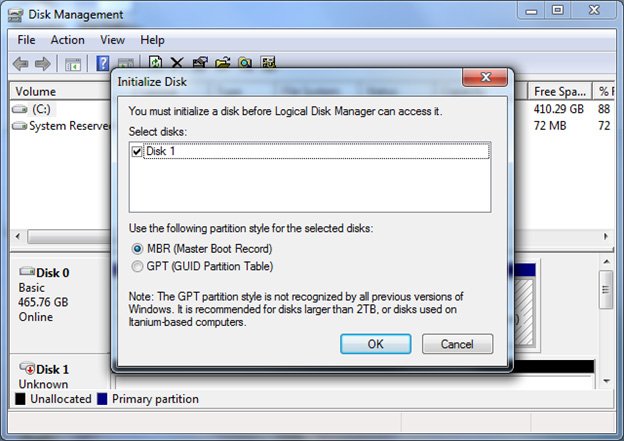
Legacy boot is the original PC startup method. The firmware reads the Master Boot Record (MBR) at the start of the disk and hands control to the boot code it finds there.
On newer PCs, legacy boot usually runs through a Compatibility Support Module (CSM) that emulates an old BIOS on top of UEFI firmware.
| Property | Legacy BIOS boot |
|---|---|
| Partition style it boots from | MBR only; a legacy BIOS cannot start a GPT-partitioned volume |
| Largest usable disk | About 2.2 TB on 512-byte sectors, because MBR uses 32-bit sector addresses |
| Partitions | Four primary entries; more need an extended partition holding logical drives |
| Secure Boot | Not available |
| Where it still appears | As the CSM or "Legacy" option in many UEFI firmware menus |
| Windows 11 | Not supported, since Windows 11 requires UEFI firmware |
The limitations of legacy BIOS follow from that design: no Secure Boot, a boot disk capped at about 2.2 TB, four primary partitions, and no support for Windows 11. Its use cases today are narrow: old hardware with no UEFI option, 32-bit or pre-Windows 7 systems, and network boot servers that support BIOS only.
What is UEFI boot?
UEFI (Unified Extensible Firmware Interface) replaces the BIOS interface. The Unified EFI Forum behind it includes AMD, Dell, HP, Intel, Lenovo, Microsoft and Phoenix Technologies, among more than 140 companies.
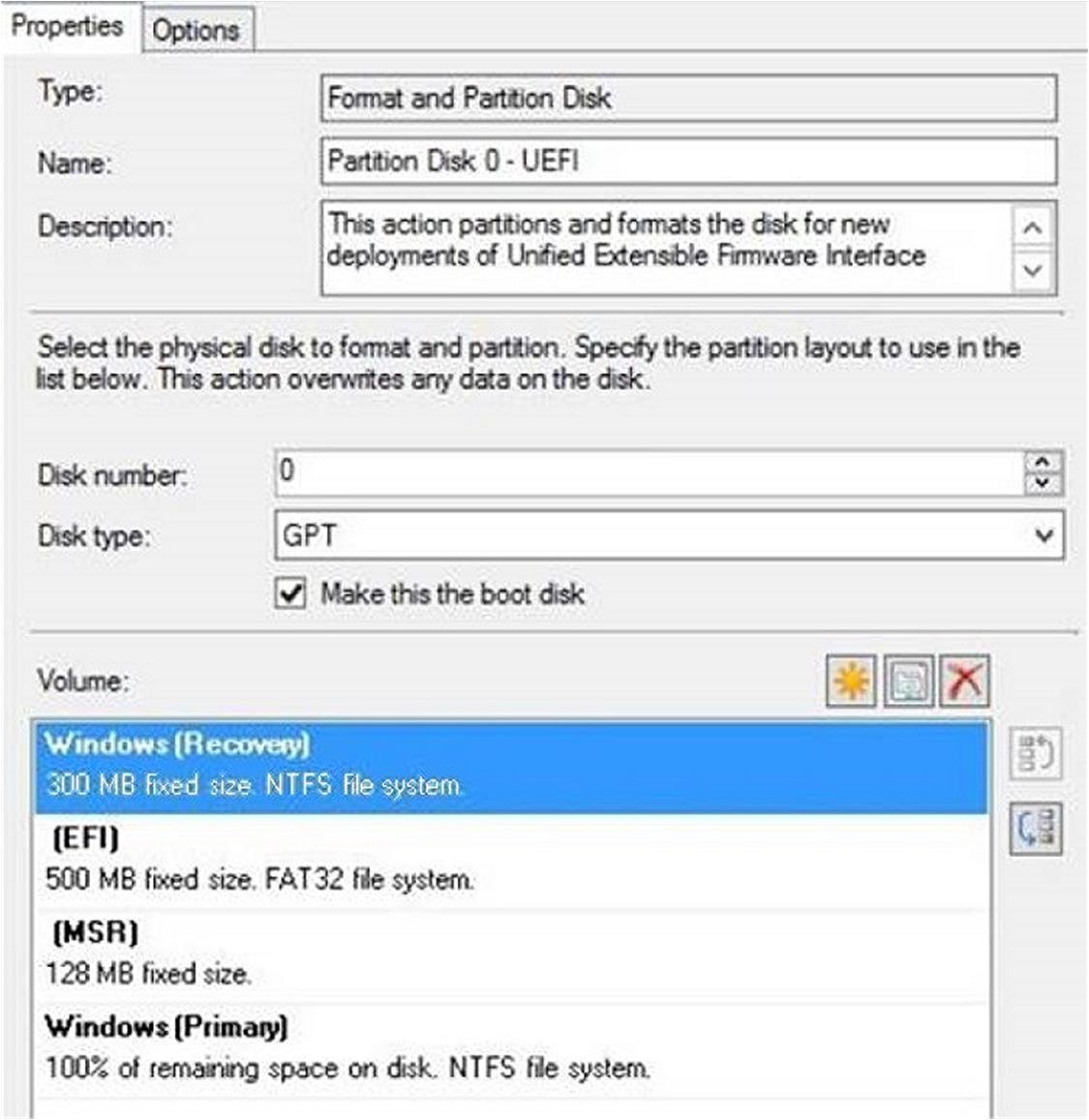
In UEFI mode, the firmware loads a boot file from a small FAT32 partition called the EFI system partition (ESP) on a GPT disk.
| Property | UEFI boot |
|---|---|
| Partition style Windows boots from | GPT; Windows does not support UEFI booting from an MBR disk |
| Required boot-disk partitions | An EFI system partition, a Microsoft Reserved partition (MSR) and the Windows partition |
| Largest disk | GPT allows up to 2^64 logical blocks; Windows file systems are limited to 256 TB each |
| Partitions | Up to 128 per disk in Windows |
| Security features | Secure Boot, Microsoft Defender Credential Guard and Exploit Guard all require UEFI |
| Windows 11 | Required: UEFI, Secure Boot capable |
How computers boot: the legacy BIOS and UEFI boot process
Every Windows PC starts in four phases. The firmware type only changes the first two; from the OS loader onward, the boot process works the same way.
| Phase | Legacy BIOS PC | UEFI PC |
|---|---|---|
| 1. PreBoot | Firmware runs the power-on self test (POST), loads the MBR into memory and runs its bootstrap code | Firmware runs POST, then loads and starts the Windows Boot Manager EFI application |
| 2. Windows Boot Manager | bootmgr on the system drive |
\EFI\Microsoft\Boot\bootmgfw.efi on the EFI system partition |
| 3. Windows OS loader | winload.exe loads boot drivers and starts the kernel |
winload.efi does the same job |
| 4. Windows kernel | ntoskrnl.exe loads the registry and remaining drivers |
Same as BIOS |
Many PCs are ready for UEFI but ship with a Compatibility Support Module (CSM) set up for the legacy BIOS path. That is the need for CSM: it lets UEFI hardware run the old MBR boot process for older equipment, operating systems and network setups.
How different is UEFI from legacy?
The differences fall into eight areas. Partition style and security matter most for a home PC; the rest matter more for IT staff and developers.
| Area | Legacy BIOS | UEFI |
|---|---|---|
| Partition scheme and storage | MBR, about 2.2 TB of addressable space | GPT, far beyond any current drive size |
| Interface | Firmware menus designed by the PC or motherboard maker | Also maker-specific; UEFI does not mandate one look |
| Boot speed | No speed advantage | Microsoft lists faster boot and resume times as a UEFI benefit |
| Security | No signature checks on boot software | Secure Boot checks the signature of every boot component before Windows loads |
| Recovery options | One partition table at the start of the disk | GPT keeps a primary and a backup partition table with CRC32 checks |
| Scalability and adaptability | Four primary partitions, extended partitions for more | 128 partitions in Windows, each with a GUID and a readable name |
| Compatibility | Runs old operating systems and BIOS-only network boot | Required by Windows 11; 64-bit Windows only for booting |
| Support for programmers | Boot code limited to the MBR's tiny boot sector | Supports UEFI firmware drivers, EFI applications and option ROMs |
A GPT disk also carries a protective MBR in its first sector, so old MBR-only tools see one large partition instead of an empty disk.
Which one should you choose?
| Your situation | Choose | Why |
|---|---|---|
| Installing or running Windows 11 | UEFI | Windows 11 requires UEFI firmware that is Secure Boot capable |
| Windows 10 on a PC that offers UEFI | UEFI | Adds Secure Boot and works with a GPT boot disk |
| Boot drive larger than 2 TB | UEFI | Only GPT addresses the full drive, and only UEFI boots GPT |
| Playing VALORANT on Windows 11 | UEFI | Riot requires TPM 2.0 and UEFI Secure Boot on Windows 11 |
| 32-bit Windows or a pre-Windows 7 system | Legacy BIOS | Booting from GPT needs 64-bit Windows on UEFI |
| Network boot server that supports BIOS only | Legacy BIOS | Microsoft notes this case requires legacy BIOS mode |
| Old PC with no UEFI option in firmware | Legacy BIOS | There is no UEFI to switch to |
How to check if your PC uses legacy BIOS or UEFI
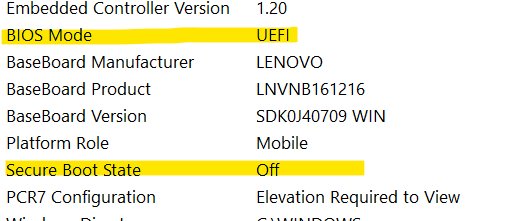
System Information shows the current firmware mode on Windows 11 and Windows 10.
- Select Start and type
msinfo32. - Open System Information from the results.
- Stay on System Summary in the left pane.
- Read the BIOS Mode row: it says UEFI or Legacy.
- Read the Secure Boot State row: On, Off or Unsupported.
Unsupported next to Secure Boot State usually goes with a Legacy BIOS Mode, because Secure Boot needs UEFI.
Check if your disk is MBR or GPT
Your system disk must be GPT before the PC can boot Windows in UEFI mode, so check it first. Open PowerShell as administrator and run:
Get-Disk | ft -AutoLists every disk with its number, size and partition style.
You should see: The Partition Style column shows MBR or GPT for each disk number.
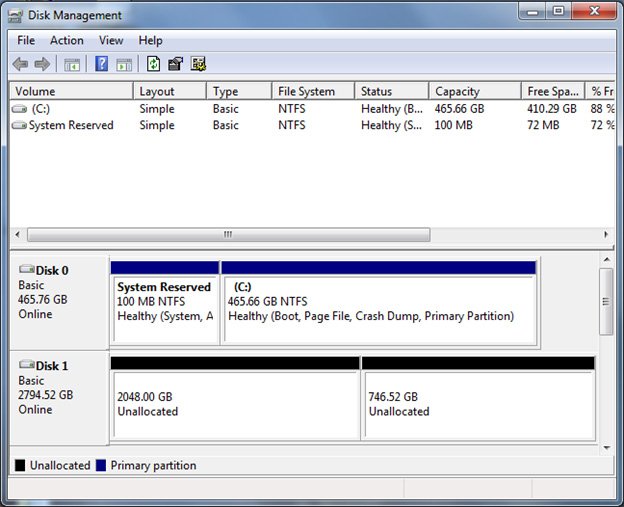
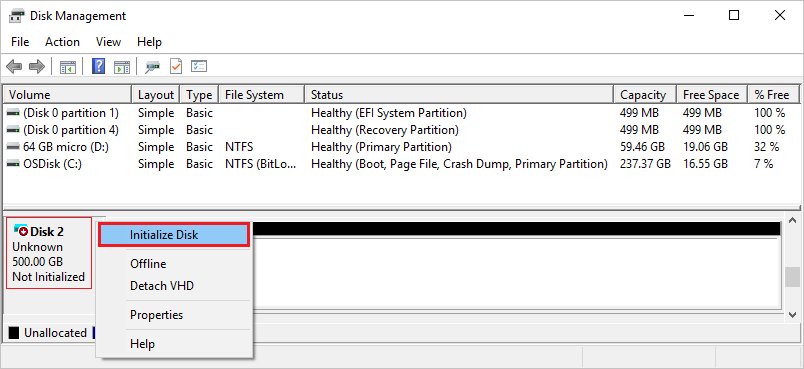
Without PowerShell, open Disk Management, right-click the disk, select Properties, and read Partition style on the Volumes tab.
How to change BIOS from legacy to UEFI without losing data
Microsoft's MBR2GPT tool, included in Windows 11 and Windows 10, converts the system disk from MBR to GPT without deleting data. Confirm the firmware offers a UEFI option before you start, and back up the drive.
The disk can have at most three primary partitions, one active system partition and no extended or logical partitions.
- If BitLocker is on, suspend protection first; after conversion, delete and recreate the protectors.
- Right-click Start and select Terminal (Admin) or open Command Prompt as administrator.
- Run
mbr2gpt /validate /allowFullOSand wait for Validation completed successfully. - Run
mbr2gpt /convert /allowFullOSto convert the system disk. - Open Settings > System > Recovery and select Restart now next to Advanced startup.
- Select Troubleshoot > Advanced options > UEFI Firmware Settings > Restart.
- In the firmware menu, set the boot mode to UEFI only and disable CSM (Compatibility Support Module).
- Enable Secure Boot, save the changes and restart.
Running from full Windows makes MBR2GPT shrink the Windows partition to create a new 100 MB FAT32 EFI system partition (260 MB on 4K-sector disks). The firmware option names vary by manufacturer.
How to change BIOS to legacy or disable legacy mode
Windows boots in the same mode it was installed with. Switching the firmware mode without matching the disk's partition style leaves the PC unable to find Windows.
On many PCs, legacy mode only becomes available after Secure Boot is turned off, so enter BIOS on your PC before you change the boot mode.
- Hold Shift while you select Power > Restart from the Start menu or sign-in screen.
- Select Troubleshoot > Advanced options > UEFI Firmware Settings > Restart.
- To disable legacy mode, set boot mode to UEFI and turn CSM off.
- To change BIOS to legacy, turn Secure Boot off under the Security or Boot menu, then enable CSM or Legacy.
- Save the changes and exit the firmware menu.
If the PC uses a manufacturer key instead, common keys are Esc, Delete, F1, F2, F10, F11 and F12. MBR2GPT only converts MBR to GPT, so a Windows install moved to UEFI cannot simply be switched back to legacy.
Toggling between UEFI and legacy only works cleanly for boot media, which can start in either mode. An installed copy of Windows needs the disk's partition style to match: GPT for UEFI, MBR for legacy.
How to install Windows in legacy BIOS mode with an MBR disk
Windows 10 can still be installed in legacy BIOS mode; Windows 11 cannot, because it requires UEFI. The installation drive must use the MBR partition style, and converting a disk with DiskPart erases everything on it, so back up first.
- Insert the Windows 10 installation USB drive or DVD and open the firmware boot menu.
- Boot your computer in legacy BIOS mode by picking the boot entry that names BIOS or Legacy for that device, such as BIOS: USB Drive, not the UEFI entry.
- In Windows Setup, press Shift + F10 to open a command prompt.
- Run
diskpart, thenlist diskto find the target drive number. - Run
select disk <number>, thenclean, thenconvert mbr, thenexit. - Close the command prompt, choose Custom as the installation type, select the unallocated space and select Next.
If Setup reports that Windows cannot be installed to the disk because of its partition style, the PC booted the media in the other firmware mode. Restart and pick the matching boot entry.
How to make Windows install media boot in the right mode every time
A USB drive with both boot paths can start in either mode, and Setup fails if the mode doesn't match the disk. Remove the boot files for the mode you don't want.
| You want | Do this on the WinPE or Windows Setup media | Result |
|---|---|---|
| UEFI boot only | Delete the bootmgr file from the root of the media |
The media can no longer start in BIOS mode |
| Legacy BIOS boot only | Delete the efi folder from the root of the media |
The media can no longer start in UEFI mode |
| Either mode, but no surprises | Preformat the target drive as GPT for UEFI or MBR for BIOS, and use an install method that doesn't reformat it | Setup stops with an error when the PC boots in the wrong mode |
UEFI and BIOS modes in WinPE: detect the firmware mode
Windows PE (WinPE) has no System Information app, so read the firmware mode from the registry at the WinPE command prompt.
reg query HKLM\System\CurrentControlSet\Control /v PEFirmwareTypeReads the PEFirmwareType value that WinPE sets at boot. In a script, run wpeutil UpdateBootInfo first so the value is current.
You should see: The value reads 0x1 when WinPE booted in BIOS mode and 0x2 when it booted in UEFI mode.
Confirm your PC now boots in UEFI mode
- Sign in to Windows after the firmware change.
- Press Win + R, type
msinfo32and press Enter. - Check that BIOS Mode reads UEFI.
- Check that Secure Boot State reads On.
- Run
Get-Disk | ft -Autoin PowerShell and confirm the system disk shows GPT.
If MBR2GPT left the old system partition with a drive letter, remove that letter in Disk Management so the small partition stays hidden.
Legacy BIOS mode problems and fixes
Why does my BIOS mode say Legacy?
Windows was installed while the firmware booted through CSM, so the disk is MBR and Windows keeps booting in legacy mode.
- Confirm the disk style with
Get-Disk | ft -Auto; legacy installs show MBR. - Check the firmware for a UEFI boot mode option.
- Convert the disk with
mbr2gpt /convert /allowFullOS. - Switch the firmware to UEFI only and disable CSM.
Windows 11 says the PC does not meet requirements on legacy BIOS
Windows 11 needs UEFI firmware that is Secure Boot capable, plus TPM 2.0.
- Move the PC from legacy to UEFI with MBR2GPT and the firmware steps above.
- Turn on Secure Boot in the firmware menu.
- Enable TPM 2.0 in BIOS if the firmware has it turned off.
- Run the Windows 11 compatibility check again.
VALORANT will not start on Windows 11 with legacy BIOS
Riot Vanguard requires TPM 2.0 and UEFI Secure Boot on Windows 11.
- Check BIOS Mode and Secure Boot State in
msinfo32. - Convert the system disk to GPT with MBR2GPT.
- Set the firmware to UEFI, disable CSM and enable Secure Boot.
- Restart and launch the game again.
MBR2GPT validation fails
The disk breaks one of the tool's layout rules, such as an extended partition or more than three primary partitions.
- Read the reason MBR2GPT prints in the console.
- Open
setupact.logandsetuperr.login%windir%for detail. - Fix the layout the log names, then run
/validateagain.
Legacy BIOS and UEFI FAQ
What is legacy BIOS mode?
Legacy BIOS mode is the older way a PC starts, reading boot code from the Master Boot Record of an MBR disk. On modern PCs it usually runs through a Compatibility Support Module (CSM) inside UEFI firmware, and it does not support Secure Boot.
Why is my BIOS mode legacy?
Your BIOS mode shows Legacy because Windows was installed while the firmware booted in CSM or legacy mode. Windows keeps booting in the mode it was installed with, so it stays legacy until the disk is converted to GPT and the firmware is switched to UEFI.
Can I change BIOS from legacy to UEFI?
Yes, if your PC's firmware supports UEFI. Convert the system disk from MBR to GPT with Microsoft's MBR2GPT tool, then set the firmware to UEFI and disable CSM. MBR2GPT keeps your files, but back up the drive before converting.
How do I change BIOS mode from legacy to UEFI?
Run mbr2gpt /validate /allowFullOS and then mbr2gpt /convert /allowFullOS from an administrator command prompt. Restart into UEFI Firmware Settings, set the boot mode to UEFI, disable CSM and enable Secure Boot. System Information should then show BIOS Mode as UEFI.
Can I install Windows 11 on legacy BIOS?
No, not as a supported installation. Microsoft lists UEFI firmware that is Secure Boot capable as a Windows 11 system requirement. Convert the PC to UEFI first, or Windows 11 setup and the upgrade check will report that the PC does not meet requirements.
Can I play VALORANT if my BIOS is legacy?
Not on Windows 11. Riot states that VALORANT on Windows 11 requires TPM 2.0 and UEFI Secure Boot, and Secure Boot is not available in legacy BIOS mode. Riot does not list those two requirements for Windows 10.
Does legacy BIOS support GPT?
Only for data disks. A legacy BIOS cannot boot Windows from a GPT-partitioned disk, so the system disk must be MBR. Windows can still read and write GPT data disks attached to a legacy BIOS PC.
How do I disable legacy BIOS?
Restart into UEFI Firmware Settings from Settings > System > Recovery > Advanced startup. Set the boot mode to UEFI and disable CSM or Legacy support. Convert the system disk to GPT first, or Windows will not boot afterwards.
How do I change BIOS to legacy?
Open the firmware menu, turn off Secure Boot, then enable CSM or Legacy boot. This only boots an MBR disk, so a Windows installation on a GPT disk will stop starting until you switch back to UEFI.
Is UEFI faster than legacy BIOS?
Microsoft lists faster boot and resume times among the benefits of UEFI firmware. The real difference depends on the PC and its firmware, and security and drive-size support are bigger reasons to choose UEFI.
Bottom line: should you use legacy BIOS or UEFI?
Run Windows in UEFI mode with a GPT system disk and Secure Boot on, and convert a legacy install with MBR2GPT if your firmware supports UEFI. UEFI is required for Windows 11, unlocks Secure Boot and boot drives over 2 TB, and MBR2GPT makes the move without reinstalling. Legacy BIOS only makes sense on hardware or software that cannot use UEFI.