Your PC is protected against boot-level malware and key theft only when TPM 2.0 and Secure Boot are both turned on, and neither one stops phishing or a malicious app you run yourself.
This guide explains what each feature does, how to check both in Windows 11 and Windows 10, how to turn them on in UEFI firmware on Dell and ASUS hardware, and what to do when a check fails.
Is Your PC Really Secure With Them Enabled?
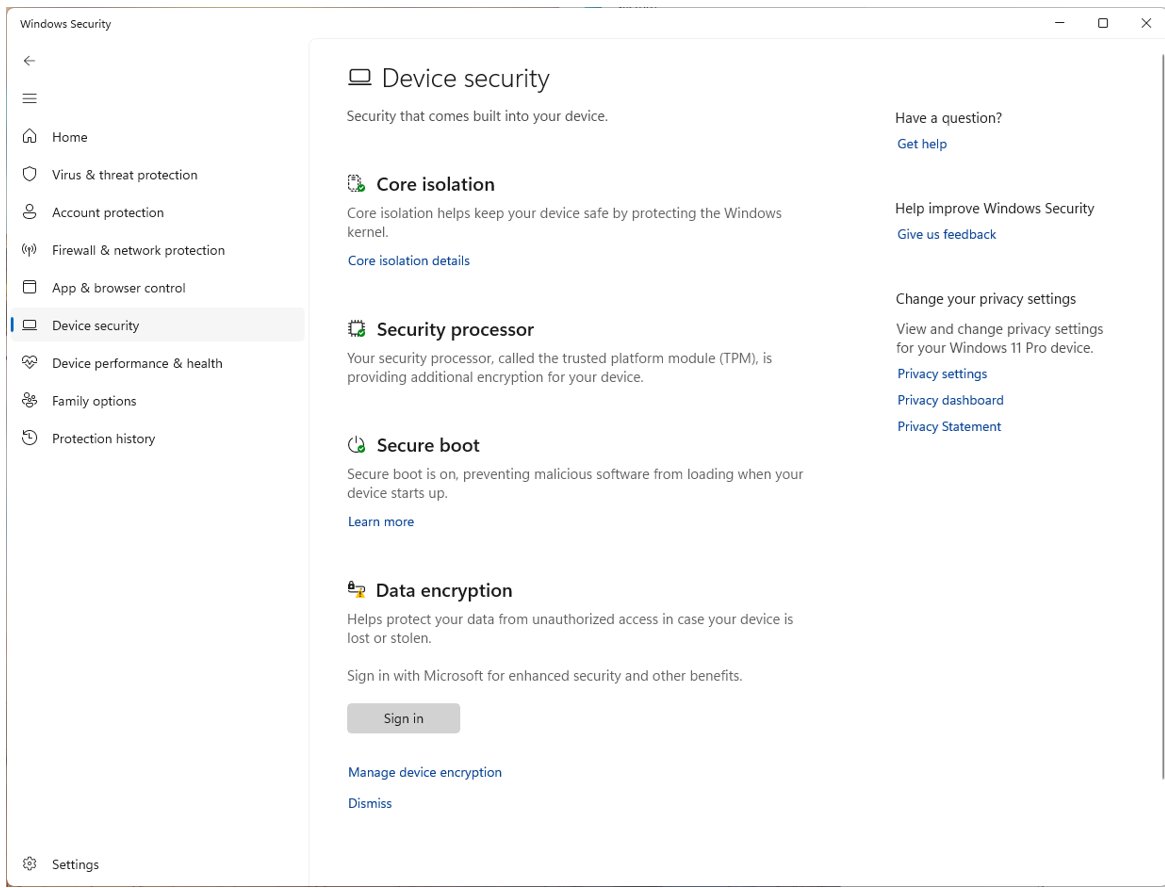
Open Windows Security, select Device security and read the message at the bottom of the page. That one screen tells you whether both features are working.
If Device security says Your device meets the requirements for standard hardware security, TPM 2.0 and Secure Boot are both on and your startup chain is protected. If it says Standard hardware security not supported, at least one of them is off or missing, and the checks below show which. Microsoft ties the standard hardware security message to four requirements: TPM 2.0, Secure Boot enabled, Data Execution Prevention (DEP) and UEFI Memory Attributes Table (UEFI MAT). With both features on, a bootkit cannot replace your Windows bootloader unnoticed, and your BitLocker and Windows Hello keys stay inside tamper-resistant hardware. You still need Microsoft Defender Antivirus, SmartScreen and User Account Control for the threats that arrive after Windows starts.
Two stronger levels exist. Your device meets the requirements for enhanced hardware security adds memory integrity, and Your device has all Secured-core PC features enabled adds System Management Mode protection.
How to Check and Enable TPM 2.0 and Secure Boot on Your PC
Run the checks first, then match what you see to a row. Every fix that says UEFI happens in the firmware setup screen, not inside Windows.
| What the check shows | What to do | Why |
|---|---|---|
| Device security shows the standard hardware security message | Nothing. Both features are on | That message needs TPM 2.0 and Secure Boot enabled |
tpm.msc says Compatible TPM cannot be found |
Turn on the TPM in UEFI (Intel PTT, AMD fTPM or Security Device) | Microsoft states this message means the TPM is disabled |
| Specification Version shows 1.2 | Check your manufacturer's support site for your model | Windows 11 requires TPM version 2.0 |
| System Information shows BIOS Mode UEFI and Secure Boot State not On | Turn on Secure Boot in UEFI | The firmware is in the right mode; only the switch is off |
| System Information shows BIOS Mode Legacy | Convert the disk to GPT with MBR2GPT, then switch the firmware to UEFI, then turn on Secure Boot | TPM 2.0 is not supported in Legacy or CSM mode, and Windows stops booting if you switch modes before converting |
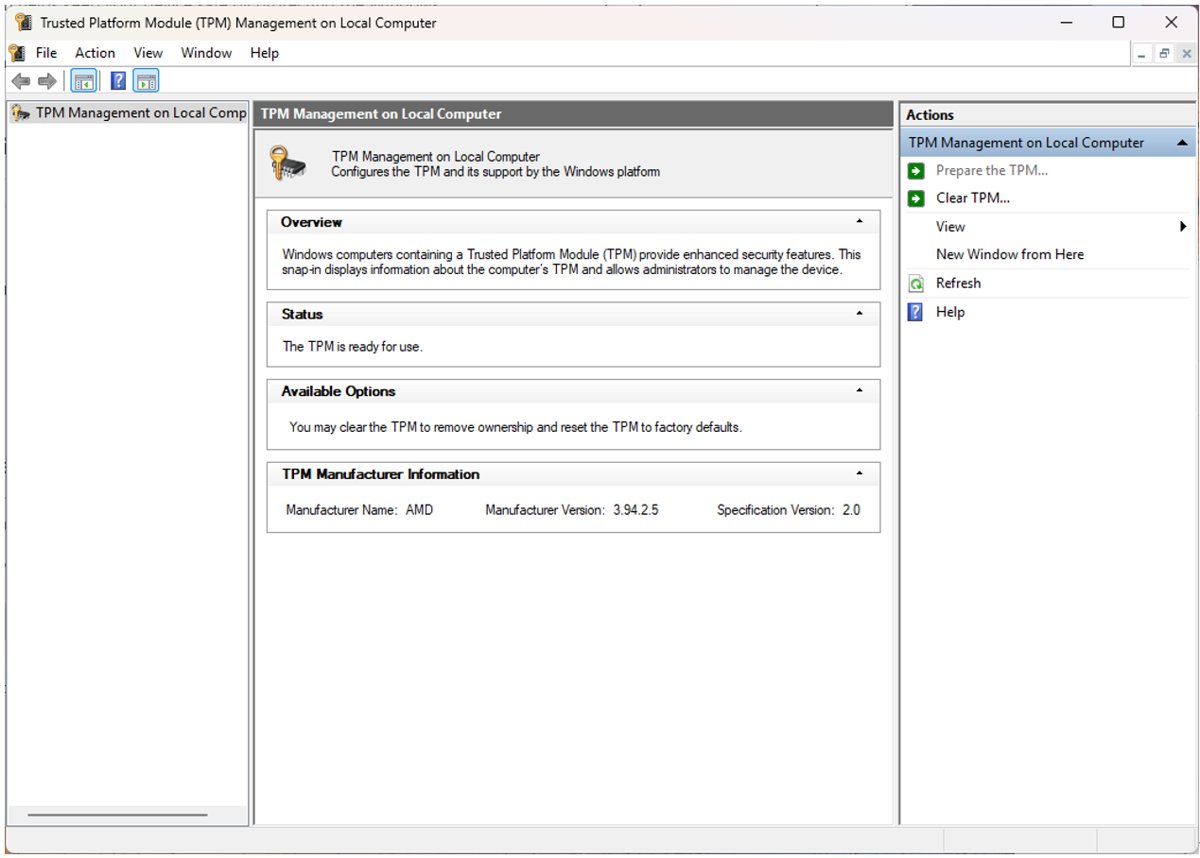
Check TPM 2.0 with tpm.msc
The TPM Management console is the quickest read-only check. Microsoft recommends letting Windows manage the TPM itself, so use this console to read the version, not to change settings.
tpm.mscPress Windows key + R, type tpm.msc and press Enter. The console opens the Trusted Platform Module (TPM) Management window for this PC.
You should see: Under TPM Manufacturer Information, Specification Version reads 2.0. If the window says Compatible TPM cannot be found, the TPM is disabled in firmware.
No Run box? Open Windows Security > Device security > Security processor details and read Specification version instead. Dell also documents a third check: right-click Start, select Device Manager and expand Security devices to find Trusted Platform Module 2.0.
Check Secure Boot State in System Information
System Information shows the firmware mode and the Secure Boot switch side by side. Read both, because the fix depends on the pair.
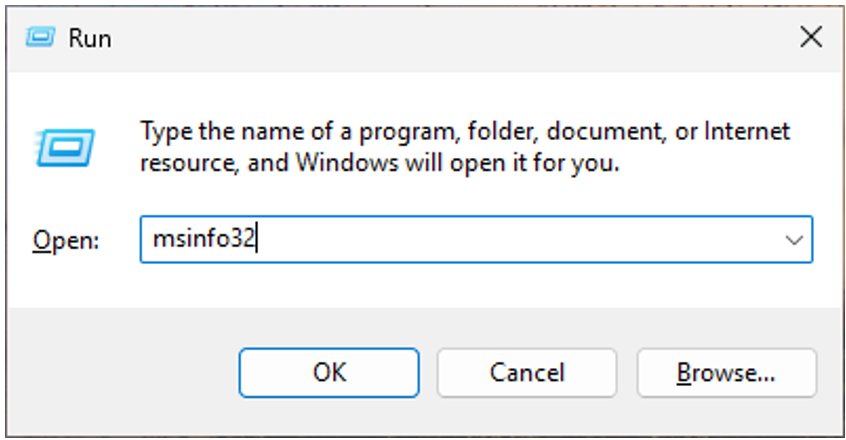
msinfo32Press the Windows key, type msinfo32 and open System Information. System Summary is selected by default; look at the right-hand pane.
You should see: BIOS Mode reads UEFI and Secure Boot State reads On. Any other combination means Secure Boot is not protecting this startup.
Windows Security gives the same answer in plain language. Open Device security and look for the Secure Boot section, which also reports whether the updated Secure Boot certificates are installed.
Why Windows 11 Requires TPM 2.0 and Secure Boot
Microsoft's Windows 11 specifications list both features under separate lines. The wording matters, because Secure Boot only has to be available, while TPM 2.0 has to be present.
| Requirement | Microsoft's wording | What it gives you |
|---|---|---|
| System firmware | UEFI, Secure Boot capable | Firmware that can refuse an unsigned or modified bootloader |
| TPM | Trusted Platform Module (TPM) version 2.0 | Hardware key storage for BitLocker, device encryption and the Windows Hello PIN |
| Firmware mode for TPM 2.0 | Native UEFI only; Legacy and CSM options disabled | Microsoft states TPM 2.0 is not supported in Legacy and CSM modes |
| Credential protection | Windows 11 requires TPM 2.0 by default | Microsoft says this makes Credential Guard with System Guard easier to turn on |
| New PCs since July 28, 2016 | Must implement and enable TPM 2.0 by default | New device models from that date ship with TPM 2.0 built in and turned on |
The PC Health Check app assesses the whole list at once. Virtual machines face the same TPM 2.0 and Secure Boot requirement.
Turn on TPM 2.0 in UEFI firmware settings
Save your work first, because the PC restarts into firmware setup. If BitLocker is on, have your recovery key ready; Microsoft lists turning off, disabling or clearing the TPM among the events that trigger BitLocker recovery.
- On Windows 11, open Settings > System > Recovery. On Windows 10, open Settings > Update & Security > Recovery.
- Next to Advanced startup, select Restart now.
- Select Troubleshoot > Advanced options > UEFI Firmware Settings, then select Restart.
- In firmware setup, open the Advanced, Security or Trusted Computing menu.
- Find the TPM option. It may be named Security Device, Security Device Support, TPM State, AMD fTPM switch, AMD PSP fTPM, Intel PTT or Intel Platform Trust Technology.
- Set it to On or Enabled.
- Save the change and exit. On ASUS motherboards, press F10.
Intel PTT and AMD fTPM are firmware TPMs. Microsoft states Windows uses any compatible TPM the same way, whether it is a discrete chip, integrated or firmware based.
Turn on Secure Boot in UEFI firmware settings
Check BIOS Mode in System Information before you start. If it reads Legacy, stop and convert the disk first, as covered in the troubleshooting section below.
- Open UEFI Firmware Settings the same way as for the TPM: Settings > Recovery > Advanced startup > Restart now > Troubleshoot > Advanced options.
- Make sure the boot mode is set to UEFI, and that UEFI is the first or only option if both UEFI and Legacy (CSM) are listed.
- Open the Secure Boot page. On Dell it is a Secure Boot option; on ASUS motherboards it is Boot > Secure Boot.
- Set Secure Boot to Enabled. On ASUS motherboards, set OS Type to Windows UEFI mode and Secure Boot Mode to Standard.
- Select Apply or Save and Exit on Dell, or press F10 on ASUS.
- Let Windows start normally, then run the checks again.
Nothing inside Windows can flip this switch for you, so the firmware screen is the only route.
Where Dell and ASUS firmware keep the TPM and Secure Boot options
Menu names vary by model, and Dell says to check the service or owner's manual for exact locations. These rows come from each manufacturer's own support pages.
| PC or board | Enter setup | TPM option | Secure Boot option |
|---|---|---|---|
| Dell laptops and desktops | Tap F2 about once a second at the Dell logo | Security: set Intel Platform Trust Technology, Trusted Platform Module, TPM 2.0 Security or Firmware TPM to On or Enabled | Secure Boot > Enabled, then Apply or Save and Exit |
| ASUS motherboard, Intel CPU | Press Del at the ASUS or ROG logo | Advanced > PCH-FW Configuration > enable PTT | Boot > Secure Boot: OS Type Windows UEFI mode |
| ASUS motherboard, AMD CPU | Press Del at the ASUS or ROG logo | Advanced > AMD fTPM configuration > TPM Device Selection > Firmware TPM | Boot > Secure Boot: Secure Boot Mode Standard |
| Any other PC | Use UEFI Firmware Settings from Advanced startup | Look under Advanced, Security or Trusted Computing | Look under Security > Secure Boot or the Boot page |
On ASUS boards, Advanced > Trusted Computing also shows the TPM version inside firmware setup.
How to confirm both features are on after the restart
- Press Windows key + R, run
tpm.mscand confirm Specification Version reads 2.0. - Run
msinfo32and confirm BIOS Mode reads UEFI and Secure Boot State reads On. - Open Windows Security > Device security.
- Confirm the page ends with Your device meets the requirements for standard hardware security.
- Check the Secure Boot section for the message Secure Boot is on and all required certificate updates have been applied.
The original Secure Boot certificates from 2011 expire in 2026. Microsoft delivers the 2023 replacements through Windows Update, with the rollout starting in April 2026, so keep Windows Update running.
What TPM 2.0 Actually Does
Microsoft describes the TPM as a secure crypto-processor with physical defences that make it tamper-resistant. Malicious software cannot tamper with its security functions.
| TPM function | What it means for you |
|---|---|
| Generates, stores and limits the use of cryptographic keys | A key marked non-exportable cannot leave the chip, so it cannot be copied and used on another machine |
| Locks out repeated guesses | Too many wrong authorization attempts trigger its dictionary attack logic, which blocks further guesses at your PIN |
| Records boot measurements | Firmware and Windows startup components are measured into the TPM, which proves how the PC started |
| Identifies the device | A unique RSA key burned into the chip can authenticate the PC |
| Backs Windows features | Windows Hello uses it to secure your PIN, and BitLocker can keep its drive key in it |
| Version 2.0 over 1.2 | TPM 1.2 supports only RSA and SHA-1; TPM 2.0 supports newer algorithms and a lockout policy that Windows configures |
How Secure Boot Protects the Startup Process
Without Secure Boot, a PC runs whatever bootloader is on the drive and cannot tell Windows from a rootkit. Secure Boot adds signature checks before anything else runs.
| Stage | What Secure Boot checks |
|---|---|
| Power on | UEFI firmware verifies that the firmware itself is digitally signed, which reduces the risk of firmware rootkits |
| Bootloader load | The firmware examines the bootloader's digital signature to confirm it has not been modified |
| Start decision | An intact bootloader starts only if a trusted certificate signed it, such as Microsoft's on Certified For Windows PCs, or you approved its signature manually |
| Factory defaults | Certified For Windows x86 PCs ship with Secure Boot enabled and trusting Microsoft's certificate; Secured-core PCs also distrust the Microsoft 3rd Party UEFI CA by default |
| Settings changes | Software cannot change Secure Boot settings; only someone at the firmware screen can turn it off or trust a new bootloader |
How TPM 2.0 and Secure Boot Work Together
Secure Boot decides which bootloader may start, and the TPM records and protects what did start. Microsoft chains three more protections between them.
| Feature | What it actually does | What it stops |
|---|---|---|
| Trusted Boot | The bootloader verifies the Windows kernel, which verifies boot drivers, startup files and ELAM | Kernel and driver rootkits in modified startup files |
| Early Launch Anti-Malware (ELAM) | Loads the anti-malware driver before other non-Microsoft boot drivers and blocks untrusted ones | A rootkit posing as a boot driver |
| Measured Boot | Firmware stores hashes of everything loaded before anti-malware in the TPM, which signs the log for a remote server | Infected PCs hiding from a company's health checks |
Microsoft notes Secure Boot and Measured Boot are only possible on PCs with UEFI 2.3.1 and a TPM chip, and Measured Boot needs both a TPM and UEFI Secure Boot.
Fix TPM and Secure Boot checks that fail
tpm.msc says "Compatible TPM cannot be found"
Microsoft reads this message as a TPM that is disabled in firmware.
- Open UEFI Firmware Settings from Advanced startup.
- Look under Advanced, Security or Trusted Computing for Intel PTT, AMD fTPM, Security Device or TPM State.
- Set it to On or Enabled, save and exit.
- Run
tpm.mscagain. If Device Manager shows a yellow triangle on Trusted Platform Module 2.0, right-click it and select Update driver, as Dell advises.
Secure Boot State is not On, or the PC says Secure Boot is unsupported
Windows was installed in Legacy (CSM) mode on an MBR disk, and Secure Boot and TPM 2.0 need native UEFI.
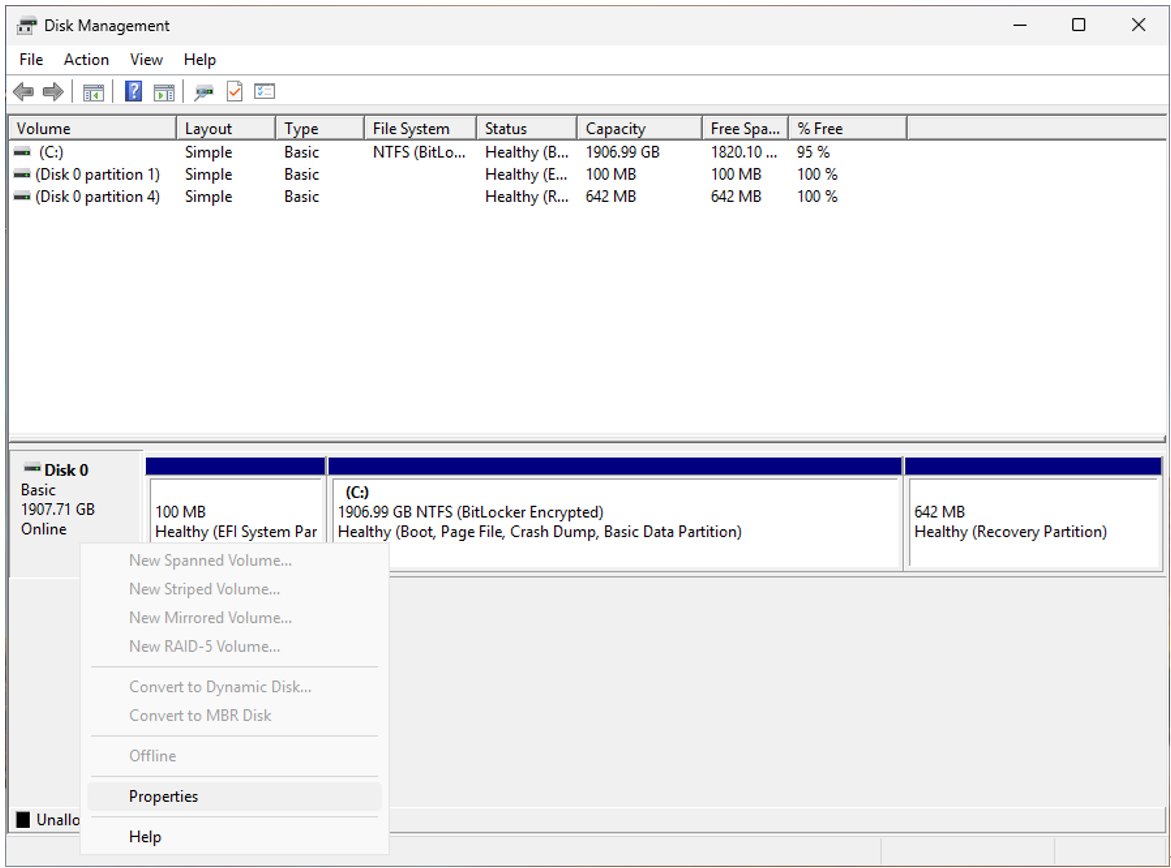
- Press Windows key + R, type
diskmgmt.mscand press Enter. Right-click the disk that holds Windows and select Properties. - On the Volumes tab, read Partition style. GPT is ready for UEFI; MBR is not.
- Back up your files. Dell warns that switching Legacy to UEFI without preparation makes the current Windows installation unbootable.
- Convert the disk with Microsoft's MBR2GPT tool, for example
mbr2gpt /convert /allowFullOSfrom an elevated Command Prompt. Microsoft notes the conversion cannot be undone. - In firmware, switch the boot mode to UEFI, disable CSM, then turn on Secure Boot.
Specification Version shows 1.2 instead of 2.0
The PC has an older TPM, and Windows 11 needs version 2.0.
- Open Windows Security > Device security > Security processor details to confirm the version.
- Check firmware setup for a separate Intel PTT or AMD fTPM option, which Dell describes as firmware TPMs that support the TPM 2.0 requirement.
- Look up your exact model on the manufacturer's support site for TPM 2.0 availability.
- If no TPM 2.0 option exists, the PC does not meet the Windows 11 requirement.
Common Myths and Limitations
Both features close specific gaps in the startup chain. They are not a replacement for the protections that run after you sign in.
| Myth | What is true |
|---|---|
| Secure Boot blocks all malware | It checks only the startup chain. Malicious apps you run later are the job of Microsoft Defender Antivirus, SmartScreen and User Account Control. |
| The TPM encrypts your drive by itself | The TPM stores keys. BitLocker or device encryption does the encrypting, and device encryption requires TPM 2.0 with Modern Standby support. |
| A firmware TPM is weaker than a real chip | Microsoft takes no position on discrete, integrated or firmware TPMs, and Windows uses any compatible one the same way. |
| Secure Boot locks you out of Linux | Certified Windows PCs trust signed bootloaders and must let you add your own signature or turn Secure Boot off. Turning it off removes bootkit protection. |
| Once on, nothing needs maintaining | Secure Boot relies on certificates. The 2011 set expires in 2026, and Windows Update installs the 2023 replacements. |
| Turning the TPM off is harmless | Turning off, disabling or clearing the TPM triggers BitLocker recovery, and clearing it deletes its keys. Back up your data before you clear the TPM. |
Microsoft notes you might have to disable Secure Boot to run some graphics cards, hardware, Linux or earlier versions of Windows. Re-enable it once that job is done.
Bottom Line
Keep TPM 2.0 and Secure Boot both turned on. If a check fails, confirm the PC boots in UEFI mode from a GPT disk and save your BitLocker recovery key, then switch them on in firmware setup. Together they close the window before Windows loads, which antivirus cannot see, and keep your encryption and sign-in keys in hardware. The cost is one firmware visit, and the only documented reasons to turn Secure Boot off are specific graphics cards, hardware, Linux or older Windows, after which Microsoft recommends turning it back on.
Frequently Asked Questions
What is TPM and Secure Boot?
TPM is a tamper-resistant security processor that creates and stores encryption keys for BitLocker and Windows Hello. Secure Boot is a UEFI firmware feature that lets only trusted, digitally signed software start during boot. Together they protect your keys and the startup chain before Windows loads.
How do I check for TPM 2.0 and Secure Boot?
Run tpm.msc and confirm Specification Version is 2.0, then run msinfo32 and confirm Secure Boot State is On. For a single check, open Windows Security > Device security; the standard hardware security message means both are on.
How do I enable Secure Boot and TPM 2.0?
Open Settings > System > Recovery, select Restart now under Advanced startup, then Troubleshoot > Advanced options > UEFI Firmware Settings. Turn on the TPM option (Intel PTT, AMD fTPM or Security Device) and Secure Boot, then save and exit.
How do I get to TPM 2.0 and Secure Boot on Dell?
Tap F2 about once a second when the Dell logo appears. Under Security, set Intel Platform Trust Technology, Trusted Platform Module, TPM 2.0 Security or Firmware TPM to On. Set Secure Boot to Enabled, then select Apply or Save and Exit.
Do I need both TPM 2.0 and Secure Boot enabled for Windows 11?
Windows 11 requires TPM 2.0 and firmware that is UEFI and Secure Boot capable. Microsoft's wording asks for Secure Boot capability rather than an enabled switch, but turning it on is what actually protects the startup chain.
Will enabling TPM 2.0 or Secure Boot delete my files?
Switching the options on is not where the documented risks lie. Dell warns that changing the boot mode from Legacy to UEFI without converting the disk makes Windows unbootable, and Microsoft says to back up data before clearing the TPM. Convert with MBR2GPT first and keep your BitLocker recovery key.
Does Secure Boot stop all malware and boot attacks?
No. Secure Boot blocks unsigned or modified bootloaders, and Trusted Boot checks the rest of the Windows startup. It does nothing against a malicious app you run after sign-in, which is why Microsoft Defender Antivirus, SmartScreen and User Account Control still matter.
Can I enable Secure Boot if my PC says it is unsupported?
Usually, if the PC has UEFI firmware. The common cause is Windows running in Legacy (CSM) mode on an MBR disk. Convert the disk to GPT with MBR2GPT, switch the firmware to UEFI, then turn on Secure Boot.
Why do some games require TPM 2.0 and Secure Boot?
ASUS reports that modern anti-cheat systems verify boot integrity and the security processor before a game launches. A game that asks for both is checking that no cheat loaded before Windows, so turn both on in UEFI rather than looking for a workaround.
Is there a TPM 2.0 or Secure Boot download?
No. TPM 2.0 is hardware or firmware in your PC, and Secure Boot is a UEFI setting, so both are switched on in firmware setup rather than installed. Only firmware updates and Secure Boot certificate updates arrive as downloads, from your PC maker or Windows Update.


![How to Enable & Use Thunderbolt on Windows 11 [Easy Guide]](https://techdows.com/wp-content/uploads/2026/10/How-to-Enable-Use-Thunderbolt-on-Windows-11-Easy-Guide-600x338.jpg)
How To Enable Secure Boot Windows 11 (detailed Guide) - Techdows
[…] For how the TPM and Secure Boot work together, see TPM 2.0 and Secure Boot Explained. […]
How to Find and Install TPM 2.0 Module on Windows PC - Techdows
[…] 11 also needs UEFI firmware that is Secure Boot capable. What Secure Boot does and how to turn it on is covered […]
NVRAM explained: unsung hero of data persistence - Techdows
[…] Secure Boot depends on them surviving every power cycle, which is also why it is tied to the TPM and Secure Boot requirements of Windows […]