To access BIOS on your PC, press the manufacturer's setup key as it starts, choose UEFI Firmware Settings from Advanced startup in Windows, or run shutdown /r /fw /t 0.
This guide covers each of the 3 ways, the keys Dell, HP, ASUS, Lenovo and Surface publish, what to do when Windows will not boot, and why the UEFI option can be missing.
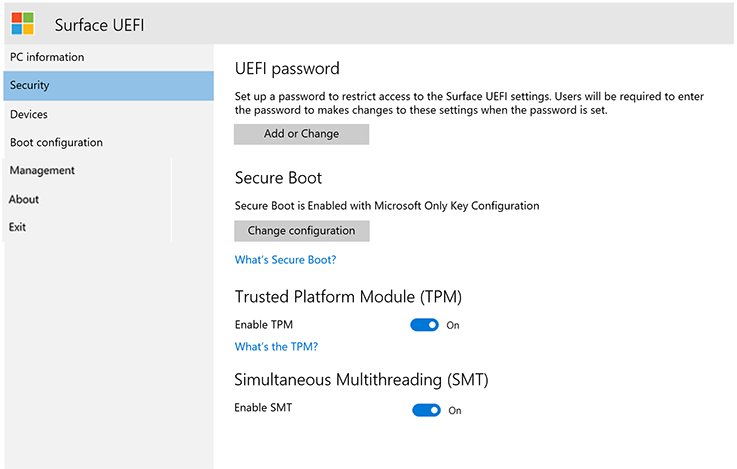
Way 1: Press the BIOS key while the PC starts
This is the most common method and the only one that works on any PC, with or without Windows installed. The key depends on the manufacturer, so check the brand table below if you do not know yours.
- Save your work and shut the PC down completely.
- Press the Power button.
- Watch for a startup screen that names the setup key, often next to the manufacturer logo.
- Tap that key repeatedly, about once a second, until the setup screen opens. Dell asks you to tap F2 rather than hold it; ASUS asks you to hold F2 before pressing Power.
- If Windows loads instead, restart and press the key earlier.
Microsoft lists Esc, Delete, F1, F2, F10, F11 and F12 as the common setup keys. Tablets usually use Volume up or Volume down instead of a key.
Which of the 3 ways should you use?
| Your situation | Use this | Why |
|---|---|---|
| You know the key and the logo screen stays up long enough | Way 1: startup key | No need to sign in to Windows first |
| The PC boots too fast to catch the key | Way 2: UEFI Firmware Settings in Advanced startup | Windows restarts straight into the firmware, so timing does not matter |
| You are signed in and want the quickest route with no menus | Way 3: shutdown /r /fw /t 0 |
One line in Command Prompt, PowerShell or Windows Terminal |
| Windows fails to start | Way 2 through the recovery screen, or Way 1 | Windows opens the recovery menu by itself after two failed starts |
| Custom-built PC with a retail motherboard | Way 1, using the key on the motherboard's startup screen | Board makers, not Windows, set the key |
Ways 2 and 3 only reach the firmware on a PC that boots Windows in UEFI mode. On a legacy BIOS installation, use Way 1.
Find the BIOS key for your PC manufacturer
Each row below comes from that manufacturer's own support pages. Some brands also add a separate startup menu or a hardware button, which is listed in the notes column.
| Manufacturer | Key or button to enter setup | Manufacturer-specific extras |
|---|---|---|
| Dell | Tap F2 right after power-on, before the Dell logo disappears | Tap F12 for the One Time Boot Menu, then pick BIOS or System Setup. On keyboards with an Fn key, try Fn + F2. |
| HP | Esc or F10, pressed repeatedly as the logo appears | Use the Windows route if the logo passes too quickly |
| ASUS laptops and newer desktops | Hold F2, then press Power; release F2 when setup appears | Some older ASUS desktops use Del. ASUS gaming handhelds: hold Volume Down, then press Power. |
| Lenovo Yoga and IdeaPad (key varies by model) | Tap F2 when the Lenovo logo appears, as the Yoga 7 user guide documents | Or open the Novo Button menu and select UEFI/BIOS Setup; check your model's user guide |
| Microsoft Surface | Shut down, hold Volume-Up, press and release Power, keep holding Volume-Up until the UEFI screen appears | Hold Volume Down with Power to boot straight from USB |
| Any other PC | Read the key on the startup screen | Common keys are Esc, Delete, F1, F2, F10, F11 and F12 |
ThinkPad, ThinkCentre, Acer and MSI keys are not listed because their official support pages could not be confirmed. Check your model's manual on the manufacturer's site.
Way 2: Open UEFI Firmware Settings from Windows 11 or Windows 10 Settings
Advanced startup restarts the PC into a recovery menu that includes a direct link to the firmware. The Settings path differs between Windows 11 and Windows 10, but every screen after the restart is the same.
- On Windows 11, open Settings > System > Recovery. On Windows 10, open Settings > Update & Security > Recovery.
- Under Advanced startup, select Restart now.
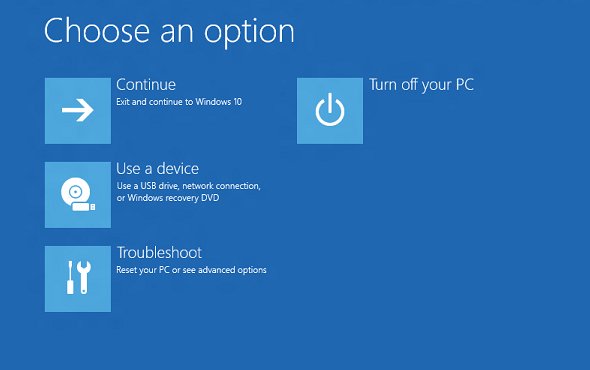
- On the Choose an option screen, select Troubleshoot.
- Select Advanced options.
- Select UEFI Firmware Settings.
- Select Restart. The PC restarts straight into the firmware setup screen.
No Settings access? From the sign-in screen or the Start menu, select Power, hold Shift and select Restart. That opens the same Choose an option screen, so continue from step 3.
Way 3: Restart into UEFI from Command Prompt, PowerShell or Windows Terminal
The shutdown command has a /fw switch that sends the next restart to the firmware screen. It skips every menu in Way 2.
Save open files first, because /t 0 restarts the PC immediately. Open Command Prompt, PowerShell or Windows Terminal as administrator.
shutdown /r /fw /t 0/r restarts the PC, /fw makes that restart open the firmware interface, and /t 0 removes the default 30-second delay. The same line works in Command Prompt, PowerShell and Windows Terminal.
You should see: Windows signs you out and restarts, and the PC opens the UEFI setup screen instead of loading Windows.
Changed your mind during a countdown? Run shutdown /a /fw to cancel the pending restart and clear the boot-to-firmware request.
Where to reach the firmware when Windows will not boot
Ways 2 and 3 need a working Windows desktop. When Windows cannot start, use one of these routes to reach the same recovery menu.
| Situation | Where to go | Then select |
|---|---|---|
| Windows fails to start twice in a row | Windows opens the recovery environment automatically | Troubleshoot > Advanced options > UEFI Firmware Settings > Restart |
| PC reaches the sign-in screen but not the desktop | Power, hold Shift, select Restart | Troubleshoot > Advanced options > UEFI Firmware Settings |
| You have a recovery drive or Windows installation USB | Boot from the USB with your brand's boot menu key (Dell F12, HP Esc) | In the recovery options, Troubleshoot > Advanced options > UEFI Firmware Settings |
| No recovery screen appears at all | Power on and use the startup key from Way 1 | The setup or boot menu for your brand |
Microsoft documents the firmware option in this menu as UEFI only, so a legacy BIOS PC shows the recovery tools without it.
How to check you are in BIOS and not the boot menu
Several brands put a boot menu and the setup utility on neighbouring keys, so it is easy to land on the wrong screen.
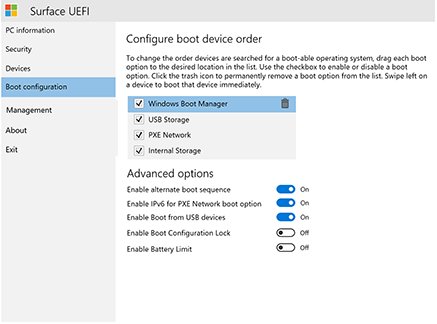
- Look for tabs or pages such as Security, Boot or Boot Configuration. The setup utility has them; a boot menu shows only a list of drives.
- If you see only drive entries such as UEFI: USB Drive, you are in a boot menu. On Dell, select BIOS or System Setup from it and press Enter.
- If you reached a boot menu on another brand, restart and press the setup key from the brand table instead.
- Find a system information page. Surface calls it PC information and shows the model, serial number and System UEFI version.
What BIOS and UEFI Firmware Settings are, and when you need them
Microsoft defines firmware as the software that runs before Windows when you turn on the PC. It is commonly called UEFI and sometimes still called BIOS, which is why both names point to the same setup screen on a modern PC.
| Term | What it means | Why it matters to you |
|---|---|---|
| BIOS | The original firmware standard, still used as the everyday name for the setup screen | It controls hardware and startup before Windows loads, which is why it is important |
| UEFI | The modern firmware standard on current PCs | Microsoft recommends UEFI mode because it has more security features, including Secure Boot |
| UEFI Firmware Settings | The Windows recovery menu entry that restarts a UEFI PC into its setup screen | Lets you skip the startup key entirely |
| Legacy BIOS or CSM mode | A compatibility mode on UEFI hardware that boots Windows the old way | Windows 11 Secure Boot needs the PC switched from Legacy/CSM to UEFI |
Navigate UEFI and change common settings
Firmware screens vary by brand, and many accept a mouse as well as the keyboard. Use the arrow keys and Enter where the mouse does not work.
| What people open UEFI to change | Where it usually lives | What to know first |
|---|---|---|
| Boot order or one-time boot device | Boot or Boot Configuration | Pick the entry that names the firmware mode, such as UEFI: USB Drive |
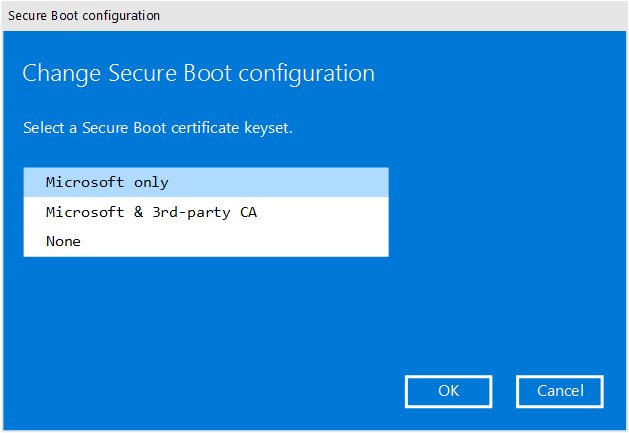
| Secure Boot | Security > Secure Boot | It stops rootkits loading at startup; some graphics cards, Linux or older Windows versions need it off |
| TPM | Advanced, Security or Trusted Computing | Named Intel PTT, AMD fTPM, Security Device or TPM State, depending on the board |
| Hardware virtualization | Often a processor or advanced page | Device security features in the Windows Security app need it enabled in UEFI or BIOS |
| Boot mode (Legacy/CSM or UEFI) | Usually the Boot page | Windows starts only in the mode it was installed with |
| Built-in devices such as cameras or ports | Surface Devices page, on business models | Each component has an On or Off slider |
Change one setting at a time and write down its old value. That makes any startup problem easy to reverse.
How to exit UEFI safely or reset the changes
- To leave without saving, pick the exit option that discards changes, then confirm.
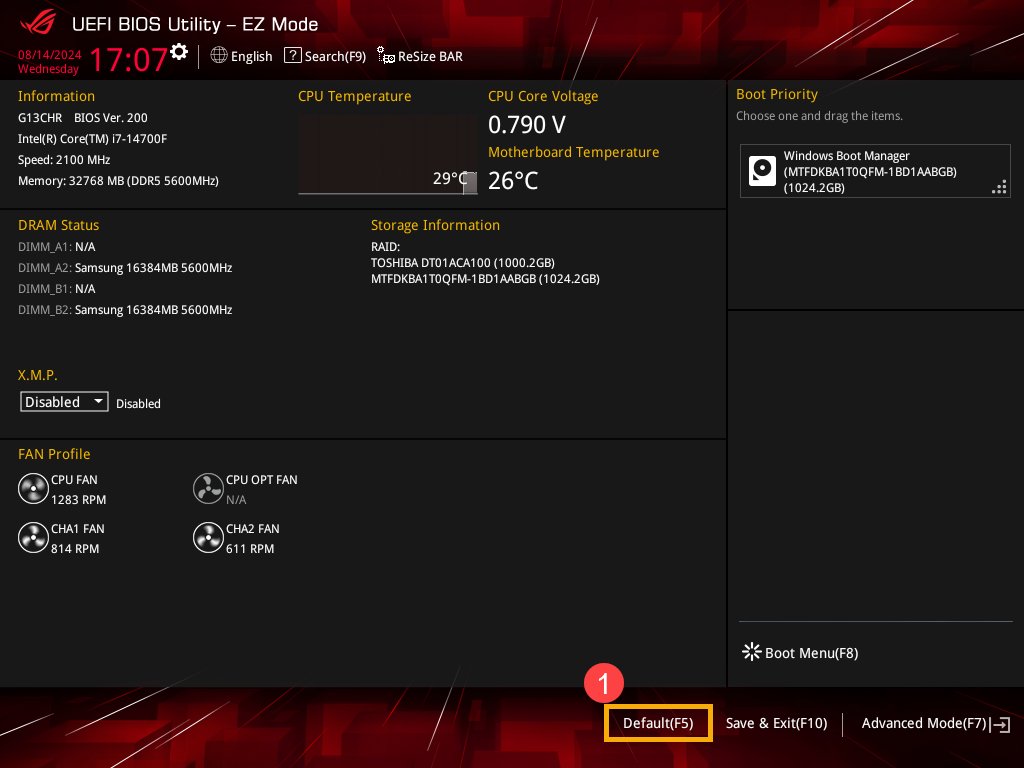
- To keep changes on ASUS firmware, press F10 or select Save & Exit, then select Ok.
- On Surface, open the Exit page and select Restart Now.
- To undo everything on ASUS laptops, press F9 or select Default; on ASUS desktops, press F5. Confirm with Ok.
- Save and exit again so the PC restarts with the restored values.
ASUS notes that loading defaults does not remove a BIOS password. Clear the password fields separately if you want it gone.
Fix BIOS access problems
Two tips make BIOS access successful on most PCs: start from a full shutdown, and tap the key repeatedly instead of holding it, unless your brand says to hold it. One final tip for fast-booting modern PCs is to skip the key and use the Windows route.
The BIOS key does nothing and Windows loads
The key press missed the short window before Windows takes over, or the keyboard was not ready.
- Shut down fully, power on, and tap the key repeatedly from the moment you press Power.
- Try Fn plus the key on laptops with an Fn row.
- Move a USB keyboard to a different port or try another keyboard.
- Skip the timing problem entirely with Way 2 or Way 3.
"UEFI Firmware Settings" is missing from Advanced options
Windows is running in legacy BIOS mode; the recovery menu offers the firmware entry on UEFI PCs only.
- Right-click Start, select Run, type
diskmgmt.mscand select OK. - Right-click the disk that holds Windows and select Properties.
- Open the Volumes tab and read Partition style. MBR points to a legacy BIOS installation; GPT points to UEFI.
- Use the startup key from Way 1 to enter setup on that PC.
- Do not switch the boot mode to UEFI in firmware unless the disk has first been converted to GPT, or Windows will not start.
UEFI opens, but Windows no longer boots after a change
A boot mode, boot order or Secure Boot change no longer matches how Windows was installed.
- Enter setup again with the startup key.
- Put back the setting you changed, using the value you noted down.
- Make sure Windows Boot Manager or the Windows drive is first in the boot order.
- If you switched between Legacy/CSM and UEFI, switch back to the original mode.
- If you cannot remember the change, load the firmware defaults, then save and exit.
Precautions before you change anything in BIOS
Look around freely, but change only the setting you came for, and never switch the boot mode on a working Windows installation without converting the disk first. Windows boots in the firmware mode it was installed with. Microsoft's MBR2GPT documentation states the firmware must be set to UEFI only after the disk is converted to GPT, and the conversion cannot be undone. Firmware updates are a separate job with their own risks and are not covered here.
Frequently asked questions
Can I access BIOS settings from Windows?
Yes, on a PC running Windows in UEFI mode. Open Settings, go to Recovery, select Restart now under Advanced startup, then choose Troubleshoot > Advanced options > UEFI Firmware Settings > Restart. You cannot change firmware settings from inside Windows itself.
How do I access BIOS on Windows 11?
Open Settings > System > Recovery, select Restart now next to Advanced startup, then pick Troubleshoot > Advanced options > UEFI Firmware Settings. You can also run shutdown /r /fw /t 0 in Terminal, or press your manufacturer's setup key during startup.
How do I access BIOS on a Windows laptop?
Press the laptop maker's setup key at power-on: F2 on Dell, ASUS and many Lenovo Yoga models, and Esc or F10 on HP. Surface devices use Volume-Up with Power. The Windows Advanced startup route works on every laptop running Windows in UEFI mode.
What key do I press to access BIOS on a computer?
It depends on the manufacturer. Microsoft lists Esc, Delete, F1, F2, F10, F11 and F12 as the common keys. The startup screen often names the key; if it flashes by too fast, check the manufacturer's support site.
How do I access my computer's BIOS if Windows will not start?
Windows opens its recovery environment after two consecutive failed starts. From there, select Troubleshoot > Advanced options > UEFI Firmware Settings. If no recovery screen appears, power on and press the setup key for your brand.
Is UEFI the same as BIOS?
Not technically, but on current PCs both names refer to the same setup screen. Microsoft describes firmware as commonly called UEFI and sometimes still called BIOS. UEFI is the newer standard and adds security features such as Secure Boot.
Why is UEFI Firmware Settings not showing in Advanced options?
The option only appears when Windows booted in UEFI mode. A PC installed in legacy BIOS mode, usually on an MBR disk, shows the other recovery tools without it. Use the manufacturer's startup key on those PCs instead.
Does shutdown /r /fw work in PowerShell?
Yes. shutdown is a standard Windows command, so shutdown /r /fw /t 0 runs the same way in Command Prompt, PowerShell and Windows Terminal. The /fw switch makes the restart open the firmware interface on a UEFI PC.




![How to Enable & Use Thunderbolt on Windows 11 [Easy Guide]](https://techdows.com/wp-content/uploads/2026/10/How-to-Enable-Use-Thunderbolt-on-Windows-11-Easy-Guide-600x338.jpg)

How to Find and Install TPM 2.0 Module on Windows PC - Techdows
[…] setup screens differ by maker, and the full set of entry keys is in How to Access BIOS on Your PC. An older walkthrough with BIOS photos is in how to enable TPM 2.0 for Windows 11 in […]
How to access boot manager Windows 11 - Techdows
[…] The firmware boot menu lists every drive the PC can start from. On a UEFI PC, Windows appears in it as Windows Boot Manager. For the full list of setup keys by brand, see How to Access BIOS on Your PC: 3 Easy Ways to Enter it. […]
Guide to BIOS settings: a practical UEFI guide for boot, security, memory, and updates - Techdows
[…] fastest route is from Windows itself, because timing a key press does not matter. There are also other ways to enter BIOS, including the startup […]