To share your location on iPhone, open Find My, tap Me, turn on Share My Location, then tap People and add the person you want to share with.
This guide covers Find My, Messages, Apple Maps, Siri and Family Sharing, how to stop or pause sharing, and fixes for when iPhone says location sharing is unavailable.
Quick Answer
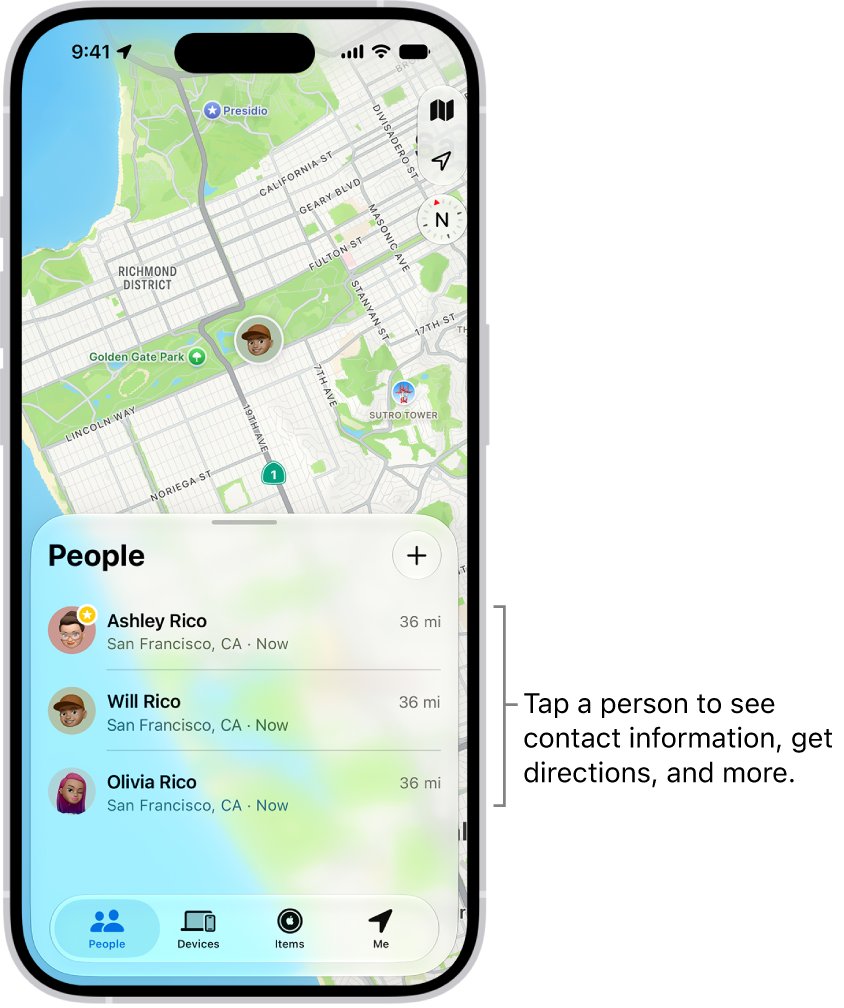
Find My is the main place for ongoing location sharing, and anything you set here also shows up in Messages and Maps.
- Open the Find My app on your iPhone.
- Tap Me, then turn on Share My Location.
- Tap People, tap the Add button (+), then choose Share My Location.
- In the With field, type the person's name or pick them from your contacts.
- Choose how long to share: for one hour, until the end of the day, or indefinitely.
The person now sees your live location in Find My, in Maps, on your contact card and under your name in Messages.
Location Sharing Methods Compared
| Your situation | Use this | What the other person gets |
|---|---|---|
| Keep a friend or partner updated all day or indefinitely | Find My > People > Share My Location | Live Location that moves with you until you stop |
| You are already texting the person in iMessage | Messages > Plus > Location > Share | Live Location inside the conversation |
| You are texting someone by SMS (green bubbles) or on Android | Messages > Plus > Location > Send Pin | A fixed pin that does not update as you move |
| You are driving, walking or cycling to meet someone | Maps > Go > route card > Share ETA | Your ETA, route and live position until you arrive |
| You want a quick one-off location from the Home Screen | Touch and hold Maps > Send My Location | A single snapshot of where you are now |
| Your hands are busy while navigating | Siri: "Share my ETA" | The same ETA share as Maps |
| You share a Family Sharing group | Settings > Family > Location Sharing | Your location for chosen family members in Find My and Messages |
| You only want someone told if you do not arrive | Messages > Plus > More > Check In | Nothing, unless your trip stalls and you do not respond |
Introduction
Apple splits location sharing into three kinds, and each app offers a different mix. Knowing which kind you need saves you from sending a static pin when you meant to share a live position.
| Kind of sharing | What the other person sees | Where you start it |
|---|---|---|
| Share once | One snapshot of where you are now; they cannot follow you as you move | Messages (Send Pin) or Maps (Send My Location, Share Location) |
| Share on the way | Your ETA and Live Location during a trip, or a Check In alert if you do not arrive | Maps (Share ETA) or Messages (Check In) |
| Share ongoing | Your Live Location in real time, including direction and speed of travel | Find My or Messages, for one hour, until end of day, or indefinitely |
Apple notes that some location sharing options require iOS 17, so update your iPhone if an option in this guide is missing.
Why Is It So Confusing To Share Location On iPhone?
Three apps share one underlying setting, and several switches live in different places. These are the points that trip most people up.
| What confuses people | What is actually happening |
|---|---|
| Sharing is spread across Find My, Messages and Maps | Messages uses Find My under the hood, so a share started in either app is the same share |
| Stopping in one app seems to stop it everywhere | It does. Stopping with a person in one app stops sharing across all apps |
| Two switches both called location | Location Services lets the iPhone know where it is; Share My Location lets people see it. Both must be on |
| A friend says your location is on the wrong device | Find My shares from one device only, shown next to Sharing From |
| The Share option is missing in a text thread | Live sharing needs iMessage. SMS threads only accept a pinned location |
| Deleting Find My did not stop sharing | People can still see you after the app is deleted. Reinstall Find My to stop sharing |
Prerequisites for Sharing Your Location on iPhone
| Requirement | Why it matters | Where to check |
|---|---|---|
| Location Services turned on | Without it, the iPhone has no location to share | Settings > Privacy & Security > Location Services |
| Find My allowed to use your location | Others cannot see you even when sharing is set up | Settings > Privacy & Security > Location Services > Find My |
| Share My Location turned on | It is the master switch for sharing with people | Find My > Me, or Settings > [your name] > Find My |
| iOS 15 or later on both iPhones | Live Location needs it on your iPhone and the other person's | Settings, latest iOS update |
| iOS 17 or later for newer options | Check In and some sharing options need it on both sides | Settings, latest iOS update |
| iMessage for live sharing in Messages | SMS threads can only receive a pinned location | The bubble colour in the conversation |
| A supported country or region | Finding people with location sharing is not available everywhere | Apple's iOS Feature Availability page |
How to Enable Location Services on iPhone
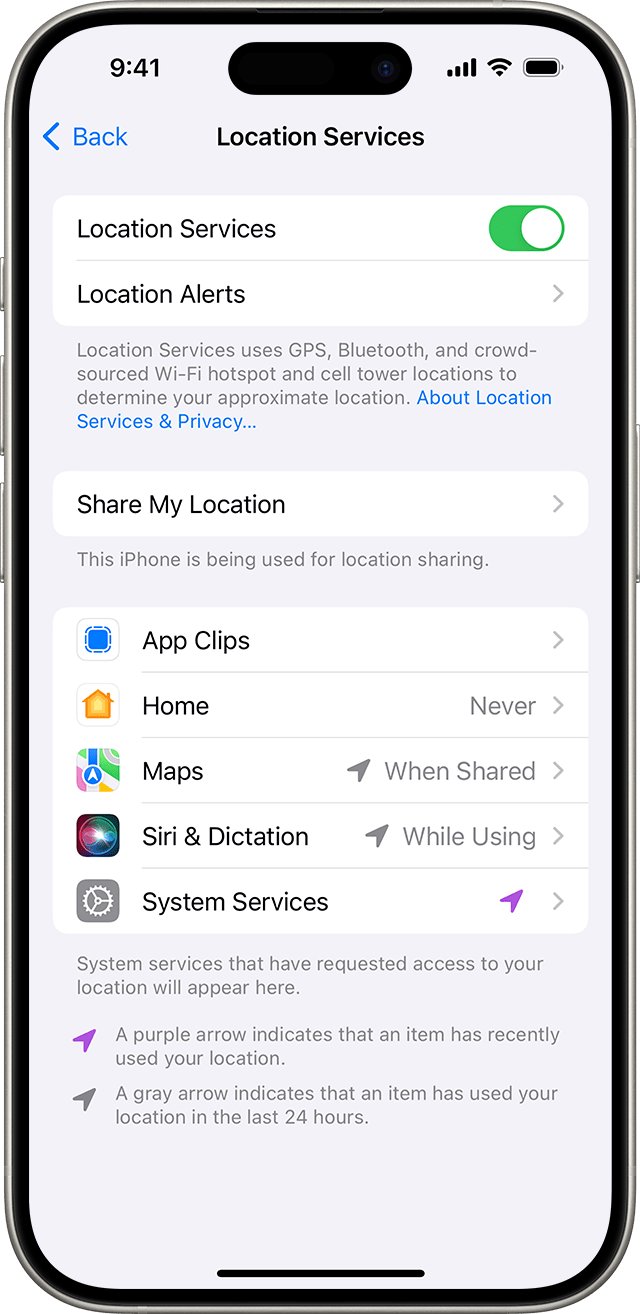
If you skipped Location Services during setup, sharing will not work until you turn it on. Apple warns that many iPhone features stop working while it is off.
- Open Settings and tap Privacy & Security.
- Tap Location Services, then turn on Location Services at the top.
- Scroll down the app list and tap Find My.
- Choose While Using the App so Find My can read your location.
- Leave Precise Location on so friends see your exact position rather than an approximate area.
- Tap Messages and Maps in the same list and give them access too if you plan to share from those apps.
A location arrow appears in the status bar whenever an app is using Location Services.
How To Share Location on iPhone: Step-By-Step Guide
This is the full Find My walk-through, including the options the Quick Answer skips: picking the sharing device and setting a custom end time.
- Step 1: Open Find My, tap Me and turn on Share My Location. Check that the device named next to Sharing From is the iPhone you carry.
- If another device is listed, tap Use This iPhone as My Location.
- Step 2: Tap People, tap +, then choose Share My Location.
- Type a name in the With field, or tap the contacts button to select someone.
- Step 3: Choose how long to share. Pick Custom to set your own duration or end time.
- Confirm the person now appears in your People list.
You can reach the same switches through Settings > [your name] > Find My. If your iPhone is paired with an Apple Watch GPS + Cellular model, the watch shares your location when you are out of range of the iPhone and wearing the watch.
How to Share Your Location Using the Find My App
Once sharing is on, Find My also handles requests in both directions. Use these steps to answer a request, ask to see someone, or label where you are.
- To answer a request, open Find My, tap People, tap Share below the friend's name and choose a duration. Tap Cancel to decline.
- To see a friend's location, tap People, tap their name, then tap Ask To Follow Location. They must accept before their location appears.
- To label your spot, tap Me, tap Location Label, and choose a label such as Home or Work.
- To create your own label, tap Add Custom Label, type a name, then tap Done.
- To stop new requests from arriving, tap Me and turn off Allow Friend Requests.
A person only appears in your People list after you share your location with them, so share first and ask second.
Sharing Location via Messages App
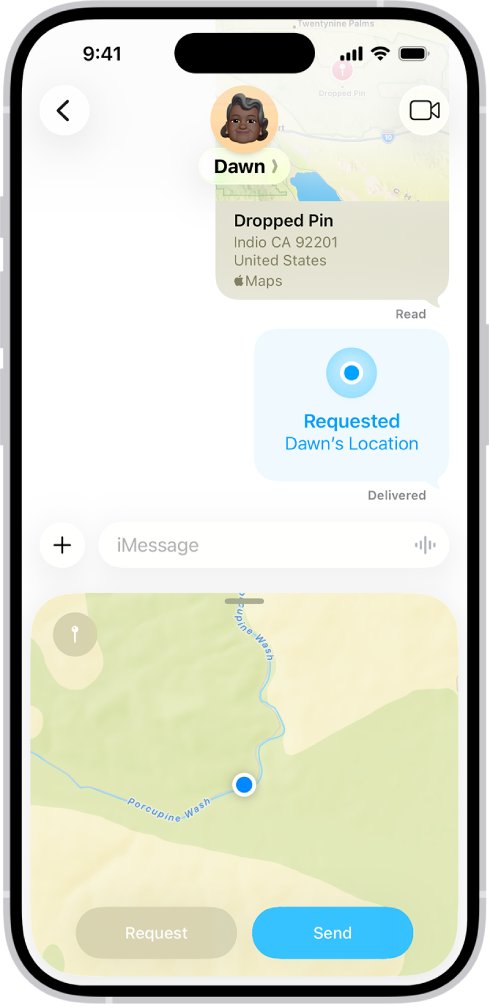
Messages is the quickest route when you are already in a conversation. Your Live Location updates in real time right inside the thread.
- Open Messages and open the conversation with the person or group.
- Tap the Plus button, then tap Location.
- Tap Share, then choose how long to share. Tap Indefinitely to share until you stop it yourself.
- Tap the send button to post your Live Location in the conversation.
- For a fixed location instead, tap the map pin button, drag the map to place the pin, tap Send Pin, then send it.
- To ask for someone else's location, tap Plus > Location > Request, or send a message ending with "Where are you?" and tap Request Location above the keyboard.
When someone asks where you are, tap Current Location above the keyboard to reply in one tap. On iOS 16 or earlier, tap the person's name at the top of the conversation and choose Send My Current Location instead.
Sharing Your Live Location via Apple Maps
Maps shares your Live Location while you navigate, plus your estimated time of arrival. Your ETA updates automatically if there are major delays.
- Open Maps, search for your destination, then tap Go.
- Tap the route card at the bottom of the screen, then tap Share ETA.
- Choose one or more suggested contacts, or tap Open Contacts to find someone else.
- To add more people during the trip, tap Sharing with at the bottom of the screen, then tap Open Contacts.
- To send a single snapshot instead, touch and hold the Maps icon on the Home Screen and tap Send My Location.
- To share any other spot, touch and hold the place on the map and tap Share Location.
Your location, route and ETA stay visible to the people you chose until you arrive. If Share ETA is missing, turn it on in Settings > Apps > Maps.
How to Use Siri to Share Your Location
Apple documents one Siri request for location sharing: sharing your ETA while you have directions running. It is the hands-free version of the Maps method.
- Start driving, cycling or walking directions in Maps.
- Say "Share my ETA".
- Name the contact who should receive it.
- Check the Sharing with line at the bottom of the Maps screen to confirm the share started.
How to share your location with family on iPhone
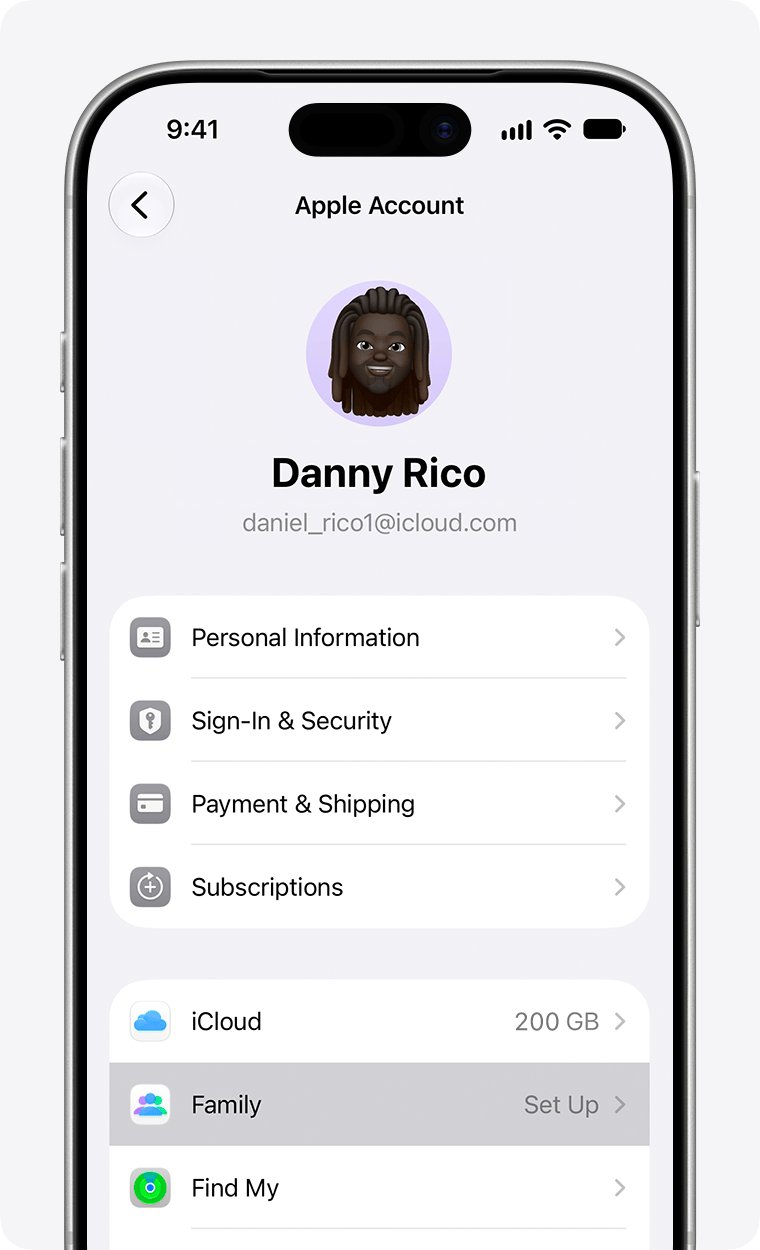
Family Sharing covers you and up to five family members. The organizer turns on location sharing, and then each member chooses whether to share back.
- Open Settings and tap Family.
- Tap Location Sharing.
- Under Share Your Location With, choose the family members who should see your location.
- Turn on Automatically Share Location if new family members who join later should see you too.
- If you have not set up Family Sharing, open Find My, tap People, select the family member, tap the More button, then tap Share My Location.
Family members see your location in Find My and Messages. Sharing also lets them help locate your iPhone if it goes missing.
Alternative Ways To Share Location On iPhone
These routes cover the cases the main methods do not, such as texting someone on Android or only wanting an alert if you fail to arrive.
| Need | Route | Notes |
|---|---|---|
| Share with an Android phone | Maps > Share ETA, or Messages > Send Pin in an SMS thread | People on other mobile devices receive the ETA as an SMS message |
| Share a place, not yourself | Maps > tap a place > Share button | Sends the place by message, email or other share options |
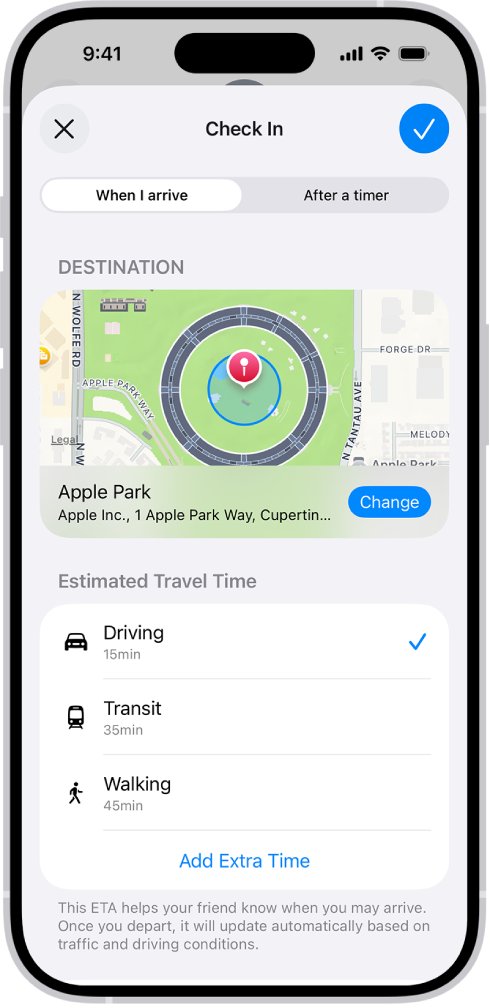
| Safety alert without constant tracking | Messages > Plus > More > Check In > Edit | Choose When I Arrive or After a timer; needs iOS 17 on both iPhones |
| Auto-share every trip to one place | Maps > Places > Pinned > add a person to the pin | That contact gets your ETA whenever you navigate to the pin |
| No Wi-Fi or cellular signal | Find My > send your location via satellite | Available on supported iPhone models while sharing ongoing location |
How to check your location is being shared
- Open Find My and tap Me. Share My Location should be on, with your iPhone named next to Sharing From.
- Tap People. Everyone you currently share with is listed there.
- In Messages, open the conversation. Your shared location appears as a map in the thread.
- In Maps during a trip, the Sharing with line lists everyone receiving your ETA.
- Ask the other person to open Find My > People and tap your name. They should see your current position on the map.
Managing and Controlling Shared Location Privacy
You can stop, pause or hide sharing at any time. Stopping with someone in one app stops it across Find My, Messages and Maps, and the person is not notified.
- To stop sharing with one person in Find My, tap People, tap their name, tap Stop Sharing My Location, then Stop Sharing Location.
- To pause instead, tap People, tap the name, tap the More button, then Hide Location.
- To hide from everyone, tap Me and turn off Share My Location. People you shared with before see you again when you turn it back on.
- In Messages, open the conversation, tap the name or contact icon at the top, then tap Stop Sharing My Location.
- In Maps, tap Sharing with at the bottom of the screen and tap Stop Sharing ETA below each contact.
- To remove someone from Find My entirely, tap People, tap their name, tap the More button, then Remove. You also disappear from their list.
- To limit what apps know, go to Settings > Privacy & Security > Location Services, tap an app and turn off Precise Location for approximate location only.
Still Cannot Share Location On iPhone? Try These Fixes
Why can't I share my location on iPhone?
Location Services is off, or Find My is not allowed to use your location.
- Go to Settings > Privacy & Security > Location Services and turn it on.
- Tap Find My in the app list and choose While Using the App.
- Open Find My > Me and turn on Share My Location.
Share location unavailable on iPhone
The iPhone is not the device selected for sharing, the feature is not offered in your region, or a Screen Time restriction blocks it.
- Open Find My > Me and check Sharing From. Tap Use This iPhone as My Location if another device is listed.
- Alternatively, go to Settings > [your name] > Find My and tap Use this iPhone as My Location.
- On a child's iPhone, the parent opens Settings > Family > the child's name > Content & Privacy Restrictions > Privacy Restrictions and allows the location setting.
- Check Apple's iOS Feature Availability page if you are in a country or region where finding people is not offered.
Why won't my iPhone let me share my location in a text?
The conversation is SMS rather than iMessage, and SMS threads cannot carry Live Location.
- Check the bubble colour. Green bubbles mean SMS.
- Tap Plus > Location, tap the map pin button, then tap Send Pin to send a fixed location.
- For a live position with a non-iPhone user, start directions in Maps and use Share ETA, which arrives as an SMS.
Share My Location not working after an update or a missing option
Live Location needs iOS 15 or later on both iPhones, and some options need iOS 17.
- Update your iPhone to the latest iOS version available for it.
- Ask the other person to update their iPhone too.
- Try the share again from Find My > People.
Troubleshooting Common Issues
A friend sees your name but no location on the map
Sharing is set up, but Find My has no location access on the sharing device.
- On the sharing iPhone, go to Settings > Privacy & Security > Location Services > Find My.
- Choose While Using the App.
- Ask your friend to close and reopen Find My and tap your name again.
Share ETA is missing from the Maps route card
ETA sharing is turned off in the Maps settings.
- Open Settings and tap Apps, then Maps.
- Turn on Share ETA.
- Start directions again and tap the route card.
You cannot see someone else's location
You have not shared with them first, or they have not accepted your request.
- Share your location with them from Find My > People.
- Tap their name and tap Ask To Follow Location.
- Ask them to tap Share below your name in their People list.
Tips for Safer Location Sharing
Live Location reveals where you are, which way you are heading and how fast. These best practices keep sharing safe and secure.
| Best practice | How to do it |
|---|---|
| Share for a set time, not indefinitely | Pick one hour, end of day or a Custom end time unless the person is family |
| Review who can see you regularly | Open Find My > People and stop sharing with anyone who no longer needs it |
| Use Check In for meetups with strangers | Check In shares your location only if your trip stalls and you do not respond |
| Keep group shares tidy | Everyone in a group conversation sees a location shared to that group, including people added later if you reshare |
| Act fast if your safety is at risk | Use Safety Check in Settings to stop sharing location and other information at once |
| Remember that deleting Find My is not stopping | Reinstall Find My and turn off Share My Location if you deleted the app |
| Limit third-party apps | Set apps to While Using the App or Never in Location Services and turn off Precise Location where it is not needed |
Additional Tips and Features
| Feature | What it does | Where to find it |
|---|---|---|
| Location notifications | Tells a friend when you arrive at or leave a place; recurring alerts need your approval | Find My |
| Precision Finding | Gives precise directions to a friend when you are close, if both of you have an iPhone 15 or later | Find My |
| Send location via satellite | Shares your location without Wi-Fi or cellular coverage | Find My on supported iPhone models |
| Check In Data | Chooses Limited or Full detail if a Check In is not completed | Settings > Apps > Messages > Check In Data |
| Pinned-place ETA | Sends your ETA automatically whenever you navigate to a pinned place | Maps > Places > Pinned > Add Person |
| Hide map in location alerts | Keeps background location alerts but removes the map | Settings > Privacy & Security > Location Services > Location Alerts |
Frequently Asked Questions
How do I share my location on iPhone 16 or iPhone 17?
Open Find My, tap Me, turn on Share My Location, then tap People, tap the Add button and choose Share My Location. The steps are the same on iPhone 16, iPhone 17 and iPhone 17 Pro Max because they depend on iOS, not the model.
How do I share location on iPhone 11, 12, 13, 14 or 15?
Use the same Find My, Messages or Maps steps as on newer models. Live Location needs iOS 15 or later on both iPhones, and Check In plus some newer sharing options need iOS 17, so install the latest update your iPhone offers.
How do I share my location on iPhone with iOS 26?
In iOS 26, open Find My, tap Me and turn on Share My Location, then share with a person from the People tab. The same switches also sit in Settings, under your name, then Find My.
How do I share my location with family on iPhone?
Open Settings, tap Family, then tap Location Sharing and choose members under Share Your Location With. Turn on Automatically Share Location to include people who join the family group later. Family members then see you in Find My and Messages.
How do I share my location on iPhone through text?
In Messages, open the conversation, tap the Plus button, tap Location, then tap Share and pick a duration. In an SMS conversation with green bubbles, send a pinned location instead with Send Pin, because live sharing needs iMessage.
Can I share my location from an iPhone to an Android phone?
Yes, but not as Find My Live Location. Share your ETA from Maps, which reaches other mobile devices as an SMS, or send a pinned location in an SMS thread in Messages. A pin does not update as you move.
Why is share location unavailable on my iPhone?
Usually another device is set as your location, Location Services is off for Find My, or a Screen Time restriction blocks it. Open Find My, tap Me and tap Use This iPhone as My Location, then check Location Services for Find My.
Does the other person know when I stop sharing my location?
No. Apple states that the person you stop sharing with is not notified. Stopping in one app, such as Messages, also stops sharing with that person in Find My and Maps.
Can I share my location from a different Apple device?
Yes. On the device you want to share from, open Settings, tap your name, tap Find My, then tap Use this device as My Location. Find My shares from one device at a time.
Does deleting Find My stop sharing my location?
No. People you shared with can still see your location after you delete Find My. Reinstall the app, then stop sharing from the People tab or turn off Share My Location under Me.
Quick Summary and Concluding Remarks
Use Find My for ongoing sharing with people you trust, Messages for quick shares in an iMessage thread, and Maps Share ETA for trips or anyone not on an iPhone. All three apps use the same Find My sharing underneath, so one Stop Sharing covers every app. Location Services must be on for Find My in every case.