To use BCC in Outlook, open a new message, select Options > Show fields > Show Bcc in new Outlook (or Options > Bcc in classic Outlook), and type the hidden recipients on the Bcc line.
Everyone on that line gets a copy, and nobody else who receives the message can see their names. This guide covers each Outlook version, what every recipient sees, the reply-all trap, and the recipient limits Microsoft documents.
How to Send an Email Using BCC in Outlook
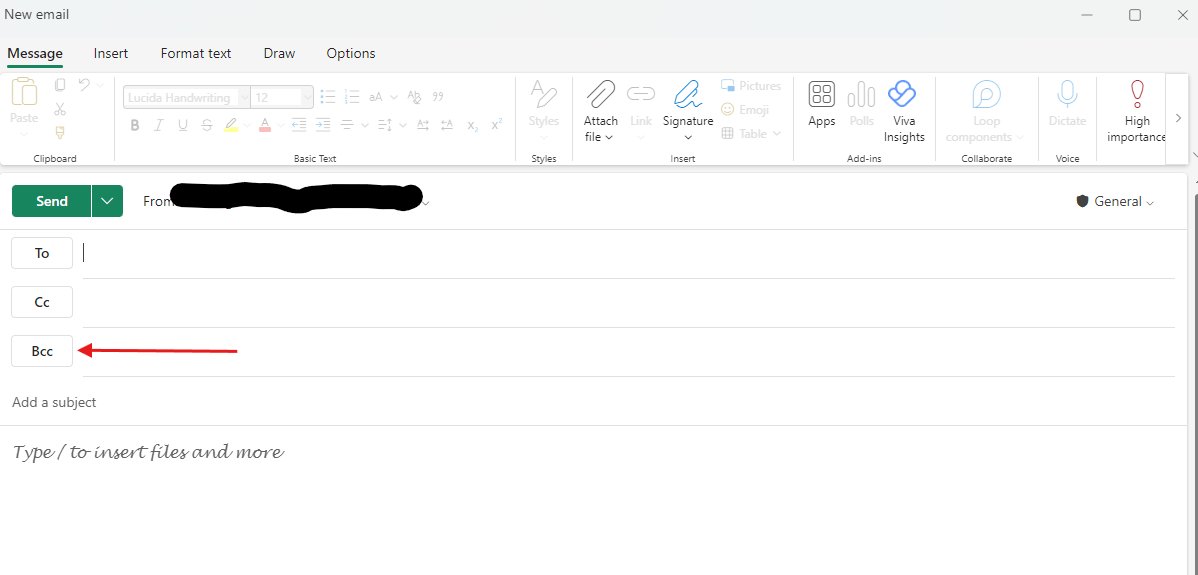
These steps are for new Outlook for Windows, the version Microsoft's Bcc help page documents first. Classic Outlook differs only in step 2.
- Select New mail, or open a reply to an existing message.
- Select Options > Show fields > Show Bcc. In classic Outlook, select the Options tab and then Bcc in the Show Fields group.
- Type the visible recipients in To and, if needed, Cc.
- Type each hidden recipient on the Bcc line. Outlook suggests matching contacts as you type, the same as in To.
- Write the subject and message, attach any files, then select Send.
To hide the line again, repeat step 2; the same command switches it off.
What BCC Means in Outlook
BCC stands for blind carbon copy. Microsoft defines it simply: a person on the Bcc line receives a copy of the email without their name being visible to the other recipients.
Outlook has three address lines, and the only difference between them is who can see whom.
| Line | Who receives the email | Who can see this line's names | Typical use |
|---|---|---|---|
| To | Yes | Every recipient | People who must read or act on the message |
| Cc | Yes | Every recipient | People kept informed in the open |
| Bcc | Yes | Only you, the sender | People who should get a copy without being listed |
How to Show the BCC Field in Outlook
The Bcc line is hidden by default in most Outlook versions. Find your version below. If you are not sure which Windows version you have, the new Outlook steps fail on classic Outlook, so try the other row.
| Your Outlook | How to show Bcc | Source status |
|---|---|---|
| New Outlook for Windows | Open a new message or reply, then select Options > Show fields > Show Bcc | Documented by Microsoft |
| Classic Outlook for Windows (Microsoft 365, 2024, 2021, 2019, 2016) | In an open message, select the Options tab, then Bcc in the Show Fields group (older builds label it Show Bcc under Message Options > Fields) | Documented by Microsoft |
| Outlook on the web and Outlook.com | Microsoft's Bcc help page does not list a separate web path. Start with the new Outlook route, Options > Show fields | Not separately documented |
| Outlook for Mac | To show it on every message, select the Outlook menu > Settings > Composing, then turn on Show BCC field by default | Documented by Microsoft |
| Outlook for iPhone, iPad and Android | The compose screen has a Bcc box, per Microsoft's mobile recipient-suggestion page; Microsoft does not document how to reveal it | Field documented, route not documented |
What Happens When You BCC Someone in Outlook
Each row below is a separate outcome. Read the reply-all row twice, because that is the one that exposes people.
| Who | What they see or can do |
|---|---|
| Recipients in To and Cc | They cannot see who is on the Bcc line, and they cannot tell whether the sender added any Bcc recipients at all |
| Each Bcc recipient | Receives a full copy of the message. Other people who receive the message, including other Bcc recipients, do not see their address |
| Bcc recipients looking at To and Cc | The To and Cc names are visible to everyone who receives the message, which is why Microsoft notes a list name in To can be expanded by recipients |
| A Bcc recipient who selects Reply All | The reply goes to the visible recipients and reveals that the Bcc recipient got the message. In Microsoft 365, Outlook and Outlook on the web can show a MailTip warning before it is sent |
| You, the sender | You can see every Bcc name by opening the message in Sent Items |
| Junk email filters | Microsoft warns that many filters treat Bcc messages as junk, so a recipient who has not added you as a safe sender may find it in Junk Email |
| Recipients' own sorting rules | Rules that look for a distribution list name in To or Cc will not sort a message that has the list on the Bcc line |
Can BCC Recipients See Attachments?
Yes. A Bcc recipient receives a copy of the same message, so every file you attach reaches them exactly as it reaches the To and Cc recipients. Bcc hides only the recipient's name from others. It does not create a lighter version of the message, so remove any attachment a Bcc recipient should not have before you select Send.
When You Should Use BCC
Microsoft's own Bcc guidance names three uses. The examples column doubles as a set of good examples of BCC emails you can copy.
| Use Bcc to | Good example | Why it works |
|---|---|---|
| Keep a recipient list private | A job announcement sent to several potential applicants | No applicant learns who else was contacted |
| Stop a reply-all storm | Reply once to a runaway thread with your name in To and the distribution list in Bcc, asking people to reply to you directly | Further Reply All clicks reach only you |
| Protect addresses from harvesting | A club or parent-group update sent to people who do not know each other | Nobody can copy the full address list from the message |
| Send one update to a personal contact group | Your own address in To, the contact group in Bcc | Microsoft documents this exact setup to keep list members hidden |
For a large mailing where each person should see only their own name, Microsoft suggests Word mail merge as an alternative to Bcc.
Use BCC in Outlook to send a mass email without exposing the list
This is the setup Microsoft documents for hiding a personal distribution list. It also answers the most common reason people search for Bcc: mass email to a group.
- Open a new message and show the Bcc line using the table above.
- Type your own email address in To.
- Add the contact group or the individual addresses to Bcc.
- Add a first line telling people why they are receiving the email and how to reply.
- Check the total recipient count against your account's limit in the next section.
- Select Send.
Putting the list name in To instead does not hide it. Microsoft notes recipients can expand a list shown in To and see every name and address.
How many people you can BCC in Outlook
Bcc names count toward the same per-message limit as To and Cc. Microsoft publishes these figures; your admin can set a lower one.
| Account | Recipients per message (To + Cc + Bcc) | Recipients per day | Notes |
|---|---|---|---|
| Outlook.com with a Microsoft 365 subscription | 500 | 5,000 | Also 1,000 per day to people you have never emailed before |
| Outlook.com without a subscription | Lower than the subscriber limits | Lower | New accounts start with a low quota that rises as the account establishes credibility |
| Work or school account on Exchange Online | Up to 1,000; the admin center default for a mailbox is 500 | 10,000 | Admins can set any limit from 1 to 1,000 |
| Exchange Online, encrypted message | About 200 | 10,000 | Applies when the message uses Microsoft Purview Message Encryption |
| Other providers (Gmail, Yahoo and others added to Outlook) | Set by that provider | Set by that provider | Microsoft's example is a limit of 100 addresses per message |
A distribution group from your organization's address book counts as one recipient in Exchange Online. A personal contact group counts every member separately.
Microsoft states Exchange Online is not meant for bulk commercial mail such as customer newsletters, and points those senders to specialist providers.
BCC Versus CC: Which Should You Use?
| Your situation | Use | Why |
|---|---|---|
| Colleagues on one project who should see each other's replies | Cc | Open copies keep the conversation visible |
| Customers, applicants or members who do not know each other | Bcc | It keeps every address private |
| A manager who needs a quiet copy of a routine update | Bcc | They are informed without being named to the team |
| Someone who is expected to reply | To or Cc | A Bcc recipient who replies all reveals they were copied |
| A meeting request | Neither works as a true blind copy | Microsoft states there is no way to add a true Bcc recipient to a meeting request |
Best Practices for Using BCC in Outlook
| Practice | What to do | What it prevents |
|---|---|---|
| Pave the way | Tell Bcc recipients to expect the message and add you to their Safe Senders list | The email landing in Junk Email |
| Think before you Bcc a distribution list | Put team lists in To or Cc when members sort mail with rules | Messages skipping the recipients' folders |
| Know your limits | Count To, Cc and Bcc names together before sending | A bounce for too many recipients |
| Use your own address in To for large private lists | Put yourself in To and the list in Bcc | An empty or exposed To line |
| Tell people why they are receiving it | Open the message with the reason and a reply route | Confusion and spam reports |
What Not to Do with BCC
| Do not | Why |
|---|---|
| Send unwanted bulk email through Bcc | Microsoft sets daily recipient caps to discourage it, and Bcc mail already draws junk filtering |
| Bcc someone you expect to answer the whole group | Their Reply All reveals they were a hidden recipient |
| Use Bcc to hide the content of a sensitive message | Bcc hides names only; the message itself is not encrypted |
| Assume a Bcc recipient is invisible to everyone | You can see them in Sent Items, and your organization's admins can search the Bcc field |
| Bcc a list whose members filter mail by list name | Their inbox rules will not fire |
How to Add BCC Automatically in Outlook
Outlook for Windows has no documented user setting that adds a fixed Bcc address to every message. Two things Microsoft does document come close.
On a Mac, Outlook > Settings > Composing > Show BCC field by default keeps the line visible on every new message. In a Microsoft 365 organization, an admin can add a Bcc recipient to matching mail with a mail flow rule.
- Sign in to the Exchange admin center at
admin.exchange.microsoft.comwith an admin account. - Go to Mail flow > Rules.
- Select Add a rule > Create a new rule and enter a Name.
- Under Apply this rule if, choose a condition such as The sender is and pick the mailbox.
- Under Do the following, choose Add recipients > to the Bcc box and select the extra recipient. A distribution group is not allowed here.
- Select Next, set Rule mode to Enforce, then Next and Finish.
- Turn the rule on with the toggle in its details pane; new rules start disabled and can take 30 minutes or more to apply.
Microsoft notes the original recipients are not notified and cannot see the address the rule adds.
How to View BCC Recipients After Sending
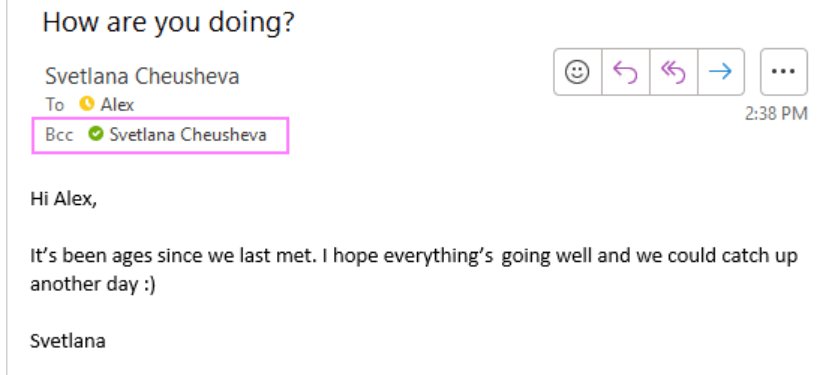
Only the sender can see who was on the Bcc line. Recipients cannot see it, even whether one was used.
- Open the Sent Items folder.
- Open the message you sent.
- Read the Bcc line in the message header; it lists every blind recipient.
- Compare that list with the To and Cc lines to confirm no one private landed in the visible fields.
Quick BCC Checklist Before You Send
| Check | Look at |
|---|---|
| Hidden people are in Bcc, not To or Cc | The three address lines |
| Your own address is in To for a large private list | The To line |
| The total recipient count is under your limit | The limits table above |
| Every attachment is fine for every Bcc recipient | The attachment bar |
| Recipients know why they are getting the email | The first line of the message |
| The content is safe to be forwarded | Bcc does not stop a recipient forwarding it |
Is BCC Private Enough for Sensitive Emails?
Use Bcc to hide who received a message, not to protect what it says. For confidential content, use your organization's encryption or Do Not Forward protection as well. Bcc does not encrypt anything. The Bcc field stays in your Sent Items, Microsoft 365 eDiscovery searches can match the Bcc field, and any recipient can forward the message. Microsoft 365 offers Purview Message Encryption, S/MIME and IRM with Do Not Forward for content protection.
Common BCC Problems in Outlook and How to Fix Them
The Bcc field is missing in Outlook
Bcc is hidden by default, and the menu differs between new and classic Outlook.
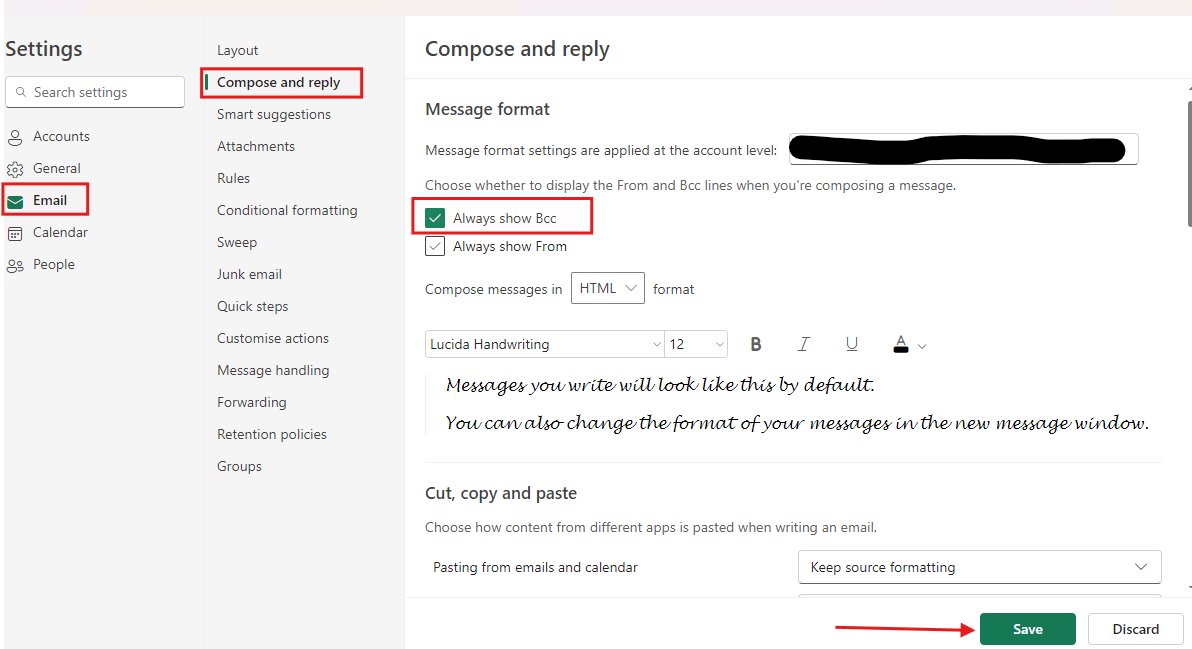
- In new Outlook, open the message and select Options > Show fields > Show Bcc.
- If that menu is not there, you are in classic Outlook: select the Options tab and Bcc in Show Fields.
- On a Mac, turn on Show BCC field by default under Outlook > Settings > Composing.
A Bcc mass email bounced or would not send
The combined To, Cc and Bcc count, or your daily total, passed your account's limit.
- Read the bounce message for a recipient-limit reason.
- Count the recipients, remembering a personal contact group counts each member.
- Split the list into batches under your per-message limit.
- On a new Outlook.com account, send smaller batches until the quota rises.
- For recurring newsletters, use a bulk email service as Microsoft recommends.
Bcc recipients say the email went to junk
Junk filters often flag messages that use the Bcc line.
- Ask recipients to add your address to their Safe Senders list.
- Tell them in advance that the message is coming.
- Put your own address in To rather than leaving it empty.
A Bcc recipient replied all and exposed themselves
Reply All sends to the visible recipients, which reveals the hidden copy.
- Bcc only people who do not need to answer the group.
- Tell Bcc recipients in the message to reply to you only.
- In Microsoft 365, ask your admin whether MailTips are enabled; the Reply-All on Bcc tip warns them before sending in Outlook and Outlook on the web.
Team members' rules did not sort a Bcc message
Their rules look for the list name in To or Cc.
- Resend or reply with the distribution list in To or Cc.
- Keep Bcc for lists whose members do not need to see each other.
Frequently Asked Questions About BCC in Outlook
The first four questions come from real Bing searches; the rest cover the recipient behaviour those searchers ask about next.
How do I use BCC in an Outlook email?
Open a new message and show the Bcc line: Options > Show fields > Show Bcc in new Outlook, or the Options tab > Bcc in classic Outlook. Type hidden recipients on the Bcc line and send. Other recipients will not see those names.
How do I use BCC in Outlook to send a mass email?
Put your own address in To, add the contact group or addresses to Bcc, and send. Microsoft documents this to keep list members hidden. Stay under your limit: Outlook.com allows up to 500 recipients per message for Microsoft 365 subscribers, and Exchange Online up to 1,000.
How do I find the BCC function in Outlook?
It is hidden until you turn it on. In new Outlook it sits under Options > Show fields. In classic Outlook it is the Bcc button in the Show Fields group on the Options tab of an open message. On a Mac, Show BCC field by default is under Settings > Composing.
When should I use BCC in Outlook?
Use Bcc when recipients should not see each other, such as applicants or members who do not know one another, or to stop a reply-all storm. Use Cc when people need to see who else is included and follow each other's replies.
Can BCC recipients see each other in Outlook?
No. Microsoft states that other people who receive the message do not see whose address is on the Bcc line. That includes the other Bcc recipients. Only the sender sees the full Bcc list, in Sent Items.
Can recipients tell if I used BCC in Outlook?
No. A recipient cannot see whether the sender added any Bcc recipients. The exception is a Bcc recipient who selects Reply All, which shows the visible recipients that person received a copy.
What happens if a BCC recipient replies all in Outlook?
The reply goes to the sender and to everyone in To and Cc, so the hidden recipient is revealed. In Microsoft 365, Outlook and Outlook on the web can show a Reply-All on Bcc MailTip warning the person first.
Can I BCC people on an Outlook meeting invite?
No. Microsoft states there is currently no way to add a true Bcc recipient to a meeting request. Send the invite to the people who must attend, and use a separate Bcc email for anyone who only needs the details.
Can I see who I BCC'd in Outlook after sending?
Yes. Open the message in Sent Items; the Bcc line lists every blind recipient. Only the sender's copy shows it, which is why checking Sent Items is the way to confirm who was hidden on a message.