To turn off dark mode for Maps on iPhone, open Settings, tap Appearance and select Light, because Apple documents Dark Mode as a color scheme for the entire iPhone and lists no appearance switch for Maps alone.
These steps cover iOS 27 and earlier, Control Center, the Automatic schedule, display settings that make Maps look dark, and the separate settings in Waze, Google Maps and Maps on Mac.
How to turn off dark mode on Apple Maps on iPhone
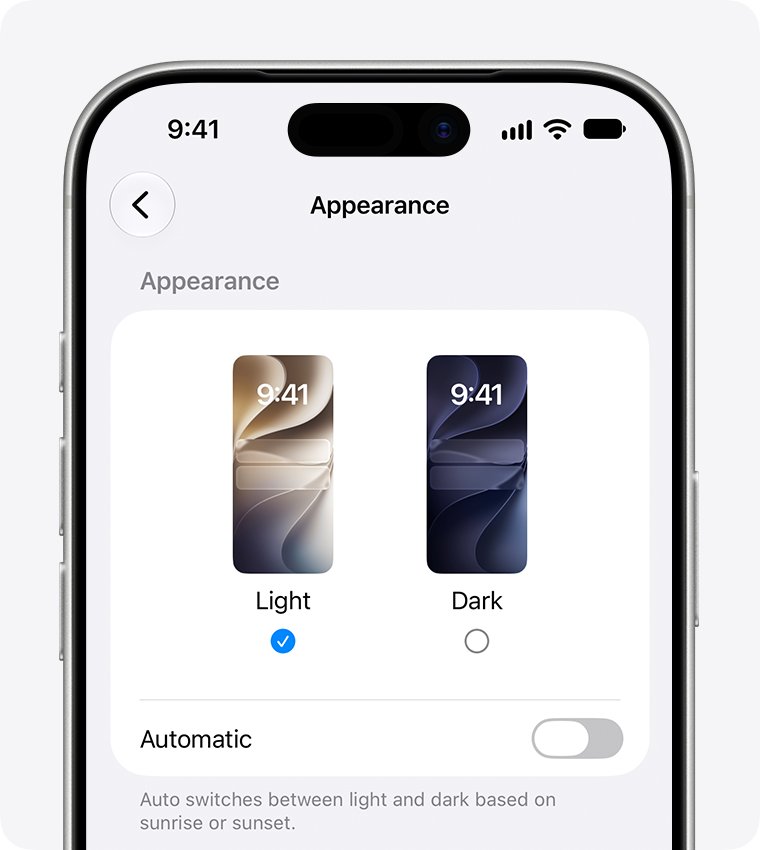
This changes the look of your whole iPhone, including Maps. The setting moved in iOS 27, so use the path for your version.
- Open the Settings app.
- Tap Appearance. On iOS 26 and earlier, tap Display & Brightness instead.
- Select Light.
- Turn off Automatic if it is on, so Dark Mode does not return on a schedule.
- Open Maps and check the map colors.
Can you turn off dark mode for Apple Maps only on iPhone?
No Maps-only switch appears in Apple's iPhone User Guide. Apple does document one on the Mac, so the two devices work differently.
| Device or app | Maps-only light or dark setting? | Where it is |
|---|---|---|
| Apple Maps on iPhone | Not documented | Use the iPhone Appearance setting instead |
| Apple Maps on Mac | Yes | Maps > Settings > General > Always use light map appearance |
| Waze on iPhone | Yes | Settings > Map display > Dark mode in Waze |
| Google Maps on iPhone | Yes, a dark theme option | Tap your profile picture or initial in the app to start |
Apple's Dark Mode instructions name only Appearance, Control Center and the Automatic schedule. If the map stays dark during turn-by-turn directions with Light selected, Apple's iPhone User Guide lists no setting that changes it.
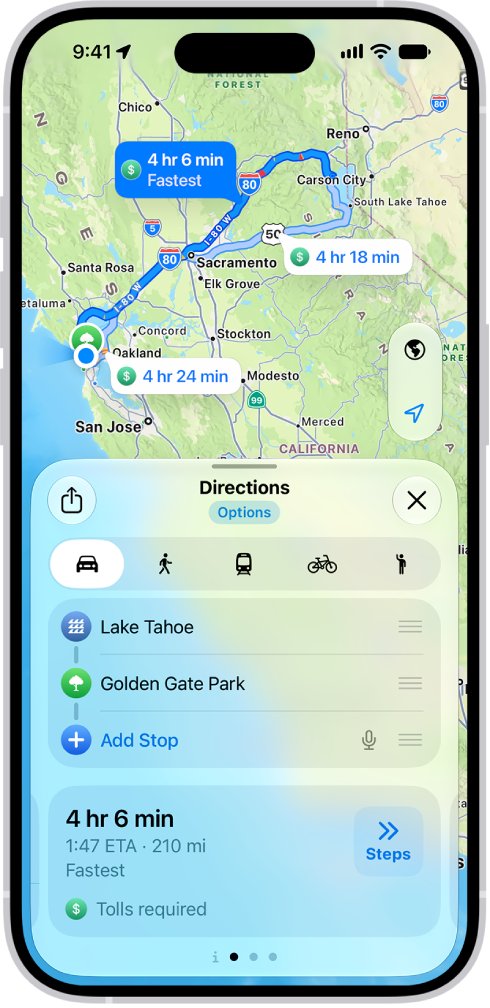
Where is dark mode in settings on iPhone?
If you do not see Appearance in Settings, your iPhone is on an earlier version of iOS. The choices are the same, and only the page has changed.
| iPhone software | Settings path | Also on this page |
|---|---|---|
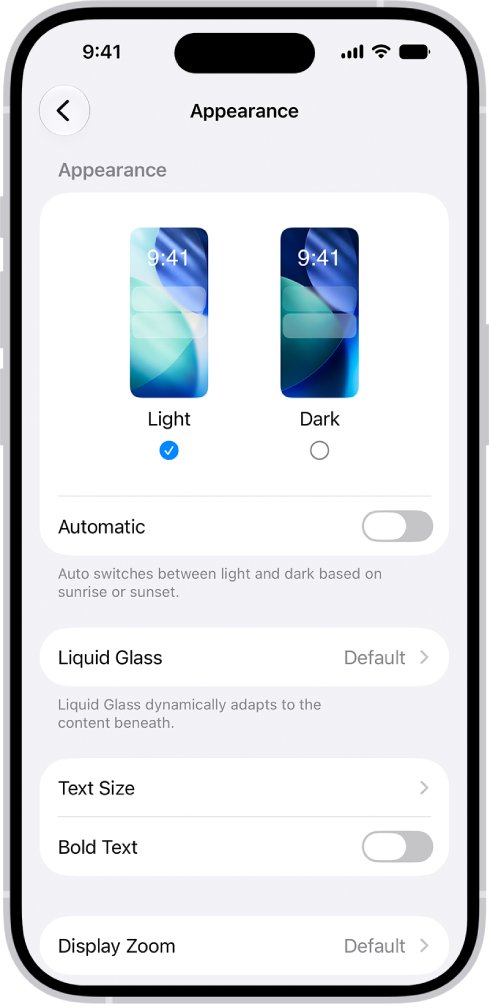
| iOS 27 | Settings > Appearance | Text Size, Bold Text, Liquid Glass and Display Zoom |
| iOS 26 and earlier | Settings > Display & Brightness | The brightness slider, True Tone and Night Shift |
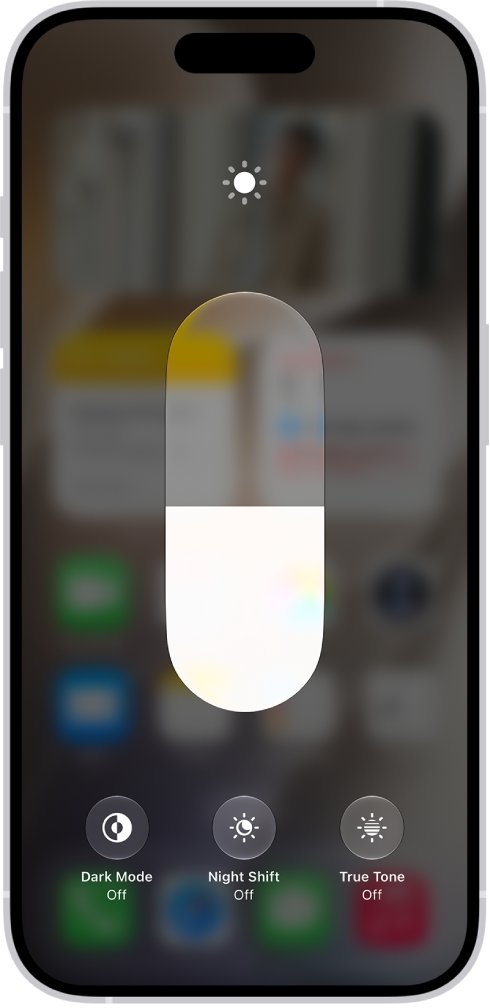
How to turn off dark mode on iPhone from Control Center
This is the quickest toggle while Maps is open, since you do not have to leave the app for Settings.
- Open Control Center.
- Touch and hold the brightness bar.
- Tap Dark Mode to turn it off.
- Return to Maps.
If the Dark Mode control is not there, touch and hold a blank space in Control Center, tap Add a Control at the bottom of the screen, then select Dark Mode.
The same panel lets you turn off Do Not Disturb if Maps alerts have gone quiet too.
How to stop iPhone dark mode from turning on automatically
Maps turning dark every evening points to the Automatic setting, which follows a schedule. You can drop the schedule, or keep it and shorten its hours.
| What you want | What to do |
|---|---|
| Light mode all the time | Go to Settings > Appearance, turn off Automatic and select Light |
| Dark mode only for part of the night | Go to Settings > Appearance, select Automatic, tap Options, then set a Custom Schedule |
| Dark mode from dusk until dawn | In the same Options screen, select Sunset to Sunrise |
| The same on iOS 26 or earlier | Use Settings > Display & Brightness for each of the above |
Apple Maps still dark on iPhone after turning off dark mode
If Light is already selected and the map still looks dark, check these other display settings and the map view. If the entire screen is black rather than dark-themed, fix a black iPhone screen instead.
Colors look reversed in Maps and other apps
Smart Invert or Classic Invert is on. Both reverse screen colors, which makes the background dark.
- Go to Settings > Accessibility > Display & Text Size.
- Turn off Smart Invert and Classic Invert.
The whole screen looks tinted, gray or dim
Color Filters or Reduce White Point is on. Night Shift can also warm the colors at night.
- Go to Settings > Accessibility > Display & Text Size.
- Tap Color Filters and turn it off, then turn off Reduce White Point.
- Open Control Center, touch and hold the brightness bar, and turn off Night Shift if it is on.
Only the map looks dark, and it shows satellite images
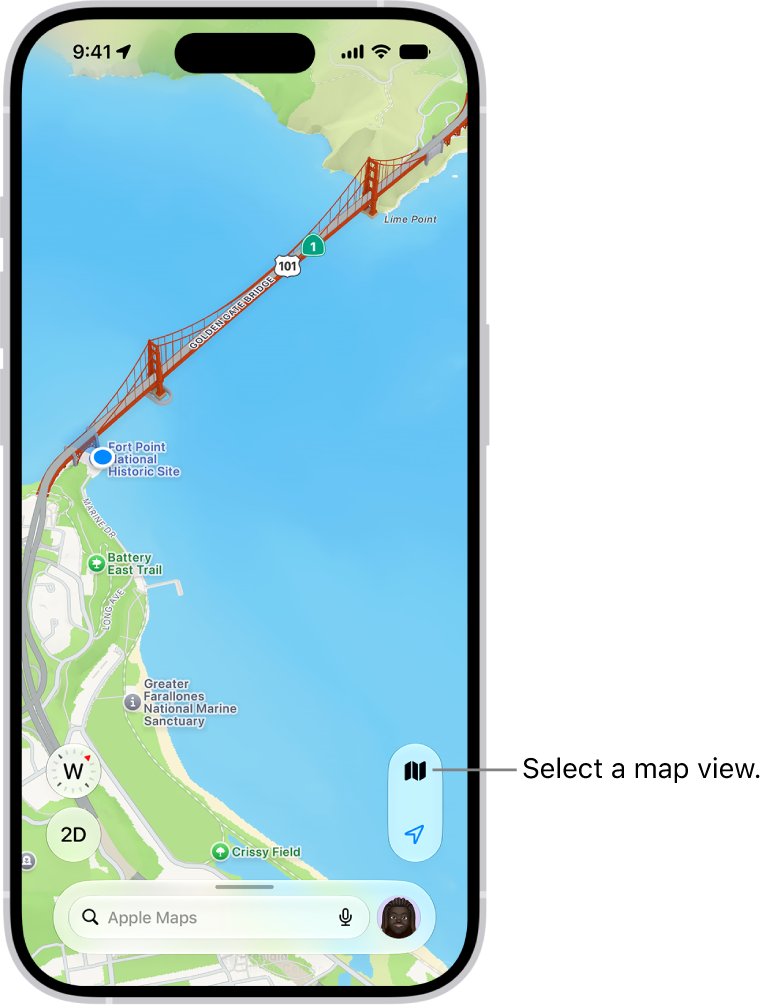
Maps is on the Satellite view rather than the standard map.
- Open Maps and tap the Map Modes button.
- Choose Explore or Driving, then close the panel.
Dark Mode keeps coming back on its own
Automatic is selected, so the iPhone is following its schedule.
- Go to Settings > Appearance, or Display & Brightness on iOS 26 and earlier.
- Turn off Automatic, then select Light.
How to turn off dark mode in Waze on iPhone
Waze has its own setting, so its map can stay light or dark whatever the iPhone uses. If you want a navigation app with this choice, download Waze for iPhone first.
- Open Waze and tap the menu icon.
- Tap Settings.
- Tap Map display.
- Tap Dark mode.
- Select Off. On keeps it dark, Only at night switches after sunset, and Same as phone settings follows the iPhone.
Apple Maps dark mode on Mac: use light map appearance
A Mac does have a Maps-only choice. It keeps maps light even when the rest of the screen uses dark colors, and it also affects maps in Contacts, Calendar and Photos.
- Open Maps on your Mac.
- Choose Maps > Settings, then click General.
- Select Always use light map appearance.
iPhone Maps dark mode FAQ
How can I turn off dark mode on iPhone?
Open Settings, tap Appearance and select Light. On iOS 26 and earlier, tap Display & Brightness instead. You can also open Control Center, touch and hold the brightness bar, and tap Dark Mode to turn it off.
Can I turn off dark mode for one app on iPhone?
Apple documents Dark Mode as a setting for the entire iPhone, and its iPhone User Guide lists no Maps-only option. Some apps, such as Waze, have a dark mode setting of their own that you can change inside the app.
How do I switch off dark mode in Settings?
In the Settings app, tap Appearance, then select Light. If you see Automatic turned on, turn it off too, because the schedule can switch the iPhone back to Dark Mode at the times it is set for.
Why does dark mode keep turning off or on by itself?
The Automatic setting does this. It switches between Light and Dark on the schedule set in Options, either Sunset to Sunrise or a Custom Schedule. Turn off Automatic to keep the appearance you choose all day.
Why is Apple Maps dark on my iPhone during the day?
Check whether Dark is selected in Settings > Appearance, then look for Smart Invert, Classic Invert or Color Filters in Accessibility > Display & Text Size. Those settings change screen colors in every app, including Maps, whatever time it is.
How do I turn off dark mode in Google Maps on iPhone?
Google documents a dark theme option for Google Maps on iPhone and iPad, separate from the iPhone setting. Open the Google Maps app, tap your profile picture or initial, then look for the dark theme choice in the menu that opens.
Does turning off dark mode change other apps on iPhone?
Yes. The Appearance setting applies a color scheme across the iPhone, so turning off Dark Mode changes the system and apps that follow it, not only Maps. Apps with their own theme setting, such as Waze, keep their own choice.