When AirDrop receives files but will not send them, the fix usually sits on the other device, so ask that person to set AirDrop to Everyone for 10 Minutes and try again.
This guide covers that fix, the contact card rule behind it, the AirDrop code on newer systems, the Mac steps, and what to do when nobody shows up as a recipient.
How to fix AirDrop not sending files on iPhone
Receiving and sending depend on different settings. You receive because your own device accepts the sender, but you can send only to someone whose device accepts you.
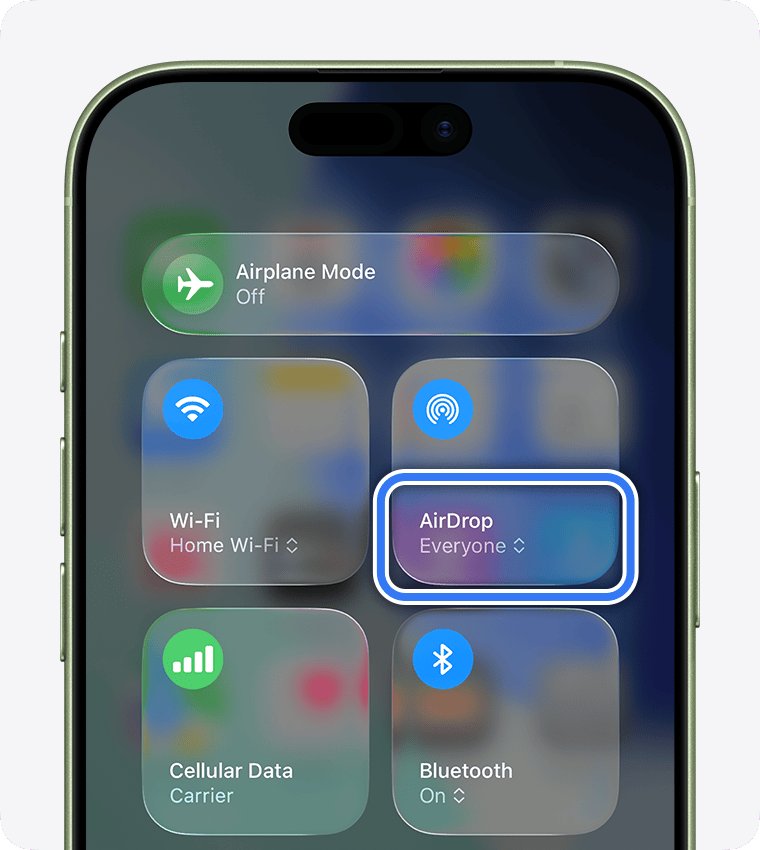
- Ask the other person to open Control Center, touch and hold the top-left group of controls, tap AirDrop, then tap Everyone for 10 Minutes.
- Check that both devices have Wi-Fi and Bluetooth turned on.
- Disconnect Personal Hotspot on both devices if either one is using it.
- Stand within 30 feet (10 meters) of each other.
- Open your file, tap the Share button, tap AirDrop, then tap the person under People.
- Enter the AirDrop code if your device asks for one, and ask the person to tap Accept.
- If it still fails, restart both devices and send the file again.
Everyone for 10 Minutes resets on its own after 10 minutes. It returns to Contacts Only when the device is signed in to an Apple Account, or to Receiving Off when it is not.
Why AirDrop can receive but not send
Match what you see on your screen to the row below. The first three rows are settings on the other person's device, not faults on yours.
| What you see | Likely cause | What to do |
|---|---|---|
| The person never appears under People | Their AirDrop is off or set to Contacts Only | Ask them to choose Everyone for 10 Minutes |
| A contact does not appear, but they can send to you | Their contact card for you lacks your Apple Account email or phone number | Ask them to add it to your card |
| You are asked for a code | They are not in your contacts and both systems are on 26.2 or later | Enter the code from their screen |
| Nobody appears at all | Wi-Fi, Bluetooth, Personal Hotspot or a VPN on your device | Turn on Wi-Fi and Bluetooth, disconnect the hotspot, check the VPN |
| It worked before but not with low battery | Low Power Mode, which Apple lists as disabling AirDrop | Turn off Low Power Mode or charge the device |
| A large batch will not go through | Apple describes AirDrop as best for a small selection of files | Send fewer files at a time, or sync large sets |
How to turn on AirDrop on iPhone and iPad
AirDrop has to be on at both ends for a send to work. The setting also decides who can send to you, so it explains one-way behavior between two people.
- Swipe down from the top-right corner of the screen to open Control Center.
- Touch and hold the top-left group of controls.
- Tap the AirDrop button.
- Tap Contacts Only or Everyone for 10 Minutes to choose who can send to you.
How to send files with AirDrop
The recipients you see are those who are nearby, have Wi-Fi and Bluetooth on, and can accept files from your device. If a name is missing, it has not passed one of those checks.
- Open the Files app or the app that holds your item.
- Tap More, tap Select, then tap the files you want to send.
- Tap the Share button, then tap AirDrop.
- Tap the person's name under People.
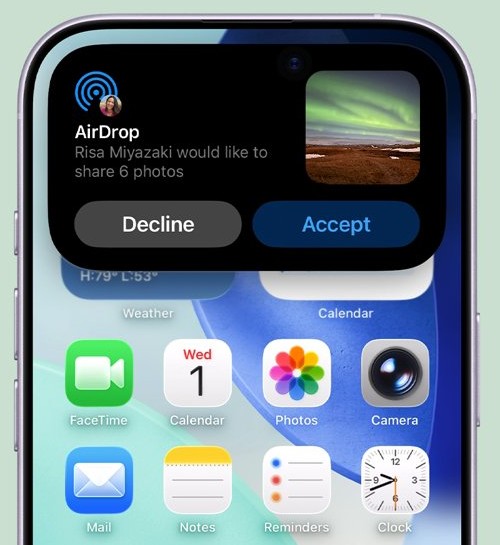
- Wait for the other person to tap Accept on their device.
Between two iPhones on iOS 17 or later, you can also open the file and hold your iPhone close to a contact's iPhone on supported models.
How to use AirDrop to send photos
Photos sent this way are saved in the Photos app on the other device. Send a small batch first to prove the connection works before you try a large album.
- Open the Photos app.
- Tap Select, then tap the photos you want to share.
- Tap the Share button, then tap AirDrop.
- Tap the person's name under People.
- Ask the person to tap Accept, and check the Photos app on their device.
Apple describes AirDrop as best for a small selection of files. For many files between your own devices, sync them or use iCloud instead.
AirDrop not showing up with Contacts Only
This is the most common one-way cause between people who know each other. Apple requires you to be in the recipient's contacts, and that contact card must include your Apple Account email address or phone number.
Your name alone is not enough. Someone can have your number saved, but a different Apple Account email will still leave you out.
- Find the email address or phone number your Apple Account uses.
- Ask the other person to open the Contacts app and find your card.
- Ask them to add that exact email address or phone number to your card.
- Check that both devices are signed in to an Apple Account.
- Open your file and try AirDrop again.
Everyone for 10 Minutes avoids this check, so use it when you need the file sent right now.
AirDrop code when sending to someone not in your contacts
With iOS 26.2, iPadOS 26.2, macOS 26.2 or later, a sender who is not in the recipient's contacts must use an AirDrop code. A send can look stuck when this step is missed on the other device.
- Tap the person under People on your device.
- Ask the person to choose Continue or tap Get AirDrop Code when the notification appears on their device.
- Ask them to read the code to you.
- Enter the code on your device so the item can be shared.
- To remove that person later, open Contacts, find them in the Other Known list, and select Forget This Person.
The code lasts for that person for 30 days, so you can share items with them during that time without entering another one.
AirDrop not working on Mac
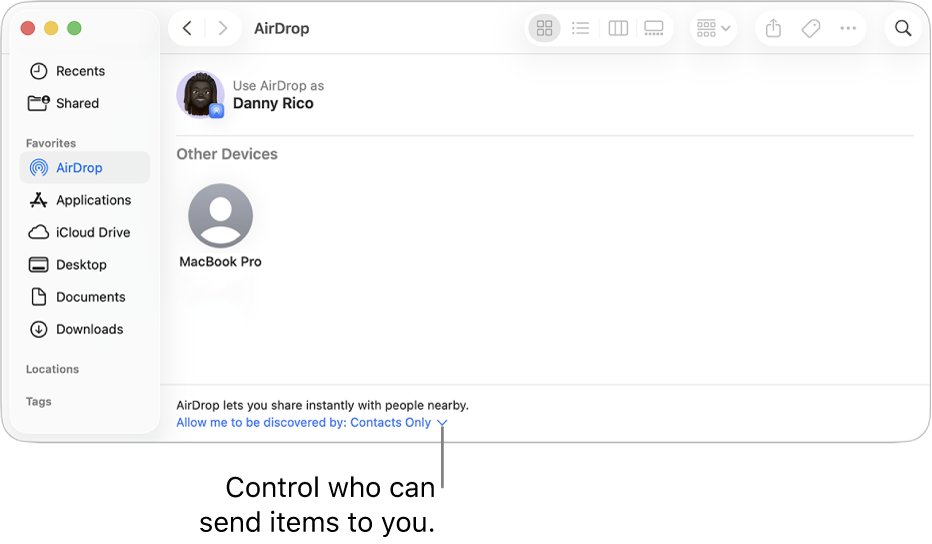
A Mac follows the same rules as an iPhone, so the recipient still has to accept from you. Finder also gives you a second way to send.
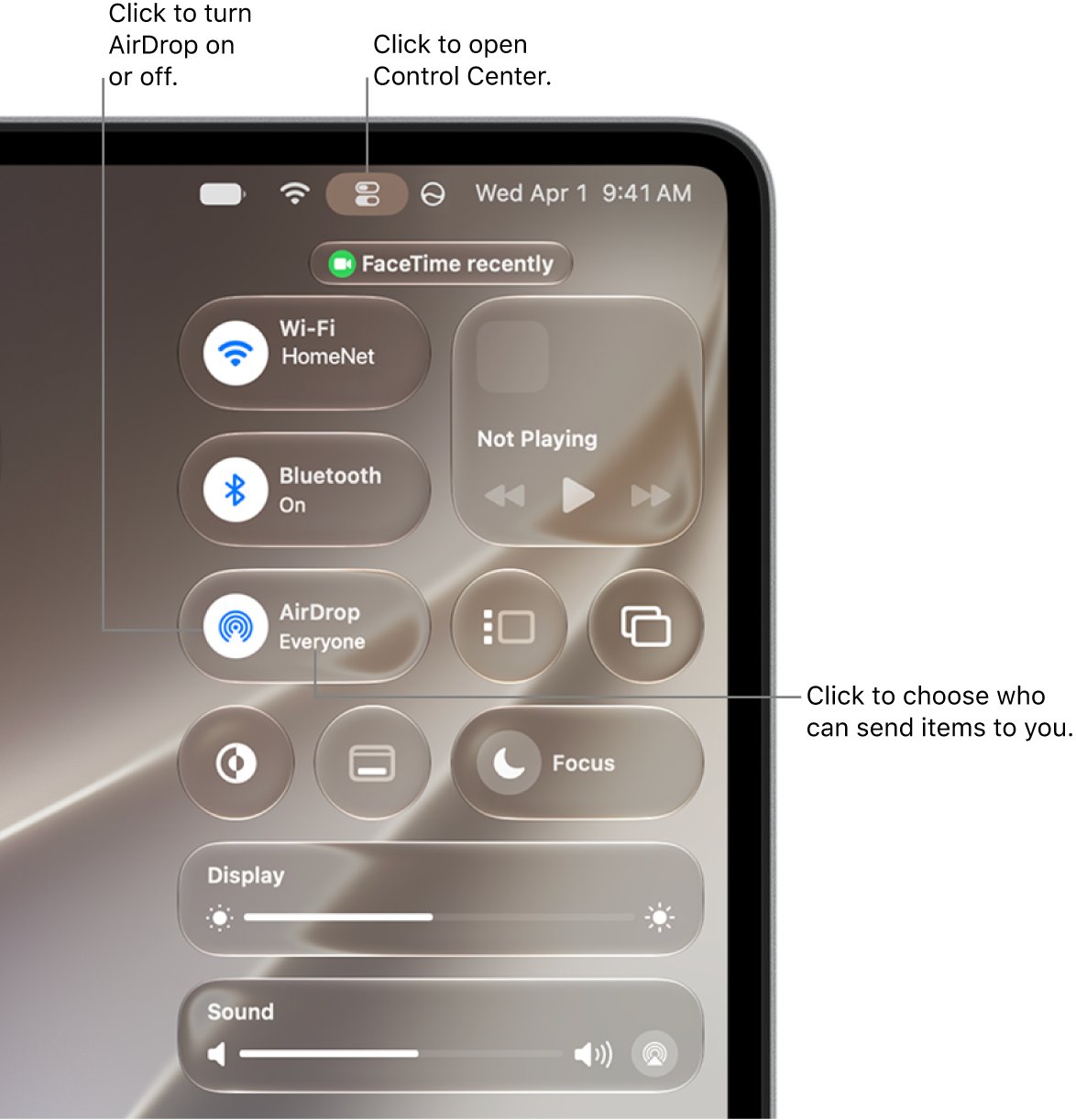
- Click Control Center in the menu bar, then click AirDrop so the icon turns blue.
- Click the arrow next to AirDrop and choose Contacts Only or Everyone.
- Check that Wi-Fi and Bluetooth are both on.
- If you are using a VPN, make sure its configuration does not block local networking.
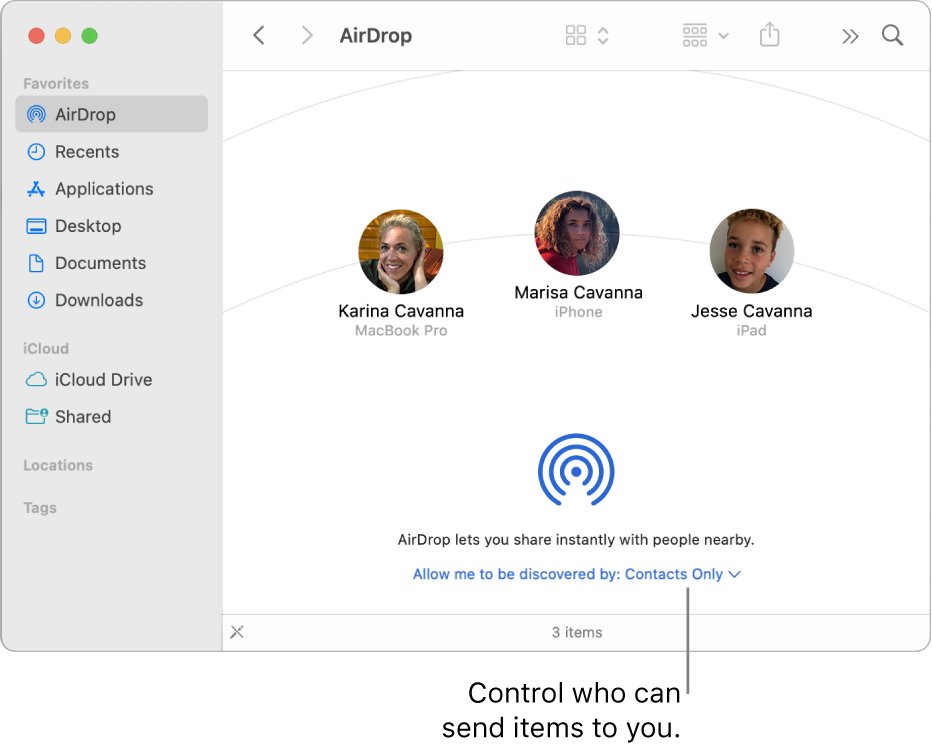
- Open a Finder window and click AirDrop in the sidebar.
- Keep the window open, and check it for the accept or decline prompt when receiving.
- Restart the Mac if the other device still does not appear.
How to airdrop files from a Mac
Try the Finder route when the Share menu shows no recipients. The rules for who can receive from you stay the same on both routes.
- Click the Finder icon in the Dock to open a window.
- Click AirDrop in the sidebar.
- Wait for the recipient to appear in the window.
- Drag your file onto the recipient.
- Enter the AirDrop code if a notification asks for one, then wait for the person to accept.
You can also open the item, click the Share button in the toolbar, click AirDrop, and select the recipient.
Where does AirDrop files go when received?
Most items are saved in the app they were sent from. A file can look lost when it actually went somewhere you did not check.
| Item and device | Where it goes |
|---|---|
| A photo sent from the Photos app | The Photos app on the receiving device |
| Other items on iPhone or iPad | The app they came from, or sometimes the Files app |
| Most items on a Mac | The Downloads folder |
| A photo on a Mac with a choice offered | The Downloads folder or Photos, depending on what you pick |
| Items between devices on the same Apple Account | Accepted and saved automatically, with no prompt |
Can I AirDrop files to a PC?
No, because Apple states that both the sender and recipient must use an iPhone, iPad or Mac. A Windows PC does not appear under People in the AirDrop list, so use one of these routes.
| You want to move | Use this |
|---|---|
| Pictures between iPhone and a Windows PC | Move pictures between a desktop PC and iPhone |
| Files between Windows and another Bluetooth device | Send files over Bluetooth in Windows 11 |
| A file you received over Bluetooth on a laptop | Find received Bluetooth files on a PC |
| Backups and music with an iPhone | The Apple Devices app from the Microsoft Store |
How to turn off cellular data for AirDrop
If you move out of Bluetooth or Wi-Fi range after a transfer starts, the transfer continues over the internet. Carrier charges can apply, so turn this off when traveling or roaming.
- Open Settings and tap General.
- Tap AirDrop.
- Turn off Use Cellular Data.
- Stay within range until the transfer finishes.
How to test AirDrop between iPhone and Mac
Send a file between your own two devices to learn which end has the problem. Items between devices on the same Apple Account are accepted automatically.
- Sign in to the same Apple Account on both devices.
- Turn on Wi-Fi, Bluetooth and AirDrop on both devices.
- Send a small photo from the device that will not send.
- Look for it in Photos on an iPhone, or in Downloads on a Mac.
- Send the same photo to the other person again.
If the self-test works and the other person still fails, the cause is their AirDrop setting or their contact card for you. If it fails too, the cause is on your device.
Why is AirDrop not showing up or not sending?
Why airdrop isn't working with Personal Hotspot on
Apple asks you to disconnect Personal Hotspot on either device before you use AirDrop.
- Open Settings and tap Personal Hotspot.
- Turn off Allow Others to Join on the device sharing its connection.
- Connect the other device back to normal Wi-Fi.
- Open AirDrop and send the file again.
Why won't AirDrop work with a VPN on
A VPN configuration that blocks local networking can interfere with Continuity features.
- Open your VPN settings or app.
- Check whether its configuration allows local networking.
- Allow local networking if the option exists and test AirDrop again.
AirDrop not sending with Low Power Mode on
Apple's battery page lists AirDrop among the features disabled in Low Power Mode.
- Look for a yellow battery icon in the status bar.
- On iPhone 15 or later, open Settings > Battery > Power Mode and tap Low Power Mode.
- On iPhone 14 or earlier, open Settings > Battery and tap Low Power Mode.
- Send the file again after it turns off.
Big Sur AirDrop not sending files
The recipient's AirDrop setting decides this on an older Mac too, and Finder is the direct route to send.
- Open a Finder window and click AirDrop in the sidebar.
- Drag the file onto the recipient in that window.
- Check that the other person has AirDrop set to accept from you.
- Install any available macOS update and restart the Mac.
Why can't I receive AirDrop photos now
Your own setting has returned to Contacts Only or Receiving Off after 10 minutes.
- Open Control Center and touch and hold the top-left group of controls.
- Tap AirDrop, then tap Everyone for 10 Minutes.
- Ask the sender to try again within those 10 minutes.
AirDrop not working after all of this
One of the devices is stuck and a normal restart has not cleared it.
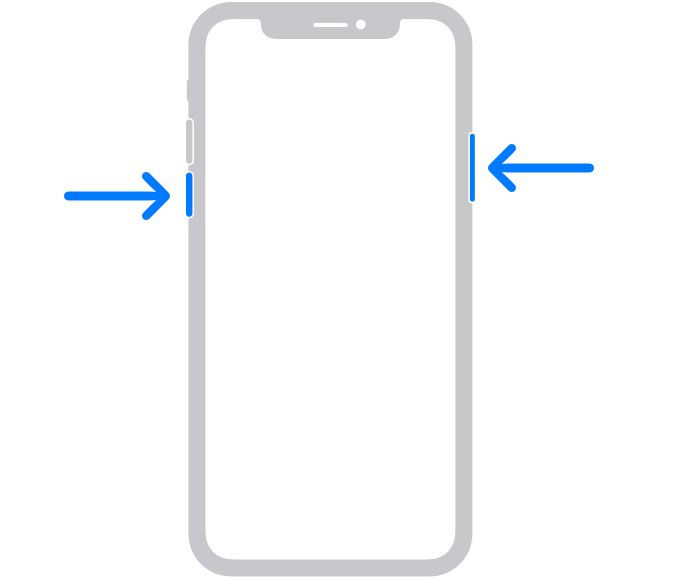
- Press and hold either volume button and the side button, then drag the slider.
- Wait 30 seconds, then hold the side button until the Apple logo appears.
- Force restart the iPhone if it does not respond.
- Run the self-test between your own devices again.
AirDrop not sending files FAQ
Why can't I AirDrop to someone who can AirDrop to me?
Their setting controls who can send to them. If they use Contacts Only, you must be in their contacts, with your Apple Account email or phone number on your card. Ask them to choose Everyone for 10 Minutes as a quick test.
Why is AirDrop not working?
Apple's checks are that both people have Wi-Fi and Bluetooth on, use an iPhone, iPad or Mac, and stay within 30 feet. The recipient must also accept from Everyone or Contacts Only. Disconnect Personal Hotspot and restart if those all look right.
Why is AirDrop not showing up?
A name appears only when that person is nearby, has Wi-Fi and Bluetooth on, and can accept files from your device. Ask them to set AirDrop to Everyone for 10 Minutes. On a Mac, open the AirDrop window in Finder.
How do I send files with AirDrop?
Open the item, tap the Share button, tap AirDrop, then tap the person under People. The other person must then tap Accept. On a Mac, you can also drag a file onto the recipient in the Finder's AirDrop window.
Can I AirDrop files to a PC?
No. Apple states that both devices must be an iPhone, iPad or Mac, so a Windows PC cannot send or receive AirDrop files. Use the Apple Devices app, a cable, or a cloud service to move files to a PC instead.
Can you AirDrop to email?
No. AirDrop sends items directly to a nearby iPhone, iPad or Mac, not to an email address. To send the same file by email, tap the Share button in the app and choose Mail instead of AirDrop.
Where are AirDrop files saved?
Most items are saved in the app they were sent from, so a photo goes to Photos. On an iPhone or iPad, some items go to the Files app. On a Mac, some items go to the Downloads folder automatically.
Can Windows receive AirDrop?
No. AirDrop works only between iPhone, iPad and Mac, according to Apple. A Windows PC cannot appear under People in the AirDrop list, so choose a transfer route that supports Windows, such as the Apple Devices app.
Why can't I receive AirDrop photos?
Check that your AirDrop is set to Contacts Only or Everyone for 10 Minutes, because Everyone for 10 Minutes reverts after 10 minutes. On a Mac, look in the Finder's AirDrop window for the prompt if you opened it there.