To uninstall an app that won't uninstall in Windows 10 or 11, close every running copy of it in Task Manager, restart, and then remove it from Settings or Control Panel.
If that still fails, this guide covers repairing the app first, removing it with winget or PowerShell, and using Safe Mode when something keeps the program locked.
Force close the program and then uninstall it
An uninstaller often stops because the program, its tray icon or a helper process is still running and holding its files open.
- Press Ctrl + Shift + Esc to open Task Manager.
- On the Processes tab, right-click every entry that belongs to the app and select End task.
- Select Start > Settings > Apps > Installed apps.
- Find the app, select More (the three dots) > Uninstall, and confirm.
- Follow the app's own uninstaller to the end, then restart the PC.
From a command prompt, taskkill /f /im <program>.exe ends a stubborn process by its file name. /f forces it to close.
Uninstall programs the regular way
Windows has three standard uninstall locations. Some apps are missing from one list but present in another, so try each before moving on.
| Where to uninstall | Path | Best for |
|---|---|---|
| Start menu | Start > All apps, right-click the app > Uninstall | Quick removal of most Store and desktop apps |
| Settings | Start > Settings > Apps > Installed apps > More > Uninstall | Windows 11; on Windows 10 the page is Apps & features |
| Control Panel | Control Panel > Programs > Programs and Features, right-click > Uninstall or Uninstall/Change | Older desktop programs that Settings cannot remove |
Microsoft notes that some apps can't be uninstalled from Settings yet, and Control Panel is the fallback for those. Some apps are built into Windows and cannot be uninstalled at all.
Repair the app first, then uninstall it
A damaged install can break its own uninstaller. Repairing the program puts the missing files back so removal can finish.
- Select Start > Settings > Apps > Installed apps.
- Select More next to the app, then Advanced options if it appears.
- Select Repair; if that does not help, select Reset.
- For an older program, open Control Panel > Programs > Programs and Features.
- Right-click the program and select Repair, or Change if Repair is not listed.
- Restart the PC and run the uninstall again.
Not every app offers Repair, Reset, Change or Modify. If none appear, go to the command line options below.
Alternative uninstallation options
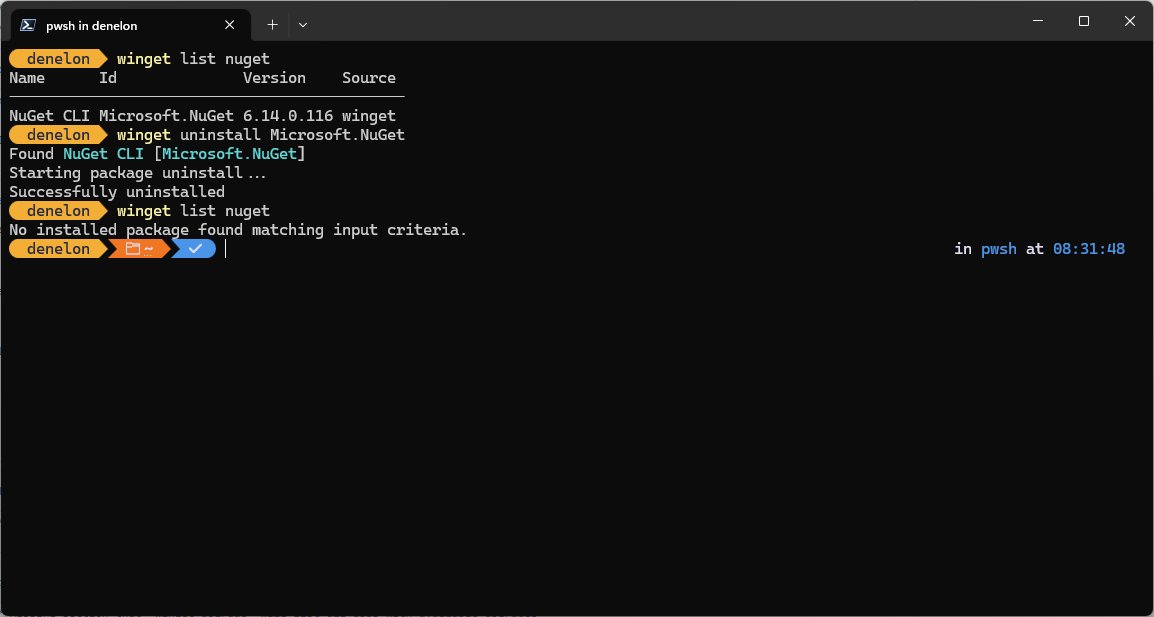
The command line can remove apps that the graphical lists refuse. Winget is built into Windows 11 and modern Windows 10, and it sees apps that were not installed through it.
- Right-click Start and select Terminal (Admin) or Windows PowerShell (Admin).
- Type
winget listand press Enter, then find the app's Id. - Type
winget uninstall --id <Id> -eand press Enter. - Add
--source wingetif a Microsoft Store agreement prompt blocks the command. - For a Microsoft Store app, run
Get-AppxPackage *name*to find its PackageFullName. - Run
Remove-AppxPackage -Package <PackageFullName>to remove it for your account. - Add
-AllUserstoRemove-AppxPackagein an administrator window to remove it for every account.
The winget package manager also accepts --all-versions to remove an app installed more than once.
Remove programs that won’t uninstall
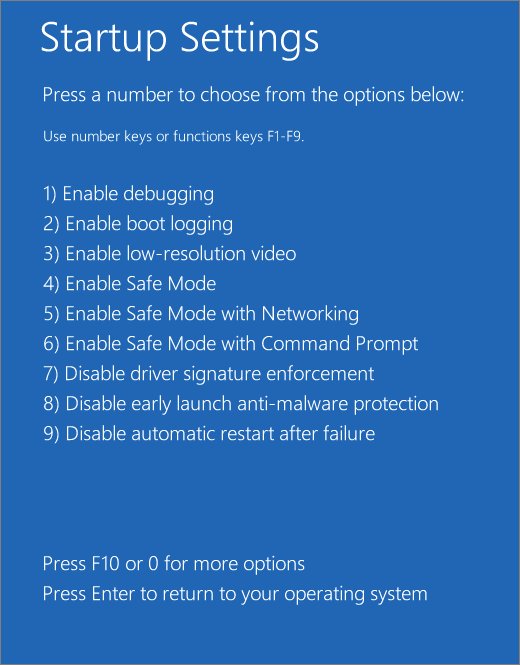
Safe Mode starts Windows with a limited set of files and drivers, so startup programs and services that lock an app's files do not load.
- Select Start > Settings > System > Recovery, then select Restart now next to Advanced startup.
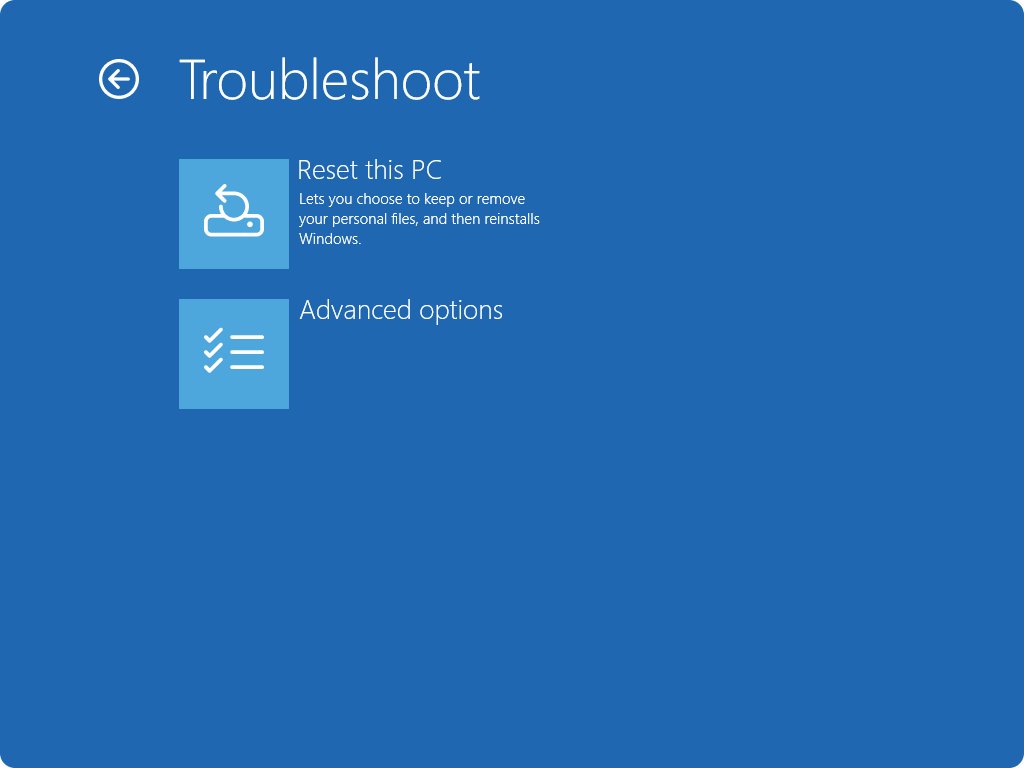
- Select Troubleshoot > Advanced options > Startup Settings > Restart.
- Press 4 or F4 for Enable Safe Mode.
- Sign in and uninstall the app from Control Panel > Programs > Programs and Features.
- Restart the PC normally.
Have your BitLocker recovery key ready if the drive is encrypted. If the PC keeps starting in Safe Mode, press Windows + R, run msconfig, open the Boot tab and clear Safe boot.
Some uninstallers depend on services that Safe Mode does not start. If removal fails there too, contact the app's publisher for its removal tool.
Check the app is fully uninstalled
- Open Settings > Apps > Installed apps and search for the app name.
- Open Control Panel > Programs and Features and confirm it is not listed.
- Run
winget list --name <app>in Terminal; an empty result means it is gone. - Search Start for the app and confirm no shortcut opens it.
App still won't uninstall in Windows 11 or 10
The Uninstall button is greyed out
The app is built into Windows or managed by your organisation.
- Check whether the app is a built-in Windows component; those cannot be uninstalled.
- On a work or school PC, ask your IT administrator to remove it.
The uninstaller shows an error and stops
Files are missing or a process is still running.
- Restart the PC from Start > Power > Restart.
- Repair the app from Advanced options or Programs and Features, then uninstall again.
- Try
winget uninstall --id <Id> -efrom an administrator terminal.
The app keeps coming back or looks suspicious
It can be unwanted software that reinstalls itself.
- Open Windows Security and run a scan from Virus & threat protection.
- Remove the app only after the threats are cleaned.
Nothing removes it and Windows misbehaves
System files or the app's install records are badly damaged.
- Use Reset this PC with Keep my files as the last resort.
- Reinstall the apps you still need afterwards.
Uninstall stubborn apps in Windows FAQ
Why won't an app uninstall in Windows 11?
Most often the app is still running, its install files are damaged, or it is a built-in Windows app. Close it in Task Manager, repair it from Installed apps, then uninstall again from Settings or Control Panel.
How do I force uninstall a program in Windows 10?
End its processes in Task Manager, then run winget uninstall with the app's Id from an administrator terminal. If that fails, start in Safe Mode and remove it from Programs and Features.
How do I uninstall an app that is not in Settings?
Look in Control Panel under Programs and Features, which lists older desktop programs that Settings can miss. The Start menu All apps list and winget list are two more places to find it.
Can I uninstall built-in Windows apps?
Some built-in apps can be removed from Settings or with Remove-AppxPackage, but Microsoft states that certain apps are part of Windows and cannot be uninstalled. Their Uninstall button stays greyed out.
Is it safe to uninstall programs in Safe Mode?
Yes. Safe Mode only loads a basic set of files and drivers, so it stops other software from locking the program. Restart normally when you are done.
What if uninstalling a program gives an error?
Restart, repair the program, and try again. Microsoft also points to its Program Install and Uninstall troubleshooter for uninstall errors, and to the app publisher's support if built-in options fail.