Winget is the Windows Package Manager command line tool, and you install an app with it by typing winget install <appname> in Command Prompt or PowerShell.
This guide covers how to get winget on Windows 10 and 11, how to check you have it, the commands for search, install, uninstall and upgrade, and fixes when the command is not recognized.
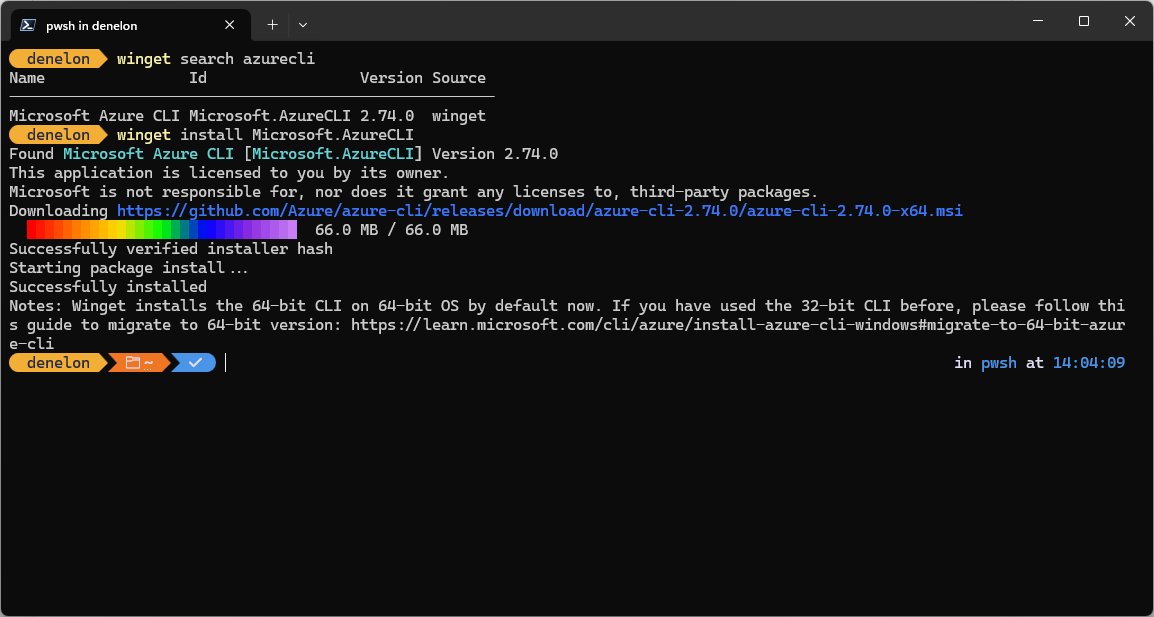
How to use Winget to install apps
Winget works on Windows 11 and on Windows 10 version 1809 (build 17763) or later. A normal user prompt is enough; Windows asks for elevation when an installer needs it.
- Right-click Start and select Terminal, Windows PowerShell or Command Prompt.
- Type
winget search vscodeand press Enter to find the package and its Id. - Type
winget install --id Microsoft.VisualStudioCode -eand press Enter. - Type
Yand press Enter if winget asks you to accept the source agreement. - Approve the User Account Control prompt if the installer asks for one.
- Wait for Successfully installed to appear, then open the app from Start.
Using --id with -e (exact match) stops winget from asking you to pick between several packages with similar names.
What does Winget Windows 10 Package Manager do?
Winget is the client for the Windows Package Manager service. It discovers, installs, upgrades, removes and configures applications on Windows 10, Windows 11 and Windows Server 2025.
Packages come from sources. Three are set up by default, and winget source list shows them on your PC.
| Default source | What it contains |
|---|---|
| winget | The WinGet Community Repository of applications |
| msstore | The Microsoft Store catalog |
| winget-font | The WinGet Community Repository for fonts (only used when you name it with --source winget-font) |
Winget runs the app's own installer. It supports EXE, MSI, WiX, Inno, Nullsoft, Burn, MSIX, APPX, ZIP, portable and font packages.
How to get Winget Windows Package Manager?
Winget ships inside App Installer, a system component that the Microsoft Store app delivers and updates on Windows 11 and modern Windows 10. Most PCs already have it.
- Sign in to Windows as a user at least once; the Store registers winget after the first sign-in.
- Open the Microsoft Store, search for App Installer and select Update or Get if either appears.
- If winget is still missing on a freshly set-up PC, open PowerShell and run
Add-AppxPackage -RegisterByFamilyName -MainPackage Microsoft.DesktopAppInstaller_8wekyb3d8bbwe. - Close and reopen the terminal window, then type
wingetto confirm it responds.
Windows Sandbox includes neither winget nor the Microsoft Store, so it needs the PowerShell repair route shown in the troubleshooting section below.
Do I have Windows Package Manager?
Ask winget for its version. If the command prints a number, the package manager is installed and on your PATH.
winget --versionPrints the installed WinGet version. winget --info adds the log folder, license links and any group policies applied to winget.
You should see: A version string such as v1.x.xxxx. An error that winget is not recognized means App Installer is missing or not registered for your account.
How do I use Windows Package Manager?
Every task uses winget followed by a command. These are the ones you will use daily.
| Task | Command | Notes |
|---|---|---|
| Find an app | winget search <name> |
Shows Name, Id, Version and Source |
| See package details | winget show --id <Id> |
Shows the installer winget will pick for your PC |
| Install an app | winget install --id <Id> -e |
add is an alias of install |
| Install a specific version | winget install --id Microsoft.PowerToys --version 0.91.1 |
Without --version, the highest version installs |
| Install silently | winget install --id <Id> -e -h --accept-package-agreements |
-h is --silent and hides installer UI |
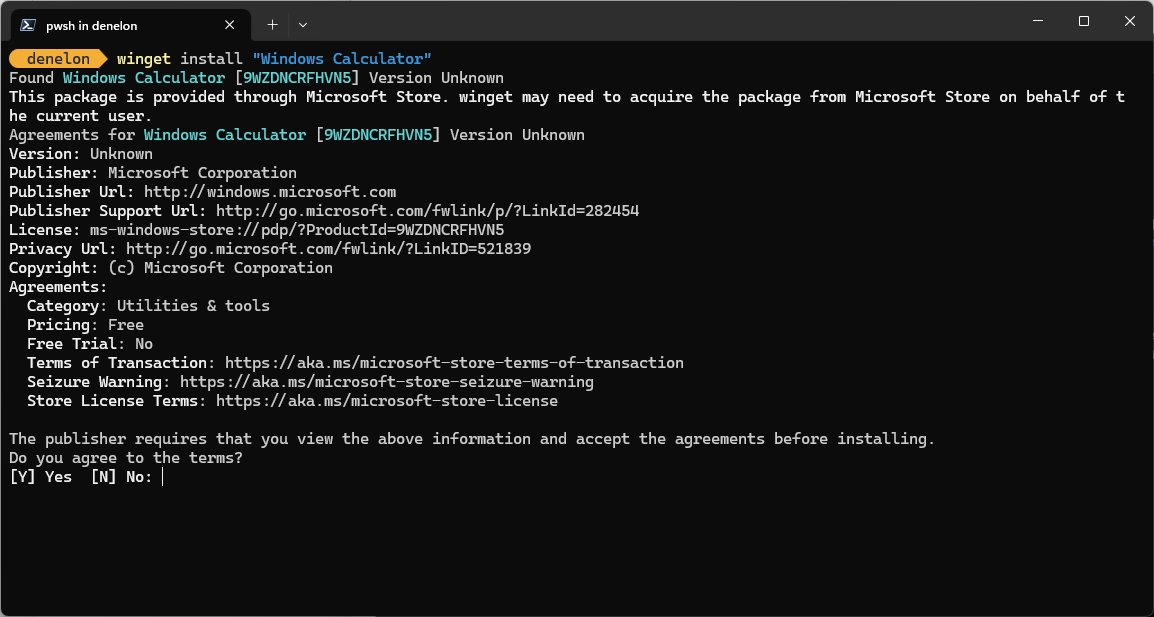
| Install from the Microsoft Store | winget install XP9KHM4BK9FZ7Q -s msstore |
Store Ids are unique, so -e is not needed |
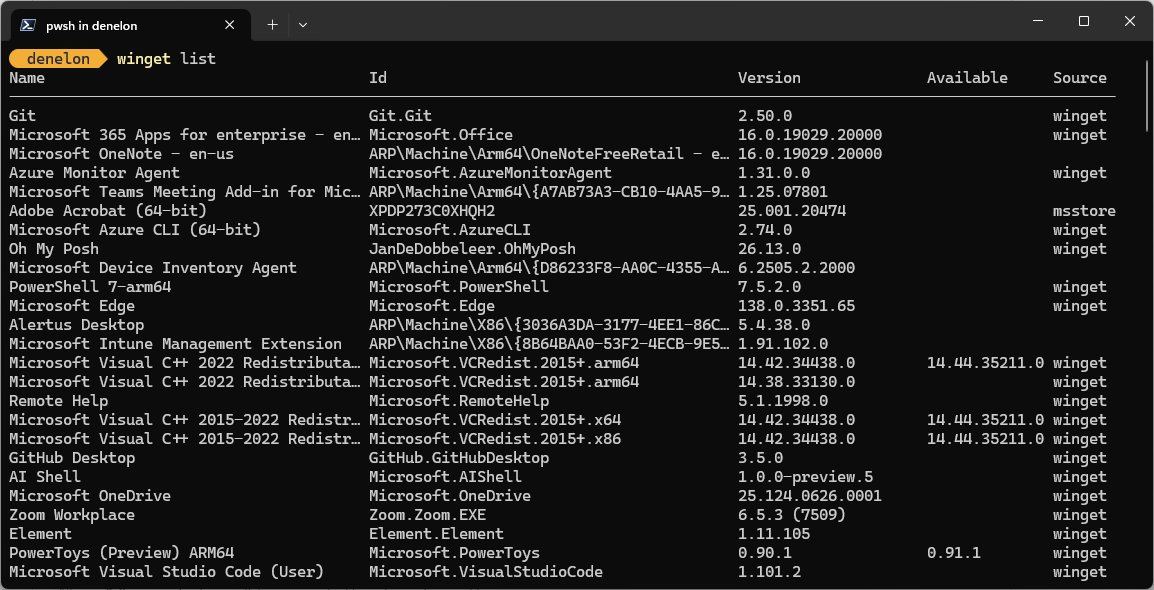
| List installed apps | winget list |
Includes apps installed outside winget |
| Show apps with updates | winget list --upgrade-available |
Same information as winget upgrade with no arguments |
| Update everything | winget upgrade --all |
Add --include-unknown for apps with no version number |
| Open settings | winget settings |
Opens settings.json in your default JSON editor |
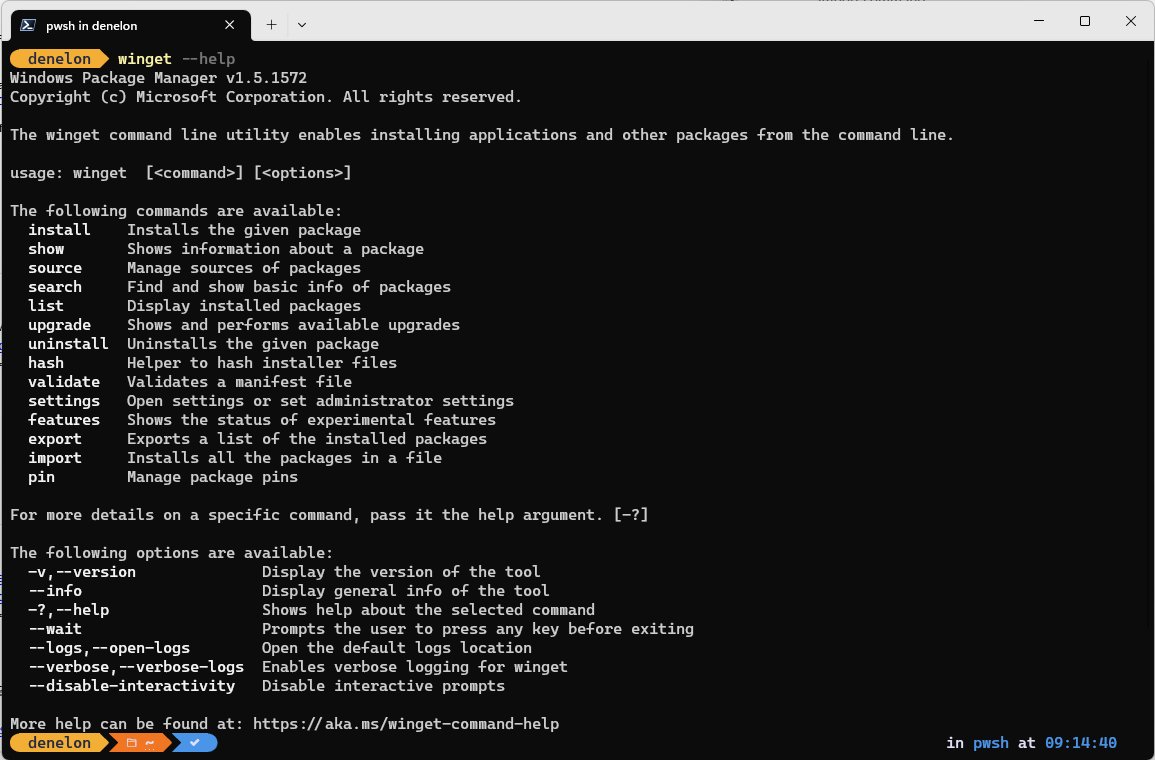
| See every command | winget --help |
Add a command name for its options, e.g. winget install --help |
How can I install several apps at once with Windows Package Manager?
List several package Ids after winget install. Winget installs them one after another in the same run.
winget install Microsoft.VisualStudioCode Microsoft.PowerShell Git.GitInstalls Visual Studio Code, PowerShell and Git in sequence from one command.
You should see: Each package reports Successfully installed before the next one starts.
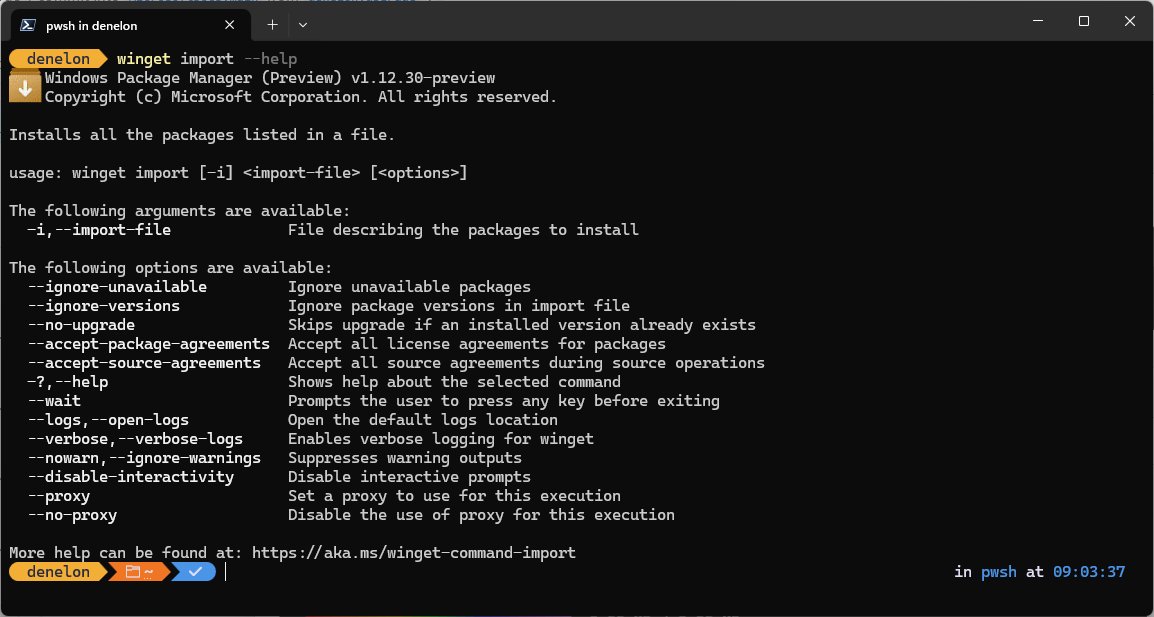
For a full set of apps, run winget export -o apps.json on one PC and winget import -i apps.json --accept-package-agreements --accept-source-agreements on another.
Add --ignore-unavailable to the import if some apps in the file are not in any source, and --ignore-versions to take the latest version of each.
Can I uninstall using Windows Package Manager?
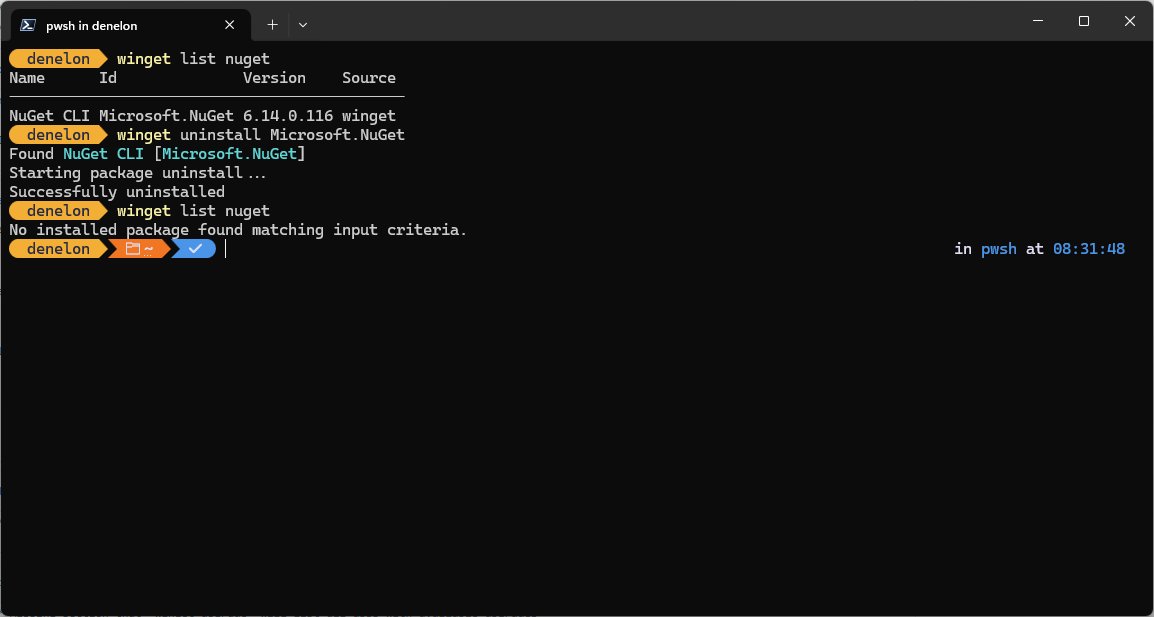
Yes. winget uninstall removes an installed app, and remove and rm are aliases for it. It works on apps winget did not install, as long as they appear in winget list.
- Type
winget listand press Enter, then note the app's Id. - Type
winget uninstall --id <Id> -eand press Enter. - Add
--source wingetif winget shows a Microsoft Store agreement prompt you do not want. - Add
--all-versionsto remove every installed version of the same package. - Run
winget list --id <Id>again to confirm the app is gone.
For a portable package, --purge deletes every file in its package folder. You can also remove any app in Settings > Apps > Installed apps.
Where does winget install packages?
Most packages go wherever their own installer puts them, usually under Program Files. Portable packages use winget's own folders.
| Package type | Default location | How to change it |
|---|---|---|
| Regular installer (EXE, MSI, MSIX) | The installer's default, usually Program Files or AppData | --location <path> on winget install, if the installer supports it |
| Portable, user scope | %LOCALAPPDATA%\Microsoft\WinGet\Packages |
portablePackageUserRoot in winget settings |
| Portable, machine scope | %PROGRAMFILES%\WinGet\Packages |
portablePackageMachineRoot in winget settings |
| Log files | %LOCALAPPDATA%\Packages\Microsoft.DesktopAppInstaller_8wekyb3d8bbwe\LocalState\DiagOutputDir |
winget --info prints the path; --logs opens it |
--scope user or --scope machine asks for a per-user or all-users install. MSIX and MSI packages respect it reliably; EXE installers may not.
Winget not working on Windows 10 or 11
'winget' is not recognized as a command
App Installer is missing, out of date, or not registered for this account yet.
- Update App Installer from the Microsoft Store.
- Run
Add-AppxPackage -RegisterByFamilyName -MainPackage Microsoft.DesktopAppInstaller_8wekyb3d8bbwein PowerShell. - Close every terminal window and open a new one.
Winget is installed but broken, or missing in Windows Sandbox
The App Installer package is damaged or was never added.
- Open Windows PowerShell as administrator.
- Run
Install-PackageProvider -Name NuGet -Force. - Run
Install-Module -Name Microsoft.WinGet.Client -Force -Repository PSGallery. - Run
Repair-WinGetPackageManager -Force -Latest.
Winget lists several packages instead of installing
The search text matches more than one package or source.
- Copy the exact Id from the results.
- Run
winget install --id <Id> -e --source winget.
An install fails with an error code
The app's installer returned an error.
- Run
winget error <code>to see what a WinGet, MSI or MSIX code means. - Repeat the install with
--verbose-logs, then open the log withwinget --logs.
Windows Package Manager winget FAQ
Does winget work on Windows 10?
Yes. Winget is supported on Windows 10 version 1809 (build 17763) and later, as well as Windows 11 and Windows Server 2025. It arrives with App Installer, which the Microsoft Store keeps updated on Windows 10.
How do I install Windows Package Manager?
Install or update App Installer from the Microsoft Store, because winget ships inside it. On a new account, sign in once and give the Store time to register it, or run the Add-AppxPackage registration command in PowerShell.
How do I get Windows Package Manager if the Store is not available?
Use the Microsoft.WinGet.Client PowerShell module. Install it from the PowerShell Gallery with Install-Module, then run Repair-WinGetPackageManager to bootstrap winget. This is the route Microsoft gives for Windows Sandbox.
What is Windows Package Manager source winget?
It is the WinGet Community Repository, the default source that holds application manifests. Winget also has msstore for the Microsoft Store catalog and winget-font for fonts. Run winget source list to see the sources on your PC.
Where do winget packages get installed?
Regular installers use their own default folder, usually Program Files. Portable packages go to %LOCALAPPDATA%\Microsoft\WinGet\Packages for one user, or %PROGRAMFILES%\WinGet\Packages for all users. Both roots can be changed in winget settings.
Can I delete Windows Package Manager winget?
Winget is part of App Installer, which Microsoft treats as a system component delivered by the Microsoft Store. Removing it also removes App Installer features, so leave it installed and simply do not run winget if you do not need it.
How do I install a winget package for all users?
Run winget install with –scope machine from an administrator terminal. MSIX and MSI packages handle machine scope reliably. EXE installers vary, and some ignore the scope request or decide it themselves.
Is there a winget package manager GUI?
Winget itself is a command line tool with no official graphical interface. The Microsoft Store and Settings > Apps cover the same install and uninstall jobs with a graphical interface.
Get installing!
Search with winget search, install by exact Id with winget install --id <Id> -e, and keep everything current with winget upgrade --all. Exact Ids remove ambiguous matches, and one upgrade command replaces checking each app for updates by hand. If you prefer clicking through installers, the usual ways to install apps on a Windows PC still work alongside winget.