To unlock a Samsung phone when you forget the PIN, password or pattern, tap Forgot PIN/password/pattern? after five wrong tries and enter your previous screen lock; if that is not available, erase the phone with Samsung Find, Google Find Hub or recovery mode and sign back in.
This guide covers every official route on Galaxy phones, what each one does to your data, how to get past the Google account check after a reset, how carrier unlocking works, and what to try when the screen still will not unlock.
How to unlock a Samsung phone: Step-by-step guide
Work through these steps in order. The first three keep your data; the later ones erase the phone, so only move on when the earlier ones fail.
- Try your PIN, pattern or password slowly, and try your fingerprint or face if you set one up.
- After five unsuccessful attempts, tap Forgot PIN/password/pattern? on the lock screen.
- On the Reset with previous screen lock screen, enter the PIN, password or pattern you used before the current one, then set a new one. This works on One UI 6.1 or later within 72 hours of the change.
- If you cannot remember the previous lock either, accept that the remaining routes erase the phone; anything already backed up to Samsung Cloud or your Google account comes back after setup.
- Erase the phone remotely from a computer at samsungfind.samsung.com with Erase data, or at google.com/android/find with Factory reset device.
- If the phone is offline, reset it from recovery mode with the hardware buttons instead.
- When the phone restarts into setup, sign in with the Google account that was on it, then set a new screen lock you will remember.
Samsung lists one more option when nothing else works: book a repair and ask a Samsung Service Center to reset the phone. That also deletes all data.
Samsung unlock methods compared
Each route has different requirements and a different effect on your data. Match your situation to a row.
| Method | What you need | Keeps your data? | Best for |
|---|---|---|---|
| Reset with previous screen lock | One UI 6.1 or later, the old PIN/password/pattern, a change made in the last 72 hours | Yes | You changed the lock recently and forgot the new one |
| Samsung Find Erase data | Samsung account on the phone, Allow this phone to be found turned on, phone powered on and online | No | Locked out with no previous lock, phone within network reach |
| Google Find Hub Factory reset device | Google account on the phone, Find Hub on, phone powered on and online | No (SD card may be kept) | No Samsung account on the phone |
| Recovery mode with the buttons | Physical access, a USB cable and computer on recent models, the Google account password | No | Phone is offline or not registered to either service |
| Samsung Service Center | The phone and proof of purchase | No | You also forgot the Google account details |
| Carrier unlock | A paid-off phone and your carrier's policy | Yes | Using the phone with another carrier's SIM |
Why is unlocking a Samsung phone so difficult?
Galaxy phones stack several protections so a thief cannot simply wipe and reuse a phone. Every one of them also stops the owner who forgot the code.
| Protection | What it blocks | How the owner gets past it |
|---|---|---|
| Screen lock (PIN, pattern, password) | Any use of the phone and its data | The correct code, or the previous code within 72 hours on One UI 6.1+ |
| Google Device Protection (FRP) | Using the phone after a reset done outside Settings | Sign in with the last Google account used on the phone |
| Samsung account | Signing out of Samsung services during a reset | Enter the Samsung account password when asked |
| Security lock after network loss | Use of a phone kept offline for 30 minutes after restarting | Restart and connect to a stable network straight away |
| Carrier lock | SIM cards from other networks | Meet the carrier's unlock policy, usually paying the phone off |
Google Device Protection turns on automatically once a Google account and a screen lock are set. A reset from the recovery menu always triggers it, while a reset from Settings does not.
How to unlock Samsung phone forgot PIN with your previous screen lock
This is the only Samsung method that unlocks the phone without erasing it. It needs One UI 6.1 or later, and you must not have ticked Delete previous PIN now when you set the new lock.
- Enter a wrong PIN, password or pattern until the phone has counted five unsuccessful attempts.
- Tap Forgot PIN/password/pattern? on the lock screen.
- On the Reset with previous screen lock screen, enter your previous PIN, password or pattern.
- Set a new PIN, password or pattern when asked.
- Unlock the phone with the new code to confirm it took.
The option disappears 72 hours after you set the current lock. Past that point, the remaining routes all erase the phone.
How to unlock Samsung phone remotely with Samsung Find
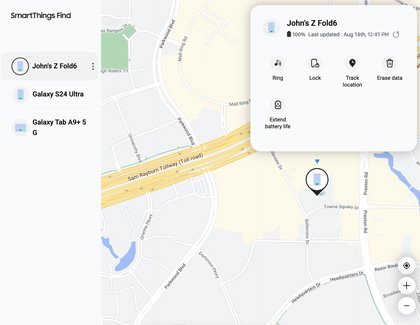
Samsung Find (part of SmartThings Find, formerly Find My Mobile) can erase a locked phone from any web browser, which removes the forgotten lock. Samsung's support pages list Track location, Ring, Lock, Erase data and Extend battery life as the remote controls; Erase data is the one that clears a forgotten lock.
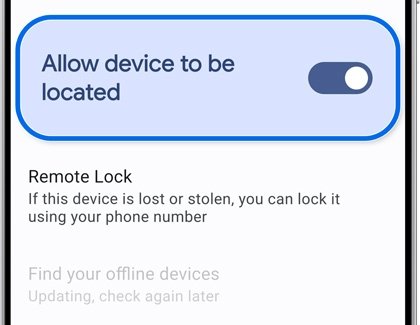
It works only if the phone is powered on, connected to Wi-Fi or mobile data, signed in to a Samsung account, and had Allow this phone to be found turned on before you were locked out.
- On a computer or another phone, open samsungfind.samsung.com and sign in with the Samsung account used on the locked phone.
- Select the locked phone in the device list and wait for it to be located.
- Select Erase data and verify your account if prompted.
- Select Erase to confirm. The phone performs a factory data reset, which also erases any SD card data.
- When the phone restarts into setup, sign in to the same Samsung account to restore your Samsung Cloud backup.
The same site can locate your lost Samsung Galaxy phone and ring it, which is worth doing first if the phone is missing rather than just locked.
How to unlock Samsung phone with computer using Google Find Hub
Google Find Hub (previously Find My Device) does the same job with your Google account, so it helps when no Samsung account was added. It works when the phone has power, is connected to mobile data or Wi-Fi, is signed in to a Google account, has Find Hub turned on and is visible on Google Play.
- On a laptop or desktop, open google.com/android/find and sign in with the Google account used on the locked phone.
- Wait for Find Hub to locate the phone, then select it.
- Select Factory reset device, review the information and select Next.
- Verify your account, then select Reset and Erase.
- Set the phone up again and sign in with the same Google account to restore your backed-up data.
Google warns that this permanently deletes the data on the phone but may not delete the SD card. After the reset, the phone no longer shows in Find Hub until you sign in again.
How to unlock Samsung phone forgot password with recovery mode
Recovery mode resets a phone that is offline or not registered to Samsung Find or Find Hub. Samsung's guide says to connect recent phones to a computer with a USB cable before opening the menu. This reset triggers Google Device Protection, so have the Google account password ready.
- Turn the phone off. If the locked screen will not let you open the power menu, Samsung notes the phone may only switch off once the battery runs down.
- Plug the phone in to a computer with a USB cable.
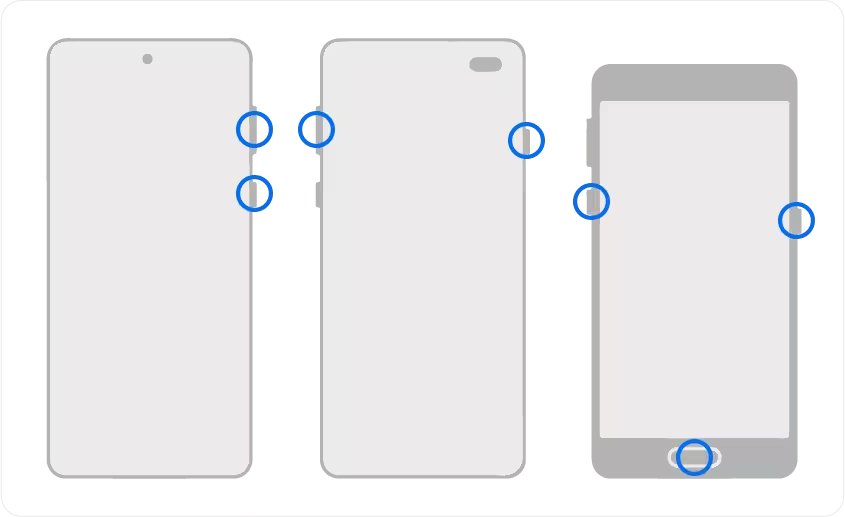
- Hold the button combination for your model: Volume Up and Side on phones without a Home button (S20 and later, Note 10 and later, Fold, Z Flip); Volume Up, Bixby and Power on the S8, S9 and S10; Volume Up, Home and Power on models with a Home button such as the S6 and S7.
- Release the buttons when the phone vibrates and the Samsung logo appears, then wait for the recovery menu.
- Press Volume Down to highlight Wipe data/factory reset (or Delete all user data) and press Power to select it.
- Highlight Factory data reset (or Yes – delete all user data) and press Power to confirm.
- When Data wipe complete appears, select Reboot system now with Power.
- Wait a few minutes for the setup screens, then sign in with the Google account that was on the phone.
The same recovery menu lets you factory reset a Samsung tablet too, and you can factory reset a Samsung phone without the password with these keys even when the screen will not respond.
Samsung phone asking for Google account after reset
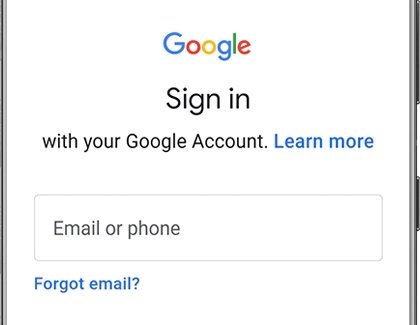
After any reset done outside Settings, the phone asks for the username and password of the last Google account used on it. If the wrong details are entered, the phone will not unlock. This is Factory Reset Protection, and the only supported way past it is to prove the account is yours.
- Connect the phone to Wi-Fi on the setup screen, because the account check needs a network.
- Enter the Google account email and password that were signed in before the reset.
- On Android 9 and later, enter your previous screen lock PIN, pattern or password if the phone offers that option instead.
- If you forgot the Google password, reset it with Google's account recovery on another device, then wait: Google may hold the new password for 24 hours before it works on the phone.
- If you have several Google accounts, sign in to Google Device Manager on a computer to see which account the phone is registered to.
- If you cannot recover the account at all, take the phone and proof of purchase to an authorized Samsung Service Center.
Avoid any tool that promises to remove this lock. Factory Reset Protection exists to stop stolen phones being reused, and Samsung's own answer for a lost account is the service center.
How to unlock Samsung phone from carrier
A carrier unlock is different from a screen unlock. It lets a Samsung phone bought from one network accept another network's SIM, and only the carrier that sold the phone can remove it.
| Carrier | When the phone unlocks | What you do |
|---|---|---|
| Verizon postpaid | Automatically once the phone is paid in full; paying the balance with a secure payment method unlocks it immediately | Nothing; gift card payments delay the unlock by 35 days |
| Verizon prepaid | Automatically after 365 days of paid and active service | Nothing; phones reported lost or stolen stay locked |
| AT&T | When the phone meets AT&T's unlock eligibility rules | Submit a request at att.com/deviceunlock |
| Other carriers | Under each carrier's own unlock policy | Contact the carrier that sold the phone and ask for a device unlock |
Verizon states that once a device is unlocked it will never be re-locked. A factory reset does not change a phone's carrier lock status in either direction.
Alternative solutions for a locked Samsung phone
Some lock-screen problems are not a forgotten code at all. These Samsung-documented fixes help when the phone will not respond to the code you know is right.
| Situation | Try this | Why it helps |
|---|---|---|
| Third-party keyboard missing on the lock screen | Restart in Safe mode: hold Power, touch and hold Power off, tap Safe mode | Safe mode sets Samsung Keyboard as the default, so you can type the PIN |
| Cracked screen that ignores touches | Connect a USB mouse and keyboard through a USB adapter | You can draw the pattern or type the PIN and back up data |
| Black or frozen screen | Hold Power and Volume Down for 20 seconds, then charge for at least an hour | Forces a restart of a phone that looks dead |
| Phone says it is locked for security reasons | Restart and connect to a stable network straight away | The phone stays locked if it is offline for 30 minutes |
| Nothing works | Call 1-800-SAMSUNG (800-726-7864) or book a repair | Samsung can reset the phone with proof of purchase |
How to tell if your Samsung phone is unlocked and protected again
- Lock the screen with the Side key (or Power key on older models), then unlock it with your new PIN, pattern or password.
- Open Settings > Accounts and backup > Manage accounts and confirm your Google account and Samsung account are both listed.
- Open Settings > Security and privacy > Lost device protection and check that Allow this phone to be found is on.
- Sign in at samsungfind.samsung.com or google.com/android/find from another device and confirm the phone appears in the list.
Samsung phone won't unlock: Still not working?
Why won't my Samsung phone unlock with the right PIN?
The phone may be in a security lock after a restart without a network, or a keyboard app is not loading on the lock screen.
- Restart the phone and connect it to Wi-Fi or mobile data straight away.
- If the keyboard is missing, restart in Safe mode so Samsung Keyboard becomes the default.
- Type the PIN again in Safe mode, then restart normally to leave Safe mode.
Samsung phone won't swipe to unlock
A damaged touchscreen or a frozen system can ignore swipes.
- Hold Power and Volume Down for 20 seconds to force a restart.
- If swipes still do nothing, connect a USB mouse through a USB adapter and use the pointer to unlock.
- Back up your data while you have access, then book a screen repair.
Forgot PIN/password/pattern? does not appear
The previous-lock reset needs One UI 6.1 or later, a lock change within 72 hours and the previous PIN kept.
- Make five unsuccessful attempts before looking for the option.
- If it still does not appear, erase the phone with Samsung Find or Google Find Hub.
- Use recovery mode if the phone is offline.
Samsung Find or Find Hub cannot reach the phone
Both services need the phone powered on, online and registered to your account.
- Charge the phone and keep it near a known Wi-Fi network or with a working SIM.
- Check you signed in with the account that was on the phone.
- If it still shows only a last known location, reset it from recovery mode instead.
Google password not accepted after the reset
Google may block a newly changed password on the device for 24 hours.
- Confirm the password works by signing in to Google on another device.
- Wait 24 hours after a password change, then try again on the phone.
- If it still fails, take the phone and proof of purchase to a Samsung Service Center.
Tips to avoid getting locked out of a Samsung phone again
| Tip | Where to set it | What it saves you |
|---|---|---|
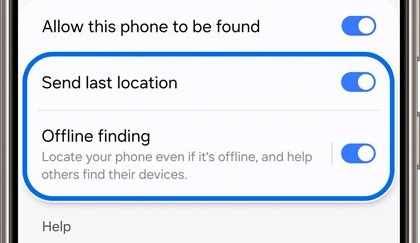
| Keep Allow this phone to be found, Send last location and Offline finding on | Settings > Security and privacy > Lost device protection | A remote erase stays possible if you forget the code |
| Keep the previous PIN when you change locks | Leave Delete previous PIN now unticked | 72 hours to recover with the old code on One UI 6.1+ |
| Back up regularly | Samsung Cloud or Google account backup | Your data survives a reset |
| Know your Google account password | Sign in on another device to test it | A quick pass through Google Device Protection |
| Pick a code you can recall | Your screen lock settings | Google recommends a PIN of at least six digits |
| Remove your Google account before selling | Settings > Accounts and backup > Manage accounts | The next owner is not blocked by your account |
Moving to a new phone? Back up first and transfer your contacts to the new phone before you reset the old one.
Samsung phone unlock FAQ
Can I unlock my Samsung phone without losing data?
Only with the correct code, biometrics or the previous screen lock. On One UI 6.1 or later, tap Forgot PIN/password/pattern? after five tries and enter the old code within 72 hours of the change. Every other official route erases the phone.
Can I unlock my Samsung phone myself?
Yes. You can use the previous screen lock, erase the phone through Samsung Find or Google Find Hub, or reset it from recovery mode without help. You only need Samsung if you also forgot your Google account details, and then the service center asks for proof of purchase.
Can I unlock my Samsung phone remotely?
You can erase it remotely, which removes the forgotten lock. Sign in at samsungfind.samsung.com and choose Erase data, or at google.com/android/find and choose Factory reset device. The phone must be powered on, online and registered to that account.
How do I unlock a Samsung phone using a laptop or computer?
Open Samsung Find or Google Find Hub in a browser on the laptop, sign in with the account on the phone, and erase it. A computer is also needed for recovery mode on recent Galaxy phones, which Samsung says to connect with a USB cable first.
What is FRP on a Samsung phone?
FRP, which Samsung calls Google Device Protection, asks for the last Google account used on the phone after a reset done outside Settings. It turns on automatically when a Google account and a screen lock are set, and it stops a stolen phone from being wiped and reused.
Will a factory reset remove the Google account lock?
No. A reset from recovery mode or a remote erase triggers the Google account check, so you still need that account's email and password. Only a reset started from Settings, while the phone is unlocked, avoids it.
How do I enter recovery mode on a Galaxy S24?
Turn the phone off, connect it to a computer with a USB cable, then hold Volume Up and the Side key until the Samsung logo appears. Galaxy phones without a Home button use this combination. Use the volume keys to move and the Side key to select.
How many wrong PIN attempts lock a Samsung phone?
The Forgot PIN/password/pattern? option appears after five unsuccessful attempts. Samsung's support pages do not publish a fixed lockout schedule beyond that, so keep each attempt deliberate rather than guessing quickly.
How do I unlock a Samsung phone from my carrier for free?
Carrier unlocks are free once you meet the carrier's policy. Verizon unlocks postpaid phones automatically when they are paid in full and prepaid phones after 365 days of active service; AT&T takes requests at att.com/deviceunlock.
Why can't I unlock my Samsung phone even with the right code?
The phone may be in a security lock because it was offline for 30 minutes after a restart, or the lock-screen keyboard failed. Restart, connect to a network straight away, and try Safe mode so Samsung Keyboard loads.
Quick summary
Try Forgot PIN/password/pattern? with your previous screen lock first, because it is the only route that keeps your data. If it is not offered, erase the phone through Samsung Find or Google Find Hub while it is online, or use recovery mode when it is not, and have your Google account password ready for the setup screen.