To access old iCloud backups, go to Settings > [your name] > iCloud > iCloud Backup on an iPhone or iPad, or open iCloud for Windows > Storage > Backups on a PC, and you see every device with a backup in iCloud.
iCloud lists backups by device, date and size but does not let you open one and browse its files, so getting data out of an old backup means restoring it to an iPhone or iPad; this guide covers finding, restoring and keeping old backups, plus the fixes when one is missing.
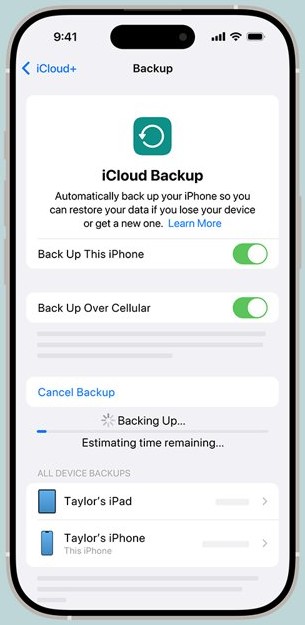
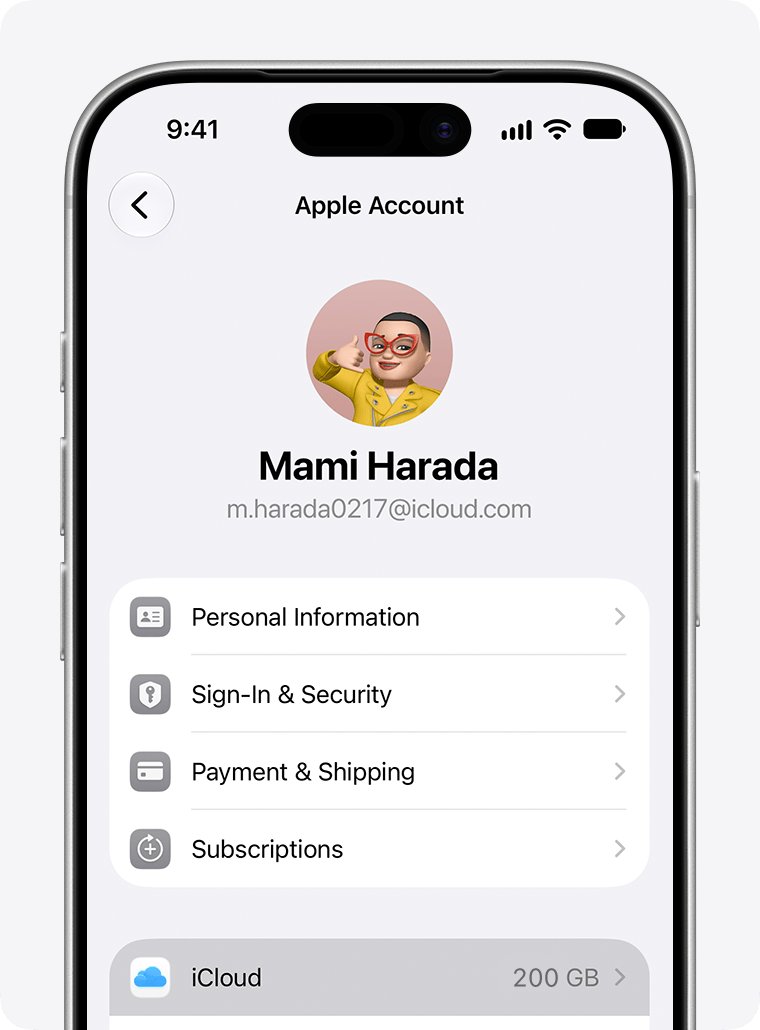
How to see old backups on iCloud from iPhone
Any iPhone or iPad signed in to the same Apple Account shows the backups of all your devices, not only its own.
- Open the Settings app on your iPhone or iPad.
- Tap [your name], then tap iCloud.
- Tap iCloud Backup.
- Look at the device list: each entry is a device with iCloud Backup turned on and a backup stored in iCloud.
- Tap a device name to see its details, or to delete that backup with Turn Off and Delete from iCloud.
Apple warns that deleting the iCloud backup for an iPhone or iPad stops iCloud from backing that device up automatically. Only delete a backup you are sure you will never restore.
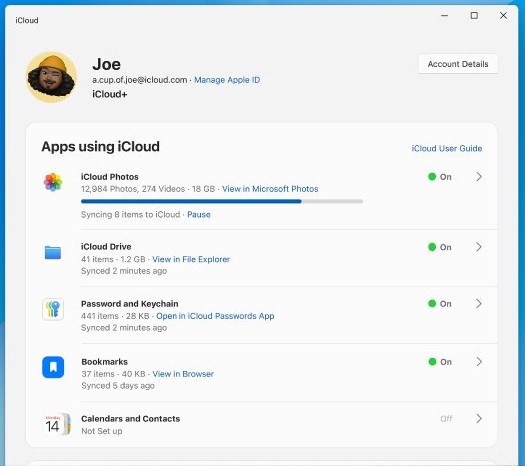
How to access old iCloud backups on PC
iCloud for Windows shows the same backup list as the iPhone. It manages backups but cannot open or download their contents. If the app shows a not fully initialized error, clear that before you look for backups.
- Open iCloud for Windows and sign in with the Apple Account that made the backups.
- Click Storage.
- Click Backups on the left.
- Read the list on the right: each device with iCloud Backup turned on appears there.
- To remove an old backup you no longer need, select the device and click Delete.
Backups made on the PC itself are separate. In iTunes for Windows, choose Edit > Preferences, then click Devices to see computer backups; encrypted ones show a lock icon.
How to find old iCloud backups on a Mac
- Choose Apple menu > System Settings.
- Click your name at the top of the sidebar. If you see Sign in instead, sign in with your Apple Account.
- Click iCloud, then click Manage.
- Click Backups to see the devices that have iCloud Backup turned on.
- Select a device and click Delete only if you want that backup gone.
How to restore old iCloud backups
Apple only restores an iCloud backup during setup, so an iPhone already in use must be erased first. Back up anything new on the phone to a computer before you erase it.
The Show All option on the backup screen is what reveals older and other-device backups beyond the newest one.
- If the device is already set up, go to Settings > General > Transfer or Reset [device] > Erase All Content and Settings, then follow the prompts.
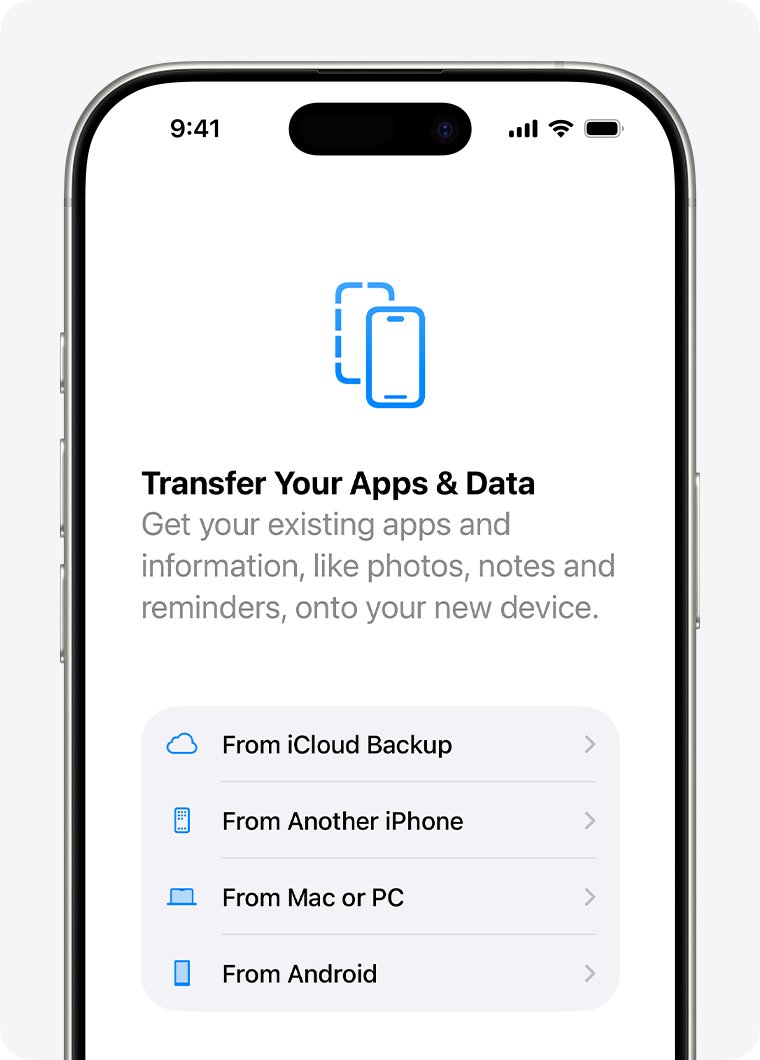
- Turn on the device and follow the setup steps until you reach Transfer Your Apps & Data.
- Tap From iCloud Backup and sign in to your Apple Account.
- Tap Show All to list every available backup, not only the latest.
- Review the date and size of each backup, then choose the old one you want.
- Sign in again when asked so apps and purchases can restore.
- Keep the device on Wi-Fi and power until the progress bar finishes, then finish setup.
You cannot restore from an iCloud backup over a cellular connection. Photos, music and apps keep downloading from iCloud after setup ends.
If you restore an iPad from an iPhone backup or the other way round, Apple says some data will not restore, and Messages and Voice Memos may not appear.
How to download previous iCloud backup to a computer
Apple's backup tools on iPhone, iCloud for Windows and the Mac only view and delete iCloud backups; none of them downloads one. The route to a copy you control is to restore the old backup to a device, then back that device up to your computer.
- Restore the old iCloud backup to an iPhone or iPad with the steps above.
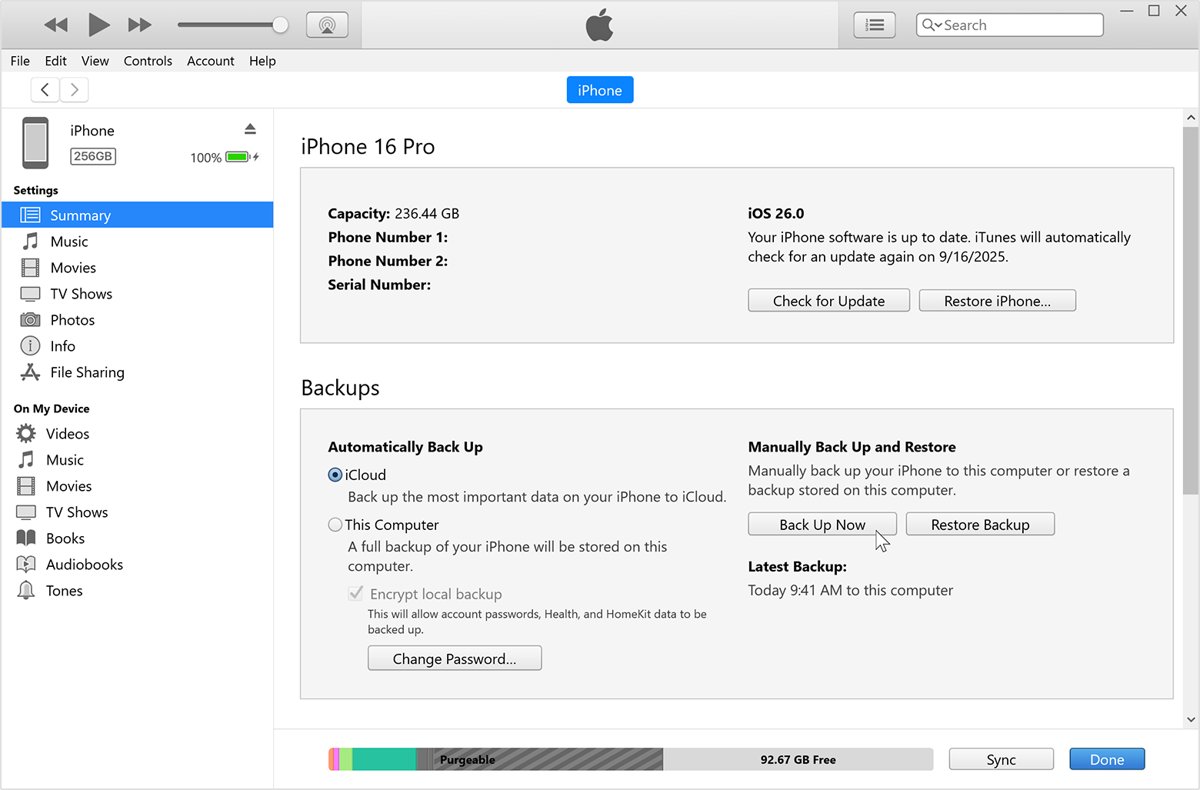
- Connect the iPhone to your Windows PC with a cable.
- In iTunes, click the iPhone button near the top left of the window.
- Click Summary.
- To protect the copy with a password, select Encrypt local backup, type a password, then click Set Password.
- Click Back Up Now under Backups.
On a Mac with macOS 10.15 or later, select the iPhone in the Finder sidebar, click General, choose Back up all of the data on your iPhone to this Mac, then click Back Up Now.
How to check iCloud backup date and size on iPhone
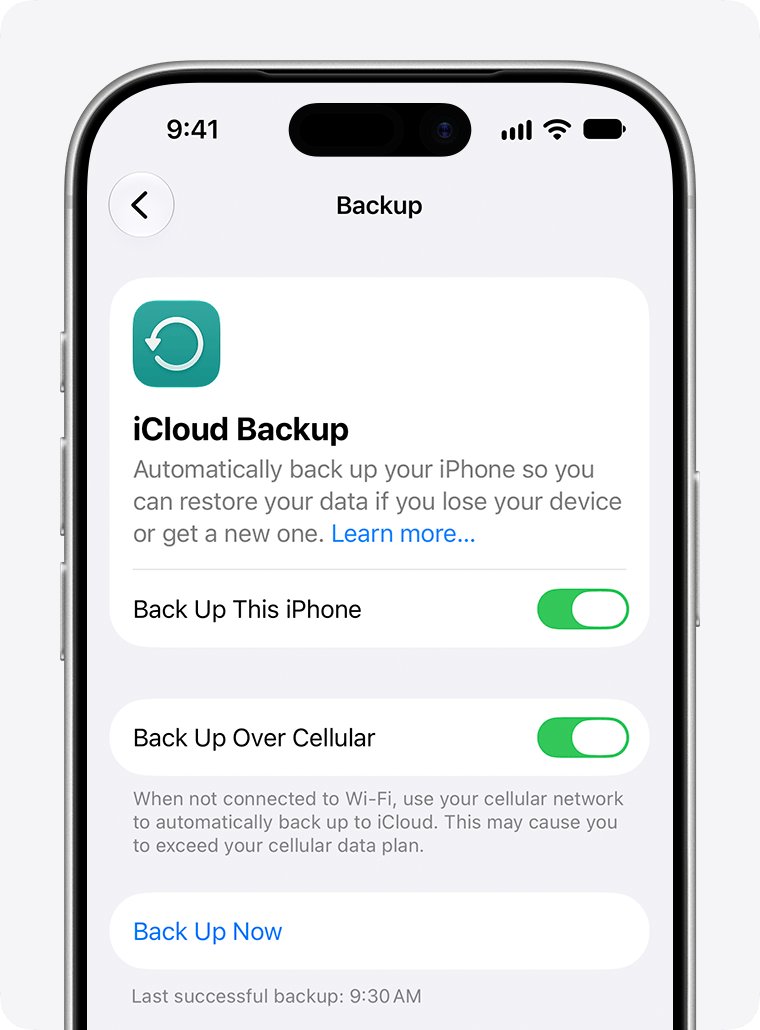
- Go to Settings > [your name] > iCloud.
- Tap iCloud Backup, then tap This iPhone or another device name.
- Read the last backup time, the next backup size and the apps included in the backup.
- On the restore screen, compare the date and size Apple shows next to each backup before you choose one.
What does iCloud backup actually back up
An iCloud backup holds only the data that does not already sync to iCloud, which is the practical difference between a sync and a backup. That is why an old backup can look smaller than the phone it came from.
| Data | In the iCloud backup? | Where it lives instead |
|---|---|---|
| Device settings, Home Screen layout, app organization | Yes | Backup |
| App data for downloaded apps | Yes, unless the app stores it in iCloud Drive | iCloud Drive for apps that use it |
| Photos and videos | Only if iCloud Photos is off | iCloud Photos when it is on |
| iMessage, SMS and MMS messages | Only if Messages in iCloud is off | Messages in iCloud when it is on |
| Apple Watch backup | Yes, inside the iPhone backup | Backup |
| Purchased ringtones, Visual Voicemail password | Yes (voicemail needs the original SIM or eSIM) | Backup |
| Purchased apps, music, movies, books | Purchase records only | Redownloaded from Apple's stores |
| iCloud Mail, iCloud Drive files | No | iCloud |
If an old backup seems to be missing pictures, they may have been in iCloud Photos all along, which is also why iCloud Photos may not show every photo right after a restore.
Does iCloud delete old backups
Yes, in specific cases. These are the rules Apple states, and they decide whether an old backup is still there to access.
| What happens | Effect on old backups |
|---|---|
| You turn off iCloud Backup for a device | Its backups stay in iCloud for 180 days, then iCloud deletes them |
| You delete a device's backup | The backup is removed and automatic backups for that device stop |
| You set up a device as new, then want an old backup | New backups from the fresh setup replace the saved ones, so erase and restore as soon as possible |
| You turn off an app in the backup list | That app's existing backup data is deleted from iCloud |
| You change your Apple Account password | Existing backups stay valid; the password is not used to encrypt them |
Old iCloud backup not showing when you restore
The old backup does not appear on the Choose a Backup screen
Only the newest backup is listed by default, the backup is under another Apple Account, or it no longer exists.
- Tap Show All on the backup screen to list every backup.
- Confirm you signed in with the Apple Account that made the backup; if you lost access to it, start iCloud account recovery first.
- Check Settings > [your name] > iCloud > iCloud Backup on another device to confirm the backup is still stored.
- Try the restore on another Wi-Fi network.
Restore from iCloud backup failed with an error
A network problem during the download, or a problem with that one backup.
- Plug the device into power and connect to Wi-Fi.
- Update the device if setup asks for a newer iOS or iPadOS version.
- Restore again on another network.
- Tap Show All Backups and try a different backup if you have one.
Repeated password prompts during the restore
Apps or media were bought with more than one Apple Account.
- Enter the password for each Apple Account it asks for.
- Tap Skip this Step for an account whose password you do not know.
- Repeat until the prompts stop, then create a new backup.
Data missing after restoring an old iCloud backup
The data synced to iCloud instead of the backup, or the restore is still running.
- Go to Settings > [your name] > iCloud > iCloud Backup and check whether the restore is still in progress.
- Stay on Wi-Fi so photos, messages and voice memos can download from iCloud.
- Check iCloud.com for iWork documents in iCloud Drive.
- Look for a computer backup that may hold the data.
Old iCloud backups FAQ
How do I view old iCloud backups?
Go to Settings > [your name] > iCloud > iCloud Backup on an iPhone or iPad. The list shows every device with a backup in iCloud, and tapping a device shows its last backup and size.
How do I access old iCloud backups on PC?
Open iCloud for Windows, click Storage, then click Backups on the left. You can see and delete backups there, but you cannot open them or download their contents to the PC.
How do I restore an old iCloud backup?
Erase the iPhone or iPad, go through setup to Transfer Your Apps & Data, tap From iCloud Backup, sign in, tap Show All, and choose the old backup by its date and size.
Can I see what is inside an iCloud backup?
Not file by file. Apple shows the last backup date, the next backup size and which apps are included, but the contents only become visible after you restore the backup to a device.
How do I download a previous iCloud backup?
Apple offers no direct download. Restore the backup to an iPhone or iPad, then back that device up to a Windows PC with iTunes or to a Mac with the Finder to keep a local copy.
Does iCloud delete old backups?
Yes. If you turn off iCloud Backup for a device, its backups are kept for 180 days and then deleted. Deleting a backup yourself removes it immediately and stops automatic backups for that device.
Does iCloud back up automatically?
Yes, once Back Up This iPhone is on. iCloud backs up daily when the iPhone is connected to power, locked and on Wi-Fi. You can also tap Back Up Now in iCloud Backup.
How does iCloud backup work?
iCloud takes periodic snapshots of data on your device that does not already sync to iCloud, such as settings, Home Screen layout and app data. Synced data like iCloud Photos lives in iCloud separately.
What does iCloud backup save?
Device settings, Home Screen layout, app data, Apple Watch backups, purchased ringtones and the Visual Voicemail password. Photos and messages are included only when iCloud Photos and Messages in iCloud are off.
Why is my iCloud backup taking forever?
Backup and restore time depends on the size of the backup and your Wi-Fi speed. Check the next backup size in iCloud Backup and turn off apps you no longer need to make it smaller.