When Bluetooth stops working on an ASUS laptop or desktop in Windows 11, turn Bluetooth on in Settings > Bluetooth & devices, make sure Airplane mode is off, then do a full shutdown with Shift held and power the PC back on.
If that does not bring it back, the fixes below follow ASUS's own order: check Device Manager, run the MyASUS Bluetooth diagnosis, update or reinstall the ASUS Bluetooth driver, and check the BIOS on ASUS motherboards.
Fix ASUS Bluetooth not working in Windows 11
These steps clear most ASUS Bluetooth faults without installing anything. Check your Bluetooth accessory is charged and close to the PC first.
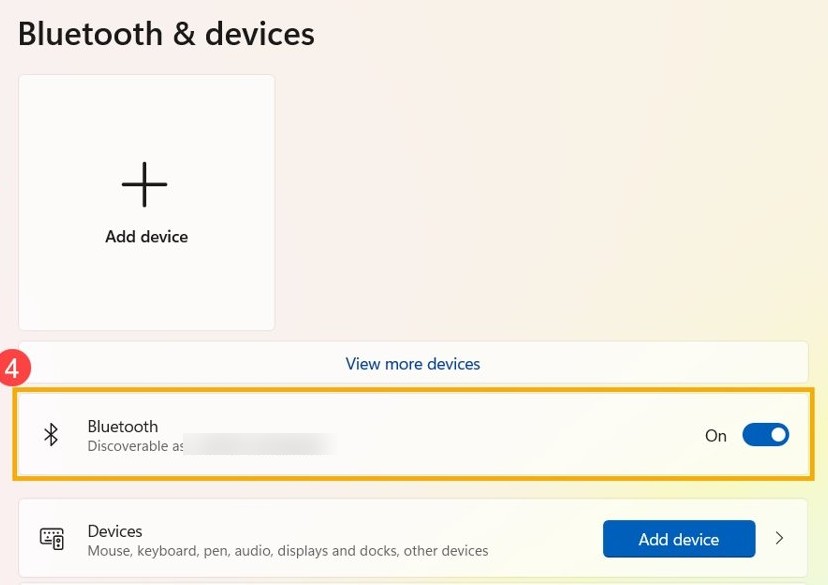
- Select Start > Settings > Bluetooth & devices and make sure Bluetooth is turned on.
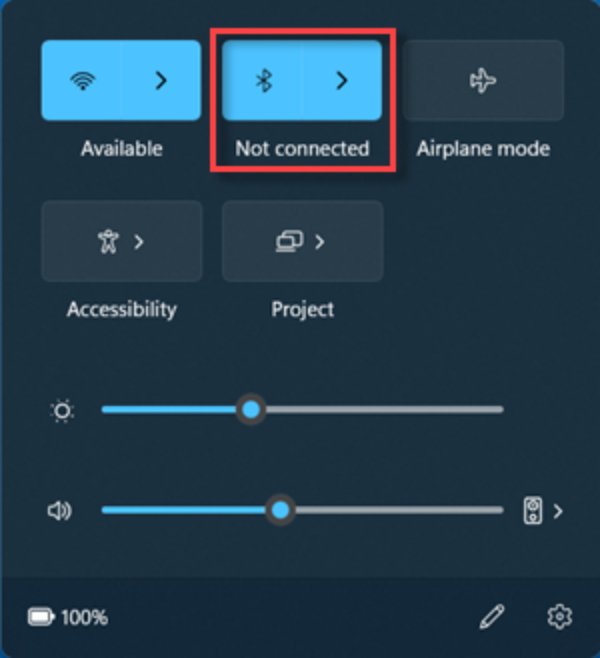
- Press Windows + A to open quick settings and make sure Airplane mode is off.
- Hold the Shift key, then select Start > Power > Shut down while still holding Shift.
- Wait about 1 minute, then turn the PC back on.
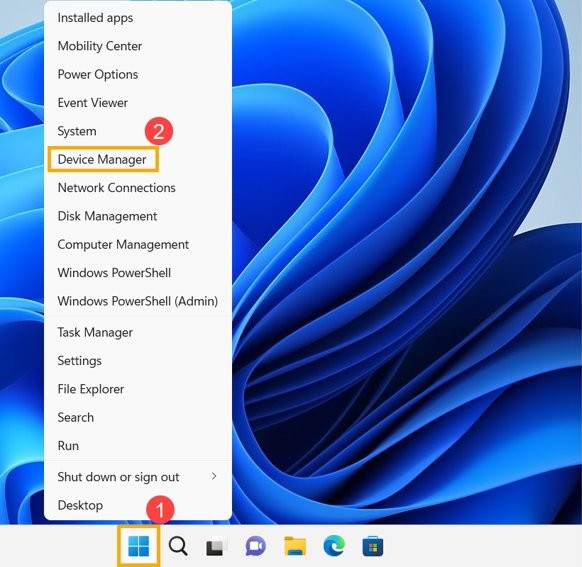
- Right-click Start, select Device Manager and expand Bluetooth.
- If the Bluetooth adapter shows a down-arrow badge, right-click it and select Enable device.
- Go back to Bluetooth & devices and try connecting your device again.
A full shutdown with Shift held powers off the Bluetooth hardware completely, which Restart does not. Microsoft and ASUS both list it as an early fix.
Why is my ASUS Bluetooth not working on Windows 11?
Microsoft says Bluetooth hardware errors usually come from drivers or firmware supplied by the PC maker, which is why ASUS drivers and ASUS BIOS updates matter more than any Windows setting. Match what you see to a row.
| What you see | Likely cause | Fix to try first |
|---|---|---|
| Bluetooth toggle missing or greyed out | Driver or firmware error in the Bluetooth hardware | Full shutdown with Shift, then update the driver |
| No Bluetooth category in Device Manager | The model has no Bluetooth, or it is off in the BIOS | Check the model specifications and BIOS |
| Adapter shows a down arrow | The device is disabled | Right-click it and select Enable device |
| Adapter shows a yellow exclamation mark | Corrupt or wrong driver | Reinstall the ASUS Bluetooth driver |
| Device pairs, then keeps dropping | Power saving, interference or low battery | Turn off power saving for the adapter |
| Stopped after a Windows or driver update | Incompatible new driver | Roll back the driver or use System Restore |
How to run the MyASUS Bluetooth diagnosis on an ASUS laptop
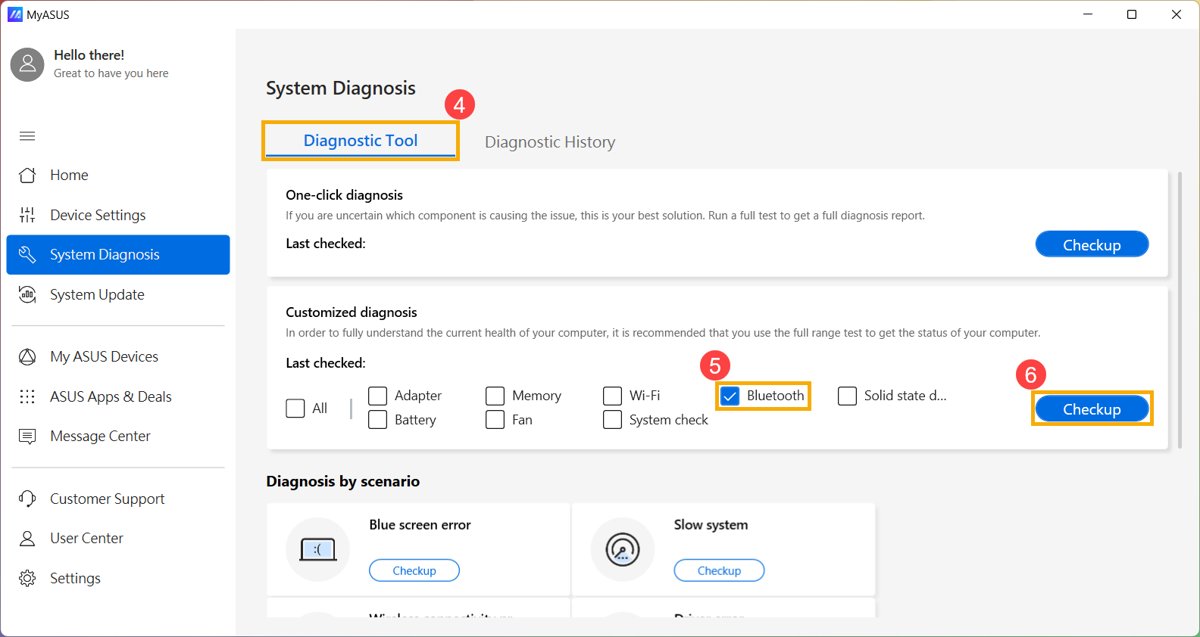
The MyASUS app has a Bluetooth check that reports faults and suggests fixes. If System Diagnosis is missing from MyASUS, your model does not support the feature.
- Select Search on the taskbar, type MyASUS and open it.
- Select System Diagnosis.
- In the Diagnostic Tool, tick Bluetooth under the customized diagnosis options.
- Run the checkup and wait for it to finish.
- Open Results and apply any fix MyASUS suggests.
- While MyASUS is open, use System Update to install pending ASUS driver and BIOS updates.
How to update the ASUS Bluetooth driver for Windows 11
An outdated or incompatible driver is one of the most common causes of Bluetooth problems, according to Microsoft. Try Windows first, then ASUS.
- Right-click Start and select Device Manager.
- Expand Bluetooth and find the adapter, for example Intel(R) Wireless Bluetooth(R). The name varies by model and may include the word Radio.
- Right-click the adapter and select Update driver > Search automatically for drivers.
- Select Start > Settings > Windows Update > Advanced options > Optional updates and install any ASUS driver or firmware updates listed.
- Restart the PC when prompted and test Bluetooth again.
If Windows says the best driver is already installed, ASUS may still have a newer one for your exact model on its support site.
How to reinstall the ASUS Bluetooth driver in Windows 11
A clean reinstall fixes a yellow exclamation mark or a driver that broke after an update. Note the adapter's vendor name before you remove it, so you download the matching driver.
- In Device Manager, expand Bluetooth and note the vendor in the adapter name, such as Intel, Realtek or MediaTek.
- On the ASUS support site, search for your exact model, open its driver downloads, choose Windows 11 and download the Bluetooth driver for that vendor.
- Back in Device Manager, right-click the Bluetooth adapter and select Uninstall device.
- Tick the option to delete the driver software for this device, then select Uninstall.
- Run the ASUS Bluetooth driver installer you downloaded.
- Select Start > Power > Restart and test Bluetooth.
If Bluetooth worked before a recent update, try Roll Back Driver first: right-click the adapter, select Properties, open the Driver tab and select Roll Back Driver if it is available.
Bluetooth is greyed out on Windows 11
A missing or greyed-out Bluetooth toggle means Windows cannot reach the Bluetooth hardware, so you cannot turn it on or off and no devices connect.
Bluetooth toggle greyed out in Settings or quick settings
The Bluetooth hardware hit a driver or firmware error.
- Hold Shift and select Start > Power > Shut down, wait 1 minute, then power on.
- Right-click Start > Device Manager, right-click the Bluetooth adapter and select Update driver > Search automatically for drivers.
- Install BIOS or firmware updates from Windows Update > Advanced options > Optional updates or MyASUS System Update.
- Press Windows + A and make sure Airplane mode is off.
ASUS laptop not showing Bluetooth at all
The adapter is disabled, its driver is missing, or the model has no Bluetooth.
- Open Device Manager and look for a Bluetooth category.
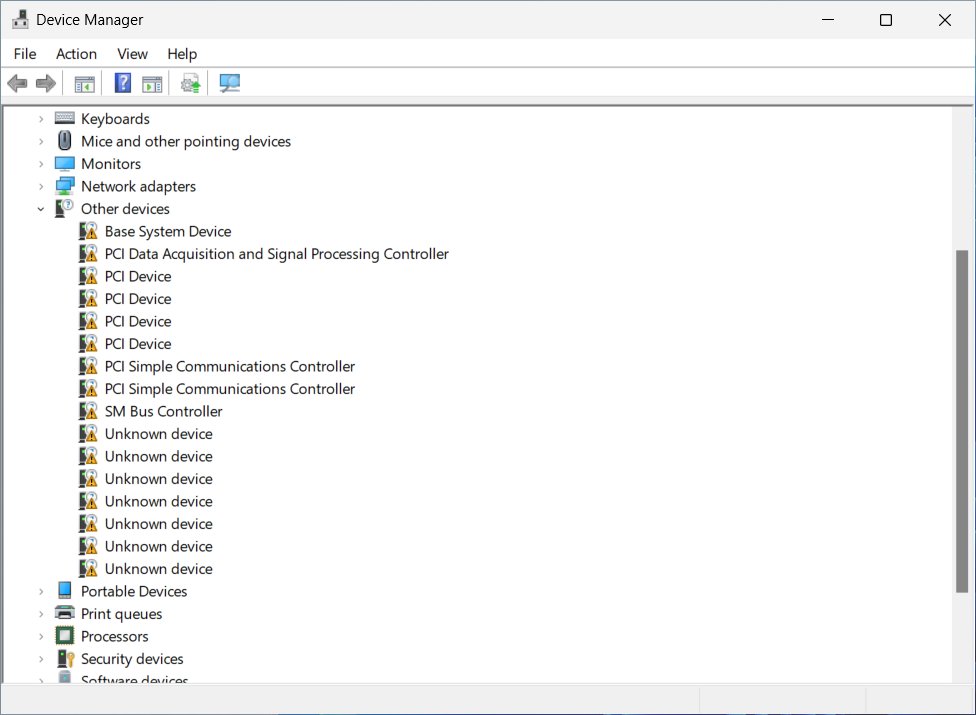
- If there is no Bluetooth category, check Other devices for an unknown device, then install the ASUS Bluetooth driver for your model.
- If the adapter is listed but no icon appears, uninstall it, shut down, power on, and select Action > Scan for hardware changes if Windows does not reinstall it.
- Check the model's specifications on the ASUS site to confirm it has Bluetooth.
Bluetooth icon missing from the taskbar
The notification area icon is turned off.
- Search for Bluetooth and other devices settings and open it.
- Turn Bluetooth on, scroll down and select More Bluetooth settings.
- Tick Show the Bluetooth icon in the notification area, then select OK.
ASUS motherboard Bluetooth not working: enable it in BIOS
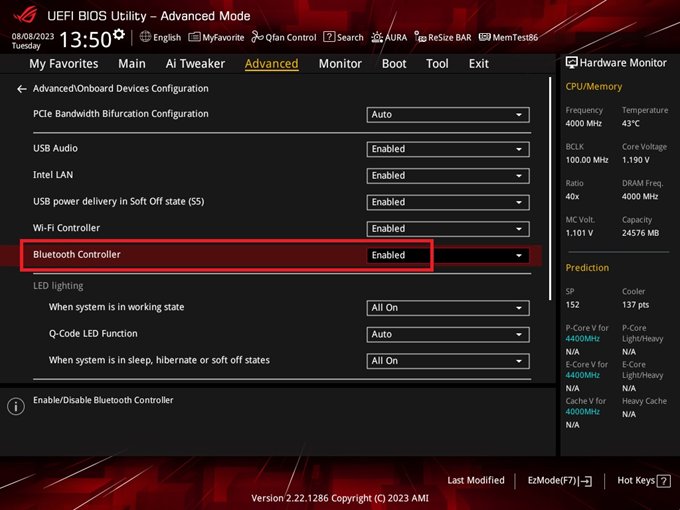
On an ASUS desktop motherboard, Bluetooth can be switched off in the BIOS, and Windows then shows no Bluetooth at all. First check the board's Technical Specifications page on the ASUS site to confirm it has Bluetooth, and fit the Wi-Fi antennas that came in the box.
- Restart the PC and press Delete during boot to open the BIOS EZ Mode page.
- Press F7 to switch to Advanced Mode.
- Open the Advanced tab, then Onboard Devices Configuration.
- Set Bluetooth Controller to Enabled.
- Press F10, then select OK to save and exit.
These labels come from ASUS's ROG STRIX Z790 example, and other boards may name the option slightly differently. Laptops do not use this route; use MyASUS and the driver steps instead.
Fix Bluetooth connection problems in Windows 11
When the adapter works but a headset, mouse or phone will not pair or keeps dropping, the fault is the connection, not the driver. Start with the symptom you see.
Bluetooth device will not pair or connect
The device is not in pairing mode, is out of range, or the old pairing is stale.
- Put the device in pairing mode and move it close to the PC.
- In Settings > Bluetooth & devices > Devices, select More options (…) next to the device, then Remove device > Yes.
- Select Add device and pick the device from the list.
- Turn Bluetooth off, wait 10 seconds, turn it on again and retry.
Bluetooth device does not appear in the list
Windows shows only common device types by default.
- Go to Settings > Bluetooth & devices > Devices.
- Under Device settings > Bluetooth devices discovery, choose Advanced.
- Select Add device again.
Bluetooth keeps disconnecting on an ASUS laptop
Power saving turns the adapter off, or the Bluetooth service has stalled.
- Select the battery icon on the taskbar and turn off energy saver if it is on.
- In Device Manager, right-click the Bluetooth adapter, select Properties, open Power Management and clear Allow the computer to turn off this device to save power.
- Press Windows + R, type
services.mscand select OK. - Right-click Bluetooth Support Service and select Restart.
- Keep the device away from unshielded USB devices in USB 3.0 ports, which can interfere.
Still not working after every fix
A recent change broke Bluetooth, or Windows itself is damaged.
- Select Start > Settings > System > Troubleshoot > Other troubleshooters, then select Run next to Bluetooth.
- If the problem started recently, use System Restore to go back to a restore point from before it began.
- As a last resort, back up your files and reset Windows 11; if the reset itself fails, fix Reset this PC errors first.
- If Bluetooth still fails, contact ASUS support, as the module may need repair.
AirPods have their own quirks on Windows, so fix AirPods on Windows 11 separately if they are the only device that fails on your ASUS PC.
How to connect to Bluetooth Personal Area Network (BTPAN) in Windows 11
A Bluetooth Personal Area Network lets your ASUS PC use a phone's or another computer's internet over Bluetooth instead of Wi-Fi. Both devices need Bluetooth, and the other device must support a hotspot.
- Turn on Bluetooth on both devices and pair them.
- On the phone or other device, turn on the hotspot and set it to share over Bluetooth.
- On the PC, select Start > Settings > Bluetooth & devices > Devices.
- Under Other devices, select the hotspot device to expand it.
- Next to Personal Area Network (PAN), select Join.
- In the Bluetooth Personal Area Network window, make sure Access Point is selected, then select Connect.
- Select OK when Connection successful appears.
To end the session, repeat the steps and select Disconnect PAN. If the PC is the device sharing internet and the hotspot fails, fix the mobile hotspot in Windows 11 first.
ASUS Bluetooth not working FAQ
Why is Bluetooth not working in Windows 11?
The usual causes are Bluetooth or Airplane mode being switched off, a disabled adapter, or an outdated or incompatible driver. Microsoft names drivers and firmware from the PC maker as the most common cause, so update them after checking the basic settings.
Why isn't my Bluetooth working on my ASUS laptop?
On ASUS laptops it is usually a driver or firmware fault. Do a full shutdown with Shift held, run the MyASUS Bluetooth diagnosis, then update or reinstall the ASUS Bluetooth driver for your exact model and Windows 11.
How do I enable Bluetooth on an ASUS PC?
Select Start > Settings > Bluetooth & devices and turn on Bluetooth, or use the Bluetooth quick setting after pressing Windows + A. On ASUS desktop motherboards, Bluetooth Controller must also be Enabled in the BIOS.
Where do I get the ASUS Bluetooth driver for Windows 11?
Download it from the ASUS support site for your exact model, choosing Windows 11 and the driver that matches the adapter vendor shown in Device Manager. MyASUS System Update can also install it on supported laptops.
Why is my ASUS laptop not showing Bluetooth?
If there is no Bluetooth toggle and no Bluetooth category in Device Manager, the adapter's driver is missing or the model has no Bluetooth. Check the model's specifications, then install the ASUS Bluetooth driver for it.
Why does my ASUS Bluetooth keep disconnecting?
Power saving often switches the adapter off. Clear Allow the computer to turn off this device to save power on the adapter's Power Management tab, turn off energy saver, and restart Bluetooth Support Service.
Why does my ASUS USB Bluetooth adapter show an exclamation mark?
It usually means the adapter is using the wrong driver or is clashing with the built-in Bluetooth. In Device Manager, disable the built-in Bluetooth adapter, then download and install the latest driver for your ASUS adapter model, such as USB-BT500, from ASUS support.