To run the /resetnavpane command, close Outlook, press Windows key + R, type Outlook.exe /resetnavpane in the Open box and select OK.
This guide explains what the switch resets, how to run it with the full outlook.exe path, how it compares with the other Outlook reset switches, and what to do when Outlook still will not open.
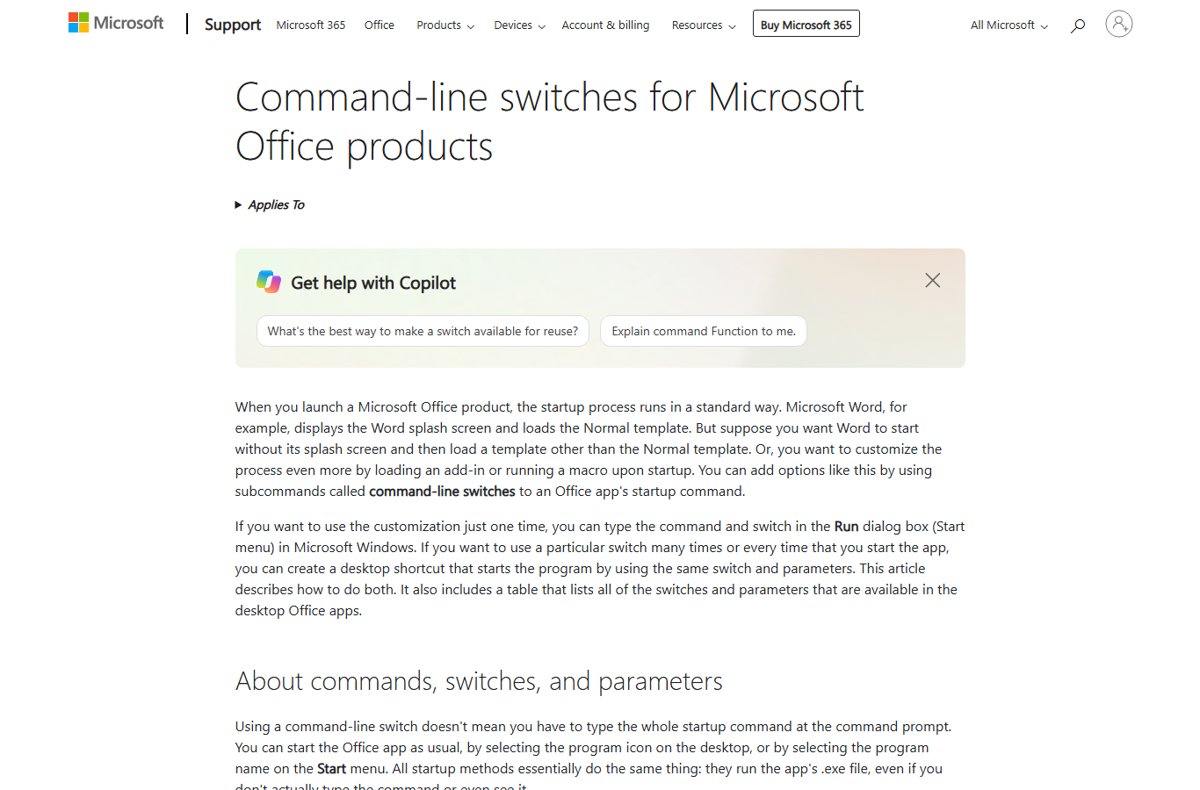
Run Outlook.exe /resetnavpane from the Run dialog
This is the route Microsoft gives in its Outlook startup troubleshooting article. It works in classic Outlook for Windows, and any of the ways to open the Run dialog will do.
- Close Outlook completely, including any open message or calendar windows.
- Press Windows key + R to open the Run dialog.
- In the Open box, type
Outlook.exe /resetnavpane, with one space before the slash. - Select OK.
- Wait for Outlook to start with a freshly built Folder Pane, then check your folders.
The switch only applies to that one launch. The next time you open Outlook from the Start menu or taskbar, it starts normally with the regenerated pane.
Outlook reset navigation pane command vs other reset switches
Classic Outlook has several reset switches, and each one rebuilds a different part of the window. Pick the one that matches what looks broken.
| What is wrong | Switch to run | What it does |
|---|---|---|
| Folder Pane is corrupt, or Outlook will not open its window | /resetnavpane |
Clears and regenerates the Folder Pane for the current profile |
| Default folders such as Inbox are missing | /resetfolders |
Restores missing folders at the default delivery location |
| Inbox or Sent Items show in the wrong language | /resetfoldernames |
Resets default folder names to the current Office display language |
| A folder view is broken or unreadable | /cleanviews |
Restores default views; every custom view you created is lost |
| Task list in the To-Do Bar is wrong | /resettodobar |
Clears and regenerates the To-Do Bar task list for the current profile |
| Reminders fire for deleted items or not at all | /cleanreminders |
Clears and regenerates reminders |
| Instant Search shows odd criteria | /resetsearchcriteria |
Resets Instant Search criteria to the default set in each module |
| An add-in may be crashing Outlook | /safe |
Starts Outlook without the Reading Pane, toolbar customizations or COM add-ins |
Office supports only one switch per launch, so run these one at a time rather than chaining them on one line.
Run /resetnavpane with the full outlook.exe path
If Windows cannot find Outlook.exe from the short command, give it the full path. Microsoft's switch reference says to wrap the path in quotation marks and add a space before the switch.
- Close Outlook.
- Press Windows key + R to open Run.
- Type the path in quotation marks for your Office install. For 64-bit Office, type
"C:\Program Files\Microsoft Office\root\Office16\outlook.exe" /resetnavpane. - For 32-bit Office on 64-bit Windows, type
"C:\Program Files (x86)\Microsoft Office\root\Office16\outlook.exe" /resetnavpaneinstead. - Alternatively, select Browse, pick outlook.exe, then type a space and
/resetnavpaneafter the closing quotation mark. - Select OK to start Outlook with the reset Folder Pane.
Switches are not case-sensitive, so /ResetNavPane and /resetnavpane behave the same, just as most Windows 11 Run commands ignore case.
Check the Outlook Folder Pane after the reset
- Confirm that Outlook opens its main window without the "Cannot open the Outlook window" error.
- Look at the Folder Pane on the left and confirm Inbox, Sent Items and your other mail folders are listed.
- Select the Mail, Calendar and People buttons in turn and confirm each one opens.
- Check that pinned shortcuts or custom groups you added earlier are gone; this shows the reset ran.
- Close and reopen Outlook normally to confirm the pane stays as it is.
If the pane still looks damaged after a restart, open Outlook in safe mode to rule out add-ins, or move on to the troubleshooting fixes further down.
What does /resetnavpane do in Outlook?
The navigation pane is the leftmost part of the Outlook window. It holds your folder list and the buttons for Mail, Calendar, People and Tasks.
| Question | Answer |
|---|---|
| What it does | Clears and regenerates the Folder Pane for the current Outlook profile |
| What you lose | All customizations to the navigation pane, such as pinned items and changed button order |
| What it does not touch | Your mailbox items; it rebuilds the pane, not the data file |
| Which profile it affects | Only the profile Outlook opens with during that launch |
| Why it fixes startup errors | Microsoft lists it as a fix for the "Cannot open the Outlook window" startup error |
| More than one computer | Pane changes are stored locally, so run the command on each PC that has the problem |
| Which Outlook it works in | Classic Outlook for Windows only; the new Outlook for Windows uses a different, shorter switch list |
Does /resetnavpane work in new Outlook for Windows?
No. Microsoft lists /resetnavpane only under classic Outlook. The new Outlook for Windows uses two dashes instead of a slash and supports four switches.
| New Outlook switch | Closest classic Outlook equivalent |
|---|---|
--reset |
No direct equivalent of /resetnavpane |
--force-update |
None |
--profile |
/profiles |
--safe |
/safe, with a different scope |
If the new Outlook navigation looks wrong, the classic reset switches do not apply to it.
How to change the Outlook navigation pane
After a reset, you can rebuild the layout you want. These settings are in classic Outlook for Windows.
| What you want | Where to change it |
|---|---|
| Hide or restore the Folder Pane | Select View > Folder Pane, then Off or Normal |
| Shrink the Folder Pane to a strip | Select the minimize arrow at the top of the Folder Pane; select it again to expand |
| Open a folder while the pane is minimized | Select All Folders for a pop-out list |
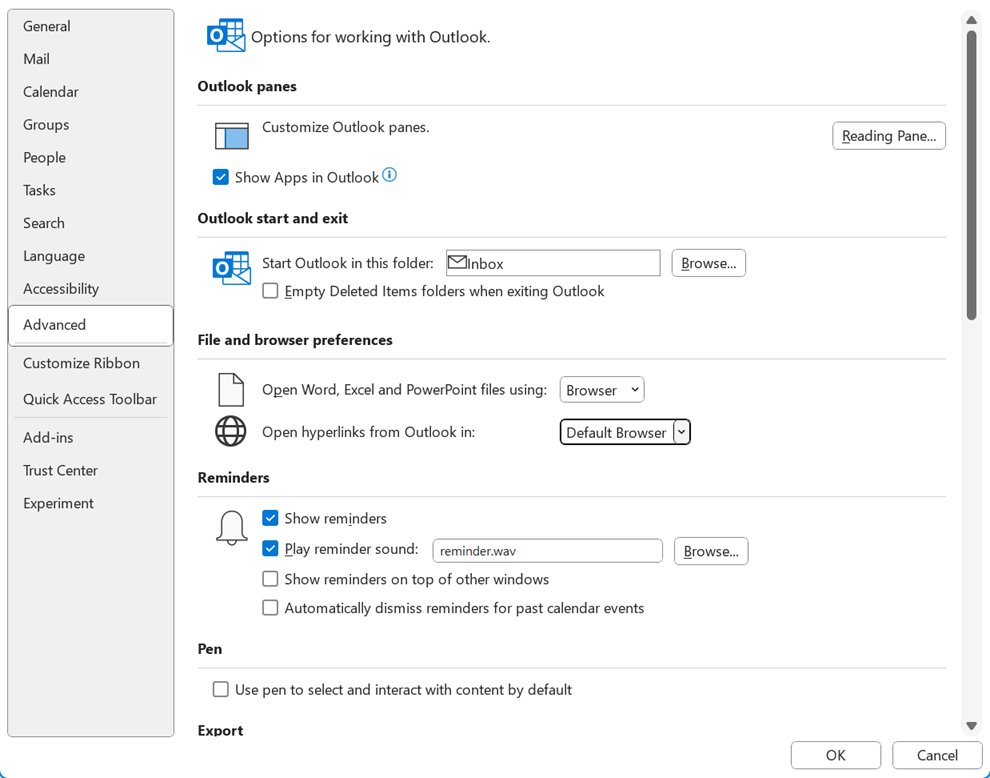
| Move Mail, Calendar and People to the left edge | Select File > Options > Advanced and turn on Show apps in Outlook |
| Change how many items show on the bottom bar | Turn off Show apps in Outlook, then select Navigation in the same Outlook panes area |
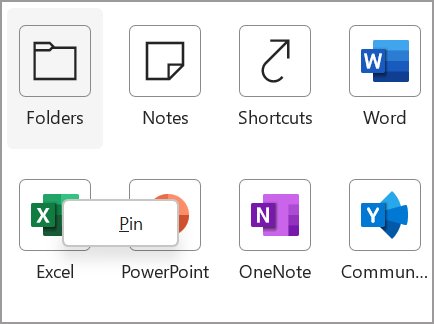
| Pin or unpin an app on the left bar | Right-click the app and choose pin or unpin |
| Reorder apps on the left bar | Right-click and hold an app, then drag it up or down; Mail and Calendar stay on top |
| Expand or collapse a folder | Select the arrow beside a folder that contains subfolders |
Fix Outlook when /resetnavpane does not help
"Cannot start Microsoft Outlook. Cannot open the Outlook window" after the reset
The pane was not the problem; an add-in, the profile or the data file may be damaged.
- Press Windows key + R, type
Outlook /safeand select OK. - In Choose Profiles, keep the default profile and select OK.
- If Outlook opens, select File > Options > Add-ins, set Manage to COM Add-ins and select Go.
- Clear the add-in check boxes, select OK, then restart Outlook and re-enable them one at a time.
- If safe mode also fails, create a new Outlook profile, or exit Outlook and run the Inbox Repair Tool (
scanpst.exe) on your data file.
Navigation pane missing in Outlook
The Folder Pane is switched off or minimized, which a reset does not change.
- Open Outlook.
- Select View > Folder Pane.
- Select Normal.
- If the pane shows as a thin strip, select the expand arrow at its top.
Navigation pane still broken on another computer
Pane settings are stored per PC, so a reset on one machine does not reach the others.
- Close Outlook on the second computer.
- Press Windows key + R.
- Type
Outlook.exe /resetnavpaneand select OK. - Repeat on every PC where the pane looks wrong.
Folders such as Inbox are still missing after the reset
Missing default folders are a separate problem from the pane layout.
- Close Outlook.
- Press Windows key + R.
- Type
Outlook.exe /resetfoldersand select OK. - Check the Folder Pane again once Outlook opens.
What /resetnavpane removes before you run it
Note any pinned folders, shortcuts or custom button order before you run the switch, because the reset removes every navigation pane customization. The command rebuilds the pane from defaults for the current profile, so you have to re-pin and reorder items by hand afterwards. Your mail, calendar and contacts stay where they are.
Outlook /resetnavpane FAQ
What does resetnavpane do in Outlook?
It clears and regenerates the Folder Pane for the current Outlook profile. Every customization to the navigation pane is removed, and Outlook rebuilds the pane with its default layout the next time it opens.
How do I reset the navigation pane in Outlook?
Close Outlook, press Windows key + R, type Outlook.exe /resetnavpane in the Open box and select OK. Outlook starts with a freshly built navigation pane for the current profile.
How do I change the Outlook navigation pane?
Use View > Folder Pane to switch it between Normal and Off, and the minimize arrow to collapse it. To move Mail and Calendar to the left edge, turn on Show apps in Outlook under File > Options > Advanced.
How do I restore the navigation pane in Outlook?
Select View > Folder Pane > Normal if the pane is hidden. If the pane is visible but broken or Outlook will not open, close Outlook and run Outlook.exe /resetnavpane from the Run dialog.
Does outlook.exe /resetnavpane work on Windows 10?
Yes. The switch belongs to classic Outlook, not Windows, so it works the same on Windows 10 and Windows 11. Press Windows key + R, type Outlook.exe /resetnavpane and select OK.
Does /resetnavpane delete emails?
No. It rebuilds only the navigation pane layout for the current profile. Your messages, calendar items and contacts stay in your mailbox, but pinned items and custom pane changes are removed.
Does /resetnavpane work in the new Outlook for Windows?
No. Microsoft lists it only for classic Outlook. New Outlook uses two-dash switches and supports only –reset, –force-update, –profile and –safe.
Do I need the full path to outlook.exe?
Usually not, because Outlook.exe /resetnavpane works from Run. If Windows cannot find it, type the full path in quotation marks, such as "C:\Program Files\Microsoft Office\root\Office16\outlook.exe", then a space and /resetnavpane.