Rotate a Windows 11 display by opening Settings > System > Display, selecting the screen, and picking Portrait or Landscape in the Display orientation list.
This guide also covers keyboard routes, graphics control panels, auto-rotate and rotation lock on convertibles, and fixes for a screen stuck sideways or upside down.
Windows 11 Settings: The reliable GUI method to rotate the screen
Why use Settings: it is built into every Windows 11 PC, works for laptop screens and external monitors, and needs no extra app. Here is the step-by-step route, short version.
- Select Start, type settings, and open Settings.
- Go to System > Display.
- If more than one monitor is connected, select the display you want to rotate at the top of the page.
- Open the Display orientation list and choose Portrait, Landscape, Portrait (flipped) or Landscape (flipped).
- Confirm the change when Windows asks whether to keep it.
- Physically turn the monitor to match if you switched an external display to portrait.
Practical notes: Windows marks one orientation as recommended for each screen. If you do not confirm the prompt, Windows puts the old orientation back, which saves you when the new view is hard to read.
Background / overview: Windows 11 display orientation options
Display orientation turns the picture Windows sends to one screen; it does not touch other monitors. Each option is a rotation of the normal landscape picture.
| Orientation | Rotation | Typical use |
|---|---|---|
| Landscape | 0 degrees | Normal desk or laptop use |
| Portrait | 90 degrees | Monitor turned on its side for code, documents or long web pages |
| Landscape (flipped) | 180 degrees | Screen mounted upside down, or a tent-mode convertible |
| Portrait (flipped) | 270 degrees | Monitor turned on its other side |
Quick summary: Fastest ways to rotate a screen
| Your situation | Use this | Why |
|---|---|---|
| Any Windows 11 PC | Settings > System > Display > Display orientation | Built in and works for every screen |
| Screen is sideways and the mouse is hard to use | Windows key + R, then ms-settings:display | Opens the right page from the keyboard |
| Convertible or tablet keeps turning | Windows key + O | Locks the current orientation |
| You manage display settings in the graphics app | Intel Graphics Command Center, NVIDIA Control Panel or AMD Software | Keeps rotation with other display profiles |
| You rotate a DDC/CI monitor often | PowerToys Power Display | Rotation from a flyout or the command line |
Keyboard shortcuts: Fastest when supported
Windows 11 has no rotation shortcut of its own. Microsoft's shortcut list includes Windows key + O to lock the device orientation, but no key combination that turns the screen.
Some graphics drivers add their own rotation hotkeys. There is no standard shortcut layout across vendors, and enabling or restoring the hotkeys happens in the graphics control panel, not in Windows. When hotkeys don't work, the keyboard route below reaches the same Display settings page.
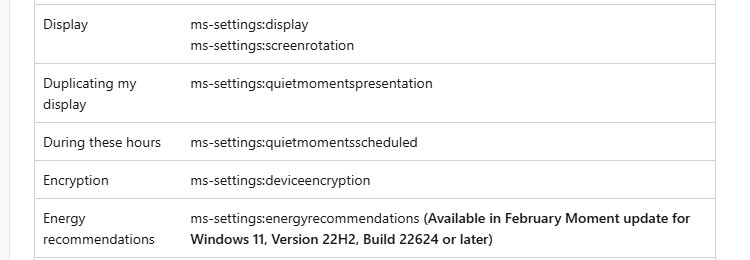
- Press Windows key + R to open Run.
- Type
ms-settings:displayand press Enter. The Display page opens. - Press Tab to move between regions, and use the arrow keys to move within one.
- Move focus to Display orientation and press Enter or Space to open the list.
- Use the arrow keys to pick Landscape, then press Enter.
- Tab to the confirmation prompt and choose to keep the change.
Using the GPU control panel (Intel / NVIDIA / AMD)
Why use GPU control panels? They keep rotation next to the driver's other display options and, on some systems, hold the driver's rotation hotkey settings. Windows Settings changes the same orientation, so use one or the other.
| Graphics | Control panel | How to get it |
|---|---|---|
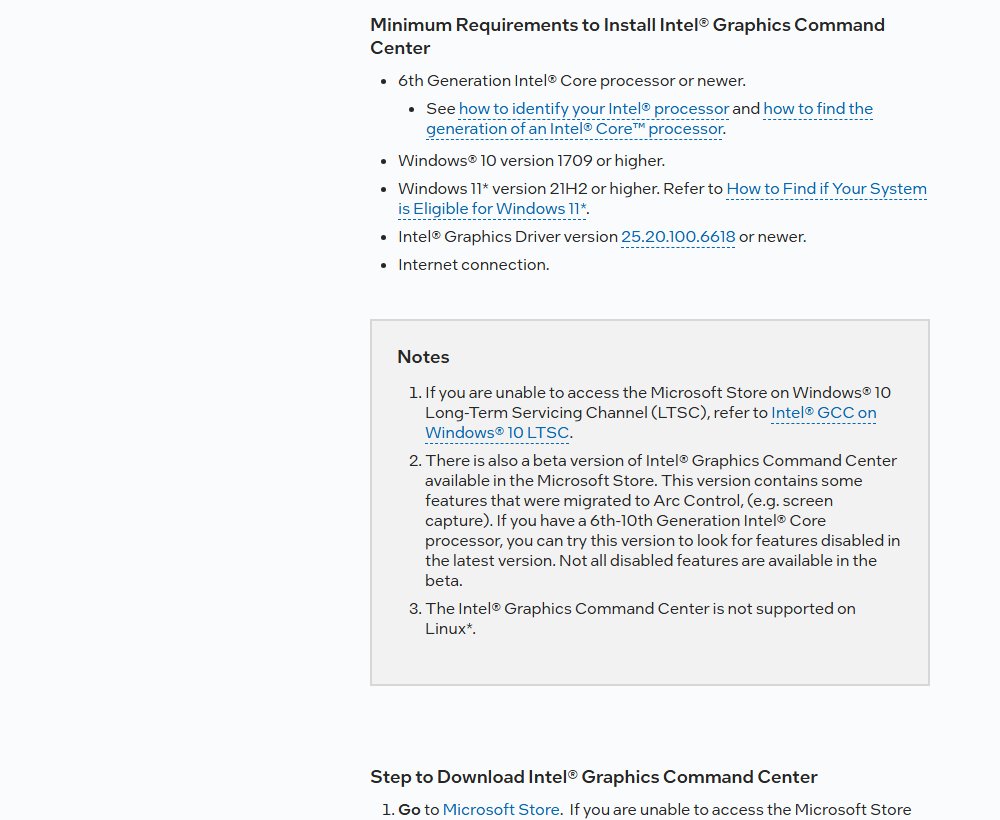
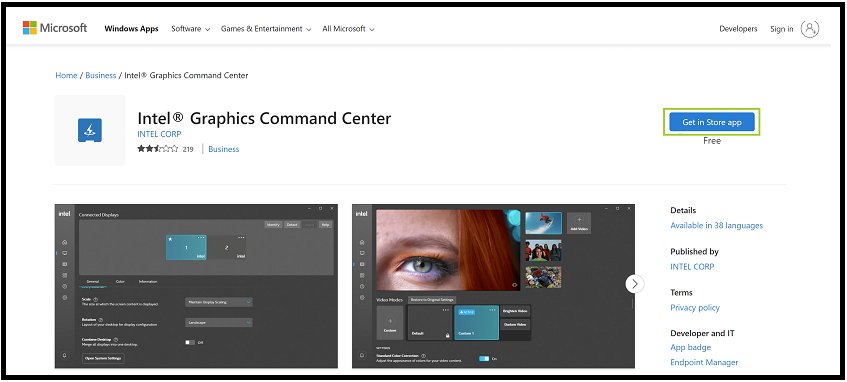
| Intel | Intel Graphics Command Center | Installs with the Intel graphics driver; otherwise get it from the Microsoft Store. Needs a 6th Gen Intel Core processor or newer and Windows 11 21H2 or later. |
| NVIDIA | NVIDIA Control Panel | Installed with the NVIDIA graphics driver; open it from Start and use its display settings to change rotation. |
| AMD | AMD Radeon Software (AMD Software) | Installed with the AMD graphics driver; open it from Start and use its display settings. |
On a work PC, contact IT if the Microsoft Store is blocked. Intel says business PCs may not reach the Store to install Graphics Command Center.
Auto-rotate, rotation lock and convertible devices
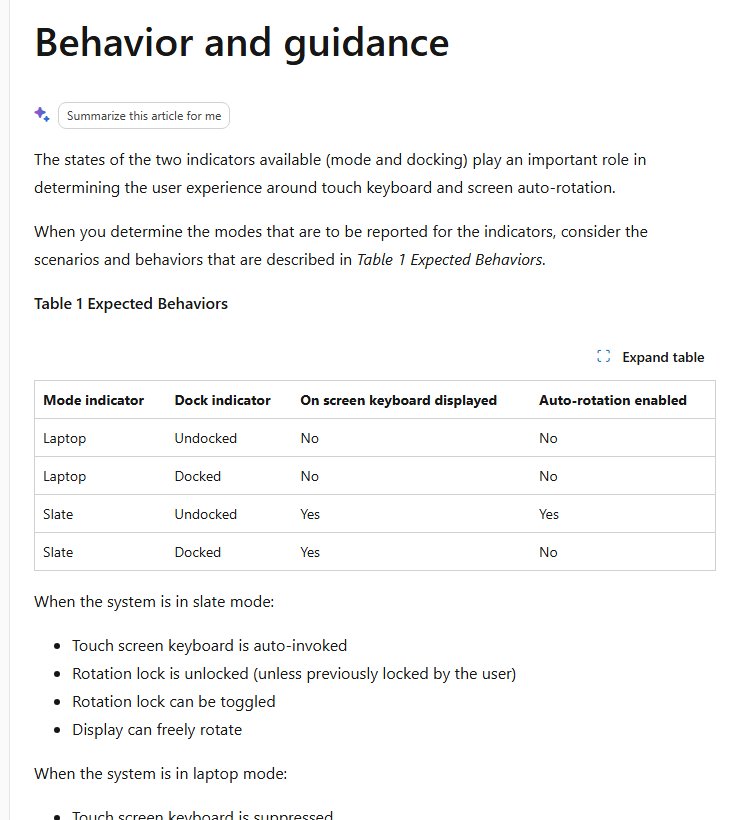
Auto-rotate needs a rotation sensor. Windows turns it on only when a convertible is in slate (tablet) posture and undocked; in laptop posture the screen is set to landscape and locked.
Rotation lock and Quick Settings: press Windows key + O to lock the current orientation, and press it again to unlock. In laptop posture the lock can't be toggled.
| Device state | Auto-rotation | Rotation lock |
|---|---|---|
| Slate (tablet) posture, undocked | On | Can be toggled |
| Slate posture, docked | Off | Can't change rotation |
| Laptop posture, docked or undocked | Off: landscape and locked | Can't be toggled |
| More than one monitor attached | Temporarily off | Not used |
| Remote Desktop session | Temporarily off | Not used |
| No rotation sensor (most desktops) | Not available | Not available |
Third-party utilities as fallback: PowerToys Power Display
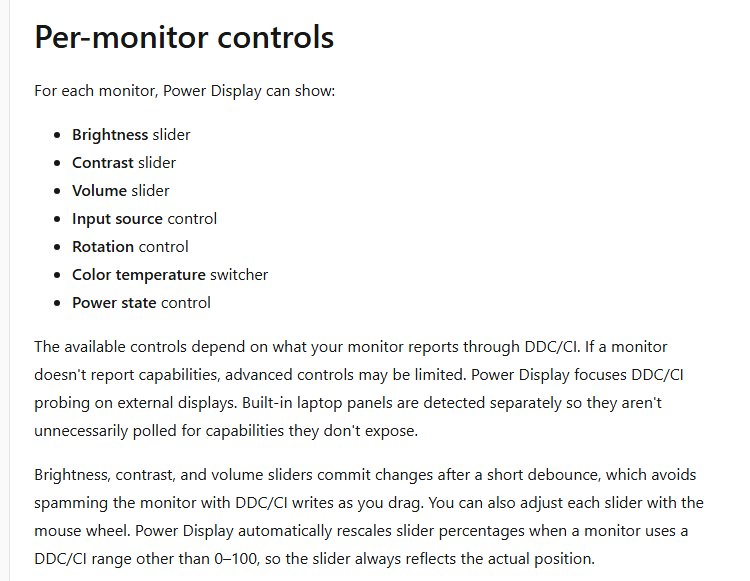
Microsoft's PowerToys Power Display controls external monitors over DDC/CI, including rotation, from one flyout. Use it when you rotate the same monitor often.
- Install Microsoft PowerToys and open PowerToys Settings.
- Turn on Power Display and accept the DDC/CI warning.
- In the per-monitor toggles, turn on rotation for the monitor you want.
- Press the activation shortcut, or click Open Power Display in Settings, to open the flyout.
- Use the rotation control for that monitor.
- To script it, run
PowerToys.PowerDisplay.CLI.exe set --monitor-number 1 --orientation 90in Windows Terminal.
Microsoft warns that a few monitors with malformed DDC/CI data can crash Windows when probed. Power Display skips known problem monitors and turns itself off after such a crash.
Advanced tips for multi-monitor and pro setups
| Setup | What to do |
|---|---|
| Two monitors, one turned portrait | Select that monitor in Settings > System > Display before changing orientation; the other keeps its own setting |
| Not sure which monitor is which | Select Identify in Display settings; a number appears on each screen |
| Mouse jumps at the edge between screens | Drag the display tiles in Display settings to match their real positions, then select Apply |
| Monitor not listed | Select Multiple displays > Detect |
| Laptop docked to monitors | Auto-rotation is off while docked or with several monitors attached; set orientation manually |
| Rotation changes after a driver update | Update the graphics driver through Windows Update and set the orientation again |
Check the Windows 11 screen rotated correctly
- Open Settings > System > Display and select the screen.
- Confirm Display orientation shows the option you picked.
- Move the mouse straight up; the pointer should move up on the rotated screen.
- On a multi-monitor setup, move the pointer across each edge to check the layout.
- Restart the PC and confirm the orientation stays.
Troubleshooting: When rotation is missing, stuck, or behaves oddly
Work through these as a quick troubleshooting checklist you can copy and paste into notes: driver, posture, layout, then keyboard recovery.
1) "Display orientation" is greyed out or missing
The graphics driver is missing or outdated, or a convertible is in laptop posture where rotation is locked.
- Select Start > Settings > Windows Update > Check for updates and install graphics driver updates.
- Restart the PC and open Settings > System > Display again.
- On a convertible, fold it into tablet posture and check again.
2) Keyboard shortcuts don't work
Windows has no built-in rotation shortcut; any hotkeys come from the graphics driver.
- Open your graphics control panel and look for its hotkey settings.
- If there are none, use Windows key + R and
ms-settings:displayinstead.
3) Mouse movement is wrong after rotation
The display tiles don't match where the monitors sit, or the monitor wasn't turned physically.
- Turn the monitor to match the orientation you chose.
- In Display settings, select Identify, then drag each tile to match its real position.
- Select Apply and move the pointer across each edge.
4) Display stuck upside-down and you can't see Settings
A flipped orientation was kept, so the mouse feels reversed.
- Press Windows key + R, type
ms-settings:displayand press Enter. - Use Tab and the arrow keys to reach Display orientation.
- Choose Landscape and keep the change.
If auto-rotate fails
Rotation lock is on, the device is docked or in laptop posture, or several monitors are attached.
- Press Windows key + O to release rotation lock.
- Undock the device and fold it into tablet posture.
- Disconnect external monitors, then turn the device.
Security, management, and unusual enterprise constraints
| Constraint | Effect on rotation | What to do |
|---|---|---|
| Remote Desktop session | Auto-rotation is turned off for the session | Set orientation on the local PC |
| Microsoft Store blocked on a business PC | Intel Graphics Command Center can't be installed | Ask IT, or use Windows Settings |
| Driver installs managed by IT | Orientation can stay greyed out until a proper driver arrives | Ask IT for the graphics driver through Windows Update |
| PowerToys not allowed | No Power Display flyout | Use Settings > System > Display |
Common myths and caution flags
| Myth | Fact |
|---|---|
| Windows 11 has a built-in rotate shortcut | Microsoft's shortcut list has none; Windows key + O only locks orientation |
| Changing orientation turns the monitor | Windows rotates the picture only; you rotate the monitor yourself |
| Auto-rotate works on any laptop | It needs a rotation sensor and tablet posture |
| Rotating one screen rotates all | Each display has its own orientation setting |
| A flipped screen means a broken GPU | It is a setting; switch back to Landscape |
Rotate Windows 11 screen FAQ
How do I rotate my screen on Windows 11?
Open Settings > System > Display, select the screen, and choose an option in the Display orientation list. Pick Portrait for a monitor on its side, or Landscape for the normal view, then keep the change when Windows asks.
How do I change my screen from portrait to landscape?
Open Settings > System > Display and choose Landscape in the Display orientation list. If the screen is sideways and hard to use, press Windows key + R, type ms-settings:display, and reach the list with Tab and the arrow keys.
What is the shortcut to rotate the screen in Windows 11?
Windows 11 has no built-in shortcut that rotates the screen. Windows key + O locks the current orientation on devices that auto-rotate. Some graphics drivers add rotation hotkeys, which you manage in the graphics control panel.
How do I fix an upside-down screen in Windows 11?
Press Windows key + R, type ms-settings:display, and press Enter. Tab to Display orientation, choose Landscape, and keep the change. This works without the mouse, which feels reversed on a flipped screen.
Why is Display orientation greyed out?
A missing or outdated graphics driver is the usual cause, and convertibles in laptop posture lock rotation. Install driver updates from Windows Update, restart, and check again in tablet posture.
Why won't my Windows 11 screen auto-rotate?
Auto-rotate needs a rotation sensor and turns off when rotation lock is on, the device is docked or in laptop posture, or several monitors are attached. Press Windows key + O and fold the device into tablet posture.
Can I rotate only one monitor?
Yes. Select that monitor at the top of Settings > System > Display, then change its Display orientation. Every other monitor keeps its own setting.