To restart Google Chrome, quit it completely and open it again: select More (three dots) > Exit on Windows, or press Command + Q on a Mac, then reopen Chrome and press Ctrl + Shift + T to bring your tabs back.
This guide covers the Relaunch button, the address bar route, force closing a frozen Chrome on Windows and Mac, restarting the app on Android, iPhone and Chromebook, and what to do when Chrome will not restart.
How to close and reopen Chrome manually
Closing one window is not enough when other Chrome windows are still open. Quit the whole browser so every Chrome process ends, then start it again.
- Save anything you are typing into a web form.
- On Windows or Linux, select More (three dots, top right) > Exit, or press Alt + F and then X.
- On a Mac, press Command + Q, or choose Chrome > Quit Google Chrome in the menu bar.
- Wait a few seconds for Chrome to close completely.
- Open Chrome again from the Start menu, the taskbar, the Dock or your desktop shortcut.
- Press Ctrl + Shift + T (Windows) or Command + Shift + T (Mac) to reopen the tabs from your last session.
Pressing Ctrl + Shift + W or Alt + F4 closes only the current window. Chrome keeps running if any other window is still open.
Why restarting Google Chrome can help
Google lists a restart among the first fixes when Chrome crashes, freezes or fails to load pages. A restart also finishes installing a downloaded update, which otherwise waits until the browser closes.
| Why restart Google Chrome? | What the restart does | Is a restart enough? |
|---|---|---|
| A pending update shows on the More menu | Installs the downloaded version | Yes, Relaunch finishes the update |
| Chrome is slow after days of use | Frees the memory held by old tabs and processes | Usually; also close tabs you no longer need |
| A page or tab has frozen | Ends the stuck process | Often; if one site keeps crashing, the site may be the cause |
| You changed a setting or flag that asks for a restart | Loads Chrome with the new setting | Yes |
| Chrome crashes over and over | Clears a one-off fault only | No; work through the troubleshooting sections below |
How to restart Google Chrome: methods compared
| Your situation | Method to use | Why |
|---|---|---|
| Chrome works and you just want a clean start | Quit with More > Exit (or Command + Q) and reopen | Ends every Chrome window and process |
| An update is waiting | More > Help > About Google Chrome > Relaunch | Restarts and reopens your tabs in one click |
| You prefer typing to menus | Type chrome://quit in the address bar, then reopen Chrome |
Quits the whole browser from the address bar |
| Chrome is frozen and will not close | End Google Chrome in Task Manager (Windows) or Force Quit (Mac) | Stops Chrome even when its own menus do not respond |
| One tab is stuck but the rest work | Press Shift + Esc and end that tab's process | Keeps the rest of your session open |
| Chrome on a phone or tablet | Close it from the app switcher, then reopen it | Phones have no Exit command |
| Chromebook | Close all windows, sign out, or restart the Chromebook | Chrome is the desktop on ChromeOS |
How to restart Chrome using the address bar
Chrome has an internal page that quits the browser. It closes every window at once, so reopen Chrome straight after.
- Click the address bar in any Chrome window.
- Type
chrome://quitand press Enter. - Wait for every Chrome window to close.
- Open Chrome again.
- Press Ctrl + Shift + T (Windows) or Command + Shift + T (Mac) to bring back your tabs.
Typing chrome://quit asks for no confirmation. Save open form entries and uploads before you press Enter.
Restart Chrome with Relaunch from About Google Chrome
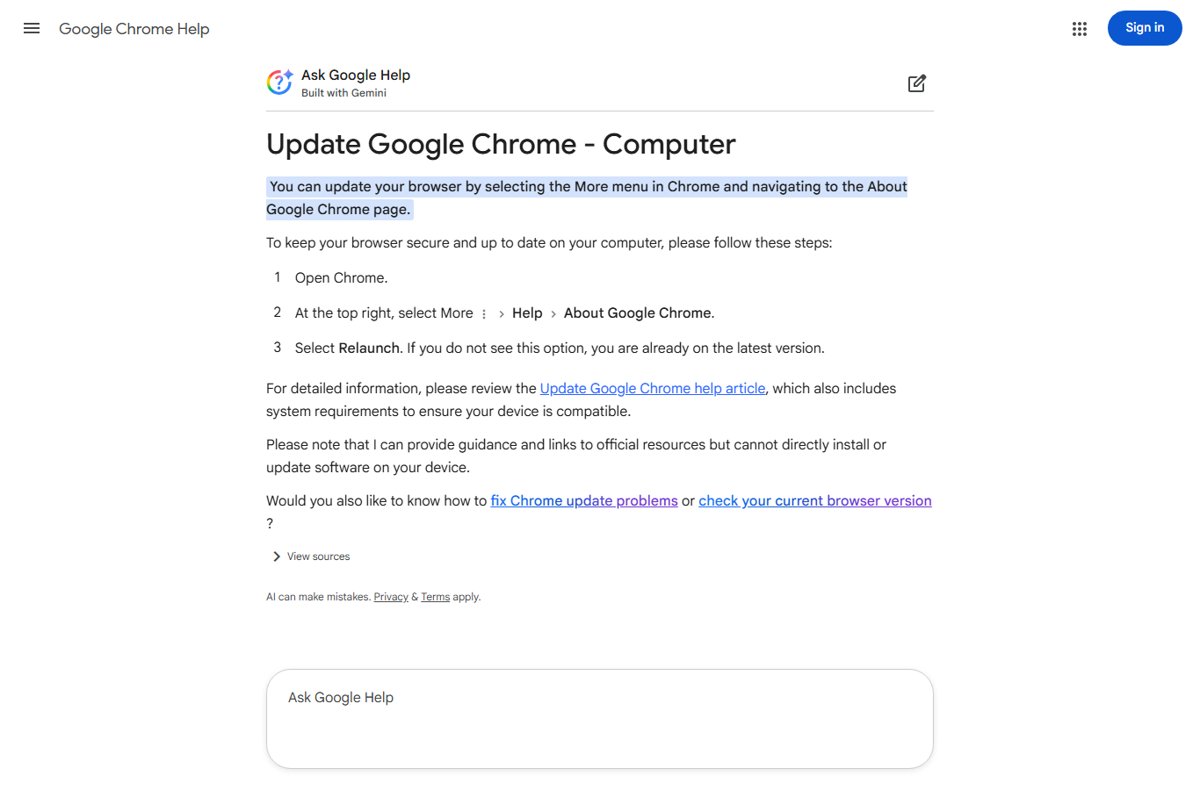
Chrome normally installs updates when you close and reopen it. If the browser has stayed open for a while, a Relaunch button finishes the job and restores your windows.
- Open Chrome on your computer.
- Select More (three dots, top right) > Help > About Google Chrome.
- Wait while Chrome checks for updates on this page.
- Select Relaunch.
- If you want to wait, select Not now; the update installs the next time you restart Chrome.
If there is no Relaunch button, Chrome is already on the latest version. Use the manual quit-and-reopen method instead.
How to completely restart Chrome on Windows 10 and 11 with Task Manager
Use this when Chrome stops responding, or when it still runs in the background after you close its windows.
- Press Ctrl + Alt + Delete and select Task Manager.
- Open the Processes tab.
- Select Google Chrome or chrome.exe.
- Select End task.
- Confirm no Chrome entry is left in the list.
- Open Chrome again and press Ctrl + Shift + T to reopen your tabs.
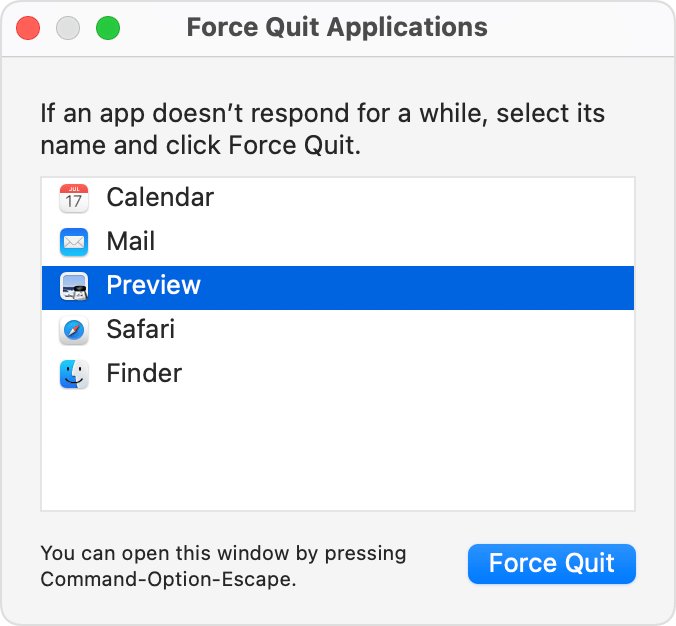
How to force quit and restart Chrome on a Mac
- Press Command + Option + Esc to open the Force Quit window.
- Select Google Chrome in the list.
- Select Force Quit.
- Open Chrome again from the Dock or the Applications folder.
- Press Command + Shift + T to bring back your last session's tabs.
How to restart a frozen Chrome tab with Chrome Task Manager
When only one page hangs, end that page instead of the whole browser.
- Press Shift + Esc on Windows, or select More > More tools > Task Manager.
- Select Memory to sort the list by memory use.
- Select the tab or extension that is stuck.
- Select End Process; unsaved work in that tab is lost.
- Reload the tab to open the page again.
How to restart Chrome on Android and iPhone
Phones and tablets have no Exit command in Chrome. Close the app from the system app switcher, then open it again.
- On Android, swipe up from the bottom of the screen while Chrome is open, then swipe up on the Chrome window to close it.
- On an iPhone without a Home button, swipe up from the bottom of the screen and pause in the middle, then swipe up on the Chrome preview.
- On an iPhone with a Home button, double-click the Home button, then swipe up on the Chrome preview.
- On an iPad, open the App Switcher and swipe up on the Chrome window.
- Tap the Chrome icon to open the app again.
- If pages still fail, restart the phone or tablet itself.
How to restart Google Chrome on a Chromebook
On a Chromebook, Chrome is part of ChromeOS, so there is no separate browser to quit. Close its windows, sign out, or restart the device.
- Press Ctrl + Shift + W in each Chrome window to close it, then open Chrome from the shelf.
- If Chrome still misbehaves, press Shift + Ctrl + Q twice to sign out of your Google Account, then sign back in.
- If that fails, turn the Chromebook off and on again.
- Use a hard reset only when the steps above fail: turn the Chromebook off, hold Refresh, tap Power, and release Refresh when it starts.
- Note that a hard reset can delete some files in your Downloads folder; copy anything important first.
How to restart Chrome without losing your tabs
Relaunch on the About page saves your open tabs and windows and reopens them automatically. Incognito windows do not come back after any restart.
For manual restarts, set Chrome to reopen your last session every time it starts.
- Select More (three dots) > Settings.
- Select On startup on the left.
- Choose Continue where you left off.
- Quit Chrome with More > Exit (or Command + Q on a Mac).
- Reopen Chrome and confirm your tabs are back.
- If you did not turn this setting on first, press Ctrl + Shift + T (Command + Shift + T on a Mac) right after reopening Chrome.
Chrome keeps cookies and site data across restarts, so sites you were signed in to usually reopen still signed in.
How to restart Google Chrome automatically on error
Chrome has no setting that restarts the browser by itself after an error. What you see depends on what failed, and each case has its own quick recovery.
| What happened | What Chrome shows | Fastest recovery |
|---|---|---|
| One page crashed | An Aw, Snap! page in that tab | Reload the tab; if only one site crashes, the site may be the cause |
| One tab or extension hangs | A frozen or blank tab | End it in Chrome's Task Manager (Shift + Esc), then reload |
| The whole browser stops responding | Windows that do not react to clicks | End Google Chrome in Task Manager or use Force Quit, then reopen |
| Chrome closed unexpectedly | Chrome is gone from the screen | Reopen Chrome and press Ctrl + Shift + T to restore tabs |
| An update is waiting | An update notice on the More menu | Select Relaunch on the About Google Chrome page |
To help Google fix repeated crashes, turn on automatic crash reports in Chrome.
How to check Chrome restarted and updated
- Select More > Help > About Google Chrome.
- Read the version number under the Google Chrome heading.
- Confirm no Relaunch button appears; if none is shown, Chrome is on the latest version.
- On Windows, open Task Manager after quitting Chrome and confirm Google Chrome is no longer listed before you reopen it.
- Type
chrome://versionin the address bar to see the version and command line of the running copy.
Best practices and additional tips for restarting Chrome
| Tip | Why it matters |
|---|---|
| Quit the whole browser, not one window | Closing one window leaves Chrome running if other windows are open |
| Turn on Continue where you left off first | Your tabs return after every manual restart |
| Save form entries and wait for downloads to finish | A restart discards unsaved text and stops active downloads |
| Use Relaunch when an update is waiting | It installs the update and restores tabs in one step |
| End a single stuck tab with Shift + Esc | The rest of your session keeps running |
| Close tabs and extensions you do not use | Low memory is a common cause of crashes and failed page loads |
| Restart the computer if Chrome still misbehaves | Other programs can stop pages from loading |
| Keep important work out of Incognito windows | Incognito windows never reopen after a restart |
Troubleshooting common Chrome restart issues
Chrome updates are not applying after a restart
Chrome was not fully closed, so the pending update never installed.
- Open More > Help > About Google Chrome.
- Select Relaunch if it appears.
- If no Relaunch button appears, Chrome is already up to date.
- If the update still fails, restart the computer and check the About page again.
Tabs are missing after Chrome restarts
Chrome is set to open a new tab page on startup, or the tabs were in an Incognito window.
- Press Ctrl + Shift + T (Command + Shift + T on a Mac) right after Chrome opens.
- Press Ctrl + H to open History and reopen older pages one by one.
- Set Settings > On startup > Continue where you left off for next time.
- Note that Incognito tabs cannot be restored.
Error messages when Chrome restarts
A network fault or a proxy problem stops pages loading, rather than Chrome itself.
- Open the same page in another browser.
- If it fails there too, restart your modem and router.
- If it loads in another browser, close other apps and Chrome tabs, then restart Chrome.
- Restart the computer and try the page again.
Chrome is still slow after a restart
Extensions or background pages reload and use memory again.
- Select More > Extensions > Manage Extensions.
- Turn off or remove extensions you do not use.
- Press Shift + Esc, sort by Memory and end any Background page you do not need.
- Restart Chrome again.
What to do if Chrome won't restart
Chrome will not close
A frozen Chrome process ignores the Exit command.
- On Windows, press Ctrl + Alt + Delete, select Task Manager, select Google Chrome or chrome.exe and select End task.
- On a Mac, press Command + Option + Esc, select Google Chrome and select Force Quit.
- Reopen Chrome.
Chrome will not open again after you close it
Part of Chrome is still running, or the installation is damaged.
- Check Task Manager (Windows) or Force Quit (Mac) for a Chrome process that is still running, and end it.
- Run a malware scan with your security software.
- Restart the computer and open Chrome again.
- If it still fails, uninstall Chrome, tick the option to delete browsing data, and install it again from google.com/chrome.
- If Windows refuses the normal uninstall, remove Chrome when the uninstaller fails before reinstalling.
- On a Mac, uninstall Chrome completely before you reinstall it.
Google Chrome keeps closing and restarting by itself
Chrome is crashing, often because of low memory, an extension or malware.
- Close tabs you do not need, quit other apps and pause downloads.
- Turn off extensions under More > Extensions > Manage Extensions.
- Scan the computer for malware.
- Restart the computer.
- Turn on crash reports so Chrome can send details of the crash to Google.
Chrome keeps closing on Android or iPhone
The phone is short of memory, or the app install is damaged.
- Close other tabs and apps, and pause downloads.
- Close Chrome from the app switcher and reopen it.
- Restart the phone or tablet.
- If other browsers load the page, uninstall Chrome, delete its browsing data and reinstall it.
When to consider a full Chrome browser reset
Reset Chrome only when restarts, extension checks and a malware scan have not fixed the problem. A reset returns your search engine, homepage, startup tabs, new tab page, pinned tabs, site permissions, cookies, extensions and themes to their defaults on every device where you are signed in.
Bookmarks and saved passwords are kept. Fonts and accessibility settings are not reset. If you want clean settings without touching your current ones, create a new Chrome profile and test Chrome in it instead.
- Open Chrome and select More > Settings.
- Select Reset settings on the left.
- Select Restore settings to their original defaults.
- Select Reset settings to confirm.
- Restart Chrome and turn your needed extensions back on one at a time.
Restart Google Chrome: frequently asked questions
How do I restart the Google Chrome browser?
Quit Chrome with More > Exit on Windows or Command + Q on a Mac, then open it again. Press Ctrl + Shift + T (Command + Shift + T on a Mac) after reopening to bring back the tabs from your last session.
How do I restart Google Chrome on Windows 10 or Windows 11?
Select More (three dots) > Exit, or press Alt + F then X, and reopen Chrome from the Start menu or taskbar. The steps are identical on Windows 10 and Windows 11. If Chrome is frozen, end Google Chrome in Task Manager first.
How do I restart Google Chrome on a laptop?
A laptop works the same as a desktop. On a Windows laptop select More > Exit; on a MacBook press Command + Q. Reopen Chrome and press Ctrl + Shift + T or Command + Shift + T to restore your tabs.
How do I completely restart Chrome?
Quit Chrome, then make sure no Chrome process is left. On Windows, open Task Manager and end any Google Chrome or chrome.exe entry. On a Mac, use Command + Option + Esc and Force Quit. Then open Chrome again.
How do I restart the Google Chrome app on a phone?
Close Chrome from the app switcher and open it again. On Android, swipe up from the bottom and swipe the Chrome window away. On iPhone, swipe up and pause, or double-click the Home button, then swipe up on Chrome.
How do I restart Chrome on a Chromebook?
Close every Chrome window with Ctrl + Shift + W and reopen it from the shelf. If that does not help, sign out with Shift + Ctrl + Q pressed twice, or turn the Chromebook off and on again.
Why does my Google Chrome close and restart?
Chrome closes on its own when it crashes. Common causes are low memory, a faulty extension and malware. Close spare tabs and apps, turn off extensions, scan for malware and restart the computer. Turn on crash reports to send details to Google.
How do I reboot Google Chrome without losing tabs?
Use Relaunch on the About Google Chrome page, which reopens your tabs and windows automatically. For manual restarts, set On startup to Continue where you left off. Incognito windows are never restored.
Is there a Chrome address bar command to restart the browser?
Typing chrome://quit in the address bar and pressing Enter quits every Chrome window at once. Open Chrome again afterwards and press Ctrl + Shift + T to restore the tabs from your last session.
Bottom line: should you relaunch or fully restart Chrome?
Use Relaunch on the About Google Chrome page when it appears, and quit Chrome with More > Exit (Command + Q on a Mac) the rest of the time. Relaunch installs a waiting update and restores your tabs without extra steps, while a full quit ends every Chrome process. Keep Task Manager or Force Quit for a frozen browser, and reset Chrome only when restarts no longer help.

![How to remove Yahoo from your Chrome, Firefox, or Edge browser? [Easy steps]](https://techdows.com/wp-content/uploads/2026/10/How-to-remove-Yahoo-from-your-Chrome-Firefox-or-Edge-browser-Easy-steps-600x338.jpg)
How to update Google Chrome: A step-by-step guide - Techdows
[…] Select Not now if you cannot restart yet. The update then applies the next time you restart Google Chrome. […]