To reinstall Calculator in Windows 10 or Windows 11, open Microsoft Store, search for Windows Calculator and install it again, because Calculator is a Store app.
This guide also covers the repair and reset options to try first, the PowerShell and winget routes, and fixes for a broken Store, a debloat tool or a second user account.
Method 1: Reinstall Calculator from the Microsoft Store
This route works on Windows 11 and Windows 10 and needs no admin rights. Sign in to Windows with your Microsoft account first, since the Store expects one.
- Select Start, type Microsoft Store and open it.
- Type Windows Calculator in the search box at the top and press Enter.
- Select Windows Calculator in the results to open its listing.
- Select Get or Install and wait for the download to finish.
- Select Open, or find Calculator in the Start menu.
You can also open the Store listing directly at apps.microsoft.com/detail/9WZDNCRFHVN5 and send it to the Store app from there.
Another route Microsoft documents: in Microsoft Store, select Library, find Calculator in your app list and select Install. If the Store only offers to open Calculator, it is still installed for your account, so repair or reset it instead.
Best Method to Use
Match your situation to a row. Most people only need the first two.
| Your situation | Use this | Why |
|---|---|---|
| Calculator is missing from Start | Method 1: Microsoft Store | Fastest, no commands, works on Windows 10 and 11 |
| Calculator is listed but crashes or will not open | Repair, then Reset in Settings | Fixes the app in place without a download |
| Repair and Reset did nothing | Method 2: uninstall, then reinstall | Gives you a completely fresh copy |
| You prefer the command line or manage several PCs | Method 4: winget | One command installs it from the Store catalog |
| App files exist but Calculator is not registered | Method 3: PowerShell re-register | Microsoft documents this exact command for Calculator |
| The Store itself will not open or install anything | Method 5: fix the Store first | Every other route depends on the Store catalog |
| Several built-in apps and Windows features fail together | Method 6: DISM and SFC | Repairs Windows system files, not just one app |
| Only one user account on the PC lacks Calculator | Method 7: install from that account | Store apps install per user |
Before You Reinstall: Try Repairing Calculator First
If Calculator still appears in your app list, Repair keeps your data and Reset clears it. Both are faster than a reinstall. Repairing broken apps has the wider walkthrough.
- On Windows 11, select Start > Settings > Apps > Installed apps. On Windows 10, select Start > Settings > Apps > Apps & features.
- Find Calculator in the list.
- On Windows 11, select the More (three dots) icon next to it, then Advanced options. On Windows 10, select Calculator, then Advanced options.
- Select Repair and wait for it to finish.
- Open Calculator again to test it.
- If it still fails, return to the same page and select Reset, then confirm.
Microsoft's order is Repair first, then Reset only if Repair is missing or does not help. If neither button fixes it, continue with Method 2.
Method 2: Uninstall Calculator, Then Reinstall It
A clean uninstall removes a damaged copy that Repair and Reset could not fix. The steps below work on both Windows 11 and Windows 10.
- Select Start > All apps and scroll to Calculator.
- Right-click Calculator, or press and hold it, and select Uninstall.
- Confirm with Uninstall in the prompt.
- On Windows 11 you can also use Settings > Apps > Installed apps, select More next to Calculator, then Uninstall.
- Restart the PC so no Calculator process is left running.
- Reinstall it with Method 1 or Method 4.
The same uninstall-then-Store pattern works for other inbox apps, including reinstalling Notepad.
Method 3: Reinstall Calculator Using PowerShell
Calculator's package name is Microsoft.WindowsCalculator. PowerShell can check for it, re-register it when the files are still on disk, or remove it for a clean Store reinstall. Commands for your own account run in a normal PowerShell window.
Re-registering is the one PowerShell route Microsoft documents for Calculator by name: the Add-AppxPackage reference uses it as its example.
- Select Start, type PowerShell and open Windows PowerShell. For the all-users commands below, right-click it and select Run as administrator instead.
- Check whether Calculator is installed for you:
Get-AppxPackage -Name Microsoft.WindowsCalculator. If it prints package details, Calculator is installed; no output means it is gone. - If it is installed but broken, re-register it from its own files with these three lines:
$InstallLocation = Get-AppxPackage -Name '*WindowsCalculator*' | Select-Object -ExpandProperty InstallLocation, then$ManifestPath = $InstallLocation + '\Appxmanifest.xml', thenAdd-AppxPackage -Path $ManifestPath -Register -DisableDevelopmentMode. - If re-registering does not help, remove it for your account:
Get-AppxPackage -Name Microsoft.WindowsCalculator | Remove-AppxPackage. - Reinstall a fresh copy with Method 1 or the winget command in Method 4.
- To see which accounts on the PC have Calculator, run
Get-AppxPackage -AllUsers -Name Microsoft.WindowsCalculatorin an administrator window.
If step 2 returns nothing, there is nothing to re-register. Skip straight to the Store or winget install.
Method 4: Reinstall Calculator Using winget
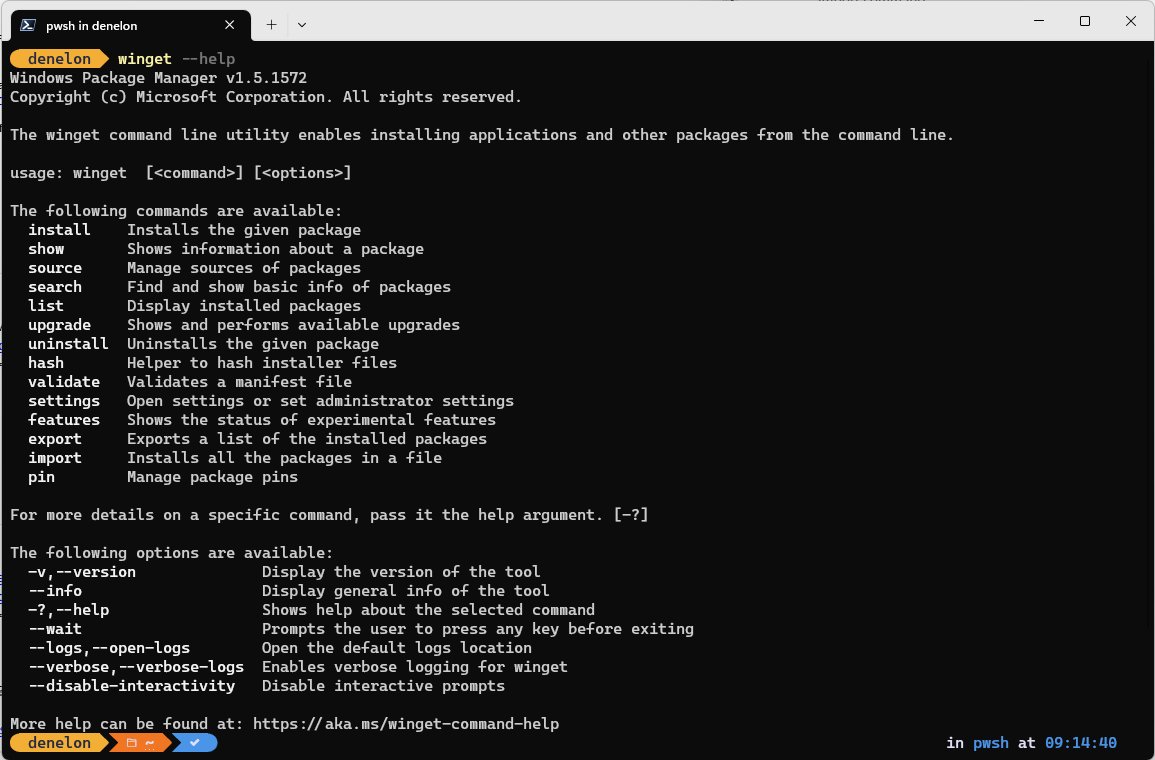
winget is the Windows Package Manager. Microsoft ships it on Windows 11 and modern versions of Windows 10 as part of App Installer, which the Store keeps updated.
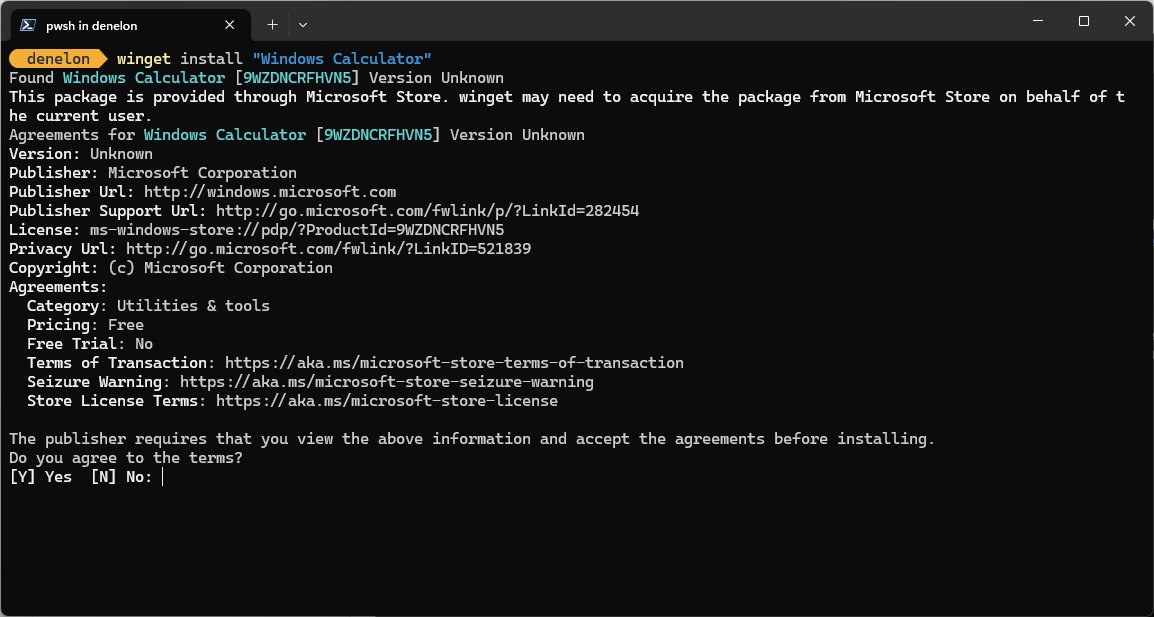
Store apps in winget use their Store ID. Windows Calculator's ID is 9WZDNCRFHVN5, the same ID in its Store web address.
winget install 9WZDNCRFHVN5 -s msstoreinstall downloads and installs a package. 9WZDNCRFHVN5 is Windows Calculator's Microsoft Store ID. -s msstore restricts the search to the Microsoft Store catalog. Add --accept-package-agreements and --accept-source-agreements to skip the license prompts.
You should see: winget reports the install as successful and Calculator appears in the Start menu. If it is already installed, winget says so and changes nothing.
If winget cannot find the package, run winget source update to refresh its catalogs and try again. As a last resort, winget source reset --force in an administrator window restores the default sources, including msstore.
Method 5: Fix the Microsoft Store, Then Reinstall Calculator
Methods 1 and 4 both pull Calculator from the Store catalog. If the Store will not open or every download stalls, fix it first.
- Press Windows logo key + R, type wsreset.exe and select OK. A blank Command Prompt window opens, closes after about ten seconds, and the Store reopens with a cleared cache.
- Make sure you are signed in to the Store with your Microsoft account.
- Update Windows: select Start > Settings > Windows Update > Check for updates, and install anything offered.
- Update the Store: in Microsoft Store, select Library > Get updates.
- Check that your PC's date, time and region are set correctly, since the Store relies on them.
- If the Store still misbehaves, repair or reset Microsoft Store itself from Settings > Apps, exactly as in the repair section above.
- Try Method 1 again.
Method 6: Restore Calculator with System File and Image Repairs
DISM and System File Checker repair damaged Windows system files. Use them when Calculator fails alongside other built-in apps or Windows features, then reinstall Calculator with Method 1.
- Select Start, type cmd, right-click Command Prompt and select Run as administrator.
- Run DISM first:
DISM.exe /Online /Cleanup-image /Restorehealth. It uses Windows Update as its file source and can take several minutes. - When DISM finishes, run
sfc /scannowin the same window. - Leave the window open until verification reaches 100%.
- Read the result: did not find any integrity violations means system files are fine; found corrupt files and successfully repaired them means the repair worked.
- Restart the PC, then open Calculator or reinstall it from the Store.
If SFC reports could not perform the requested operation, Microsoft's fix is to run the same scan in safe mode.
Method 7: Reinstall Calculator for a New or Different User Account
Store apps install per user account. Calculator can be present for you and missing for another person on the same PC.
Calculator is also a provisioned app: Windows installs it the first time a new account signs in, unless it has been deprovisioned.
- Sign out, then sign in to the account that is missing Calculator.
- Open Microsoft Store from that account and install Windows Calculator, as in Method 1.
- Or open PowerShell in that account and run
winget install 9WZDNCRFHVN5 -s msstore. - To confirm from an admin account, run
Get-AppxPackage -AllUsers -Name Microsoft.WindowsCalculatorand check which accounts it lists. - If a brand-new account also lacks Calculator, the provisioning package was removed. See the debloat section below.
What If Calculator Was Removed by a Debloat Tool?
Debloat scripts usually remove Calculator for every user and delete its provisioning package. That changes which fix works.
| What the tool did | What you see | What to do |
|---|---|---|
Removed the app for your account (Remove-AppxPackage) |
Calculator missing for you only | Install it again from the Store or with winget |
Removed it for all users (Remove-AppxPackage -AllUsers) |
Missing for every existing account | Install it from the Store in each account that wants it |
Removed the provisioning package (Remove-AppxProvisionedPackage) |
New accounts never get Calculator | Install from the Store in each new account after it is created |
| Deprovisioned it in the registry | Calculator does not come back after a feature update | This is by design; Windows writes a Deprovisioned key so removed inbox apps stay removed |
| Blocked or removed Microsoft Store too | No Store to install from | Restore the Store first (Method 5), then install Calculator |
Microsoft documents that the Deprovisioned key under HKLM\SOFTWARE\Microsoft\Windows\CurrentVersion\Appx\AppxAllUserStore stops removed apps returning during updates. A per-user Store install still works with that key in place.
If a debloat tool stripped several inbox apps at once, reinstalling all default apps at once covers the bulk approach.
How to Pin Calculator After Reinstalling It
A reinstall does not restore old pins, so add them again.
- Select Start and find Calculator in the app list.
- Right-click it, or press and hold it, and select Pin to Start.
- To add it to the taskbar, right-click it again and select More > Pin to taskbar.
- Or open Calculator, right-click its icon on the taskbar and select Pin to taskbar.
Useful Calculator Features to Check After Reinstalling
Open each mode from Calculator's navigation menu. If each one loads, the reinstall is complete.
| Feature | What it does |
|---|---|
| Standard | Basic operations, evaluated as you type |
| Scientific | Expanded operations that follow order of operations |
| Programmer | Common developer operations, including conversion between number bases |
| Date calculation | Difference between two dates, or add and subtract years, months and days |
| History and memory | Keeps past calculations and stored values; check both panels still open |
| Converters | Many units of measurement, plus currency using exchange data from Bing |
| Graphing | Plots equations in the official Microsoft build of Calculator |
Currency conversion needs an internet connection to fetch rates, so test it online.
How to check it worked
- Select Start and type Calculator; it should appear as an app, not a Store suggestion.
- Open it and run a quick sum such as 12 × 12 to confirm it responds.
- In Settings > Apps > Installed apps (Windows 11) or Apps & features (Windows 10), confirm Calculator is listed.
- Optional: run
Get-AppxPackage -Name Microsoft.WindowsCalculatorin PowerShell and confirm it returns a package.
Common Problems and Fixes
Windows 10 Calculator not working or closing right after it opens
The app's local data or registration is damaged.
- Run Repair, then Reset, from Advanced options as shown above.
- Install pending updates in Settings > Windows Update.
- If it still fails, uninstall and reinstall it (Method 2).
The Store says Calculator is already installed
The package is still registered for your account, even if it is broken or hidden from Start.
- Open it from the Store to test it.
- If it fails, repair or reset it in Settings.
- Or uninstall it (Method 2), restart, and install it again.
PowerShell says the package cannot be found
Calculator is not installed for this account, or you searched another user's packages without admin rights.
- Confirm the name is
Microsoft.WindowsCalculator, or use the wildcard*WindowsCalculator*. - Open PowerShell with Run as administrator if you used
-AllUsers. - If it is truly absent, install it with Method 1 or Method 4 instead of re-registering.
winget is not recognized or cannot find Calculator
App Installer is missing or outdated, or winget's source data is stale.
- Update App Installer from Microsoft Store (Library > Get updates).
- Run
winget source update, then retry the install. - If the msstore source is missing, run
winget source reset --forceas administrator.
Microsoft Store will not open, or Calculator is missing from the Store
A damaged Store cache, a local-account sign-in, or a removed Store app.
- Run wsreset.exe from the Run box (Method 5).
- Sign in with a Microsoft account; the Store may be unavailable with a local account.
- Open apps.microsoft.com/detail/9WZDNCRFHVN5 in a browser to reach the listing directly.

Frequently Asked Questions
How do I reinstall Calculator in Windows 10?
Open Microsoft Store, search for Windows Calculator and select Get or Install. If Calculator is still listed but broken, uninstall it from Start > All apps first, restart, then install it again from the Store.
How do I reinstall Calculator in Windows 11?
Install Windows Calculator from Microsoft Store, or run winget install 9WZDNCRFHVN5 -s msstore in Terminal. If it is installed but broken, try Settings > Apps > Installed apps > Calculator > Advanced options > Repair first.
How do I install Calculator in Windows 10 if it was never there?
Install Windows Calculator from Microsoft Store while signed in with a Microsoft account. It is the same free Microsoft app that ships with Windows 10 and Windows 11, with Store ID 9WZDNCRFHVN5.
Can I reinstall Calculator in Windows 10 without the Store app?
Yes. Run winget install 9WZDNCRFHVN5 -s msstore in PowerShell or Command Prompt. winget still pulls Calculator from the Microsoft Store catalog, but you never open the Store app itself.
How do I reinstall Calculator with PowerShell?
Check it with Get-AppxPackage -Name Microsoft.WindowsCalculator. If it exists but is broken, re-register it with Add-AppxPackage -Register using its AppxManifest.xml. If it is missing, install it with winget or the Store.
How do I fix Calculator in Windows 10?
Go to Settings > Apps > Apps & features, select Calculator, choose Advanced options and select Repair. If that fails, select Reset. If Calculator still will not open, uninstall and reinstall it from Microsoft Store.
What happened to Calculator in Windows 10?
Calculator is a Microsoft Store app, so it can be uninstalled like any other app. It usually disappears after a manual uninstall, a debloat script, or a damaged app registration. Reinstalling it from Microsoft Store brings it back.
How do I restore Calculator in Windows 10?
If Calculator is listed in Apps & features, select it, choose Advanced options and select Repair or Reset. If it is gone completely, install Windows Calculator again from Microsoft Store or with winget install 9WZDNCRFHVN5 -s msstore.
Why is Calculator missing for only one user on my PC?
Store apps install per user account. Sign in to that account and install Windows Calculator from Microsoft Store, or run the winget command there. An admin can check each account with Get-AppxPackage -AllUsers -Name Microsoft.WindowsCalculator.






