To cast your entire desktop to a TV with Chromecast, open Google Chrome, select More > Cast, save, and share > Cast…, choose Sources > Cast screen, and pick your Chromecast.
This guide covers casting the full screen, a single Chrome tab and local photos or videos from Windows, Mac and Chromebook, plus how to get sound on the TV and what to do when Chrome cannot find your Chromecast.
Cast your entire desktop screen
Chrome can show your whole computer screen on the TV on Windows, Mac and Chromebook. Everything on the screen appears on the TV, including other apps and the taskbar.
- Connect your computer to the same Wi-Fi network as your Chromecast. If the device is new, set up your Chromecast first.
- Open Google Chrome on your computer.
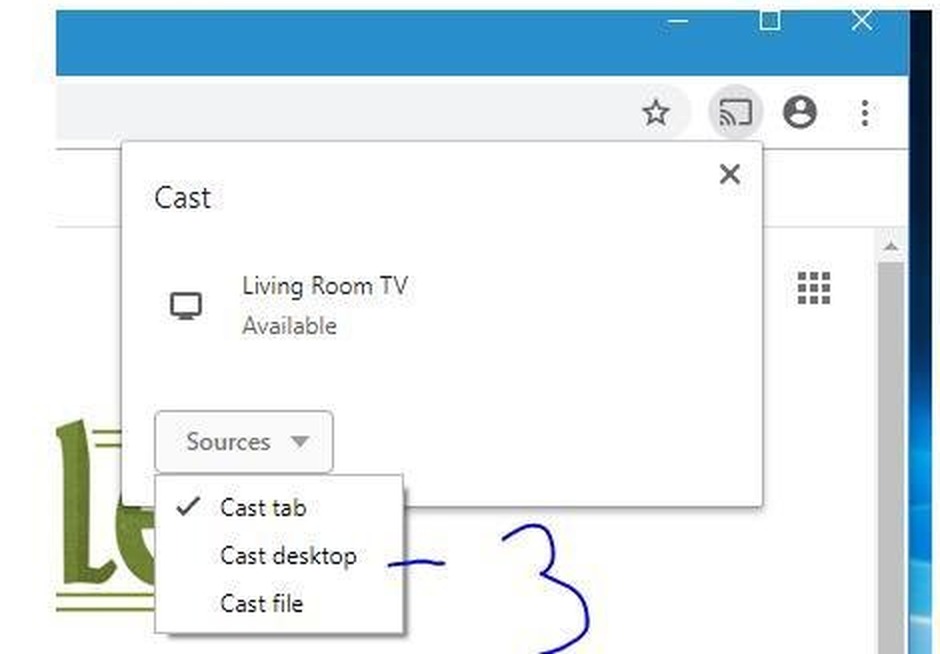
- At the top right, select More (the three dots) > Cast, save, and share > Cast….
- Select Sources, then select Cast screen.
- Select the Chromecast or Google TV device you want to cast to.
- Look at the TV: your desktop now appears on it.
When you cast the screen, the audio might keep playing on your computer. To send sound to the TV, cast a tab instead.
Chromecast desktop casting
Casting from Chrome works on Windows, Mac, ChromeOS and Linux. The Cast button itself has no hardware requirement, but casting video smoothly needs a reasonably modern computer.
| You need | Details |
|---|---|
| A Google Cast receiver | Chromecast, Chromecast Ultra, Chromecast with Google TV, Google TV Streamer (4K), or a TV with Google Cast built in |
| The same Wi-Fi network | Your computer and the streaming device must be on one network with a strong signal |
| An updated Chrome | Update Chrome before casting; older versions can hide the Cast option |
| Windows PC, minimum | Core i3 or equivalent, Windows 7 or later, Intel HD3000 graphics or comparable |
| Windows PC, recommended | 2nd generation Core i5 (2 GHz+) or newer, Intel HD4000 graphics or comparable |
| Mac, minimum | MacBook Pro 2010 or MacBook Air 2011 with OS X 10.9 or later |
| Chromebook, recommended | All 2014 models and later, 2013 Haswell-based models, and Samsung Chromebook 2 |
A computer below the minimum can still cast web pages, images and slideshows, but video will not play well.
How Chromecast casting works
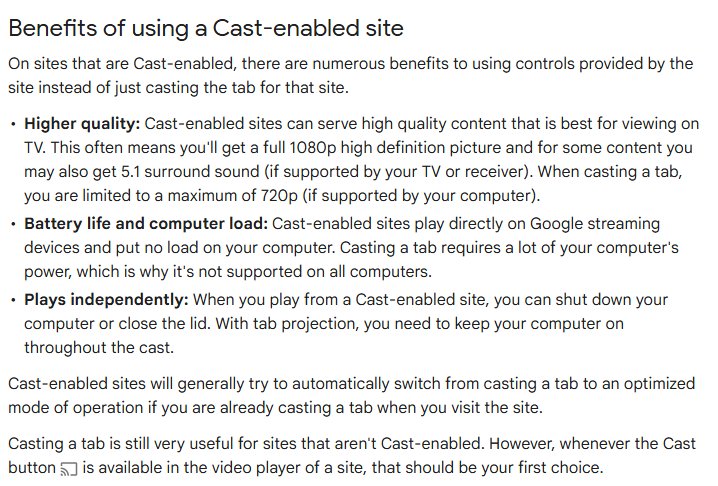
Chrome has two ways to put content on a Chromecast. A Cast-enabled site hands the video to the Chromecast, while tab and screen casting send a live picture from your computer.
| Way of casting | What happens | Picture quality | Computer must stay on |
|---|---|---|---|
| Cast-enabled site (YouTube, Netflix, YouTube Music) | The Chromecast plays the stream itself; your computer acts as a remote | Often full 1080p, and 5.1 surround on some content | No, you can close the lid |
| Cast a tab | Chrome sends one tab's picture and sound to the TV | Up to 720p, if the computer supports it | Yes |
| Cast screen | Chrome sends a copy of your whole display | Depends on your computer and Wi-Fi | Yes |
| Cast a file | A local photo, video or song opens in a Chrome tab, which is then cast | Same limit as a tab | Yes |
If a video player shows its own Cast button, use that first. It gives a better picture and puts no load on your computer.
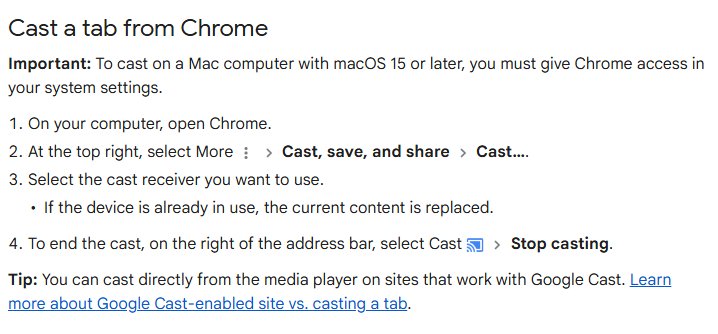
Cast a tab on Chrome
Casting a tab shows only that tab on the TV and sends its sound there too. You can keep working in other windows while the tab plays.
- Open the web page you want to show in Google Chrome.
- At the top right, select More > Cast, save, and share > Cast….
- Select your Chromecast from the list.
- Check that a Display icon appears on the tab you are casting.
- Use the tab normally; scrolling and video playback show on the TV.
If the Chromecast is already showing something, the new cast replaces it. Sound from other tabs and apps still plays on your computer. Microsoft Edge on Windows 11 can cast a tab to a Chromecast as well, once you turn on casting in Edge.
Cast media (photos & videos)
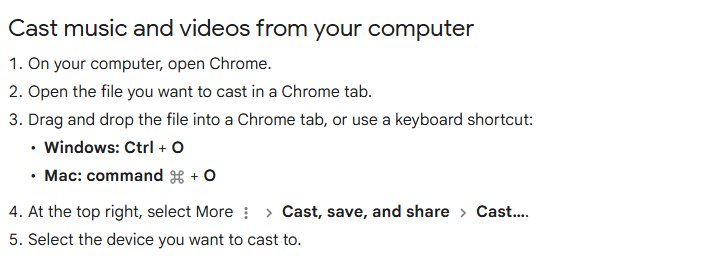
Chrome can cast music, videos and photos stored on your computer. The file opens in a Chrome tab, and you cast that tab.
- Open Google Chrome.
- Drag the photo, video or music file from File Explorer or Finder into a Chrome tab, or press Ctrl + O on Windows or Command + O on Mac and open it.
- Start playback if the file is a video or song.
- At the top right, select More > Cast, save, and share > Cast….
- Select the device you want to cast to.
Files that need a browser plugin, such as Silverlight, QuickTime or VLC content, will not cast.
Chromecast cast tab vs cast screen
| You want to | Use | Why |
|---|---|---|
| Show a slideshow, document or desktop app | Cast screen | Only screen casting shows apps outside Chrome |
| Watch a web video with sound on the TV | Cast a tab | Tab casting sends the tab's audio to the TV |
| Watch YouTube or Netflix | The Cast button in the video player | Better picture, and the computer can be closed |
| Play a video file from your PC | Open it in Chrome, then cast the tab | Keeps sound on the TV |
| Keep using the computer privately while casting | Cast a tab | Other windows stay on your screen only |
If you want to control this PC from another computer rather than show it on a TV, set up Chrome Remote Desktop instead.
Expand your screen real estate
Chrome's Cast screen puts a copy of your desktop on the TV, which turns it into one big mirror of your monitor. Windows has its own display modes when you want the TV to act as a separate, extended screen.
| Goal | How to get it | Notes |
|---|---|---|
| Same picture on the PC and the TV | Chrome Cast screen to your Chromecast | Works over Wi-Fi; audio may stay on the computer |
| Desktop stretched across PC and TV | Connect the TV with an HDMI cable, press Windows key + P and select Extend | You can drag windows between the two screens |
| Wireless extended desktop | Press Windows key + K and choose a TV or adapter that supports Miracast, then select Extend with Windows key + P | The display must support Miracast |
| Only the TV shows the desktop | Windows key + P > Second screen only | Needs a display Windows itself is connected to |
How to add the Cast button to the Chrome toolbar
A pinned Cast button saves opening the menu every time you cast.
- In Chrome, select More > Cast, save, and share > Cast….
- Wait for the Cast button to appear in the toolbar.
- Right-click the Cast button.
- Select Always show icon.
While a cast is running, the Cast connected icon appears to the right of the address bar, next to Extensions.
How to stop casting from Chrome
- Find the Cast icon on the right of the Chrome address bar.
- Select Cast.
- Select Stop casting.
- Check that the tab or screen no longer shows on the TV.
Chromecast not showing up in Chrome
No Cast destination found
Chrome cannot see Google streaming devices on a different network, or through a VPN or proxy.
- Unplug the Chromecast's power cable, wait a few seconds, plug it back in and wait two minutes.
- Connect the computer to the same Wi-Fi network as the Chromecast.
- Disconnect from any VPN or proxy server.
- Type
chrome://chromein the address bar and install any Chrome update. - Restart the computer and the router, then select Cast… again.
Chromecast not found on a Windows PC
A Public network profile hides the PC from other devices on the network.
- On your own home Wi-Fi only, open Settings > Network & internet > Wi-Fi.
- Select the network you are connected to.
- Under Network profile type, select Private network.
- Restart Chrome and try casting again.
Chromecast not found on a Mac with macOS 15 or later
Chrome needs permission to reach devices on the local network.
- Open System Settings > Privacy & Security > Local Network.
- Turn on the switch for Google Chrome.
- Quit Chrome completely and open it again.
The Cast button is missing in Chrome
Chrome is out of date, the button sits in the overflow area, or a Chrome settings reset removed it.
- Update Chrome.
- Select More > Cast, save, and share > Cast… to bring the button back.
- Right-click the button and select Always show icon to keep it.
Sound plays on the computer, not the TV
Screen casting can leave the audio on the computer.
- Stop the screen cast.
- Open the video or audio in a Chrome tab.
- Cast the tab instead of the screen so the sound plays on the TV.
Casting is choppy or laggy
Tab and screen casting use a lot of computer power and need strong Wi-Fi on both devices.
- Use the Cast button inside the video player when the site offers one.
- Move the computer or the router closer to improve the Wi-Fi signal.
- Close other heavy apps and tabs while you cast.

Cast PC to TV with Chromecast FAQ
Can you cast your whole computer screen to a Chromecast?
Yes. In Google Chrome, select More > Cast, save, and share > Cast…, then Sources > Cast screen, and pick the Chromecast. It works on Windows, Mac and Chromebook and shows everything on your screen, including apps outside Chrome.
Why is there no sound on the TV when I cast my screen?
Screen casting can keep the audio on your computer. To hear sound through the TV, open the video or music in a Chrome tab and cast that tab instead, because tab casting sends the tab's audio to the TV.
Do my computer and Chromecast need to be on the same Wi-Fi?
Yes. Chrome cannot find Google streaming devices on a different network, so connect both to the same Wi-Fi. A VPN or proxy on the computer also blocks casting, so disconnect it first.
Can I close my laptop while casting?
Only when you cast from a site's own Cast button, such as YouTube or Netflix, because the Chromecast then plays the stream itself. Tab and screen casting need the computer to stay on and awake for the whole session.
What quality does Chrome tab casting give?
Casting a tab is limited to a maximum of 720p, if your computer supports it. Cast-enabled sites often deliver full 1080p and sometimes 5.1 surround sound, so use the player's Cast button when it is there.
Can I cast my desktop to a Chromecast from a Mac?
Yes. Chrome on a Mac offers the same Cast screen option. On macOS 15 or later, first allow Google Chrome in System Settings > Privacy & Security > Local Network, or Chrome will not find the Chromecast.
What computer do I need to cast video from Chrome?
On Windows, the minimum is a Core i3 or equivalent with Windows 7 or later and Intel HD3000 graphics. A 2nd generation Core i5 with Intel HD4000 graphics is recommended for smooth video in a cast tab.
Can I use Chromecast as a second monitor?
Chrome's Cast screen option mirrors your desktop on the TV rather than adding a second desktop. To extend the desktop across two screens in Windows, connect the TV by HDMI or use a Miracast display, then choose Extend with Windows key + P.
Can I cast local video files to a Chromecast?
Yes. Drag the file into a Chrome tab or press Ctrl + O to open it, then cast the tab. Content that needs a plugin such as Silverlight, QuickTime or VLC will not cast.
Can I cast from my phone instead of my computer?
Yes. Android phones and iPhones can send video to a Chromecast from Cast-enabled apps, and Android can mirror its whole screen. The steps to cast a phone to the TV differ by phone.