Apps and Features in Windows 11 lives at Start > Settings > Apps > Installed apps, and you can jump straight to it by running ms-settings:appsfeatures from the Run box.
This guide shows every way to open it, how to uninstall, repair, reset and reinstall apps, where optional features and app execution aliases moved, and what to do when an option is missing.
How to open Apps & Features in Windows 11
Windows 11 still answers to the old Apps & features name, but the page you land on is labelled Installed apps.
The fastest route is the Settings URI, which works from any build of Windows 11.
- Press Windows + R to open the Run box.
- Type
ms-settings:appsfeaturesand press Enter. - Settings opens on Apps > Installed apps with every installed app listed.
- Type a name in the search box at the top of the list to find one app quickly.
Five ways to open the Windows 11 Installed apps page
Every route below ends on the same Settings page, so pick the one that suits how you work.
| Route | What to do | Best when |
|---|---|---|
| Using the Start menu | Select Start > Settings > Apps > Installed apps | You prefer clicking through menus |
| Using the search bar | Select Search on the taskbar, type installed apps, open the Settings result |
You already have the keyboard under your hands |
| Using the Run command | Press Windows + R, enter ms-settings:appsfeatures |
You want the page in one step |
| Using Command Prompt or PowerShell | Run start ms-settings:appsfeatures |
You are already in a terminal or a script |
| From the context menu | Right-click Start, select Settings, then Apps > Installed apps | You use the mouse and want to skip the Start menu |
The classic Control Panel list still exists for desktop programs: open Control Panel and go to Programs > Programs and Features.
What is Apps & Features in Windows 11?
Apps & features is the Settings page that lists the apps installed on your PC and lets you remove, repair or reset them.
In current Windows 11 it appears under Apps as Installed apps, while the related tools it once held now have their own pages.
| Task | Where it lives now | Direct URI |
|---|---|---|
| Uninstall, repair or reset an app | Settings > Apps > Installed apps | ms-settings:appsfeatures |
| Per-app reset and add-ons | Installed apps > app > Advanced options | ms-settings:appsfeatures-app |
| Choose where to get apps | Settings > Apps > Advanced app settings | None listed |
| Add or remove optional features | Settings > System > Optional features | ms-settings:optionalfeatures |
| Apps that launch at sign-in | Settings > Apps > Startup | ms-settings:startupapps |
| Default apps | Settings > Apps > Default apps | ms-settings:defaultapps |
Understanding the Apps & Features interface
The Installed apps page is one long list with a search box above it, and each app has a More button (three dots) on its row.
What the More menu offers depends on the type of app.
| Control | What it does |
|---|---|
| Search box | Filters the list as you type an app name |
| More (three dots) | Opens the per-app menu: Uninstall, and Advanced options or Modify where the app supports them |
| Advanced options | Opens the app's own page with Repair, Reset, permissions and add-ons; not every app has it |
| Uninstall | Removes the app; some apps can only be removed from Control Panel |
How to manage installed apps in Windows 11
Uninstalling is the most common job on this page, and the same More menu handles it for both Store apps and desktop programs.
- Open Start > Settings > Apps > Installed apps.
- Find the app in the list, or type its name in the search box.
- Select More (three dots) next to the app.
- Select Uninstall, then select Uninstall again to confirm.
- Follow any prompts from the program's own uninstaller until it finishes.
A shortcut also works from the Start menu: select Start > All, right-click the app and choose Uninstall. If you are setting up a new PC afterwards, you can install apps on Windows from the Store or the web.
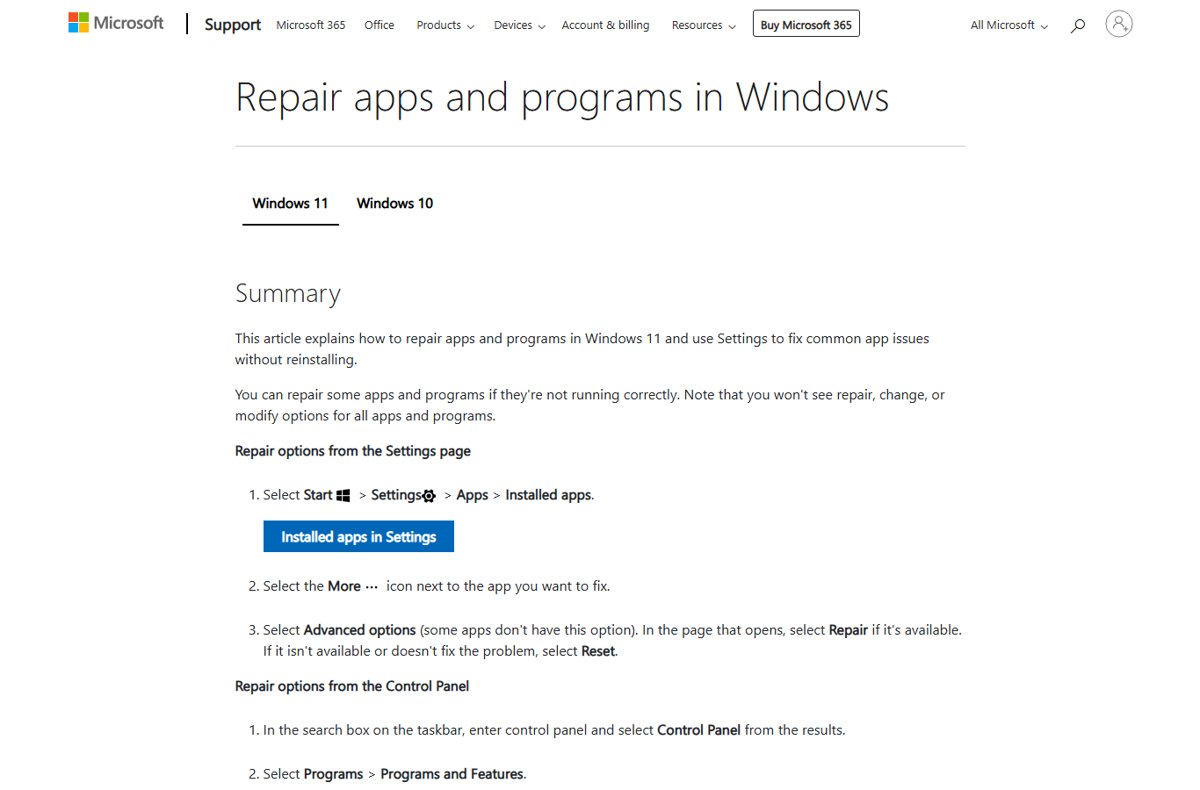
How to modify, repair or reset an app in Windows 11
Repair keeps the app's data and fixes its files, which sorts out most broken apps and programs. Reset clears the app's data and returns it to a fresh state, so try Repair first.
- Open Start > Settings > Apps > Installed apps.
- Select More (three dots) next to the app.
- Select Advanced options.
- Select Repair if it appears, then test the app.
- If Repair is missing or does not help, select Reset.
For desktop programs without Advanced options, open Control Panel > Programs > Programs and Features, right-click the program and select Repair, or Change if Repair is not offered.
How to change app installation preferences
Windows 11 can allow apps from anywhere, warn you about non-Store apps, or block everything outside the Microsoft Store.
- Select Start > Settings > Apps > Advanced app settings.
- Open the list next to Choose where to get apps.
- Pick Anywhere to install from any source without prompts.
- Pick Anywhere, but let me know if there's a comparable app in the Microsoft Store to see Store suggestions.
- Pick Anywhere, but warn me before installing an app that's not from the Microsoft Store for a warning without a suggestion.
- Pick The Microsoft Store only (Recommended) to block installers from other sources.
To change which drive new apps install to, open Settings > System > Storage > Advanced storage settings > Where new content is saved and choose a drive for new apps.
How to manage optional features in Windows 11
Optional features, also called Features on Demand, moved out of the Apps section and now sit under System.
Adding a feature downloads it through Windows Update, so the PC must be online.
- Press Windows + R, type
ms-settings:optionalfeaturesand select OK, or open Settings > System > Optional features. - To add a feature, select View features next to Add an optional feature.
- Tick the box next to each feature you want, then select Next.
- Review the list and select Add.
- To remove a feature, search under Installed features, select the feature to expand it and select Remove.
On older Windows 11 builds the same page may appear under Settings > Apps > Optional features. In PowerShell, Get-WindowsOptionalFeature, Enable-WindowsOptionalFeature and Disable-WindowsOptionalFeature show, turn on and turn off Windows features.
Managing app execution aliases in Windows 11
An app execution alias lets you start a Store-packaged app by typing its command name, such as in Command Prompt, without knowing its folder.
When two apps claim the same command name, turning one alias off decides which one runs.
- Open Settings > Apps > Advanced app settings.
- Select App execution aliases. Searching for Manage app execution aliases in Windows Search opens the same list.
- Find the app and the command name it registers.
- Turn the toggle off to stop that command name launching the app, or on to restore it.
Aliases are stored in %LOCALAPPDATA%\Microsoft\WindowsApps and are deleted automatically when the app is uninstalled.
Checking app permissions in Windows 11
Permissions such as location, camera and microphone access are controlled per permission under Privacy & security.
Desktop apps with full system access do not appear in these lists, so Privacy settings cannot limit them.
- Select Start > Settings > Privacy & security.
- Under App permissions, select a permission such as Location, Camera or Microphone.
- Review the apps listed and turn off any app that should not have that access.
- For one Store app, open Installed apps, select More > Advanced options and check its permissions and background activity there.
How to view app sizes in Windows 11
Storage settings break disk use into categories, and Installed apps is one of them, which shows how much space apps take as a group.
- Open Start > Settings > System > Storage.
- Wait for the breakdown to load, then find the Installed apps category.
- Select Installed apps to open the app list and compare sizes.
- Open Cleanup recommendations on the Storage page to review Unused apps worth removing.
How to reinstall built-in apps in Windows 11
Built-in apps such as Photos or Calculator come from the Microsoft Store, so a removed one can be installed again from your Store library.
- Open Microsoft Store from Start.
- Select Library in the lower-left corner.
- Find the app you removed.
- Select Install and wait for it to finish.
- Open the app from Start > All to confirm it is back.
If the app is not in your library, search for it by name in the Store and select Get or Install on its page.
How to repair or reset Microsoft Store
Clearing the Store cache fixes most cases where the Store will not open or downloads stall, and it does not remove your apps.
- Press Windows + R, type
wsreset.exeand select OK. - Wait for the blank Command Prompt window to close on its own, which takes about ten seconds.
- Let Microsoft Store open automatically, then retry the download.
- If the problem remains, open Settings > Apps > Installed apps, select More next to Microsoft Store and select Advanced options.
- Select Repair, and if that fails, select Reset.
How to check an app change worked in Windows 11
- After an uninstall, open Start > All and confirm the app is no longer listed.
- Reopen Settings > Apps > Installed apps and search for the app name; no result means it is gone.
- After Repair, open the app and repeat the action that failed before.
- After Reset, open the app and expect first-run screens and a fresh sign-in.
- After adding an optional feature, check that it appears under Installed features on the Optional features page.
- After a Store reinstall, check that the app shows Open instead of Install in Library.
Common problems and fixes for Apps & Features in Windows 11
An app has no Uninstall option in Settings
Some desktop programs can only be removed through their classic uninstaller.
- Search the taskbar for Control Panel and open it.
- Go to Programs > Programs and Features.
- Right-click the program and select Uninstall or Uninstall/Change.
- Follow the program's prompts to finish.
Advanced options, Repair or Reset is missing
Not every app offers these options; many desktop programs use Control Panel instead.
- Open Control Panel > Programs > Programs and Features.
- Right-click the program and select Repair, or Change if Repair is not listed.
- If neither appears, uninstall the program and install it again from its publisher.
Optional features will not install
Windows Update supplies the feature files, so an offline PC or a paused update service blocks the download.
- Check that the PC is connected to the internet.
- Open Settings > Windows Update and resume updates if they are paused.
- Return to Settings > System > Optional features and add the feature again.
The Add an optional feature page or the Apps page is hidden
A policy such as Hide "Windows Features" or Hide "Programs and Features" page is turned on, which is common on work PCs.
- Ask your IT administrator whether the device is managed.
- On a personal PC with Group Policy, open
gpedit.mscand go to User Configuration > Administrative Templates > Control Panel > Programs. - Set the hide policy to Not configured and restart Settings.
Microsoft Store will not open
A damaged Store cache or an out-of-date Windows build.
- Run
wsreset.exefrom the Run box. - Open Settings > Windows Update and select Check for updates.
- Check that the date, time and region on the PC are correct.
Tips for managing apps efficiently in Windows 11
| Tip | Why it helps |
|---|---|
| Turn off unneeded apps under Settings > Apps > Startup | Fewer apps start at sign-in, so the PC is ready sooner |
Run winget list in Terminal |
Lists every installed app, including ones not from winget, and flags available updates |
| Select Library > Get updates in Microsoft Store | Updates all Store apps at once |
| Review Cleanup recommendations under Storage | Surfaces apps you rarely use |
| Set Choose where to get apps to warn you | Catches unexpected installers before they run |
Why “Apps & Features” is important in Windows 11
Bookmark ms-settings:appsfeatures and use Installed apps as the first stop for removing, repairing or resetting any app before reaching for Control Panel. One page covers Store apps and most desktop programs, and Repair or Reset fixes many app faults without a full reinstall.
Windows 11 apps and features questions
Where is Apps and Features in Windows 11?
It is at Start > Settings > Apps > Installed apps. The page replaced the Apps & features name used in earlier releases, and running ms-settings:appsfeatures from the Run box still opens it directly.
How do I open Apps and Features from the Run command?
Press Windows + R, type ms-settings:appsfeatures and press Enter. Settings opens on the Installed apps page. In Command Prompt or PowerShell, run start ms-settings:appsfeatures for the same result.
Where did optional features go in Windows 11?
Optional features now sit under Settings > System > Optional features. Older Windows 11 builds may still show the page under Settings > Apps. The URI ms-settings:optionalfeatures opens it on any build.
What is the difference between Repair and Reset for an app?
Repair fixes the app's files and keeps its data. Reset deletes the app's data and settings and returns it to a freshly installed state. Try Repair first and use Reset only if Repair does not fix the problem.
Can I still use Programs and Features in Windows 11?
Yes. Open Control Panel and go to Programs > Programs and Features. It lists desktop programs and offers Uninstall, Change and Repair, which helps with programs that have no options in Settings.
How do I reinstall an app I removed from Windows 11?
Open Microsoft Store, select Library, find the app and select Install. Built-in apps such as Photos and Calculator come back this way. Desktop programs need their installer from the publisher's own website.
What are app execution aliases used for?
They let you start a Store-packaged app by typing its command name in a terminal. Manage them under Settings > Apps > Advanced app settings > App execution aliases, and turn one off when two apps claim the same command.