To rename a PC in Windows 11, open Settings > System > About, select Rename this PC, type the new name, select Next and restart.
This guide covers that route plus System Properties, PowerShell and Command Prompt, the naming rules Windows enforces, domain-joined PCs, and fixes when the rename fails.
Method 1: Rename Your PC in Windows 11 Settings
This is the route Microsoft documents, and it works the same way on Windows 10. The new name applies after the next restart.
- Press Win + I to open Settings.
- Select System, then scroll down and select About.
- Select Rename this PC next to the device name at the top of the page.
- Type the new name, keeping it to 15 characters of letters, numbers and hyphens, then select Next.
- Select Restart now to apply it immediately, or Restart later to finish your work first.
The shortcut Win + Pause opens the same About page on Windows 11, which saves two clicks.
Which method should you use?
| Your situation | Use this | Why |
|---|---|---|
| Home PC, you just want a new name | Method 1: Settings > About > Rename this PC | Fewest steps, no commands |
| You also need to change the workgroup or domain | Method 2: System Properties | Name and membership sit on the same Computer Name tab |
| You script setups or rename another PC on the network | Method 3: Rename-Computer in PowerShell | One line, supports -ComputerName and domain credentials |
| You are already in Command Prompt | Method 4: call Rename-Computer through powershell -Command | No need to switch windows; WMIC is gone from Windows 11 24H2 and later |
| Domain-joined workstation managed with AD tools | netdom renamecomputer | Renames the PC and its domain computer account together |
Before You Rename Your Windows 11 PC
| Check | Why it matters |
|---|---|
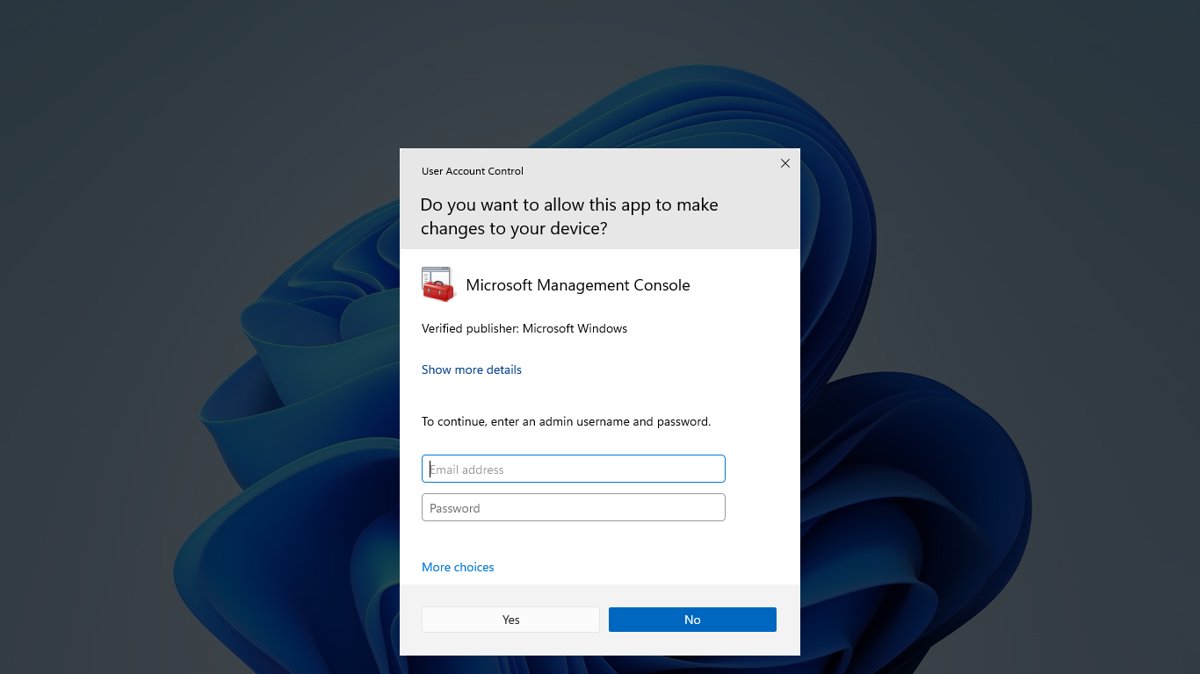
| Sign in with an administrator account | The computer name is a system-wide setting; a standard account gets a User Account Control prompt asking for administrator credentials |
| Pick a name that follows the rules | Windows caps computer names at 15 characters and rejects spaces, periods and symbols such as \ / : * ? " < > | , |
| Save open work | The rename completes only after a restart |
| Know if the PC is on a work domain | A domain-joined PC needs an account with permission to rename computers in that domain |
| Note the old name | Shared folders, printers and Remote Desktop shortcuts on other PCs point at it |
Method 2: Rename Your PC from System Properties
System Properties is the older dialog. Use it when you also want to see or change the workgroup or domain.
- Open Settings > System > About.
- Select Domain or workgroup to open System Properties on the Computer Name tab.
- Select Change.
- Replace the text in the computer name box with the new name and leave Member of as it is.
- Select OK, then follow the prompt that tells you a restart is needed.
- Restart the PC now, or later once your work is saved.
Control Panel reaches the same dialog: open Control Panel, set View by to Category, select System and Security > System, then Domain or workgroup.
Method 3: Rename Your PC with PowerShell
Rename-Computer renames the local PC or a remote one, one computer per command. Select Start, type PowerShell, select Run as administrator, and run the command below with your own name.
Rename-Computer -NewName "OFFICE-PC01" -Restart-NewName sets the new computer name and is the only required parameter. -Restart reboots the PC so the change takes effect; leave it off to restart later. Add -DomainCredential DOMAIN\User on a domain-joined PC, because explicit credentials are required there. Add -WhatIf first if you want to preview the change without making it.
You should see: The command returns no output by default and the PC restarts. Add -PassThru to get a result object that confirms the old and new names.
Rename a Remote PC with PowerShell
The -ComputerName parameter does not rely on PowerShell remoting, so it works even if the other PC is not configured for remote commands. You still need an account with rights on that PC.
Rename-Computer -ComputerName "Srv01" -NewName "Server001" -DomainCredential Domain01\Admin01 -Force-ComputerName accepts a NetBIOS name, an IP address or a fully qualified domain name. -DomainCredential names an account allowed to rename computers in the domain, and PowerShell prompts for its password. -LocalCredential sets the account used to connect to the target PC. -Force skips the confirmation prompt.
You should see: No output and no restart. Restart the remote PC to apply the name, for example with Restart-Computer -ComputerName Srv01.
Method 4: Rename Your PC with Command Prompt
WMIC was the classic Command Prompt route, but Microsoft removed it from Windows 11, version 24H2 and later, and it is no longer offered as an optional feature. Call PowerShell's cmdlet from Command Prompt instead.
- Select Start, type cmd, then select Run as administrator and approve the prompt.
- Type
powershell -Command "Rename-Computer -NewName 'OFFICE-PC01' -Restart"with your own name in the single quotes. - Press Enter. The PC restarts with the new name.
- On a domain workstation with the Remote Server Administration Tools installed, you can run
netdom renamecomputer %COMPUTERNAME% /newname:OFFICE-PC01 /userd:DOMAIN\User /passwordd:*instead. - Type the domain password when netdom prompts, confirm the rename, and restart.
netdom renames the PC and its account in Active Directory together. Microsoft warns not to use netdom renamecomputer on a domain controller.
How to Check Your Current PC Name
Check after the restart, not before; until then Windows still reports the old name in most places.
- Press Win + Pause to open Settings > System > About and read the name at the top.
- Or open Command Prompt, type
hostnameand press Enter; it prints the new name. - In PowerShell, run
$Env:COMPUTERNAME; Windows prints the name in uppercase, which is normal.
For every other place the name shows up, including System Information and the network, see how to find your computer name and location on Windows 11/10.
What Happens After You Rename a Windows 11 PC?
| What | What changes | What to do |
|---|---|---|
| Settings > About, hostname | Show the new name after the restart | Nothing |
| Other PCs on your network | Must find the PC under its new name | Refresh the Network folder in File Explorer, or connect with \NEWNAME directly |
| Shared folders and printers | Paths like \\OLDNAME\Share stop resolving | Remap drives and re-add printers with \\NEWNAME\Share |
| Remote Desktop shortcuts | Saved connections still point at the old name | Edit each saved connection to the new name |
| Microsoft account devices page | Lists the PC by its device name, which helps you tell several PCs apart | Check account.microsoft.com/devices after the restart |
| Domain computer account | Renamed with the PC when you rename with domain credentials | Restart so the PC signs in to the domain under the new name |
Renaming a PC Connected to Work or School
A work or school PC may belong to an Active Directory domain, and then the rename also changes its account in the directory. That needs domain permission, not just local admin rights.
| How the PC is set up | What to do | Why |
|---|---|---|
| Personal PC with a work account added for email or Teams | Rename it with Method 1 | Adding an account does not join the PC to a domain |
| Domain-joined, and you have a domain account with rename rights | Rename-Computer with -DomainCredential, or System Properties and enter the domain credentials when asked | Explicit domain credentials are required for a domain member |
| Domain-joined, no rename rights | Ask IT to rename it | The directory rejects the change without permission |
| IT manages many PCs | IT can use Rename-Computer -ComputerName or netdom renamecomputer | Both rename remote domain members |
Settings > About shows a Domain or workgroup link; the Computer Name tab it opens tells you whether the PC is a member of a domain or a workgroup.
How to Pick a Good Computer Name
These rules come from Microsoft's naming conventions and the Rename-Computer reference. A name that breaks one is rejected or causes trouble on the network.
| Rule | Detail | Example |
|---|---|---|
| Length | 1 to 15 characters; Windows does not permit longer computer names | LIVINGROOM-PC (13) |
| Allowed characters | Letters A-Z, numbers 0-9 and the hyphen | ANNA-LAPTOP2 |
| Not allowed | Spaces, periods, underscores and symbols such as \ / : * ? " < > | , ~ ! @ # $ % ^ & ' ( ) { } | Not Anna's PC |
| First and last character | Start with a letter or number; do not end with a hyphen | Not -PC or PC- |
| Not only digits | An all-number name is not allowed on a domain member; Rename-Computer rejects it everywhere | Not 2026 |
| Case | Windows treats names as uppercase, so case does not distinguish two PCs | anna-pc = ANNA-PC |
| Unique | Every PC on the same network needs its own name | OFFICE-PC01, OFFICE-PC02 |
Microsoft's best practices: make the name easy to remember, identify the owner or the purpose, and stick to plain ASCII characters. A pattern such as owner-plus-device (MIA-DESKTOP) works for a family; location-plus-number (FRONTDESK-01) suits a small office.
Microsoft also points out that a default name can reveal the device type, so a neutral name gives away less on public Wi-Fi.
Can You Rename a PC Without Restarting?
You can finish the rename without restarting right away by choosing Restart later, but the new name does not take effect until the PC restarts. Microsoft's Rename-Computer reference states that a restart is often required to make the change effective. Until you restart, hostname and most network lookups still return the old name.
Does Renaming a PC Affect Windows Activation or Files?
| Item | Affected by a rename? |
|---|---|
| Personal files, desktop and apps | No. The rename changes the device name only; your user folder and its path stay the same |
| User account name | No. The account name is separate from the PC name and has to be changed on its own |
| Anything that reaches the PC by name | Yes. Network shares, mapped drives, printers shared from this PC and Remote Desktop entries need the new name |
| Windows activation | Microsoft's rename instructions carry no activation warning and list no activation step |
How to Rename Your PC Back to the Old Name
There is no undo button, but a rename is repeatable. Put the old name back with the same steps.
- Open Settings > System > About.
- Select Rename this PC.
- Type the old name exactly, then select Next.
- Select Restart now.
- Run
hostnameafter the restart to confirm the old name is back.
On a domain-joined PC, use the same domain credentials you used for the first rename so the directory account follows.
How to Fix Common Rename Problems
Rename this PC is greyed out or asks for an administrator password
You are signed in with a standard account, or the PC is managed by an organization.
- Enter the user name and password of an administrator account when Windows asks for it.
- If you know no administrator password, sign out and sign in with the administrator account.
- On a work or school PC, ask IT; the rename may be restricted to them.
Windows rejects the new name
The name is over 15 characters, contains a space, period or symbol, or is only digits.
- Shorten the name to 15 characters or fewer.
- Remove spaces, periods and symbols; use a hyphen as the separator.
- Add at least one letter if the name is all numbers.
- Select Next again.
The old name still shows after renaming
The PC has not restarted since the rename.
- Select Start > Power > Restart, not Shut down.
- Run
hostnameafter signing back in to confirm the new name.
Rename fails on a domain-joined PC with an access error
The account used has no permission to rename computers in the domain.
- Run
Rename-Computer -NewName "NEWNAME" -DomainCredential DOMAIN\User -Restartwith an account that has rename rights. - Type that account's password when PowerShell prompts.
- If no account you hold has the rights, ask your IT administrator to rename the PC.
wmic is not recognized in Command Prompt
WMIC was removed from Windows 11, version 24H2 and later.
- Use
powershell -Command "Rename-Computer -NewName 'NEWNAME' -Restart"from an administrator Command Prompt instead. - Or use Method 1 in Settings.
Other PCs cannot reach this PC's shared folders after the rename
Mapped drives and shortcuts on those PCs still use the old name.
- On the other PC, open File Explorer, right-click the old mapped drive and select Disconnect.
- Map it again with \\NEWNAME\ShareName.
- Update saved Remote Desktop connections to the new name.
Frequently Asked Questions
How do I rename my PC in Windows 11?
Open Settings > System > About, select Rename this PC, type a new name and select Next. Choose Restart now to apply it. The name takes effect after the restart, and you can confirm it by running hostname in Command Prompt.
How do I rename a PC in Windows 10?
The steps match Windows 11: Settings > System > About > Rename this PC, enter the name, select Next and restart. Note that Windows 10 support ended on October 14, 2025, so the PC no longer gets security updates.
What can I name my PC in Windows 11?
Use up to 15 characters of letters, numbers and hyphens. Spaces, periods, underscores and symbols such as / : * ? are not allowed, and the name should not be all digits or end with a hyphen. Each PC on your network needs a unique name.
Do I need administrator rights to rename a PC in Windows 11?
Yes. The computer name is a system-wide setting, so a standard account is asked for an administrator's credentials. On a domain-joined work PC you also need a domain account with permission to rename computers.
Why can't I rename my PC in Windows 11?
The usual causes are a standard account without administrator credentials, a name that breaks the rules (too long, a space or a symbol), a work PC whose domain blocks the change, or no restart yet. Fix the cause, rename again and restart.
Why is Rename this PC greyed out in Windows 11?
It is usually unavailable when you lack administrator rights or the PC is managed by a work or school organization. Sign in with an administrator account, or ask IT to rename a managed PC.
How do I rename a PC from the command line?
In an administrator PowerShell window, run Rename-Computer -NewName "NEWNAME" -Restart. From Command Prompt, wrap it: powershell -Command "Rename-Computer -NewName 'NEWNAME' -Restart". WMIC no longer exists on Windows 11, version 24H2 and later.
Does renaming my PC change my user account name?
No. The PC name and your user account name are separate. Renaming the PC leaves your account, your sign-in and your user folder untouched.
Bottom line
Use Settings > System > About > Rename this PC with a short, unique name of letters, numbers and hyphens, then restart. It is the route Microsoft documents for Windows 11 and 10, it needs no commands, and the restart is the step that makes the name real. Keep PowerShell's Rename-Computer for scripts, remote PCs and domain members.

How to change local account name in Windows 11: a step-by-step guide - Techdows
[…] local account name is separate from the device name, so you may also want to rename your Windows 11 PC to match. If you are setting up a fresh machine, you can install Windows 11 26H2 with a local […]