To Powerwash a Chromebook, sign out, press and hold Ctrl + Alt + Shift + R, select Restart, then select Powerwash and Continue in the box that appears.
This guide covers what to back up first, when a reset is the right fix, what to do on a work or school Chromebook, and how to recover a Chromebook that will not boot.
How to powerwash your Chromebook
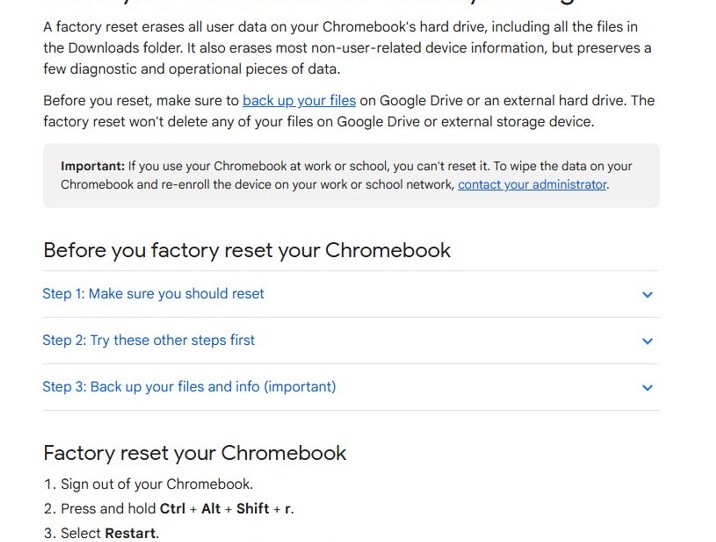
A Powerwash erases all user data on the Chromebook's drive, including the Downloads folder. Files in Google Drive and on external drives are not touched.
- Sign out of your Chromebook.
- On the sign-in screen, press and hold Ctrl + Alt + Shift + R.
- Select Restart.
- In the box that appears, select Powerwash, then Continue.
- Follow the on-screen steps and sign in with your Google Account.
- Finish the setup screens, then check whether the original problem is gone.
The first account that signs in after the reset becomes the Chromebook's owner account.
Powerwash a Chromebook: things to check first
| Check | Why it matters | What to do |
|---|---|---|
| Local files | Everything in Downloads and other local folders is erased | Copy files to Google Drive or an external drive |
| Settings and apps | Settings, apps and extensions on the device are wiped | Turn on sync for your Google Account so they return after sign-in |
| Work or school device | Managed Chromebooks cannot be reset by the user | Ask your administrator to wipe and re-enroll it |
| Google Account password | You must sign in again after the reset | Confirm you can sign in to your Google Account on another device |
| Power | The reset restarts the device | Plug in the charger before you start |
When to powerwash a Chromebook?
| Your situation | What to do | Why |
|---|---|---|
| You see the message "Reset this Chrome device" | Powerwash | Google lists this message as a reason to reset |
| Your user profile or settings are broken | Powerwash | A reset rebuilds the profile from scratch |
| You are selling or giving away the Chromebook | Powerwash | It removes your data and lets the next person become the owner |
| The Chromebook misbehaves after an extension install | Turn off extensions one at a time first | It can fix the problem without erasing anything |
| The Chromebook freezes or will not charge or wake | Reset the Chromebook hardware first | A hardware reset keeps your data |
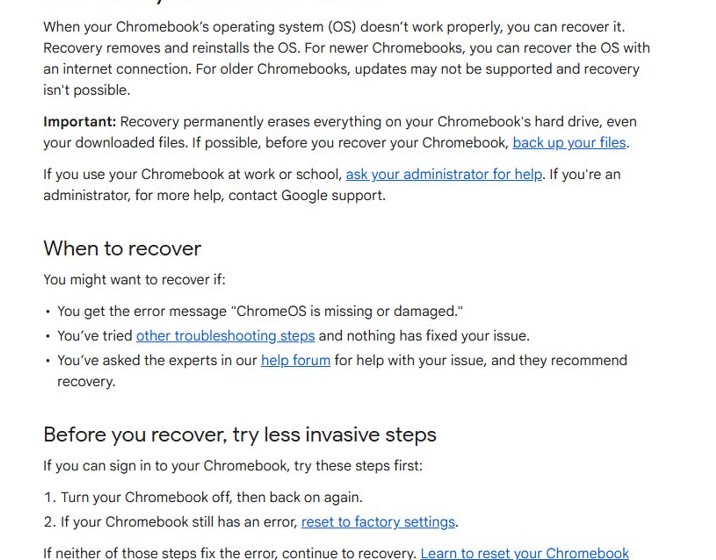
| You get "ChromeOS is missing or damaged" | Use recovery, not Powerwash | Powerwash cannot run when the OS itself is broken |
Finishing up the Powerwash
- On the welcome screen, choose your language and network.
- Sign in with the Google Account that should own the Chromebook.
- Wait for synced settings, apps and extensions to return.
- Open the Files app and confirm the Downloads folder is empty, which shows the wipe finished.
- Copy back any files you saved to an external drive.
- Repeat the action that caused the original problem and check that it is fixed.
What to do when a Chromebook won’t boot
If ChromeOS will not start, Powerwash is not available. Recovery reinstalls the OS instead, and it also erases everything on the drive.
"ChromeOS is missing or damaged"
The operating system is corrupted and must be reinstalled.
- Remove anything connected to the Chromebook, such as a mouse or external drive.
- Press and hold Esc + Refresh, then press Power and let go of Power. On some models, use Esc + Maximize instead of Esc + Refresh.
- Let go of the other keys when a message appears.
- Select Recover using internet connection and follow the on-screen steps.
- Wait for the Chromebook to restart and finish recovery.
Recover using internet connection does not appear
Older Chromebooks do not support internet recovery.
- On a working Windows PC, Mac or Chromebook, install Chrome and the Chromebook Recovery Utility extension.
- Open the extension, select Get started, and pick your model or type the model number shown on the error screen.
- Insert a USB drive of at least 8 GB, select it, and select Create now.
- Remove the drive when the tool says the media is ready.
- On the broken Chromebook, enter recovery mode and select Recover using external disk.
Chromebox, Chromebit or Chromebook tablet will not enter recovery
These devices use a recovery button or button combination instead of Esc + Refresh.
- Chromebox: turn it off, hold the recovery button with a paper clip, then press Power.
- Chromebit: unplug it, hold the recovery button, then plug it back in.
- Chromebook tablet: hold Volume Up, Volume Down and Power for at least 10 seconds, then release them.
"An unexpected error has occurred" or "The device you inserted doesn't contain ChromeOS"
The recovery USB drive is faulty or was not created correctly.
- Confirm you inserted the drive you created the media on.
- Open the Chromebook Recovery Utility settings, select Erase recovery media, and create the media again.
- Try a different USB drive.
- Contact the Chromebook manufacturer if the error continues.
"Please remove all connected devices and start recovery"
A peripheral is still plugged in.
- Unplug every connected device.
- Enter recovery mode again.
Powerwash a work or school Chromebook
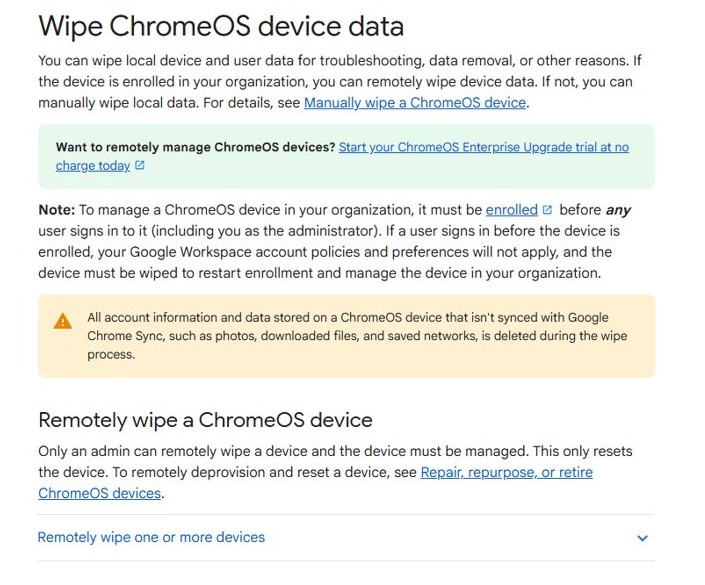
Do not try to Powerwash a Chromebook your work or school manages; ask the administrator to wipe and re-enroll it. Google blocks the reset on managed devices, and recovery on those devices also goes through the administrator.
Chromebook Powerwash FAQ
Does Powerwash delete everything on a Chromebook?
It erases all user data on the Chromebook's drive, including the Downloads folder, settings, apps and local files. Files stored in Google Drive or on an external drive stay intact.
What is the Powerwash keyboard shortcut?
Sign out, then press and hold Ctrl + Alt + Shift + R on the sign-in screen. Select Restart, then Powerwash and Continue.
Is Powerwash the same as a factory reset?
Yes. Powerwash is the name ChromeOS uses for a factory reset that returns the Chromebook to its out-of-box state.
Can I Powerwash a school Chromebook?
No. Google says you cannot reset a Chromebook used at work or school. The administrator has to wipe the data and re-enroll the device.
Who becomes the owner after a Powerwash?
The first Google Account that signs in after the reset becomes the owner account, so sign in with the account that should control the device.
What is the difference between Powerwash and recovery?
Powerwash wipes user data but keeps ChromeOS. Recovery removes and reinstalls ChromeOS, and it is the fix when the Chromebook shows ChromeOS is missing or damaged.
How do I reset a Chromebook that is frozen?
Try a hardware reset first, which keeps your data. If the Chromebook still will not work and you can reach the sign-in screen, run a Powerwash.
A new lease on life
Use Powerwash when a profile, setting or extension problem survives a restart, a hardware reset and turning extensions off, and always before handing the Chromebook to someone else. It removes the problem along with your local data in a few minutes, while synced settings and Drive files return as soon as you sign in again.
The same back-up-first rule applies when you reset Windows 10 to factory settings on a PC.