To play a VOB file on Windows 11, open it in the free VLC media player, which decodes the MPEG-2 video and Dolby Digital audio that Windows lacks out of the box.
This guide covers four routes step by step: VLC, Windows Media Player with the MPEG-2 Video Extension, MPC-HC, and converting the file to MP4, plus fixes for no sound and missing menus.
The fastest way to play a VOB file on Windows 11
VLC plays VOB files without any extra codec, so it is the shortest path from file to picture.
- Install VLC from the official VideoLAN site.
- Open VLC media player from the Start menu.
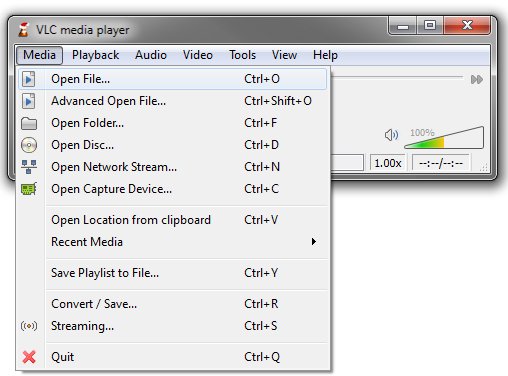
- Select Media > Open File.
- Browse to your .vob file, select it and click Open.
- Or drag the .vob file from File Explorer straight onto the VLC window.
Playback starts at once. If the file is one piece of a ripped DVD, the Method 2 folder route below gives you the whole movie and its menus.
Which method should you use?
| Your situation | Use this | Why |
|---|---|---|
| You want it to just work on any VOB | VLC (Method 2) | Built-in MPEG-2, AC-3, DTS and LPCM decoders; nothing else to install |
| You prefer the apps Windows already ships | Media Player + MPEG-2 Video Extension (Method 1) | Adds Microsoft's own MPEG-2 decoder from the Store; sound depends on AC-3 support |
| You have a whole VIDEO_TS folder and want the menus | VLC Open Disc (Method 2) or MPC-HC (Method 3) | Both read the IFO navigation files alongside the VOBs |
| You want a lightweight, classic-style player | MPC-HC (Method 3) | Small, free, open source, with DVD decoding built in |
| You need the video on a phone, TV or editor | Convert with HandBrake (Method 4) | MP4 plays almost everywhere; VOB rarely does |
| You are on Windows 11 N | Install the Media Feature Pack first, or use VLC | N editions ship without Windows media components |
Understanding VOB Files and Their Origin
VOB stands for Video Object. It is the container format of DVD-Video discs, and it sits in the VIDEO_TS folder at the root of every DVD.
The format is a strict subset of the MPEG program stream. That is why Windows needs an MPEG-2 decoder before it can show the picture.
| Part of a DVD | What it holds | Why it matters for playback |
|---|---|---|
| .vob files | MPEG-2 or MPEG-1 video, audio, subtitles and menus multiplexed together | Needs an MPEG-2 video decoder plus the right audio decoder |
| Audio inside a VOB | AC-3 (Dolby Digital), DTS, LPCM or MPEG audio | AC-3 is the common cause of silent playback on newer Windows 11 installs |
| .ifo files | Chapter points, audio and subtitle stream locations, menu navigation | Without them, players may not allow DVD menu navigation |
| .bup files | Exact backup copies of the .ifo files | Used if an .ifo file is damaged |
| 1 GiB file split | Long titles are broken into several VOBs of up to 1 GiB each | Opening one VOB plays only that chunk of the movie |
| CSS encryption | Most commercial DVDs scramble their VOB data | Encrypted VOBs copied off a disc will not play in any normal player |
Home-recorded and self-authored DVDs are usually unencrypted, so their VOB files play in any of the players below.
What you need before you start
| Requirement | Where to get it | Needed for |
|---|---|---|
| The .vob file, ideally with its .ifo and .bup files | The DVD's VIDEO_TS folder, copied to your drive | Every method; the .ifo files enable menus |
| Microsoft Store access | Built into Windows 11 | Method 1 (MPEG-2 Video Extension) |
| Media Feature Pack | Settings > Apps > Optional features | Windows 11 N editions only |
| A 64-bit player or codec | The vendor's own site | 64-bit Windows 11 needs 64-bit codecs; 32-bit codecs may not load |
| Enough free disk space | Your drive | Method 4; a converted copy is a new file beside the original |
On Windows 11 N, open Settings > Apps > Optional features, select View features next to Add an optional feature, pick Media Feature Pack, then restart.
Method 1: Windows Media Player with the MPEG-2 Video Extension
Microsoft's player cannot open MPEG-2 program streams on a clean install. Windows ships only an MPEG-1 video decoder, and .vob is missing from the Windows Media Player file-type list.
The free MPEG-2 Video Extension from the Microsoft Store adds MPEG-1 and MPEG-2 video decoding to Windows.
- Open the MPEG-2 Video Extension page in the Microsoft Store.
- Install the extension from that page and wait for the Store to finish.
- Open Settings > Apps > Default apps.
- Type .vob in the search bar and select the result.
- Choose Media Player (or Windows Media Player Legacy) from the list.
- Double-click your .vob file in File Explorer to play it.
Picture but no sound means the file uses AC-3 audio, which Windows 11 version 24H2 no longer includes. See the troubleshooting section, or switch to VLC.
Method 2: VLC Media Player — The Versatile Player
VLC is free, carries no ads or tracking, and decodes MPEG-1/2 video plus AC-3, DTS, LPCM and MPEG audio on its own.
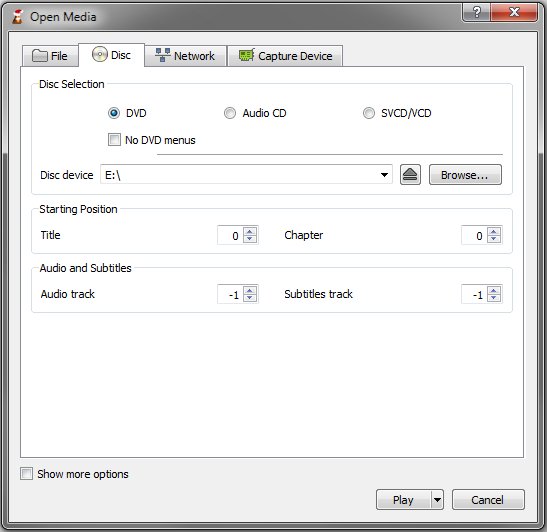
Use Open Disc instead of Open File when you have a full VIDEO_TS folder. It reads the .ifo files, so you get the whole movie, chapters and menus.
- Open VLC media player.
- Select Media > Open Disc.
- Under the disc type, select DVD.
- Click Browse and select the folder that holds the VOB and IFO files.
- Set Title, Chapter, Audio or Subtitles if you want to start somewhere specific.
- Tick No DVD menus only if you want to skip straight to the movie.
- Click OK to start playback.
For a single clip, Media > Open File or drag-and-drop is enough, as in the fastest route above.
Method 3: Using Media Player Classic (MPC-HC)
Media Player Classic – Home Cinema is a free, open-source Windows player with built-in MPEG-2, AC-3, DTS and LPCM decoders. It plays DVD content without extra codecs.
The original MPC-HC project stopped in 2017. The maintained version is the fork by the developer clsid2, published on GitHub, so install that build rather than the old one.
- Install the 64-bit build of the current clsid2 MPC-HC release.
- Open Settings > Apps > Default apps.
- Type .vob in the search bar and select the result.
- Choose MPC-HC from the list of apps.
- Double-click the .vob file in File Explorer to play it in MPC-HC.
Never install a third-party codec pack alongside MPC-HC. Microsoft warns that such packs can break playback in every player and corrupt system components.
Method 4: Converting VOB Files to Compatible Formats
Convert the VOB when you need the video on a phone, TV, editor or cloud drive. MP4 plays in the Windows 11 Media Player with no extension at all.
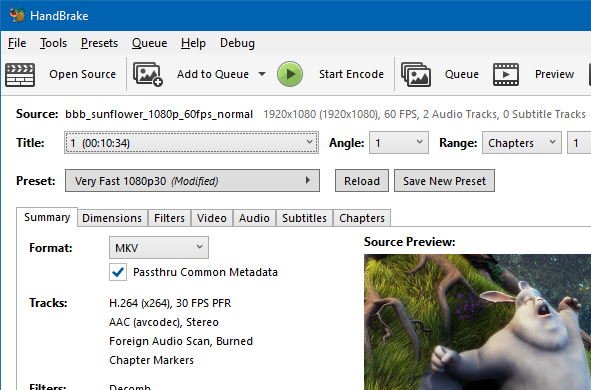
HandBrake is free and opens VOB files and VIDEO_TS folders directly. It does not circumvent copy protection, so it works on home-made and unencrypted discs only.
- Install HandBrake from handbrake.fr and open it.
- Click Open Source and select the .vob file or the VIDEO_TS folder.
- Pick the main movie from the Title list; DVDs often hold several titles.
- Leave the Fast 1080p30 preset selected, or choose a device preset.
- Type a file name in Save As and click Browse… next to To to pick a folder.
- Click Start and wait for the finished notification.
- Open the new MP4 from the destination folder.
How to make VOB files always open in your chosen player
Windows asks which app to use until you set a default. Set it once and every .vob opens with a double-click.
- Open Settings > Apps > Default apps.
- Type .vob in the search bar at the top.
- Select the .vob result.
- Choose VLC media player, MPC-HC or Media Player from the list.
- Repeat for .ifo if you want menu files to open in the same player.
How to check it worked
- Confirm the picture moves and the seek bar advances past the first minute.
- Listen for dialogue; silence with moving video points to an AC-3 audio problem.
- Drag the seek bar near the end; if playback stops early, you opened only one 1 GiB chunk.
- In VLC's Open Disc route, confirm the DVD menu appears unless you ticked No DVD menus.
- In Windows Media Player Legacy, right-click the playing file in the library, select Properties, and check Audio codec and Video codec on the File tab.
Additional Tips and Troubleshooting
Windows Media Player shows a codec error (0xC00D11xx) or refuses the file
No MPEG-2 video decoder is installed, and Windows ships only an MPEG-1 decoder.
- Install the free MPEG-2 Video Extension from the Microsoft Store.
- Restart Media Player and open the .vob file again.
- If it still fails, play the file in VLC, which needs no extra codec.
The video plays but there is no sound
Most DVDs use AC-3 (Dolby Digital) audio, and clean installs of Windows 11 version 24H2 and later no longer include an AC-3 codec.
- Open the file in VLC or MPC-HC, which both decode AC-3 themselves.
- In VLC's Open Disc dialog, pick another track from Audio if the disc has several.
- Or convert the file with HandBrake, which writes the audio in a widely supported format.
Only part of the movie plays, or there are no menus
DVD titles are split into VOBs of up to 1 GiB, and menus live in the separate .ifo files.
- Copy the entire VIDEO_TS folder, not single VOB files.
- In VLC, use Media > Open Disc > DVD > Browse and select that folder.
- Clear No DVD menus if you want the menu to appear.
VOB files copied from a store-bought DVD will not play at all
Commercial DVDs are usually CSS-encrypted, and a copied encrypted VOB fails in every player; Microsoft's MPEG-2 decoder does not support encrypted DVDs.
- Play the original disc instead of the copied files.
- Keep the disc in the drive and use VLC's Open Disc with the drive selected under Disc Device.
Playback stutters, freezes or skips in Windows Media Player
Stale library data, an outdated codec or pending Windows updates.
- Select Start > Settings > Windows Update > Check for updates and install everything offered.
- In Windows Media Player Legacy, press Ctrl + M, then select Tools > Options > Privacy.
- Under History, select Clear History, then OK.
- Uninstall any third-party codec pack you installed, then test again.
Best Practices for Smooth Playback
| Practice | Why it helps |
|---|---|
| Keep VOB, IFO and BUP files together in one VIDEO_TS folder | Players need the IFO files for chapters, menus and the full-length title |
| Install players and codecs only from the vendor's own site or the Microsoft Store | Microsoft warns that bundled codec packs cause playback failures and system corruption |
| Use 64-bit players and codecs on 64-bit Windows 11 | A 32-bit codec may not load in a 64-bit player |
| Copy the folder to an internal drive before playing | Avoids read errors from scratched discs and slow USB sticks |
| Convert once to MP4 for sharing | One file plays on phones, TVs and in the built-in Media Player |
| Keep Windows updated | Microsoft lists pending updates as a cause of playback errors |
Frequently Asked Questions
How do I play VOB files on Windows 11?
Install VLC media player, open it and select Media > Open File, then choose the .vob file. VLC has its own MPEG-2 and Dolby Digital decoders, so nothing else is needed. For a full DVD folder, use Media > Open Disc instead.
Can Windows 11 play VOB files without extra software?
Not on a clean install. Windows ships only an MPEG-1 video decoder, and VOB files carry MPEG-2 video. Install the free MPEG-2 Video Extension from the Microsoft Store, or use a player such as VLC that includes its own decoders.
How do I play VOB files in Windows Media Player?
Install the free MPEG-2 Video Extension from the Microsoft Store, then set Media Player as the default app for .vob in Settings > Apps > Default apps. If the picture plays without sound, the file uses AC-3 audio that newer Windows 11 builds no longer include.
How do I play VOB files on Windows 10?
The same methods work on Windows 10: VLC, MPC-HC, or Windows Media Player with the MPEG-2 Video Extension. Windows 10 still includes the AC-3 audio codec, so DVD sound usually works once the MPEG-2 video decoder is installed.
What can play a VOB file?
VLC media player and Media Player Classic – Home Cinema play VOB files directly. Windows Media Player and the Windows 11 Media Player app can play them after you add the MPEG-2 Video Extension. HandBrake can convert them to MP4 for other devices.
How do I play a VOB video file with its DVD menus?
Keep the VOB files together with their .ifo and .bup files in the VIDEO_TS folder. In VLC, select Media > Open Disc, choose DVD, click Browse, select that folder and click OK. Leave No DVD menus unticked.
Why does my VOB file play without sound?
DVD audio is usually AC-3 (Dolby Digital). Starting with Windows 11 version 24H2, Windows no longer includes the AC-3 codec on clean installs, although upgrades and many OEM PCs keep it. Play the file in VLC or MPC-HC, which decode AC-3 themselves.
Should I convert VOB files to MP4?
Convert when you want the video on a phone, TV, editing app or cloud drive. MP4 plays almost everywhere, including the built-in Media Player. HandBrake opens VOB files and VIDEO_TS folders and converts them for free, but it does not handle copy-protected discs.
Summary
Use VLC for VOB files on Windows 11, and open the whole VIDEO_TS folder with Open Disc when you have one. VLC decodes both the MPEG-2 video and the AC-3 audio itself, so it avoids the missing-decoder and silent-playback problems of the built-in player. Convert to MP4 with HandBrake only when the video has to leave the PC.
Other unfamiliar file types follow the same pattern of finding the right app; see how to open AAE files on Windows 11 and how to open DMG files on a Windows PC.