To open Device Manager in Windows 11, right-click the Start button and select Device Manager, or press Windows logo key + X and pick it from the menu.
This guide covers every other route, including search, Run, File Explorer, Control Panel, Command Prompt and PowerShell, opening it as administrator, and using it to fix driver errors.
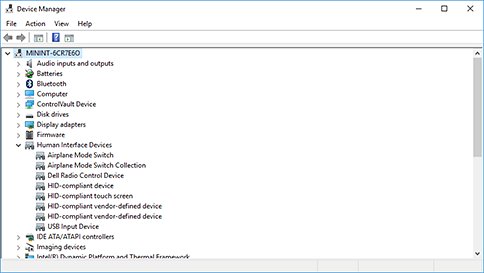
How to open the Device Manager in Windows 11/10
Search is the route Microsoft documents for both Windows 11 and Windows 10, and it works even when you do not remember any shortcut.
- Select Start on the taskbar.
- Type
device manager. - Select Device Manager in the search results.
Device Manager opens with a list of device categories. Expand a category to see the hardware inside it.
Ways to open Device Manager in Windows 11 compared
| Your situation | Use this | Why |
|---|---|---|
| Mouse in hand | Right-click Start > Device Manager | Two clicks, no typing |
| Keyboard only | Windows logo key + X, then Device Manager | Same menu as right-clicking Start |
| You like typing commands | Windows logo key + R, type devmgmt.msc |
Works from Run, Command Prompt and PowerShell |
| Already in File Explorer | Right-click This PC > Manage | Opens Device Manager inside Computer Management |
| Already in Control Panel | Hardware and Sound > Device Manager | Classic route for people who use Control Panel |
| You need a desktop shortcut | Point a shortcut at %systemroot%\system32\devmgmt.msc |
One double-click from then on |
Open Device Manager from the Windows power user menu
The Windows power user menu is the Quick Link menu. Windows logo key + X opens it, and Microsoft documents that the shortcut does the same thing as right-clicking Start.
- Right-click the Start button, or press Windows logo key + X.
- Select Device Manager in the menu that appears.
Open Device Manager from the Run box
The Device Manager console file is named devmgmt.msc. Typing that name in the Run dialog opens it directly.
- Press Windows logo key + R to open the Run dialog box.
- Type
devmgmt.msc. - Select OK or press Enter.
If Run does not recognise the short name, type mmc devmgmt.msc instead. The same text also works in the taskbar search box.
Open Device Manager from File Explorer
File Explorer reaches Device Manager through the Computer Management console, which groups it with other system tools.
- Press Windows logo key + E to open File Explorer.
- In the navigation pane, right-click This PC.
- Select Manage.
- In Computer Management, select Device Manager under System Tools.
The same console holds Disk Management, so it is also a quick way to open Disk Management without another shortcut.
Open Device Manager from Control Panel
Control Panel still lists Device Manager in the Hardware and Sound category, next to the Devices and Printers folder.
- Select Start, type
control paneland open Control Panel. - Select Hardware and Sound.
- Select Device Manager.
Open Device Manager from Command Prompt & PowerShell
The mmc command opens any saved console file, and Microsoft documents that the same command line works in Run, a command-prompt window, a shortcut or a batch file. PowerShell accepts the same line.
mmc devmgmt.mscStarts the Microsoft Management Console and loads the Device Manager console file from the Windows system folder. Run it from an administrator window if you need to change drivers.
You should see: The Device Manager window opens on top of the terminal, listing device categories such as the ones on your PC.
Device Manager and the Settings app in Windows 11
Device Manager is a classic console, not a page inside the Settings app. Settings handles driver installs through Windows Update instead, which Microsoft recommends as the first way to get drivers.
- To get drivers from Settings, select Start > Settings > Windows Update > Advanced options.
- Make sure Receive updates for other Microsoft products is turned on.
- Under Additional options, select Optional updates.
- Select any listed drivers, then select Download and install.
- To reach Device Manager itself while Settings is open, right-click Start and select Device Manager.
Bonus method: Device Manager path for a desktop shortcut
Device Manager lives in the Windows system folder as devmgmt.msc, which is C:\Windows\System32\devmgmt.msc on a standard install. Using %systemroot% keeps the shortcut working if Windows sits on another drive.
- Right-click an empty area of the desktop and select New > Shortcut.
- In the location box, type
mmc %systemroot%\system32\devmgmt.msc. - Select Next, name the shortcut
Device Manager, then select Finish. - Double-click the new shortcut to open Device Manager.
How to run Device Manager as administrator?
Any account can open Device Manager, but only members of the Administrators group can change devices. A standard user sees a message that changes are not allowed, and Device Manager opens read-only.
- Select Start and type
cmdorpowershell. - Right-click the result and select Run as administrator.
- Approve the User Account Control prompt, or enter an administrator's user name and password.
- Type
mmc devmgmt.mscand press Enter.
Device Manager inherits the elevated rights of that window, and there are several other ways to run Device Manager as admin.
Check that Device Manager opened and shows your hardware
- Confirm a window titled Device Manager is open.
- Expand a category and confirm your hardware is listed.
- Look for a yellow exclamation point next to any device, which marks a device with a problem.
- Select View > Show hidden devices to list devices that are not currently connected.
How to use Device Manager to troubleshoot driver issues in Windows 11/10
Device Manager shows each device's type, status, manufacturer and driver. Right-click a device and select Properties to see the General, Driver, Details and Events tabs; the error code appears in the Device status area.
| Driver task | Where in Device Manager | When to use it |
|---|---|---|
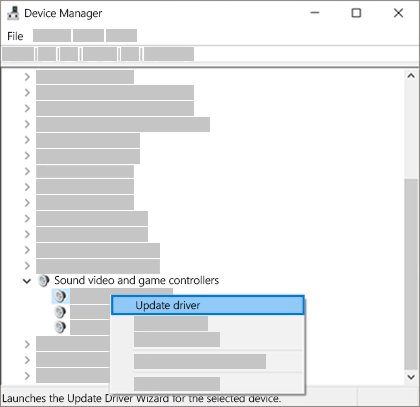
| Update driver | Right-click the device > Update driver > Search automatically for drivers | Device works badly or shows an error |
| Roll back driver | Properties > Driver tab > Roll Back Driver | Problem started after a recent driver update |
| Uninstall and reinstall | Right-click > Uninstall device, then restart | Driver is corrupted; Windows reinstalls it on restart |
| Remove the driver package too | In Confirm Device Removal, select Delete the driver software for this device | A bad driver keeps coming back |
| Rescan hardware | Action > Scan for hardware changes | A device does not appear after you connect it |
| Read the error code | Properties > Device status area | Any device with a yellow exclamation point |
Rolling back or uninstalling a driver needs administrator rights. If Device Manager cannot fix it, get the driver from the device manufacturer's own site, not a download portal.
Fix device errors and a Device Manager that will not open
Laptop not detecting USB or external devices
Windows has not picked up the device, or its driver failed to load.
- Open Device Manager and select Action > Scan for hardware changes.
- Select View > Show hidden devices and check whether the device appears greyed out.
- Unplug the device, right-click its entry and select Uninstall device, restart, then plug it back in.
- Check Settings > Windows Update > Advanced options > Optional updates for a driver.
This device is not configured correctly (Code 1) [Fix]
The device has no drivers installed, or the drivers are configured incorrectly.
- Right-click the device and select Properties.
- Open the Driver tab and select Update Driver.
- Follow the prompts. If Windows asks for a driver path and has none, get the latest driver from the hardware maker's website.
SMBus controller not recognized in Windows 11
An SM Bus Controller entry with a yellow exclamation point has no working driver installed.
- Install any driver listed under Windows Update > Advanced options > Optional updates.
- If none is offered, download the driver package for your exact model from the PC or motherboard maker's support page.
- Restart, then confirm the yellow mark is gone in Device Manager.
Why won't Device Manager open?
A broken shortcut route, or damaged protected system files such as the console file.
- Try a different route: right-click Start, then try
mmc devmgmt.mscin Run. - Open Command Prompt as administrator and run
sfc /scannowto repair protected system files. - Restart the PC and try Device Manager again.
Device Manager in Windows 11 FAQ
How do I open Device Manager in Windows 11?
Right-click the Start button and select Device Manager, or press Windows logo key + X and choose it. You can also select Start, type device manager and select it from the results.
How do I open Device Manager from CMD?
Open Command Prompt, type mmc devmgmt.msc and press Enter. Run Command Prompt as administrator first if you need to change drivers.
How do I open Device Manager from Run?
Press Windows logo key + R, type devmgmt.msc and press Enter. If that name is not recognised, type mmc devmgmt.msc instead.
How do I open Device Manager in Windows 10?
Select Start, type device manager and select Device Manager from the results. Right-clicking Start, the Run command devmgmt.msc and the File Explorer This PC > Manage route also work in Windows 10.
How do I open Device Manager on a laptop?
The steps are the same as on a desktop PC. Right-click Start and select Device Manager, press Windows logo key + X, or type device manager in Start search.
Why can't I open Device Manager?
Try another route first, such as mmc devmgmt.msc in Run. If no route works, run sfc /scannow from an administrator Command Prompt to repair damaged system files, then restart the PC.
Where is Device Manager in Windows 11 file location?
Device Manager is the console file devmgmt.msc in the Windows system folder, normally C:\Windows\System32\devmgmt.msc. Use %systemroot%\system32\devmgmt.msc in shortcuts so the path works on any drive.
How do I see what device I have in Windows?
Press Windows logo key + Pause to open Settings at System > About, which shows the device name and specifications. Device Manager lists the individual hardware components inside the PC by category.
Can a standard user open Device Manager?
Yes, but in read-only mode. Only members of the Administrators group can update, roll back or uninstall drivers, so a standard user sees a message that changes are not allowed.
Bottom line: the fastest way into Device Manager on Windows 11
Right-click Start or press Windows logo key + X and select Device Manager; use mmc devmgmt.msc from an administrator terminal when you need to change drivers. The Quick Link menu is two clicks from anywhere, while the command line route works in every shell and carries administrator rights into Device Manager.