To manage multiple Microsoft 365 accounts on one device, sign in to each account inside the apps themselves: Word, Excel and PowerPoint, Outlook, OneDrive and Teams all hold several accounts at once, and an Edge profile per account keeps the web side apart.
This guide covers the sign-in steps for each app, when to use separate Windows or Mac user accounts instead, the five-device sign-in limit, and fixes for the clashes that come with juggling a work, school and personal account.
Sign in to Microsoft 365 apps
You do not need to sign out of one account to use another. Office apps on Windows keep a list of signed-in accounts and let you open files from each one you have permission to use.
- Open Word, Excel or PowerPoint and open or create a file.
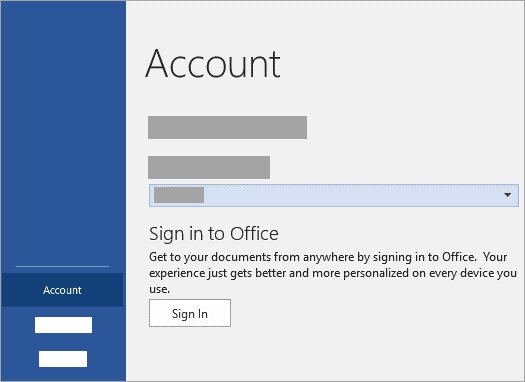
- Select File > Account (in classic Outlook, File > Office Account).
- Select Sign In and enter the email address and password of your first account.
- To add a second account, select your name and picture at the top right of the app window.
- Select Sign in with a different account and sign in with the other work, school or personal account.
- Open files from either account through File > Open, where each signed-in account's OneDrive and SharePoint locations appear.
One hard limit applies: Microsoft 365 apps do not support two accounts from the same organization (tenant) signed in at the same time. To use the second account from that organization, sign out of the first one.
On a Mac, select Sign In when the app opens, or use File > New from Template > Sign In if a file is already open.
Choosing the right account separation strategy: single OS profile vs multiple OS profiles vs virtualization
Every setup sits somewhere between convenience and separation. Match your situation to a row.
| Your situation | Strategy | Why |
|---|---|---|
| One personal account and one work or school account, light work use | Single Windows or macOS user, accounts added inside each app | Office, Outlook, OneDrive and Teams hold several accounts side by side; fastest switching |
| Several clients, each with its own Microsoft 365 tenant | Single OS user plus one Edge profile per client | Each Edge profile keeps its own cookies, passwords and history, so web sessions do not mix |
| Two accounts from the same organization | Separate OS user accounts, or sign out and back in | Microsoft 365 apps refuse two accounts from one tenant at the same time |
| Employer manages the device or requires enrollment | Separate OS user account for personal use | Work policies, device registration and Office settings stay in the work profile |
| Client requires a locked-down or audited environment | A virtual machine or cloud PC provided for that client | The whole Windows session, apps and cached sign-ins live outside your own profile |
| Family PC shared by several people | One OS user account per person | Each person's Office sign-in, OneDrive and Outlook data stay private |
A single OS profile with account-level separation suits most people. Virtualization is the heaviest option, usually supplied by the client or employer.
Common challenges when using multiple Microsoft 365 accounts on one device (conflicts, sync issues, and data leakage)
Most problems come from apps silently picking an account for you. Knowing where that happens makes the rest of the setup easier.
| Challenge | What happens | Where it is handled below |
|---|---|---|
| Account identity conflicts and silent sign-ins | An app signs in with the account Windows already knows instead of the one you meant | Device sign-in practices; troubleshooting |
| Same-tenant conflicts | A second account from the same organization will not sign in alongside the first | Sign in to Microsoft 365 apps; troubleshooting |
| OneDrive and SharePoint sync overlaps | Files from two organizations sync to the same PC and get saved to the wrong one | Use multiple OneDrive accounts |
| Browser session bleed and cross-tenant cookies | Opening a work link in a personal browser window signs you in with the wrong account | Edge profiles; browser-based account isolation |
| Email, calendar and Teams context switching errors | A reply goes from the wrong mailbox or a meeting lands in the wrong calendar | Outlook; productivity settings |
| Data leakage through copy, share and auto-save | A client file is saved or shared into another organization's OneDrive | Preventing data leakage |
| Mobile and desktop credential caching | Removed accounts keep reappearing because a token is cached on the device | What adding an account does not do; troubleshooting |
| Administrative and security policy mismatch | One organization's policies or device registration affect your whole PC | Security considerations |
Managing multiple accounts in Microsoft 365 apps (Outlook, Teams, OneDrive, Office apps)
Each app handles extra accounts in its own way. This table shows what each one supports before you start adding accounts.
| App | Multiple accounts? | Where you add one | Limit to know |
|---|---|---|---|
| Word, Excel, PowerPoint, OneNote | Yes | Your name and picture at the top right > Sign in with a different account | Not two accounts from the same organization at once |
| New Outlook for Windows | Yes, in one window | Settings > Accounts > Your accounts > Add Account | One account is the primary account |
| Classic Outlook for Windows | Yes, in one profile or several profiles | File > Add Account | Separate profiles need a restart to switch |
| OneDrive sync app | Yes | OneDrive Settings > Account > Add an account | Only one personal OneDrive; any number of work or school accounts |
| Teams (desktop and mobile) | Yes, work, school and personal together | Profile picture > Add another account | The Activity feed shows one active account at a time |
| Microsoft Edge | Yes, one profile per account | Profile icon > Set up a new profile | Each profile opens in its own window |
Manage multiple accounts in Outlook for Windows
New Outlook for Windows shows every added mailbox in one folder pane. These steps add a second Microsoft 365 or Outlook.com account and choose the primary one.
- In new Outlook, select View > View settings.
- Select Accounts > Your accounts.
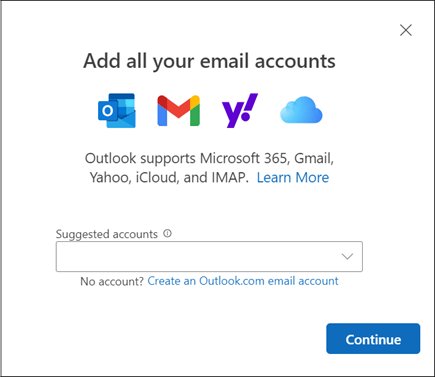
- Under Email accounts, select Add Account.
- Pick a suggested account or type the other email address, then select Continue.
- Enter the password if asked, complete any sign-in check, and select Done.
- To choose the primary account, select Manage next to an account and select Set as primary account under Account details.
In classic Outlook, select File > Add Account, enter the address and select Connect. If you would rather keep work and personal mail completely apart, create a second Outlook profile, then use File > Account Settings > Change Profile to restart Outlook into it. Select Prompt for a profile to be used in the Choose Profile options to pick a profile at every start.
Use multiple OneDrive accounts
The OneDrive sync app can sync one personal account and several work or school accounts at the same time, each in its own folder in File Explorer. You can add another OneDrive account from the sync app's settings.
- Select the OneDrive cloud icon in the taskbar notification area.
- Select the Help and Settings icon, then Settings.
- Open the Account tab.
- Select Add an account.
- Sign in with the other work or school account and follow the setup prompts.
- Repeat for each extra organization you need to sync.
On a Mac, click the OneDrive icon in the menu bar, open the menu, choose Preferences, then Account > Add an account. A second personal Microsoft account cannot be added; sign out of the first one or open it at onedrive.com in a separate Edge profile.
Switch accounts and organizations in Microsoft Teams
The Teams desktop app for Windows and Mac holds work, school and personal accounts side by side, plus guest access to other organizations.
- Select your profile picture at the top right of Teams.
- Select Add another account.
- Pick an account you have used before, or select Create or use another account and sign in.
- To switch, select your profile picture again and choose the other account or organization.
- To keep a frequent account one click away, select the pin icon next to its name; up to three accounts can be pinned, each with a Switch button.
- To see activity from the accounts you are not using, select Activity in your other accounts and orgs at the bottom left.
On a phone, tap your profile picture or More, then Add account. Selecting a notification from a background account opens it in a new window, so your main Teams window stays on the account you were using.
Keep accounts separate with Edge profiles
An Edge profile gives each account its own favorites, passwords, history and cookies. That stops a work tab from signing in to a client's Microsoft 365 portal with your own account.
- Open Microsoft Edge and select the Profile icon at the top right.
- Select Set up a new profile.
- Choose Personal or Work or school.
- Select Sign in to sync data and sign in with the account this profile is for.
- Select Confirm and start browsing; the profile opens in its own window.
- To switch later, select the Profile icon and pick the other profile.
Edge can also open work sites in the work profile on its own. Turn on automatic profile switching in Edge under Settings > Profiles, and assign specific sites to a profile from Profile preferences for sites.
Browser-based account isolation: using profiles, containers, and InPrivate sessions effectively
The web versions of Outlook, OneDrive and Teams follow whichever account the browser session is signed in with. Pick the isolation that fits how long you need the second account.
| Option | What it isolates | Best for | Catch |
|---|---|---|---|
| Edge profile | Cookies, cache, passwords, favorites and history per profile | Accounts you use every day | One window per profile |
| Work and personal windows in Edge for Business | A work window and a lightly managed personal window with separate caches and storage | Organizations that sign Edge in with a work account | Switching rules are set by you and your admin |
| Container-style separation | Edge profiles do this job: each profile keeps its own cookie store | Several clients in one browser | Create one profile per client tenant |
| InPrivate window | A temporary session; history, cookies and site data are deleted when the last InPrivate window closes | A one-off sign-in on a shared PC or to a client tenant | All open InPrivate windows share one session until you close them all |
| Browse as guest | A temporary profile that saves no history or data | Letting someone else check their account on your PC | Nothing is kept for next time |
Open an InPrivate window by right-clicking the Edge icon on the taskbar and selecting New InPrivate window, or from Settings and more > New InPrivate window inside Edge.
Practical setup for a personal account and a work account
This is the setup most people need: a personal Microsoft account with a Microsoft 365 Personal or Family subscription, and a work account from an employer, on one Windows PC.
- Sign in to Windows with your personal Microsoft account, and activate Office with the account that holds your own subscription.
- In Word, select your name at the top right > Sign in with a different account and add the work account.
- In Outlook, add the work mailbox with Add Account and set the account you use most as the primary account.
- In OneDrive Settings > Account, select Add an account and sign in with the work account so both folders sync.
- In Teams, select your profile picture > Add another account and add the work account next to the personal one.
- In Edge, create a Work or school profile for the work account and keep the personal profile for everything else.
- When an app asks whether to use the work account for all apps, choose No, this app only unless your employer requires device registration.
Choosing Yes, all apps registers the PC in your employer's directory, and the organization can then see the device name, OS version and last active date.
Device sign-in and identity management best practices (Windows, macOS, and mobile devices)
Where an account is added on the device decides which apps can use it without asking. Keep the device-wide list short and add the rest inside apps.
| Platform | Where accounts live | Best practice |
|---|---|---|
| Windows 11 | Settings > Accounts > Email & accounts and Access work or school | Add only the accounts you want every app to offer; remove stale ones with Disconnect |
| Windows 11, separate people or strict separation | Settings > Accounts > Other users > Add account | Give each person, or a sensitive client job, its own Windows user |
| macOS | Apple menu > System Settings > Users & Groups > Add User | Use a Standard user for day-to-day work and keep an administrator account for changes |
| iPhone and iPad | Each Microsoft 365 app's Account screen | Add work accounts only in the apps your employer allows |
| Android | Each Microsoft 365 app, starting from the Recent screen sign-in | Follow any work profile your employer sets up |
| Any device | Microsoft Authenticator | Hold every personal and work account in one Authenticator app for sign-in approvals |
Need a second Windows user for strict separation? Microsoft recommends a Microsoft account over a local one, and the steps to add a user account in Windows 11 take a few minutes.
Sign-in limits and deactivation
Signing in to several devices and several accounts is allowed, but each license has a ceiling. These are the numbers Microsoft publishes.
| Rule | What it means | What to do |
|---|---|---|
| Microsoft 365 home subscriptions: five devices signed in at once | Any mix of PCs, Macs, tablets and phones | Sign out of an old device at account.microsoft.com/services/office/install |
| Going over the limit | Office signs you out of a device automatically | Sign back in on the device you need |
| Microsoft 365 Apps for business and enterprise | Up to five desktops, five tablets and five mobile devices per user | Manage installs from Apps on office.com |
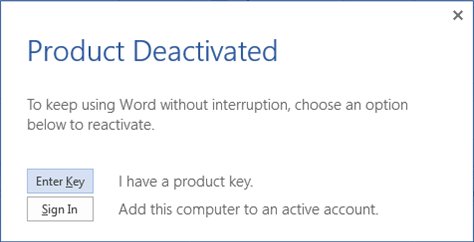
| More than 10 business devices activated | The device unused for longest is deactivated (Windows only) | Sign in again to reactivate it |
| Signing out of Office | The apps become view-and-print only and recent files disappear | Stay signed in unless someone else will use this install |
| Remote sign-out | Can take up to 72 hours to reach the device | Allow time before you rely on it |
What adding an account does not do
Adding a second account to an app gives access to its files and mail. It does not merge accounts or move licenses.
| Myth | What actually happens |
|---|---|
| The added account licenses Office | Office stays licensed to the account first used to activate it |
| Accounts merge into one | They stay separate; files, mail and chats belong to the account that owns them |
| You can use two accounts from one organization together | Microsoft 365 apps support only one account per organization at a time |
| A second personal OneDrive syncs alongside the first | The sync app allows one personal account only |
| A Copilot license on one account covers everything | A Personal, Family or Premium subscription lets you use Copilot on files from your other added accounts, but those AI benefits are not shared with Family members |
| Removing an account from one app removes it everywhere | Accounts added in Access work or school stay until you select Disconnect there |
Preventing data leakage and cross-tenant mistakes (conditional access, app boundaries, and user habits)
Two organizations' files on one PC is a data-handling risk, not just an inconvenience. Most leaks are a file saved to the wrong OneDrive or a link opened in the wrong browser window.
| Risk | Control | Who sets it |
|---|---|---|
| Client file saved to your own OneDrive | Check the location shown in File > Save As before saving | You |
| Work link opened in a personal browser window | Edge for Business opens work sites in the work window by default | You and your admin |
| Unmanaged personal PC used for work data | Conditional Access and app protection policies can demand a healthy device or block downloads | Your organization's admin |
| Copy and paste between work and personal apps | App protection (MAM) can restrict copying out of work apps | Your organization's admin |
| Sensitive files shared with the wrong tenant | Sensitivity labels on files carry protection with them | You and your admin |
| Tired switching late in the day | Clearly named Edge profiles, and a separate Outlook profile per client | You |
If a policy blocks a step in this guide on a work account, that is your organization's boundary. Ask the IT team for the approved setup rather than routing around it.
Security considerations for multi-account users (MFA, device trust, and compliance awareness)
Each extra account is another sign-in to protect. Keep verification in one place and know what each organization learns about your device.
| Area | What to do |
|---|---|
| Multi-factor authentication | Add every account to Microsoft Authenticator: personal ones from account.microsoft.com/security, work ones from mysignins.microsoft.com/security-info |
| Device trust | Registering the device with Yes, all apps lets that organization see device details; use No, this app only where registration is not required |
| Device enrollment | Enrolling a personal PC in an employer's management lets it apply policies; enroll only if your employer requires it |
| Compliance awareness | Keep each client's data in that client's tenant and follow its retention and sharing rules |
| Lost device | Disconnect work accounts in Access work or school, or use Disable lost device at myaccount.microsoft.com |
| Shared PCs | Use a separate Windows user per person, or InPrivate for a one-off sign-in |
Optimizing productivity across accounts (notifications, default account settings, and workflow tips)
Once the accounts are in place, set defaults so the account you use most is the one apps reach for first.
- In new Outlook, open View settings > Accounts > Your accounts, select Manage on your main mailbox and select Set as primary account.
- In Teams, open Settings and more > Settings > Accounts and orgs and turn on notifications only for the organizations you need to hear from.
- Pin up to three Teams accounts to the sidebar so switching is one click.
- In Edge, give each profile a clear name so the profile pill shows which account the window uses.
- In Edge Settings > Profiles, set Automatic profile switching so work sites open in the work profile.
- In Office, select File > Options > Save and choose Save to Computer by default if you want files saved locally until you pick a cloud location.
Real-world use cases and recommended setups for freelancers, consultants, students, and SMB professionals
The right setup depends on how many organizations you work with and who controls the device.
| Who | Recommended setup | Why |
|---|---|---|
| Freelancer with a few clients | One Windows user, one Edge profile per client, client accounts added to Outlook, OneDrive and Teams | Fast switching with web sessions kept apart |
| Consultant with many tenants or strict clients | One Edge profile per client plus a client-supplied VM or cloud PC where required | Client data and sign-ins stay out of your own profile |
| Student with a school account and a personal account | One Windows user, school account added in Office, OneDrive and Teams, a separate Edge profile | School files sync next to personal ones without mixing |
| SMB professional with an admin and a user account in the same tenant | Use the admin account only in an InPrivate window or separate Edge profile | Office apps refuse two accounts from one organization at once |
| Family sharing a Microsoft 365 Family subscription | One Windows user per person, each signed in with their own Microsoft account | Each member's Office sign-in and OneDrive stay private |
Check which Microsoft 365 account an app is using
Before you save, send or share, confirm the active account. Each app shows it in one place.
- In Word, Excel or PowerPoint, select File > Account and check the signed-in account and the product information shown there.
- In File > Save As, check which organization's OneDrive or SharePoint is selected before saving.
- In Outlook, check the From line of a new message before sending.
- In Teams, select your profile picture and see which account and organization is marked as active.
- In OneDrive, open Settings > Account and confirm every expected account is listed.
- In Windows, open Settings > Accounts > Access work or school to see which work accounts are connected to the device.
Fix Microsoft 365 multiple account sign-in problems
Match what you see to a symptom. Each has one common cause.
The second account from the same organization will not sign in
Microsoft 365 apps do not support two accounts from the same organization at the same time.
- In the app, select File > Account > Sign out for the first account.
- Close all Office apps.
- Open the app again and sign in with the second account.
- For regular use of both, put the second account in its own Edge profile or Windows user.
Office keeps signing in with the wrong account
An account added to Windows for all apps is offered first by every app.
- Open Settings > Accounts > Access work or school.
- Select the account you do not want apps to use and select Disconnect.
- Sign in again inside the app with Sign in with a different account, and choose No, this app only when asked.
Office says you were signed out on another device
Your subscription is signed in on more devices than the limit allows.
- Go to account.microsoft.com/services/office/install and sign in.
- Under Devices, select Sign out of Microsoft 365 or Office for a device you no longer use.
- Sign back in on the device you need.
OneDrive will not add a second personal account
The sync app allows only one personal OneDrive.
- Keep the main personal account in the sync app.
- Open the other personal account at onedrive.com in its own Edge profile.
- Or create a separate Windows user for the second personal account.
Files from one organization were saved to the other organization's OneDrive
Save As defaulted to the last cloud location you used.
- Open the file and select File > Save As.
- Choose the correct organization's OneDrive or SharePoint location and save.
- Delete the copy from the wrong location if your organization's rules allow it.
Multiple Microsoft 365 accounts FAQ
How do I manage multiple Microsoft 365 accounts?
Add each account inside the apps rather than switching Windows users. In Office, select your name at the top right and choose Sign in with a different account; add mailboxes in Outlook, accounts in OneDrive settings and Teams, and give each account its own Edge profile.
Can you have multiple Microsoft 365 accounts?
Yes. You can sign in to Microsoft 365 apps with a personal Microsoft account plus work and school accounts from different organizations on the same device. The exceptions are two accounts from one organization at the same time and more than one personal account in the OneDrive sync app.
Does Microsoft 365 work on multiple computers?
Yes. A Microsoft 365 home subscription lets you sign in to Office on five devices at the same time, in any mix of PCs, Macs, tablets and phones. Business licenses allow installs on five desktops, five tablets and five mobile devices per user.
How do I manage Microsoft 365 accounts?
Manage a personal account and its subscription at account.microsoft.com, including the devices signed in to Office. Manage a work or school account's security info and devices at myaccount.microsoft.com. Admins manage users and licenses in the Microsoft 365 admin center.
Can two people use Microsoft 365 on one computer?
Yes. Give each person their own Windows user account, and each signs in to Office with their own Microsoft account. A Microsoft 365 Family subscription can be shared with others, and each member uses their own sign-in and OneDrive.
Which account is Office licensed to when several are signed in?
Office stays licensed to the account originally used to activate it. Adding more accounts lets you open their files and mail, but it does not move or add a license. File > Account shows which product the installation belongs to.
Do I need to sign out of Office to switch accounts?
No. Select your name and picture at the top right of the Office app window and choose Sign in with a different account. Signing out removes the license from the app, so you could only view and print files until you sign back in.
Can I use two Outlook accounts at the same time?
Yes. New Outlook for Windows shows every added account in one window; add one under Settings > Accounts > Your accounts > Add Account. Classic Outlook holds several accounts in one profile, or separate profiles that you switch between with Change Profile.
The bottom line on managing multiple Microsoft 365 accounts
Keep one Windows user, add every account inside Office, Outlook, OneDrive and Teams, and give each account its own Edge profile. Move to a separate Windows user only for two accounts from the same organization, another person, or a client that demands it. The apps already hold several accounts side by side, so in-app accounts give the fastest switching. Edge profiles close the biggest gap, the web session, and separate OS users cover the cases the apps refuse.







Mobile device management overview - Techdows
[…] work accounts can also live side by side in Office apps when you manage multiple Microsoft 365 accounts on one […]