To enable the Administrator account on Windows 11, open Command Prompt as administrator, run net user administrator /active:yes, then sign out and pick Administrator on the sign-in screen.
This guide covers the Command Prompt, PowerShell and Computer Management methods, setting a password, the security trade-off, and how to disable the account again.
Enable Administrator account on Windows 11 using Command Prompt
This works on every Windows 11 edition, including Home. You must already be signed in to an account that has administrator rights.

- Open Start and search for Command Prompt.
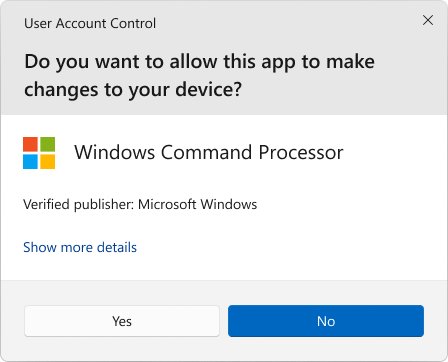
- Right-click the top result and select Run as administrator, then select Yes on the User Account Control prompt.
- Type
net user administrator /active:yesand press Enter. - Wait for The command completed successfully.
- Type
net user administrator *and press Enter to set a password, then type it twice. The characters stay hidden as you type.
If you get an access denied message, the window is not elevated. Close it and run Command Prompt as an administrator again.
What is the built-in Administrator account in Windows 11?
Every Windows PC has a hidden local account named Administrator. Windows Setup disables it and creates your own account as a member of the Administrators group instead.
| Question | Answer |
|---|---|
| What can it do? | It has full control of files, folders, services and settings on the PC |
| Is it on by default? | No. Setup disables it on new installs once you create your own account |
| Can you delete it? | No. You can disable or rename it, but not delete it or lock it out |
| Can it have a blank password? | No. Windows does not allow a blank password for the Administrator account |
| How is it different from your admin account? | Your account is a member of Administrators; the built-in account is the original one with the security ID ending in -500 |
| When is it still used? | Safe mode enables it automatically if no other administrator account is enabled |
Built-in Administrator vs administrator user account on Windows 11
| What you want | Use this | Why |
|---|---|---|
| Enable the hidden account on any edition | Command Prompt (net user) |
One command, works on Windows 11 Home and Pro |
| Script it or check the result in one window | PowerShell (Enable-LocalUser) |
Returns objects you can confirm with Get-LocalUser |
| Use a graphical tool | Computer Management | A single checkbox in the account's properties |
| Give an existing user admin rights | Settings > Accounts > Other users | Safer than turning on the built-in account |
| Run one program with full rights | Run as administrator | No extra account to manage |
Enable Administrator account on Windows 11 using PowerShell
PowerShell uses the LocalAccounts cmdlets, which need you to run PowerShell as administrator. Run them in 64-bit Windows PowerShell or Terminal; the module is not available in 32-bit PowerShell on a 64-bit system.
- Right-click Start and select Terminal (Admin), then select Yes.
- Type
Get-LocalUser -Name "Administrator" | Enable-LocalUserand press Enter. - Type
$Password = Read-Host -AsSecureStringand press Enter, then type the new password and press Enter. - Type
Get-LocalUser -Name "Administrator" | Set-LocalUser -Password $Passwordand press Enter. - Type
Get-LocalUser -Name "Administrator"and confirm the Enabled column reads True.
Enable-LocalUser -Name "Administrator" does the same job as the first command if you prefer naming the account directly.
Enable Administrator account on Windows 11 using Computer Management
Computer Management gives the same result with a checkbox. If your edition shows no Local Users and Groups entry, use the Command Prompt or PowerShell method instead.
- Press Windows logo key + R, type
compmgmt.mscand press Enter. - Expand System Tools > Local Users and Groups, then select Users.
- Right-click Administrator in the right pane and select Properties.
- On the General tab, clear the Account is disabled check box.
- Select OK.
- Right-click Administrator again and select Set Password to give it a password.
How to sign in to the Administrator account on Windows 11
- Select Start, select your account picture, then select Sign out.
- On the sign-in screen, select Administrator from the account list.
- Enter the password you set and press Enter.
- Wait while Windows builds the profile on the first sign-in.
- When you finish, sign out and return to your own account.
The built-in account opens a fresh profile with its own desktop and files, separate from your normal account.
Make a user an administrator in Windows 11 settings
If you only need admin rights for another person or for your own second user account, change the account type instead of enabling the built-in account.
- Select Start > Settings > Accounts > Other users.
- Select the account you want to change.
- Next to Account options, select Change account type.
- Choose Administrator in the list and select OK.
- Ask that user to sign out and back in so the change applies.
You can view all user accounts on the PC first to see which ones are already administrators.
How to tell if the Administrator account is enabled
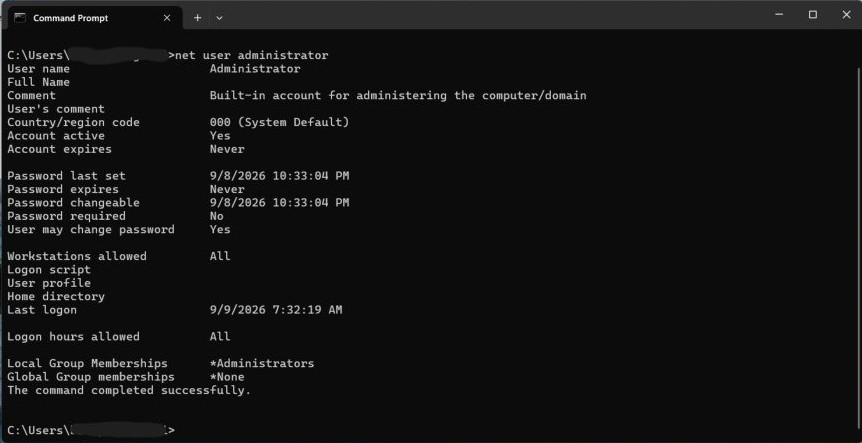
Get-LocalUser -Name "Administrator"Run it in PowerShell or Terminal. It lists the built-in account with its Enabled state and description. In Command Prompt, net user administrator shows the same account's details, including whether it is active.
You should see: Administrator with True in the Enabled column. False means the account is still disabled.
Is it safe to enable the built-in Administrator account?
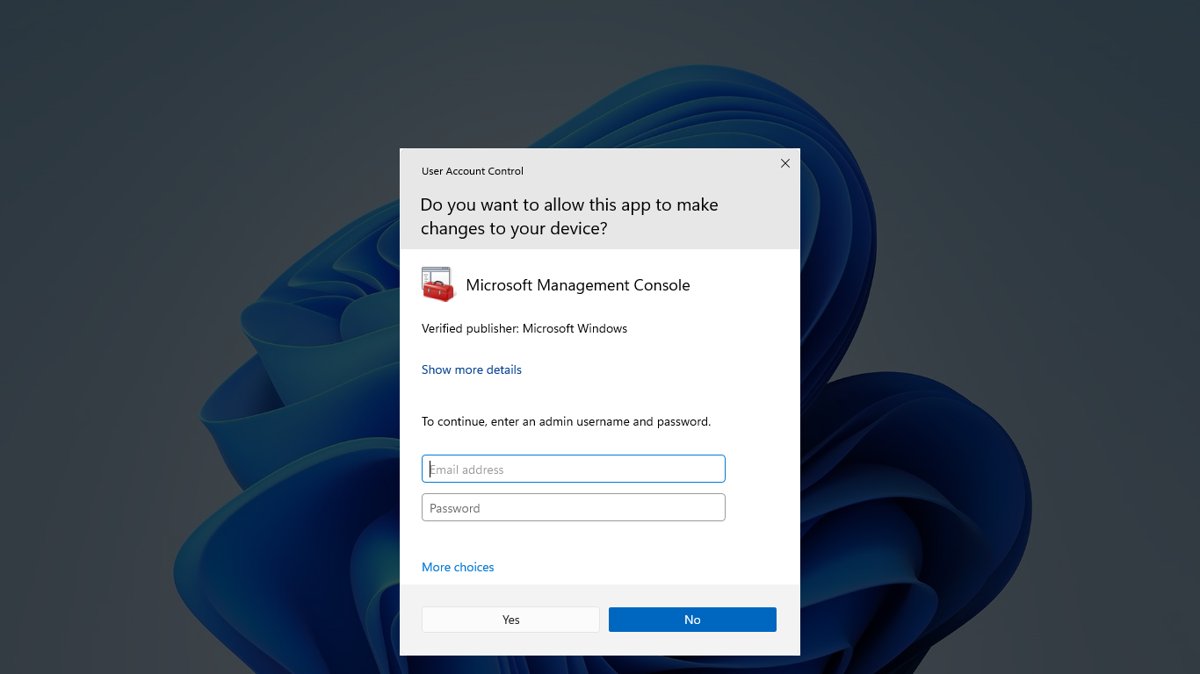
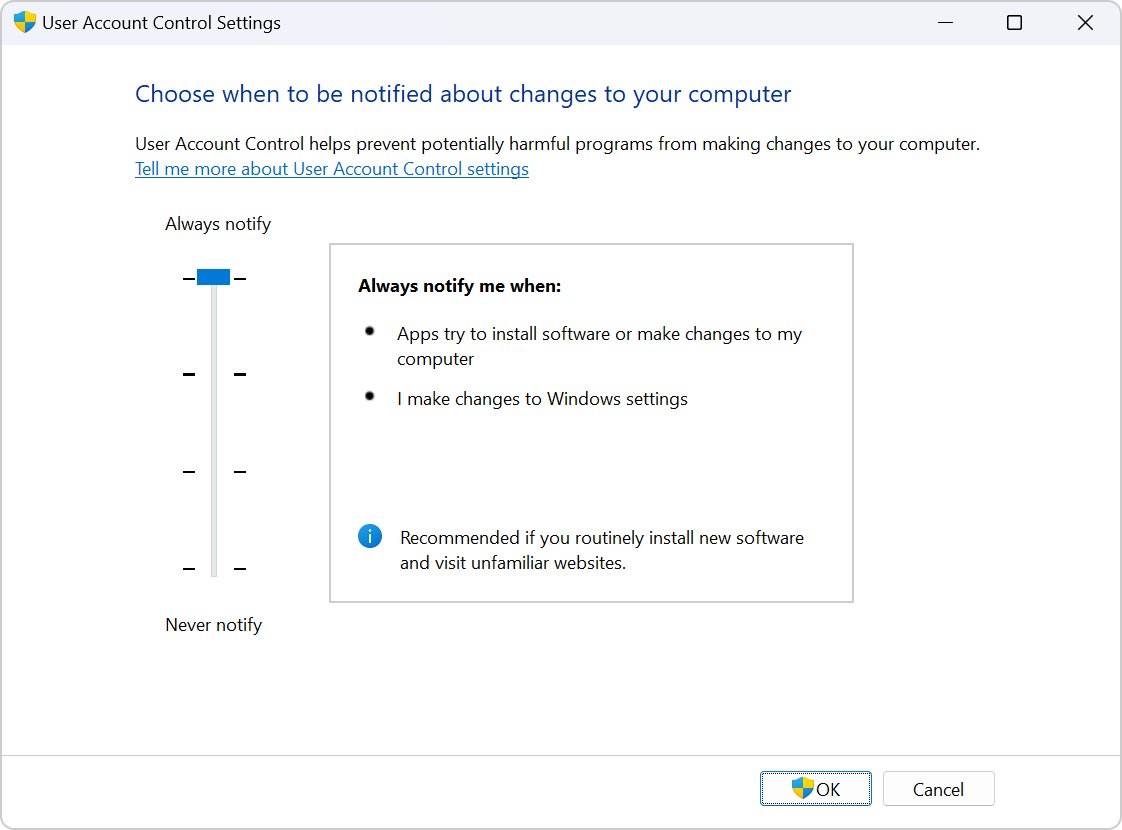
Use it only for a specific repair job, give it a strong password, and disable it again when you finish. The account name is known to exist on every Windows PC, so attackers target it. Microsoft's own advice is to sign in with a normal account and use Run as administrator, with User Account Control asking for approval.
How to disable the Administrator account in Windows 11
- Sign out of the Administrator account and sign in to your own administrator account.
- Open Command Prompt with Run as administrator.
- Type
net user administrator /active:noand press Enter. - Or, in an elevated Terminal, run
Disable-LocalUser -Name "Administrator". - Run
Get-LocalUser -Name "Administrator"and confirm Enabled shows False.
In Computer Management, the same result comes from ticking Account is disabled in the account's properties.
Administrator account not working on Windows 11
net user returns access denied
Command Prompt is not running elevated, or your account is a standard user.
- Close the window and reopen Command Prompt with Run as administrator.
- If no Yes button appears on the prompt, your account is standard; ask an administrator to sign in or change your account type.
Enable-LocalUser is not recognized in PowerShell
The LocalAccounts module does not load in 32-bit PowerShell on 64-bit Windows.
- Close the window.
- Open Terminal (Admin) from the Start button menu, which runs 64-bit PowerShell.
- Run the command again.
Local Users and Groups is missing in Computer Management
Your edition does not include the snap-in.
- Use
net user administrator /active:yesin an elevated Command Prompt instead. - Confirm the result with
Get-LocalUser -Name "Administrator".
net user cannot find an account named Administrator
The built-in account was renamed. Renaming keeps the same account but changes its name.
- Run
Get-LocalUserin an elevated Terminal to list every local account. - Find the account whose description marks it as the built-in administrator account.
- Run
net user <name> /active:yeswith that name.
No administrator account works and you are locked out
Every administrator account is disabled or its password is lost.
- Start Windows in Safe mode.
- If no other administrator account is enabled, Safe mode enables the built-in Administrator automatically; sign in with it.
- Run
net user administrator /active:yesor create a new administrator, then restart normally.
FAQs about the Administrator account on Windows 11
What is the command to enable the Administrator account in Windows 11?
Run net user administrator /active:yes in Command Prompt opened with Run as administrator. Windows replies that the command completed successfully, and the Administrator account then appears on the sign-in screen. Use net user administrator * to set its password.
Does the Administrator account have a password by default?
Windows does not allow a blank password for the built-in Administrator account, so set one as soon as you enable it. Use net user administrator * in an elevated Command Prompt, or Set Password in Computer Management.
Can I enable the Administrator account on Windows 11 Home?
Yes. The net user command and the PowerShell Enable-LocalUser cmdlet work on Home as well as Pro. Computer Management's Local Users and Groups tool may not be available, so use one of the command methods on Home.
Can I delete the built-in Administrator account?
No. Windows does not let you delete or lock out the built-in Administrator account, or remove it from the Administrators group. You can disable it with net user administrator /active:no, or rename it, but it keeps the same security ID.
Is my account already an administrator?
Probably, if you set up the PC. Windows Setup makes the first account you create a member of the Administrators group. Check it in Settings > Accounts > Other users, or run Get-LocalUser and net user to inspect the accounts.
Should I use the built-in Administrator account every day?
No. Microsoft advises signing in with a normal account and using Run as administrator for tasks that need higher rights. The built-in account is a known target, so enable it only for a repair and disable it afterwards.
How do I turn off the Administrator account again?
Sign in to another administrator account, open Command Prompt as administrator and run net user administrator /active:no. In PowerShell, Disable-LocalUser -Name "Administrator" does the same. Get-LocalUser should then show False under Enabled.
Can I use the Administrator account if I forgot my password?
Only if it is already enabled with a password you know, or if Safe mode enables it because no other administrator account is enabled. Otherwise reset your own password from the sign-in screen or with your Microsoft account.